Apple Maps is already the built-in map app on iPhone, and iOS has no switch that forces every third-party app to use it, because Maps is not one of the categories in Settings > Apps > Default Apps.
This guide shows what the Default Apps screen can and cannot change, how to send any address to Apple Maps, how to handle apps that open Google Maps, and the Apple Maps settings worth adjusting once you use it every day.
How to set Apple Maps as default on iPhone
Apple's iPhone User Guide states that some app categories, including Maps, Camera and Music, are not available in Default Apps and cannot be set to a different default. That cuts both ways: nothing can replace Apple Maps system-wide, and nothing can force other apps to call it either.
So the practical route is to keep Apple Maps as the system app and deal with each app that sends you elsewhere.
- Open the Settings app on your iPhone.
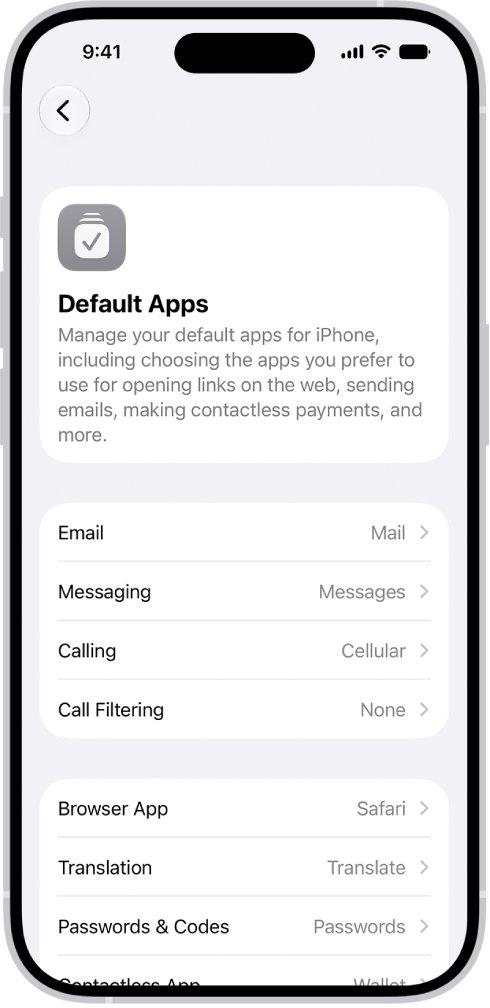
- Tap Apps, then tap Default Apps to see which categories iOS lets you change.
- Check the list: it covers Email, Messaging, Calling, Call Filtering, Browser App, Translation, Passwords & Codes, Contactless App, Keyboards and Media Sharing Extensions, with no Maps or navigation entry.
- Open the app that keeps launching Google Maps and look in its own settings for an option that names the map or navigation app it uses.
- If the app has no such option, copy the address from it, open Maps, paste the address into the search field and tap the directions button.
Apps decide for themselves which map service they hand an address to, so the fix always lives inside the app that misbehaves, not in iOS Settings.
Default maps app in iPhone: what iOS lets you change
The Default Apps screen exists so that third-party apps can stand in for Apple's built-in ones. The app you pick must support the feature, which is why some installed apps never show up in a list.
| Default Apps category | What it controls | Can a third-party app replace Apple's? |
|---|---|---|
| The app that sends and receives email | Yes, if the app supports it | |
| Messaging and Calling | The apps for messages and calls | Yes, if the app supports it |
| Browser App | The app that opens web links | Yes, if the app supports it |
| Translation | The app used to translate text | Yes, if the app supports it |
| Contactless App | The app that uses NFC for contactless payments | Yes, if the app supports it |
| Media Sharing Extensions | The app that sends audio and video to compatible devices | Yes, if the app supports it |
| Maps | Not listed in Default Apps | No, Apple Maps stays the system map app |
To change the search engine used in Safari and Spotlight, use the separate search engine setting rather than Default Apps.
Set Google Maps as default on iPhone
The same rule blocks the opposite request. Because Maps cannot be set to a different default, iOS has no setting that makes Google Maps the default map app on iPhone either.
What you can control is how each app behaves.
| What you want | Possible on iPhone? | What to do instead |
|---|---|---|
| Make Google Maps the system default map app | No | Open addresses in Google Maps from the apps that offer it |
| Make Apple Maps the default for every app | No | Change the map choice inside each app that has one |
| Stop one app opening Google Maps | Only if that app offers a setting | Check the app's settings, or copy the address into Apple Maps |
| Use Apple Maps for directions you plan on a Mac | Yes | Plan the route in Maps on the Mac and send it to your iPhone |
Open an address from another app in Apple Maps
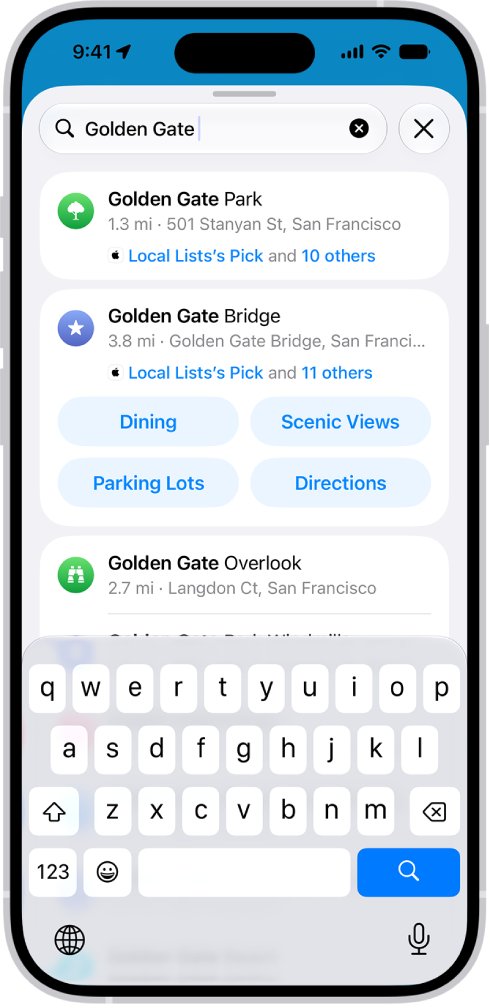
This works with any app, including ones that only offer a Google Maps link, because it skips the app's own map handoff.
- In the other app, touch and hold the address text and tap Copy.
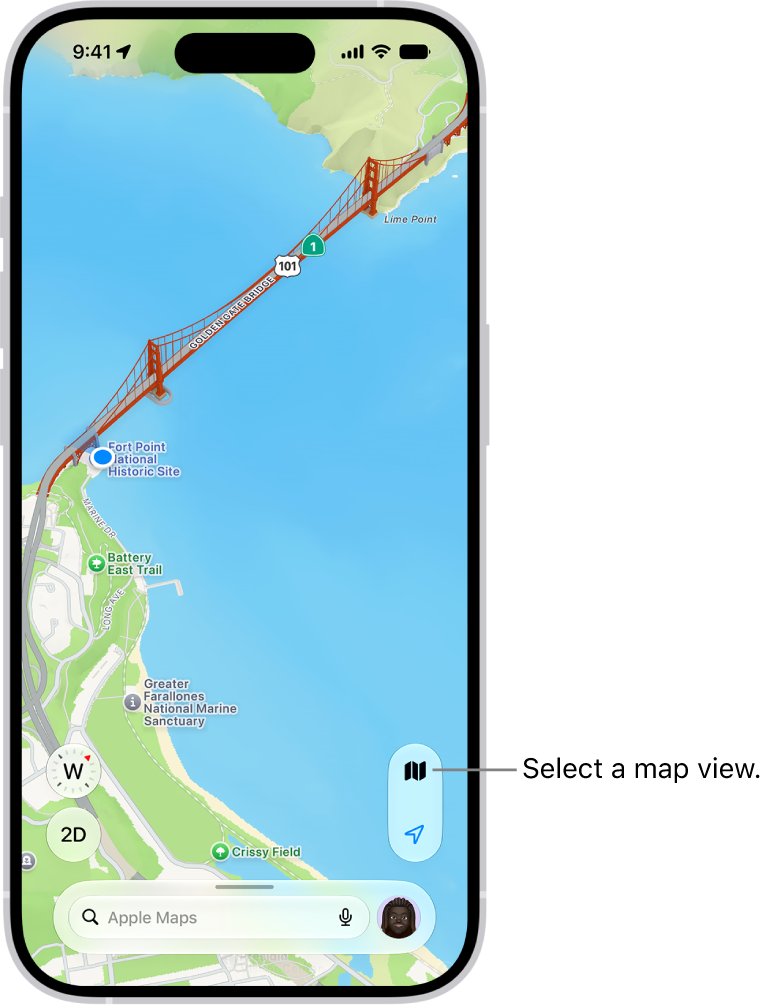
- Open the Maps app.
- Tap the search field, then touch and hold it and tap Paste.
- Tap the matching result to open its place card.
- Tap the directions button, then tap Go for the route you want.
Maps also understands intersections, zip codes, landmarks and business names, so a partial address or a place name usually finds the right spot.
How to use Apple Maps for directions
Directions need an internet connection and Precise Location turned on for Maps.
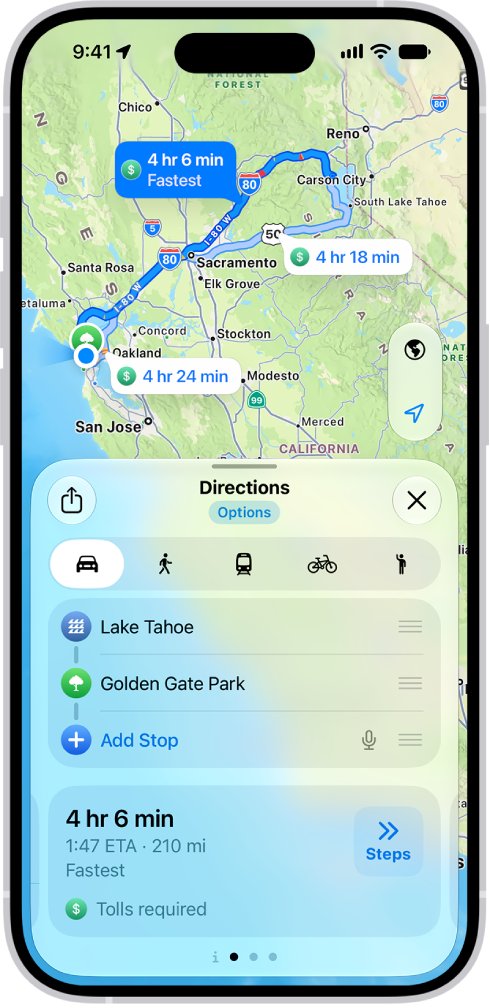
- Open the Maps app on your iPhone.
- Touch and hold anywhere on the map, or enter a location in the search field.
- Tap the directions button.
- If your starting point is My Location, tap Go for the route you want and Maps speaks turn-by-turn directions.
- If your starting point is another location, tap Steps for the route you want.
- To leave or arrive at a set time, tap Options below Directions, choose Leave at or Arrive by, then pick the time.
You can also ask Siri something like "Give me driving directions home". On a Mac, plan the route in Maps, then choose File > Share > Send to your iPhone to pick it up there.
How to change settings in Apple Maps
Apple Maps keeps some preferences inside the app and others in the Settings app. Set your preferred travel mode first, because Maps uses it every time it gives directions.
- Open the Maps app.
- Tap your picture or initials next to the search field, then tap Preferences.
- Choose driving, walking, transit or cycling as your preferred travel mode, plus any route options it offers.
- Tap Maps Settings at the bottom of the screen for more options.
- For the compass and speed limit, open Settings, tap Apps, tap Maps, tap Driving below Directions, then turn Compass and Speed Limit on or off.
- To change miles or kilometers, open Settings, tap General, tap Language & Region, then tap Measurement System.
If your picture or initials do not appear next to the search field, tap Cancel next to the field first.
Apple Maps setting avoid highways
Avoiding highways or tolls is chosen per route from the directions screen, where Maps also lists alternative routes to your destination.
- Open Maps and get driving directions to your destination.
- Tap Options below Directions.
- Below Avoid, select highways, tolls or both.
- Confirm your choice to recalculate the route.
Set your home and work address in Apple Maps
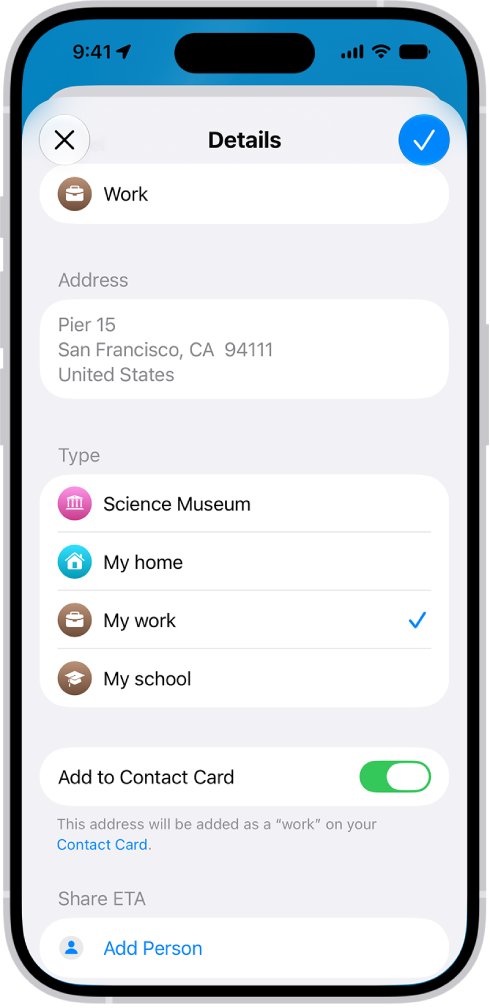
A saved home, work or school address gives one-tap directions and traffic updates, which removes most of the reasons to reach for another map app. The address can differ from the one on your contact card.
- Open the Maps app.
- Below Places, tap the add button (you may need to swipe left to reach it).
- Tap the search field and enter the address.
- Tap the address, then assign it to My home, My work or My school.
- Turn on Add to Contact Card if you want it synced to your card in Contacts, then save.
To change a saved address later, touch and hold it below Places, tap Edit Details, and change the label, type or pin location. To save exact spots by coordinates, pin latitude and longitude in Apple Maps.
Apple Maps create a guide
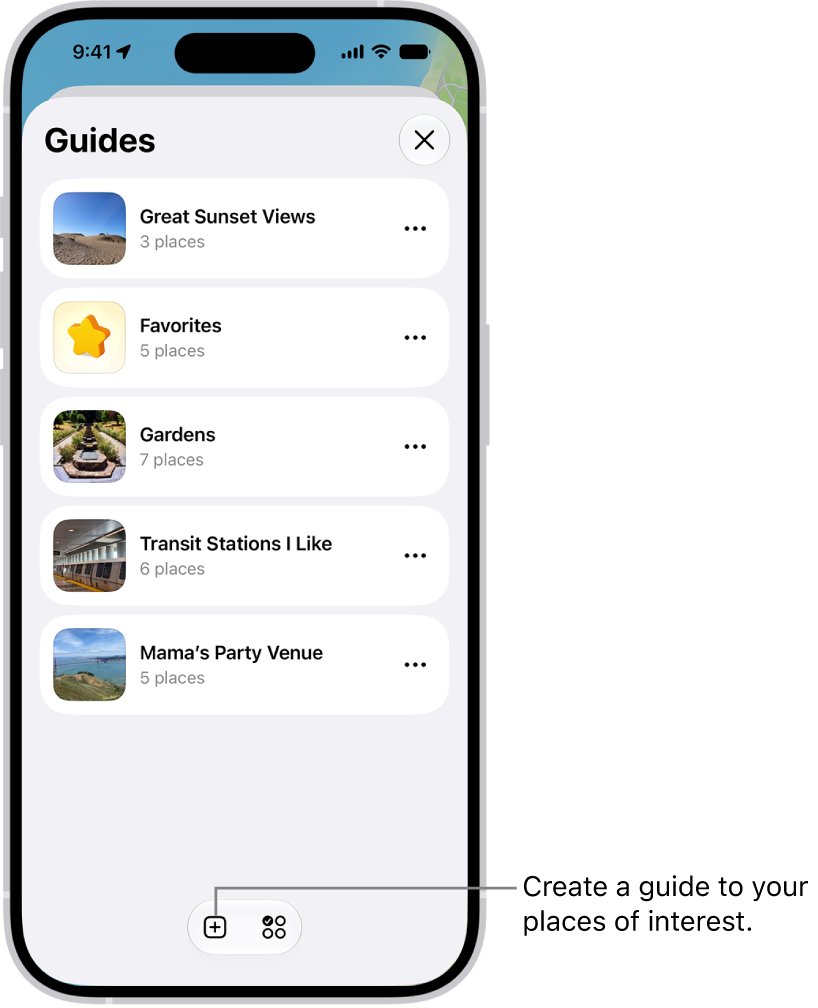
Guides group saved places, such as restaurants for a trip, and can be shared with people who also use Apple Maps.
- Open Maps and tap Your Guides.
- Tap the add button, enter a name for the guide, and optionally add a photo.
- Save the guide.
- To add a place, tap it on the map or in search results, tap the more button on its place card, then tap Add to Guides.
- Choose the guide and confirm.
- To share it, open Your Guides, tap the guide, tap the share button and choose how to send it.
A guide called Favorites always appears in Your Guides, so quick saves have somewhere to go without creating one.
Apple Maps default problems on iPhone
There is no Maps option in Default Apps
Apple does not offer Maps as a Default Apps category, so the option is missing on purpose.
- Leave Apple Maps as the system map app.
- Change the map choice inside each app that opens Google Maps, where the app offers one.
- Copy addresses into Apple Maps from apps that do not.
Apps still open Google Maps for directions
The app picks its own map service when you tap an address.
- Open that app's settings and look for an option naming the map or navigation app.
- Select Apple Maps if it is listed.
- If it is not listed, touch and hold the address, tap Copy, and paste it into the Apple Maps search field.
Apple Maps shows the wrong location or cannot find you
Location Services or Precise Location is off for Maps.
- Open Settings, tap Privacy & Security, then tap Location Services.
- Turn on Location Services.
- Scroll down, tap Maps, and turn on Precise Location.
- Make sure the iPhone is connected to the internet, then open Maps and tap the current location button.
Maps uses walking or transit when you want driving
The preferred travel mode in Maps preferences is set to another mode.
- Open Maps and tap your picture or initials next to the search field.
- Tap Preferences and choose driving.
- Get directions again to confirm the new default mode.
If Maps holds data you no longer want after switching apps, you can delete Apple Maps documents and data without removing your saved places.
Apple Maps default app FAQ
How do I set Apple Maps as default?
Apple Maps is already the built-in map app on iPhone, and iOS has no Maps entry in Default Apps. To get Apple Maps instead of another service, change the map choice inside each app that offers one, or copy the address into Apple Maps.
How do I change the default map on iPhone?
You cannot. Apple's iPhone User Guide states that Maps is not available in Default Apps and cannot be set to a different default. Default Apps covers email, messaging, calling, browser, translation, passwords, contactless payments, keyboards and media sharing instead.
How do I set the default map on iPhone to Google Maps?
iOS has no setting that makes Google Maps the system default. Some apps offer their own choice of map app in their settings, and you can open Google Maps directly and search for the address. Apple Maps remains the built-in map app.
What is the default map app on iPhone?
Apple Maps is the default map app on iPhone. It cannot be replaced in Settings, because Maps is one of the categories Apple keeps out of the Default Apps screen, along with Camera and Music.
How do I change settings in Apple Maps?
Open Maps, tap your picture or initials next to the search field, then tap Preferences to set your travel mode and route options. Tap Maps Settings at the bottom for more, and use Settings > Apps > Maps for compass and speed limit options.
How do I use Apple Maps?
Open Maps, search for a place or touch and hold the map, then tap the directions button. Tap Go to start turn-by-turn directions from your location, or Steps to see the route list when you start from somewhere else.
How do I change location on Apple Maps?
To fix where Maps thinks you are, open Settings > Privacy & Security > Location Services, turn it on, tap Maps and turn on Precise Location. To start directions from somewhere else, change the starting point from My Location to another place.
Can Apple Maps avoid highways?
Yes. Get driving directions, tap Options below Directions, and choose what to avoid below Avoid, such as highways or tolls. Maps then recalculates the route for that trip.