To install FFmpeg on Windows 11, run winget install --id Gyan.FFmpeg in Terminal, open a new window, and type ffmpeg -version to confirm it works.
This guide also covers the manual ZIP install, adding FFmpeg to the Path, Chocolatey, the commands you will use most, and how to remove it again.
Install & use FFmpeg on Windows 11/10
FFmpeg has no setup wizard. The FFmpeg project only publishes source code and links to ready-made Windows builds, and winget installs one of those builds for you.
- Right-click Start and select Terminal.
- Type
winget search ffmpegand press Enter to see the available packages and their IDs. - Type
winget install --id Gyan.FFmpegand press Enter. - Accept the source agreement if winget asks, then wait for the install to finish.
- Close Terminal and open a new window so it picks up the updated Path.
- Type
ffmpeg -versionand press Enter. A version number and build details mean FFmpeg is ready. - Convert a file with
ffmpeg -i input.avi output.mp4, replacing the names with your own files.
If you would rather pick the build yourself, use the manual ZIP route below or compare the FFmpeg download options for Windows, Mac and Linux.
What is the use of FFmpeg?
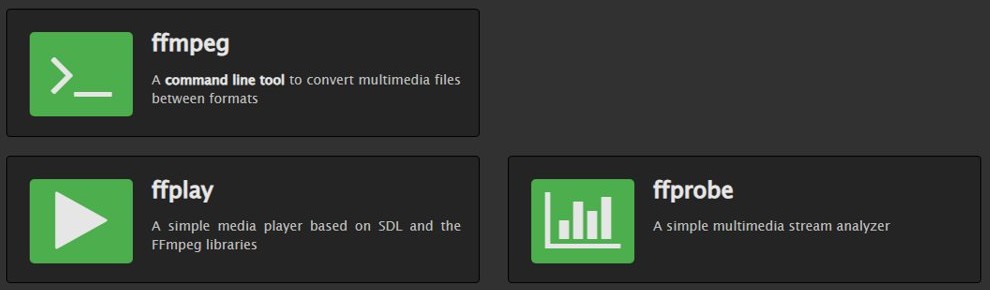
FFmpeg is a free, open-source multimedia framework that can decode, encode, transcode, stream, filter and play almost any audio or video format. A Windows build gives you three command-line tools.
| Tool | What it does | Typical use |
|---|---|---|
ffmpeg.exe |
Converts media files between formats | Turn an AVI into an MP4, pull the audio out of a video, cut a clip |
ffprobe.exe |
Analyses media streams | See the codec, resolution, bitrate and length of a file |
ffplay.exe |
Plays media with a simple player built on the FFmpeg libraries | Preview a file or test a stream |
Many video editors, converters and media servers use the FFmpeg libraries internally, so some apps ask you to install FFmpeg before a feature works.
FFmpeg install for Windows: winget, ZIP build or Chocolatey
| Your situation | Use this | Why |
|---|---|---|
| You want the fastest install on Windows 11 | winget | One command, and winget can update or remove it later |
| You want to choose the exact build or keep FFmpeg in your own folder | ZIP build linked from ffmpeg.org | No package manager needed, and the files stay where you put them |
| You already manage apps with Chocolatey | choco install ffmpeg |
The package installs the static essentials build |
| You need a custom build with your own options | Compile from source | ffmpeg.org documents MSYS2 and MSVC builds for Windows |
Download FFmpeg for Windows 11 from the official site
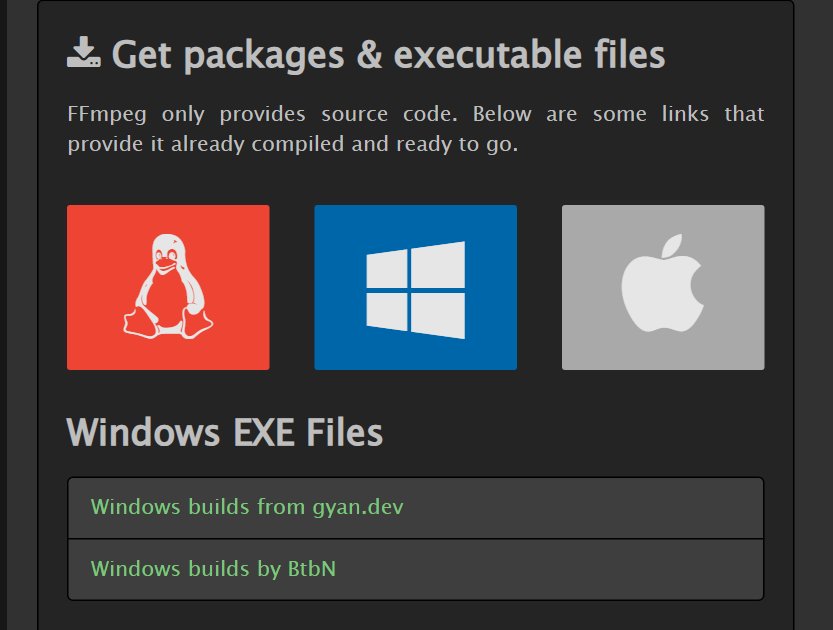
The download page on ffmpeg.org links two Windows builders: Windows builds from gyan.dev and Windows builds by BtbN. Both are prebuilt; the FFmpeg project itself ships only source code.
- Open ffmpeg.org/download.html in your browser.
- Under Get packages & executable files, select the Windows logo.
- Select Windows builds from gyan.dev or Windows builds by BtbN, then download a release build ZIP from that page.
- Right-click the ZIP file and select Extract All.
- Move the extracted folder to a short path such as
C:\ffmpegso it is easy to type and reference. - Open the folder and its bin subfolder. It holds ffmpeg.exe, ffprobe.exe and ffplay.exe.
- Copy the address of the bin folder, for example
C:\ffmpeg\bin, for the Path step below.
Until the bin folder is on your Path, FFmpeg only runs from inside that folder.
Add FFmpeg to Windows path using Environment variables
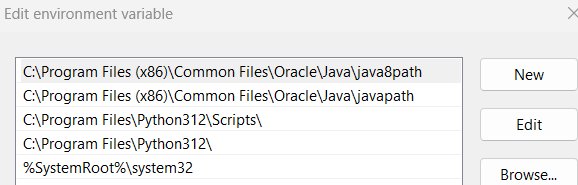
Adding the bin folder to the Path lets you type ffmpeg in any Command Prompt or PowerShell window. Windows stores the change in the registry with your other environment variables, so it survives restarts.
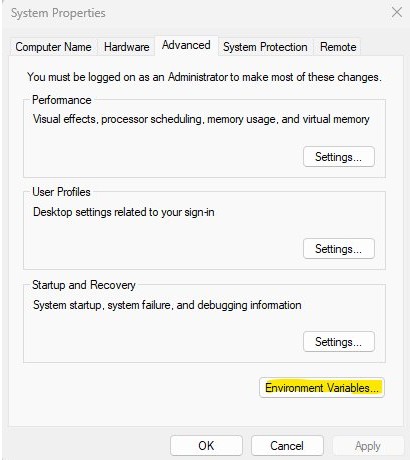
- Select Start, type Advanced system settings, and open it. You can also press Windows key + R, type
SystemPropertiesAdvancedand press Enter. - On the Advanced tab, select Environment Variables….
- Under the variables for your user account, select Path and then select Edit.
- Select New and paste the bin folder path, for example
C:\ffmpeg\bin. - Select OK in each open window to save the change.
- Close every Command Prompt, PowerShell and Terminal window, then open a new one.
Add it to the system Path instead of your user Path only if other accounts on the PC need FFmpeg too. That requires administrator rights.
Add FFmpeg to the Path with PowerShell
This does the same job as the Environment Variables window in one line. It appends the folder to your user Path, which persists outside the current session.
[Environment]::SetEnvironmentVariable('Path', [Environment]::GetEnvironmentVariable('Path', 'User') + ';C:\ffmpeg\bin', 'User')Reads your current user Path, adds C:\ffmpeg\bin to the end with a semicolon separator, and saves it in the User scope. Change the folder if you extracted FFmpeg somewhere else.
You should see: The command returns no output. Open a new PowerShell window and run ffmpeg -version to see the version banner.
Typing $Env:PATH += ';C:\ffmpeg\bin' instead changes the Path only for the current window. If you use PowerShell 7, both lines work the same way.
Install FFmpeg with Chocolatey on Windows 11
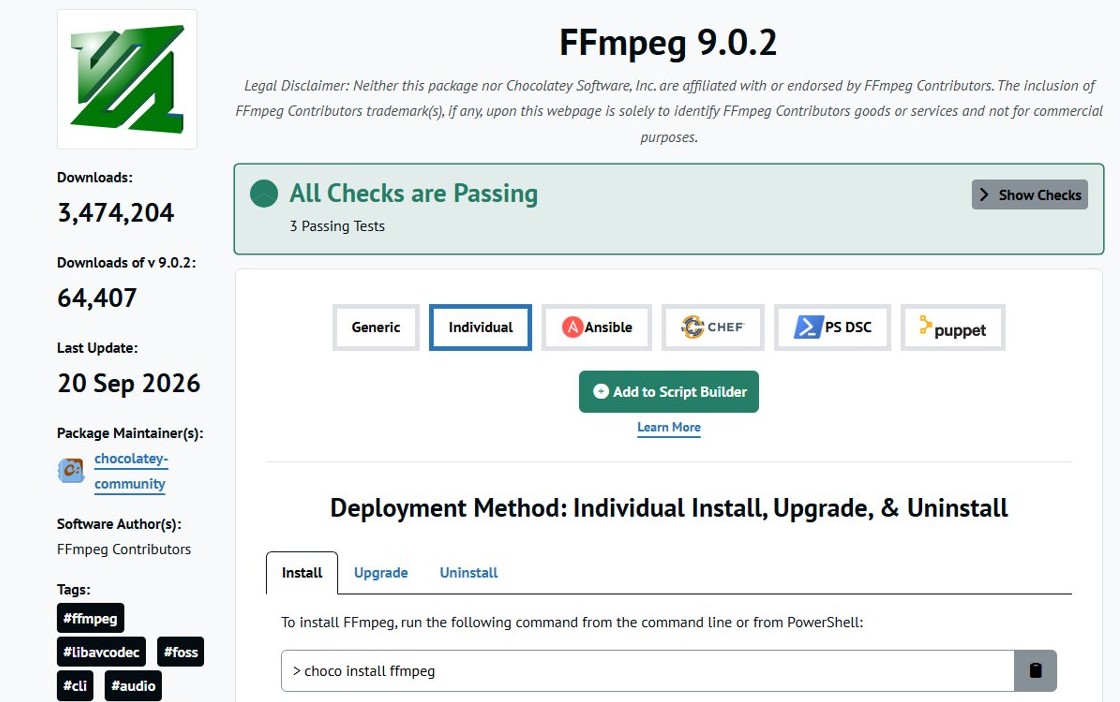
If you use the Chocolatey package manager, its community package installs the stable static essentials build of FFmpeg from gyan.dev.
- Right-click Start and select Terminal (Admin).
- Type
choco install ffmpeg -yand press Enter. - Wait for Chocolatey to report that the install finished.
- Open a new Terminal window and run
ffmpeg -version. - Update it later with
choco upgrade ffmpeg -y.
How to make sure FFmpeg is installed
Check from a fresh Command Prompt window, because windows opened before the install still use the old Path.
- Press Windows key + R, type
cmdand press Enter. - Type
ffmpeg -versionand press Enter. - Look for a first line that starts with ffmpeg version followed by the build details and library versions.
- Run
ffprobe -versionto confirm the analysis tool is on the Path too. - Run
ffmpeg -encodersif you need a specific encoder, and check that its name is in the list.
If Command Prompt says ffmpeg is not recognized, the Path entry is missing or points at the wrong folder. The fixes are below.
How to use FFmpeg on Windows
Every FFmpeg command follows the same shape: ffmpeg, the input after -i, any options, then the output file name. FFmpeg picks the output format from the file extension.
| Job | Command | What the options do |
|---|---|---|
| Convert a video to MP4 | ffmpeg -i input.avi output.mp4 |
Re-encodes into the format the extension names |
| Change container without re-encoding | ffmpeg -i input.mkv -c copy output.mp4 |
-c copy copies the streams as they are, so it is fast and lossless |
| Extract the audio from a video | ffmpeg -i input.mp4 -vn output.mp3 |
-vn drops the video stream |
| Remove the sound from a video | ffmpeg -i input.mp4 -an -c:v copy output.mp4 |
-an drops audio; -c:v copy keeps the video untouched |
| Cut a clip | ffmpeg -ss 00:01:00 -i input.mp4 -t 30 -c copy clip.mp4 |
-ss seeks to 1 minute, -t 30 keeps 30 seconds |
| Change the frame rate | ffmpeg -i input.avi -r 24 output.mp4 |
-r 24 writes the output at 24 fps |
| Save one frame per second as images | ffmpeg -i input.mp4 -r 1 frame-%03d.jpeg |
Writes frame-001.jpeg, frame-002.jpeg and so on |
| Inspect a file | ffprobe input.mp4 |
Prints the streams, codecs and duration |
Times accept HH:MM:SS or plain seconds. Add -y to overwrite an existing output file without a prompt, or -n to stop instead.
How to run FFmpeg on a video file in Windows 11
FFmpeg looks for files in the folder your command window is in, so move there first.
- Open the folder with your video in File Explorer and copy its address from the address bar.
- Open Command Prompt or Terminal.
- Type
cd /d "C:\Users\you\Videos", using the address you copied, and press Enter. - Type
ffmpeg -i input.avi output.mp4with your real file names. Put names that contain spaces in double quotes. - Press Enter and watch the progress line count up frames and time.
- Open the new file from the same folder when FFmpeg returns to the prompt.
FFmpeg is not recognized as an internal or external command
'ffmpeg' is not recognized in Command Prompt
The bin folder is not on the Path, or the window was open before you changed it.
- Close every command window and open a new one, then run
ffmpeg -versionagain. - Open Environment Variables… and check that the Path entry ends in \bin, not the parent folder.
- Confirm that ffmpeg.exe really is in that folder in File Explorer.
FFmpeg works only inside its own folder
The files were extracted but the Path step was skipped.
- Add the bin folder with the Environment Variables steps or the PowerShell command above.
- Open a new window and run
ffmpeg -versionfrom any folder.
FFmpeg asks whether to overwrite the output file
A file with the output name already exists in the folder.
- Type
yto replace it ornto cancel. - Add
-yto the command to overwrite without asking, or-nto exit instead. - Give the output a new name if you want to keep both files.
FFmpeg says an encoder is unknown
The build you installed does not include that encoder.
- Run
ffmpeg -encodersto list what your build supports. - Pick an encoder from that list, or install a fuller build from the links on ffmpeg.org.
How to uninstall FFmpeg on Windows 11
- If you used winget, run
winget uninstall --id Gyan.FFmpegin Terminal. - If you used Chocolatey, run
choco uninstall ffmpegin an administrator Terminal. - If you used a ZIP build, delete the folder you extracted, such as
C:\ffmpeg. - Open Advanced system settings > Environment Variables…, select Path > Edit, select the FFmpeg entry and select Delete.
- Select OK in each window, then open a new Command Prompt and check that
ffmpeg -versionis no longer found.
FFmpeg on Windows 11 FAQ
How do I install FFmpeg on Windows?
Run winget install –id Gyan.FFmpeg in Terminal, or download a Windows build linked from ffmpeg.org, extract it and add its bin folder to the Path. Open a new command window and run ffmpeg -version to confirm it works.
Does FFmpeg work on Windows?
Yes. FFmpeg compiles and runs on Microsoft Windows as well as Linux, macOS and the BSDs. The project links ready-made 64-bit Windows builds from gyan.dev and BtbN on its download page.
How do I run FFmpeg?
FFmpeg has no window of its own. Open Command Prompt or PowerShell, move to the folder with your file using cd, and type a command such as ffmpeg -i input.avi output.mp4.
How do I make sure FFmpeg is installed?
Open a new Command Prompt and type ffmpeg -version. If FFmpeg is installed and on the Path, it prints its version, build configuration and library versions. A not recognized error means the Path entry is missing.
What is the use of FFmpeg?
FFmpeg converts, records, streams and edits audio and video from the command line. It can change formats, extract audio, cut clips, change frame rates and save frames as images, and many other apps use its libraries.
How do I build FFmpeg on Windows?
Install MSYS2 and use one of its MinGW-w64 environments, such as UCRT64, CLANG64 or CLANGARM64 for Windows on ARM. FFmpeg can also be built with MSVC 2019 16.8 or later by running configure with –toolchain=msvc.
How do I install FFmpeg on Linux?
Install it from your distribution's package manager. ffmpeg.org links official packages for Debian, Ubuntu, Fedora and Red Hat Enterprise Linux, plus 64-bit static builds for other distributions.