When a single press of the Apple EarPods center button stops pausing music until you restart the iPhone, update iOS first, then clean the port and reseat the plug, because Apple lists those as the first fixes for wired headphones.
This guide covers what each center-button press should do, how to tell a software fault from a worn remote, and what to do when every fix fails.
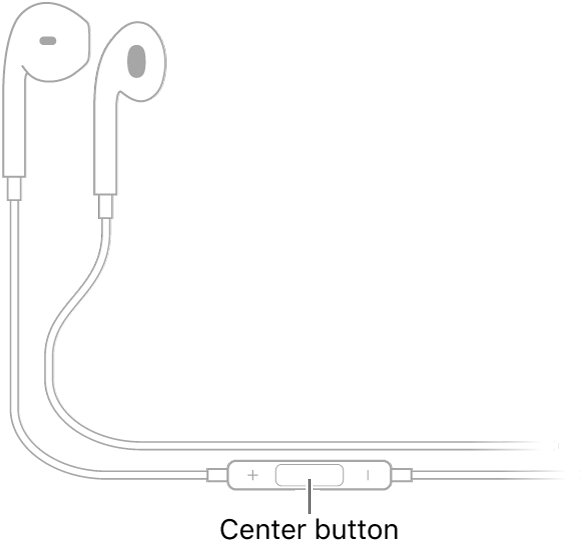
Fix the EarPods play/pause button without restarting every time
Work through these in order. Most readers stop after the update and the reseat, because a restart only clears the fault until it returns.
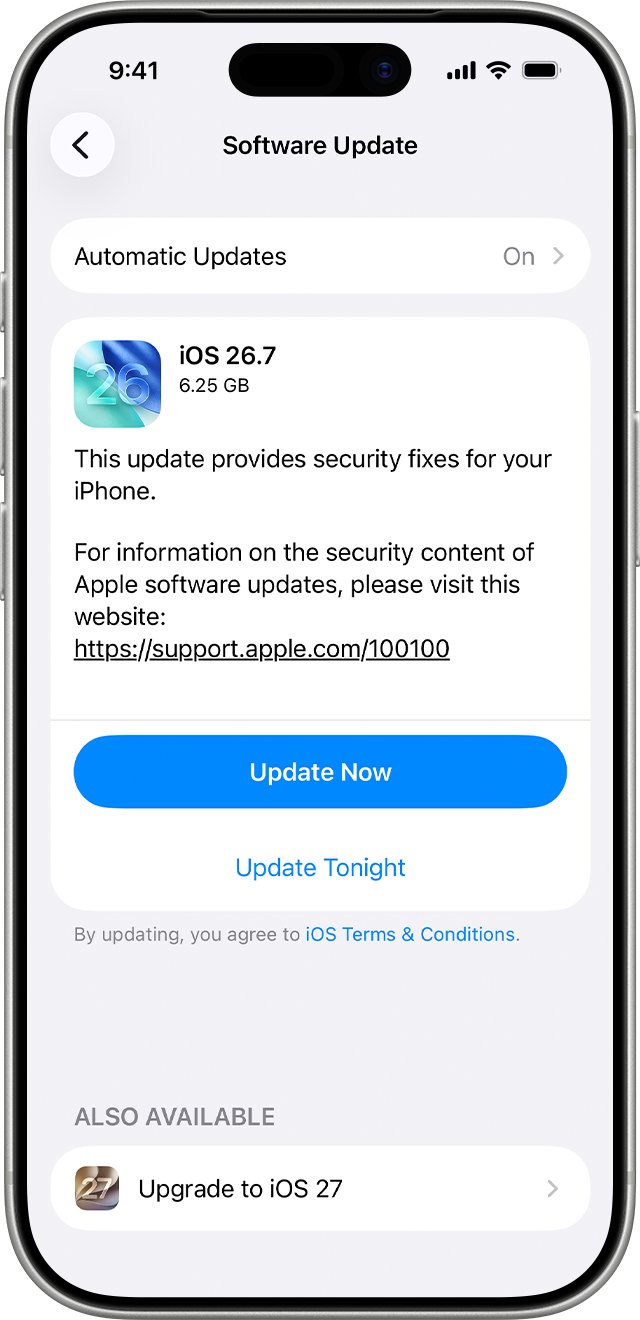
- Open Settings, tap General, then tap Software Update and install any update shown.
- Unplug the EarPods and check the iPhone port for lint or debris.
- Remove the case if it is thick around the port, then plug the EarPods back in firmly.
- Start a song in the Music app and press the center button once.
- If playback still does not pause, turn off Bluetooth in Control Center and press the center button again.
- If the button works only after a restart, try a second pair of headphones to see whether the remote or the iPhone is at fault.
Which EarPods play/pause fix matches your symptom?
| What you see | Likely cause | Fix to try first |
|---|---|---|
| Button works after a restart, then stops again | A software state on the iPhone | Update iOS, then reseat the plug |
| Volume buttons work but the center button does not | A worn or damaged remote | Test a second pair of headphones |
| Button pauses one app but not another | The other app holds the media session | Pause once on screen, then retry the button |
| Button starts music in a car or speaker | A Bluetooth device is still connected | Turn off Bluetooth and retest |
| No sound and no button response | Loose connection or debris in the port | Clean the port and plug in firmly |
| Nothing works with any headphones | An iPhone hardware fault | Contact Apple Support |
What the Apple EarPods center button should do
Apple documents one set of presses for the EarPods remote on iPhone. Use it to check whether the fault is only the single press or every press.
| Action | Press |
|---|---|
| Pause, then resume | Press the center button once, then once again |
| Skip forward | Press the center button twice quickly |
| Skip backward | Press the center button three times quickly |
| Fast-forward | Press twice quickly and hold |
| Answer or end a call | Press the center button once |
| Switch between calls | Press the center button once, then again to switch back |
| Ask Siri | Press and hold until you hear a beep, then let go |
Apple notes the center button controls playback even when the iPhone is locked. If double and triple presses still skip tracks, the remote is sending signals and the single-press fault is on the software side.
Update iOS to fix the EarPods remote button
Apple's first step for headphones that stop working is to install the latest iOS and restart. An update replaces the system code that handles remote button presses.
- Back up the iPhone with iCloud or a computer.
- Plug the iPhone into power and connect to Wi-Fi.
- Open Settings and tap General.
- Tap Software Update.
- Tap Download and Install if an update is listed, then follow the prompts.
- To stay current, tap Automatic Updates and turn on Automatically Install.
Clean the iPhone port and reseat the EarPods plug
A plug that sits slightly loose can pass audio while dropping the remote signal. Apple lists debris and case fit as common causes.
- Unplug the EarPods from the iPhone.
- Look into the Lightning, USB-C or headphone port for lint or debris.
- Check the cable, connector, remote and earbuds for wear or breakage.
- Gently brush the earbud meshes with a small, soft, clean and dry brush.
- Remove the iPhone case if it blocks the plug from seating fully.
- Plug the EarPods back in firmly and test a single press.
Turn off Bluetooth when EarPods play/pause controls the wrong device
If a car, speaker or watch is still connected, playback can move to it. Turning Bluetooth off for a test shows whether another device is involved.
- Swipe down from the top-right corner to open Control Center.
- Tap the Bluetooth button to turn it off.
- Open the Music app and start a song with the EarPods plugged in.
- Press the center button once and check that playback pauses.
- Turn Bluetooth back on and test again to confirm which device was taking control.
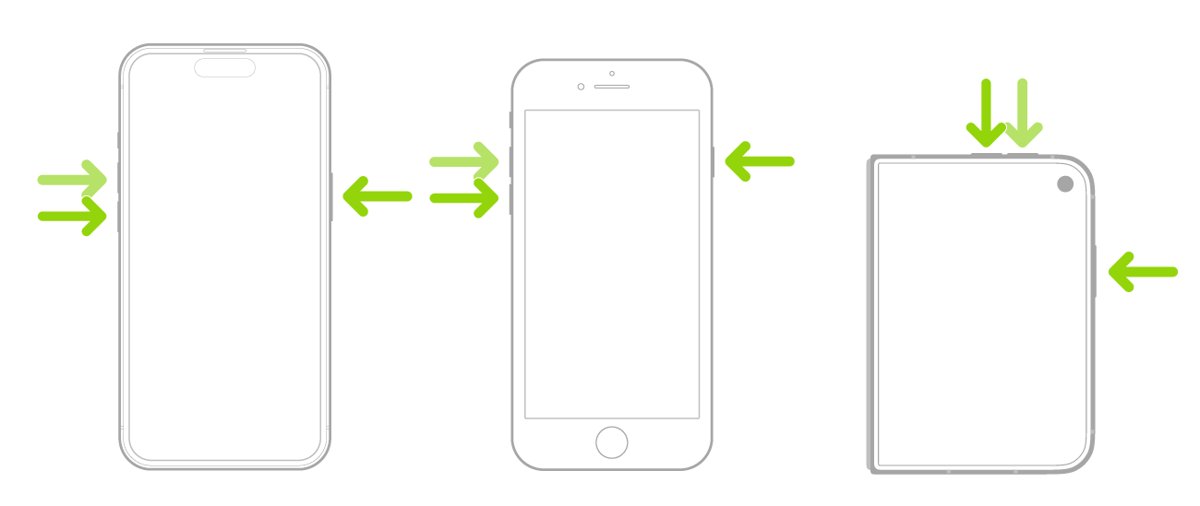
Force restart the iPhone when the EarPods button freezes
A force restart on an iPhone clears more state than a normal restart. Use it once to confirm the fault, not as a daily routine.
- Press and quickly release the volume up button.
- Press and quickly release the volume down button.
- Press and hold the side button until the Apple logo appears, which can take longer than 10 seconds.
- Plug in the EarPods and test a single press in the Music app.
These steps are for an iPhone with Face ID. Apple's restart page has a separate tab for an iPhone with a Home button.
Test that the EarPods play/pause button works again
- Start a song in the Music app.
- Press the center button once and confirm the song pauses.
- Press it again and confirm playback resumes.
- Press twice quickly and confirm the next track starts.
- Repeat the single press in the media app where it failed before.
- Leave the EarPods connected for a day and check the button still works without a restart.
Fix Apple EarPods when they keep pausing or stop working
Earbuds keep pausing by themselves
A worn cable or remote can send stray presses, or the plug is loose in the port.
- Check the cable and remote for breakage near the plug and the remote.
- Clean the port and plug the EarPods in firmly.
- Try a second pair of headphones; if they do not pause, the EarPods need replacing.
Apple earbuds not working at all
Debris, a loose connection or an outdated iOS version.
- Update iOS from Settings > General > Software Update.
- Restart the iPhone.
- Raise the volume with the side buttons or the Volume slider in Control Center.
- Test a second pair; if neither works, contact Apple Support.
Only one side of the EarPods works
A blocked mesh or a damaged cable on that side.
- Brush the mesh on the silent earbud with a soft, dry brush.
- Inspect the cable on that side for damage.
- Try a second pair to confirm whether the EarPods need replacing.
Apple earbuds keep disconnecting
Wired EarPods only disconnect when the plug moves or the connector is damaged.
- Remove the case and reseat the plug firmly.
- Check the connector for bent or worn parts.
- Test the EarPods in another device port if one is available.
Microphone on the EarPods does not work
The mic opening on the remote is blocked.
- Check the remote for lint, debris or leftover plastic packaging.
- Gently brush the mic opening clean.
- Try a second pair with a built-in microphone.
Apple EarPods play/pause button FAQ
How do you pause Apple EarPods?
Press the center button on the EarPods remote once to pause. Press it once more to resume playback. Apple notes this works even when the iPhone is locked, in the Music app and in other apps that play audio.
How do you control Apple EarPods?
Use the center button and the volume buttons on the remote. One press pauses or resumes, two quick presses skip forward, three skip back, and press-and-hold starts Siri. The plus and minus buttons change the volume.
How do you use Apple EarPods with an iPhone?
Plug the EarPods into the iPhone's Lightning, USB-C or headphone port, depending on your model and EarPods version. No pairing is needed. Use the remote's center button to control playback, answer calls and use Siri.
How do you set up Apple EarPods?
Wired EarPods need no setup or pairing. Plug them into the matching port on the iPhone and start playing audio. If nothing plays, check the port for debris and push the plug in firmly, removing the case if it is in the way.
Why do my earbuds keep pausing?
Wired EarPods that pause on their own usually have a loose plug, debris in the port or a damaged cable or remote. Clean the port, reseat the plug and try a second pair. If the second pair is fine, the EarPods need replacing.
Why are my Apple earbuds not working?
Start with Apple's order of fixes: update iOS, restart the iPhone, check the port and cable for debris or damage, and raise the volume. Then test a second pair of headphones to tell an EarPods fault from an iPhone fault.
Why do my Apple earbuds keep disconnecting?
Wired EarPods disconnect when the plug shifts in the port or the connector is worn. A thick case can stop the plug from seating fully. Remove the case, plug in firmly and inspect the connector for damage.
How do you wear Apple EarPods correctly?
Apple says EarPods need skin contact and should give a snug but comfortable fit. Keep the earbuds and your ears clean and dry, and wipe them after workouts. A secure fit also limits cable movement that can tug on the plug.
Can you use Apple EarPods on Android?
Apple documents EarPods for iPhone, iPad and iPod touch only. EarPods with a 3.5 mm or USB-C plug can carry audio to other devices with that port, but Apple does not document how the remote buttons behave on Android.
Do I need to restart my iPhone every time EarPods stop working?
No. A restart that is needed every time points to a software fault or a failing remote. Update iOS and reseat the plug first, then test a second pair of headphones to find which part is at fault.