When the Apple Devices app opens but does nothing, your iPhone or iPad usually is not reaching the app: unlock the device, plug in a data cable, tap Trust, and it should appear in the app's sidebar.
This guide covers the connection checks Apple lists, the Apple Mobile Device Service, repairing the app in Windows, Wi-Fi sync, sync options that stay greyed out, and update or restore errors.
Fastest fix when the Apple Devices app does nothing
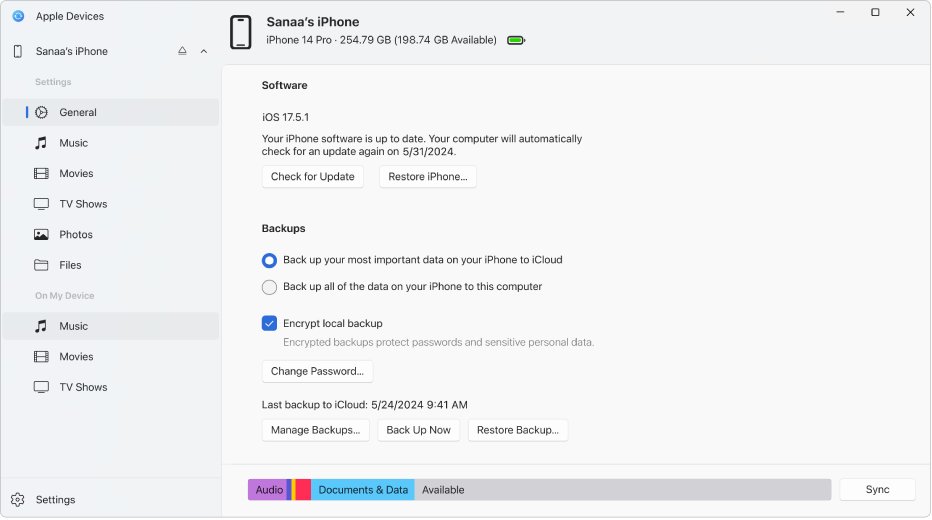
The Apple Devices app only shows options once a device appears in its sidebar. An empty window that ignores your clicks almost always means the PC has not recognised the iPhone or iPad yet.
- Open the Apple Devices app on your PC.
- Unlock your iPhone or iPad and leave the Home Screen visible.
- Connect it with a USB or USB-C cable that carries data as well as charge.
- Check that the device shows it is charging, which confirms the cable is seated.
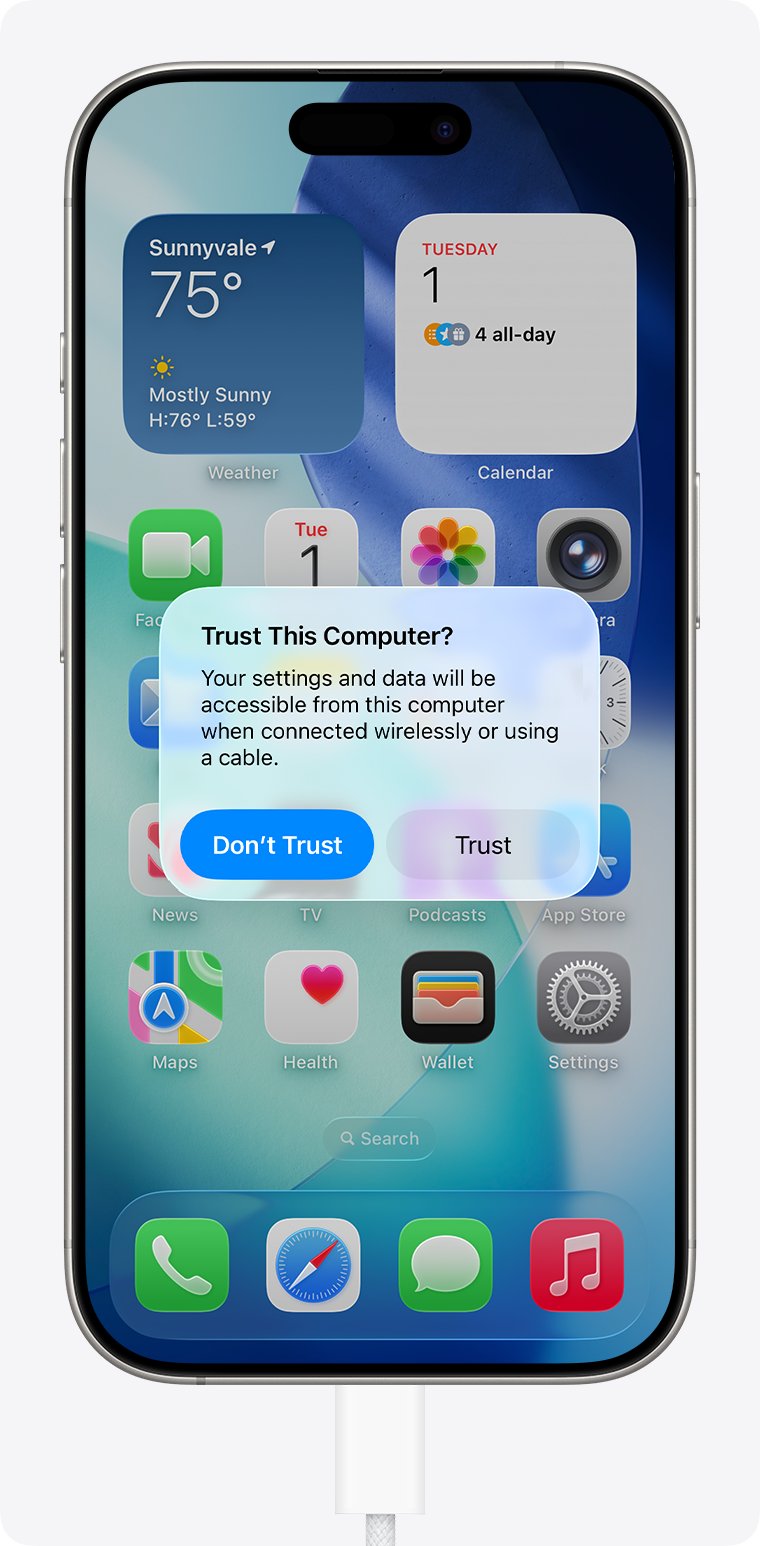
- Tap Trust when the Trust This Computer? alert appears, then enter your passcode.
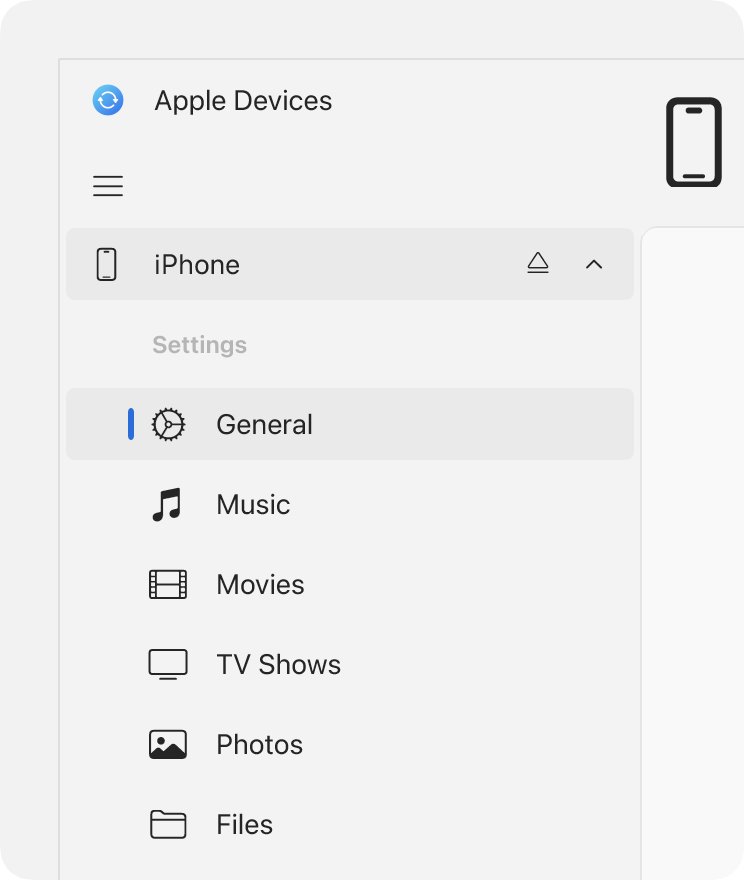
- Select your device in the Apple Devices sidebar to see the General pane and sync options.
If the device still does not appear, work through the fixes below in order. Each one rules out a single cause.
Apple Devices app not working: match the symptom to the fix
| What you see | Likely cause | Go to |
|---|---|---|
| App opens, sidebar is empty, iPhone is not charging | Loose or charge-only cable, dirty port | Cable and port checks |
| iPhone charges but never appears in the sidebar | Device locked or the computer is not trusted | Trust This Computer fix |
| "The Apple Mobile Device Service is not started" | AMDS stopped on Windows | Restart AMDS |
| App will not open or closes at once | Damaged app files or an outdated version | Repair or reset the app |
| Device appears over a cable but not over Wi-Fi | Wi-Fi sync not turned on | Wi-Fi sync setup |
| Music or Photos sync options are missing | Music and TV apps not installed, or iCloud handles that content | Sync options greyed out |
| Error contacting the software update server | Internet, hosts file or security software | Update or restore errors |
Apple Devices app requirements on Windows
| Requirement | Detail |
|---|---|
| Windows version | The latest version of Windows 10 or Windows 11 |
| Where to get the app | Microsoft Store only: search for Apple Devices and select Get |
| Apple Music and Apple TV apps | Needed before you can sync music, movies or TV shows through Apple Devices |
| iPhone or iPad software | The latest iOS or iPadOS for File Sharing; iOS 5 or later for Wi-Fi sync |
| Cable | A USB or USB-C cable that supports data and charging |
| Podcasts and audiobooks | Still managed in iTunes for Windows, not in Apple Devices |
If you have not installed the app yet, get Apple Devices for Windows from the Microsoft Store first.
Fix the Apple Devices app trust prompt on iPhone
If you tapped Don't Trust by mistake, or the alert never appears, the iPhone blocks the PC from reading it. Resetting location and privacy settings brings the alert back for every computer.
- Disconnect the iPhone or iPad from the PC.
- Open Settings and tap General.
- Tap Transfer or Reset iPhone (or iPad).
- Tap Reset, then Reset Location & Privacy, and confirm.
- Reconnect the device to the PC with the Apple Devices app open.
- Tap Trust when the alert appears and enter your passcode.
After the reset, the Trust alert asks again on every computer you connect to, including ones you trusted before.
Restart the Apple Mobile Device Service on Windows
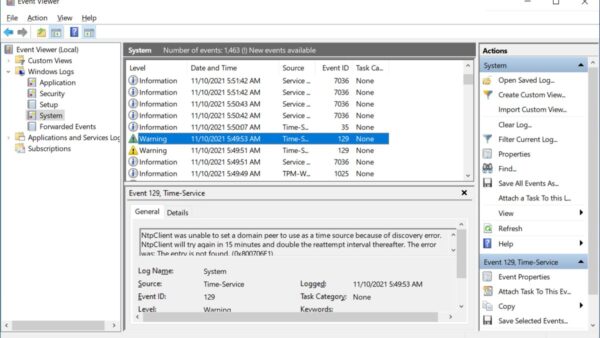
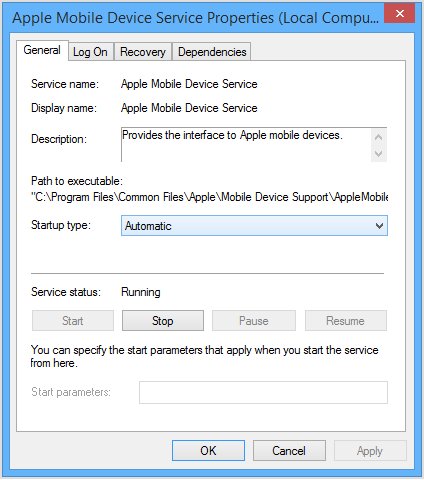
Windows shows "This [device] cannot be used because the Apple Mobile Device Service is not started" when the background service that talks to iPhones has stopped.
services.mscPress Windows + R, type the command and select OK. In the Services console, right-click Apple Mobile Device Service, select Properties, set Startup type to Automatic, select Stop, then Start, select OK and restart the PC. Disconnect the device and close Apple Devices before you begin.
You should see: After the restart, the service shows Running in the Services list and your device appears in the Apple Devices sidebar when you reconnect it.
If the service will not start or stops on its own, Apple points to third-party security software. Update it or ask its vendor how to allow Apple's service rather than turning protection off.
Repair or reset the Apple Devices app in Windows Settings
Use this when Apple Devices will not open, opens to a blank window, or freezes before any device is connected.
- Select Start > Settings > Apps > Installed apps.
- Find Apple Devices and select the More (three dots) icon next to it.
- Select Advanced options.
- Select Repair and wait for the check mark.
- Open Apple Devices again and reconnect your device.
- If nothing changes, return to Advanced options and select Reset.
Some Store apps show only Reset; if Repair is missing, go straight to it.
Set up Apple Devices app Wi-Fi sync on Windows 11
Wi-Fi sync only works after you turn it on once over a cable. Both the PC and the iPhone or iPad must be on the same Wi-Fi network, so connect the computer to Wi-Fi first if it normally uses Ethernet.
- Connect the iPhone or iPad to the PC with a USB or USB-C cable.
- In Apple Devices, select the device in the sidebar.
- Select General in the sidebar.
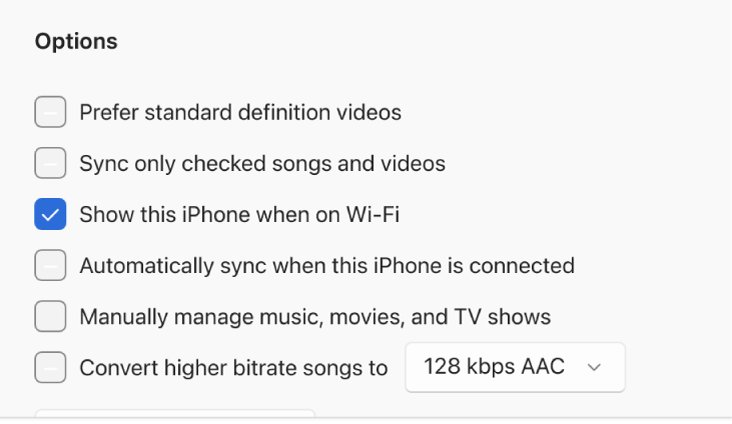
- Tick Show this [device] when on Wi-Fi.
- Choose your sync settings in the sidebar and select Apply.
- Disconnect the cable; the device now appears in the sidebar whenever both are on the same network.
How to check the Apple Devices app recognises your iPhone
- Look for your iPhone or iPad by name in the Apple Devices sidebar.
- Select it and confirm the General pane shows the software version and backup options.
- Select Check for Update in the General pane to confirm the app can reach Apple's servers.
- Select Files to confirm data moves; if there is no Files section, no installed app on the device supports File Sharing, which is normal.
Apple Devices app not detecting iPhone or iPad: fixes by symptom
iPhone not showing up in the Apple Devices app
The cable, port or connection is not passing data.
- Unplug the cable and check the device's charging port for lint or debris.
- Try a different cable that supports data and charging.
- Plug into a different USB port on the PC.
- Try another computer to find out whether the PC or the device is the problem.
Apple Devices app not recognizing iPad or iPhone after updates
Windows, the app or iOS is out of date.
- Open Settings > Windows Update on the PC and select Check for updates.
- Open the Microsoft Store and select Check for updates to update Apple Devices.
- On the iPhone or iPad, go to Settings > General > Software Update.
- Restart both devices and reconnect them.
Apple Devices app not opening
Damaged app data or a stuck background service.
- Repair the app from Settings > Apps > Installed apps > Apple Devices > Advanced options.
- Restart the Apple Mobile Device Service from
services.msc. - Restart the PC and open Apple Devices before you connect the device.
Windows 11 Apple Devices app Wi-Fi not working
Wi-Fi sync was never turned on, or the devices are on different networks.
- Connect the device with a cable once and tick Show this [device] when on Wi-Fi under General.
- Select Apply before you unplug.
- Put the PC and the iPhone on the same Wi-Fi network.
Sync Music or Sync Photos does nothing or is missing
iCloud Music Library, Sync Library or iCloud Photos already manages that content, or the Apple Music and Apple TV apps are not installed.
- Install the Apple Music and Apple TV apps from the Microsoft Store.
- Decide whether iCloud or cable sync should manage music and photos.
- To sync through Apple Devices, turn off iCloud Music Library or iCloud Photos, then turn on the sync option again.
Apple Devices app cannot contact the software update server
The PC cannot reach Apple's update server during an update or restore.
- Open a browser on the PC and confirm webpages load.
- Update the iPhone wirelessly instead from Settings > General > Software Update, if it is not locked or in recovery mode.
- Reset the Windows hosts file if it contains entries that block apple.com.
- Update your security software or check its settings for a block on Apple's servers.
Apple Devices app not working FAQ
Why is my Apple Devices app not working?
The Apple Devices app only works once your iPhone or iPad appears in its sidebar. If it shows nothing, the device is usually locked, untrusted, or connected with a charge-only cable. Unlock it, use a data cable, tap Trust, and restart the Apple Mobile Device Service if Windows reports it is stopped.
Why isn't Apple Devices detecting my iPhone?
Apple Devices cannot see an iPhone that is locked, untrusted or on a faulty cable. Keep the Home Screen visible, tap Trust This Computer, and try another data cable and USB port. If the Trust alert never appears, reset Location & Privacy under Settings > General > Transfer or Reset iPhone > Reset.
Why is the Apple Devices app not opening on Windows?
An Apple Devices app that will not open usually has damaged app data or is out of date. Go to Settings > Apps > Installed apps, open Advanced options for Apple Devices and select Repair, then Reset if needed. Check the Microsoft Store for updates and restart the PC afterwards.
Why is Apple Devices Wi-Fi sync not working on Windows 11?
Wi-Fi sync stays off until you enable it over a cable. Connect the device, select it in Apple Devices, open General, tick Show this device when on Wi-Fi and select Apply. Both the PC and the iPhone must then be on the same Wi-Fi network.
Does the Apple Devices app need iTunes?
No. Apple Devices is a separate Microsoft Store app for updating, backing up, restoring and syncing iPhone and iPad. To sync music, movies and TV shows through it, install the Apple Music and Apple TV apps. iTunes for Windows is still where you manage podcasts and audiobooks.
Why is Apple Devices not recognizing my iPad?
An iPad drops out of Apple Devices for the same reasons as an iPhone: it is locked, untrusted, on a charge-only cable, or running outdated iPadOS. Unlock it, tap Trust, try another data cable, then update both iPadOS and Windows before reconnecting.
How do I update the Apple Devices app?
Apple Devices updates through the Microsoft Store, not Apple Software Update. Open the Microsoft Store and select Check for updates. Microsoft is making Store app updates automatic, so the app normally stays current unless updates have been paused.
Bottom line: when the Apple Devices app still does nothing
Fix the connection before you touch the app: unlocked device, data cable, Trust, then the Apple Mobile Device Service, and only then repair or reset Apple Devices. The app has nothing to show until a device reaches its sidebar, so most "does nothing" reports end at the cable or the Trust prompt. If every step fails on two computers, contact Apple Support for a hardware check of the port.