When the Apple Devices app opens off monitor on Windows 11, press Alt + Tab to select it, then press Windows logo key + Shift + Left arrow or Right arrow to move the window onto a screen you can see.
This guide covers that fix, two backup routes when the shortcut does nothing, the display settings that stop windows opening on a missing monitor, and how to repair or reset the app if it keeps happening.
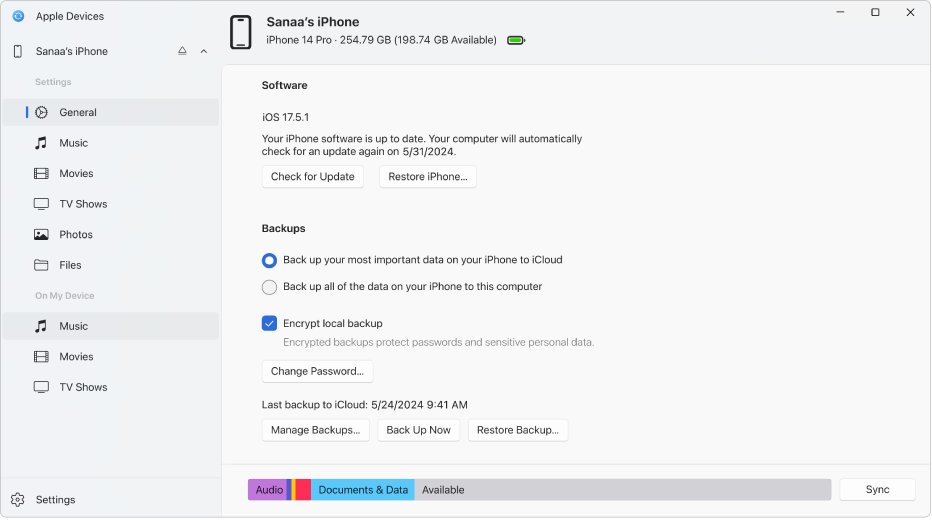
Move the Apple Devices window back onto your screen
The app is running; its window has simply opened at a position outside the visible desktop, usually where a second monitor used to be. Windows keyboard shortcuts act on the active window wherever it sits, so you can move it without seeing it.
- Open the Apple Devices app so its icon appears on the taskbar.
- Hold Alt and press Tab until the Apple Devices thumbnail is selected, then release both keys.
- Press Windows logo key + Shift + Left arrow to move the active window to the monitor on the left.
- If it does not appear, press Windows logo key + Shift + Right arrow instead.
- Press Windows logo key + Up arrow to maximize the window once it is visible.
- Drag the window by its title bar to where you want it, then close and reopen the app to check it remembers the spot.
Which off-screen window fix to use for Apple Devices
| Your setup | Use this | Why |
|---|---|---|
| Two or more monitors connected | Windows logo key + Shift + Left/Right arrow | Moves the active window from one monitor to the next |
| One monitor, a second one was unplugged | Windows logo key + P, then PC screen only | Forces the desktop onto the one display you are using |
| Window is visible but tiny or half off the edge | Windows logo key + Up arrow | Maximizes the active window to fill its screen |
| Happens every time you dock or undock a laptop | Remember window locations based on monitor connection in Display settings | Windows controls where windows go when monitors change |
| Shortcuts work but it keeps reopening off-screen | Repair or reset the Apple Devices app | Clears the app's stored state |
Use Windows + P to bring Apple Devices back to one screen
If a monitor was disconnected, Windows may still treat the desktop as extended. Switching the presentation mode to a single screen pulls everything onto the display in front of you.
- Press Windows logo key + P to open the display mode options.
- Select PC screen only.
- Open the Apple Devices app again, or select it with Alt + Tab.
- Press Windows logo key + Up arrow to maximize it.
- Press Windows logo key + P and select Extend again when you reconnect the second monitor.
The four modes are PC screen only, Duplicate, Extend and Second screen only. Duplicate also works as a quick test, because both screens show the same desktop.
Check monitor layout in Windows 11 Display settings
A window can land off-screen when Windows thinks a display sits somewhere it does not. Check that every display listed in Windows 11 display settings is real and arranged the way your desk is.
- Open Settings > System > Display.
- Select Identify to show a number on each connected screen.
- Drag the display boxes so they match the physical position of your monitors, then select Apply.
- If a connected monitor is missing, open Multiple displays and select Detect; if it still does not show, fix the undetected second monitor before you continue.
- Reopen the Apple Devices app and confirm it opens on a visible screen.
Stop Windows 11 opening apps on a disconnected monitor
Windows 11 has two settings that decide what happens to windows when a monitor comes and goes. They are the long-term fix for laptops that dock and undock.
- Open Settings > System > Display.
- Expand Multiple displays.
- Turn on Remember window locations based on monitor connection so windows return to the right screen when you reconnect it.
- Turn on Minimize windows when a monitor is disconnected so windows on an unplugged screen drop to the taskbar instead of staying out of view.
- Unplug and reconnect the monitor, then open the Apple Devices app to test.
Windows 10 does not list these two options on its display settings page.
Repair or reset the Apple Devices app on Windows 11
If the window returns off-screen every time you start the app, repair it first. Reset is the stronger option when Repair is not enough.
- Close the Apple Devices app.
- Open Start > Settings > Apps > Installed apps.
- Find Apple Devices, select the More icon beside it, then select Advanced options.
- Select Repair and open the app to test.
- If it still opens off-screen, return to the same page and select Reset.
- If neither option helps, uninstall the app, then open the Microsoft Store, search for Apple Devices and select Get.
After a reset, connect your iPhone and check General in the sidebar to confirm your backups still appear. If you need a fresh copy, download the Apple Devices app from the Microsoft Store listing.
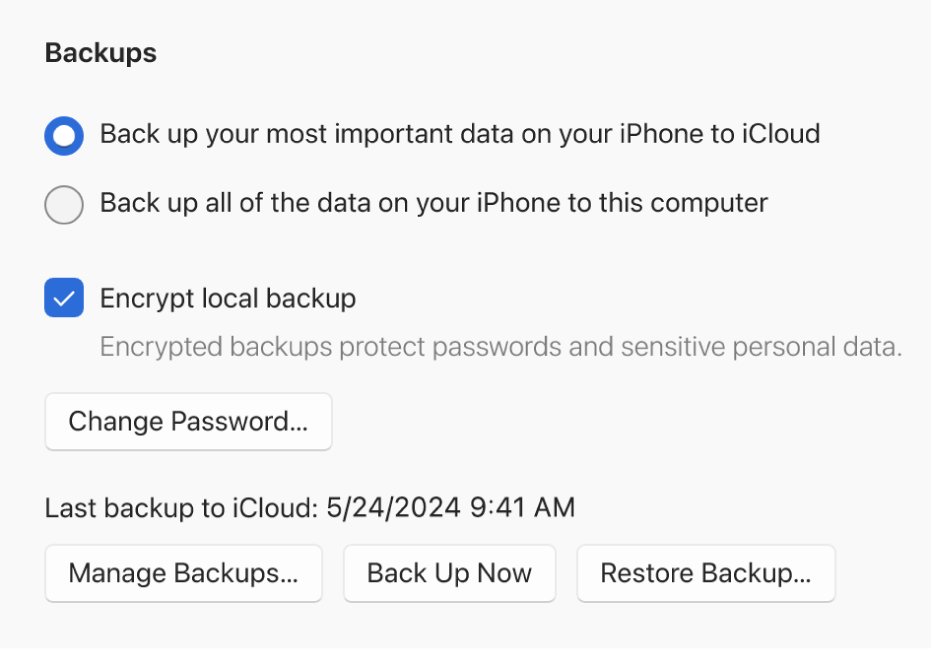
Check the Apple Devices app now opens on screen
- Close the Apple Devices app completely.
- Open it from the Start menu.
- Confirm the window appears on your main screen with its title bar visible.
- Connect your iPhone or iPad with a cable and unlock it.
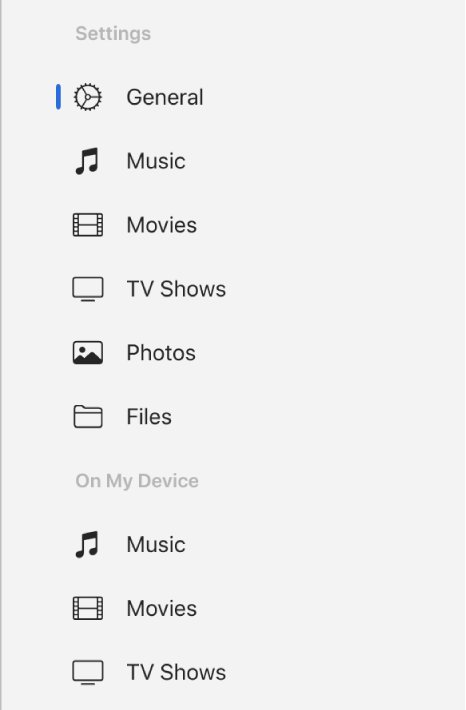
- Check that the device appears in the app's sidebar.
Fix other Apple Devices app problems on Windows 11
Windows + Shift + arrow does nothing
Apple Devices is not the active window, or only one display is connected.
- Press Alt + Tab and make sure the Apple Devices thumbnail is the one selected.
- With one monitor, use Windows logo key + P and select PC screen only instead.
- Press Windows logo key + Up arrow after the window is active.
Apple Devices app on Windows 11 won't find your phone
The cable, lock screen or trust prompt is blocking the connection.
- Check the cable is connected properly; the iPhone should show that it is charging.
- Unlock the iPhone and leave the Home Screen visible.
- Select Trust This iPhone if the trust prompt appears.
- Disconnect and reconnect the cable, then check the sidebar.
Apple Devices Wi-Fi sync is not working on Windows 11
Wi-Fi syncing must be set up over a cable first, and both devices must share a network.
- Connect the iPhone to the PC with a cable.
- Select the device in the sidebar and turn on the syncing over Wi-Fi option.
- Make sure the PC and the iPhone are on the same Wi-Fi network.
- Disconnect the cable and try syncing again.
Music or TV sync options are missing
The Apple Music and Apple TV apps are not installed, or iCloud is handling that content.
- Install the Apple Music and Apple TV apps from the Microsoft Store.
- If iCloud Music Library or iCloud Photos is on, Apple Devices turns off syncing for those items.
- Turn off iCloud Music Library or iCloud Photos if you want to sync that content with Apple Devices instead.
Apple Devices app on Windows 11 FAQ
Why does the Apple Devices app open off monitor on Windows 11?
Its window opens at a position outside the visible desktop, usually where a second monitor used to be connected. Select the app with Alt + Tab and press Windows logo key + Shift + Left or Right arrow to move it to a visible screen.
How do I use the Apple Devices app on Windows 11?
Install it from the Microsoft Store, connect your iPhone, iPad or iPod with a cable, and select the device in the sidebar. Use General to update or back up the device, and the content sections to sync music, movies and TV shows.
How do I install the Apple Devices app on Windows 11?
Open the Microsoft Store, search for Apple Devices, select the app and select Get. Install the Apple Music and Apple TV apps too if you want to sync music, movies or TV shows to your device.
Can Apple apps run on Windows 11?
Some can. Apple publishes Apple Devices, Apple Music, Apple TV and iCloud for Windows for Windows PCs. Apps built only for macOS or iOS do not run on Windows.
Why won't the Apple Devices app find my iPhone?
Check the cable is connected and the iPhone shows it is charging, unlock it so the Home Screen is visible, and select Trust This iPhone when asked. The device then appears in the app's sidebar.
Do I have to connect my iPhone with a cable to use Apple Devices?
Only the first time. After you connect with a cable and turn on syncing over Wi-Fi, the app can sync whenever the PC and the iPhone are on the same Wi-Fi network.
Will resetting the Apple Devices app fix a window that keeps opening off-screen?
It can, because Reset clears the app's stored state when Repair is not enough. Try Repair first under Settings > Apps > Installed apps > Apple Devices > Advanced options, then Reset if the window still opens out of view.
Bottom line: fixing the Apple Devices app opening off monitor
Pull the window back with Alt + Tab and Windows + Shift + arrow, then turn on the two Multiple displays options so it does not happen again. The problem is where Windows places the window after a monitor change, not a fault in the app, so the display settings are the lasting fix and Repair or Reset is only needed if it persists.

![How to install or update a printer driver in Windows 11? [Full guide]](https://techdows.com/wp-content/uploads/2026/10/How-to-Install-or-Update-a-Printer-Driver-in-Windows-11-600x338.jpg)