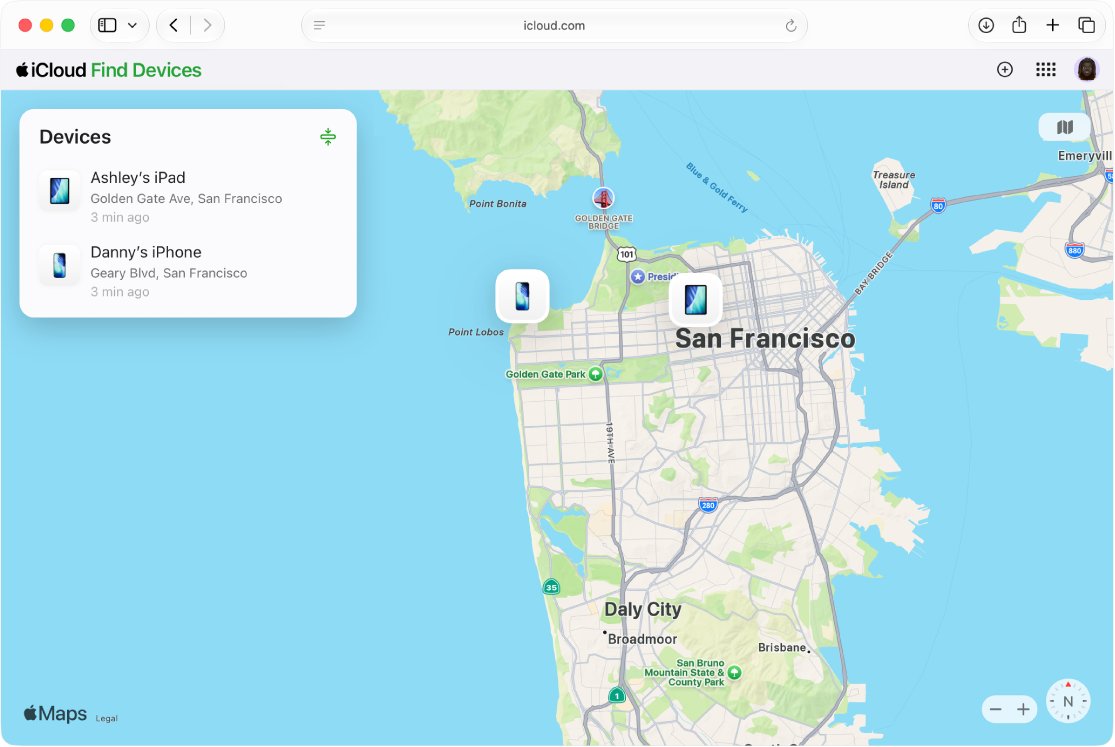
To find your iPhone from a computer, open icloud.com/find in a web browser, sign in with your Apple Account, and select your iPhone in the device list to see it on the map.
This guide covers the Windows PC and Mac routes, signing in without a verification code, playing a sound, Lost Mode, remote erase, turning Find My off from a computer, and fixes when the iPhone shows as offline.
Step by step tutorial: Find My iPhone from computer
This works on any Windows PC or Mac with a current browser. Find My must already be turned on on the iPhone, and the iPhone must be online for a live location.
- Open a web browser on the computer and go to icloud.com/find.
- Sign in with the Apple Account that is signed in on the missing iPhone.
- If iCloud asks for a code from a trusted device you do not have, select the Find Devices button at the bottom of the window to continue without the code.
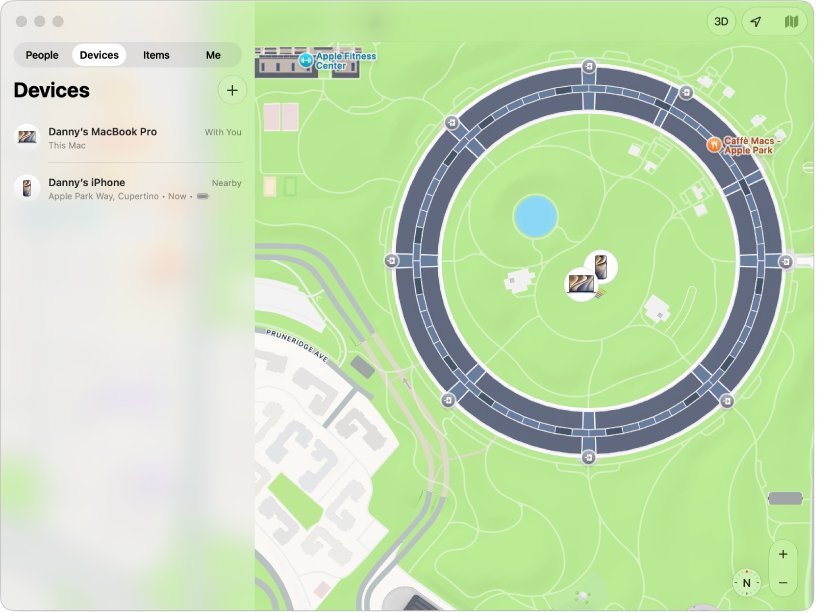
- In the list of devices, select your iPhone.
- Read the map: an online iPhone appears at its current location.
- If Offline appears under the name, note the last known location, which iCloud keeps for up to 24 hours.
- To check another device, select All Devices or the close button to return to the list.
If the iPhone is close by but you cannot see it, use Play Sound from the same screen. The actions below all start from this device view.
Find my iPhone on computer: iCloud.com or the Find My app on Mac
| Your situation | Use this | Why |
|---|---|---|
| Windows PC or a borrowed computer | Find Devices at icloud.com/find | Runs in the browser, nothing to install, and the trusted-device code can be skipped |
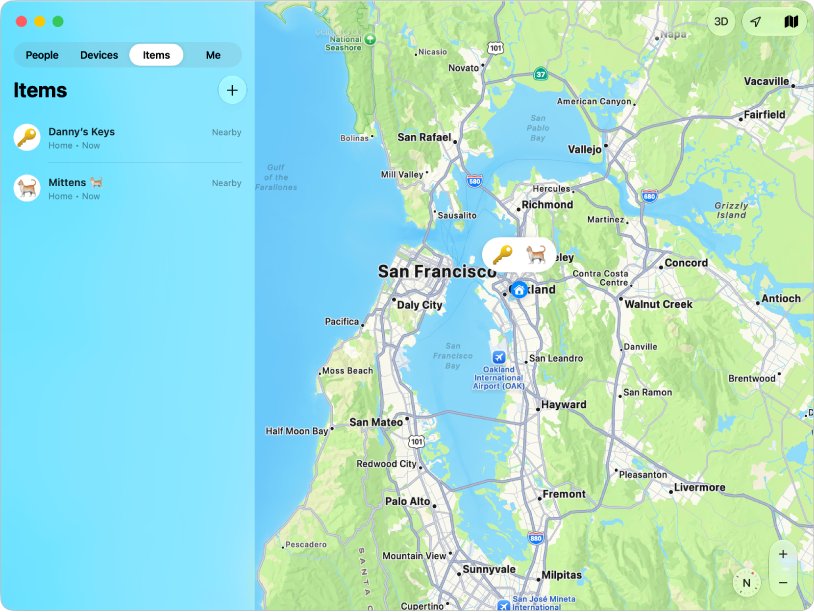
| Your own Mac signed in to the same Apple Account | Find My app on Mac | Opens without a browser sign-in and can show offline locations from the Find My network |
| You need directions to the iPhone | Find My app on Mac | More > Directions hands the route to Maps |
| You are looking for an AirTag or a Find My network accessory | Find My app on iPhone, iPad, Mac or Apple Watch | iCloud.com does not locate AirTag or third-party Find My items |
| You have no other Apple device at all | icloud.com/find, or a family member's device | Apple's own fallback when you own no second Apple device |
Tips: Optimizing Find My iPhone from computer
A computer can only find an iPhone that was set up for it before it went missing. These settings on the iPhone decide how much the computer can show you later.
- On the iPhone, open Settings, tap your name, then tap Find My.
- Tap Find My iPhone, then turn on Find My iPhone.
- Turn on Find My network so an offline iPhone can still report an approximate location through nearby Apple devices over Bluetooth.
- Turn on Send Last Location so the iPhone sends its location to Apple when the battery runs low.
- Set up more than one way to verify your identity for your Apple Account, so you are not locked out of iCloud.com when the iPhone itself is the trusted device.
- Write down your Apple Account email and password somewhere you can reach without the phone.
If you have forgotten which address the iPhone uses, find your Apple ID on iPhone while you still have the device.
How to find my iPhone from a PC with iCloud.com
On Windows, iCloud.com supports Microsoft Edge 130 or later, Google Chrome 130 or later in desktop mode, and Firefox 128 or later. iCloud for Windows is not needed for Find Devices.
- Open Microsoft Edge, Google Chrome or Firefox on the PC.
- Type icloud.com/find in the address bar and press Enter.
- Enter your Apple Account email or phone number, then your password.
- Select Find Devices at the bottom of the window if you are asked for a verification code you cannot receive.
- Select your iPhone in the device list to open its location on the map.
- Select Notify me when found if the iPhone is offline, so iCloud emails you when it reconnects.
On a shared or public PC, sign out of iCloud.com and close the browser when you finish, so the next person cannot reach your devices.
How to find my iPhone on a Mac with the Find My app
- Open the Find My app on the Mac.
- Click Devices, then select your iPhone.
- Read the updated location and timestamp shown below the iPhone's name.
- Click the More button, then click Directions to open Maps with a route to the iPhone.
- If No location found appears, the iPhone has not sent its location to Apple for more than 7 days.
The Find My app on Mac uses the Mac's own Apple Account. If the iPhone belongs to a different account, use icloud.com/find in Safari and sign in with the iPhone's account instead.
How to play a sound on my iPhone from a computer
Play Sound is the quickest way to find an iPhone lost under a cushion or in another room of the house.
- Go to icloud.com/find and sign in if prompted.
- Select your iPhone in the device list.
- Select Play Sound.
- Listen: the sound starts after a short delay, grows louder, and plays for about 2 minutes.
- Check your Apple Account email for the confirmation message that the sound played.
If the iPhone is offline, the sound plays the next time it connects to Wi-Fi or a cellular network.
How to put iPhone in Lost Mode from iCloud.com
Lost Mode locks the iPhone with its passcode, suspends Apple Pay cards, student ID and Express Transit cards, and shows your message on the Lock Screen. The iPhone stops showing alerts and playing sounds, but it can still receive phone and FaceTime calls.
- Go to icloud.com/find and sign in to your Apple Account.
- Select your iPhone in the device list.
- Select Mark As Lost.
- Create a passcode when asked, if the iPhone does not already have one.
- Enter a phone number where you can be reached and a short message saying the iPhone is lost.
- Follow the remaining onscreen instructions to turn on Lost Mode.
- Keep the device view open: the iPhone's location stays visible on the map.
If the iPhone is offline, Lost Mode still applies, but your message and number appear only after it reconnects to the internet.
How to erase iPhone remotely from a computer
Erase only when you have given up on getting the iPhone back. After the erase you can no longer locate it or play a sound on it from Find Devices. Activation Lock stays on, so nobody can set it up without your Apple Account password.
- Go to icloud.com/find and sign in with your Apple Account.
- Select your iPhone in the device list. If another device is selected, choose All Devices first.
- Select Erase This Device.
- Add a phone number or message when asked, so a finder knows how to reach you.
- Follow the onscreen prompts to confirm the erase.
- Check your Apple Account email for the confirmation message.
An offline iPhone is not erased right away. The remote erase begins the next time it comes online.
How to turn off Lost Mode or cancel an erase from iCloud.com
- Go to icloud.com/find, sign in, and select your iPhone.
- To end Lost Mode, select Lost, select Stop Lost Mode, then select Stop Lost Mode again.
- To cancel a pending erase, select Stop Erase Request and enter your Apple Account password.
- If you have the iPhone in your hand, enter its passcode on the Lock Screen to end Lost Mode instead. Face ID or Touch ID may also be needed when Stolen Device Protection is on.
- Sign back in to your Apple Account on the iPhone so suspended Apple Pay cards work again.
A pending erase can be cancelled even while the iPhone is still offline, as long as it has not been erased yet.
How to turn off Find My iPhone from computer
A computer cannot switch off Find My on an iPhone that is online. iCloud.com can only remove an iPhone that is offline, which is what you do after selling, giving away or losing it for good. While you still have the iPhone, turn Find My off on the phone: Settings > your name > Find My > Find My iPhone, then turn off Find My iPhone. That also removes Activation Lock.
- Turn the iPhone off, or make sure it has no Wi-Fi or cellular connection, so it shows as offline.
- Go to icloud.com/find on the computer and sign in.
- Select the iPhone in the device list.
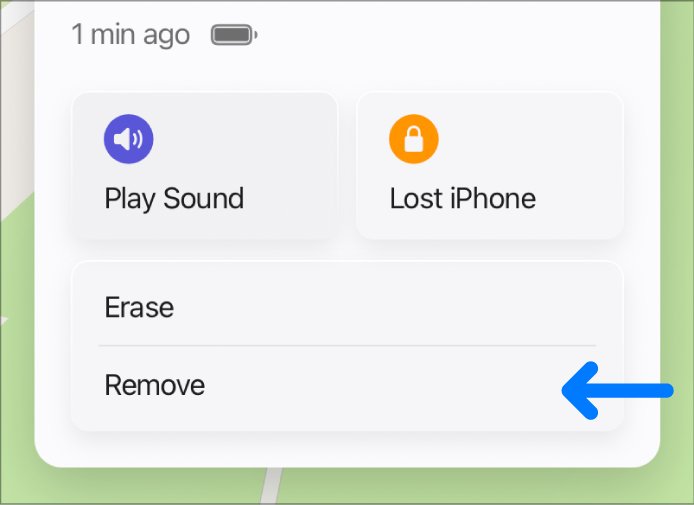
- Select Remove This Device.
- Confirm when asked. Activation Lock is removed at once, and the iPhone leaves Find My after 30 days.
If the iPhone is online, Remove This Device offers Continue instead, which marks it Ready for Repair or Trade In for 30 days. If an offline iPhone reconnects after 30 days while still signed in to your account, it returns to the list and Activation Lock comes back on. Removing Activation Lock lets someone else activate the phone, so only do it for a device you are parting with.
Find My iPhone offline on computer: what each status means
| What iCloud.com or Find My shows | What it means | What you can still do |
|---|---|---|
| iPhone on the map with a location | The iPhone is on and has a network connection | Play Sound, Mark As Lost, Erase This Device |
| Offline under the name | The iPhone is off, has no signal, or the battery is dead | See the last known location for up to 24 hours; turn on Notify me when found |
| Offline location in the Find My app | Find My network is on and a nearby Apple device reported the iPhone | Use the Find My app on a Mac, iPad or other iPhone; the last known location is kept for up to 7 days |
| No location found in Find My on Mac | More than 7 days have passed since the iPhone last sent its location | Mark As Lost or erase; both take effect when it reconnects |
| No Find Devices on iCloud.com at all | The account has web-only access to iCloud.com | Sign in on an Apple device, or ask a family member to locate it in their Find My app |
Why can't I find my iPhone on my computer
iPhone does not appear in the iCloud.com device list
Find My was never turned on, or you signed in with a different Apple Account.
- Sign out of iCloud.com and sign in with the exact Apple Account used on the iPhone.
- Check the list again, including All Devices.
- If the iPhone is still missing from the Find My device list, Find My was not set up on it before it went missing, and Find Devices cannot locate it.
Find My iPhone shows offline on the computer
The iPhone is switched off, out of signal, or out of battery.
- Note the last known location while it is still shown, since iCloud.com keeps it for up to 24 hours.
- Select Notify me when found to get an email when the iPhone reconnects.
- Open the Find My app on a Mac or iPad signed in to the same account, which can show a Find My network location for up to 7 days.
- Turn on Lost Mode now, so it applies the moment the iPhone comes back online.
iCloud.com asks for a verification code sent to the lost iPhone
The missing iPhone is your only trusted device for two-factor authentication.
- Look for the Find Devices button at the bottom of the code window.
- Select it to continue to Find Devices without entering a code.
- Once the iPhone is back, add a trusted phone number or another trusted device to your Apple Account.
Locations are not visible after changing your Apple Account password
Stolen Device Protection is on, and Apple delays device locations for a period after a password change.
- Wait, then sign in to icloud.com/find again later.
- Use Play Sound or Mark As Lost in the meantime if the iPhone is listed.
Find My is locked or will not load on iCloud.com
The Apple Account itself is locked or restricted, or the browser is out of date.
- Update the browser to Edge 130, Chrome 130 or Firefox 128 or later, or use Safari 13.1 or later on a Mac.
- If iCloud reports a locked account, unlock the locked iCloud account before trying Find Devices again.
Computer can't find iPhone over a USB cable
This is a different problem: the PC or Mac is not recognizing the connected iPhone, not Find My.
- On Windows, open the Apple Devices app, connect the iPhone with a USB cable, and tap Trust on the iPhone when Trust This Computer? appears.
- On a Mac, connect the iPhone, click Allow if asked to let the accessory connect, and tap Trust on the iPhone.
- Try another cable that supports both data and charging, and another USB port.
- Update Windows or macOS and iOS to the latest versions, then reconnect.
Find My iPhone from computer FAQ
Can I find my iPhone from my computer?
Yes. Go to icloud.com/find in a browser on any Windows PC or Mac, sign in with the Apple Account on the iPhone, and select the iPhone in the device list. Find My must already be on, and the iPhone must be online for a live location.
How to find my iPhone from a computer free?
Use Find Devices at icloud.com/find, which needs only your Apple Account and a browser. There is nothing to buy or install on a PC or Mac. On a Mac you can also use the built-in Find My app.
Can I turn on Find My iPhone from a computer?
No. Find My has to be turned on in the iPhone's own Settings under your name > Find My > Find My iPhone. If it was off when the iPhone went missing, a computer cannot switch it on remotely or locate the phone.
How to turn off Find My iPhone from a computer?
Make sure the iPhone is offline, then go to icloud.com/find, select it and choose Remove This Device. Activation Lock is removed immediately and the iPhone leaves Find My after 30 days. An online iPhone cannot be removed from a computer.
Can I disable Find My iPhone from a computer while the phone is on?
No. When the iPhone is online, Remove This Device only offers to mark it Ready for Repair or Trade In for 30 days. To disable Find My fully, turn off Find My iPhone in the iPhone's Settings.
How to find my iPhone from a PC without iCloud for Windows?
Open icloud.com/find in Microsoft Edge 130, Google Chrome 130 or Firefox 128 or later. Find Devices runs in the browser, so the iCloud for Windows app is not needed.
Why can't my computer find my iPhone?
On iCloud.com, the usual reasons are that Find My was off, you signed in with a different Apple Account, or the iPhone is offline. If you mean the PC does not see the iPhone over USB, use the Apple Devices app and tap Trust on the iPhone.
What should I do if Find My iPhone shows my device as offline?
Note the last known location, which iCloud.com shows for up to 24 hours, and select Notify me when found. Then turn on Lost Mode so it locks the iPhone as soon as it reconnects.
Can I use Find My iPhone to locate my Mac, iPad or AirPods?
Yes. Every Apple device with Find My turned on appears in the same Find Devices list on iCloud.com. AirTag and third-party Find My network accessories are the exception: only the Find My app on iPhone, iPad, Mac or Apple Watch shows them.
Is Find My iPhone available for non-Apple devices?
You can open Find Devices on a non-Apple computer, such as a Windows PC, through icloud.com/find. It only locates Apple devices signed in to your Apple Account, not Android phones or Windows laptops.
Will the person who has my iPhone get a notification when I use Find My iPhone?
Viewing the location on the map plays nothing on the iPhone. Play Sound makes it ring, Lost Mode shows your message and phone number on its Lock Screen, and Erase This Device wipes it. Apple sends a confirmation email to your own address for these actions.
Can I call my iPhone from a computer so I can find it?
Use Play Sound on icloud.com/find instead. It plays a sound that grows louder for about 2 minutes, which is easier to follow than a single ringtone.