To turn off Apple Watch, take it off the charger, press and hold the side button until the sliders appear, tap the power icon at the top right, then drag the Power Off slider to the right.
This guide covers the steps for every current model, how to restart or force restart the watch, what stops working while it is off, and what to do when it refuses to shut down.
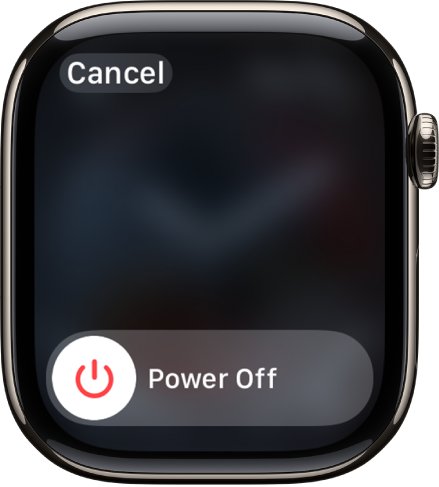
Step by step tutorial: How to turn off Apple Watch
These steps come from the Apple Watch User Guide and apply to watchOS 9 through watchOS 27, including Apple Watch Series 11, Apple Watch Ultra 3 and Apple Watch SE 3.
- Lift Apple Watch off its charger if it is charging. The watch cannot be turned off while it charges.
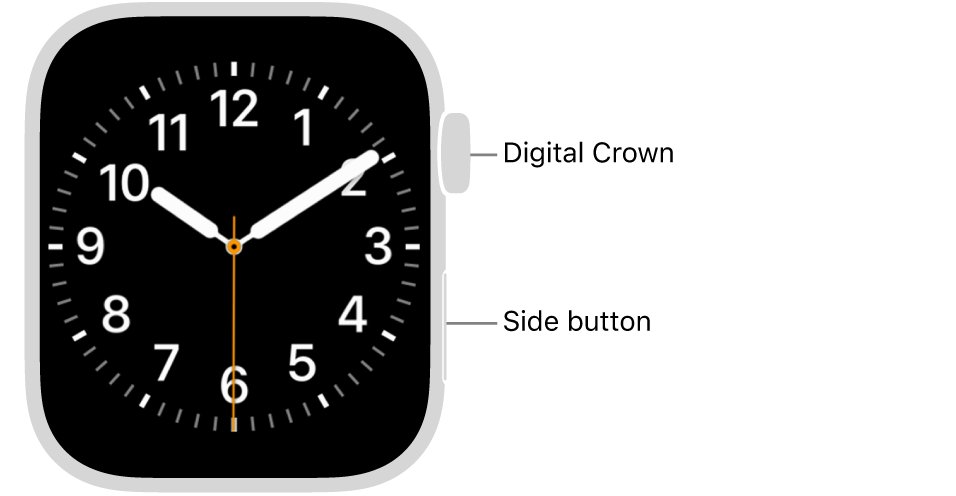
- Press and hold the side button, the flat button next to the Digital Crown, until the sliders appear.
- Tap the power icon at the top right of the screen.
- Drag the Power Off slider to the right.
- Wait for the screen to go dark. The watch is now off.
To turn the watch back on, press and hold the side button until the Apple logo appears. The watch face shows once startup finishes.
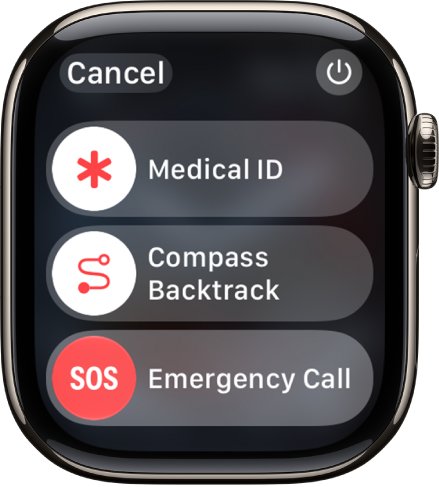
How to turn off Apple Watch Ultra, Series 11 and SE 3
The button sequence depends on the watchOS version and on what state the watch is in, not on the model name. Match your situation to a row.
| Your situation | What to do | Why |
|---|---|---|
| watchOS 9 or later (Series 11, Ultra 3, Ultra 2, SE 3 and other current models) | Hold the side button, tap the power icon, drag Power Off | Since watchOS 9 the sliders screen shows Medical ID and Emergency Call first, with power behind the icon |
| watchOS 8 or earlier | Hold the side button, then drag Power Off straight away | Older releases show the Power Off slider as soon as the sliders appear |
| Watch is on its charger | Remove it from the charger first | Apple Watch cannot be turned off or restarted while charging |
| Screen is frozen or the sliders never appear | Force restart: hold the side button and Digital Crown for at least 10 seconds | Apple's fallback when a normal shutdown is impossible |
| You only want a dark, quiet screen | Use Theater Mode, Low Power Mode or turn off Always On | The watch keeps tracking and alerting without a full shutdown |
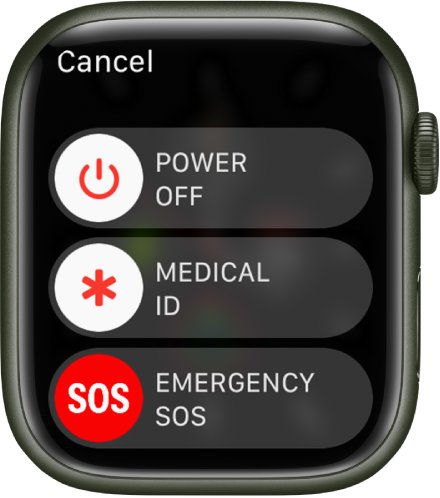
How to turn Apple Watch off and back on
Turning the watch off and on again is Apple's first suggestion when something is not working right. Apple also recommends restarting the paired iPhone at the same time.
- Take Apple Watch off the charger.
- Press and hold the side button until the sliders appear.
- Tap the power icon, then drag the Power Off slider to the right.
- Wait until the screen is completely dark.
- Press and hold the side button until the Apple logo appears.
- On the iPhone, open Settings, tap General, then tap Shut Down, and turn it back on with the side or top button.
How to force restart Apple Watch when it won't turn off
Use this only when the normal power-off steps fail, for example when the screen is stuck or the sliders never show. A force restart on Apple Watch does not erase anything.
- Remove the watch from the charger if possible.
- Press and hold the side button and the Digital Crown at the same time.
- Keep holding both for at least 10 seconds.
- Release them when the Apple logo appears.
- Once the watch face loads, turn the watch off normally if you still need it powered down.
How to tell if Apple Watch is turned off
A black Apple Watch screen may only mean the watch is asleep, in Theater Mode, or in Low Power Mode. These checks show whether it is really powered down.
- Tap the display. A sleeping watch wakes; a powered-off watch stays dark.
- Press or turn the Digital Crown. Again, only a watch that is on responds.
- Press and hold the Digital Crown. On watchOS 9 and later, a turned-off watch briefly shows the time.
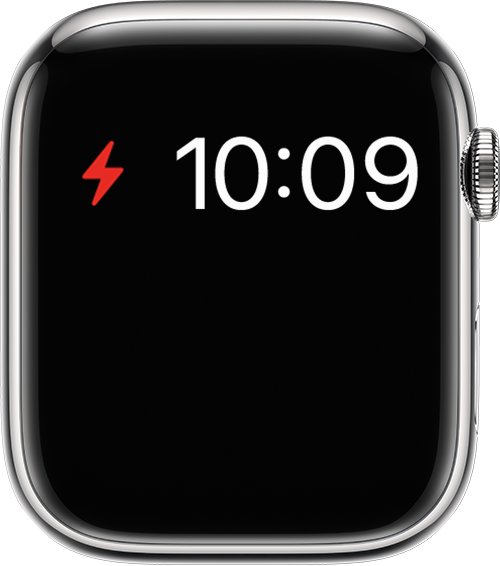
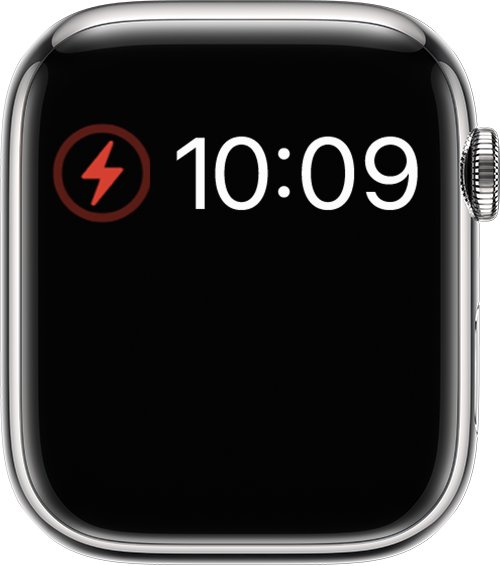
- If a red lightning bolt appears instead, the battery is empty rather than switched off. Put it on the charger.
- To confirm it starts again, press and hold the side button until the Apple logo appears.
What happens when you turn off Apple Watch
Powering off stops everything on the watch itself. The pairing with your iPhone and your data stay in place.
| Feature | While Apple Watch is off | Workaround |
|---|---|---|
| Alarms set on the watch | They cannot sound on a powered-off watch | Set the alarm on iPhone instead |
| Notifications | Nothing reaches the wrist; iPhone shows them instead | Mute or turn off notifications if you only want silence |
| Apple Pay | Unavailable until the watch is on and unlocked | Pay with iPhone |
| Heart rate, Activity and sleep data | Not recorded while the watch is off | Use Low Power Mode to keep basic tracking |
| Pairing with iPhone | Kept; the watch reconnects after it starts | No action needed |
| Telling the time | Press and hold the Digital Crown on watchOS 9 and later | None needed |
Apple Watch turn off always on display
If the goal is to stop the watch face showing when your wrist is down, switch off Always On rather than the whole watch.
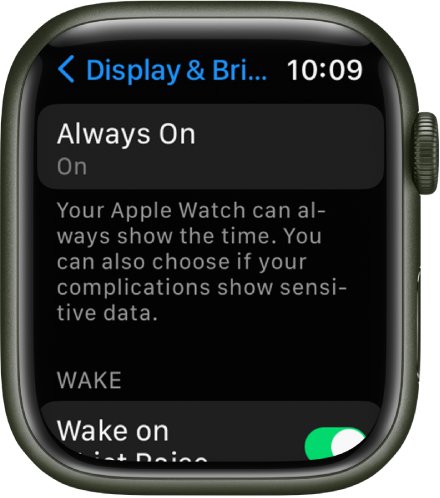
- Open the Settings app on Apple Watch.
- Tap Display & Brightness.
- Tap Always On.
- Turn off Always On.
- To stop the screen waking when you lift your arm, go back to Display & Brightness and turn off Wake on Wrist Raise.
Low Power Mode also disables Always On, and Theater Mode temporarily stops the watch waking when you raise your wrist.
How to turn off Apple Watch notifications
By default the watch mirrors the iPhone's notification settings. Change them per app from the Apple Watch app, or mute one app from the wrist.
- Open the Apple Watch app on your iPhone.
- Tap My Watch, then tap Notifications.
- Tap the app you want to silence, such as Messages, then tap Custom.
- Choose Notifications Off to stop that app entirely, or Send to Notification Center to receive it silently.
- On the watch itself, swipe left on a notification, tap the options button, then choose Mute 1 hour, Mute for Today or Turn off.
Apple Watch turn off Do Not Disturb
Do Not Disturb is one of the Focus modes, and it syncs with the iPhone. Turning it off on the watch turns it off on both.
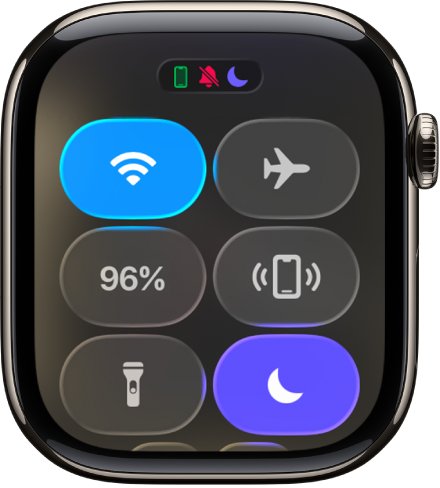
- Press the side button to open Control Center.
- Find the Focus control. It shows the active Focus icon when one is on.
- Tap the Focus control to turn the Focus off.
- If it switches on again at set times, open Settings on the watch, tap Focus, choose the Focus, tap its schedule, then turn off Enabled or tap Delete.
How to turn on Low Power Mode on Apple Watch
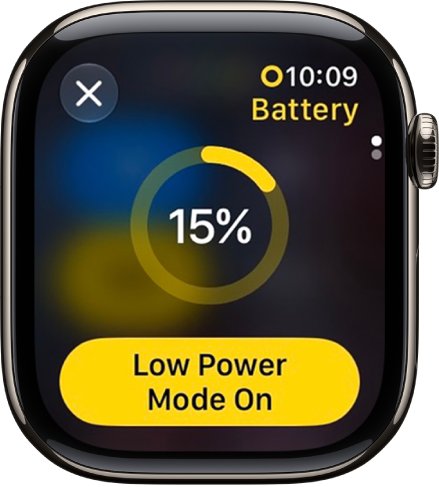
Low Power Mode is the middle ground between full power and shutting down. It turns off Always On, background heart rate and blood oxygen readings, and heart rate notifications, and it limits cellular and Wi-Fi.
- Press the side button to open Control Center.
- Tap the battery percentage.
- Tap Low Power Mode.
- Tap Turn On, or Turn On For and choose a duration.
- To return to normal, open Control Center, tap the battery percentage and turn off Low Power Mode.
The watch also offers Low Power Mode on its own when the battery drops to 10 percent or lower.
Why won't my Apple Watch turn off
Can't turn off Apple Watch while it is on the charger
Apple Watch blocks shutdown and restart during charging.
- Lift the watch off the magnetic charger.
- Press and hold the side button until the sliders appear.
- Tap the power icon, then drag Power Off.
The sliders appear but there is no Power Off slider
On watchOS 9 and later, Power Off sits behind the power icon at the top right.
- Hold the side button until Medical ID and Emergency Call appear.
- Tap the power icon at the top right.
- Drag the Power Off slider that now appears.
Why will my Apple Watch not turn off when the screen is frozen
The software is not responding to the side button hold.
- Press and hold the side button and Digital Crown together.
- Keep holding for at least 10 seconds until the Apple logo appears.
- After it restarts, turn it off normally if needed.
Why does my Apple Watch turn off on its own
Apple Watch shuts down and shows a red lightning bolt
The battery does not have enough power to stay on.
- Place the watch on its Apple charging cable.
- Check that the red lightning bolt changes to a red lightning bolt inside a ring.
- Leave it charging for up to 30 minutes before trying the side button again.
Apple Watch won't turn back on after you turned it off
The battery ran down, or the watch is not charging because the charger is not seated properly.
- Use the Apple Magnetic Charging Cable or USB-C Magnetic Fast Charging Cable that came with the watch.
- Clean the back of the watch and the charger, and remove any plastic wrap.
- Reposition the watch until a lightning bolt appears.
- If it still shows nothing, force restart with the side button and Digital Crown for at least 10 seconds.
Why doesn't my Apple Watch face turn off
Always On keeps the face visible with your wrist down.
- Open Settings on the watch and tap Display & Brightness.
- Tap Always On and turn it off.
- Lower your wrist; the screen now goes dark.
Why can't I turn off passcode on Apple Watch
An organization that manages the paired iPhone, such as a company or school, can block turning off the passcode.
- Open Settings on the watch and tap Passcode.
- If Turn Passcode Off is unavailable, ask the iPhone's administrator about the policy.
- If you can turn it off, expect Apple Pay and Mac unlock with Apple Watch to stop working.
Tips for turning off your Apple Watch
| Tip | Why it helps |
|---|---|
| Charge the watch before switching it off for a long time | A watch turned off with an empty battery needs up to 30 minutes on the charger before it starts |
| Move important alarms to the iPhone first | A powered-off watch cannot sound an alarm |
| Prefer Low Power Mode for short battery saving | It keeps the watch usable while cutting Always On and background readings |
| Use Theater Mode at the cinema or a concert | The screen stays dark without losing tracking |
| Restart the watch and iPhone together when fixing a glitch | Apple recommends restarting both devices |
| Force restart only when a normal shutdown fails | Apple lists it as the fallback, not the default |
Turn off Apple Watch FAQ
How do you turn off Apple Watch Series 11?
Lift it off the charger, press and hold the side button until the sliders appear, tap the power icon at the top right, then drag Power Off to the right. Series 10 and Series 12 use the same steps.
How do you turn off Apple Watch Ultra 3 or Ultra 2?
Apple Watch Ultra models use the same sequence as other watches. Hold the side button until the sliders appear, tap the power icon at the top right, and drag the Power Off slider. Use the side button, not the Digital Crown.
How do you turn off Apple Watch SE 3?
Remove the SE 3 from its charger, hold the side button until the sliders show, tap the power icon at the top right, then drag Power Off. Hold the side button again until the Apple logo appears to turn it back on.
How do you turn off Apple Watch 7 or 8?
A Series 7 or Series 8 on watchOS 9 or later shuts down the same way: hold the side button, tap the power icon at the top right, and drag the Power Off slider to the right.
How do you turn off an older Apple Watch such as a Series 3?
On watchOS 8 and earlier, the Power Off slider appears as soon as you press and hold the side button, so drag it to the right without tapping any icon. Take the watch off the charger first.
Can I turn off my Apple Watch from my iPhone?
Apple's Apple Watch User Guide documents only one way to power off the watch: the side button on the watch itself. The Apple Watch app on iPhone handles settings such as notifications and passcode, not shutdown.
Will my alarms still go off if my Apple Watch is turned off?
No. An alarm set in the Alarms app on the watch needs the watch to be on. Set the alarm on your iPhone instead, which rings whether or not the watch is powered.
Will turning off my Apple Watch disconnect it from my iPhone?
It drops the Bluetooth connection only while it is off. The watch stays paired and reconnects once it starts again; unpairing is a separate process in the Apple Watch app, and you would need to pair Apple Watch again only after that.
Can I still use Apple Pay if my Apple Watch is off?
No. Apple Pay on the watch needs it switched on and unlocked with its passcode. Use Apple Pay on your iPhone while the watch is off.
How do I see the time when my Apple Watch is off?
On watchOS 9 and later, press and hold the Digital Crown on a turned-off Apple Watch. The time appears briefly without starting the watch fully.