To retain the original date of videos exported from Apple Photos, choose File > Export > Export Unmodified Original on a Mac, Export Unmodified Originals on iPhone, or Unmodified Originals in the iCloud.com download options, so you get the file as it was captured instead of a newly encoded copy.
This guide covers each export route on Mac, iPhone, iCloud.com and Windows, how to keep exported videos in date order, and why Finder or File Explorer can still show the export date.
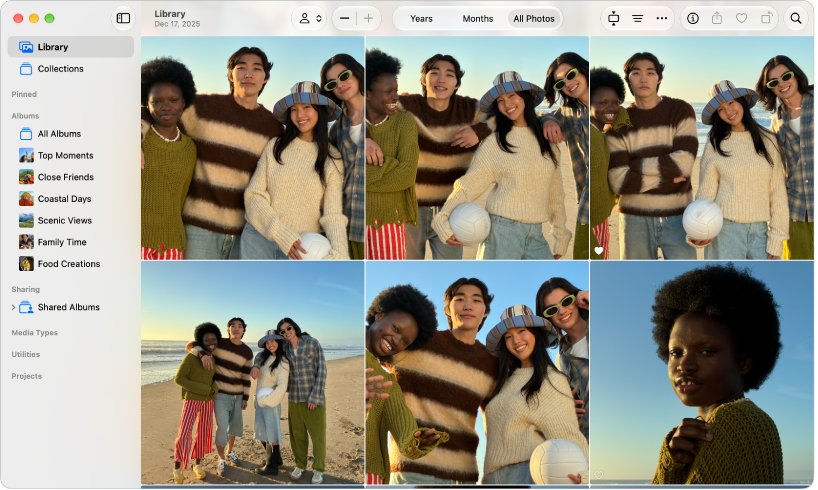
How to retain the original date of videos exported from Apple Photos
On a Mac, the unmodified original is the video file exactly as it was captured or imported, with its recorded date and time still inside it.
- Open the Photos app on your Mac.
- Select the videos you want to export.
- Choose File > Export > Export Unmodified Original.
- Select Export IPTC as XMP if you also want keywords and other IPTC metadata saved as a sidecar file.
- Choose a File Name and Subfolder Format option, then click Export.
- Pick the destination folder or drive, then click Export Originals.
If your Mac keeps only smaller versions, iCloud Photos downloads the full original each time you open a video, so turn on Download Originals to this Mac before a large export.
Export Unmodified Original vs Export videos in Photos
Photos on Mac offers two export commands for videos, and only one hands back the original file.
| Your situation | Use this | Why |
|---|---|---|
| You want the original date and full quality kept | File > Export > Export Unmodified Original | Exports the file in the format it was captured or imported in |
| You edited the video and want the edits | File > Export > Export [number] Videos | Creates a new video at the Movie Quality you pick: 480p, 720p, 1080p or 4K |
| You need smaller files for sharing | Export [number] Videos at a lower Movie Quality | A new file is written at the lower resolution |
| You are exporting from iPhone or iPad | Share > Export Unmodified Originals | Saves the original files to the Files app or an external drive |
| You are downloading on a PC or another computer | iCloud.com > More Download Options > Unmodified Originals | Downloads the format as captured or imported instead of a converted copy |
Export videos by date in Photos on Mac
The Subfolder Format menu keeps exported videos grouped by the day they were recorded, which keeps files in date order even when the copies carry a new file date.
- Open Photos and select the videos to export.
- Choose File > Export > Export [number] Videos.
- Click the Movie Quality pop-up menu and choose the resolution you need.
- Click the Subfolder Format pop-up menu and choose the option that groups videos by day, so each day gets a subfolder named after it.
- Click the File Name pop-up menu and choose to name files by title, by filename or as a Sequential series.
- Click Export, choose a location, then click Export again.
Choose None under Subfolder Format only if you want every video in one folder.
Export unmodified original videos from iPhone Photos
On iPhone or iPad, the Share sheet can save original files to the Files app or straight to a connected drive or memory card.
- Connect to Wi-Fi and make sure iOS is up to date.
- Open Photos, go to your Library, and tap Select.
- Tap the videos you want to export.
- Tap the Share button, then tap Export Unmodified Originals.
- Choose a location in Files. Tap the back arrow to pick an external drive under Locations.
- Tap Save.
For edited videos, this route exports the unmodified original, not the edited version. Videos in the Hidden album are skipped while that album is locked; turn off Use Face ID, Use Touch ID or Use Passcode in Settings > Apps > Photos first.
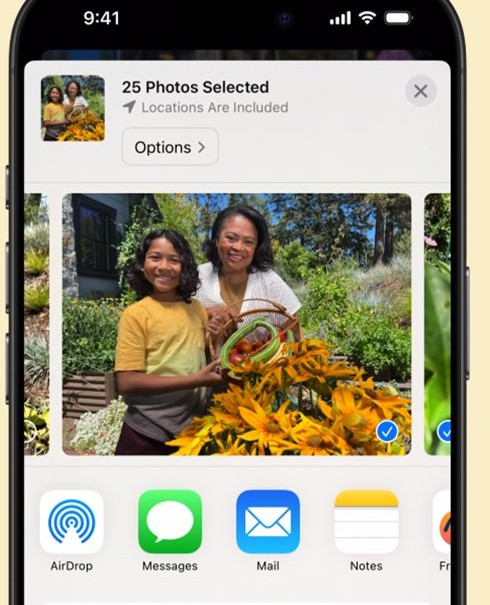
Download original videos from iCloud Photos on iCloud.com
iCloud.com downloads the most compatible format for your device by default, which can convert a video to MP4/H.264. Pick Unmodified Originals to get the file as it was captured.
- Go to icloud.com/photos and sign in with your Apple Account.
- Select the videos. Hold Command on a Mac or Control on a PC to select multiple videos in iCloud, up to 1,000 at a time.
- Click the More button and choose More Download Options.
- Choose Unmodified Originals (format as captured or imported).
- Click Download.
The other options are Highest Resolution (best quality for your device, typically HEIC or H.265) and Most Compatible (JPEG or MP4/H.264). Both can give you a different file from the one the camera recorded.
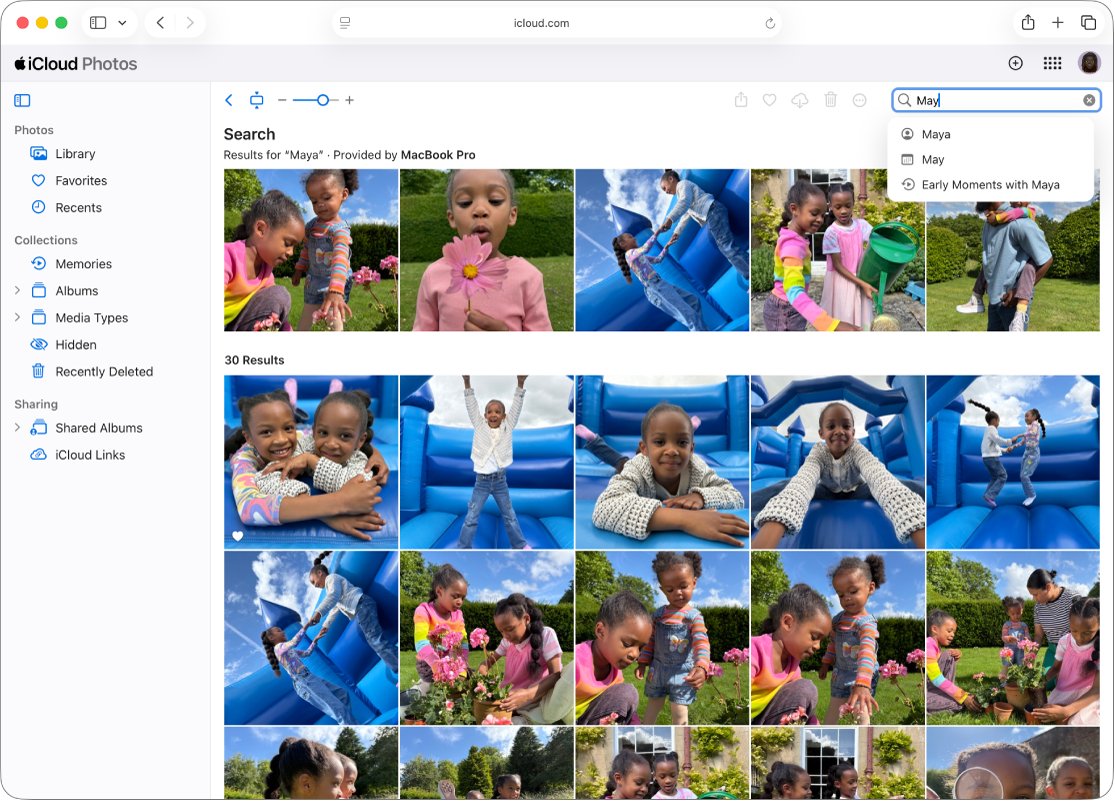
Download iCloud Photos videos to a Windows PC
iCloud for Windows puts your iCloud Photos library in File Explorer, and you download each video by opening it or pinning it.
- Open iCloud for Windows and click the button to the right of iCloud Photos.
- Turn on iCloud Photos, then click Done. Files are stored in C:\Users\[user name]\Pictures\iCloud Photos\Photos.
- Open File Explorer and click iCloud Photos in the Navigation pane.
- Right-click a video or the whole folder and choose Always keep on this device to download it.
- Copy the downloaded videos to a different folder to keep a backup.
The copy step matters: a video deleted on another device with iCloud Photos turned on is also deleted from the iCloud Photos folder on your PC, even if it is pinned. Keeping a second set on another drive is the safest way to back up iCloud Photos videos.
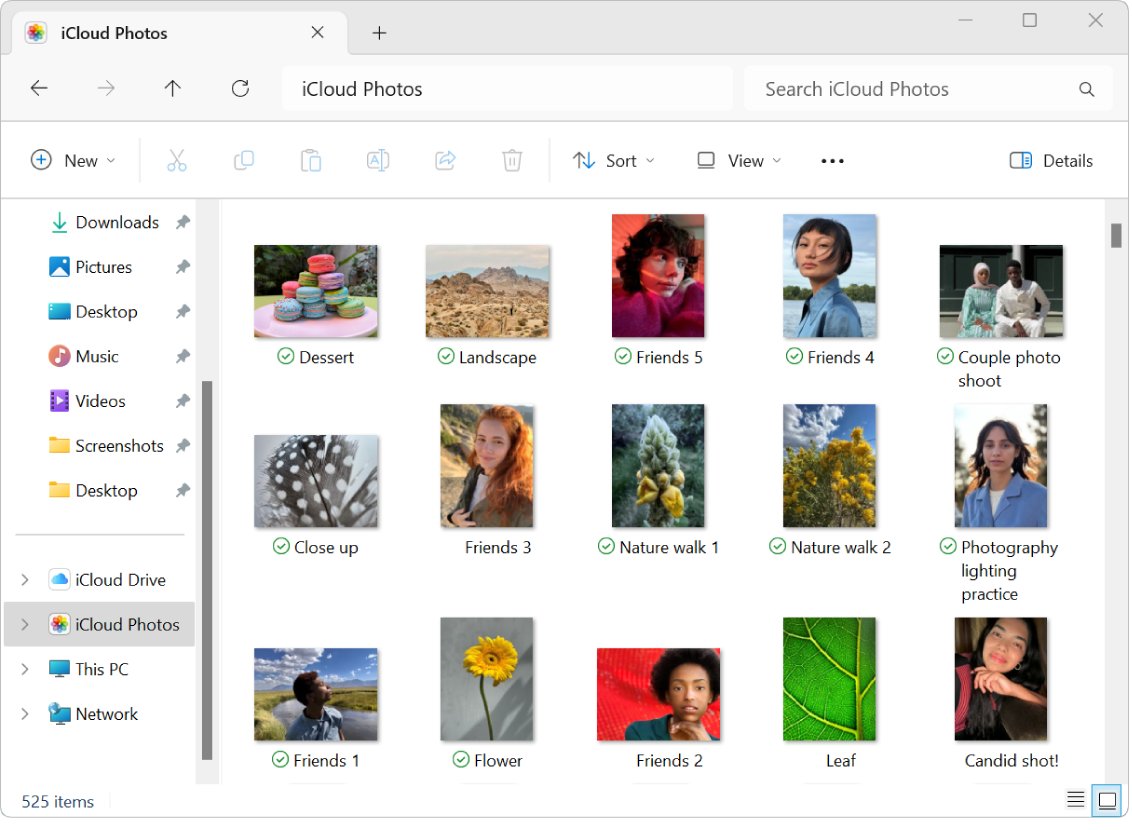
Download Originals to this Mac in iCloud Photos
With Optimize Mac Storage turned on, your Mac keeps lower-resolution versions. Switching to full originals lets you export a whole library without waiting for each download.
- Open the Photos app.
- Choose Photos > Settings.
- Click iCloud.
- Select Download Originals to this Mac.
- Wait for the library to finish downloading, which you can follow in the iCloud Photos sync status, then export with Export Unmodified Original.
How to see the original date of a video in Photos on Mac
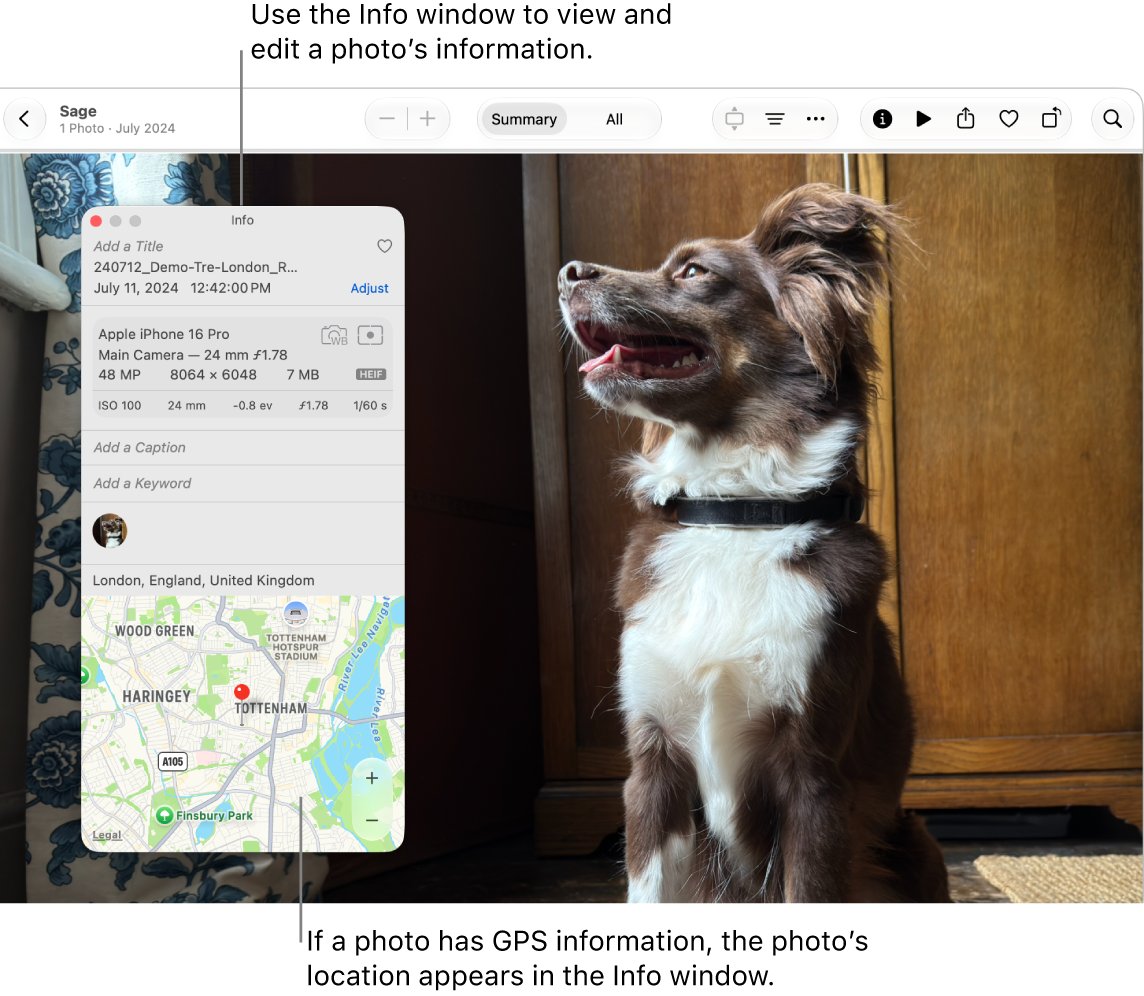
Photos shows the recorded date in the Info window. Compare it with the date your exported copy reports.
- Open Photos and click the video to select it.
- Click the Info button in the toolbar, or press Command-I.
- Read the date and time the video was taken, the device that captured it, and the file size.
- Open the exported file in an app that reads video metadata and compare its recorded date with the one in the Info window.
Why exported videos show the export date
A video carries two kinds of date: the capture date recorded inside the file, and the dates the file system gives each copy on disk.
| Date | Where you see it | What happens on export |
|---|---|---|
| Date and time the video was taken | Photos Info window on Mac, iPhone and iCloud.com | Stays inside the file when you export the unmodified original |
| File created and modified dates | Finder or File Explorer columns | Belongs to the new copy, so it can show the day you exported |
| Folder name from Subfolder Format | Finder or File Explorer folder list | Written at export, named after the day the videos were recorded |
| Title, caption and keywords | Photos Info window | Optional; saved as an XMP sidecar with Export IPTC as XMP |
Apps that sort by capture date read the date inside the file. Sorting a folder by date created or date modified sorts by the copy instead.
Exported video date wrong in Apple Photos
Finder shows today's date on exported videos
Finder's created and modified dates describe the new copy, not the recording.
- Open the video in Photos or any app that reads capture metadata to see the recorded date.
- Export again with Subfolder Format set to group by day if you need dates visible in Finder.
Videos downloaded from iCloud.com are MP4 instead of MOV
The default download uses Most Compatible format, which converts to MP4/H.264.
- Select the videos again on icloud.com/photos.
- Click More > More Download Options.
- Choose Unmodified Originals and click Download.
Exported original is missing your edits
Export Unmodified Original and Export Unmodified Originals always export the version before edits.
- Export the original for archiving.
- Use File > Export > Export [number] Videos for a second copy that includes the edits.
A Live Photo exports as a photo and a separate video
Photos exports a Live Photo as two files when you choose the unmodified original.
- Keep both files together in the same folder.
- Use Subfolder Format so each day's pair stays grouped.
Some videos are missing from the iPhone export
Items in a locked Hidden album are not transferred.
- Open Settings > Apps > Photos.
- Turn off Use Face ID, Use Touch ID or Use Passcode for the Hidden album.
- Run the export again.
Apple Photos video export date FAQ
Does Export Unmodified Original keep the date of a video?
Yes. Export Unmodified Original saves the video in the file format it was captured or imported in, so the recorded date and time stay inside the file. Finder may still list the export day as the file's created date.
How do I keep the original date when copying videos from Photos?
Copy unmodified originals rather than re-encoded exports. On Mac use File > Export > Export Unmodified Original, on iPhone use Share > Export Unmodified Originals, and on iCloud.com choose Unmodified Originals under More Download Options.
Why does my exported video show today's date?
The date you see in Finder or File Explorer belongs to the new copy written during export. The capture date is stored inside the file and appears in Photos and other apps that read video metadata.
Does downloading from iCloud.com keep the original video?
Only if you choose Unmodified Originals. The default download gives the most compatible format for your device, and Most Compatible converts videos to MP4/H.264. Use More Download Options to pick the original format.
How do I keep exported video files in date order?
Set Subfolder Format when you export from Photos on Mac, so videos are grouped into subfolders named after the day they were recorded. The folder names then keep the recording dates visible in Finder or File Explorer.
Can I export an edited video with its original date?
Export Unmodified Original always gives the pre-edit file. For the edited version, use File > Export > Export [number] Videos, and keep the unmodified original as well if the recorded file matters to you.
Where are iCloud Photos videos stored on a Windows PC?
iCloud for Windows stores them in C:\Users\[user name]\Pictures\iCloud Photos\Photos. Videos show as thumbnails until you open or pin them, and you should copy them to another folder to keep a backup.
How many videos can I download from iCloud.com at once?
You can select up to 1,000 photos or videos at a time on iCloud.com. Hold Command on a Mac or Control on a PC to select several, then choose the download format.