A Lenovo laptop camera that stops working is usually blocked by the privacy shutter, a camera key, or a Windows privacy setting, and the rest are mostly driver faults.
This guide works from the 30-second checks through Windows settings, Lenovo Vantage, BIOS, driver swaps, clean boot and error codes, and ends with how to tell a hardware fault apart.
Quick checks that fix most problems
Run these in order and test the camera after each one. The list doubles as a practical checklist for fast reference before any deeper fix.
- Slide the webcam privacy shutter above the screen fully open, and wipe the lens with a soft dry cloth.
- Look for a camera key or a side switch and turn the camera on.
- Open Settings > Bluetooth & devices > Cameras and check the built-in camera is listed under Connected cameras, not Disabled cameras.
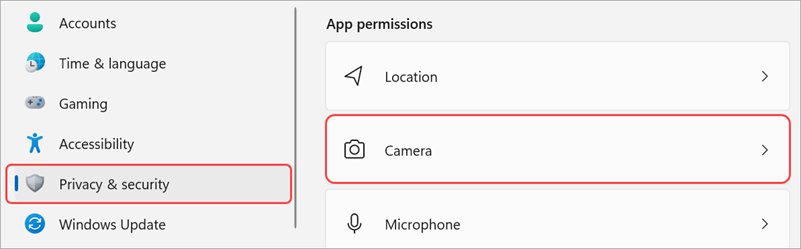
- Open Settings > Privacy & security > Camera and turn on Camera access, Let apps access your camera and Let desktop apps access your camera.
- Select Start > Power > Restart. Waking from sleep is not a restart.
- Open the Camera app from Start and check whether a live preview appears.
If the Camera app shows a picture but Teams, Zoom or a browser does not, the fault sits in that app's camera permissions, not in the camera.
1. Check the physical privacy shutter and lens
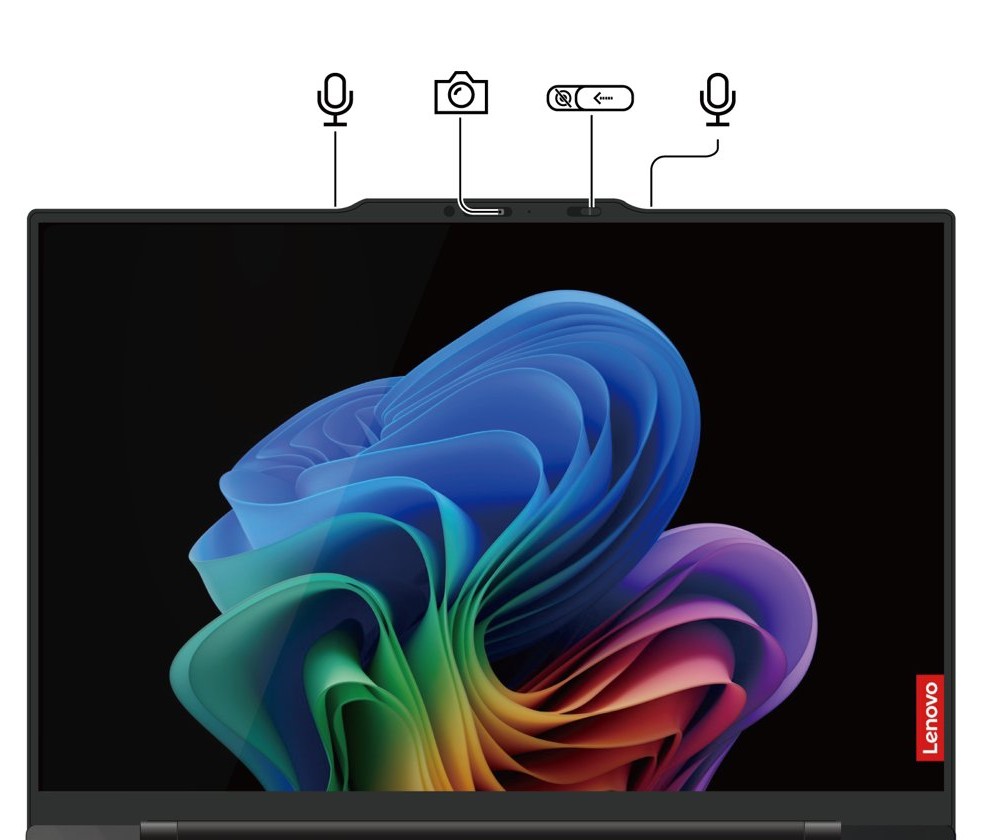
Many Lenovo laptops have a small webcam privacy shutter that slides across the lens. A closed shutter gives a black or grey picture while every Windows setting looks normal.
- Look at the top bezel above the screen for a small slider beside the lens.
- Slide it so the lens glass is fully visible, with no coloured dot or cover over it.
- Check the edges of the laptop for a sliding camera switch, which some models use instead.
- Remove stickers, webcam covers or screen protectors that overlap the lens.
- Clean the lens gently with a soft, dry, lint-free cloth.
- Open the Camera app and check for a clear, lit image.
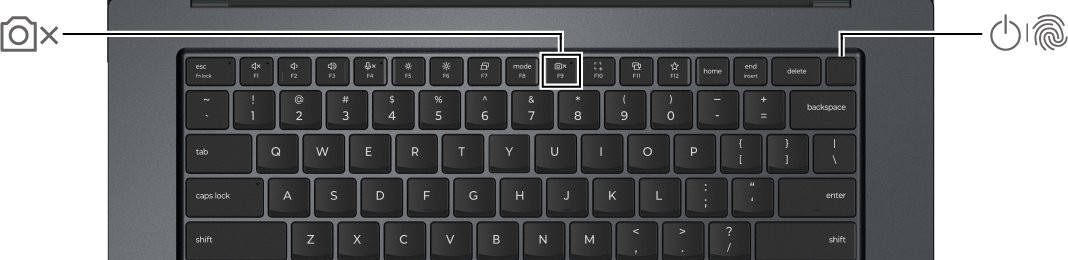
2. Look for a camera key or shortcut (Fn + F8 on many models)
Some laptops turn the camera off with a keyboard key, and Windows may then act as if no camera is installed. A camera icon with a slash through it in the Camera app is the usual sign.
The key's position changes between Lenovo models, so find it by its icon rather than its number.
- Look along the top row of keys for one printed with a camera icon.
- Press that key once, then open the Camera app to test.
- If nothing changes, hold Fn and press the same key, because the FnLock setting decides which function a top-row key performs.
- Check the Esc key LED: on IdeaPad and Yoga models, Fn + Esc toggles FnLock and the LED shows its state.
- If your model has no camera key, check the sides of the laptop for a sliding camera switch.
3. Restart the laptop
A full restart reloads the camera driver and clears an app that is still holding the camera. Error 0xC00D7167 literally means a camera component needs a restart.
- Save your work and close video apps such as Teams, Zoom and browsers.
- Select Start > Power > Restart.
- Wait for Windows to reach the desktop, then sign in.
- Open the Camera app before any other app and check the preview.
Windows settings and permissions (what to check next)
Windows 11 keeps camera control in two places: the device list and the privacy page. A camera can be disabled in one while the other looks fine.
| Setting | Where it lives | What it should show |
|---|---|---|
| Camera on or off for the device | Settings > Bluetooth & devices > Cameras | Your camera under Connected cameras; if it sits under Disabled cameras, select Enable (admin rights needed) |
| Camera access for the whole PC | Settings > Privacy & security > Camera | Camera access on; if it is greyed out, an administrator has to turn it on |
| Microsoft Store apps | Same page, Let apps access your camera | On, with the app you use (such as Microsoft Teams) toggled on |
| Browsers, Zoom and other desktop apps | Same page, Let desktop apps access your camera | On; desktop apps cannot be allowed one by one |
| Camera troubleshooter | Bluetooth & devices > Cameras > your camera > Troubleshoot | Opens Get Help and runs automated checks |
| Windows Hello IR camera | Not listed on the Cameras page | Normal; infrared face sign-in cameras do not appear in that list |
A camera missing from both Device Manager and the Cameras page points to the camera key, BIOS or hardware, not to privacy settings.
The same privacy toggles also govern webcams on any Windows 10 or 11 PC, including external USB cameras plugged into the Lenovo.
Drivers, firmware, and system updates
Lenovo offers three update routes. Use one at a time, and only install packages that match your exact model and Windows version.
| Route | What it installs | Where to start |
|---|---|---|
| Windows Update | Windows fixes plus camera drivers and BIOS packages offered as optional updates | Settings > Windows Update > Check for updates, then Advanced options > Optional updates |
| Lenovo Vantage | Lenovo-qualified drivers, BIOS and system software | Device > System Update > CHECK FOR UPDATES |
| Lenovo support site | Model-specific camera driver and BIOS/UEFI downloads | pcsupport.lenovo.com > search by product name or serial number > Drivers & Software > Manual Update > Select Drivers |
Keep the laptop on mains power and connected to the internet during a BIOS update, and never press the power button while it runs. The screen can go blank during memory retraining; wait for the logo to return.
Update Windows and camera drivers first
Updating is the lowest-risk driver fix, so do it before you roll back or swap anything.
- Open Settings > Windows Update and select Check for updates.
- Select Advanced options > Optional updates and install any camera or Lenovo driver listed.
- Open Lenovo Vantage, go to Device > System Update and select CHECK FOR UPDATES.
- Right-click Start, open Device Manager and expand Cameras.
- Right-click the camera, select Update driver, then Search automatically for drivers.
- Restart the laptop and test in the Camera app.
Try the Universal Video Class (UVC) fallback driver
Most webcams are USB Video Class compatible, and Windows ships a generic driver for them called USB Video Device. Switching to it bypasses a broken manufacturer driver.
The generic driver may not support every feature. Windows Hello face sign-in can stop working if it relied on the Lenovo driver.
- Right-click Start and select Device Manager.
- Expand Cameras or Imaging devices and right-click the camera.
- Select Update driver > Browse my computer for drivers.
- Select Let me pick from a list of available drivers on my computer.
- Select USB Video Device, then Next.
- Select Close, restart, and test the camera.
To go back, open the camera's Properties > Driver tab and select Roll Back Driver, or reinstall the Lenovo driver from Vantage.
Reinstalling the driver
If the camera broke straight after an update, roll the driver back first. If that option is greyed out, remove the driver and let Windows reinstall it.
- In Device Manager, right-click the camera and select Properties.
- On the Driver tab, select Roll Back Driver and then Yes, if the button is available.
- If rollback is unavailable or does not help, select Uninstall Device on the same tab.
- Tick Attempt to remove the driver for this device and select OK.
- Open the Action menu and select Scan for hardware changes.
- Restart the laptop, then install the latest Lenovo camera driver through Vantage or the Lenovo support site if Windows did not.
Lenovo-specific controls and gotchas
Several Lenovo features can switch the camera off outside Windows, so Windows troubleshooting alone will not find them.
| Lenovo control | What goes wrong | What to do |
|---|---|---|
| Webcam privacy shutter | Black or grey picture, camera still listed as working | Slide the shutter fully open |
| Camera key or side switch | Camera vanishes or shows a camera with a slash | Press the camera-icon key or move the switch to on |
| FnLock (Fn + Esc) | Pressing the camera key does something else | Hold Fn with the key, or toggle FnLock |
| Lenovo Vantage camera privacy setting (some models) | Every app gets a blocked picture | Turn the setting off in Vantage |
| BIOS camera setting | Camera missing from Device Manager entirely | Enable it in the UEFI/BIOS menu |
| IR camera for Windows Hello | A second camera shows in Device Manager but not in Settings | Normal; video apps use the RGB camera |
Lenovo Vantage and camera privacy mode
Lenovo Vantage handles Lenovo drivers and, on some models, camera privacy controls. The labels differ between Vantage versions and laptop lines.
- Search for Vantage in the Start menu and open it.
- Open the Device settings and look for a camera or privacy option for your model.
- If a camera privacy setting is on, turn it off and test the Camera app.
- Go to Device > System Update and select CHECK FOR UPDATES.
- Install the camera, chipset and BIOS updates it offers, then restart.
Keep Lenovo Vantage itself updated, because Lenovo ships camera fixes through the same System Update channel.
BIOS/UEFI settings
If the camera is missing from Device Manager even after Scan for hardware changes, check that the firmware has not switched it off. ThinkPads group device access under the BIOS Security menu.
- Restart the laptop.
- At the Lenovo logo, press F1 repeatedly on a ThinkPad, or F2 repeatedly on IdeaPad, Yoga and Lenovo Slim models (Fn + F2 if hotkey mode is on).
- On a ThinkPad, open Security and find the I/O port access settings; on other models, look under Configuration.
- Set the camera entry to enabled if it is disabled.
- Save and exit: Exit > Exit Saving Changes on IdeaPad models, or the Restart menu on ThinkPads.
- Let Windows start and check Device Manager > Cameras.
Lenovo's BIOS Simulator Center at download.lenovo.com/bsco shows the exact menus for your model before you reboot.
Antivirus or endpoint security software
Some security suites include webcam protection that blocks apps from the camera. Error 0xA00F4246 means security software has locked the camera.
Keep protection on. Allow the app instead of switching the security software off.
- Open your security app from the Start menu.
- Find its webcam protection, privacy or app control section.
- Check the block list or recent alerts for your video app.
- Allow that app to use the camera, then restart it.
- Update the security app if it is out of date.
- On a work laptop, ask IT to allow the camera in the endpoint policy instead of changing it yourself.
App-specific checks and tools
When the Camera app works, every remaining fix is inside the app or browser you call from.
| App | Where camera access is set | Built-in test |
|---|---|---|
| Microsoft Teams | Settings > Devices in Teams; Windows Privacy & security > Camera > Microsoft Teams toggle | Make a test call under Audio settings |
| Microsoft Edge | Settings > Privacy, search, and services > Site permissions > All permissions > Camera | Join the call again after allowing the site |
| Google Chrome | Settings > Privacy and security > Site settings > Permissions > Camera | Select the right camera in the drop-down |
| Zoom and other desktop apps | Windows Let desktop apps access your camera, then the app's own video settings | The app's video preview |
Close every other app that might use the camera first. Errors 0xA00F4243 and 0xA00F4289 mean another app or process already has it.
Test with multiple apps
Testing in two or three apps tells you whether to fix Windows or one program.
- Close all video apps, including those in the system tray.
- Open the Camera app and check the preview.
- Open your browser and allow camera access for a video call site you trust.
- Open Teams and run Settings > Devices > Make a test call.
- If only one app fails, reset that app's camera selection or reinstall it.
- If every app fails, continue with drivers, BIOS and the troubleshooter.
When one program keeps failing while others work, the problem lies with that program, not with Windows or the camera.
Reset or repair the Camera app
If the Camera app itself crashes or shows a blank window, repair it first. Reset clears the app's data.
- Open Settings > Apps > Installed apps.
- Find Camera and select the More (three dots) icon.
- Select Advanced options.
- Select Repair and test the app.
- If it still fails, return and select Reset.
- On the camera's own page in Bluetooth & devices > Cameras, select Reset settings to restore default image settings.
Built-in camera troubleshooter
Windows 11 runs the camera troubleshooter through the Get Help app. It checks permissions, drivers and services automatically.
- Open Settings > System > Troubleshoot.
- Select Other troubleshooters.
- Find Camera and select Run.
- Choose your built-in camera if Get Help asks which one.
- Apply each fix it suggests, then test in the Camera app.
The same tool opens from Bluetooth & devices > Cameras > your camera > Troubleshoot.
Advanced troubleshooting steps
Move to these only after the quick checks, driver update and troubleshooter have failed. Match your situation to a row.
| Your situation | Try this | Why |
|---|---|---|
| Camera worked before a new app or utility was installed | Clean boot | Starts Windows without third-party services that may grab the camera |
| Camera listed but preview freezes or stays black on Windows 11 24H2 or later | Basic camera mode | Turns off hardware acceleration and manufacturer plug-ins |
| Lenovo driver is corrupt or will not install | USB Video Device driver | Uses the Windows generic driver |
| Camera missing from Device Manager | BIOS/UEFI camera setting | The firmware may have the port turned off |
| Camera broke after a Windows update | Roll Back Driver | Restores the previous driver version |
Clean boot to isolate background conflicts
A clean boot starts Windows with only Microsoft services and no startup apps. If the camera works then, a third-party program is blocking it.
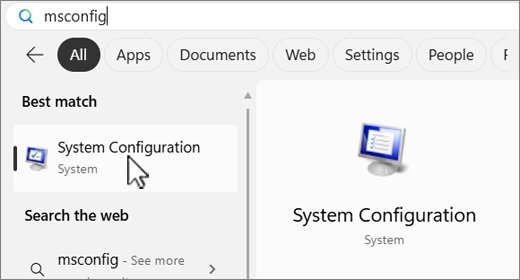
- Sign in as an administrator, search for
msconfigand open System Configuration. - On the Services tab, select Hide all Microsoft services, then Disable all and Apply.
- On the Startup tab, select Open Task Manager.
- Disable each enabled startup app and note which ones you changed.
- Close Task Manager, select OK and restart.
- Test the camera, then re-enable services in halves until it breaks again to find the culprit.
- Return to General > Normal Startup and Enable all when you finish.
On a networked work laptop, policy may block these steps; ask IT before changing System Configuration.
Registry tweak for media foundation (advanced)
Microsoft's camera troubleshooting does not document a Media Foundation registry value for broken webcams, so there is no supported value to enter.
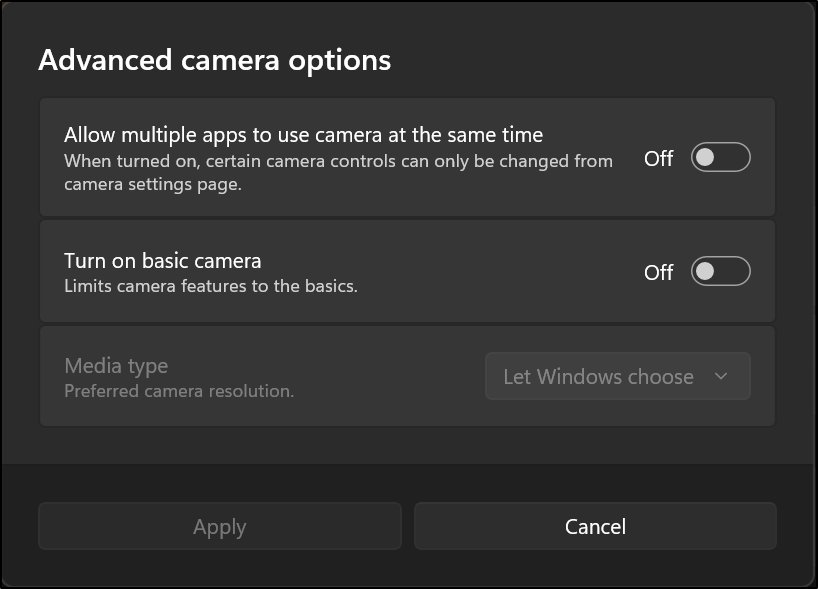
Windows 11 version 24H2 and later ship a supported switch for the same problem: Basic camera mode turns off hardware acceleration and camera plug-ins without editing the registry.
- Open Settings > Bluetooth & devices > Cameras.
- Select your built-in camera under Connected cameras.
- Under Advanced camera options, select Edit.
- Turn on Basic camera and test the camera in your app.
- Turn it off again once a driver update fixes the camera, because Windows Studio Effects do not work in basic mode.
Windows Hello face sign-in bypasses Basic camera mode, so it keeps working while the mode is on.
Error codes you might see (and what they often mean)
0xA00F4244 (NoCamerasAreAttached)
Windows cannot detect the camera, usually a driver, camera key or disabled device.
- Open the shutter and press the camera key.
- In Device Manager > Cameras, right-click the camera and select Enable device if it shows.
- Update the driver, or switch to USB Video Device.
0xA00F4243, 0xA00F4289 or 0x80070005
Another app is using the camera, or access is denied.
- Right-click the taskbar, open Task Manager and end apps using the camera.
- Turn on the camera toggles in Privacy & security > Camera.
- Check the security app's webcam protection list.
0xA00F4292
Camera access is restricted by policy.
- Check Privacy & security > Camera; a greyed-out toggle means an administrator controls it.
- Contact your IT admin on a managed laptop.
0x800705AA
Not enough system resources to run the camera.
- Close unneeded apps and restart.
- Update the camera driver from Device Manager.
0xA00F4246
Security software has locked the camera.
- Allow your video app in the security suite's webcam protection.
- Update the security app.
0x80070490 or 0x80004005
Device detection error from a registry, driver or hardware fault.
- Run the Camera troubleshooter in Other troubleshooters.
- Uninstall the camera in Device Manager, restart, then select Update driver > Search automatically for drivers.
0xA00F4294 (video start failed)
An outdated or incompatible driver.
- Update the driver and check Optional updates.
- Restart and test in the Camera app.
0xC00D7167
A camera component needs a restart.
- Save your work.
- Select Start > Power > Restart and test again.
When the camera may be a hardware problem
Hardware is the likely cause when the camera stays missing after every setting, driver and BIOS check.
| What you see | What it suggests |
|---|---|
| Camera absent from Device Manager after Scan for hardware changes, with BIOS camera enabled | Disconnected or failed camera module or cable |
| Camera appears and disappears when you move the screen | Loose or damaged display cable |
| Black image in every app with the shutter open, on the generic driver | Faulty sensor |
| Picture works but is blurry after cleaning | Damaged lens or a low-light setting in the app |
| Fault started after a drop or liquid spill | Physical damage; book a repair |
If the keyboard also misbehaves after a spill, the same repair route applies as for a Lenovo keyboard that stopped working.
How to test a Lenovo laptop camera in Windows
The Camera app is the cleanest test because it uses Windows' own camera stack, with no meeting app in between.
- Close every video app.
- Open Start and select Camera; select Yes if it asks for camera access.
- Check for a live, moving image rather than a black frame or a slashed camera icon.
- Open Settings > Bluetooth & devices > Cameras and select the camera to see its preview there too.
- Run a Teams Make a test call or your meeting app's video preview.
Security and privacy considerations
Fixing the camera should not leave it more exposed than before.
| Concern | Safe practice |
|---|---|
| Apps with camera access | Allow only the Store apps you use under Let apps access your camera |
| Security software | Allow the app in webcam protection; keep the protection on |
| Drivers | Install drivers only from Windows Update, Lenovo Vantage or Lenovo's support site |
| Privacy when not in calls | Close the webcam privacy shutter or use the camera key |
| Work laptops | Leave policy-locked camera settings to IT |
One final note on best practice: keep Lenovo Vantage and Windows Update current, so camera and BIOS fixes arrive through trusted channels instead of download sites.
Strengths of this approach—and risks to watch for
Each fix carries a small trade-off. Knowing it lets you undo a change if something else breaks.
| Fix | Strength | Risk to watch for |
|---|---|---|
| USB Video Device driver | Works around a broken Lenovo driver | Windows Hello face sign-in may stop |
| Basic camera mode | No registry edit, easy to undo | Windows Studio Effects turn off |
| Driver rollback or uninstall | Undoes a bad update | Windows Update may reinstall the same driver |
| Clean boot | Pinpoints a conflicting program | Some features stop until you restore normal startup |
| BIOS update or changes | Fixes firmware-level faults | Interrupting the update can damage the laptop |
| Camera app reset | Clears corrupt app data | Removes the app's saved preferences |
If you still need help: what to gather before contacting Lenovo or IT support
Having these ready shortens a support call. Vantage can also capture much of it for you.
| Item | Where to find it |
|---|---|
| Model and serial number | The label under the laptop, or Lenovo Vantage |
| Windows version | Settings > System > About |
| Camera name and driver version | Device Manager > Cameras > camera Properties > Driver |
| Exact error code | The Camera app or your meeting app |
| Fixes already tried | A short list: shutter, key, settings, drivers, BIOS, clean boot |
| Device snapshot | Lenovo Vantage > Smart Care, on supported models; share it with Lenovo experts |
Reach Lenovo through Smart Care > Live chat or Call support in Vantage, or find the number at pcsupport.lenovo.com/supportphonelist. On a company laptop, go to your IT desk first.
Lenovo laptop camera not working FAQ
Why is my Lenovo laptop camera not working?
The usual causes are a closed webcam privacy shutter, a camera key that has turned the camera off, or Windows camera privacy settings. If those are fine, an outdated or corrupt driver, a BIOS setting or security software is the next suspect.
How do I turn on the camera on a Lenovo laptop?
Open the privacy shutter above the screen, press the camera-icon key if your keyboard has one, then check Settings > Bluetooth & devices > Cameras. Turn on Camera access in Privacy & security > Camera so apps can use it.
Why does my Lenovo camera show a black screen?
A black picture with the camera still listed usually means the privacy shutter is closed or the lens is covered. If the shutter is open, update the camera driver, test in the Camera app, and try Basic camera mode on Windows 11 24H2 or later.
What does a camera icon with a slash mean on a Lenovo laptop?
It means Windows cannot reach the camera, often because a keyboard key or side switch has turned it off. Press the camera key, holding Fn if needed, or move the switch to on, then reopen the Camera app.
Why is my Lenovo camera missing from Device Manager?
A camera key, a disabled BIOS setting or a hardware fault can hide it. Select Action > Scan for hardware changes, check the camera setting in the UEFI/BIOS menu, and contact Lenovo if it still does not appear.
Does Windows Hello still work with the USB Video Device driver?
Not always. The generic USB Video Device driver may not support features the Lenovo driver provides, and Windows Hello face recognition can stop working. Reinstall the Lenovo driver through Vantage or Windows Update once the camera is fixed.
How do I update the camera driver on a Lenovo laptop?
Use Windows Update optional updates, Lenovo Vantage under Device > System Update, or the Drivers & Software page for your model on Lenovo's support site. Install only the driver that matches your model and Windows version.
Why does my Lenovo camera work in one app but not another?
The failing app either lacks permission or another program already holds the camera. Turn on Let desktop apps access your camera, close other video apps, and check the app's own video device selection.