Transferring data to a new phone takes a few hours mainly because of how much data you are moving and how fast the connection between the phones or to the cloud is, and both Apple and Google say transfer times vary with exactly those factors.
This guide explains what slows each transfer method down, how to speed up a move to a new iPhone or Android phone, how to tell a slow transfer from a stuck one, and what to do when it stalls.
How to speed up transferring data to a new phone
There is no setting that makes a transfer instant, but you can remove the things that slow it down. These steps apply to a move between two iPhones, and most of them help on Android too.
- Update the old phone to the latest software version before you start.
- Plug both phones in to power and keep them next to each other.
- Connect the two phones with a cable instead of using a wireless transfer when both phones support it.
- Use a fast, stable Wi-Fi network and turn off Wi-Fi switching features such as Smart Network Switch on an Android phone.
- On a new iPhone, choose Download from iCloud on the Transfer Your Data screen if you want to use the phone right away while the rest downloads in the background.
- Leave both phones alone until the progress bar finishes: no calls, no other apps.
A direct phone-to-phone transfer keeps both phones busy until it ends. Downloading from iCloud does not make the data arrive sooner, but it gives you a working phone within minutes while the download continues.
Why is transferring data to a new phone taking so long?
Find what matches your transfer in the first column. Most slow transfers come from one or two of these causes at once.
| Cause | Why it adds time | What to do |
|---|---|---|
| A lot of data on the old phone | Apple says transfer times vary with the amount of data being moved; a full phone of photos and videos takes the longest | Delete what you don't need first, or let photos sync later through iCloud Photos backups or Google Photos |
| Wireless transfer on a slow or busy network | Quick Start and Move to iOS times depend on network conditions | Switch to a cable, or move closer to the router and pause other downloads |
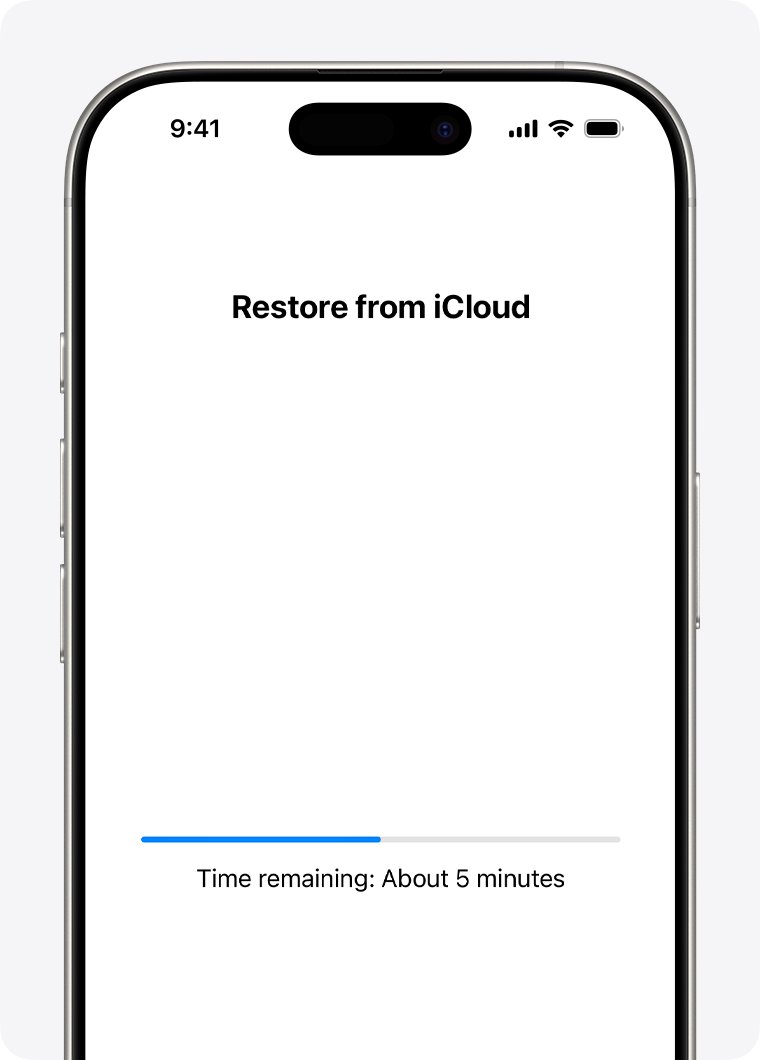
| Restoring an iCloud backup | Restore time depends on the backup size and the speed of your Wi-Fi | Use a faster Wi-Fi network; a backup can't restore over cellular |
| Software update during setup | A backup made on a newer iOS version needs the new iPhone to update before it restores | Let the update finish; it is part of the transfer |
| Photos, music and apps after setup | Content in iCloud keeps downloading after the restore screen finishes | Keep the phone on Wi-Fi and power overnight |
| Restoring a Google backup on Android | Google says a full restore can take up to 24 hours | Leave the new phone on Wi-Fi and charging until it completes |
| Moving between iPhone and Android | Move to iOS copies everything over a temporary Wi-Fi network between the phones | Connect the phones with a USB-C cable for a faster transfer |
Data transfer old phone to new phone: methods and wait times
Neither Apple nor Google publishes a minutes-per-gigabyte figure. What changes between methods is what you wait on and whether you can use the new phone while you wait.
| Method | What sets the time | Can you use the new phone during it? |
|---|---|---|
| Quick Start, transfer directly from iPhone | Amount of data and the wireless link between the phones | No, both phones are busy until it ends |
| Quick Start with Download from iCloud | Backup size and your Wi-Fi speed | Yes, apps and data download in the background |
| iPhone to iPhone with a cable | Amount of data; the cable avoids wireless slowdowns | No, wait for both phones to finish |
| Restore from iCloud Backup | Backup size and Wi-Fi speed, then a background download of photos, music and apps | After the progress bar finishes |
| Restore from a Mac or PC backup | Backup size; the phone stays connected while it restarts and syncs | After the sync finishes |
| Move to iOS from Android | How much content you move; a USB-C cable is faster than Wi-Fi | No, leave both phones alone until the loading bar finishes |
| Google backup to a new Android phone | Up to 24 hours for a full restore | Yes, once setup ends while the restore continues |
| Samsung Smart Switch to a Galaxy phone | Amount of content moved wirelessly, from external storage or from a computer backup | Depends on the transfer type |
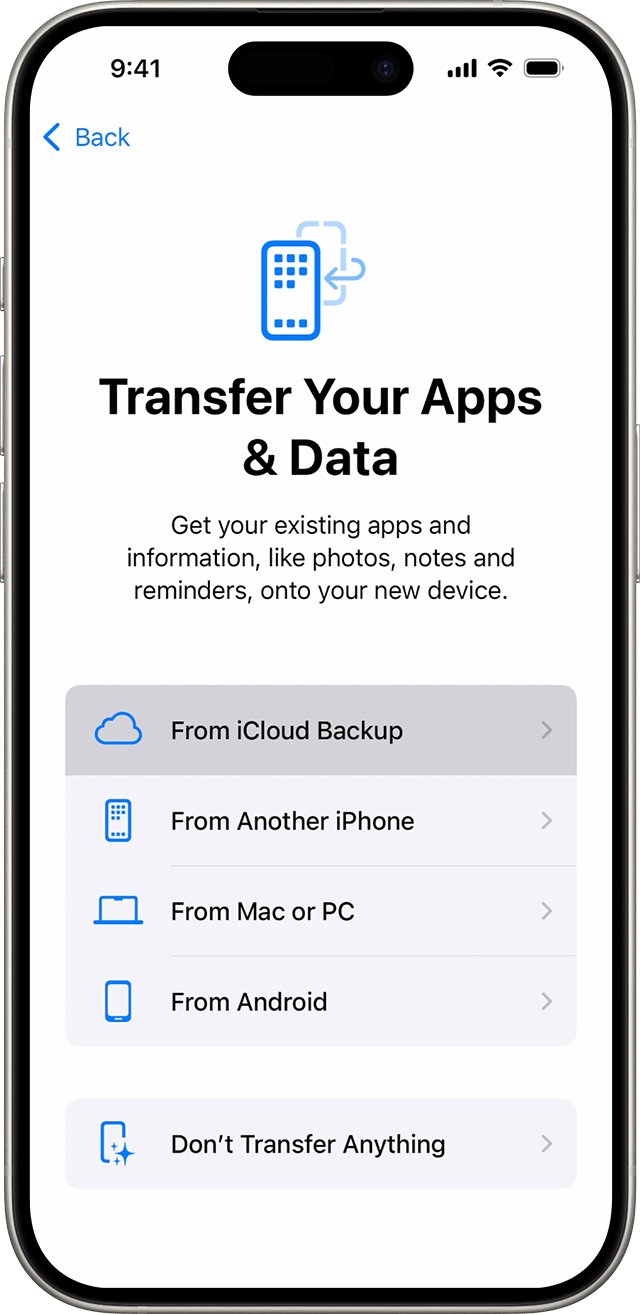
How to transfer data to a new iPhone with a cable
A wired transfer removes the wireless link from the equation. The cable you need depends on the two iPhone models.
- For an iPhone 15 or later to another iPhone 15 or later, connect the charging ports with a USB-C Charge Cable.
- For an iPhone 14 or earlier to an iPhone 15 or later, use a USB-C to Lightning Cable.
- For two iPhone 14 or earlier models, power a Lightning to USB 3 Camera Adapter with a 12W or higher power adapter, plug it into the old iPhone, then connect the new iPhone with a Lightning to USB Cable.
- Turn on both iPhones and follow the onscreen instructions.
- Connect the new iPhone to Wi-Fi or your cellular network, and activate cellular service if asked.
- Set up Face ID or Touch ID, then wait for the transfer to complete on both iPhones.
The iPhone to iPhone transfer options, including Quick Start without a cable, all lead to the same result on the new phone.
Use Download from iCloud to use the new iPhone sooner
This option starts with Quick Start but pulls your data from iCloud instead of the old phone. It needs iOS 17.2 or later on the old iPhone, and the total time still depends on your Wi-Fi.
- On the old iPhone, connect to Wi-Fi and turn on Bluetooth in Settings.
- Plug in both iPhones, then turn on the new one and follow the prompts until the Quick Start screen appears.
- Place the old iPhone next to the new one and scan the animation on the new iPhone with the old iPhone's camera.
- Enter the old iPhone's passcode on the new iPhone when asked.
- On the Transfer Your Data screen, tap Download from iCloud.
- Finish setup and keep the new iPhone on Wi-Fi and power while photos, music and apps download.
Greyed-out app icons on the Home Screen mean those apps are still downloading. If some never arrive, the apps missing after a transfer can be redownloaded from the App Store.
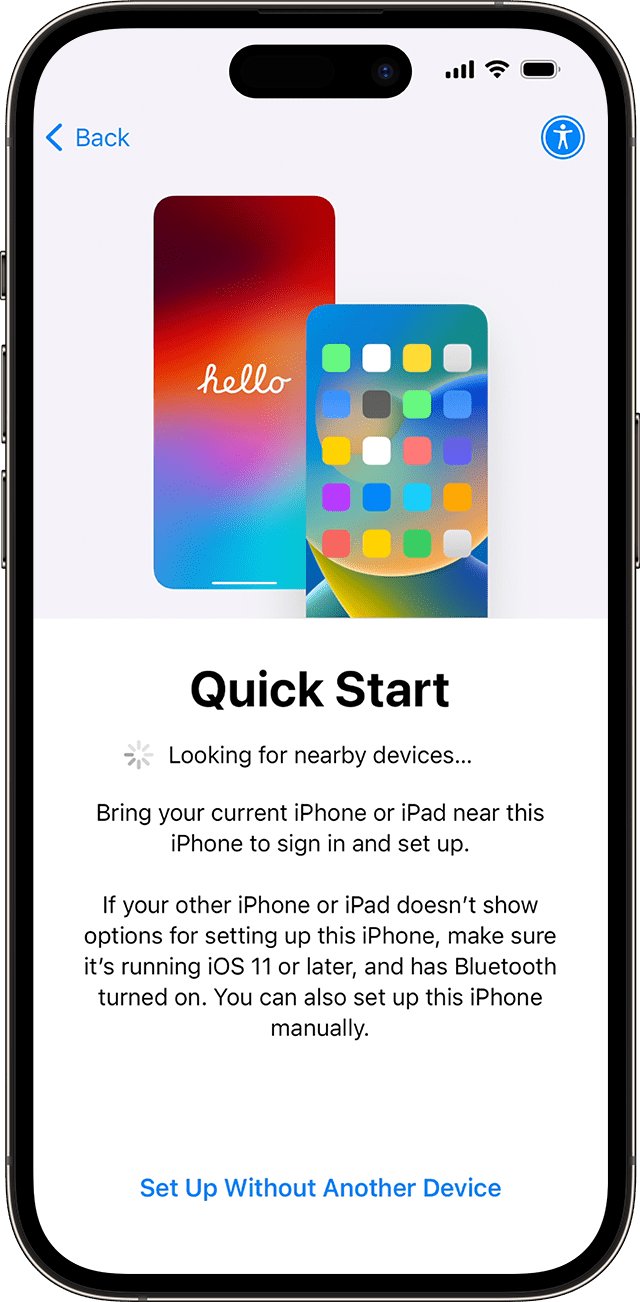
Prepare for new iPhone: back up before the transfer day
Backing up the old iPhone before the new one arrives means the slowest part, the upload, is already done. Apple gives eligible buyers free temporary iCloud storage for this backup when their plan is too small.
- Update the old iPhone to the latest version of iOS.
- Open Settings and tap General.
- Tap Transfer or Reset iPhone, then under Prepare for New iPhone tap Get Started.
- If you see iCloud Backup is Turned Off, tap Turn On Backup to Transfer.
- If a message says you are eligible for free extra iCloud storage, tap Continue.
- Wait for the backup to complete, then on the new iPhone tap Restore from iCloud Backup on the Apps & Data screen.
You have 21 days to restore the temporary backup, and you can add 21 more with Keep My Backup Longer. Don't erase the old iPhone until the new one has restored.
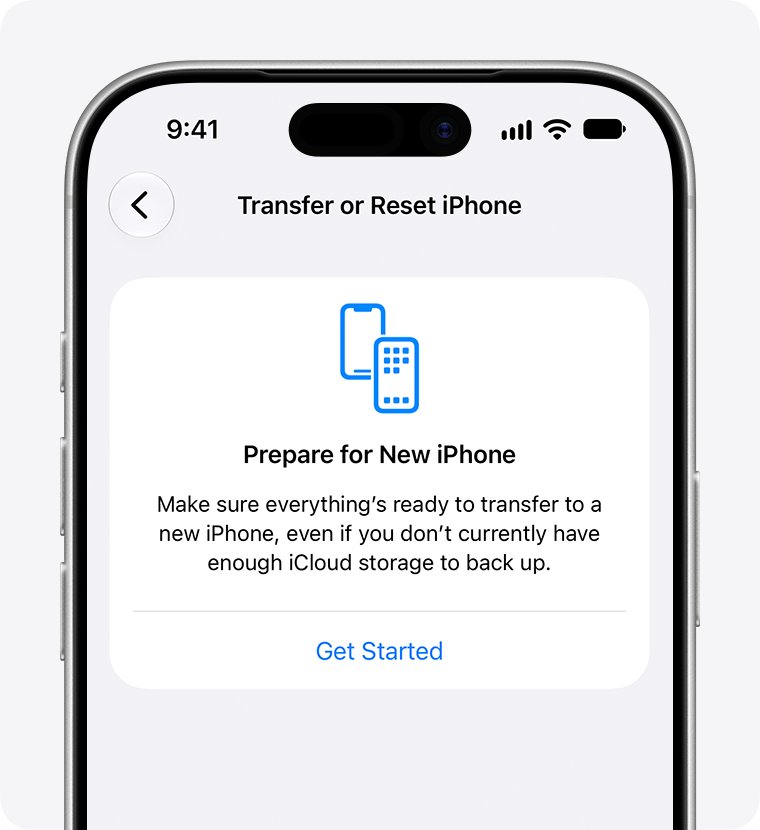
Transferring data from Android to iPhone with Move to iOS
When switching from Android to iPhone, Move to iOS sends contacts, messages, photos, videos, files, calendars, mail accounts, WhatsApp chats and more over a temporary Wi-Fi network. Apple says the whole transfer can take a while, depending on how much content you move.
- Turn on Wi-Fi on the Android phone and plug both phones in to power.
- Connect the two phones with a USB-C cable if you have one, for a faster transfer.
- Check that everything you are moving, including a microSD card, will fit on the iPhone.
- On the iPhone, tap Set Up Without Another Apple Device on the Quick Start screen, then From Android on Transfer Your Apps & Data.
- Open Move to iOS on the Android phone, enter the code from the iPhone and pick the content to send.
- Keep Move to iOS on screen and leave both phones alone until the loading bar on the iPhone finishes, even if Android says it is done.
Taking a call or opening another app on the Android phone stops the transfer, which then has to start again. Music, books and PDFs must be moved manually.
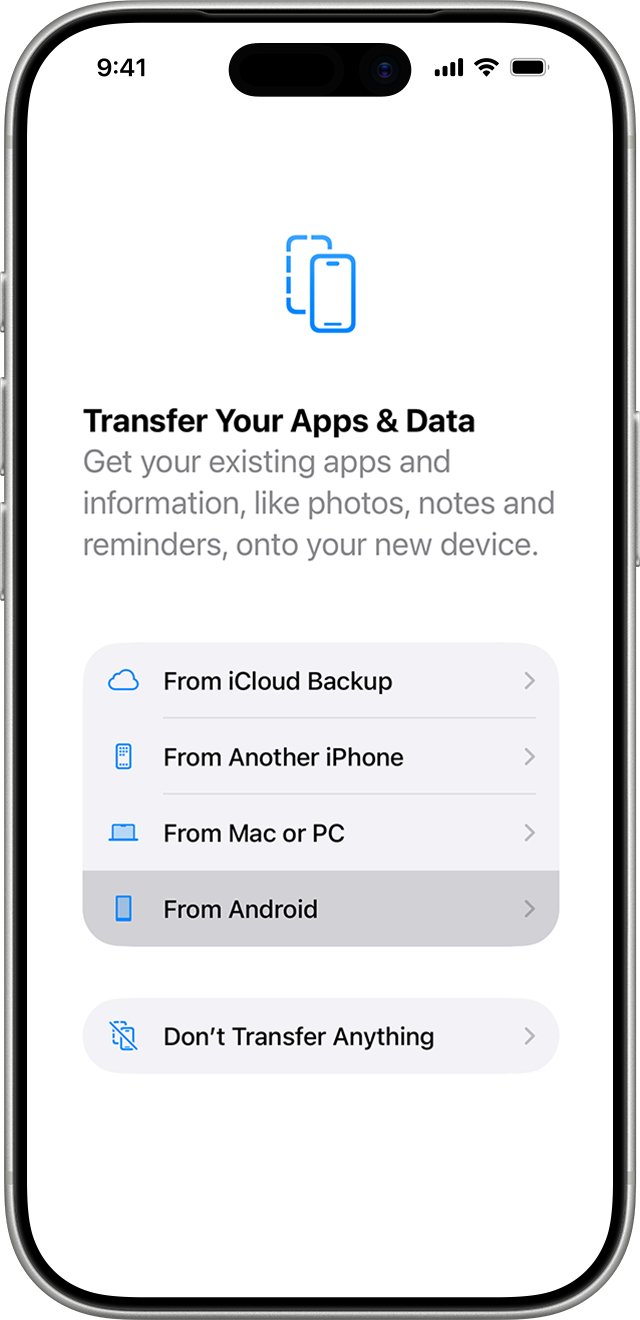
How to transfer data to a new phone on Android
Android moves your apps, data and settings through a backup in your Google Account. A full restore can take up to 24 hours, so start it when you can leave the phone charging.
- On the old phone, open Settings and tap Google > All services.
- Under Backup and restore, tap Backup, then Back up now.
- Check that the new phone runs the same or a later Android version than the old one.
- Turn on the new phone, sign in to the same Google Account and follow the on-screen steps to restore your backup.
- Leave the new phone on Wi-Fi and power until the restore finishes.
Restoring onto a phone with an older Android version than the old phone can leave the transfer incomplete. For a Galaxy phone, Samsung's Smart Switch app moves contacts, photos, music, videos, messages, notes and calendars wirelessly, from external storage or from a computer backup.
How to tell if an iPhone restore is still running
A transfer that looks stuck is often still downloading in the background. The iPhone tells you when a restore has not finished.
- Open Settings and tap your name.
- Tap iCloud, then iCloud Backup.
- If you see "This iPhone is currently being restored and will automatically back up when it is done", the restore is still running.
- Keep the iPhone on Wi-Fi and power, and check again later.
- When the message is gone, open Photos, Messages and your apps to check that your content has arrived.
iCloud Photos, Messages in iCloud, Mail and iCloud Drive are not part of the backup. They sync from iCloud after the restore, so they can keep arriving for some time after the restore message disappears.
Phone to phone data transfer stuck or taking too long
The setup prompt disappears from the old iPhone
Quick Start lost the connection between the two phones.
- Restart both iPhones.
- Check that the old iPhone is unlocked, on Wi-Fi and has Bluetooth turned on.
- Place the phones next to each other and start Quick Start again.
- If it keeps dropping, connect the phones with a cable instead.
- If the new iPhone freezes during setup, restart both phones and start again with a cable.
Error while restoring from iCloud Backup
The network dropped or the backup could not be read.
- Plug the iPhone in to power and connect to Wi-Fi, not cellular.
- Try the restore again on a different Wi-Fi network.
- Tap Show All on the backup list and choose another backup if one exists.
Repeated password prompts slow the restore
Apps were bought with more than one Apple Account.
- Enter the password for each Apple Account the iPhone asks for.
- If you don't know one, tap Skip this Step or Cancel.
- Repeat until the prompts stop, then sign in later to get those purchases.
Move to iOS stops or never finishes
The Android phone left the Move to iOS screen, or a Wi-Fi feature switched networks.
- On Android, turn off Smart Network Switch or a similar connection optimizer.
- Forget saved Wi-Fi networks in Settings > Wi-Fi, and turn off cellular data.
- Restart both phones and run the transfer again, keeping Move to iOS on screen.
- If the iPhone ran out of space, erase it and transfer only what fits.
New Android phone restored only part of the data
The restore can take up to 24 hours, or the new phone runs an older Android version.
- Leave the phone on Wi-Fi and power and give it time.
- Compare the Android versions and update the new phone if it is older.
- Sign in with the same Google Account that made the backup.
Transferring data to a new phone FAQ
How to transfer data to a new phone?
On iPhone, use Quick Start with the old iPhone next to the new one, a cable, or an iCloud backup. On Android, restore your Google Account backup during setup. Keep both phones on power and a fast Wi-Fi network until the transfer finishes.
How to transfer data to a new phone on Samsung?
Use Samsung Smart Switch, which is available from Google Play and the Galaxy Store. It moves contacts, photos, music, videos, messages, notes and calendars to a Galaxy phone wirelessly from another Android phone, from external storage such as a microSD card, or from a computer backup.
How to transfer data to a new phone on Android?
Back up the old phone in Settings > Google > All services > Backup > Back up now. Then sign in to the same Google Account on the new phone and restore during setup. The restore can take up to 24 hours, and the new phone needs the same or a later Android version.
Can you transfer phone data after setup?
On iPhone, Quick Start and backup restores only run during setup, so you erase the new iPhone with Erase All Content and Settings and set it up again. On Android, you can restore a backup when you add your Google Account to a phone that is already set up.
How to transfer data between phones?
Between two iPhones, use Quick Start or a cable. From Android to iPhone, use Move to iOS. Between two Android phones, use a Google Account backup, or Smart Switch for a Galaxy phone. Keep both phones charging and close together during the transfer.
How to transfer data phone to phone?
Place the phones next to each other, plug both in and start the transfer from the new phone's setup screen. Use a cable if both phones support one; Apple notes that a USB-C cable gives a faster transfer from Android to iPhone than Wi-Fi.
How to transfer data to another phone?
Start the new phone's setup and choose to copy data from your old phone or from a cloud backup. To switch from Android to iPhone, use Move to iOS. To move to a new Android phone, restore the Google Account backup you made on the old one.
If only contacts went missing, you can move contacts to the new phone on their own without repeating the whole transfer.