ELK-BLEDOM is the Bluetooth name broadcast by a low-cost RGB LED light strip controller, usually yours or a neighbor's, and it is not a tracker or an Apple device.
This guide shows how to find the light behind the name, which apps control it, how to connect it, and how to remove it from iPhone, iPad, Android, Mac and Windows lists.
ELK-BLEDOM Bluetooth device: how to find which light it is
The name comes from the small control box on an LED strip, not from your phone. Searches for ELK-BLEDOM on Google Play and on apple.com return LED strip controller apps, and the duoCo Strip app on the App Store carries the copyright line "© ELK".
The quickest proof is to cut power to the lights you suspect and watch the Bluetooth list.
- Open the Bluetooth list on your phone or computer and note where ELK-BLEDOM appears.
- Look around the room for an RGB LED strip, LED bulb, desk lamp or TV backlight with a small inline controller box on its cable.
- Unplug that light, or switch off its power adapter at the wall.
- Turn Bluetooth off and back on, or refresh the list, so the scan starts again.
- Check the list: if ELK-BLEDOM is gone, that light is the device.
- Plug the light back in. The name returns after a short scan if it is the same controller.
If nothing in your home is a smart LED light, the controller belongs to someone nearby. Bluetooth lists show every discoverable device in range, including ones behind a shared wall.
ELK-BLEDOM app: which app controls ELK-BLEDOM lights
There is no ELK-BLEDOM company page or single official app. The controller is sold under many brand names, and each kit names its app on the box or in the manual.
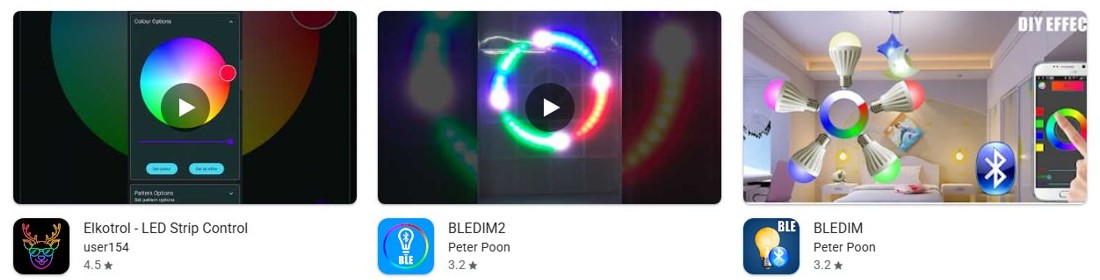
These are the LED controller apps that the official stores return for the name. Use the one your kit's manual names first.
| App | Store | What the listing says |
|---|---|---|
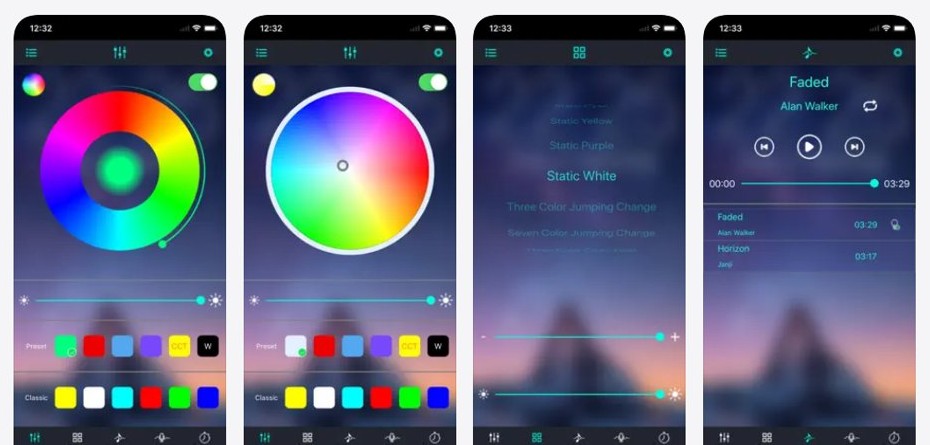
| duoCo Strip | App Store, Google Play | Bluetooth 4.0 LED control software for RGBW strips; color, brightness, color temperature, music and microphone modes; copyright "© ELK"; requires iOS 9.0 or later |
| duoCo StripX and DuoCoStrip Pro | App Store, Google Play | Later apps from the same duoCo Strip family of LED strip controllers |
| Lotus Lantern / LotusLanternX / LotusLamp X | App Store, Google Play | LED strip lighting apps returned for the ELK-BLEDOM search on both stores |
| LED LAMP | App Store | Controls LED Bluetooth devices, with LED BLE, LED DMX, LED CAR, LED SMART, LED STAGE and LED SUN services; requires iOS 13.0 or later |
| Elkotrol – LED Strip Control | Google Play | Top Google Play result for an ELK-BLEDOM search |
| ELK Smart and BLEDIM | Google Play | Other LED controller apps returned for the ELK-BLEDOM search |
BLE is the usual abbreviation for Bluetooth Low Energy, the low-power mode that small accessories like these controllers use to talk to a phone app.
How to connect ELK-BLEDOM to your phone
Set up these lights from the companion app, not by pairing the name in Settings. The app needs Bluetooth permission, and on iPhone that permission is a separate switch per app.
- Plug in the LED strip and turn it on with its remote or power button.
- Install the app your kit's manual names, such as duoCo Strip or Lotus Lantern, from the App Store or Google Play.
- Turn on Bluetooth on the phone.
- Open the app and allow Bluetooth access when it asks.
- On iPhone, if you denied the prompt, go to Settings > Privacy & Security > Bluetooth and turn the app's switch on.
- Return to the app and let it scan. Select ELK-BLEDOM in the app's own device list.
- Change a color in the app to confirm the strip responds.
Keep the phone in the same room as the controller during setup. A neighbor's ELK-BLEDOM controller can appear in the same scan, so test with your own remote if two names show.
How to remove ELK-BLEDOM from iPhone or iPad Bluetooth
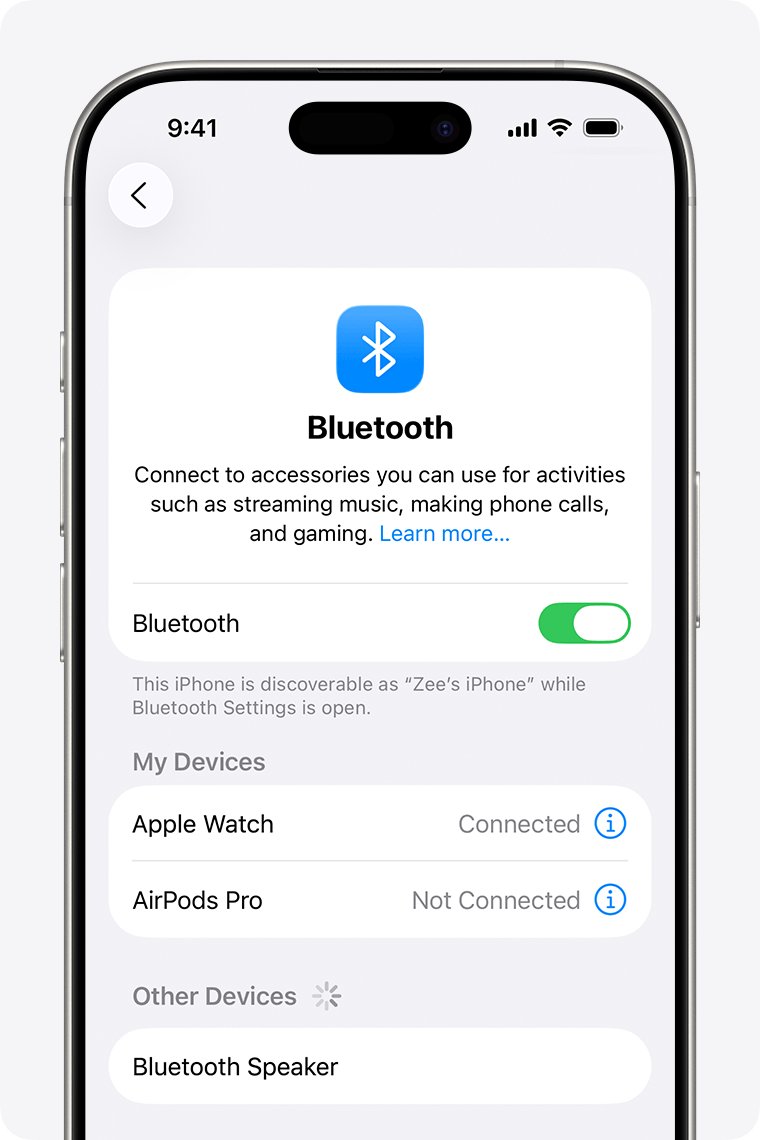
A name that only shows as a nearby device is not paired, so there is nothing to remove. If you or an app paired it and it sits under My Devices, forget it.
- Open Settings and tap Bluetooth.
- Find ELK-BLEDOM under My Devices.
- Tap the More Info button next to it.
- Tap Forget this Device.
- To stop an app from using Bluetooth, go to Settings > Privacy & Security > Bluetooth and turn off its switch.
Forgetting an accessory unpairs it on every device signed in to the same Apple Account. The name can still show as a nearby device while the controller has power and is in range.
Remove ELK-BLEDOM from Android Bluetooth devices
Android lists unpaired devices under Available devices and paired ones under Saved devices. Exact labels vary by phone maker, and some steps need Android 15 or later.
- Swipe down from the top of the screen.
- Touch and hold Bluetooth.
- If no accessories are listed under Saved devices, tap See all.
- Tap Settings next to ELK-BLEDOM.
- Tap Forget to remove it, or Disconnect to drop the connection only.
To scan again later, tap Pair new device, or tap More > Refresh under Available devices.
ELK-BLEDOM in Windows 11 Bluetooth and devices
Windows hides uncommon device types by default, so ELK-BLEDOM may show on a phone but not on a PC. The Advanced discovery setting in the Windows 11 Bluetooth settings page shows every type of Bluetooth device in range.
If Bluetooth is off on the PC, turn Bluetooth on in Windows before you look for the controller, or restore the missing Bluetooth toggle if the switch is gone.
- Select Start > Settings > Bluetooth & devices > Devices.
- Under Device settings, open the Bluetooth devices discovery drop-down.
- Choose Advanced to list all types of Bluetooth devices, or Default for common devices only.
- To remove a paired ELK-BLEDOM entry, select More options next to it in Devices.
- Select Remove device, then Yes.
Windows only needs this if you paired the controller by mistake and it now sits among the devices connected to the PC. The lights themselves are run from the phone app, and Windows has no LED controls for them.
How to forget ELK-BLEDOM on a Mac
A Mac lists nearby Bluetooth devices in System Settings. Forget the controller only if it was connected; otherwise it simply drops off the list when it is out of range or unpowered.
- Choose Apple menu > System Settings.
- Click Bluetooth in the sidebar. You may need to scroll down.
- Hold the pointer over ELK-BLEDOM and click Disconnect.
- Control-click ELK-BLEDOM and click Forget so it does not reconnect.
Is ELK-BLEDOM a tracking device?
An LED strip controller stays plugged into a wall outlet, so it shows up in one place and disappears when you leave. Location trackers behave differently, and iPhone and Android have alerts built for them.
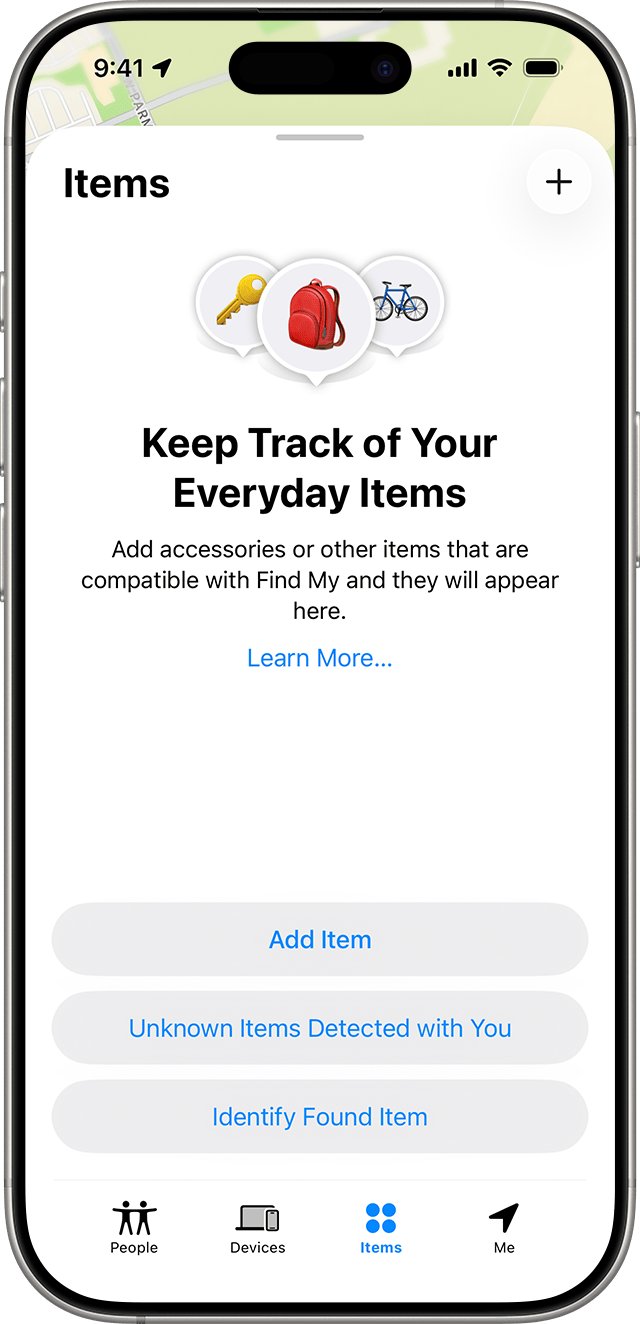
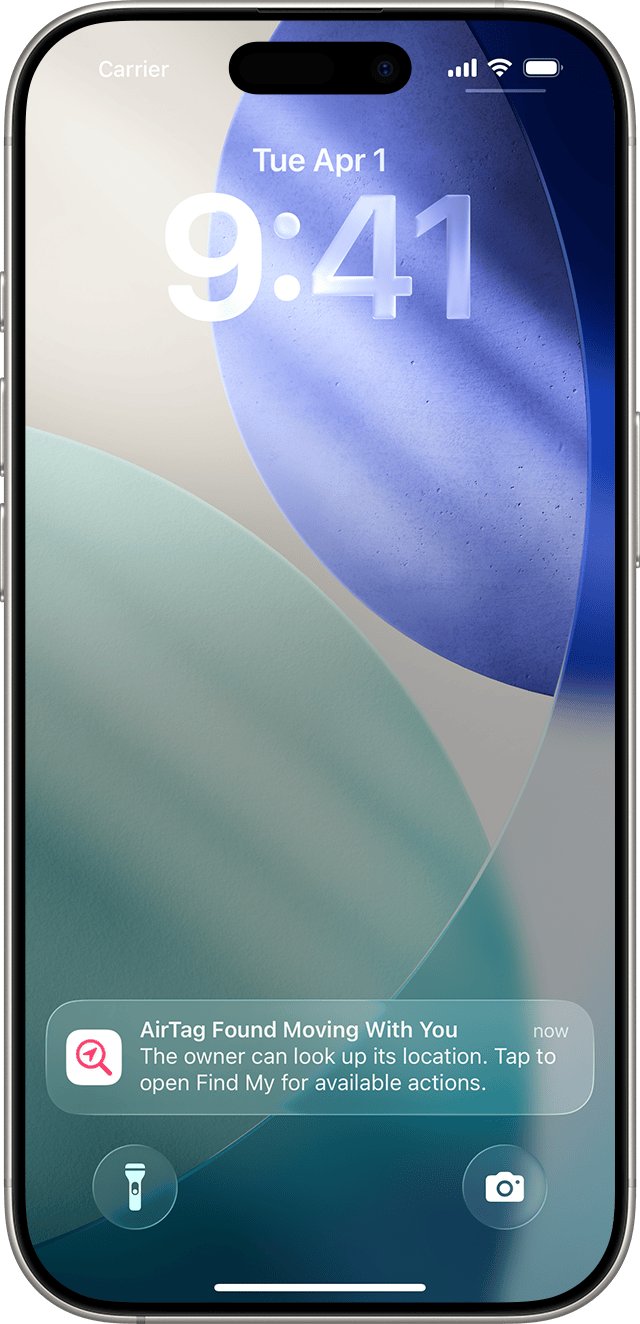
Apple and Google created an industry specification that alerts iOS and Android users when a compatible Bluetooth tracker moves with them. On iPhone the alerts read "AirTag Found Moving With You", "\"Product Name\" Found Moving With You" or "Unknown Accessory Detected".
Treat ELK-BLEDOM as a light controller, not a tracker, when it only appears at home or at one fixed place and vanishes when you unplug or leave the lights. Tracking alerts cover AirTag, AirPods, Find My network accessories and compatible location trackers that move with you over time. To get them on iPhone, use iOS 17.5 or later and turn on Settings > Notifications > Tracking Notifications > Allow Notifications, with Location Services and Bluetooth on.
How to tell if ELK-BLEDOM is your neighbor's LED lights
When none of your lights make the name disappear, the controller is outside your home. A short walk with the Bluetooth list open settles it.
- Unplug every LED strip, lamp and backlight in your home, then refresh the Bluetooth list.
- If ELK-BLEDOM is still listed, carry the phone to different rooms and refresh again in each one.
- Note the room where the name appears fastest. The controller sits near that side of the home.
- Walk outside or down the street and refresh. A fixed controller drops off the list once you are out of range.
- Leave the name unpaired. A device you never tap in Settings or in an app stays unpaired.
ELK-BLEDOM Bluetooth device FAQ
What is ELK-BLEDOM Bluetooth device?
ELK-BLEDOM is the Bluetooth name of an RGB LED light strip controller. Official app store searches for the name return LED strip apps such as duoCo Strip, Lotus Lantern and Elkotrol, and the duoCo Strip listing carries the copyright line "© ELK".
What is ELK BLEDOM bluetooth device without the hyphen?
ELK BLEDOM and ELK-BLEDOM are the same name. Some phones and searches drop the hyphen. It still points to a Bluetooth LED strip controller, usually plugged in somewhere within range of your phone or computer.
What is ELK-BLEDOB?
ELK-BLEDOB appears in searches as a variant spelling of ELK-BLEDOM. Check it the same way: unplug any LED strip or lamp nearby and refresh the Bluetooth list. If the name disappears, that light's controller is the source.
What does BLE mean on a Bluetooth device?
BLE is the usual abbreviation for Bluetooth Low Energy. Small accessories such as LED controllers, sensors and fitness bands use it to connect to a phone app while drawing very little power from their supply or battery.
How do I find a BLE device near me?
Open the Bluetooth list and refresh it while you move from room to room. On Windows 11, set Bluetooth devices discovery to Advanced first. The name appears fastest when you are closest to the device, and it drops off once you are out of range.
Which app works with ELK-BLEDOM lights?
Use the app named in the kit's manual. Common choices in the App Store and Google Play include duoCo Strip, duoCo StripX, Lotus Lantern and LED LAMP. Allow the app Bluetooth access, then select ELK-BLEDOM inside the app.
Can I hide ELK-BLEDOM from my Bluetooth list?
You can forget it if it was paired, using Forget this Device on iPhone, Forget on Android or Mac, and Remove device on Windows. An unpaired controller in range still shows while it has power, so unplug it if it is yours.
Is ELK-BLEDOM dangerous?
A name in the list is not a connection. The controller only pairs when you tap it in Settings or connect through an LED app. iPhone and Android also alert you to compatible location trackers that move with you over time.