When iCloud for Windows says it cannot connect to the server, check your internet connection and Apple's System Status page first, then rule out a VPN, a proxy, a wrong PC clock or a network that blocks Apple's servers.
This guide covers each of those checks on Windows 11, plus signing out and back in, repairing the app, Outlook connection errors and the iCloud.com fallback.
How to fix iCloud for Windows cannot connect to server
Work through these steps in order and open iCloud for Windows again after each one. Apple's own advice for the Can't connect to server message starts with the first two.
- Open any website in your browser to confirm the PC is online.
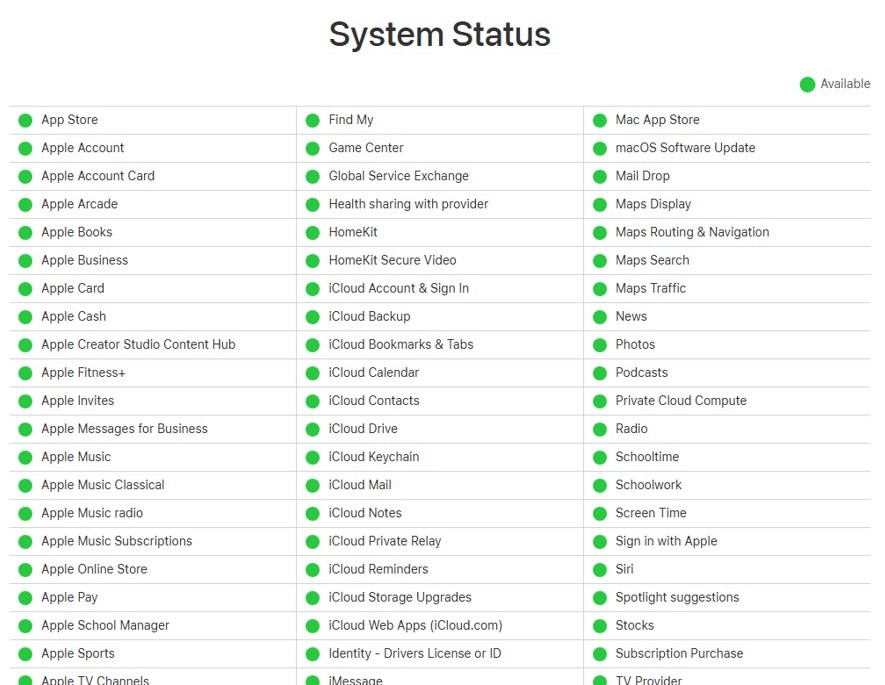
- Open Apple's System Status page at apple.com/support/systemstatus and look for an issue with iCloud or Apple Account sign-in.
- If Apple lists an outage or maintenance, wait and try again later.
- Turn off any VPN from the Network, Volume, Battery icon on the taskbar.
- Open Settings > Time & language > Date & time and turn on Set time automatically.
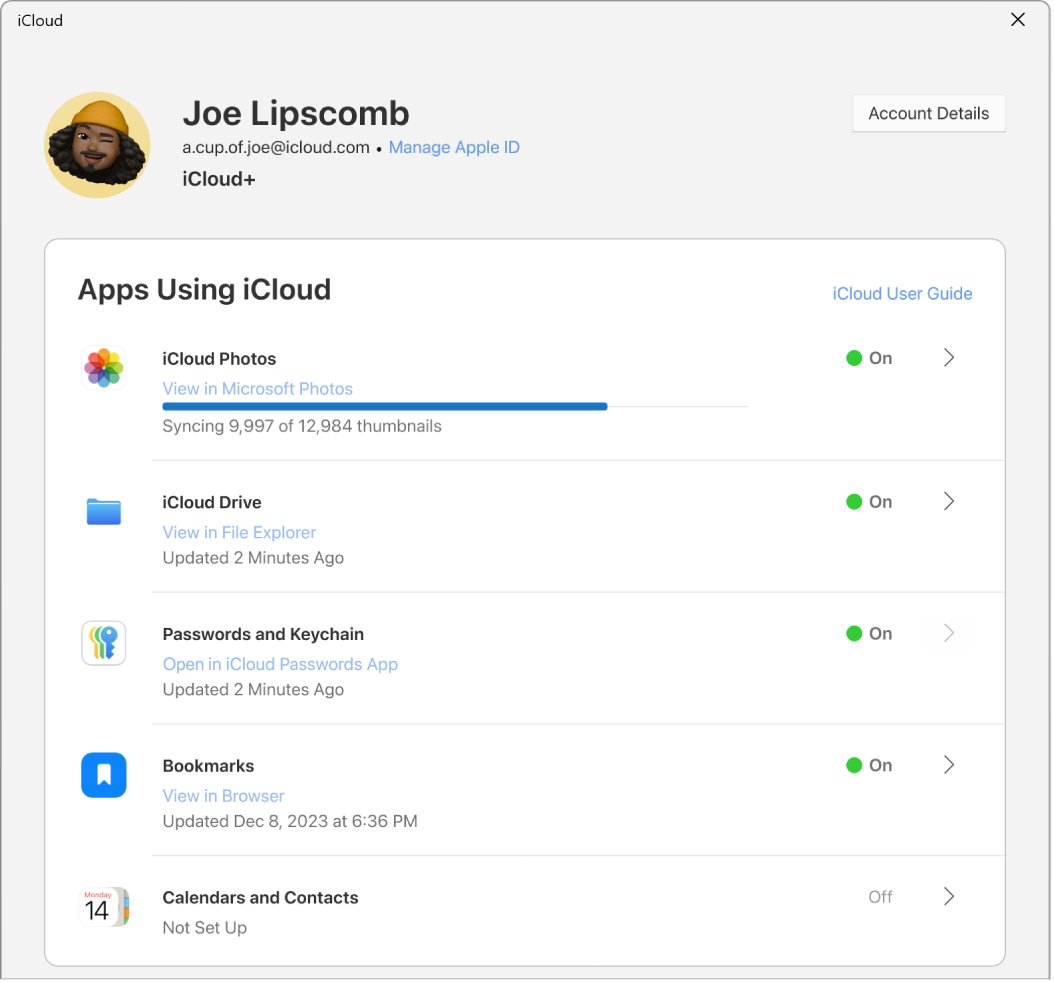
- Open iCloud for Windows, click Account Details, click Sign Out, then sign in again with the Apple Account you use on your iPhone or Mac.
If iCloud still cannot connect, the network itself is the next suspect. The sections below test that, then the app.
Unable to connect to iCloud server on Windows 11 Wi-Fi
Apple notes that some internet configurations block access to certain services. A different network tells you quickly whether yours is one of them.
- Connect the PC to a different network, such as a phone's mobile hotspot.
- Open iCloud for Windows and try to sign in or sync again.
- If iCloud works on the other network, contact your internet provider or network administrator about the original network.
- If iCloud fails on every network, open Get Help and run the Network and Internet troubleshooter.
- Restart the PC and try iCloud for Windows again.
School, office, hotel and building networks often filter traffic. If iCloud.com also fails in a browser on Xfinity Wi-Fi, fix the Xfinity iCloud.com connection error before you change anything else on the PC.
Turn off VPN and proxy for iCloud on Windows 11
Apple says its services fail any connection that uses HTTPS interception, which some proxies and filtering VPNs apply. Apple also asks you to turn a VPN off temporarily when you sign in with Advanced Data Protection.
- On the taskbar, select the Network, Volume, Battery icon and turn off the VPN quick setting.
- If you use a VPN app instead, disconnect it in that app.
- Open Settings > Network & internet > Proxy.
- Under Manual proxy setup, select Set up next to Use a proxy server.
- Turn off Use a proxy server and select Save, unless your workplace requires the proxy.
- Open iCloud for Windows and try again.
Turn the VPN back on once iCloud connects. If an employer manages the proxy, ask the IT team to exempt Apple's iCloud hosts from inspection instead of turning it off.
Set the correct date and time for iCloud on Windows 11
Apple lists correct date and time settings among the first checks when iCloud data will not sync to a PC.
- Select Start > Settings > Time & language > Date & time.
- Turn on Set time automatically.
- Turn on Set time zone automatically, or pick the right zone from the Time zone list.
- Close Settings and open iCloud for Windows again.
Reset the network on Windows 11 when iCloud won't connect to server
These Microsoft commands reset Windows networking components and clear cached DNS lookups. Run them only when other sites also load slowly or fail.
- In the taskbar search box, type command prompt, then select Run as administrator > Yes.
- Type
netsh winsock resetand press Enter. - Type
netsh int ip resetand press Enter. - Type
ipconfig /releaseand press Enter. - Type
ipconfig /renewand press Enter. - Type
ipconfig /flushdnsand press Enter. - Restart the PC and open iCloud for Windows.
As a last resort, a full network settings reset in Windows 11 reinstalls the network adapters: open Settings > Network & internet > Advanced network settings > Network reset and select Reset now. Microsoft notes you may need to reinstall VPN software afterwards.
iCloud ports and domains to allow on a work or school network
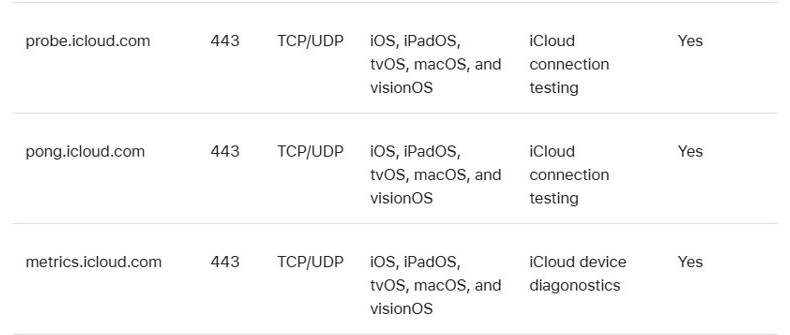
If iCloud fails only on a managed network, give the administrator Apple's published requirements. Every iCloud entry uses port 443.
| Purpose | Hosts | Port |
|---|---|---|
| Apple Account sign-in | account.apple.com, appleid.cdn-apple.com, idmsa.apple.com, gsa.apple.com | TCP 443 |
| iCloud services | *.icloud.com, *.icloud.apple.com, *.apple-cloudkit.com, *.cdn-apple.com, *.gc.apple.com | TCP 443 |
| iCloud content and checks | *.icloud-content.com, probe.icloud.com, pong.icloud.com, metrics.icloud.com, gateway.icloud.com | TCP and UDP 443 |
| IP-only firewalls | IPv4 17.0.0.0/8 | Outbound |
| DNS | Leave DNS lookups unblocked, because Apple uses unpublished CNAME chains | Standard DNS |
Apple also says these hosts must be exempt from HTTPS interception (SSL inspection) and proxy authentication, or connections are dropped.
Sign out of iCloud for Windows and sign back in
Signing out removes the iCloud data stored on the PC, but it stays on your other devices and on iCloud.com. It also downloads again when you sign back in.
- Open iCloud for Windows.
- Click Account Details, click Sign Out, then follow the onscreen instructions.
- Restart the PC.
- Open iCloud for Windows and sign in with the same Apple Account you use on your Apple devices.
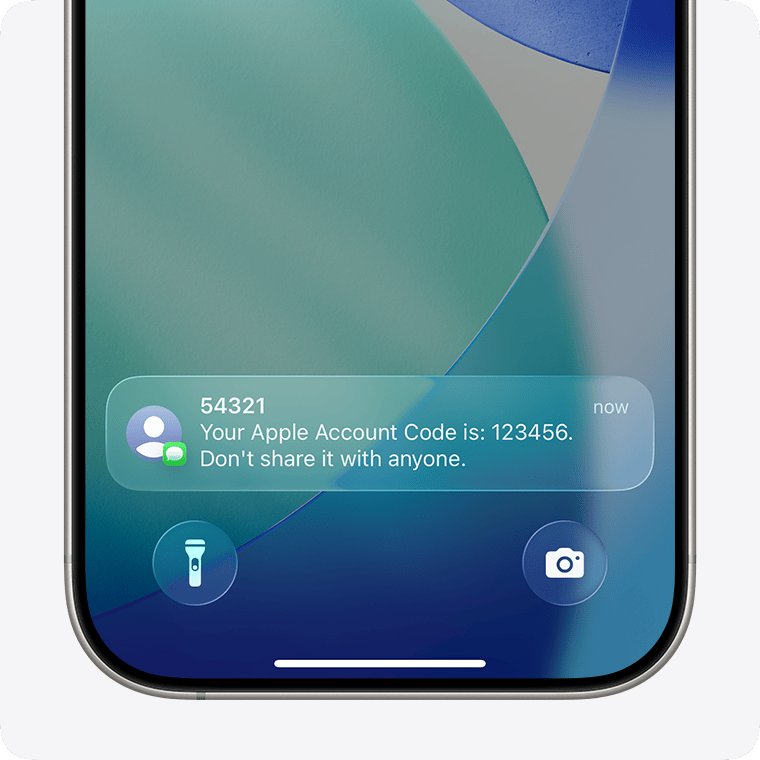
- Enter the verification code sent to your trusted device or phone number, or use your security key.
- Click Sync for each feature you want, or Not Now, then click Finish Setup.
If the sign-in screen keeps coming back instead of failing to connect, you are stuck in an endless iCloud login loop, which needs different fixes.
Repair or reinstall iCloud for Windows on Windows 11
iCloud for Windows comes from the Microsoft Store. Updating, repairing or reinstalling it replaces damaged app files without touching data stored in iCloud.
- Select Start > Settings > Windows Update > Check for updates, and install any update.
- Open Microsoft Store, select Library > Get updates, and let iCloud update.
- Open Settings > Apps > Installed apps, select More next to iCloud, then Advanced options.
- Select Repair. If that does not help, select Reset and sign in again.
- If iCloud still fails, sign out of it, choose More > Uninstall in Installed apps, then install it again from Microsoft Store > Library.
iCloud for Windows system requirements
An unsupported Windows, Outlook or account type can look like a connection failure. The latest iCloud for Windows needs Windows 11 or later.
| Item | Apple's requirement |
|---|---|
| Windows | Windows 11 recommended; the latest iCloud for Windows needs Windows 11 or later |
| iCloud for Windows | Version 15 recommended; installed from the Microsoft Store |
| Outlook (Mail, Contacts, Calendars) | Outlook 2021 or later |
| Browser for iCloud.com | Edge 130, Chrome 130 (desktop mode) or Firefox 128 or later |
| Advanced Data Protection | iCloud for Windows 14.1 or later; from 14.2, a trusted Apple device in Bluetooth range or on the same Wi-Fi router |
| Security keys | iCloud for Windows 15 or later |
| Managed Apple Account | Not supported by iCloud for Windows |
Outlook cannot connect to iCloud server
Outlook reaches iCloud Mail, Contacts and Calendars through iCloud for Windows, so fix the app first. Then work through Apple's Outlook steps.
- Confirm you can send and receive iCloud Mail on iCloud.com and on your iPhone.
- Close Outlook.
- Sign out of iCloud for Windows, then sign back in.
- Restart Outlook and select Refresh.
- In Outlook, select File > Options > Add-ins, choose COM Add-ins next to Manage, then select Go.
- Select the iCloud Outlook Add-in checkbox, select OK, and restart Outlook.
If you set up iCloud Mail in Outlook without iCloud for Windows, Apple requires two-factor authentication and an app-specific password instead of your normal Apple Account password.
How to connect to iCloud on Windows without the app
iCloud.com gives you Mail, Photos, iCloud Drive and other data in a browser while you fix the app. It also shows whether the account itself works.
- Open Microsoft Edge, Chrome or Firefox and update it to the latest version.
- Go to icloud.com and choose to sign in.
- Enter your Apple Account email or phone number and password.
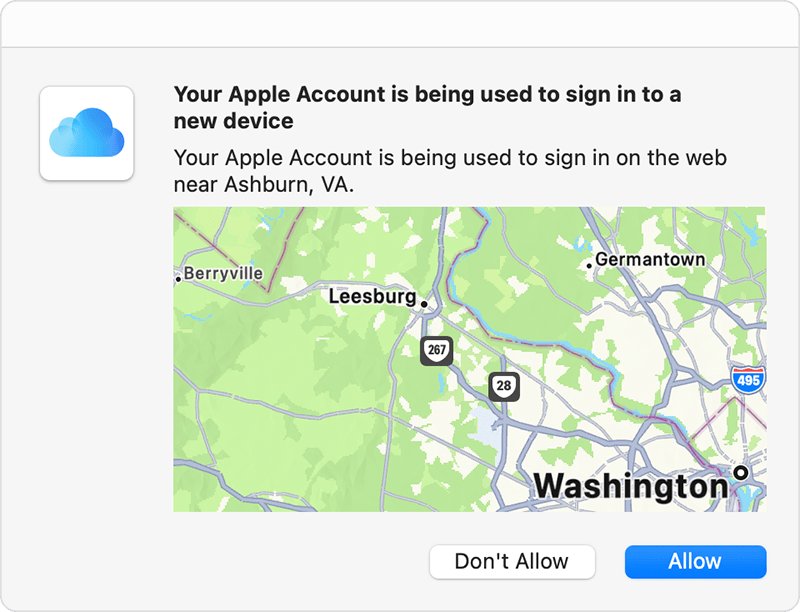
- Choose Allow on your trusted device, then enter the six-digit verification code it shows.
- If the page will not load, clear the browser cache from the browser's help menu and try a different network.
If iCloud.com works but the app does not, the problem is on the PC. If both fail on one network only, that network is blocking Apple's servers.
iCloud not working on Windows: install and sign-in errors
iCloud for Windows not installing
Windows Media Player features are turned off, or Windows is out of date.
- If you see Install Media Feature Pack to use iCloud, select Download and follow the prompts.
- Otherwise open Control Panel > Programs and Features > Turn Windows features on or off.
- Select Media Features and click OK, then restart if asked.
- Install iCloud for Windows again from the Microsoft Store.
Why can't I access iCloud after entering my password?
The two-factor verification step was not completed.
- Unlock your trusted iPhone, iPad or Mac and tap Allow on the sign-in notification.
- Type the six-digit code shown on the trusted device into iCloud for Windows.
- If no code arrives, choose Didn't Get a Code? and send it to your trusted phone number.
Could not connect to iCloud with Advanced Data Protection on
From iCloud for Windows 14.2, sign-in needs your trusted Apple device nearby.
- Update iCloud for Windows from the Microsoft Store.
- Keep the trusted iPhone or Mac within Bluetooth range of the PC, or on the same Wi-Fi router.
- Turn off any VPN temporarily and sign in again.
Cannot access iCloud on PC with a work Apple Account
iCloud for Windows does not support Managed Apple Accounts.
- Check whether your Apple Account was issued by an employer or school.
- Use iCloud.com in a browser for that account, or sign in with a personal Apple Account.
iCloud on Windows 11 connection FAQ
Why won't my iCloud connect on Windows 11?
The usual causes are an Apple outage, no internet, a VPN or proxy, a wrong PC clock, or a network that blocks Apple's servers. Check Apple's System Status page, try another network, set the time automatically, then sign out of iCloud for Windows and back in.
How do I connect to iCloud on Windows?
Install iCloud for Windows from the Microsoft Store, open it and sign in with the Apple Account you use on your Apple devices. Enter the verification code, choose which features to sync, then click Finish Setup. You can also sign in at icloud.com in a browser.
Why can't I access iCloud?
Apple's servers may be down, your network may be blocking them, or sign-in may be waiting on a verification code. Check Apple's System Status page first, then try iCloud.com on another network to see whether the account or the network is the problem.
What does iCloud for Windows cannot connect to server mean?
The app cannot reach Apple's servers. Apple's advice is to check your internet connection, check the System Status page for an outage or maintenance, and try again later. A VPN, proxy or filtered network can cause the same message.
Why is iCloud not working on Windows 10?
The latest iCloud for Windows needs Windows 11 or later, and Apple recommends Windows 11 with iCloud for Windows 15. On Windows 10, use iCloud.com in a supported browser or upgrade the PC to Windows 11.
Does a VPN stop iCloud from connecting on a PC?
It can. Apple says its services fail connections that use HTTPS interception, and it asks you to turn off a VPN temporarily when signing in with Advanced Data Protection. Turn the VPN off, sign in, then turn it back on.
Why is my computer not connecting to iCloud when my iPhone does?
The account works, so the problem is on the PC or its network. Check the PC clock, turn off any VPN or proxy, try another network, then sign out of iCloud for Windows and sign back in. Repair the app from Installed apps if it still fails.