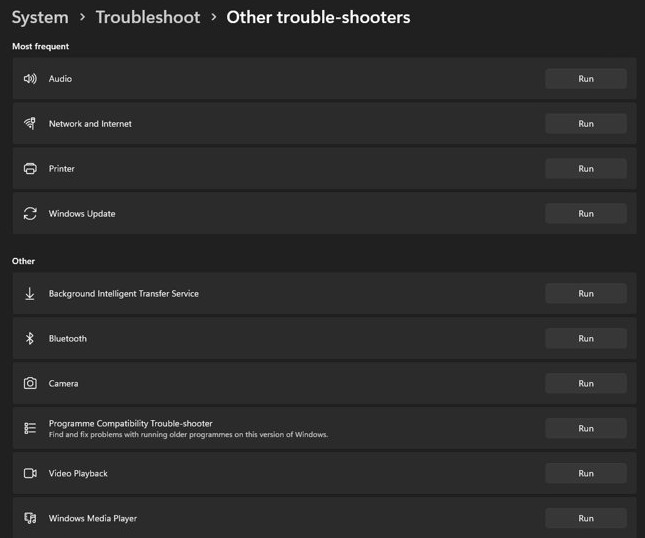
Open Settings > System > Troubleshoot > Other troubleshooters on Windows 11, or Settings > Update & Security > Troubleshoot > Additional troubleshooters on Windows 10, then run Keyboard.
Microsoft removed the Keyboard troubleshooter from newer Windows 11 releases, so this guide also covers the manual fixes that replace it: hardware checks, drivers, Filter keys, layouts and wireless pairing.
Keyboard troubleshooter in Windows 11/10
The Keyboard troubleshooter is one of the legacy built-in Windows troubleshooters. When you launch it, it scans for common keyboard problems and corrects the ones it can fix automatically.
These steps work on Windows 11 version 22H2 and older, where the troubleshooter still ships.
- Select Start > Settings, or press Windows logo key + I.
- Select System > Troubleshoot.
- Select Other troubleshooters.
- Scroll the list to Keyboard and select Run.
- Follow the prompts until the troubleshooter reports what it found and fixed.
- Restart the PC if the troubleshooter changed a setting or driver, then test the keyboard.
If Keyboard is missing from the list, your PC runs a newer Windows 11 release where Microsoft retired it. Skip to the manual fixes below.
Where is the Keyboard troubleshooter in Windows 11 and Windows 10?
The location depends on your Windows version. To check yours, select Start > Settings > System > About.
| Windows version | Keyboard troubleshooter | Where to find it |
|---|---|---|
| Windows 10 | Available (legacy MSDT troubleshooter) | Settings > Update & Security > Troubleshoot > Additional troubleshooters > Keyboard |
| Windows 11 version 22H2 and older | Available (legacy MSDT troubleshooter) | Settings > System > Troubleshoot > Other troubleshooters > Keyboard |
| Newer Windows 11 releases | Removed, not moved to Get Help | Not available; use the manual fixes in this guide |
| Windows 8.1 and Windows 7 | Available (legacy MSDT troubleshooter) | The legacy troubleshooters keep working on these versions |
Windows 10 support ended on October 14, 2025, but the built-in troubleshooters on it still run.
How to run the Keyboard troubleshooter in Windows 10
- Select Start > Settings.
- Select Update & Security > Troubleshoot.
- Select Additional troubleshooters.
- Select Keyboard in the list.
- Select Run the troubleshooter and follow the prompts.
- Restart the PC when the troubleshooter finishes, then type a test sentence in Notepad.
To see past runs, open Settings > Update & Security > Troubleshoot > View troubleshooting history. On Windows 11 the same list sits under Settings > System > Troubleshoot > Recommended troubleshooter history.
Cannot find Keyboard troubleshooter in Windows 11
Microsoft is retiring the Microsoft Support Diagnostic Tool (MSDT), the engine that runs the legacy troubleshooters. About half of them moved to the Get Help app; the rest, including Keyboard, are being removed outright.
| Question | Answer |
|---|---|
| Was the Keyboard troubleshooter moved to Get Help? | No. Keyboard is on Microsoft's list of removed troubleshooters, not redirected ones. |
| Which troubleshooters moved to Get Help? | Audio, BITS, Bluetooth, Camera, Network and internet, Printer, Program compatibility, Video playback, Windows Media Player and Windows Update. |
| Can Hardware and Devices replace it? | No. Hardware and Devices is on the same removal list. |
| Which PCs still have it? | Windows 11 version 22H2 and older, Windows 10, Windows 8.1 and Windows 7. |
| Does Get Help have a keyboard check? | Its list of Windows troubleshooters has no keyboard entry. The Bluetooth one helps with Bluetooth keyboards. |
On a newer Windows 11 build, the fixes below do the same jobs by hand. Most keyboard faults turn out to be power, connection, driver or settings issues.
How to fix keyboard not working on Windows 11 without the troubleshooter
Start with the hardware. These checks come from Microsoft's mouse and keyboard guidance and cost nothing to try.
- Unplug the USB cable, wait a few seconds so Windows unloads the driver, then plug it back in.
- Try a different USB port on the PC.
- If a USB hub sits between the keyboard and the PC, make sure the hub has power, or plug the keyboard straight into the PC.
- Inspect the cable for damage.
- Charge the keyboard or fit fresh batteries if it is battery powered.
- Clear any dirt or crumbs stuck under the keys.
- Restart the PC to reload the drivers, then test again.
Need to type while you test? Press Windows logo key + Ctrl + O to turn on the on-screen keyboard, or use the on-screen keyboard from Accessibility settings with the mouse.
Update keyboard driver in Windows 11 Device Manager
A missing or outdated driver stops some keyboards from working at all. Windows Update is the first place to look, then Device Manager.
- In the taskbar search box, type check for updates and select Check for updates.
- Select Check for updates and install any updates Windows offers.
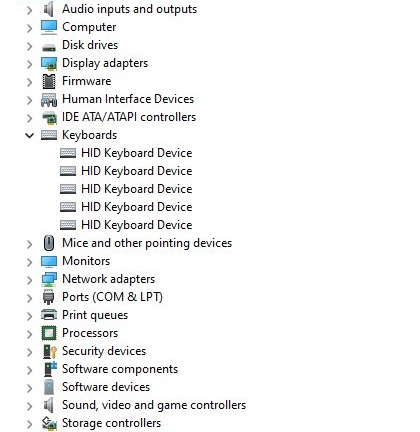
- In the taskbar search box, type device manager and select Device Manager.
- Find your keyboard in the list of hardware categories and double-click its name.
- Select the Driver tab, then select Update Driver.
- Follow the instructions, then restart the PC.
Some keyboards need the maker's own driver or app. Check the manufacturer's support site for your exact model, for example when you fix a Logitech keyboard or a Lenovo laptop keyboard.
Turn off Filter keys and Sticky keys in Windows 11
Filter keys tells Windows to ignore brief or repeated keystrokes. Left on by accident, it makes a working keyboard look broken because quick presses never register.
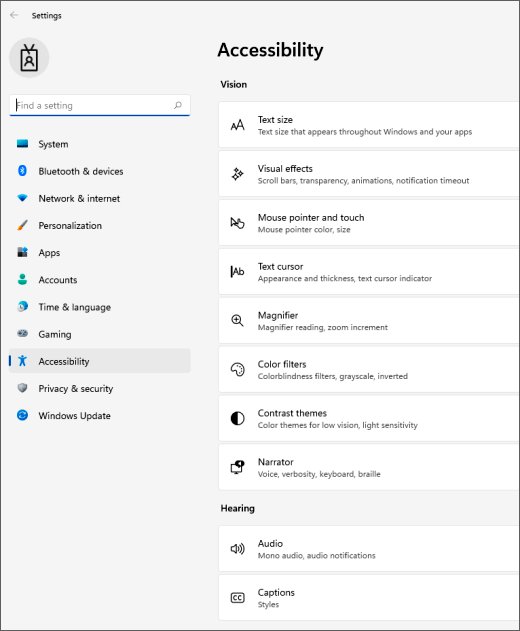
- Press Windows logo key + U to open Accessibility settings.
- Select Keyboard.
- Turn off the Filter keys switch.
- Turn off the Sticky keys switch if modifier keys such as Shift or Ctrl stay pressed after you let go.
- Turn off the Toggle keys switch if you hear a sound each time you press Caps lock or Num lock and do not want it.
- Type in Notepad to check that normal keystrokes now appear.
Keyboard typing wrong characters in Windows 11
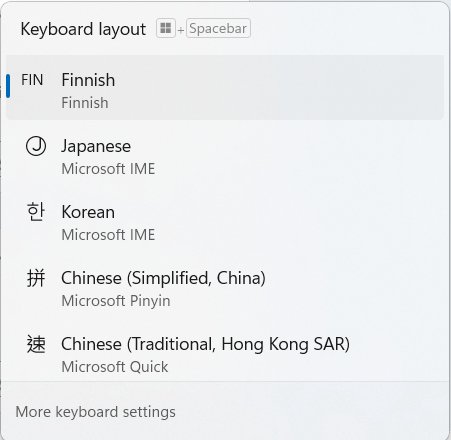
When the keys work but the wrong symbols appear, the input language or keyboard layout does not match the physical keyboard.
- Hold Windows logo key and press Spacebar to cycle through installed layouts until the right one is active.
- If the right layout is not installed, select Start > Settings > Time & language > Language & region.
- Select the … next to your display language, then select Language options.
- Under Keyboards, select Add a keyboard next to Installed keyboards.
- Choose the layout that matches your keyboard.
- Select the input language icon in the taskbar's system tray and pick the new layout.
To remove a layout you never use, open the same Language options page and select … > Remove next to it under Keyboards.
Wireless or Bluetooth keyboard not working in Windows 11
Wireless keyboards add a radio link that can drop, and that link is behind most cases of a wireless keyboard not working. Reset the link before you blame Windows.
- Press the Reset button on the bottom of the keyboard or on its USB receiver, if it has one.
- For a USB receiver, unplug it, wait about 10 seconds, then plug it back in.
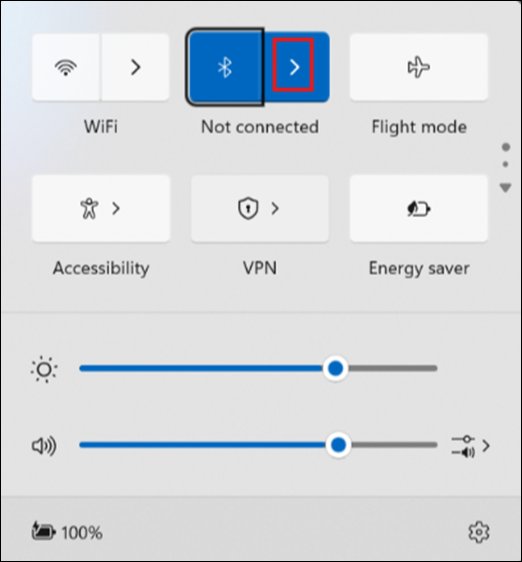
- For Bluetooth, hold the keyboard's pairing button for 5 to 7 seconds until the light blinks.
- Turn airplane mode on for 10 to 15 seconds, then turn it off again.
- Disconnect other Bluetooth devices you do not need right now.
- Remove the keyboard from the PC's Bluetooth device list and pair it again.
- Open the Get Help app, search Bluetooth troubleshooter and follow its steps.
A pairing light that flashes three times and goes out means the keyboard is still paired to another PC in range. Remove it there first, then pair it with this PC again.
How to tell if a keyboard problem is hardware or Windows
- Plug the keyboard into another PC.
- If it still shows no lights and types nothing there, the keyboard itself is faulty and needs replacing.
- If it works on the other PC, the problem is on your PC: drivers, settings or a port.
- Plug a different keyboard into your PC. If that one works, recheck the first keyboard's driver or maker's software.
- If no keyboard works on your PC, try another USB port and run Windows Update.
Some keyboards will not work without their driver installed, so install it on the second PC before you judge the result.
Keyboard still not working after the Keyboard troubleshooter
Pick the symptom that matches what you see. A keyboard that is not typing at all on Windows 11 has a longer list of causes than the five below.
Keyboard suddenly cannot type
Filter keys is on, the connection dropped, or the batteries are flat.
- Press Windows logo key + U, select Keyboard and turn off Filter keys.
- Unplug and replug the keyboard or its receiver, or recharge it.
- Restart the PC so Windows reloads the keyboard driver.
Unresponsive keyboard keys
Dirt under specific keys, or Sticky keys holding a modifier down.
- Clean around the keys that do not respond.
- Turn off Sticky keys in Accessibility > Keyboard.
- Test the same keys on the on-screen keyboard. If they work there, the physical keys are at fault.
Laptop keyboard not working
A driver or update issue, since the built-in keyboard has no cable or batteries to check.
- Run Check for updates and install every driver offered.
- Open Device Manager, double-click the keyboard and select Driver > Update Driver.
- Check the laptop maker's support site for a keyboard or chipset driver for your model.
Special keys on the keyboard are not working
The PC is missing the latest updates or the maker's keyboard software.
- Select Start > Settings > Windows Update > Check for updates.
- Install the keyboard maker's app if your keyboard has media or function keys that need it.
- Restart and test the keys again.
Keyboard input is slow or lags
Too many open apps, a weak battery, or a Bluetooth keyboard waking from sleep.
- Close open apps and check whether typing speeds up.
- Check the battery level or fit new batteries.
- Expect a short delay after 8 to 10 minutes idle: Bluetooth devices hibernate to save battery.
Keyboard troubleshooter FAQ
How do I troubleshoot my laptop keyboard?
Restart the laptop first, then run Windows Update and update the keyboard driver from Device Manager. Turn off Filter keys and Sticky keys under Accessibility > Keyboard. On Windows 10 or Windows 11 version 22H2 and older, also run the Keyboard troubleshooter from Settings > Troubleshoot.
Why can my keyboard suddenly not type?
The most common causes are Filter keys turned on, a dropped USB or wireless connection, flat batteries, or a driver that failed to load. Press Windows logo key + U, open Keyboard and turn off Filter keys, then replug the keyboard and restart the PC.
How do I fix unresponsive keyboard keys?
Clean around the keys that do not respond and turn off Sticky keys. Then test the same keys on the on-screen keyboard with Windows logo key + Ctrl + O. If they work on screen but not on the keyboard, the physical keys or keyboard are faulty.
Why can't I find the Keyboard troubleshooter in Windows 11?
Microsoft removed the legacy Keyboard troubleshooter from newer Windows 11 releases as part of retiring MSDT. It was not moved to the Get Help app. Windows 11 version 22H2 and older still list it under Settings > System > Troubleshoot > Other troubleshooters.
Is there a Keyboard troubleshooter in the Get Help app?
No. Get Help lists troubleshooters for audio, Bluetooth, camera, network, printer, program compatibility, video playback, Windows Media Player, Windows Update and BITS. For a Bluetooth keyboard, run the Bluetooth troubleshooter in Get Help instead.
Does the Keyboard troubleshooter still work on Windows 10?
Yes. Windows 10 keeps the legacy troubleshooters. Open Settings > Update & Security > Troubleshoot > Additional troubleshooters, select Keyboard and then Run the troubleshooter. Windows 10 support ended on October 14, 2025, so newer driver fixes may not reach it.
What does the Keyboard troubleshooter do?
It is a built-in Windows tool that automatically diagnoses and corrects common keyboard problems when you launch it. It reports what it found and fixed. It cannot repair a faulty keyboard, so test the keyboard on another PC if the troubleshooter finds nothing.
Can I type without a working keyboard while I fix it?
Yes. Press Windows logo key + Ctrl + O, or turn on the On-screen keyboard switch under Accessibility > Keyboard, and select keys with the mouse. It works for passwords, searches and short messages until the physical keyboard is fixed.