Apple does not publish how long an unanswered iPhone alarm rings, and the Clock app has no setting to limit it, so turn the alarm off before you leave your iPhone unattended.
This guide covers stopping alarms ahead of time, making them quieter or vibrate only, snooze length, wake up alarms, Apple Watch, Mac and HomePod alarms, and alarms that keep going off.
How to stop an iPhone alarm before you leave your phone
An alarm that is off will not ring at all, which is the only certain way to keep an unattended iPhone quiet. Turning it off keeps the alarm in the list, so you do not have to set the alarm again later.
- Open the Clock app on your iPhone.
- Tap Alarms.
- Tap the switch next to the alarm time so it turns off.
- Repeat for every alarm set for the time you will be away.
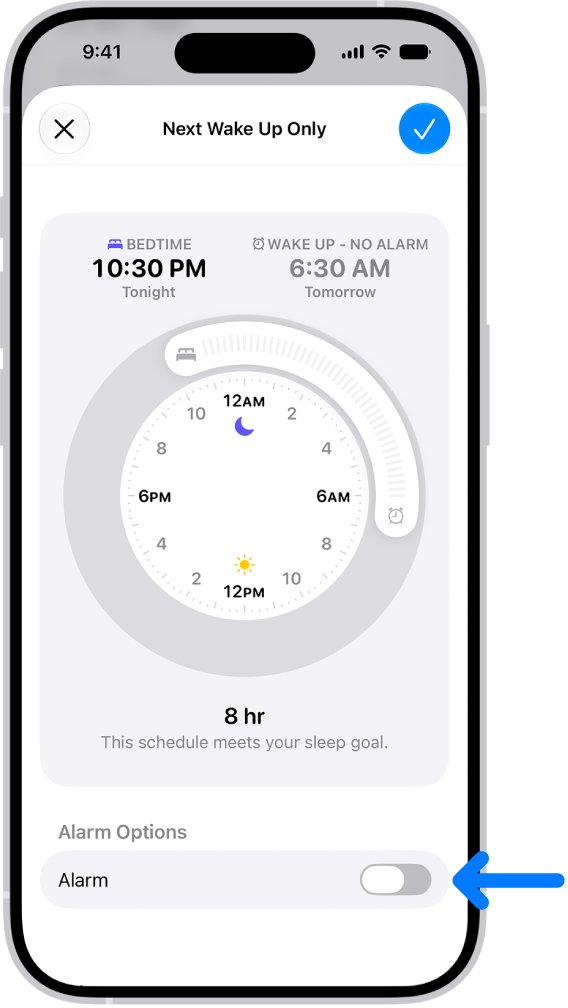
- If a wake up alarm from a sleep schedule appears at the top, tap Change, turn off Alarm under Alarm Options, then tap Change Next Alarm Only.
If the alarm is already ringing in front of you, stop the ringing alarm from its alert or snooze it.
How long does an iPhone alarm ring?
Apple's Clock documentation lists every option an alarm has, and none of them sets how long it rings. These are the controls you do get.
| Alarm option | What it changes | Limits ring time? |
|---|---|---|
| Repeat | Days of the week the alarm sounds | No |
| Label | The name shown when it rings | No |
| Sound | A vibration, song or ringtone, or None for vibration only | No, but makes it quieter |
| Snooze | Shows a Snooze button when it rings | No |
| Snooze Duration | How long the alarm pauses after you tap Snooze | No |
| Alarms and Timers volume | Loudness, set in Sounds & Haptics | No, but makes it quieter |
The question of a fixed cut-off time is not answered anywhere in Apple's alarm help, so plan as if an unattended alarm will keep sounding.
Will my alarm go off on silent?
Yes. Apple states that Clock alarms play through the built-in speaker even with Silent mode on, which is why an unattended alarm can disturb people nearby.
| iPhone state | Does the alarm still sound? |
|---|---|
| Silent mode on (Control Center, Action button or Ring/Silent switch) | Yes, through the speaker |
| Do Not Disturb or another Focus on | Yes |
| Headphones connected | Yes, at a set volume through both the speaker and the headphones |
| StandBy in use | Yes, but alarm haptics are disabled |
| Alarm switch off in Clock | No |
How to lower the iPhone alarm volume
If you must leave an alarm on, a lower volume limits how far it carries. The slider sits under its own heading, separate from media volume.
- Open the Settings app.
- Tap Sounds & Haptics.
- Below Alarms and Timers, turn off Match Ringtone Volume.
- Drag the volume slider to the level you want.
- Turn on Change with Buttons if you want the side volume buttons to adjust it too.
Each sleep schedule wake up alarm also has its own Alarm volume slider, and you can change the alarm volume for both kinds in a few taps.
How to make an iPhone alarm vibrate only
Apple notes that an alarm whose sound is set to None only vibrates. That keeps an unattended alarm far quieter than a ringtone.
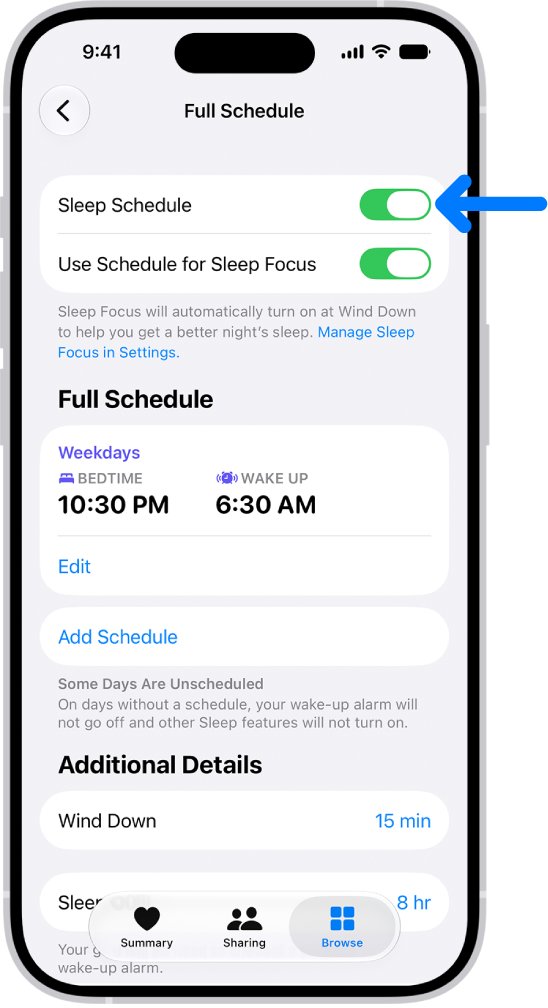
- Open the Clock app and tap Alarms.
- Tap Edit in the upper-left corner.
- Tap the alarm you want to change.
- Tap Sound.
- Choose None.
- Tap Save.
StandBy disables alarm haptics, so an alarm set to None can stay completely silent while iPhone is in StandBy.
How to change snooze duration on iPhone alarm
Snooze only works if someone taps it, so it does not help an unattended phone. It does control how soon a snoozed alarm comes back.
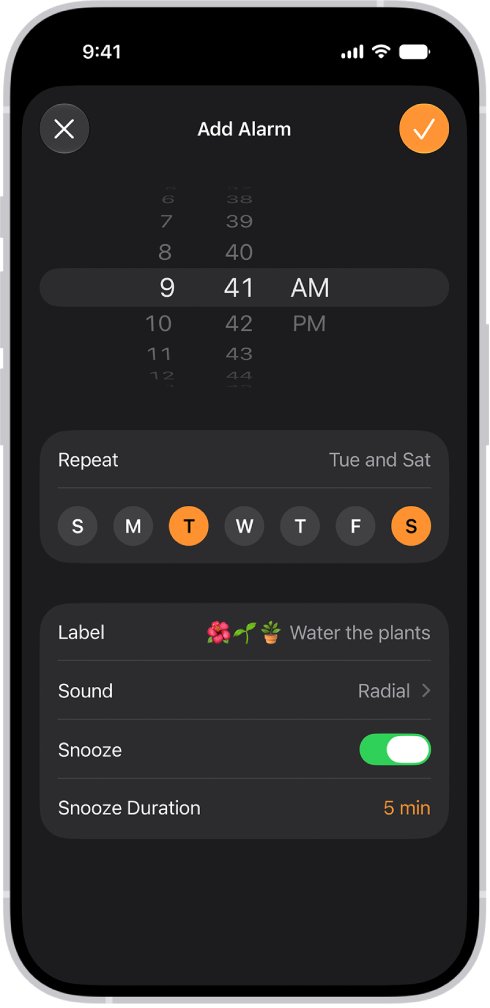
- Open the Clock app and tap Alarms.
- Tap the alarm time to edit it.
- Turn on Snooze to show a Snooze button when it rings, or turn it off to remove the button.
- Tap Snooze Duration and choose how long the alarm pauses.
- Tap the confirm button to save the alarm.
Wake up alarms have the same Snooze and Snooze Duration options under Alarm Options after you tap Change.
How to delete an alarm on iPhone
Delete an alarm you no longer use so it cannot ring while your phone sits in a drawer or bag.
- Open the Clock app and tap Alarms.
- Swipe left on the alarm and tap Delete.
- Or tap Edit, tap the alarm, then tap Delete Alarm.
- For a sleep schedule alarm, tap Change, tap Edit Sleep Schedule in Health, then turn off Sleep Schedule.
How to set a silent alarm on Apple Watch
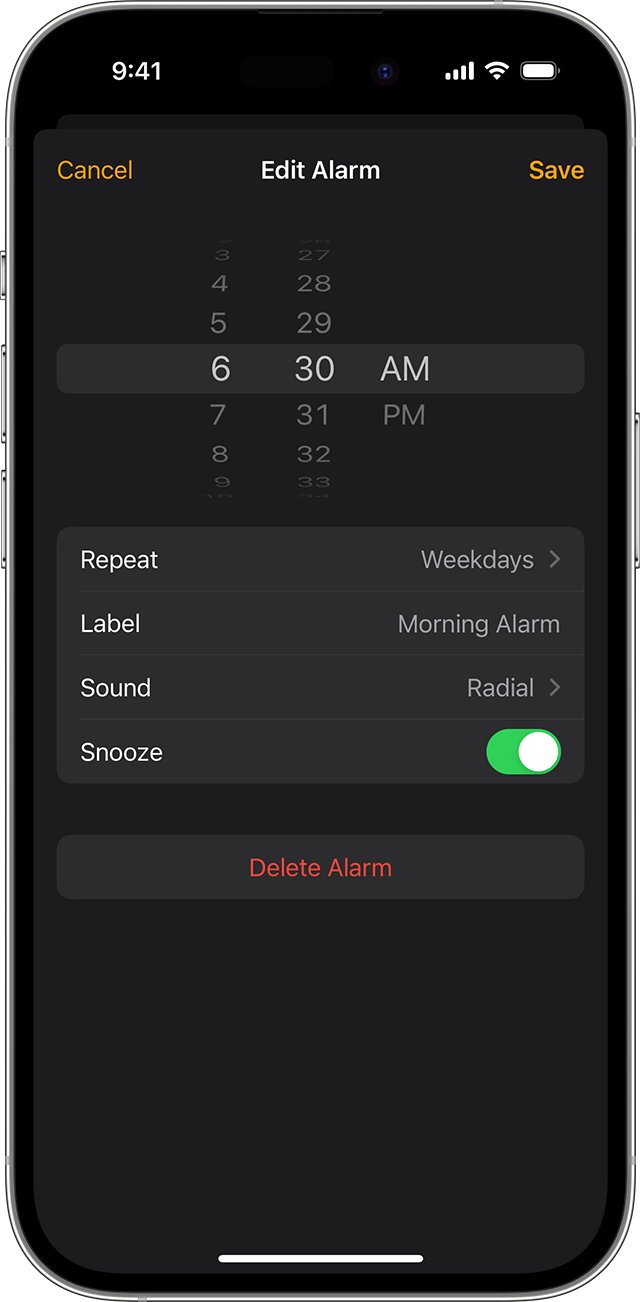
An Apple Watch alarm can tap your wrist without sound, and once it is paired with your iPhone, the watch can also take over iPhone alarms so you can dismiss them away from the phone.
- On Apple Watch, open the Alarms app and tap the add button to set a time.
- Turn on Silent Mode on the watch to have the alarm tap your wrist without making a sound.
- To get iPhone alarms on the watch, open the Apple Watch app on your iPhone.
- Tap My Watch, tap Clock, then turn on Push Alerts from iPhone.
- When an iPhone alarm goes off, snooze or dismiss it from the watch.
Alarms you set on Apple Watch do not alert your iPhone. With Break Through Silent Mode on, a watch alarm always plays sound while you wear it.
How to stop an alarm on Mac
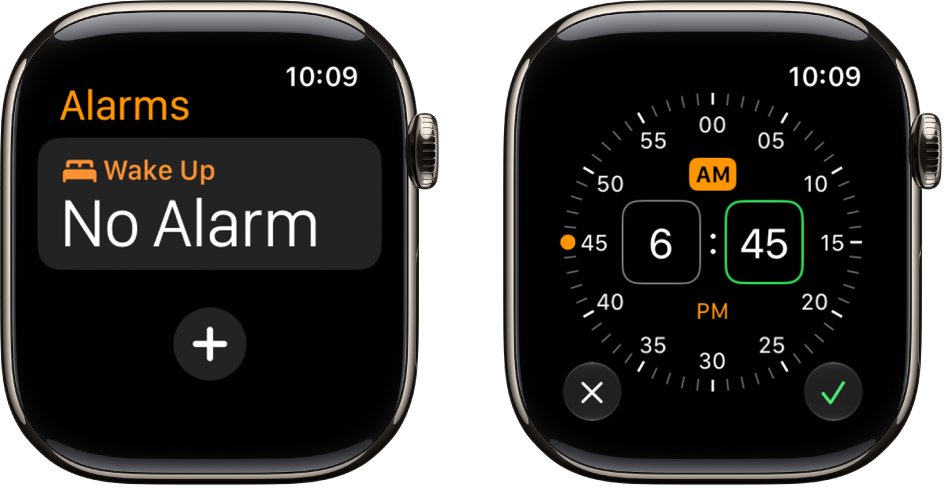
Mac alarms from the Clock app arrive as a notification. A laptop left open on a desk can sound one just like a phone.
- When the alarm notification appears, click Options on it.
- Select Stop; the alarm turns off until its next scheduled time.
- To turn it off ahead of time, open the Clock app and click Alarms at the top of the window.
- Click the switch next to the alarm so it slides to the left.
- To remove it, hold the pointer over the alarm and click the delete button in its top-left corner.
How to delete HomePod alarms in the Home app
If the alarm that keeps sounding is a HomePod in another room, manage it from the Home app instead of the Clock app.
- Open the Home app on your iPhone or iPad.
- Tap the HomePod.
- Scroll down to Alarms and Timers.
- Edit or delete the alarm there.
- When a HomePod alarm is ringing, ask Siri to "Snooze" for a short pause.
How to tell if an iPhone alarm is off
- Open the Clock app and tap Alarms.
- Check that the switch next to each alarm time shows off.
- Look at the top of the list for a sleep schedule wake up alarm, which is controlled separately.
- In the Health app, tap Browse, tap Sleep, tap Sleep again and scroll to Your Schedule to confirm the next alarm is off.
- If you use HomePod or Apple Watch, check their alarm lists too.
A next-alarm change made with Change Next Alarm Only reverts after that wake up time, and the normal alarm resumes.
iPhone alarm keeps going off
Alarm keeps going off after you turned it off
A sleep schedule wake up alarm, or a second alarm at a similar time, is still on.
- Open Clock > Alarms and turn off every alarm near that time.
- Tap Change on the wake up alarm and turn off Alarm for the next one.
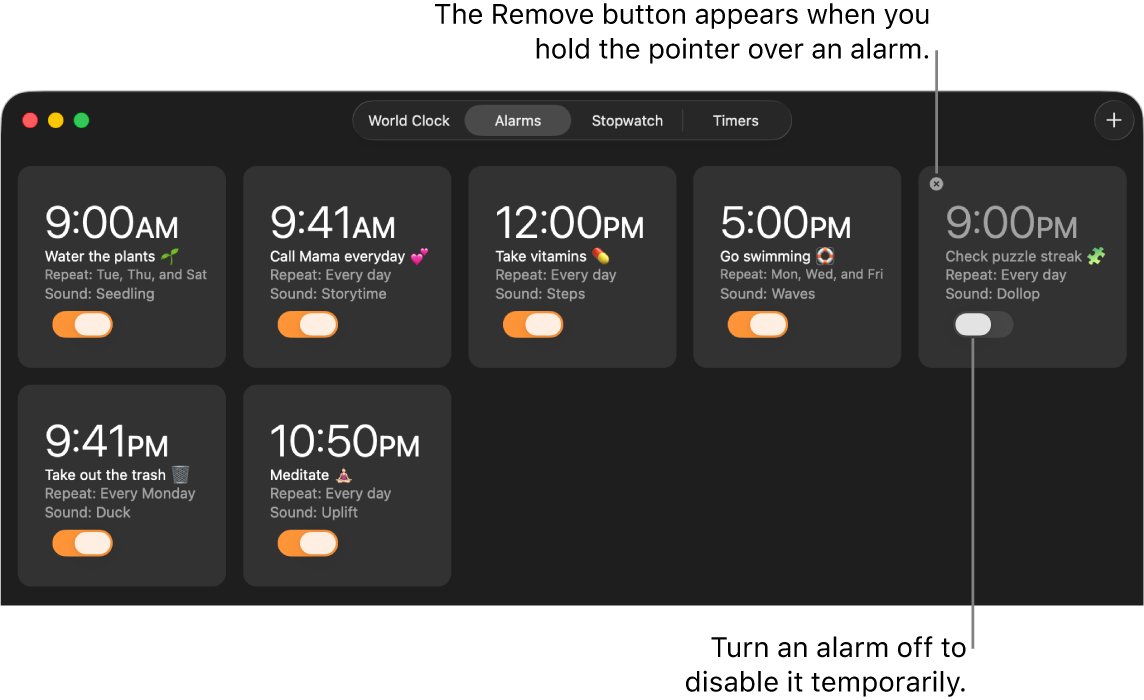
- To stop all scheduled wake up alarms, open Health > Browse > Sleep > Sleep, tap Full Schedule & Options and turn off Sleep Schedule.
Alarm goes off for no reason
The sound comes from another device, such as Apple Watch with Push Alerts from iPhone, a HomePod or a Mac.
- Check the Alarms app on Apple Watch and turn off unwanted alarms.
- Check Home > your HomePod > Alarms and Timers.
- Check Clock > Alarms on your Mac.
- If you changed the iPhone time manually in Settings, set it back, because Apple warns this can affect alarms.
Why won't my alarm go off when I need it?
The alarm sound is set to None, the volume is very low, or StandBy is disabling haptics.
- Open Clock > Alarms > Edit, tap the alarm, tap Sound and choose a ringtone.
- Raise the slider under Alarms and Timers in Settings > Sounds & Haptics.
- Fix a silent alarm with these iPhone alarm sound fixes if it still makes no noise.
iPhone alarm ringing FAQ
How long will an alarm go off on iPhone?
Apple does not publish a ring time for iPhone alarms, and the Clock app has no option to limit it. Turn off or delete any alarm that will sound while you are away from your iPhone rather than relying on it to stop.
Can you stop that alarm without touching the iPhone?
Yes, if you wear an Apple Watch with Push Alerts from iPhone turned on. Set it in the Apple Watch app under My Watch > Clock, and you can snooze or dismiss iPhone alarms from your wrist.
Will my alarm go off on silent?
Yes. Clock alarms play through the iPhone speaker even when Silent mode is on and when Do Not Disturb or another Focus is on. Only turning the alarm off in the Clock app keeps it quiet.
How do you turn off the alarm for good?
Open Clock, tap Alarms, swipe left on the alarm and tap Delete. For a sleep schedule wake up alarm, turn off Sleep Schedule in the Health app, which also turns off its scheduled alarms.
Why is the alarm going off when no alarm is set?
Check your sleep schedule in the Health app, any Apple Watch, HomePod or Mac alarms, and whether the iPhone time was changed manually. A wake up alarm from a sleep schedule appears separately from regular Clock alarms.
Will my laptop alarm stop?
On a Mac, a Clock alarm appears as a notification. Click Options, then Stop, and it turns off until its next scheduled time. Turn off its switch in the Clock app's Alarms view to stop it ahead of time.
Which alarm is going off?
Give each alarm a Label, such as "Water the plants," in the Clock app so the Alarms list tells them apart. If the iPhone shows no matching alarm, check Apple Watch, HomePod and Mac alarms.
Does snooze stop the alarm?
No. Snooze pauses the alarm for the Snooze Duration set for that alarm, and then it sounds again. Dismiss the alarm to end it, or turn off Snooze in the alarm's options to remove the button.