To cite sources in PowerPoint, type a short in-text citation such as (Jones, 1998) on the slide, credit each borrowed image in a caption, and list every full reference on a final References or Works Cited slide.
This guide covers in-text citations, footnotes through Header & Footer, image citations, a formatted reference slide, building citations in Word or Zotero, linking sources, and fixing footnotes that will not show.
Put references or cite sources in PowerPoint
PowerPoint has no citation manager like the References tab in Word. You add citations as ordinary slide text, so the format comes from the style your teacher or publisher asks for.
- Click at the end of the sentence or bullet that quotes or paraphrases a source.
- Type the in-text citation in your style, for example (Jones, 1998) for APA or (Wordsworth 263) for MLA.
- Under each borrowed picture, add a text box with a short credit that names the creator or source.
- Add a new slide at the end of the deck and title it References (APA) or Works Cited (MLA).
- Type or paste one full entry per source on that slide, in alphabetical order by the first author's last name.
- Run the slide show once and check that every citation on a slide matches an entry on the last slide.
The MLA tells presenters that if a talk includes slides or a handout, it should include a works-cited list. Every source you cite in the text must also appear in that list.
Footnote, in-text citation or reference slide in PowerPoint
Most decks use two of these together: a short citation where the source is used, plus the full list at the end. Footnotes suit slides that cite one or two sources and need the detail visible.
| Your situation | Use this | Why |
|---|---|---|
| School or college presentation in APA or MLA | In-text citation on the slide plus a References or Works Cited slide | This is the author-date or author-page method both styles use in papers |
| One key source per slide, numbered notes | Footnote through Insert > Header & Footer | The note sits at the bottom of that slide and the audience sees it immediately |
| A photo, chart or diagram you did not make | Image citation in a caption text box | MLA says a merely illustrative image gets full details in the caption |
| Deck will be shared as a file, not only presented | Hyperlink the source title on the reference slide | Readers can open the original page with one click |
| You need the source to hand but not on screen | Speaker notes | Notes stay on your monitor in Presenter view and are hidden from the audience |
In-text citation in PowerPoint
An in-text citation is the short tag that points the audience to the full entry on your last slide. APA uses the author-date method; MLA uses the author-page method.
- Click at the end of the bullet or sentence that uses the source, just before any closing punctuation.
- For APA, type the author's last name and the year in parentheses, such as (Jones, 1998).
- For an APA direct quotation, add the page with p. or pp., such as (Jones, 1998, p. 199).
- For MLA, type the author's last name and page number with no comma, such as (Wordsworth 263).
- If the author's name already appears in the sentence, put only the year (APA) or page (MLA) in the parentheses.
- Select the citation and use the same font size on every slide so it reads as one system.
In MLA, the word you use in the citation must be the first thing on the matching Works Cited entry. For a source with no author, use a shortened title in quotation marks instead.
How to add footnotes in PowerPoint
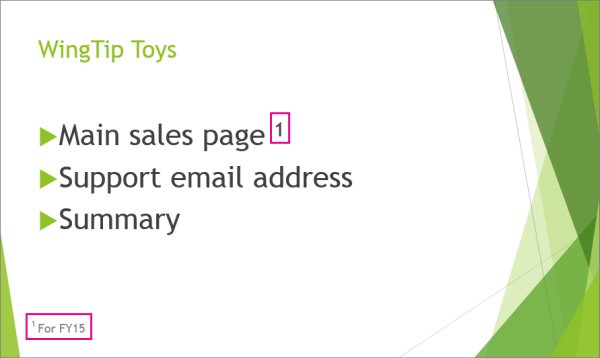
PowerPoint has no automatic footnotes. You type the reference number yourself, then place the note text in the slide footer.
- Place the cursor where the footnote marker belongs and type a number or symbol, such as 1.
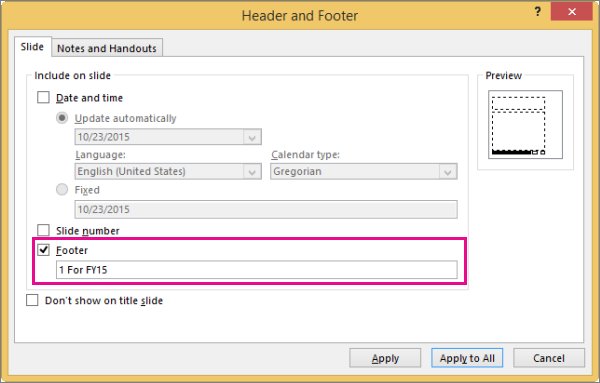
- Select Insert > Header & Footer.
- On the Slide tab, select Footer.
- In the Footer box, type the same number or symbol, then the citation text.
- Check the Preview box, which highlights where the footnote will appear.
- Select Apply to add it to the current slide only.
- Select the marker on the slide body and press Ctrl + Shift + = to make it superscript, then do the same for the marker in the footer.
To raise the marker further, select it, open the Font dialog box launcher on the Home tab, and enter a higher percentage in the Offset box. To remove a footnote, open Header & Footer again and clear Footer.
Add footnotes in PowerPoint for Mac and PowerPoint for the web
The footer route works in PowerPoint for Windows and Mac and on the web, but the superscript button and the final click differ.
| Version | Add the footnote text | Make the marker superscript |
|---|---|---|
| PowerPoint for Windows | Insert > Header & Footer > Slide tab > Footer, then Apply | Ctrl + Shift + =, or Home > Font dialog box launcher > Superscript |
| PowerPoint for Mac | Insert > Header & Footer > Slide tab > Footer, then Apply | Select the marker, then Home > Superscript |
| PowerPoint for the web | Insert > Footer > Footer, select the Footer box, type the text and close the pane | Apply Superscript from Home > More Font Options before you add the footer |
Image citation in PowerPoint
The MLA says to cite an image in a presentation the same way you would in a printed paper. A merely illustrative image gets full details in its caption; if you cite it elsewhere, the caption only needs enough to point to the Works Cited entry.
- Select the slide that holds the picture.
- On the Insert tab, select Text Box.
- Click and drag just below the picture to draw the box.
- Type the credit, for example the creator, the title of the image and where it was published.
- Select the text and set a smaller font size than the slide body so the caption stays secondary.
- Add the full image entry to your References or Works Cited slide if your style requires it.
Keep the caption next to the picture so it stays visible when the slide is projected or printed, and match the wording to the image's entry on your final slide.
Create reference list in PowerPoint
The last slide carries the full entries. APA labels it References; MLA labels it Works Cited, and the MLA says the list may be the final slide of a presentation.
- Select the last slide in the thumbnail pane, then select Home > New Slide.
- Type References or Works Cited in the title placeholder.
- Type or paste one entry per paragraph in the content placeholder, sorted by the first author's last name.
- Select every entry, then select Home > the Paragraph dialog box launcher.
- Under Indentation, set Before text to about 0.5".
- Open Special, choose Hanging and select OK.
APA asks for a hanging indent of one-half inch and alphabetical order by the first author. A long list can run over two slides instead of letting Autofit shrink the text; keep the same title with "(continued)" on the second one.
Use online citation generator: build citations in Word, then paste into PowerPoint
Microsoft Word has a built-in citation generator that formats APA, MLA, Chicago, IEEE and other styles. Build the list there, then move the finished text to your reference slide.
- In Word, open a blank document and go to the References tab.
- In the Citations & Bibliography group, open Style and pick your style, such as APA or MLA.
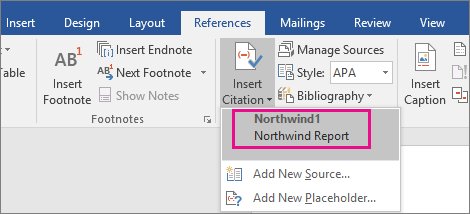
- Select Insert Citation > Add New Source.
- Pick the Type of Source, fill in the fields and select OK; repeat for each source.
- Select Bibliography and choose a built-in list, or select Insert Bibliography.
- Select the finished list, press Ctrl + C, then click into the content placeholder on your PowerPoint reference slide and press Ctrl + V.
Sources you add in Word are saved to a master list you can reuse from Manage Sources in later documents. Microsoft notes that APA and MLA can change their formats, so check the output against your style's current rules.
Copy citations from Zotero into PowerPoint
If you already keep sources in Zotero, its Quick Copy feature formats references for any text field, including a PowerPoint text box.
- In Zotero, select the items you cited.
- Press Ctrl + Shift + C (or Cmd + Shift + C on Mac) to copy them as bibliography entries.
- Click into the content placeholder on your PowerPoint reference slide and press Ctrl + V.
- To copy short in-text citations instead, press Ctrl + Shift + A and paste at the end of the slide text.
- For a different style, right-click the items, choose Create Bibliography from Item(s), pick the style and select Copy to Clipboard.
Set the default Quick Copy style in Zotero's settings under Export.
How to add a hyperlink to a source in PowerPoint
A linked source title lets anyone reading the shared file open the original page. Keep the full written reference too, because a printed handout cannot follow a link.
- Select the source title or citation text on the slide.
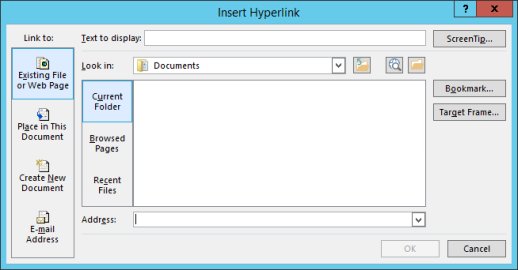
- Select Insert > Link > Insert Link.
- Select Existing File or Web Page.
- Paste the page URL into Address, and add an optional ScreenTip.
- Select OK.
- Right-click the link in Normal view and select Open Hyperlink to test it.
How to put sources in PowerPoint speaker notes
Speaker notes are visible on your own monitor during the slide show but not to the audience. They are a good place for page numbers and quotations you want to read aloud without crowding the slide.
- Select the slide in Normal view.
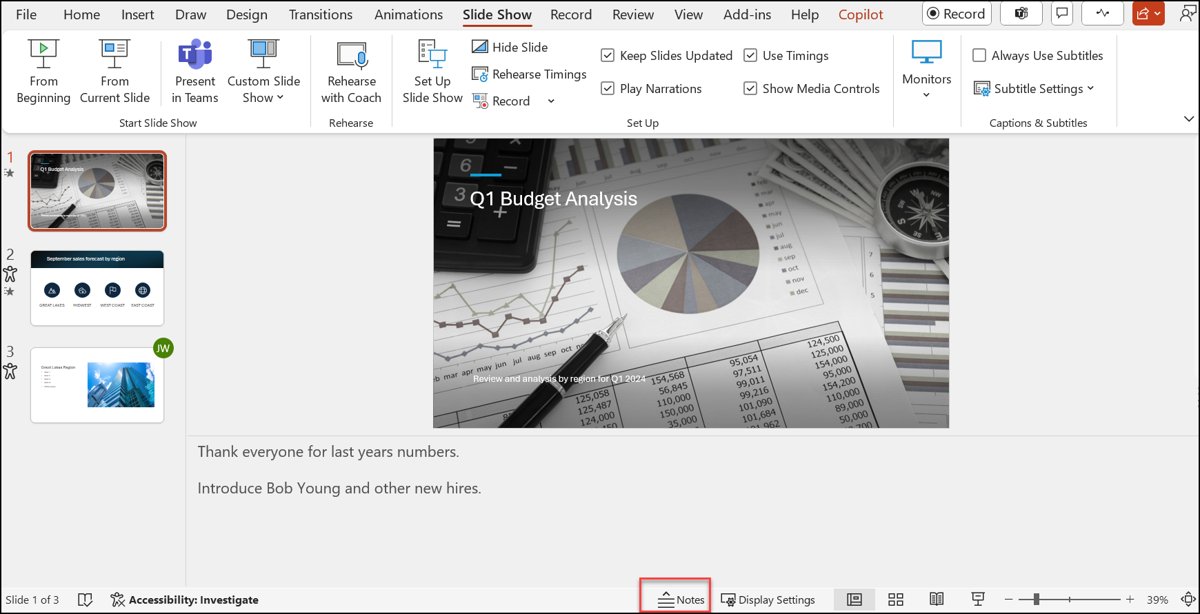
- If the Notes pane is hidden, select Notes on the bar at the bottom of the PowerPoint window.
- Click Click to add notes and type the full citation or quotation.
- Drag the top edge of the pane upward if you need more room.
- Start the slide show; the notes appear beside the slide in Presenter view.
Notes do not replace the citation on the slide. The audience still needs to see where a quote or figure came from.
APA vs MLA citation format in PowerPoint
| Element | APA (7th edition) | MLA |
|---|---|---|
| Method | Author-date | Author-page |
| Paraphrase on a slide | (Jones, 1998) | (Wordsworth 263) |
| Direct quotation | (Jones, 1998, p. 199) | (Wordsworth 263) |
| Author named in the sentence | Jones (1998) found … (p. 199) | Wordsworth calls it … (263) |
| Final slide title | References | Works Cited |
| List order | Alphabetical by first author's last name | Alphabetical by author's last name |
| Indent | Hanging, one-half inch | Hanging, 0.5 inch |
Check your course or publisher instructions first. Some ask for a citation style other than APA or MLA, and that choice overrides both columns.
Do you need to cite stock images and Bing pictures in PowerPoint?
| Image source in PowerPoint | How to insert it | What to check before you use it |
|---|---|---|
| Stock Images | Insert > Pictures > Stock Images | Microsoft describes this library as royalty-free for Microsoft 365 subscribers |
| Online Pictures (Bing) | Insert > Pictures > Online Pictures | Results are Creative Commons-filtered, but you must open the original site and confirm the license and its attribution rules |
| Your own photo or screenshot | Insert > Pictures > This Device | No credit needed unless the screenshot shows someone else's work |
| Image copied from a website | Paste or This Device after saving | Cite the creator and page in a caption and on the reference slide |
Microsoft states that Bing does not verify that a specific license applies to an image, and that you are responsible for respecting copyright. Royalty-free is about permission to use; an academic style may still expect you to credit the image.

PowerPoint footnote or footer not showing on slides
The footnote text does not appear on the slide
Footers are turned off for that slide layout in Slide Master view.
- Select the slide with the missing footnote.
- On the View tab, select Slide Master.
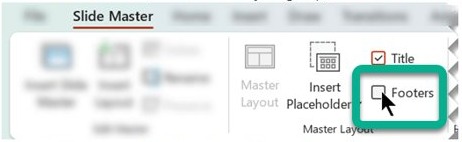
- On the Slide Master tab, in the Master Layout group, select the Footers box.
- Select Close Master View and check the slide again.
The Footers box on the layout will not stay selected
Footers are turned off on the parent slide master, so its layouts cannot show them.
- In Slide Master view, select the slide master at the top of the thumbnail pane.
- On the Slide Master tab, select Master Layout.
- Turn on Date, Slide number and Footer, then select OK.
- Select each layout in turn and select Footers again.
You cannot select or edit the footnote text
The footer placeholder sits on the slide master or a layout, not on the slide itself.
- Select View > Slide Master.
- Check the slide master and each layout for the footer text.
- Select the item that has the footer and select the Footers option.
- Edit the text there, or change it from Insert > Header & Footer on the normal slide.
The same footnote shows on every slide
Apply to All was selected in the Header and Footer dialog box.
- Select Insert > Header & Footer.
- Clear Footer and select Apply to All to remove it everywhere.
- Go to the slide that needs the note, open Header & Footer again, and type it.
- Select Apply, not Apply to All.
Footer settings live in the theme's masters, so the PowerPoint Slide Master is the place to look whenever a footer behaves differently on some slides.
PowerPoint citations and references FAQ
Do you put works cited or references for APA?
APA uses a list titled References, alphabetized by the first author's last name with a hanging indent. Works Cited is the MLA name for the same final list. On a slide deck, use whichever title matches the style your instructor or publisher requires.
How do you cite references in text?
Put a short citation at the end of the sentence that uses the source. In APA that is the author's last name and year, such as (Jones, 1998), plus a page for quotes. In MLA it is the author's last name and page, such as (Wordsworth 263).
Where do you put references in a PowerPoint presentation?
Put short citations on the slide where each source is used, and the full entries on a final slide titled References or Works Cited. The MLA notes the works-cited list may be the last slide. Image credits go in a caption under the picture.
How do you cite a reference in Word?
On the References tab, pick a style, click at the end of the sentence, and select Insert Citation > Add New Source. Fill in the source details and select OK. Select Bibliography when you are ready to insert the finished list.
How do you cite online references in PowerPoint?
Cite a web page like any other source: author or site name and date in the slide citation, and the full entry with the page title and URL on the reference slide. Adding a hyperlink to the title lets readers of the shared file open the page.
When do you need to cite a reference on a slide?
Cite a source whenever a slide quotes, paraphrases or shows someone else's words, data, ideas or images. The MLA stresses that credit is needed even in an oral presentation, so introduce the source aloud and cite it on the slide.
Why is citing and referencing important?
Citations let your audience find and check the sources behind your claims, and they credit the people whose work you used. Matching in-text citations to a full list also shows which ideas are yours and which came from others.
Does PowerPoint have a citation tool like Word?
No. PowerPoint has no References tab, Insert Citation button or bibliography generator. Build the citations in Word's References tab or a reference manager such as Zotero, then paste the formatted text into a slide.
How do you correctly cite a reference quoted on a slide?
Put the quotation in quotation marks and add the page number to the citation, such as (Jones, 1998, p. 199) in APA or (Wordsworth 263) in MLA. The full source must also appear on your References or Works Cited slide.