To download an image from Google, search on images.google.com, select the picture you want, right-click the larger preview and choose Save image as.
This guide covers the same job on Android and iPhone, finding images you are allowed to reuse, and saving pictures from Google Docs, Sheets, Slides, Drive, Photos, Maps and Earth.
Step by step tutorial: how to download images from Google
These steps work in Chrome on a Windows laptop or PC and on a Mac. Selecting a result first opens a larger version of the image, which is the one you want to save.
- Open Chrome and go to images.google.com.
- Type what you are looking for in the search box and press Enter.
- Select the image you want to open its larger preview and image details.
- Hover over the preview to check its dimensions before you save it.
- Right-click the preview image and select Save image as.
- Pick a folder, change the file name if you like, and select Save.
On Windows 10 and Windows 11, Chrome saves to \Users\<username>\Downloads unless you pick another folder. Select the Download tray next to the address bar to open the file straight away.
How to download images from Google on Android
Chrome on an Android phone or tablet uses a press-and-hold menu instead of a right-click.
- Open Chrome and go to images.google.com.
- Search for the image and tap it to open the larger version.
- Press and hold the image.
- Tap Download image.
- Open the Files app, or tap More > Downloads in Chrome, to find the saved picture.
How to download a picture from Google on iPhone
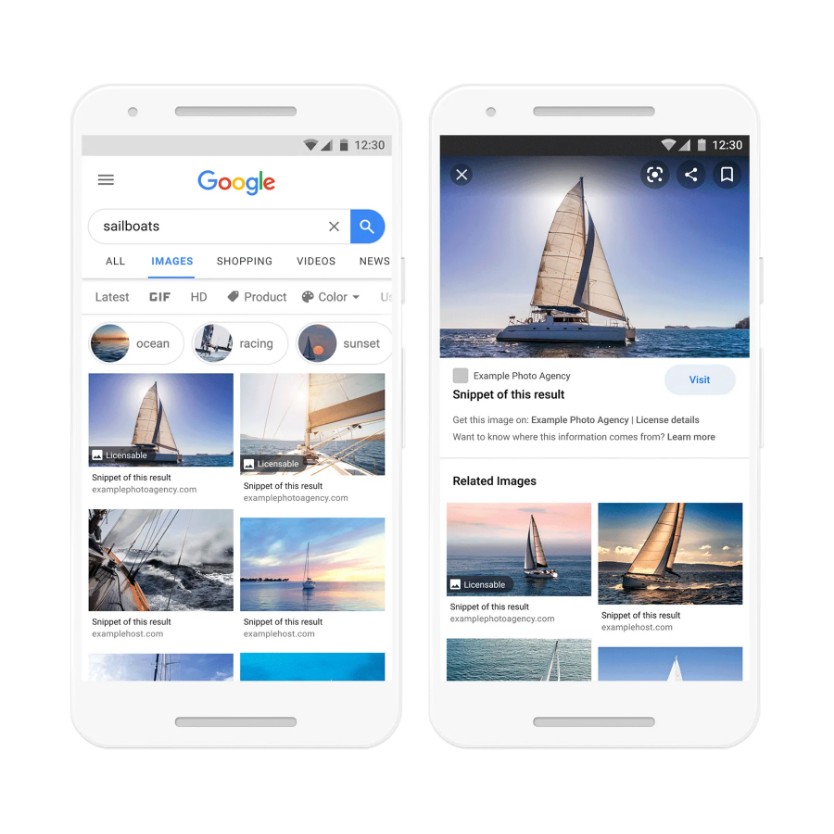
On an iPhone or iPad, Chrome can save a Google image to the Photos app or straight into Google Photos.
- Open Chrome and go to images.google.com.
- Search for the image and tap it.
- Touch and hold the image.
- Tap Save Image to save it to your photo library.
- To keep it in Google Photos instead, tap Save Image in… > Save in Google Photos, pick an account and tap Save.
Google images free download with the Usage rights filter
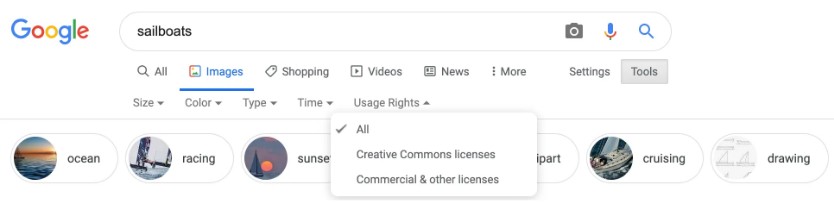
Images in Google results might be subject to copyright. The Usage rights filter narrows results to images whose host site or provider has attached license information.
- Go to images.google.com and search for an image.
- On a computer, select Tools under the search box; on a phone, tap Filter.
- Select Usage rights and choose Creative Commons licenses or Commercial or other licenses.
- Select the image you want.
- Select License details below the image and read the terms on the license provider's page and the image's host site.
- Save the image only after you confirm the license allows your use, and give credit if the license requires it.
Creative Commons images are usually free to use but require credit, and some forbid changes or commercial use. Commercial or other licenses can come from free sites or from sites that charge.
How to download images from Google Docs and Sheets
Google Docs has no direct save option for a single picture. The reliable route is to download the file in an Office format and save the picture from Word or Excel.
- Open the document or spreadsheet in Google Docs or Google Sheets.
- Select File > Download.
- Choose Microsoft Word (.docx) for a document or Microsoft Excel (.xlsx) for a spreadsheet.
- Open the downloaded file in Word or Excel on your PC.
- Right-click the picture and select Save as Picture.
- Pick a format such as PNG or JPEG in Save as type, choose a folder and select Save.
Microsoft documents Save as Picture in Word and PowerPoint, and in Excel 2024. If your Excel version lacks it, copy the picture into Word or PowerPoint and save it from there.
How to download images from Google Slides
Google Slides can export a slide straight to an image file, which is the quickest way to get a picture that fills a slide.
- Open the presentation in Google Slides and select the slide that holds the image.
- Select File > Download.
- Choose the JPEG image format to save the slide as a .jpg file.
- For a single picture on a busy slide, choose Microsoft PowerPoint (.pptx) instead.
- Open the .pptx file in PowerPoint, right-click the picture and select Save as Picture.

How to download images from Google Drive
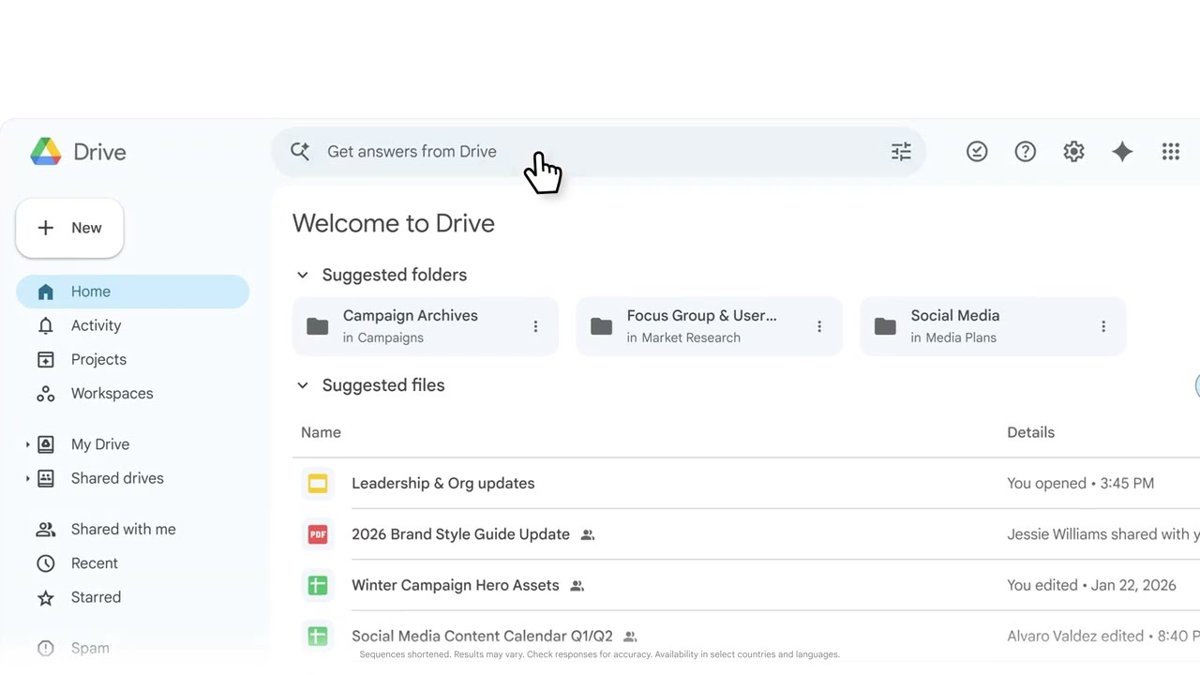
Image files stored in Drive, such as JPEG or PNG uploads, download in their original format.
- Go to drive.google.com on your computer.
- Select the image you want.
- To pick several images, hold Ctrl on Windows or Command on a Mac and select the others.
- Right-click the selection and select Download.
You cannot drag a file from Drive in the browser straight onto your desktop. If the Download option is missing, the owner may have turned off downloading for people with view or comment access.
How to download images from Google Photos
Google Photos saves the photo or video you select in the browser. To download all your Google Photos at once, use Google Takeout instead.
- Go to photos.google.com and sign in.
- Select the photo you want.
- Select More at the top right.
- Select Download.
In the Google Photos app on Android or iPhone, open the photo and tap More > Download. The option does not appear when the photo is already saved on that device.
How to download images from Google Maps
Google Maps has no image download button. Google's own geo guidelines allow you to capture a screenshot of Google Maps and add labels or graphics, as long as the attribution stays visible.
- Open Google Maps and frame the area you want.
- Press Windows logo key + Shift + S on Windows, or Shift + Command + 4 on a Mac, and drag over the map.
- Keep the attribution line at the bottom of the map, the Map data copyright notice, inside the capture.
- Find the capture in your Screenshots folder on Windows or on the desktop on a Mac.
Street View is different: Google does not allow screenshots of Street View imagery or offline copies of it for any purpose. Embed or link to the Street View image instead.
How to download images from Google Earth
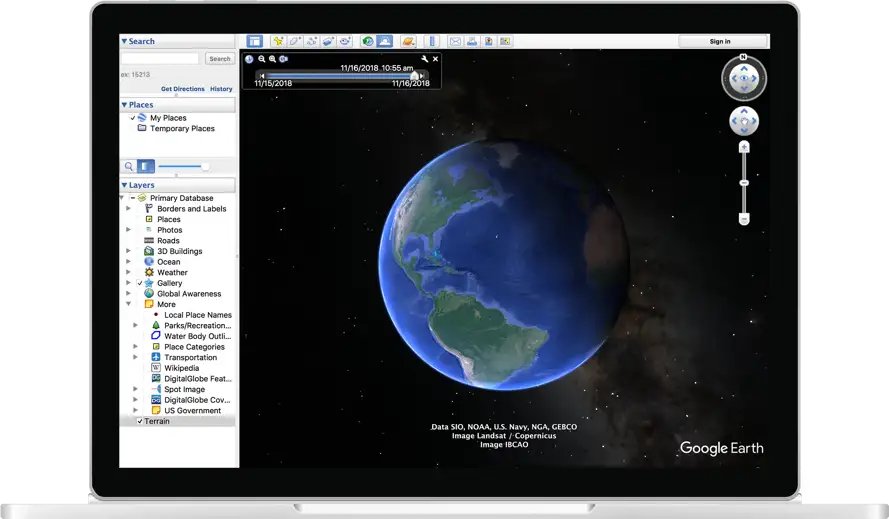
Google Earth Pro on a desktop has a built-in Save Image tool that exports the current view with its attribution.
- Open Google Earth Pro and fly to the place you want.
- Select File > Save > Save Image, or select the Save Image icon above the map.
- Select Map Options and tick the items to include, such as the title, description and legend.
- Hover over Untitled Map at the top left, select Edit, and type a title and description.
- Select Save Image, then choose a folder and file name.
Exported Earth images are allowed for non-commercial uses such as news, blogs and education, with attribution. Google Earth content may not be used for commercial or promotional purposes.
Where do downloaded images from Google go?
| Device or app | Default location | How to find it |
|---|---|---|
| Chrome on Windows 10 or 11 | \Users\<username>\Downloads |
Select the Download tray next to the address bar, or More > Downloads |
| Chrome on a Mac | /Users/<username>/Downloads |
Select the Download tray, or More > Downloads |
| Chrome on Android | The default download location | Open the Files app, or More > Downloads in Chrome |
| Chrome on iPhone or iPad | The photo library after Save Image | Open the Photos app |
| Google Earth Pro | The folder you pick in the save dialog | Open that folder in File Explorer or Finder |
To change the folder in Chrome, select More > Settings > Downloads > Change. Turn on Ask where to save each file before downloading to choose a folder every time.
Tips: how to download images from Google
| Tip | Why it helps |
|---|---|
| Hover over the preview to view its dimensions first | You see the image size before you save a picture that is too small |
| Select the webpage title to visit the page the image came from | The source page often has the full image, credits and terms |
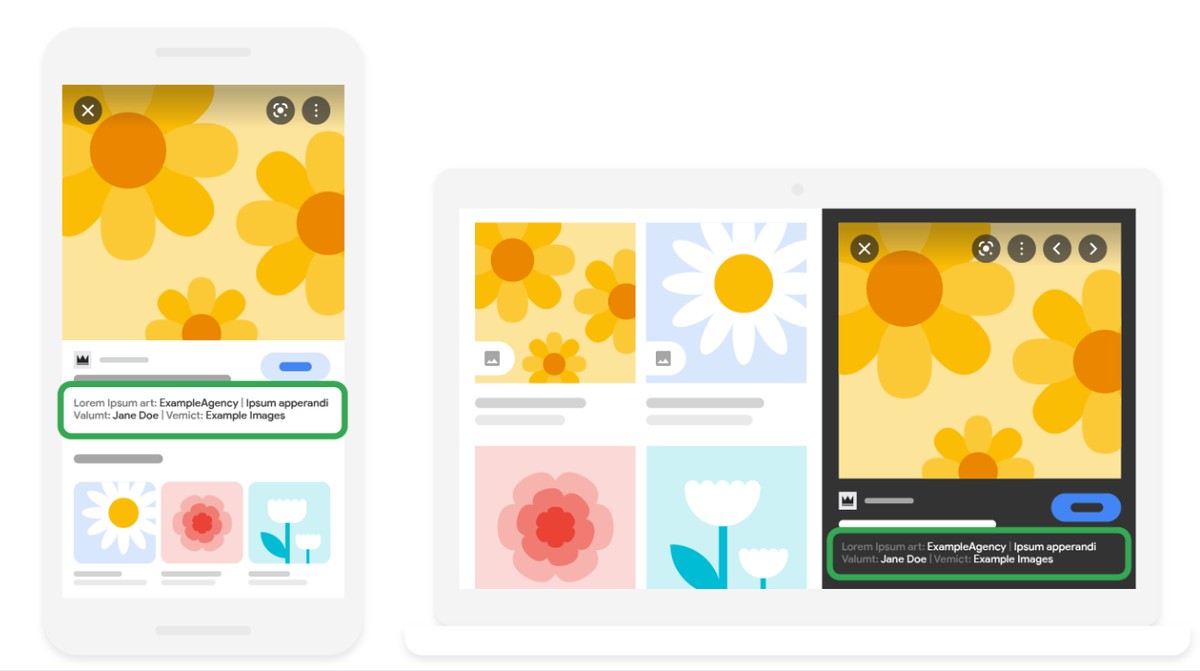
| Use More > About this image for background | Shows details such as credits, copyright and license info when the owner provides them |
| Filter by Usage rights before you reuse an image | Limits results to images with license details attached |
| Turn on Ask where to save each file before downloading in Chrome | Lets you name each file and pick its folder as you save it |
| Use More > Save to add an image to a collection | Keeps the image in your Google Account without saving a file |
To find where else a picture appears online, run a reverse image search with Google Lens.
Google image won't download: how to fix it
Selecting an image opens the website instead of a preview
Google states this happens in older browsers.
- Update your browser to the latest version, or install Google Chrome.
- Search images.google.com again and select the image.
- Right-click the larger preview and select Save image as.
Images do not show or load slowly in Google Images
Cached data, an extension or disabled JavaScript is blocking the results.
- Try the search in a private browsing window.
- Clear your browser's cache and cookies.
- Turn off toolbars and extensions.
- Turn on JavaScript, then search again after each step.
Download is missing or fails in Google Drive
The owner blocked downloads, or third-party cookies for Drive are blocked.
- Ask the owner for edit access if the Download option is missing.
- Type
chrome://settings/cookiesin the address bar and press Enter. - Under Sites allowed to use third-party cookies, select Add, enter
drive.google.comand select Add. - Turn off extensions and try the download again.
"Too many users have viewed or downloaded this file recently"
The file had heavy traffic in a short time; the block usually resets within 24 hours.
- Open Shared with me in Google Drive and find the file.
- Right-click it and select Make a copy.
- Open My Drive, right-click the copy and select Download.
Download option is missing in the Google Photos app
The photo is already saved on that phone, so the app hides Download.
- Open your phone's gallery or the Photos app and look for the picture there.
- Download it from photos.google.com on a computer if you need a copy on your PC.
How to download images from Google: frequently asked questions
How do I download images from Google on a laptop?
Open images.google.com in Chrome, search, and select the image to open the larger preview. Right-click it, select Save image as, pick a folder and select Save. The steps are the same on a Windows laptop, a desktop PC and a Mac.
Can I use any image I download from Google for commercial purposes?
No. Images in Google results might be subject to copyright. Use the Usage rights filter, open License details and confirm the terms with the license provider and host site before any commercial use.
Are Google images free to download?
Saving an image costs nothing, but reuse depends on its license. Creative Commons images are usually free to use with credit, while images under commercial or other licenses can come from sites that charge for use.
How do I save an image from Google on my phone?
In Chrome on Android, press and hold the image and tap Download image. On iPhone or iPad, touch and hold the image and tap Save Image to add it to your photo library.
Can I download images from Google Docs?
Yes, with one extra step. Select File > Download > Microsoft Word (.docx), open the file in Word, right-click the picture and select Save as Picture to save it as a PNG or JPEG file.
Can I download images from Google Slides?
Yes. Select File > Download and choose the JPEG format to save a slide as an image. For one picture on a slide, download a .pptx file and use Save as Picture in PowerPoint.
How do I download images from Google Maps?
Google Maps has no download button, so capture a screenshot and keep the attribution line visible. Street View imagery is the exception: Google does not allow screenshots of it for any purpose.
How do I download images from Google Earth?
In Google Earth Pro, select File > Save > Save Image, set the Map Options, and select Save Image. Exported images are allowed for non-commercial uses with attribution.
Can I download images in different formats?
Yes, through an Office app. Paste the saved image into Word or PowerPoint, right-click it and select Save as Picture. The Save as type list offers PNG, JPEG, GIF, TIFF and SVG, among other formats.
What if I can't find the image I'm looking for?
Add more specific keywords to the search box, or select an image and scroll down to see related images. You can also search with an image through Google Lens to find visually similar pictures.