To set an alarm on iPhone, open the Clock app, tap Alarms, tap the Add button, choose a time and tap Done.
This guide also covers Siri, repeating alarms, alarm sounds, sleep schedule wake up alarms, dates in the future and how to tell that an alarm is on.
Step by step tutorial: How to set alarm on iPhone
An alarm set this way stands alone. It has no link to a sleep schedule in the Health app.
- Open the Clock app on your iPhone.
- Tap the Alarms tab, labeled Alarm on older iOS versions.
- Tap the Add button, which shows a plus sign.
- Set the hour and minutes, and check AM or PM if your iPhone uses a 12-hour clock.
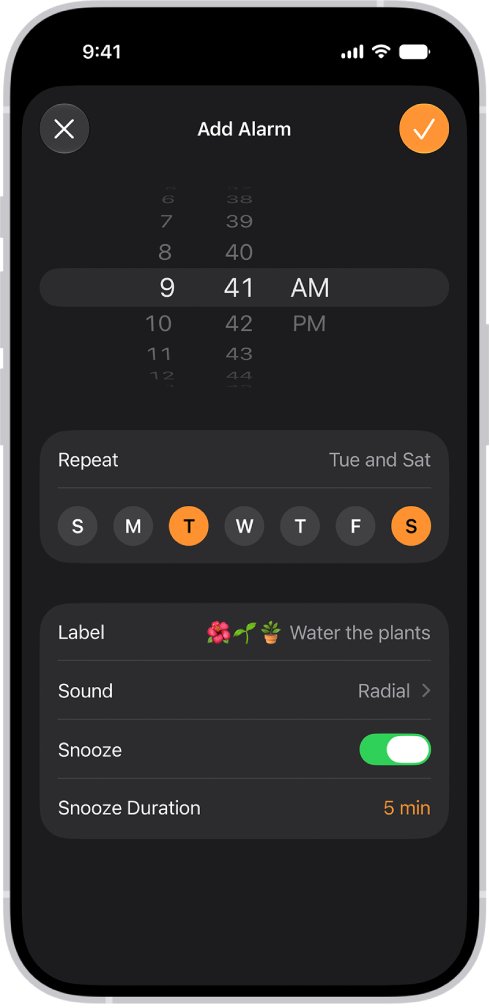
- Choose any of the Repeat, Label, Sound and Snooze options you want.
- Tap the Done button to save the alarm. On older iOS versions this button reads Save.
The new alarm appears in your list with its switch turned on, ready to ring at that time.
Alarm setting on iPhone: Repeat, label, sound and snooze
| Option | What it does | When to use it |
|---|---|---|
| Repeat | Rings on the days of the week you pick | Work days, school days or any regular routine |
| Label | Names the alarm, like "Water the plants" | Reminders that are not about waking up |
| Sound | Plays a vibration, song or ringtone you choose | Finding a sound you notice when asleep or busy |
| Snooze | Shows a Snooze button when the alarm rings | Mornings when you want a second chance |
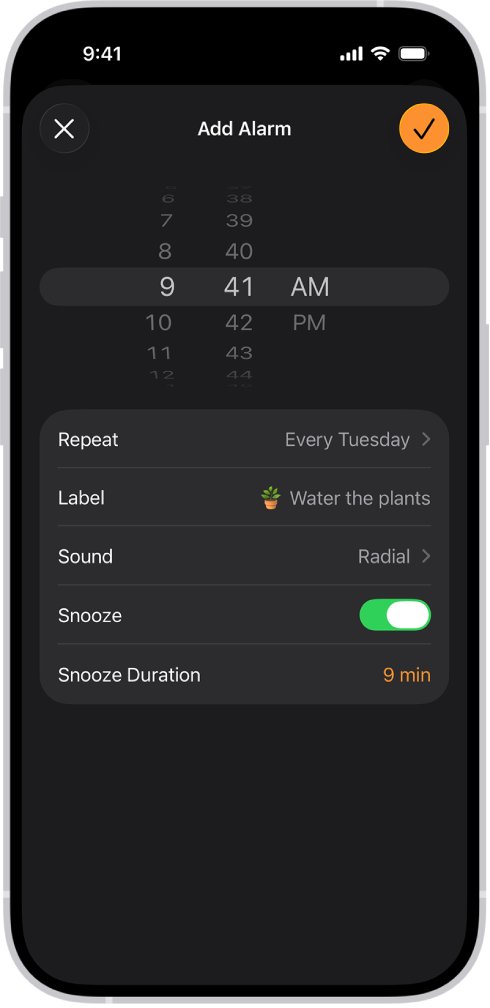
| Snooze Duration | Sets how long the alarm pauses after you tap Snooze | Shorter or longer gaps than the current setting |
How to set an alarm on iPhone with Siri
Siri needs to be turned on, and your iPhone needs an internet connection. Turn it on in Settings > Siri if you skipped it during setup.
- Say "Siri" or "Hey Siri" if that option is on, or press and hold the side button. On iPhone SE, press and hold the Home button.
- Say something like "Set an alarm for 7 a.m."
- Open Clock > Alarms to see the new alarm in your list.
How to set ongoing alarm on iPhone
An ongoing alarm is a repeating one. The Repeat option makes it ring on the same days each week.
- Open Clock and tap Alarms.
- Tap the Add button for a new alarm, or tap the time of an existing one.
- Tap Repeat.
- Select each day of the week you want the alarm to ring.
- Go back to the alarm screen and tap the Done button.
How to set alarm sound on iPhone
Each Clock alarm keeps its own sound, so a weekday alarm and a weekend alarm can differ.
- Open Clock and tap Alarms.
- Tap the alarm time, or tap Edit and then tap the alarm time.
- Tap Sound.
- Choose a song or ringtone, plus a vibration if you want one.
- Go back and tap Save or the Done button.
A Sound setting of None makes the alarm vibrate only. A sleep schedule alarm cannot use a song, so choose a Clock alarm if you want music.
How to turn on alarm on iPhone
An alarm you saved stays in the list after you switch it off. Turn it back on instead of creating a new one.
- Open Clock and tap Alarms.
- Find the alarm by its time or label.
- Tap the switch next to the alarm time so that it turns on.
The same switch is how you turn off an alarm on iPhone. To remove one for good, swipe left on it and tap Delete.
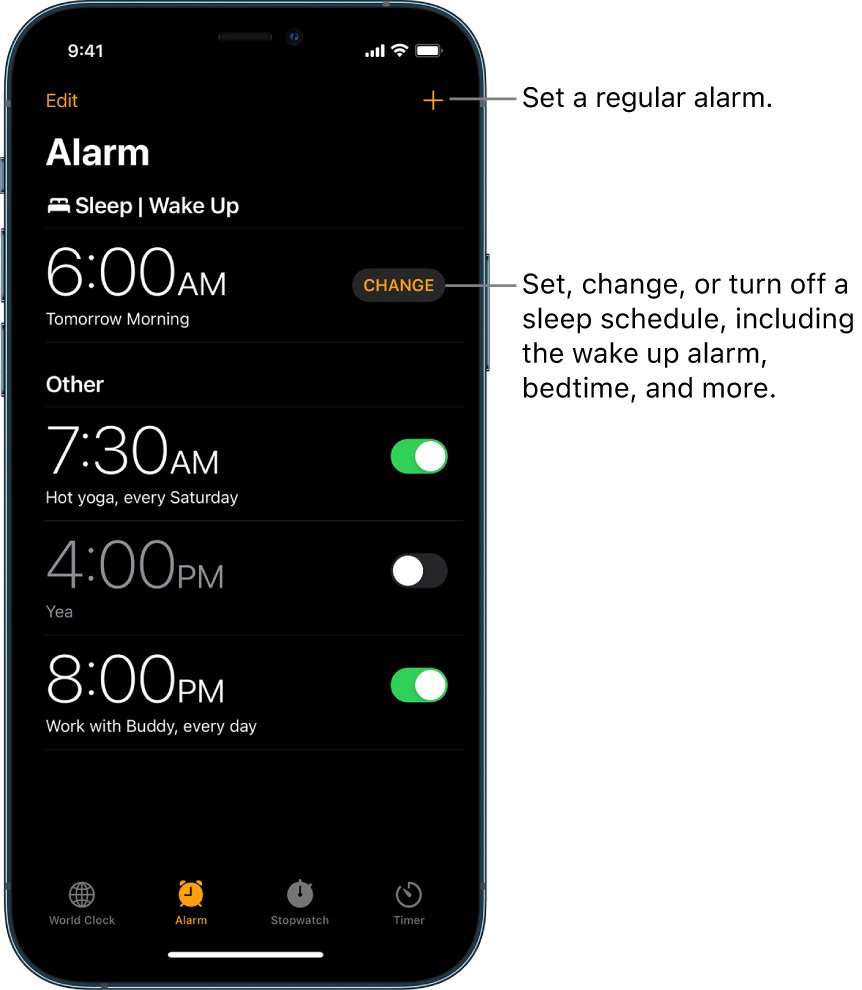
How to change an alarm on iPhone
- Open Clock and tap Alarms.
- Tap the alarm time, or tap Edit in the upper-left corner and then tap the alarm.
- Change the time, AM or PM, or any of the alarm options.
- Tap Save or the Done button.
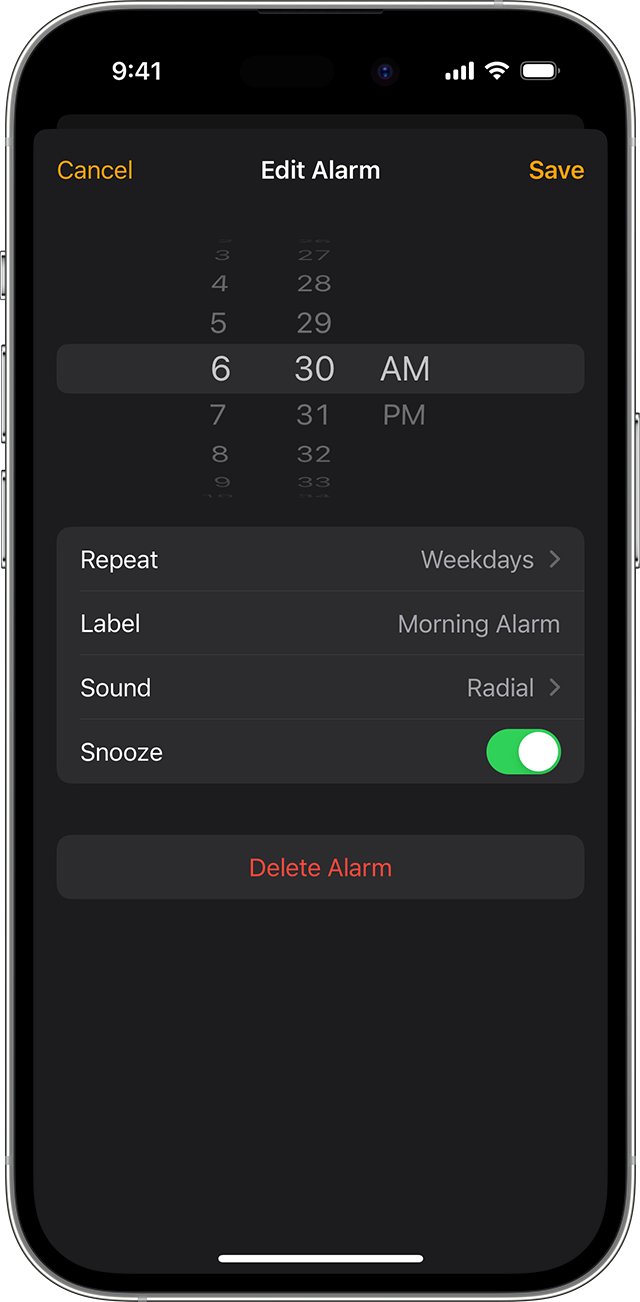
How to set a wake up alarm with a sleep schedule on iPhone
A wake up alarm belongs to a sleep schedule in the Health app, and it works alongside your Clock alarms. Use one when you also want a bedtime, a sleep goal and Sleep Focus.
- Open the Health app and tap Browse.
- Tap Sleep, then tap Sleep again.
- For a first schedule, tap Get Started under Set Up Sleep and follow the prompts.
- For another schedule, scroll to Your Schedule, tap Full Schedule & Options, then tap Add Schedule.
- Select the days for the schedule and drag the icons to set your bedtime and wake up time.
- Turn on Alarm, then choose a sound, its volume, a vibration and the snooze option.
- Tap Add to save the schedule.
To change just the next wake up alarm, open Clock > Alarms and tap Change. Make your change, save it, then tap Change Next Alarm Only.
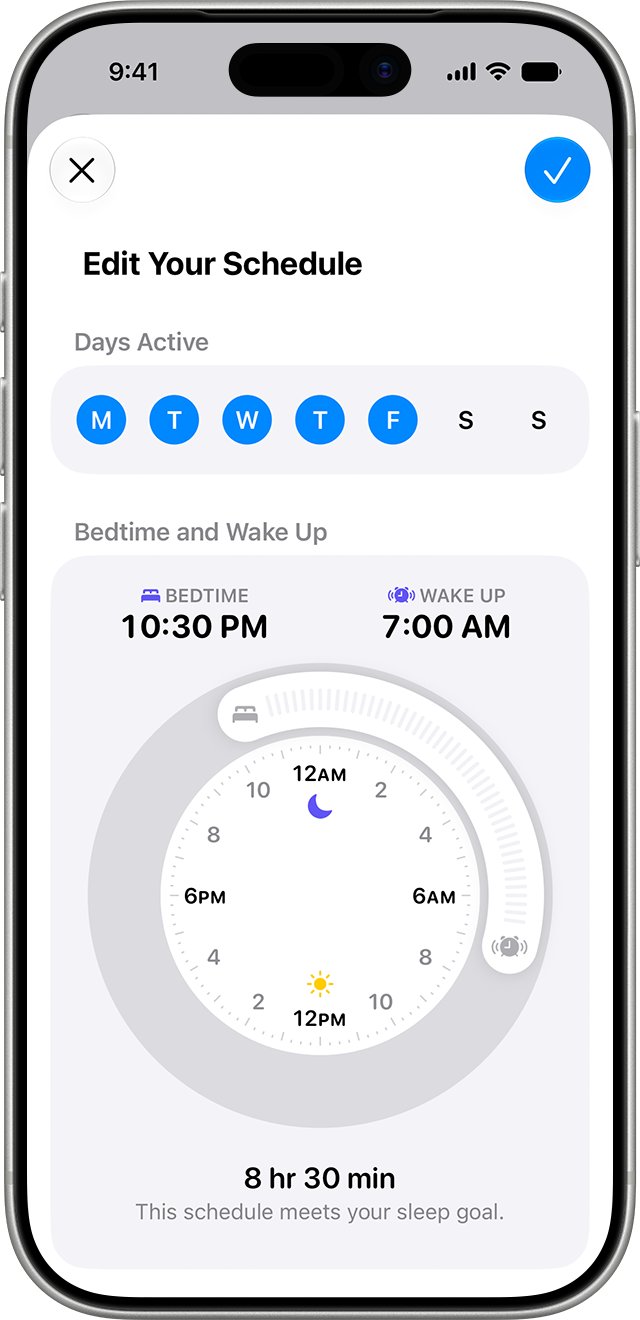
iPhone set alarm for future date
The Clock app has no date field. An alarm has a time and a weekly Repeat setting, so use a Calendar alert for one specific future date.
- Open the Calendar app.
- In Day view, tap the Add button.
- Enter a title and the start and end times on your chosen date, then save the event.
- Tap the event, then tap Edit.
- Tap Alert and choose At time of event.
Apple's promise that an alarm still sounds in Silent mode and during a Focus applies to Clock alarms. Treat a Calendar alert as a reminder, and set a Clock alarm the night before if you must wake up on that date.
How to tell if alarm is set on iPhone
- Open Clock and tap Alarms.
- Check that the switch next to your alarm time is on.
- Leave the Clock app and look for the Alarm icon in the status bar, which means an alarm is set.
- On an iPhone with Face ID, swipe down from the top-right corner to open Control Center and see the extra status icons there.
How to set alarm on iPhone 17, 16, 15, 14, 13, 12 and 11
The model does not change the steps; the installed iOS version decides the labels. Check yours in Settings > General > About, then match it to a row. iPhone SE, 16e, 7 and 6 follow the same table.
| iOS version | Clock tab and save button | Sound choices | Snooze |
|---|---|---|---|
| iOS 27 and iOS 26 | Alarms tab, Done button | Vibration, song or ringtone | Snooze switch plus Snooze Duration |
| iOS 18 | Alarms tab, Save | Vibration, song or ringtone | Snooze switch, pauses for 9 minutes |
| iOS 15 | Alarm tab, Save | Vibration, song or ringtone | Snooze switch |
| iOS 12 | Alarm tab, Save | Tone or vibration | Snooze switch, pauses for nine minutes |
To make any of these louder or quieter, change the alarm volume with the slider for your iOS version.
Tips for setting alarm on iPhone
| Tip | Why it helps |
|---|---|
| Check AM or PM before saving | A 12-hour clock alarm set to the wrong half of the day rings 12 hours off |
| Name each alarm with Label | A named alarm is easier to recognize when several sit in the list |
| Keep Sound away from None | None leaves you with vibration only |
| Turn on Snooze and set Snooze Duration | You get a Snooze button and control over the length of the pause |
| Use the switch rather than deleting | A switched-off alarm keeps its time, label and sound for next time |
| Leave the iPhone time alone | Apple warns that manually changing the time in Settings can affect alarms |
| Expect the speaker to play with headphones connected | The alarm plays at a set volume through the built-in speakers and your headphones |
iPhone alarm set but not working
Silent mode, the Ring/Silent switch and Do Not Disturb do not stop a Clock alarm, so check the alarm itself first. When the alarm stays completely silent, fix the iPhone alarm sound next.
Alarm only vibrates
The alarm's sound is set to None.
- Open Clock > Alarms and tap Edit.
- Tap the alarm, then tap Sound.
- Choose a sound and save the alarm.
Alarm is too quiet
The alarm follows a volume slider in Settings, which may be set low.
- Open Settings > Sounds & Haptics.
- Drag the slider under Alarms and Timers on iOS 27, or Ringtone and Alerts on iOS 26.
Alarm rang at the wrong time
The alarm has the wrong AM or PM setting, or the iPhone time was changed by hand.
- Open Clock > Alarms and tap the alarm time.
- Correct the hour and AM or PM, then save.
- Undo any manual time change you made in Settings.
No vibration in StandBy
Apple disables alarm haptics while your iPhone is in StandBy.
- Open Clock > Alarms and tap Edit.
- Tap the alarm, tap Sound and choose a sound other than None.
No Snooze button appears
The Snooze option is off for that alarm.
- Open Clock > Alarms and tap the alarm time.
- Turn on Snooze, set Snooze Duration and save.
Frequently asked questions about setting an alarm on iPhone
Can I set multiple alarms on my iPhone?
Yes. Repeat the Add button step in Clock for each alarm you need. Every alarm gets its own time, repeat days, label and sound, and each one has its own switch, so you can turn them on or off separately.
Is there a way to set a gradual increase in volume for my alarm?
Apple's alarm options do not list one. Clock alarms offer Repeat, Label, Sound, Snooze and Snooze Duration, and sleep schedule alarms offer a sound, volume, vibration and snooze. Choose a quieter or calmer tone in Sound if a sudden alarm bothers you.
Can I use my music as an alarm sound?
Yes, for a Clock alarm. Open the alarm, tap Sound and choose a song. Apple says you cannot select a song for a sleep schedule alarm in the Health app, so use a regular Clock alarm when you want to wake up to music.
What if I accidentally set my alarm for PM instead of AM?
Open Clock, tap Alarms and tap the alarm time. Change PM to AM, then save the alarm. Your other settings stay as they were. Check the list afterward to confirm the corrected time shows with the switch on.
Is there a way to monitor my sleep with the iPhone alarm?
The Clock alarm does not track sleep. Set up a sleep schedule in the Health app and turn on Track Sleep with Apple Watch. Apple says you must wear the watch to bed, charged to at least 30 percent, to receive sleep data.
How do I set my iPhone alarm?
Open Clock, tap Alarms and tap the Add button. Set the time, choose any Repeat, Label, Sound or Snooze options and tap the Done button. You can also ask Siri something like "Set an alarm for 7 a.m."
How do I set alarm on iPhone 16?
An iPhone 16 uses the same steps as other models: Clock, Alarms, the Add button, then the time and options. Save it with the Done button. On models with Face ID, you can also press and hold the side button to ask Siri.
Will my iPhone alarm go off on silent?
Yes. Apple says your alarm still sounds when Silent mode is on and when Do Not Disturb or another Focus is on. Keep the alarm volume above its lowest point and make sure the alarm's Sound is not set to None.
How do I put the iPhone alarm on?
Open Clock, tap Alarms and tap the switch next to the alarm time. The switch turns on and the alarm rings at that time. If the list is empty, tap the Add button and create a new alarm first.