When The Weather Channel app does not fit your iPhone screen and part of it is cut off, a magnifying setting is usually the cause: turn off Zoom with a three-finger double-tap, switch Display Zoom away from Larger Text, and lower the text size before you update or reinstall the app.
This guide covers each of those settings in iOS 27 and iOS 26, where they live, how to update and reinstall The Weather Channel, how to reach its support team, and what to do when the app will not open or load.
How to fix Weather Channel app cut off on iPhone screen
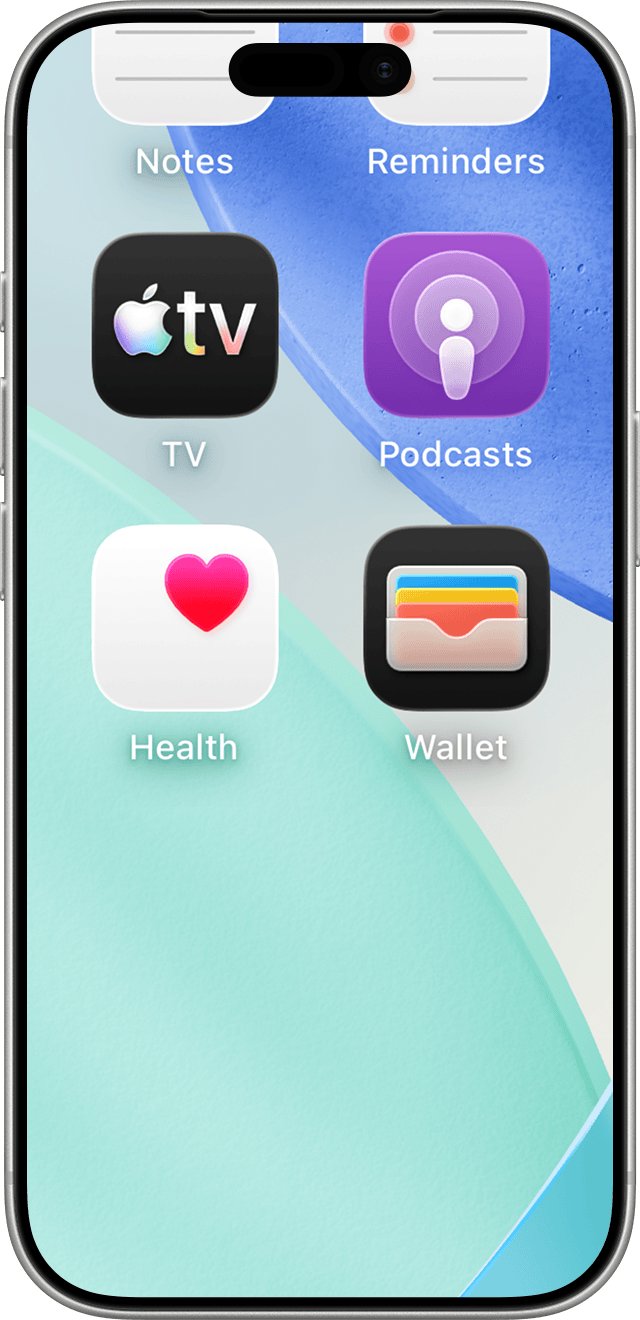
Work through these steps in order and reopen the app after each one. Most cut-off layouts come from a setting that enlarges everything on the screen, not from the app itself.
- Double-tap the screen with three fingers. If Zoom was on, the whole screen zooms back out at once.
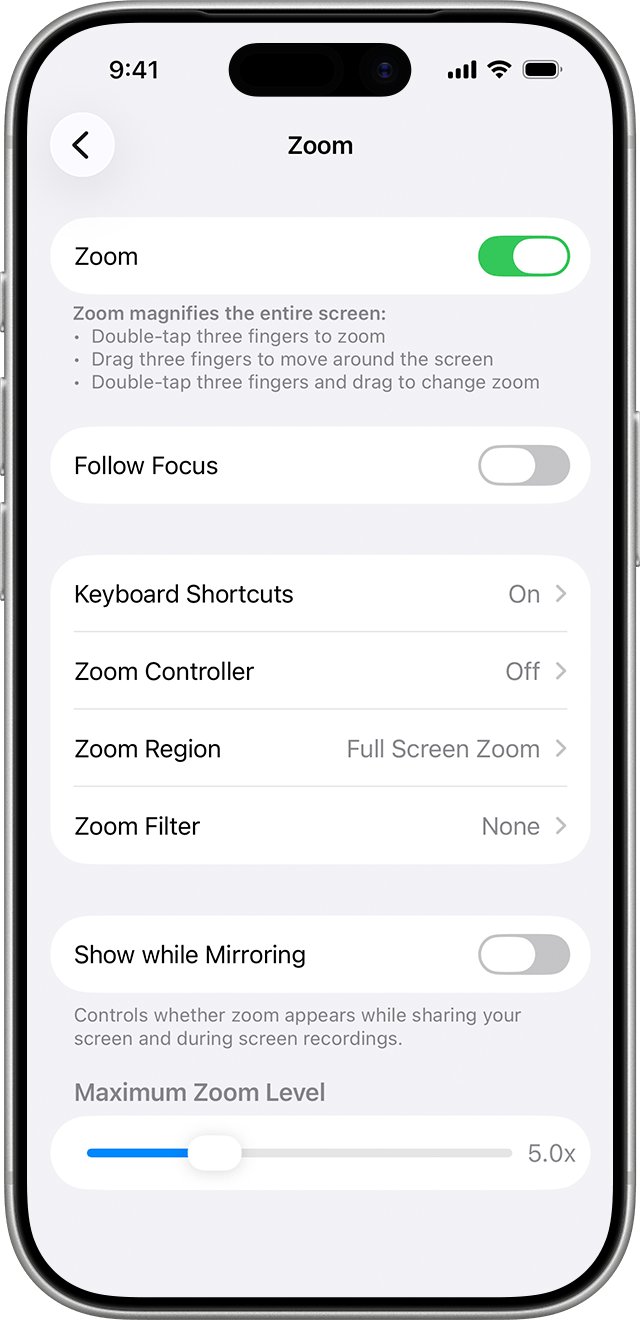
- Open Settings > Accessibility > Zoom and turn off Zoom.
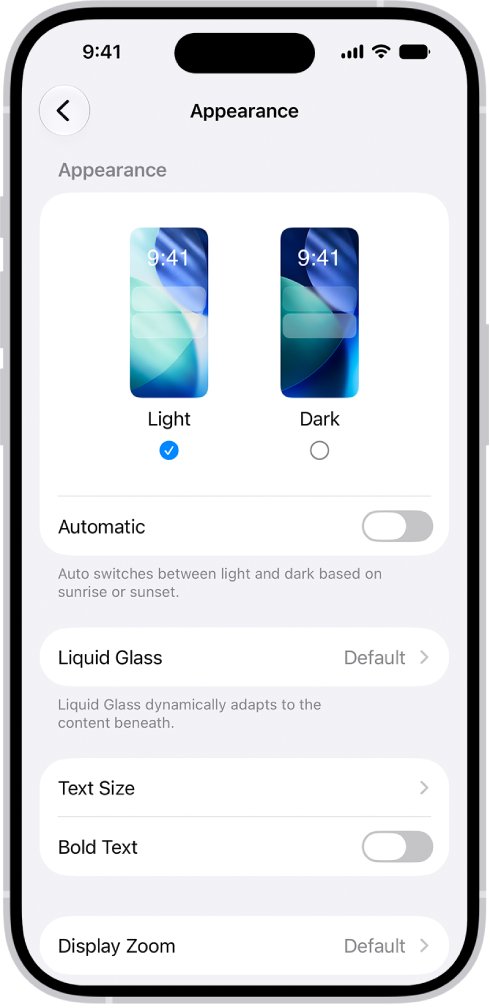
- Open Settings > Appearance > Display Zoom (in iOS 26, Settings > Display & Brightness > Display Zoom) and choose the standard view instead of Larger Text.
- In the same settings screen, tap Text Size and drag the slider to the left.
- Close The Weather Channel: swipe up from the bottom of the screen, pause, then swipe up on the app's preview.
- Open the App Store, tap your photo, tap App Updates, and tap Update next to The Weather Channel if it is listed.
- Open The Weather Channel again and check that the top and bottom of the forecast are visible.
If only The Weather Channel looks wrong and every other app fits the screen, skip to updating and reinstalling the app, then report the layout to its developer.
Why is Weather Channel app cut off on my iPhone?
| What you see | Likely cause | Fix |
|---|---|---|
| Every app and the Home Screen look magnified, and you can only see part of the screen | The accessibility Zoom feature is on with Full Screen Zoom | Double-tap with three fingers, then turn off Zoom in Accessibility |
| A movable magnifying window covers part of the app | Zoom is on with Window Zoom | Double-tap with three fingers to turn it off |
| Icons, buttons and text are all bigger than usual, but nothing pans | Display Zoom is set to Larger Text | Switch Display Zoom back to the standard view |
| Only text is huge, and labels or buttons are clipped or overlap | Text Size or Larger Accessibility Sizes is set very high | Drag the text size slider to the left and turn off Bold Text if it is on |
| The layout changed right after an app update | The new app version renders differently on your iPhone | Update iOS, update the app again, then reinstall it |
| Only The Weather Channel is cut off, other apps are fine | A bug in the app's layout | Reinstall the app, then contact The Weather Channel support |
Apple warns that making text too large can make it hard to tap buttons or other functions within apps, which matches a forecast screen where controls run off the edge.
How to turn off zoom on iPhone with three fingers
Zoom magnifies the entire screen (Full Screen Zoom) or part of it through a lens (Window Zoom), no matter which app is open. A three-finger double-tap turns it on, so it is easy to switch on by accident.
- Double-tap the screen with three fingers to zoom out.
- If the screen is still too zoomed in to reach Settings, drag the screen with three fingers to pan to the Settings icon.
- Open Settings and tap Accessibility.
- Tap Zoom.
- Turn off Zoom.
- Open The Weather Channel again and check the full forecast screen.
To keep Zoom but stop it from magnifying the app, triple-tap with three fingers to open the Zoom menu and lower the Zoom Level slider instead.
If you cannot reach Settings at all, connect the iPhone to a Mac with the Finder or a PC with iTunes, select the iPhone, select Configure Accessibility, deselect Zoom, and click OK.
How to turn off Display Zoom on iPhone
Display Zoom with Larger Text magnifies the whole iPhone interface, including app layouts. Apps that do not adapt well to the zoomed view can lose part of the screen at the edges. Display Zoom is available on supported iPhone models only.
- Open Settings.
- In iOS 27, tap Appearance. In iOS 26 or iOS 18, tap Display & Brightness.
- Tap Display Zoom.
- If Larger Text is selected, tap the other option to pick the standard view.
- Tap the button at the top of the screen to save the change (Done in iOS 18), then confirm when iOS asks.
- Open The Weather Channel and check whether the full screen is visible.
Switching to Larger Text asks you to tap Use Zoomed, so a prompt to switch views is expected when you change it back.
How to make text smaller on iPhone
The Text Size slider changes text in apps that support Dynamic Type. When text grows, apps that use it get taller rows and longer labels, which can push parts of a forecast off screen.
- Open Settings and tap Appearance (iOS 27) or Display & Brightness (iOS 26).
- Tap Text Size and drag the slider to the left.
- Go back and turn off Bold Text if it is on.
- Open Settings > Accessibility > Display & Text Size and tap Larger Text.
- Turn off Larger Accessibility Sizes, or drag its slider to the left.
- Open The Weather Channel and compare the layout.
The Weather Channel's App Store page does not list which accessibility features it supports, so test one step at a time and keep the largest size that still fits.
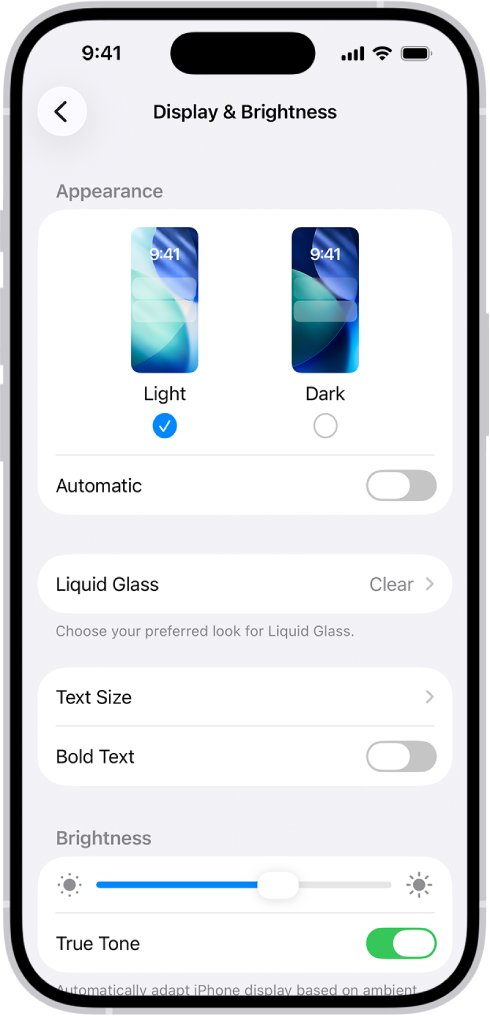
Where is Display Zoom on iPhone in iOS 27 and iOS 26?
Apple moved the display and text settings into a new Appearance screen in iOS 27. Use the row that matches the iOS version shown in Settings > General > Software Update.
| Setting | iOS 27 | iOS 26 | What it changes |
|---|---|---|---|
| Display Zoom | Settings > Appearance > Display Zoom | Settings > Display & Brightness > Display Zoom | Magnifies the entire iPhone interface |
| Text Size | Settings > Appearance > Text Size | Settings > Display & Brightness > Text Size | Text size in apps that support Dynamic Type |
| Bold Text | Settings > Appearance > Bold Text | Settings > Display & Brightness > Bold Text | Makes text bold |
| Larger Text (accessibility sizes) | Settings > Accessibility > Display & Text Size > Larger Text | Settings > Accessibility > Display & Text Size > Larger Text | Sizes beyond the standard slider |
| Zoom | Settings > Accessibility > Zoom | Settings > Accessibility > Zoom | Full Screen Zoom or Window Zoom magnifier |
| Accessibility Shortcut | Settings > Accessibility > Accessibility Shortcut | Settings > Accessibility > Accessibility Shortcut | Triple-click the side button to toggle a feature such as Zoom |
If Zoom keeps coming back, open Accessibility Shortcut and deselect Zoom, because a triple-click of the side button turns on any feature selected there.
How to update Weather Channel app on iPhone
The Weather Channel's November update (version 16.30.3) brought the Liquid Glass look and new layouts that adapt to folding, unfolding and rotating. The current app requires iOS 26.0 or later.
- Open the App Store.
- Tap the My Account button or your photo at the top of the screen.
- Tap App Updates, then tap Update next to The Weather Channel.
- Open Settings > General > Software Update to see the installed iOS version.
- If an update is available, tap Download and Install and follow the onscreen instructions.
- Open The Weather Channel after the update finishes.
Updating iOS on your iPhone keeps your data and settings. To get app updates without checking, open Settings > Apps > App Store and turn on App Updates.
How to close and restart Weather Channel app on iPhone
A layout that was drawn before you changed a display setting can stay on screen until the app opens fresh. Closing the app and restarting the iPhone forces a new layout.
- From the Home Screen, swipe up from the bottom of the screen and pause in the middle.
- Swipe right or left to find The Weather Channel.
- Swipe up on the app's preview to close it.
- Press and hold either volume button and the side button until the power-off slider appears.
- Drag the slider, then wait 30 seconds for the iPhone to turn off.
- Press and hold the side button until the Apple logo appears, then open The Weather Channel.
On an iPhone with a Home button, double-click the Home button to see recent apps, and press and hold the side button to restart.
How to turn off rotation lock on iPhone
Many apps give a different view when you rotate iPhone, and The Weather Channel's latest version adds layouts that adapt to rotating. A locked orientation keeps the app in one view.
- Open Control Center.
- Tap the Lock Rotation button if it is red; it turns gray when the orientation is unlocked.
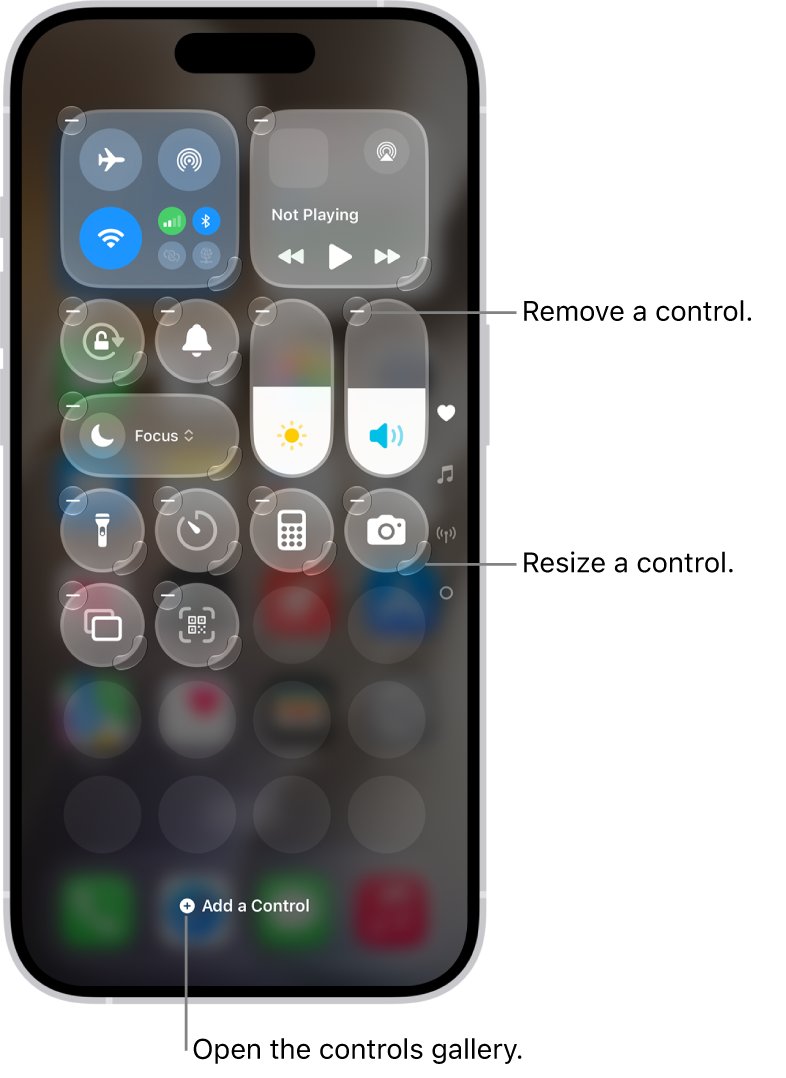
- If the button is missing, add it to Control Center by customizing its controls.
- Turn the iPhone sideways, then back to portrait, with The Weather Channel open.
When the orientation is locked, a lock icon appears in the status bar on supported models, which is a quick way to tell before you open Control Center.
How to reinstall Weather Channel app on iPhone
A fresh install replaces any damaged app data that survives an update. Deleting the app removes its data, including saved locations, so note the places you follow first.
- Touch and hold The Weather Channel on the Home Screen.
- Tap Remove App, tap Delete App, then tap Delete.
- Open the App Store and tap the Search tab.
- Search for The Weather Channel and tap the download button.
- Open the app, allow location access when it asks, and check the layout.
Choose Delete App rather than removing it from the Home Screen, because only a full delete removes the app and its data. Deleting the app does not cancel a Premium subscription.
How to tell if Weather Channel app fits the iPhone screen again
- Open The Weather Channel and look at the top of the screen; the location name and current temperature sit below the status bar, not under it.
- Scroll to the bottom; the tab bar and its labels are fully visible.
- Swipe across the hourly forecast; the first and last items are not clipped at the screen edges.
- Open another app, such as Settings; text and icons are at their usual size.
- Lock and unlock the iPhone, then reopen the app; the layout stays the same.
If other apps look normal but The Weather Channel is still cut off, the problem is in the app, so report it to the developer with your iPhone model and iOS version.
How to contact Weather Channel app support
Contact the developer when an app is not working but other apps are fine. The Weather Channel lists its own support address on its App Store page.
- Open the App Store and search for The Weather Channel.
- Tap the app to open its product page.
- Scroll to the Ratings & Reviews section and tap App Support.
- Or email [email protected], the address the developer lists on the App Store page.
- Include your iPhone model, iOS version, the app version and a screenshot of the cut-off screen.
If App Support is missing, check that you are signed in to the Apple Account that downloaded the app.
Reset all settings on iPhone to fix display settings
Reset All Settings restores Accessibility and Display & Brightness settings to their defaults in one step, which clears a zoom or text change you cannot find. Apple calls this step rarely necessary, so use it last.
- Open Settings and tap General.
- Tap Transfer or Reset iPhone.
- Tap Reset, then tap Reset All Settings.
- Enter your passcode if asked and confirm.
- After the reset, reconnect to Wi-Fi, pair Bluetooth devices and your Apple Watch, and set up Face ID or Touch ID again.
No photos, messages, apps, app data or documents are deleted, but the Home Screen layout, wallpaper, Wi-Fi passwords and notification settings return to their defaults.
Weather Channel app not working on iPhone
Weather Channel app not opening
The app is stuck, crashed, or needs an update for your iOS version.
- Close the app from the App Switcher and open it again.
- Restart the iPhone.
- Update the app from App Updates in the App Store, then update iOS.
- If it still closes at launch, fix the Weather Channel app crashing with a reinstall.
Weather Channel app won't load the forecast
The app has no connection or no location to load weather for.
- Open another app that uses the internet to check the connection.
- Open Settings > Privacy & Security > Location Services, tap The Weather Channel, and choose While Using the App or Always.
- Close and reopen the app.
Weather Channel app download problems
The iPhone runs an iOS version the app no longer supports, or the App Store is restricted.
- Check Settings > General > Software Update; the app requires iOS 26.0 or later.
- If the App Store is missing, open Settings > Screen Time > Content & Privacy Restrictions > iTunes & App Store Purchases and set Installing Apps to Allow.
- Search for the app again and tap the download button.
The whole iPhone screen is magnified, not just the app
Zoom is on, often switched on by a three-finger double-tap or the Accessibility Shortcut.
- Double-tap the screen with three fingers.
- Turn off Zoom in Settings > Accessibility > Zoom.
- Deselect Zoom in Settings > Accessibility > Accessibility Shortcut.
The Weather Channel app on iPhone FAQ
What's wrong with The Weather Channel app?
When the app is cut off or oversized on an iPhone, a display setting is the usual cause: Zoom, Display Zoom set to Larger Text, or a very large text size. If only this app is affected, update it, reinstall it, and report the layout to [email protected].
What happened to The Weather Channel app?
The November update, version 16.30.3, gave the app the Liquid Glass look and new layouts that adapt to folding, unfolding and rotating. The current version requires iOS 26.0 or later, so update iOS if the App Store will not install it.
Why does The Weather Channel app not work?
Close and reopen the app, restart the iPhone, and update both the app and iOS. If it still fails, delete and reinstall it, then contact the developer through App Support on its App Store page. A missing location permission also stops the forecast from loading.
Why doesn't the weather app work?
A weather app needs a connection and permission to use your location. Check Location Services for the app, close and reopen it, and update it. If Apple's own Weather app changed after an update, you can go back to the former Weather app look with a few settings.
How do I download The Weather Channel app?
Open the App Store on your iPhone, tap Search, type The Weather Channel, and tap Get or the download button. Confirm with Face ID, Touch ID or your Apple Account password. The current version needs iOS 26.0 or later.
How do I install The Weather Channel app?
Installing happens when you tap Get on the app's App Store page. After the download, open the app from the Home Screen or App Library and allow location access so it can show your local forecast.
Does The Weather Channel have an app?
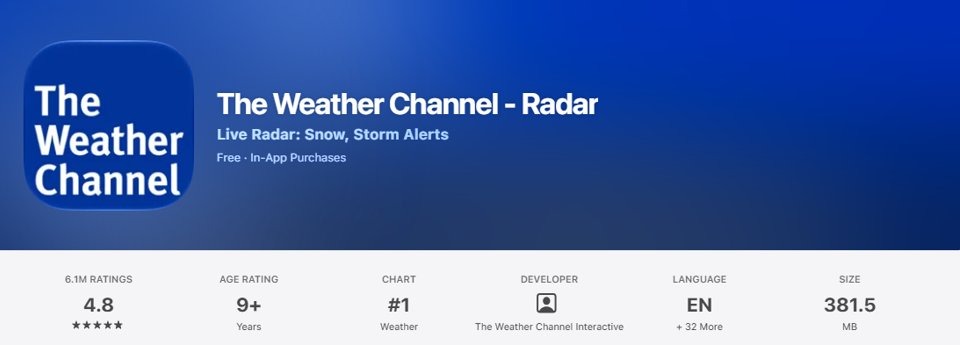
Yes. The Weather Channel – Radar app is on the App Store for iPhone, iPad, Apple TV and Apple Watch. It shows local forecasts up to 15 days ahead, radar, severe weather alerts and a Home Screen widget.
Is The Weather Channel app free?
Yes. The app is free to download and offers in-app purchases. A Premium subscription removes ads and adds features such as enhanced radar and a longer forecast, and you can cancel it in your App Store account settings.