Change mouse movement between 2 or 3 monitors by dragging the monitor boxes in Settings > System > Display until they match your desk, then selecting Apply.
The pointer crosses wherever two boxes touch, so the arrangement decides its direction. This guide also covers 3-monitor layouts, stuck edges, the NVIDIA route, PowerToys shortcuts and the common faults.
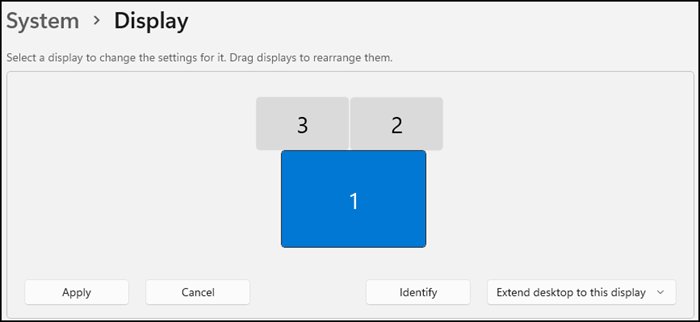
Change how your mouse moves between screens in Windows 11
Windows moves the pointer according to the layout saved in Display settings, not the physical position of your screens. Windows shows the layout controls once it detects more than one display.
- Select Start > Settings > System > Display.
- Select Identify to show a number on each screen.
- Drag each numbered box to the position that its screen has on your desk.
- Select Apply.
- Move the pointer across every edge between your monitors to test the new direction.
Where to rearrange monitors in Windows 11 and Windows 10
| Task | Windows 11 | Windows 10 |
|---|---|---|
| Open the layout | Start > Settings > System > Display | Start > Settings > System > Display > Rearrange your displays |
| Number the screens | Identify | Identify, under Rearrange your displays |
| Find a missing screen | Multiple displays > Detect | Multiple displays > Detect |
| Save a new layout | Apply | Apply |
| Choose a display mode | Windows key + P | Windows key + P |
If the screens are not connected yet, set up multiple monitors on Windows 11 and return to the layout afterwards.
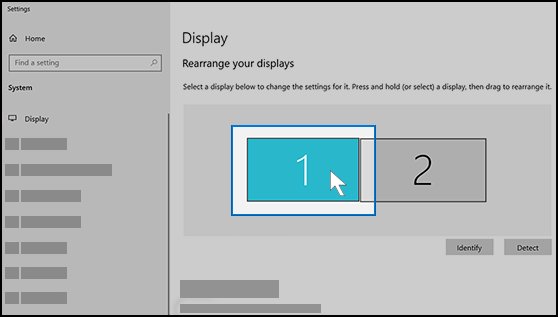
Manually move your monitors
The boxes must form one connected shape, with each monitor touching another along at least part of one edge. Cursor movement stays inside the monitor area, so a side with no neighbour acts as a wall.
- Open Display settings and select Identify.
- Drag the box for the left monitor to the far left of the layout.
- Drag any screen that sits higher on your desk so its box also sits higher.
- Line up the box edges at the height where you normally cross between screens.
- Select Apply, then move the pointer across the shared edge at the top, middle and bottom.
Some tips for moving your monitors: match the desk rather than the numbers, and leave the longest possible shared edge between screens you cross often. A monitor placed above another works the same way, because a cursor that leaves the bottom of the upper monitor appears at the top of the lower one.
How to arrange 3 monitors in Windows 11
Three monitors follow the same rule as two. The pointer can only cross where two boxes touch, so the middle box in your layout carries most of the movement.
| Your desk | Arrange the boxes like this | How the pointer moves |
|---|---|---|
| Three screens in a row | Left, centre and right boxes side by side, with their edges level | Right from the left screen to the centre, then right again to the third |
| Laptop below two screens | Two boxes side by side, with the laptop box touching the underside of one | Down from that screen to the laptop, and sideways between the upper two |
| One screen above two | Two boxes side by side, with the third box resting on top of one or both | Up to the top screen from any box that touches it |
| Portrait screen beside a landscape screen | Tall box beside the wide box, sliding it until the crossing height feels right | Sideways only along the part of the edge that the boxes share |
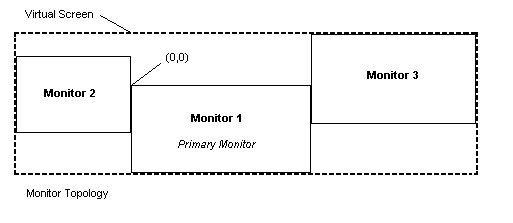
How to identify monitor 1, 2 and 3 in Windows
The number is a label for matching a box to a screen. The position of the box decides how the pointer travels, so monitor 2 can sit to the left of monitor 1 without any problem.
- Open Display settings on Windows 11, or Rearrange your displays on Windows 10.
- Select Identify and read the number that appears on each screen.
- Match each number to its box in the layout.
- Select a box to check that its settings belong to the screen you expected.
Ease cursor movement between displays in Windows 11
Screens of different sizes leave gaps where box edges do not meet. Microsoft added this setting so the cursor can jump over areas where it would previously get stuck, and it applies to windows as well.
- Select Start > Settings > System > Display.
- Expand Multiple displays.
- Select Ease cursor movement between displays to turn it on.
- Move the pointer across the edge that used to catch it.
Microsoft documents this option for Windows 11. On Windows 10, align the box edges by hand so that the screens share more of their border.

Use the NVIDIA Control Panel
The Windows layout works with any graphics card and is the route Microsoft documents, so try it first. NVIDIA Control Panel is an alternative if you already manage your displays there.
- Select Start, type
NVIDIA Control Paneland open the app. - Install NVIDIA Control Panel from the Microsoft Store if the search finds nothing.
- Open the display page that lists your connected monitors.
- Arrange the monitors to match your desk and apply the change.
- Move the pointer across every shared edge to test the layout.
If the panel does not list every screen, keep the driver current with the NVIDIA App, which NVIDIA recommends for automatic driver updates. AMD and Intel users can use the same Windows layout steps at the top of this page.
How to adjust scale and resolution on different monitors
Adjust how things look on different monitors one screen at a time, because the settings apply to whichever display you select. You can also set a different scaling level for each monitor and change the monitor refresh rate separately.
- Select the monitor's box at the top of Display settings.
- Choose a value under Scale, using the one marked (Recommended) unless the text is uncomfortable to read.
- Open Display resolution and choose the recommended option.
- Choose Display orientation if you have rotated the monitor, and physically rotate the screen to match.
- Recheck the layout, because a new resolution or orientation changes the size of the box.
Jump the mouse between monitors with PowerToys Mouse Jump
PowerToys is a Microsoft utility set with two tools for long pointer trips. Mouse Jump moves the pointer across screens from a preview, and CursorWrap sends it from one edge to the opposite edge.
| Your goal | PowerToys tool | How to use it |
|---|---|---|
| Reach a far screen without dragging | Mouse Jump | Press its activation shortcut and click the preview, or press 1 to 9 to pick a numbered monitor |
| Return to the main screen | Mouse Jump | Open the preview and press P to move to the primary monitor |
| Loop from the last screen to the first | CursorWrap | Turn on Enable CursorWrap, then push the pointer past the outer edge |
| Wrap only when you ask for it | CursorWrap | Set Wrapping activation to Holding Ctrl or Holding Shift |
| Stop wrapping left and right | CursorWrap | Set Wrap mode to Vertical only |
Both tools have their own settings pages in PowerToys, and you choose the activation shortcut there. Keyboard monitor selection in Mouse Jump places the pointer at the centre of the screen you pick.
Change mouse pointer speed for multiple monitors
More screens mean longer pointer trips, and a faster pointer shortens them. Windows sets one pointer speed through the mouse settings, so you can change the mouse speed there, or change the mouse DPI on a mouse that supports it.
- On Windows 11, select Start > Settings > Bluetooth & devices > Mouse.
- On Windows 10, select Start > Settings > Devices > Mouse.
- Move the Mouse pointer speed slider on Windows 11, or the Cursor speed slider on Windows 10.
- Drag the pointer across all your screens and adjust the slider until the trip feels right.
How to test mouse movement across multiple monitors
- Move the pointer from each screen to its neighbour in a straight line.
- Repeat the move near the top and the bottom of the shared edge.
- Drag an open window across the same edge to see that it follows the pointer.
- Check that the pointer stops at outer edges, where no screen sits beside it.
The layout is right when the pointer leaves one screen and enters the next at the side you expect. If it enters from the wrong side, the two boxes are swapped in Display settings.
Common issues with mouse direction across multiple monitors
Mouse moves the wrong way between monitors
Check how your monitors are set up: the boxes in Display settings are in a different order from the screens on your desk.
- Select Identify in Display settings.
- Drag the boxes into the same order as the screens.
- Select Apply and move the pointer across again.
Mouse gets stuck at the edge of a monitor
The two boxes share only part of an edge, so the pointer hits a wall above or below the shared section.
- Drag one box up or down until the edges line up at your usual crossing height.
- Select Apply.
- On Windows 11, turn on Ease cursor movement between displays under Multiple displays.
Mouse will not move to the second monitor
Windows is not extending the desktop. Duplicate shows the same content on every screen, and the single-screen modes use only one display.
- Press Windows key + P.
- Select Extend.
- Open Display settings and confirm that the boxes touch.
If a monitor isn't being detected
Windows has no box to arrange until it can see the display, so check the connection first. You can also work through the fixes for a second monitor that is not detected.
- Select Multiple displays > Detect in Display settings.
- Disconnect docks, dongles and adapters, then connect the monitor directly.
- Reseat the cable, then try a different cable and a different video port.
- Test the monitor on another PC to find out whether the screen or the PC is at fault.
Are your drivers up to date?
A display driver problem or a recent driver change can break a layout that used to work.
- Press Windows logo key + Ctrl + Shift + B to reset the graphics driver.
- On Windows 11, select Settings > Windows Update > Check for updates. On Windows 10, select Settings > Update & Security > Windows Update.
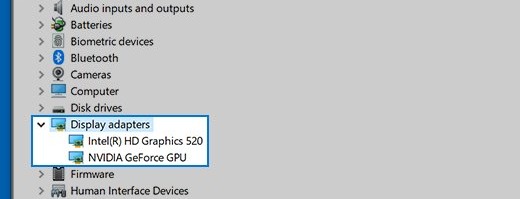
- After a recent driver change, open Device Manager, expand Display adapters, and right-click your adapter.
- Select Properties, open the Driver tab and select Roll Back Driver.
Mouse movement between monitors FAQ
Why does my mouse go the wrong way between monitors?
The boxes in Display settings are in a different order from your screens. Select Identify to see which number belongs to which screen, drag the boxes to match your desk, and select Apply. The pointer then follows the new order.
How do I make my mouse move to the monitor on the left?
Drag that monitor's box to the left of your current screen in Display settings, make sure the two boxes touch, and select Apply. The pointer now crosses through the left edge of your current screen and enters the other monitor.
Does the monitor number change how the mouse moves?
No. The number only tells you which box belongs to which screen. The position of the box in Display settings decides where the pointer crosses, so monitor 2 can sit on either side of monitor 1.
Do my monitors have to be the same size for the mouse to move smoothly?
No, but the pointer only crosses where two boxes touch. On screens of different sizes, align the edges at your usual crossing height. On Windows 11, also turn on Ease cursor movement between displays under Multiple displays.
Can the mouse go from the last monitor back to the first?
Not by default, because the pointer stops at an outer edge. Microsoft PowerToys adds this with CursorWrap, which brings the pointer back on the opposite side when you move past an edge, and it works on multi-monitor setups.
What does Ease cursor movement between displays do?
It lets the cursor jump over areas where it would previously get stuck when moving between monitors. The Windows 11 setting is under Settings, System, Display, Multiple displays, and it also makes moving windows between screens easier.
Do I need the NVIDIA Control Panel to change mouse movement between monitors?
No. Display settings in Windows handles the layout on any graphics card, and Microsoft documents that route for Windows 11 and Windows 10. NVIDIA Control Panel is only an alternative for people who already manage displays there.
Can I use a different mouse speed on each monitor?
Windows sets pointer speed in one mouse setting rather than per monitor, using Mouse pointer speed on Windows 11 and Cursor speed on Windows 10. Adjust the slider until the trip across all your screens feels right.