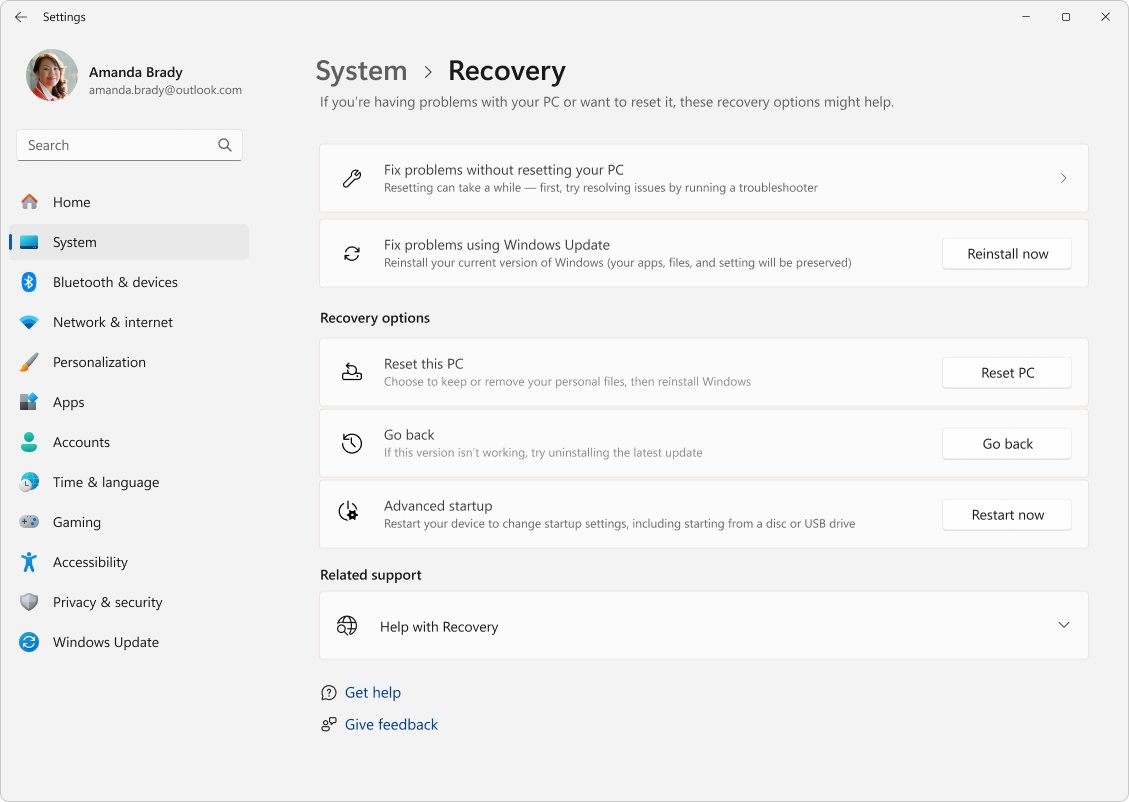
To factory reset a Dell computer that still starts, open Settings > System > Recovery, select Reset PC, choose Remove everything, and follow the prompts.
This guide covers all six routes, including Windows RE, Dell SupportAssist OS Recovery, BIOS defaults and a USB reinstall, plus what to back up, what to do afterward, and fixes for common reset failures.
How to factory reset Dell laptop
These steps work on Dell laptops, desktops and towers running Windows 11 or Windows 10, as long as Windows starts and you can sign in. Back up your files first, because this route erases them.
- Open Settings and select System > Recovery. On Windows 10, the page is under Update & Security > Recovery.
- Under Recovery options, select Reset PC.
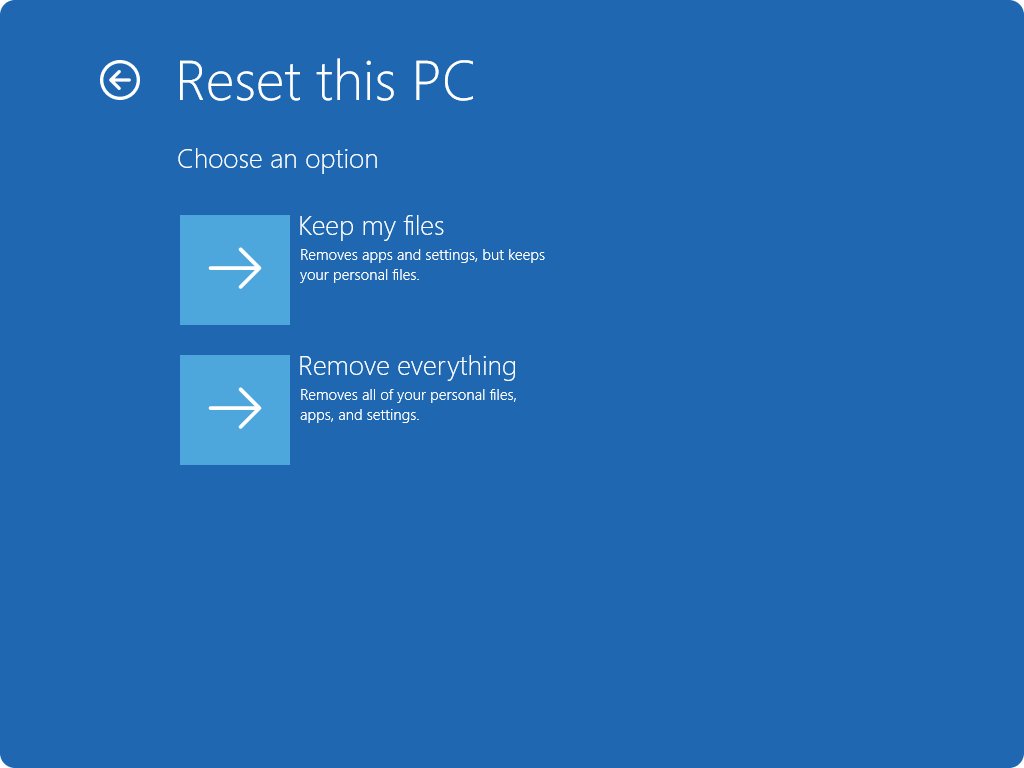
- Select Remove everything.
- Select Cloud download or Local reinstall.
- Follow the on-screen instructions to start the reset.
The screen can stay black for more than 15 minutes, and the PC may restart itself. Do not restart it yourself, because that can make the reset fail.
Which reset method should you use?
| Your situation | Use this | Why |
|---|---|---|
| Windows starts and you can sign in | Method 1: Windows Settings | Fastest route, and it can keep your files |
| Windows starts but you cannot sign in | Method 2: Windows RE from the sign-in screen | No password needed to reach the reset options |
| Windows will not start on a supported Dell | Method 3: SupportAssist OS Recovery | Runs from outside Windows and can restore the factory image |
| You reached the Windows Choose an option screen | Method 4: Factory Image Restore | Opens SupportAssist OS Recovery from Windows Recovery |
| Only BIOS settings are the problem | Method 5: BIOS defaults | Leaves Windows and your files alone |
| The drive is new, or the recovery partition is gone | Method 6: Clean install from USB | Works without anything on the internal drive |
What a factory reset actually does to your Dell
Windows and Dell use the word reset for different results. Read this table before you pick an option, because only some of them keep your files.
| Option | Personal files | Apps and settings | Windows |
|---|---|---|---|
| Keep my files (Windows) | Kept | Removed | Reinstalled |
| Remove everything (Windows) | Removed | Removed | Reinstalled |
| Reset to factory settings (SupportAssist) | Permanently deleted | Your programs and drivers removed, Dell's restored | Reinstalled as it shipped from Dell |
| Reset and update (SupportAssist) | Permanently deleted | Your programs and drivers removed | Latest version with critical drivers and apps |
| BIOS Load Defaults | Not touched | Not touched | Not touched |
A BIOS reset does not affect your Windows sign-in or online accounts, though you may need to set the date and time again.
Why factory reset a Dell laptop?
A reset is the most disruptive repair Windows offers, so match it to the actual reason. Some problems need a much smaller fix.
| Your reason | Does a reset help? | Option to choose |
|---|---|---|
| Selling, donating or recycling the PC | Yes | Remove everything with Clean data turned on |
| Persistent software problems or poor performance | Often | Keep my files first |
| Corrupted or missing Windows files | Yes | Cloud download rather than Local reinstall |
| A fresh start | Yes | Remove everything |
| A failing drive or other hardware fault | No | Run the Scan Hardware check in SupportAssist OS Recovery |
Back up your Dell before a factory reset
Sort out these items while Windows still works. A reset removes your apps and can remove your files, and an encrypted drive can lock you out without its key.
| Have this ready | Why it matters | Where to get it |
|---|---|---|
| A copy of your files | Remove everything and both SupportAssist resets delete them | An external drive or cloud storage. SupportAssist can also back up files to USB |
| Your BitLocker recovery key | An encrypted Dell can ask for it during a reset, and Dell cannot bypass it | Find the BitLocker recovery key in your Microsoft account |
| A list of your apps and licenses | Both Windows reset options remove apps you installed | Note them in advance, with product keys for paid software |
| Your Service Tag | The Dell OS Recovery Tool asks for it when you build media for another PC | Find your Dell Service Tag and write it down |
The SupportAssist Back up Files option saves documents, music and images, not settings or programs. The USB drive needs more free space than the backup size it shows.
How to factory reset a Dell computer: All methods
Dell computers have six distinct reset routes, and each one starts from a different place. The numbered sections below walk through them in this order.
| Method | Starts from | Needs Windows to start? | Erases your files? |
|---|---|---|---|
| 1. Windows Settings | Settings > System > Recovery | Yes | Your choice |
| 2. Windows RE | Advanced startup or the sign-in screen | Partly | Your choice |
| 3. SupportAssist OS Recovery | F12 at the Dell logo | No | Yes |
| 4. Factory Image Restore | Troubleshoot in Windows Recovery | No | Yes |
| 5. BIOS defaults | F2 at the Dell logo | No | No |
| 6. Clean install from USB | F12 with a USB drive connected | No | Yes |
Method 1: How to factory reset a Dell laptop (step by step)
This is the full version of the Settings route, with every choice you meet along the way. It uses Microsoft's reset tool, so it behaves the same on an Inspiron, Latitude, XPS or tower.
- Open Settings > System > Recovery and select Reset PC.
- Choose Keep my files to preserve documents and photos, or Remove everything for a clean slate.
- With Keep my files, leave Restore preinstalled apps on if you want Dell's customizations back.
- With Remove everything, turn on Clean data if the PC is leaving your hands.
- Choose Cloud download for a fresh copy from Microsoft, or Local reinstall to use the files already on the PC.
- Review the summary, then follow the on-screen instructions to start the reset.
Clean data takes longer and makes files harder to recover, but Microsoft says it does not meet government and industry data erasure standards.
Method 2: Reset using Advanced Startup (Windows Recovery Environment)
Windows RE runs outside your normal sign-in, so it is the route when your account is the problem. Windows also opens it by itself after two consecutive failed starts.
- From Windows, go to Settings > System > Recovery > Advanced startup and select Restart now.
- From the sign-in screen, hold Shift and select Restart instead.
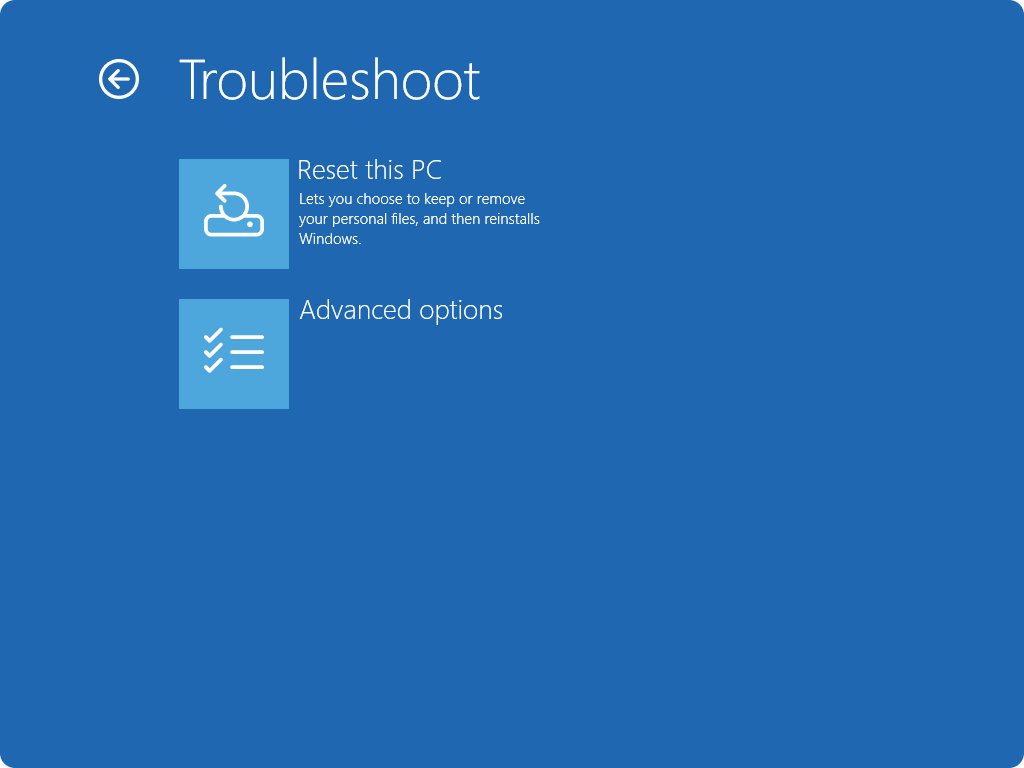
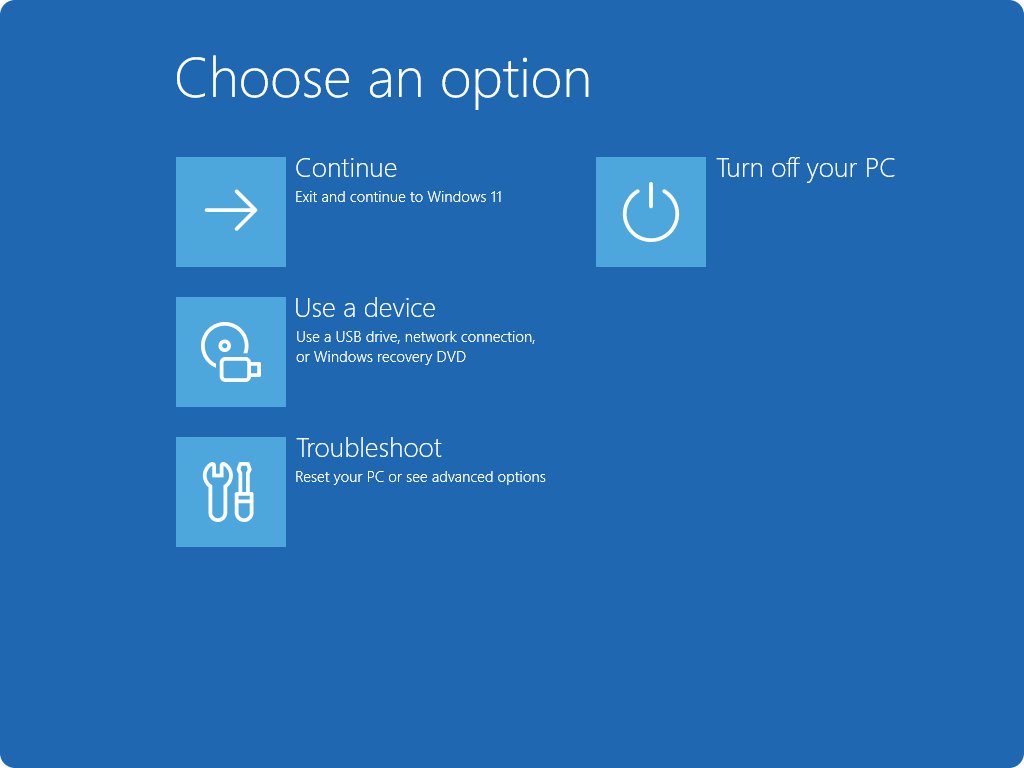
- On the Choose an option screen, select Troubleshoot.
- Select Reset this PC.
- Choose Keep my files or Remove everything, then a reinstall source.
- Enter your BitLocker recovery key if the PC asks for it, then follow the prompts.
Method 3: Reset with Dell SupportAssist OS Recovery
SupportAssist OS Recovery lives outside Windows on certain Dell systems that shipped with Windows 10 or 11. It starts on its own after repeated failed boots, and Qualcomm-based Dell computers do not support it. Its scan and repair tools can sometimes fix a problem without a reset.
- Turn on the computer and tap F12 repeatedly at the Dell logo to open the One Time Boot Menu.
- Select SupportAssist OS Recovery and press Enter.
- Select Back up Files if you still need a copy of your data.
- Select Start Reset, then choose Reset to factory settings or Reset and update.
- Choose whether to back up files, then confirm the reset.
- Select RESTART and let the process finish, then connect to Wi-Fi and sign in.
Dell says the reset may take 45 minutes or more. Reset and update downloads the latest operating system, and it is the only choice shown when the factory image cannot be found.
Method 4: Dell Factory Image Restore from Windows Recovery
Some Dell systems list Factory Image Restore on the Windows Recovery screen, and it hands off to SupportAssist OS Recovery. Use it when you can reach Windows RE but not the F12 menu.
- Hold Shift and select Restart on the Windows sign-in screen.
- On the Choose an option page, select Troubleshoot.
- Select Factory Image Restore.
- Follow the SupportAssist OS Recovery screens from Start Reset onward.
Method 5: Reset the BIOS to factory defaults
A BIOS reset restores firmware settings only, so Windows and your files stay untouched. Use it for boot errors after a settings change, not to wipe the PC. You can also boot into BIOS on a Dell from inside Windows.
- Power on the computer and press F2 repeatedly until BIOS setup opens.
- Find Load Defaults or Restore Settings, or press F9 or Alt + F, depending on the model.
- Select the option, then choose Save and Exit.
- Set the date and time again if the computer asks.
If none of these options appears, check the user manual for your model. Dell says the jumper and coin-cell battery methods also clear BIOS passwords, so this menu option is not the way to remove one.
Method 6: Clean install from a Windows USB drive
Use the Dell OS Recovery Tool when the internal recovery options are gone or the drive was replaced. It runs on a working Windows 11 or Windows 10 PC and builds media for one specific Dell.
- On a working PC, install the Dell OS Recovery Tool and connect a blank USB drive of at least 16 GB.
- Choose For this computer, or enter the Service Tag of the Dell you are repairing.
- Select the recovery image, then the USB drive, and check the box confirming it will be reformatted.
- Select Download, wait for it to finish, then select Close.
- Connect the USB drive to the Dell and restart it, pressing F12 repeatedly at the Dell logo.
- Under UEFI boot, select the USB drive and press Enter.
- Follow the prompts. With a non-automated image, Windows Setup asks you to select Custom (advanced) and the largest internal disk.
The tool needs at least 16 GB of free disk space, administrator rights and .NET Framework 4.8.1 or newer. Its image does not include Dell's preinstalled software and may not carry the newest drivers.
Alternatives worth trying before you reset
A reset costs you installed apps at minimum. Try these first if the Dell is only misbehaving, since each one leaves your files in place.
| Your problem | Try this | How |
|---|---|---|
| Windows files seem corrupted | DISM and System File Checker | In an administrator Command Prompt, run DISM.exe /Online /Cleanup-image /Restorehealth, then sfc /scannow |
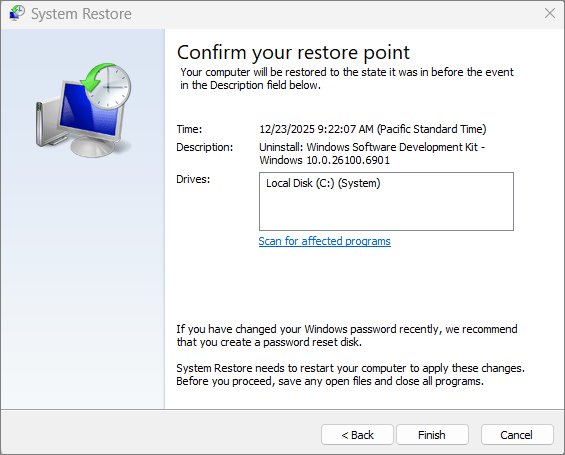
| Trouble began after a recent change | System Restore | Run rstrui.exe and pick a restore point from before the problem |
| Only your account misbehaves | A new user account | Go to Settings > Accounts > Other users, then Add account |
| You want a reset but need your files | Keep my files | Choose it in place of Remove everything in Method 1 |
Alternative reset methods
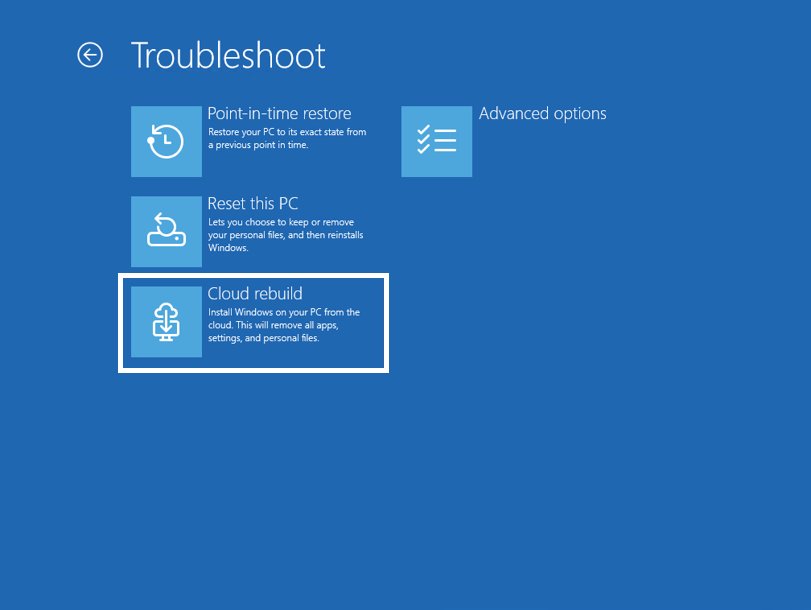
Windows has two further reset tools that do not depend on Dell's recovery software, and neither needs a Dell image. Both are worth knowing when Reset this PC itself keeps failing.
| Tool | Where to find it | What it does |
|---|---|---|
| Cloud rebuild | Rebuild PC in Settings > System > Recovery, or Troubleshoot > Cloud rebuild in Windows RE | Reinstalls Windows with a fresh copy and drivers from Windows Update, and removes all files, apps and settings |
| Recovery drive | Search Recovery Drive in Windows and create the USB while the PC works | Boot from it, select Recover from a drive, then Just remove my files or Fully clean the drive |
Tips for a smooth reset on a Dell
Restarting a PC partway through a reset can make it fail, so plan for the time and backup space up front. Each row below heads off a specific failure.
| Do this | Reason |
|---|---|
| Leave the PC alone if the screen goes black | Microsoft warns that restarting it yourself can make the reset fail |
| Allow 45 minutes or more | Dell's own estimate for a SupportAssist factory reset |
| Use Cloud download if local files may be damaged | It fetches a fresh copy instead of reusing the files on the PC |
| Use a large enough backup drive | SupportAssist needs more free space than the total backup size |
| Format backup drives as exFAT or NTFS | Files over 4 GB fail on FAT32 drives |
What to do straight after the reset
The first sign-in lands you on a clean system that still needs its updates and software. Work through these in order, and Windows should activate itself along the way.
- Connect to Wi-Fi and sign in with the Microsoft account linked to your Windows license.
- Run Windows Update until no more updates are offered.
- Update your Dell drivers, since a recovery image may not carry the newest ones.
- Reinstall your applications from your list, and enter product keys where needed.
- Copy your files back from the backup.
Microsoft says a digital license activates automatically online after you reinstall Windows 11. On SupportAssist systems, the SupportAssist Recovery Assistant also runs after the first sign-in.
Still not working? Common reset failures
If a reset fails partway, try the option that changes least first. On the Windows side, you can also fix Reset this PC errors with a longer set of repairs.
The reset stalls or reports "There was a problem resetting your PC"
Windows files the reset depends on are often damaged, or Local reinstall has nothing clean to use.
- Run the reset again and select Cloud download.
- Open Command Prompt as administrator and run
DISM.exe /Online /Cleanup-image /Restorehealth, thensfc /scannow. - Try the reset again, or use SupportAssist OS Recovery from the F12 menu.
"Reset this PC" is greyed out or missing
The Windows Recovery Environment can be disabled, or the PC is managed by an organization.
- Open Command Prompt as administrator and run
reagentc /info. - If Windows RE shows as disabled, run
reagentc /enable. - On a work or school Dell, contact your IT administrator.
- If the tool still fails, use SupportAssist OS Recovery or a USB drive.
The Dell will not boot at all after resetting
The reset was interrupted, or the boot files were damaged.
- Tap F12 at the Dell logo and select SupportAssist OS Recovery.
- If the entry is missing, press F2, go to SupportAssist System Resolution, and check that Auto OS Recovery Threshold is not set to OFF.
- If the recovery partition is gone, turn on BIOSConnect under SupportAssist in BIOS setup so the PC can download recovery from Dell.
- If that fails, create a USB drive with the Dell OS Recovery Tool on another PC.
You cannot get past the password prompt
A Windows password blocks Settings, but the recovery tools run without it.
- On the sign-in screen, hold Shift and select Restart.
- Select Troubleshoot > Reset this PC > Remove everything.
- Have your BitLocker recovery key ready if the drive is encrypted.
Dell factory reset FAQ
Will a factory reset delete Windows from my Dell?
No. Every Windows and SupportAssist reset option reinstalls Windows, so the computer still has an operating system afterward. What goes away depends on your choice: apps and settings in all cases, and personal files too with Remove everything or a SupportAssist reset.
How long does a Dell factory reset take?
Dell says a SupportAssist factory reset may take 45 minutes or more. A Windows reset can also run long, and Microsoft warns the screen may go black for over 15 minutes. Turning on Clean data adds more time, so leave the PC plugged in and alone.
Does a factory reset remove a virus from a Dell?
A reset that removes everything clears apps and files, which takes out malware living among them. Malware embedded in firmware may survive a reset. Scan your backup files before you copy them back, or you can bring the same infection onto the clean system.
Can I factory reset a Dell without the password?
Yes. On the sign-in screen, hold Shift and select Restart, then go to Troubleshoot and Reset this PC. You can also tap F12 at the Dell logo and open SupportAssist OS Recovery. You still need the BitLocker recovery key if the drive is encrypted.
Should I choose Cloud download or Local reinstall?
Choose Cloud download if your local Windows files may be corrupted or you want the latest version with updates. Choose Local reinstall if your internet connection is slow, because it uses files already on the PC. It may not include the latest updates.
How do I factory reset a Dell laptop to sell it?
Select Remove everything in Reset PC and turn on Clean data, which makes your removed files harder for other people to recover. Microsoft says this option is meant for consumers and does not meet government or industry data erasure standards.
How do I factory reset a Dell laptop from boot?
Turn on the laptop and tap F12 repeatedly at the Dell logo to open the One Time Boot Menu, then select SupportAssist OS Recovery. Choose Start Reset, then Reset to factory settings or Reset and update. Both options permanently delete data on the drive.
How do I factory reset a Dell laptop on Windows 11?
Open Settings, select System, then Recovery, and choose Reset PC. Pick Keep my files or Remove everything, select Cloud download or Local reinstall, and follow the prompts. The steps are the same on Inspiron, Latitude, XPS and other Dell laptops running Windows 11.
How do I factory reset a Dell Chromebook?
To Powerwash a Chromebook, sign out, press and hold Ctrl + Alt + Shift + R, and select Restart. Choose Powerwash, then Continue, and follow the prompts. Work or school Chromebooks cannot be reset this way, so contact your administrator instead.
How do I factory reset a Dell monitor?
Use the Factory Reset option in the monitor's On-Screen Display menu. Dell keeps the exact buttons in the User Manual for each model, so check yours for the steps. This resets only the monitor's own settings and has no effect on the computer it is connected to.