Press Windows key + Left arrow to snap the active window to the left half of the screen, then bring up a second window and press Windows key + Right arrow to fill the other half.
This guide covers every Windows 10 split screen shortcut, four-window layouts, a second monitor, how to exit split screen, and what to do when windows won't snap.
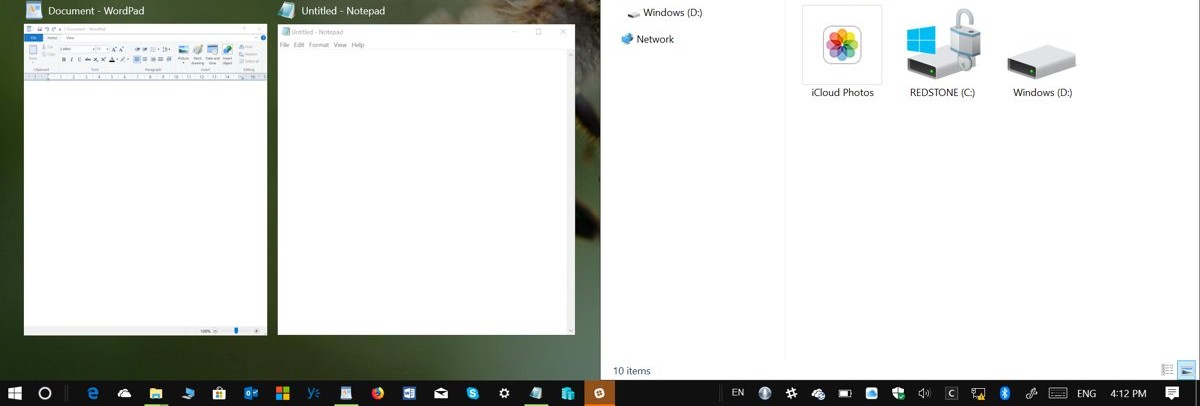
Step-by-step tutorial: How to split screen Windows 10 using keyboard
Open the two apps you want side by side before you start. Snap is the Windows feature that does the resizing.
- Hold Alt and press Tab until the first window is selected, then release both keys.
- Press Windows key + Left arrow to snap that window to the left side.
- Look at the free side of the screen, where Snap Assist shows thumbnails of your other open windows.
- Select a thumbnail to fill the right side, and skip the last two steps.
- For keyboard-only use, hold Alt and press Tab until the second window is selected, then release both keys.
- Press Windows key + Right arrow to snap it to the right side.
To change the split, drag the divider between the windows. The window next to it resizes to fit, and Microsoft's shortcut list has no key combination for this step.
Split screen Windows 10 shortcut keys
| Shortcut | What it does on Windows 10 |
|---|---|
| Windows key + Left arrow | Maximizes the app or desktop window to the left side of the screen |
| Windows key + Right arrow | Maximizes the app or desktop window to the right side of the screen |
| Windows key + Up arrow | Maximizes the window |
| Windows key + Down arrow | Removes the current app from the screen or minimizes the desktop window |
| Windows key + Shift + Up arrow | Stretches the desktop window to the top and bottom of the screen |
| Windows key + Shift + Down arrow | Restores or minimizes active desktop windows vertically, keeping their width |
| Windows key + Shift + Left or Right arrow | Moves an app or window from one monitor to another |
| Alt + Tab | Switches between open apps |
| Windows key + Tab | Opens Task view |
| Windows key + Home | Minimizes all except the active desktop window, and restores them on a second press |
| Windows key + Ctrl + D | Adds a virtual desktop |
| Windows key + Ctrl + Left or Right arrow | Switches between virtual desktops |
Windows also has keyboard shortcuts for other tasks outside window management.
How to make split screen on Windows 10 with four windows
Snap also divides the screen into quarters. Hold the Windows key while you press the second arrow, because you can keep changing position until you release it.
- Select the first window, then press Windows key + Left arrow followed by Up arrow for the upper-left quarter.
- Press Alt + Tab to the second window, then press Windows key + Left arrow followed by Down arrow for the lower-left quarter.
- Press Alt + Tab to the third window, then press Windows key + Right arrow followed by Up arrow for the upper-right quarter.
- Press Alt + Tab to the fourth window, then press Windows key + Right arrow followed by Down arrow for the lower-right quarter.
- Release the Windows key after each arrow sequence to set the position.
For three windows, snap one to a full side and two into quarters on the other side. You can also drag a window to a screen corner to snap it to that quarter.
How to use split screen Windows 10 with a mouse
- Select the title bar of the window you want to snap.
- Drag it to the left or right edge of the screen, or into a corner for a quarter.
- Release it when the translucent overlay appears.
- Select another open window from the Snap Assist thumbnails to fill the free space.
- Drag the divider between the windows to change their sizes.
How to split screen Windows 10 with monitor
Use Extend mode so each screen acts as its own desktop area. Each monitor can then hold its own snapped windows.
- Connect the second monitor and check its cable.
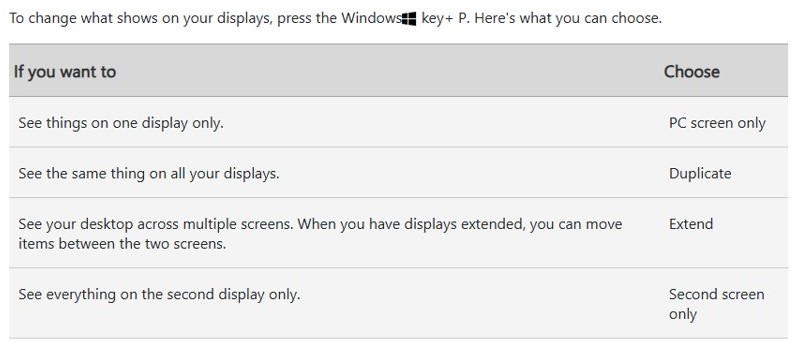
- Press Windows key + P to open the display options.
- Select Extend to spread your desktop across both screens.
- Select the window you want to move.
- Press Windows key + Shift + Right arrow or Windows key + Shift + Left arrow to move it to the other monitor.
- Press Windows key + Left arrow or Windows key + Right arrow to snap it on that monitor.
How to activate split screen Windows 10 in Multitasking settings
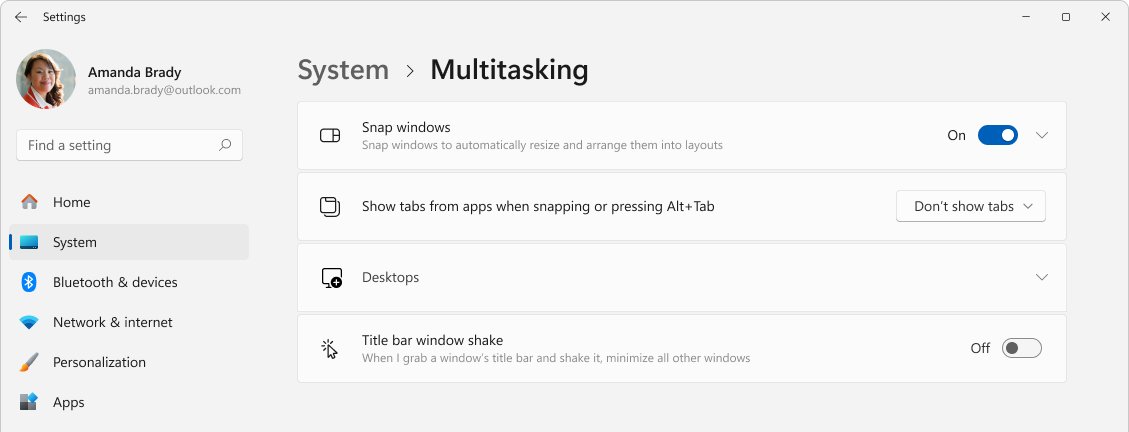
Snap is controlled from one switch, and the same page turns the feature off if you don't want it.
- Press Windows key + I to open Settings.
- Select System, then Multitasking.
- Set the Snap windows toggle to On to activate split screen, or Off to disable it.
- Expand the Snap windows section if the list of options is hidden.
- Select When I snap a window, show what I can snap next to it to keep Snap Assist on.
Microsoft's page lists these labels for Windows 11 and Windows 10, and older Windows 10 versions may word the options differently.
How to exit split screen Windows 10 using keyboard
- Press Alt + Tab until the window you want full size is selected, then release both keys.
- Press Windows key + Up arrow to maximize it.
- Press Windows key + Home if you want every other window minimized as well.
- Press Windows key + Home again to restore those windows.
Windows key + Down arrow takes a different route: it removes the current app from the screen or minimizes the desktop window. If the whole display still looks too large or stretched, you can get the screen back to normal size.
How to tell if Snap Assist is on in Windows 10
- Open at least two apps.
- Press Windows key + Left arrow in one of them.
- Look for thumbnails of your other windows on the free side of the screen.
- Press Windows key + I and open System > Multitasking if no thumbnails appear.
- Check the Snap Assist option under Snap windows.
Task view gives an overview of all open windows, so Windows key + Tab shows what is available to snap.
Tips for how to split screen Windows 10 using keyboard
| Tip | Why it helps |
|---|---|
| Keep holding the Windows key between arrow presses | The window keeps moving until you release the key |
| Select the window with Alt + Tab first | Snap shortcuts only act on the active window |
| Open Task view with Windows key + Tab | It shows every open window before you pick one |
| Use Windows key + Home to clear the screen | Everything except the active window drops out of the way |
| Press Windows key + Ctrl + D for a separate project | You can create virtual desktops instead of shrinking more windows onto one screen |
| Close a finished virtual desktop with Windows key + Ctrl + F4 | This closes the virtual desktop you're using |
Split screen Windows 10 vs split screen Windows 11 shortcut
The left and right arrow shortcuts work on both versions, but some newer shortcuts are listed for Windows 11 only. You can split screen on Windows 11 with its extra layouts if you have upgraded.
| Shortcut | Windows 10 | Windows 11 |
|---|---|---|
| Windows key + Left or Right arrow | Sends the window to that side | Snaps the window to that side |
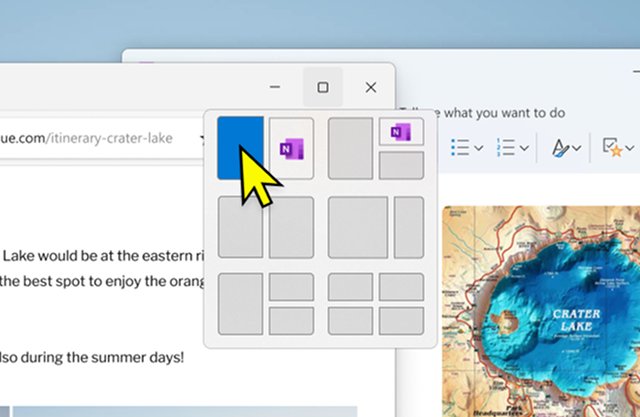
| Windows key + Z | Shows the commands available in an app in full-screen mode | Opens the snap layouts |
| Windows key + Alt + Up arrow | Not in Microsoft's Windows 10 list | Snaps the active window to the top half |
| Windows key + Alt + Down arrow | Not in Microsoft's Windows 10 list | Snaps the active window to the bottom half |
Split screen Windows 10 not working
Window doesn't snap properly
The Snap windows toggle may be off, or another window may be active.
- Press Windows key + I and open System > Multitasking.
- Set Snap windows to On.
- Press Alt + Tab to make the right window active.
- Press Windows key + Left arrow again.
Snap Assist doesn't show other windows
Its option may be cleared, or no other window may be open.
- Open a second app and snap the first window again.
- Open System > Multitasking in Settings.
- Expand Snap windows and select When I snap a window, show what I can snap next to it.
Split screen Windows 10 with monitor can't find the second display
Windows hasn't detected the monitor, or the display mode isn't set to Extend.
- Check that the cables are connected properly to the PC or dock.
- Select Start > Settings > System > Display > Multiple displays.
- Select Detect.
- Press Windows key + P and select Extend.
Frequently asked questions about how to split screen Windows 10 using keyboard
How do I split screen on Windows 10?
Press Windows key + Left arrow in the first window, then select a second window from the Snap Assist thumbnails. You can also drag a window to the left or right edge of the screen and drop it there.
Can I split screen on Windows 10?
Yes. Windows 10 includes Snap, which arranges windows side by side or in screen quarters using the keyboard, mouse or touch. You only need the Snap windows toggle turned on in Settings under System and Multitasking.
What is the split screen Windows 10 shortcut key?
The main shortcut is Windows key + Left arrow or Windows key + Right arrow. It sends the active window to that side of the screen, and Snap Assist then offers your other open windows for the free space.
How do I split screen on Windows 10 Pro?
Use the same shortcuts as any other Windows 10 edition: Windows key + Left arrow and Windows key + Right arrow. Microsoft's Snap documentation applies to Windows 10 and lists no separate steps or edition limit for Windows 10 Pro.
How do I unsnap a window?
Select the window and press Windows key + Up arrow to maximize it, which ends the split for that window. Windows key + Shift + Down arrow restores or minimizes it vertically while keeping its width.
Can I snap more than two windows?
Yes. Snap supports screen quarters, so one screen can hold up to four windows. Press Windows key + Left or Right arrow, then press Up or Down arrow while still holding the Windows key to choose the quarter.
Can I use this feature with multiple monitors?
Yes. Press Windows key + P and choose Extend, then move a window with Windows key + Shift + Left or Right arrow. Use the normal Snap shortcuts after that to place the window on the other monitor.
How do I disable snapping?
Press Windows key + I, open System and then Multitasking, and set the Snap windows toggle to Off. Turn it back on from the same page whenever you want the split screen shortcuts and Snap Assist back.