To fix the "MID is invalid" error in iCloud for Windows 11, update the app from the Microsoft Store, correct the PC clock, restart, and sign in again, then repair, reset or reinstall iCloud if the error returns.
Apple Support has no article on this exact message, so the fixes below are the iCloud for Windows checks Apple does document, plus how to reach your data at iCloud.com and when to contact Apple.
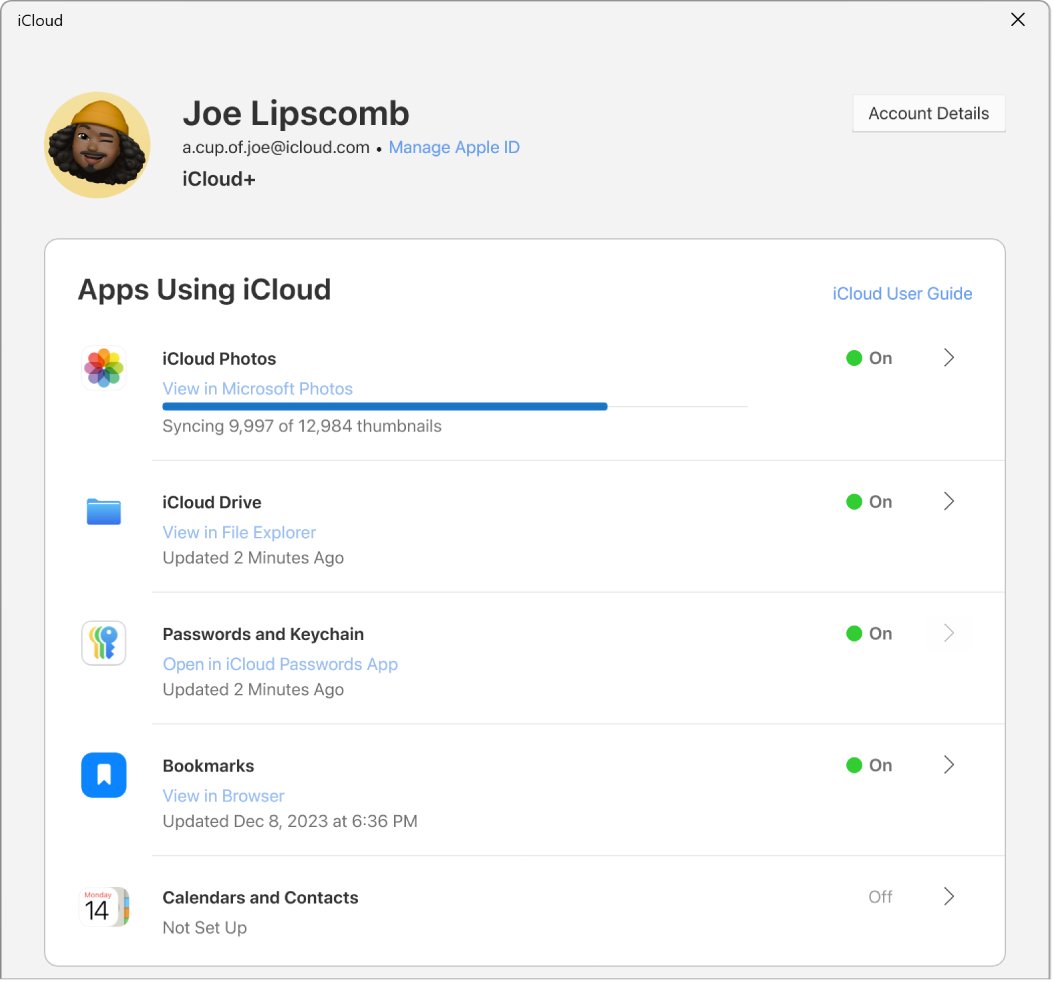
How to fix MID is invalid in iCloud for Windows 11
Run these steps in order and try the sign-in again after any step that changes something.
- Open Microsoft Store, select Library, select Get updates, and install any iCloud update.
- Open Settings > Time & language > Date & time, then turn on Set time automatically and Set time zone automatically.
- Turn off any VPN on the PC for the length of the sign-in.
- Restart the PC.
- Unlock your trusted iPhone, iPad or Mac and keep it close to the PC.
- Open iCloud for Windows and sign in with the same Apple Account you use on that device.
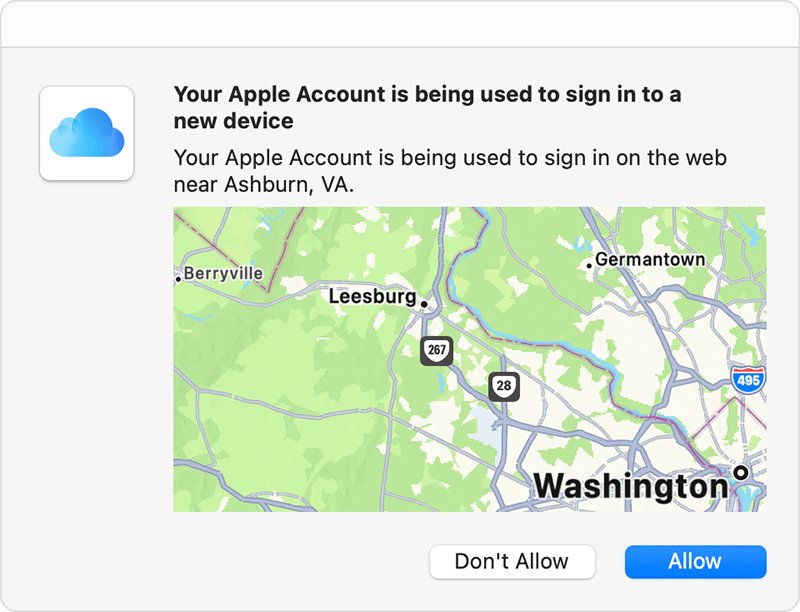
- Tap Allow on the trusted device and type the verification code into iCloud for Windows.
- If the message returns, use Repair and then Reset from the iCloud entry in Installed apps.
What does MID is invalid mean in iCloud for Windows?
Apple does not define MID on its support site, so any expansion of the letters you read elsewhere is a guess. These are the facts you can rely on.
| Question | What is known |
|---|---|
| Where the message appears | In iCloud for Windows on Windows 11, during sign-in |
| How it reads | A French PC shows "Echec de la vérification : MID is invalid", which translates to "Verification failed: MID is invalid" |
| Apple's documentation | No Apple Support article names this message or explains MID |
| Whether your password is wrong | The message does not say so; test the same account at iCloud.com to find out |
| Whether your data is at risk | Apple says even signing out or uninstalling leaves your data on your other devices and at iCloud.com |
The same sign-in screen can also show other iCloud verification errors, such as "Action cannot be completed", which have their own documented causes.
iCloud for Windows 11 not working at sign-in: what your account needs
Apple sets different sign-in conditions depending on the security features on your Apple Account. Find your setup, then meet the condition in that row.
| Your Apple Account | What iCloud for Windows requires | What to do |
|---|---|---|
| Standard two-factor authentication | A code from a trusted device or trusted phone number | Tap Allow on the device, or request a text or call |
| Advanced Data Protection | Version 14.1 or later; with 14.2 or later, a trusted device in Bluetooth range or on the same Wi-Fi router | Update the app, bring the device close, and turn off any VPN for the sign-in |
| Security keys | Version 15 or later | Update the app, then use the key when asked |
| Managed Apple Account from work or school | Not supported | Sign in with a personal Apple Account instead |
| Never used on an Apple device | iCloud set up on an iPhone, iPad, iPod touch or Mac first | Set up iCloud on one of those devices, then return to the PC |
| Locked, not active or disabled | An account in good standing | Reset the password, or use Request Access if the alert offers it |
Does iCloud work on Windows 11? Sign-in requirements
Yes, and Apple lists Windows 11 as the requirement for the latest version of the app. Check each row before you reinstall anything.
| Requirement | What Apple asks for |
|---|---|
| Windows | Windows 11 for the latest version; the Windows 10 May 2019 Update is the minimum for a Store install |
| iCloud for Windows | Version 15, downloaded from the Microsoft Store |
| Accounts | A Microsoft account for the Store, plus your Apple Account email and password |
| Apple device | iCloud already set up on an iPhone, iPad, iPod touch or Mac |
| Media features | Windows Media Player or the Media Feature Pack, or the app will not install |
| Outlook | Outlook 2021 or later, only if you sync with Outlook |
How to update iCloud for Windows 11 in Microsoft Store
Apple tells you to get the app from the Microsoft Store, so that is also where you look for a newer version.
- Select Start, then select Microsoft Store from the apps list.
- Select Library.
- Select Get updates and wait for the check to finish.
- Let any iCloud update install, then close the Store.
- Open iCloud for Windows and try the sign-in again.
If the Store will not download anything, reset the Microsoft Store cache and check for updates again.
Set the date, time and time zone for iCloud on Windows 11
Apple puts a correct date, time and time zone first in its checks for iCloud for Windows conflicts with security software.
- Select Start > Settings.
- Select Time & language, then Date & time.
- Turn on Set time automatically.
- Turn on Set time zone automatically, or turn it off and pick your zone from the Time zone list.
- Compare the taskbar clock with your phone, then sign in to iCloud again.
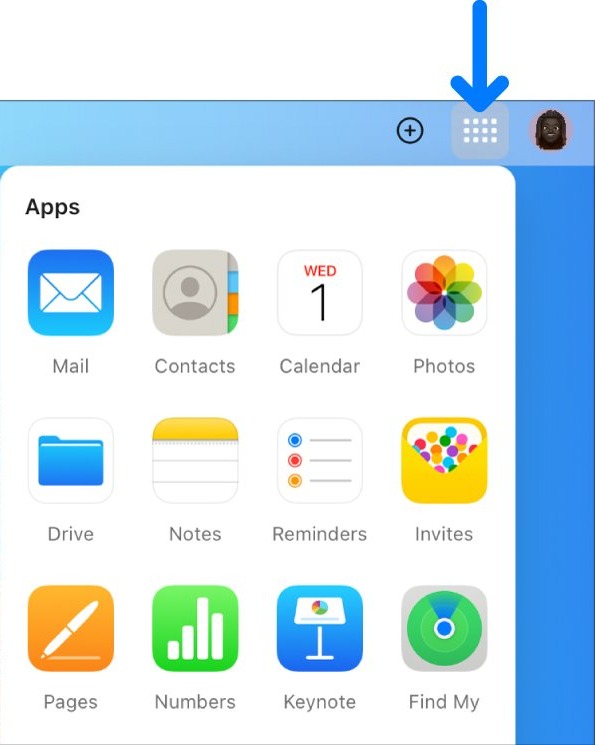
How to access iCloud from Windows 11 without the app
Signing in at iCloud.com gets you to your data right away. It also separates an account problem from a problem with the Windows app.
- Open Microsoft Edge 130, Google Chrome 130 or Firefox 128, or a newer version of any of them.
- Go to icloud.com and select Sign In.
- Enter the Apple Account email or phone number and password you used in the Windows app.
- Approve the sign-in on your trusted device and enter the code.
- If iCloud.com opens normally, treat the Windows app as the problem and repair or reset it.
- If iCloud.com rejects the account too, reset your Apple Account password before you change anything on the PC.
With Advanced Data Protection on, web access to your data is off until a trusted device approves it. While you are there, you can also review your iCloud login history for sign-ins you do not recognise.
Sign out of iCloud for Windows 11 and sign in again
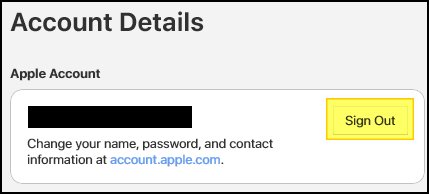
This applies when the app already has an account on it. Signing out removes iCloud data from the PC, though it stays on your other devices and at iCloud.com.
- Save a copy of any iCloud files you need on the PC, because local copies stop updating once you sign out.
- Open iCloud for Windows.
- Click Account Details, click Sign Out, and follow the prompts.
- Restart the PC.
- Open iCloud for Windows and sign in with your Apple Account.
- Choose Sync or Not Now for each feature, then click Finish Setup.
A window that simply keeps reopening with no MID message is a different fault, an endless iCloud login loop on Windows 11.
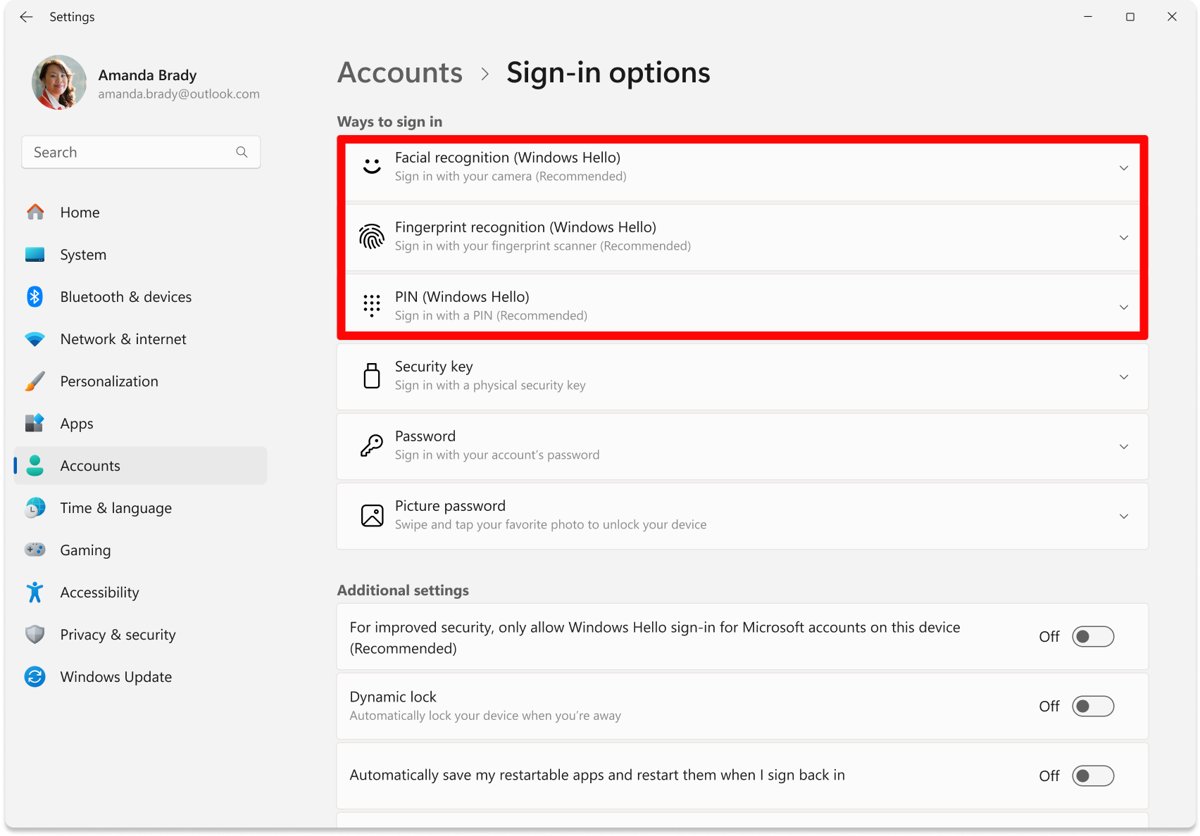
Set up Windows Hello for iCloud on Windows 11
Apple lists Windows Hello among its first checks for iCloud for Windows, alongside the clock and your account type. Face and fingerprint sign-in need compatible hardware, so a PIN is the simple choice.
- Open Settings and select Accounts.
- Select Sign-in options.
- Under Ways to sign in, select PIN (Windows Hello), or a face or fingerprint option if your PC supports it.
- Select Set up and follow the on-screen instructions.
- Open iCloud for Windows and sign in again.
Use a trusted phone number for iCloud sign-in on Windows 11
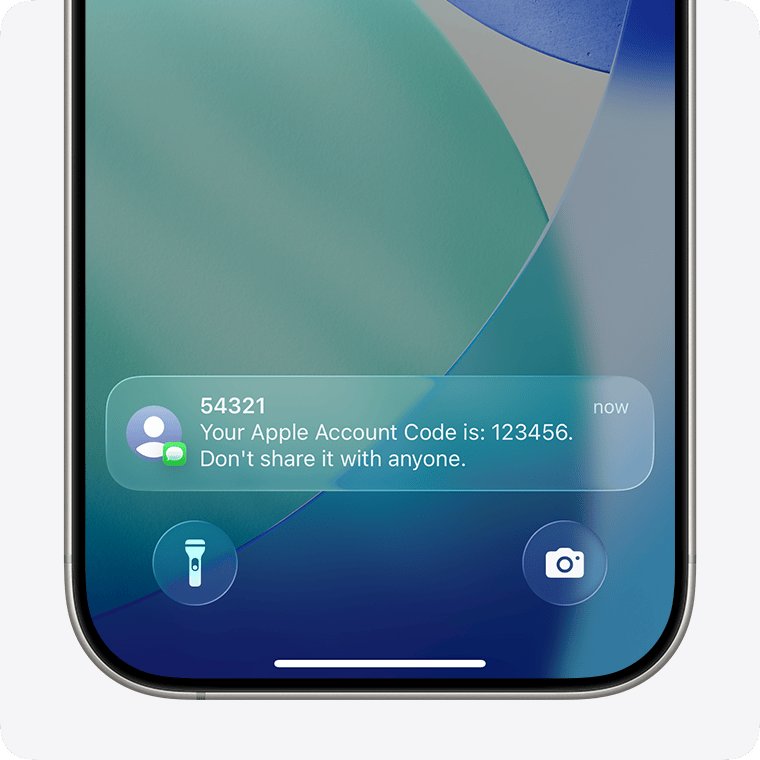
The message begins with a verification failure, so try a different way of receiving the code when your trusted device does not respond.
- Start the sign-in in iCloud for Windows and stop at the verification screen.
- Select Didn't Get a Code? or Can't get to your devices?.
- Choose to send the code to your trusted phone number.
- Pick a text message or a phone call.
- Look in Unknown Senders in Messages if the text does not appear.
- Enter the code in iCloud for Windows.
If you cannot reach a trusted device or number for now, Apple recommends waiting a few days rather than starting account recovery, which can take days or longer.
Repair or reset iCloud in Installed apps on Windows 11
Windows can fix the app in place before you resort to a reinstall. Reset goes further than Repair, so plan to sign in again afterwards.
- Select Start > Settings > Apps > Installed apps.
- Select the More icon next to iCloud.
- Select Advanced options. Some installs do not offer this option; if yours does not, reinstall instead.
- Select Repair, wait for it to finish, and try the sign-in.
- If the message returns, go back to the same page and select Reset.
- Open iCloud for Windows and sign in again.
How to remove iCloud from Windows 11 and install it again
A reinstall replaces the app completely. You can download iCloud for Windows from the Microsoft Store when the old copy is gone.
- Sign out of iCloud for Windows if the app shows an account.
- Select Start > Settings > Apps > Installed apps.
- Find iCloud, select More, choose Uninstall, and follow the prompts.
- Restart the PC.
- Open Microsoft Store, select Library, find iCloud, and select Install.
- Open iCloud for Windows and sign in with your Apple Account.
On Windows 11 you can also remove iCloud from Start: open All apps, right-click iCloud, and choose Uninstall.
Reset the Windows hosts file for iCloud sign-in
Apple says to check that the hosts file is not blocking Apple's servers. Resetting it can affect other software, so check your business apps afterwards if this is a work PC.
- Press the Windows key, type Notepad, and open it.
- Paste the default text from Microsoft's hosts file page.
- Choose File > Save as, type
"hosts"with the quotes, set Save as type to All files (*.*), and save to the desktop. - Open
%WinDir%\System32\Drivers\Etcin File Explorer. - Rename the existing Hosts file to
Hosts.old. - Move your new hosts file into that folder and select Continue if Windows asks for permission.
- Restart the PC and sign in to iCloud again.
iCloud for Windows 11 and third-party security software
Apple says security software can interfere with iCloud for Windows once the clock, updates and hosts file are ruled out. Keep your protection on and change how it treats Apple's services.
- Sign in to Windows with an administrator account, not a guest account.
- Keep only one security program installed, because several together can cause problems.
- Open Apple's list of ports and services.
- Ask your security software provider how to allow those ports and services.
- Restart the PC and sign in to iCloud again.
How to tell iCloud for Windows 11 is signed in
- Close iCloud for Windows and restart the PC.
- Open iCloud for Windows from Start; it should show your account instead of the sign-in screen.
- Click Account Details and check that your Apple Account is listed.
- Open File Explorer and look for iCloud Drive if you turned that feature on.
- Add a file at iCloud.com and check that it reaches the PC.
Why can't I install or uninstall iCloud on Windows 11?
iCloud will not install on Windows 11
The app needs Windows Media Player, and the Media Features option may be turned off.
- Select Download if you see "Install Media Feature Pack to use iCloud", then follow the on-screen instructions.
- Otherwise open Control Panel > All Control Panel Items > Programs and Features.
- Click Turn Windows features on or off, check Media Features, and click OK.
- Restart if asked, then install iCloud for Windows.
iCloud will not uninstall from Settings
Microsoft notes that some apps cannot be removed from the Settings app.
- Search the taskbar for Control Panel and open it.
- Go to Programs > Programs and Features.
- Right-click the iCloud entry and select Uninstall or Uninstall/Change.
- Follow the prompts, then restart the PC.
iCloud keeps popping up on Windows 11
An app in the Windows startup list opens each time you sign in to Windows.
- Select Start > Settings > Apps > Startup.
- Find iCloud in the list, if it appears there.
- Switch its toggle to Off.
"Can't connect to server" in iCloud for Windows
The PC is offline, or Apple has an outage or maintenance under way.
- Check that a web page loads on the PC.
- Look for iCloud problems on Apple's System Status page.
- If Apple lists an outage, sign in again after it clears.
MID is invalid keeps returning after a reinstall
You have used the fixes Apple documents, so the next step is Apple Support.
- Keep using iCloud at iCloud.com in the meantime.
- Write down the full message and your iCloud for Windows version.
- Start a request at getsupport.apple.com, or chat in the Apple Support app.
- Tell the advisor which fixes you have already run.
iCloud for Windows 11 MID is invalid FAQ
What does MID is invalid mean on iCloud for Windows?
It is a sign-in failure message that Apple does not explain on its support site. Apple publishes no definition of MID, so start with its documented checks: update the app, set the clock, then repair, reset or reinstall iCloud.
Does iCloud work on Windows 11?
Yes. Apple lists Windows 11 and iCloud for Windows 15 as the PC requirements. The app comes from the Microsoft Store, and it needs a Microsoft account for the download and an Apple Account to sign in.
Does Windows 11 use iCloud?
Not on its own. Windows 11 does not need iCloud, and it only connects when you install iCloud for Windows from the Microsoft Store and sign in. You then pick each feature to sync, or choose Not Now to skip it.
How do I install iCloud on Windows 11?
Open the Microsoft Store, find iCloud, and install it. Open the app, sign in with the Apple Account from your iPhone, iPad or Mac, verify with your code, choose Sync or Not Now for each feature, and click Finish Setup.
How do I use iCloud on Windows 11?
Use iCloud for Windows once you have signed in. iCloud Drive appears in File Explorer, Calendars and Contacts sync with Outlook, and Passwords work through the iCloud Passwords app. You can also open iCloud.com in Edge, Chrome or Firefox.
How do I uninstall iCloud for Windows 11?
Sign out of iCloud for Windows first. Then select Start, Settings, Apps, Installed apps, find iCloud, select the More button, choose Uninstall and follow the prompts. Your data stays on your other devices and at iCloud.com.
Why can't I install iCloud on Windows 11?
The usual block Apple names is missing media support. iCloud for Windows needs Windows Media Player, so turn on Media Features under Turn Windows features on or off, or select Download on the Media Feature Pack message.
Why does iCloud keep popping up on Windows 11?
Apps in the Windows startup list open when you sign in to Windows. Select Start, Settings, Apps, Startup, and switch iCloud to Off if it is listed. An old pinned iCloud Passwords shortcut can also relaunch the app, so unpin it and pin a new one from Start.
Will reinstalling iCloud for Windows delete my data?
No. Signing out and uninstalling removes iCloud data from the PC, but it stays on your other devices and at iCloud.com. Copy any files you need to keep on the PC first, because local copies stop updating after you sign out.