Fix ERR_NAME_NOT_RESOLVED in Google Chrome by checking the web address, then flushing the DNS cache and changing your DNS server if the site still will not load.
The error means Chrome could not turn the site's name into an IP address. The fixes below run from quickest to last resort and cover Windows, with notes for Mac and Android.
How to fix an ERR_NAME_NOT_RESOLVED error
These five steps run from quickest to most involved on Windows. Stop as soon as the page loads.
- Check the spelling of the web address and select Reload.
- Open another well-known site. If every site fails, restart your router and modem.
- Search for command prompt, select Run as administrator, and run
ipconfig /flushdns. - Change your DNS server to Google Public DNS (
8.8.8.8and8.8.4.4) or Cloudflare (1.1.1.1and1.0.0.1). - Close Chrome completely, reopen it, and load the page again.
What ERR_NAME_NOT_RESOLVED means
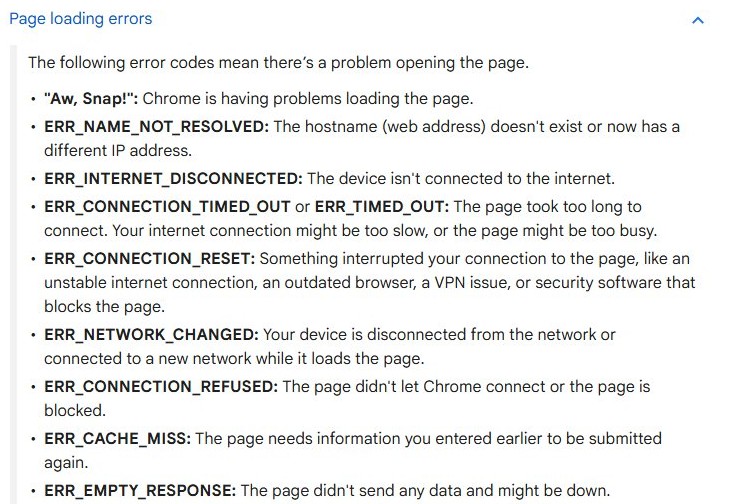
Google's definition is short: "The hostname (web address) doesn't exist or now has a different IP address." In plain terms, the DNS lookup failed, so Chrome never reached the website at all.
| Term | What it means |
|---|---|
| ERR_NAME_NOT_RESOLVED | Chrome's code for a failed name lookup. It usually sits under a message such as "This site can't be reached" |
| Hostname | The name of the site in the address bar, such as example.com |
| IP address | The numeric address of the server that hosts the site |
| DNS server | The service that turns a hostname into an IP address, usually supplied by your router or internet provider |
| DNS cache | The recent lookups Windows stores, including failed ones, so that it can answer quickly |
What causes an ERR_NAME_NOT_RESOLVED error in Google Chrome?
The cause is either the website, your DNS settings, your network or Chrome itself. The second column helps you tell them apart before you change anything.
| Cause | How to spot it | What to do |
|---|---|---|
| A typo in the web address | The name looks wrong in the address bar | Correct the address and reload |
| The domain does not exist or has moved | The name also fails on dns.google | Wait, or contact the site owner |
| An old or failed lookup in the DNS cache | The site loads on another device on the same network | Flush the DNS cache |
| A DNS server that is down or slow | Many sites fail, but the connection itself is up | Change the DNS server |
| A custom provider in Chrome's secure DNS setting | Other browsers load the site, and Chrome does not | Check the Use secure DNS setting |
| A line in the Windows hosts file | One site fails on one PC only | Reset the hosts file |
| An extension or stored browser data | The site loads in an Incognito window | Turn off extensions and clear browsing data |
| A router or modem problem | Every device on the network has the same trouble | Restart the router and modem |
| A public Wi-Fi sign-in page | It happens on hotel, cafe or airport Wi-Fi | Sign in through the portal page first |
How to check if a website's domain name resolves
This test tells you whether the fault is on your side or the website's, which saves you from changing settings you did not need to touch.
- Open
https://dns.googleon a device with a working connection, enter the domain, and select Resolve. - Look for
"Status": 0in the result, which means the name resolved. - On the affected PC, open Command Prompt and run
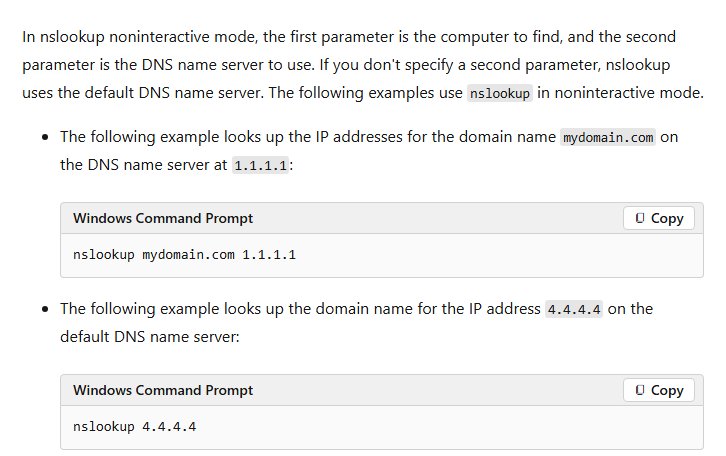
nslookup example.com 8.8.8.8, using the real domain. - Run
nslookup example.comto ask your current DNS server the same question. - Compare the two. If only the first returns an address, your DNS server is the problem and the DNS change below applies.
- Contact the site owner or try later if both lookups fail, because the fault is with the domain.
Flush the DNS cache with ipconfig /flushdns
Windows keeps recent lookups, including failed ones, in its DNS client cache. Clearing it makes Windows ask the DNS server again. You can clear the DNS cache from any administrator Command Prompt window.
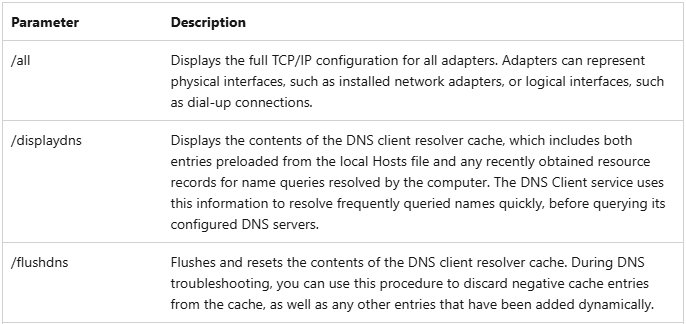
ipconfig /flushdnsFlushes and resets the contents of the DNS client resolver cache, which discards failed lookups as well as other recent entries.
You should see: a confirmation that the DNS resolver cache was flushed. Close and reopen Chrome, then reload the page.
Change DNS server to fix ERR_NAME_NOT_RESOLVED in Windows 11
A public DNS server replaces the one your router or internet provider supplies. Write down your current settings first so that you can go back.
- Open Settings > Network & internet.
- Select Ethernet, or select Wi-Fi > Manage known networks and choose your network.
- Next to DNS server assignment, select Edit.
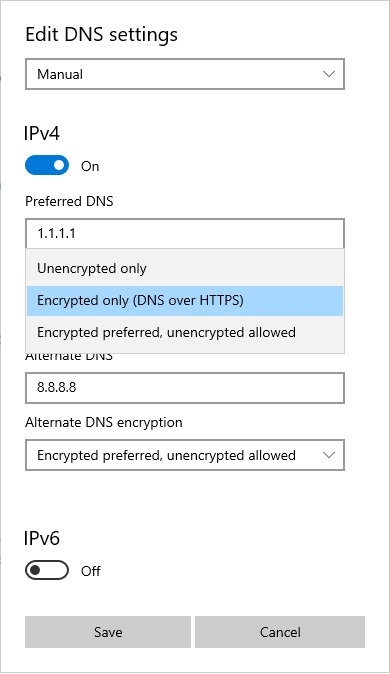
- Choose Manual and turn on IPv4.
- Enter
8.8.8.8under Preferred DNS and8.8.4.4under Alternate DNS, or use Cloudflare's1.1.1.1and1.0.0.1. - Select Save, then close and reopen Chrome.
On Windows 10, go to Settings > Network and Internet > Change adapter options. Right-click your adapter, select Properties, open Internet Protocol Version 4, and enter the addresses under Use the following DNS server addresses.
On a Mac, open System Settings > Network, select your network service, then select Details > DNS and add a server with the + button.
To undo the change on Windows 11, set the assignment back to Automatic (DHCP). You can also change DNS settings on Windows with PowerShell or netsh, and test Cloudflare's 1.1.1.1 resolver at https://1.1.1.1/help.
Check the secure DNS setting in Google Chrome
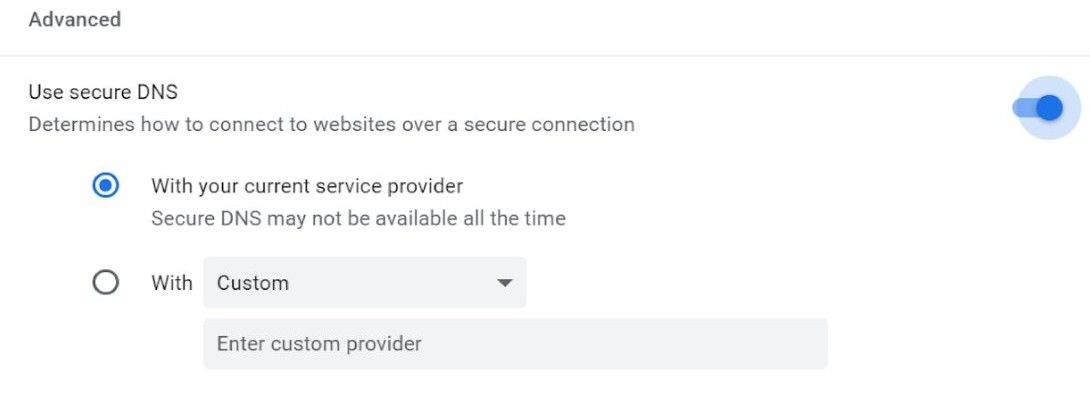
Chrome can send lookups through its own secure DNS provider. In the default automatic mode it falls back to a normal lookup when needed, but a custom provider has no fallback, so a wrong or failing provider stops sites from loading.
- In Chrome, select More (the three dots) > Settings.
- Select Privacy and security > Security.
- Under Advanced, find Use secure DNS.
- Check the provider if Use secure DNS is set to a custom provider, or choose your current service provider instead.
- Reload the page that showed the error.
This setting is not available on managed devices or when parental controls are on.
Test ERR_NAME_NOT_RESOLVED in Chrome Incognito mode and turn off extensions
If a page loads in Incognito, an extension or stored data is the likely cause. Extensions are off by default in Incognito unless you allowed them there.
- Press Ctrl + Shift + N to open an Incognito window, and load the page.
- Go back to a normal window if the page loads, and select More > Extensions > Manage extensions.
- Turn off every extension with its toggle.
- Reload the page. If it loads, turn the extensions back on one at a time until the error returns.
- Select Remove on the extension that brings the error back.
Clear Chrome cache and cookies to fix ERR_NAME_NOT_RESOLVED
- In Chrome, select More > Delete browsing data.
- Choose All time as the time range.
- Select Cookies and other site data and Cached images and files.
- Select Delete data, then reload the page.
Clearing cookies signs you out of most websites, so save anything you are working on first.
Turn off Preload pages in Google Chrome
Chrome preloads pages it thinks you might open, and turning that off rules it out. Turn it back on if it makes no difference, because it speeds up browsing.
- In Chrome, select More > Settings.
- Select Performance on the left.
- Turn off Preload pages.
- Close and reopen Chrome, then load the page.
Update and restart Google Chrome
- In Chrome, select More > Help > About Google Chrome.
- Wait for Chrome to check for an update.
- Select Relaunch if it appears. If it does not, Chrome is already up to date.
- Close all Chrome windows if you are not prompted, then open Chrome and reload the page.
Check firewall and antivirus settings for Google Chrome
Google lists firewall and antivirus software among the causes of Chrome connection errors. Keep your protection on and check that it allows Chrome.
- Open your firewall or antivirus settings and confirm that Chrome is allowed to connect.
- In Chrome, select More > Settings > Privacy and security, then select Go to Safety Check.
- Disconnect any VPN for a moment and reload the page to see whether the VPN's DNS is at fault.
Reset the hosts file in Windows
The hosts file lives in C:\Windows\System32\drivers\etc and can override DNS for a single site. A default copy holds only comment lines that start with #.
- Open Notepad and type a comment line such as
# Default hosts file. - Select Save as, set Save as type to All files, and save the file to your desktop as
"hosts", including the quotation marks. - Open the
%WinDir%\System32\Drivers\Etcfolder and rename the existing file toHosts.old. - Move your new
hostsfile into that folder and approve the administrator prompt if it appears. - Close and reopen Chrome, then load the page.
Reset TCP/IP with netsh winsock reset
These commands reset the Windows network stack and request a fresh address from your router. Run them in order, in a Command Prompt opened with Run as administrator.
netsh winsock reset
netsh int ip reset
ipconfig /release
ipconfig /renew
ipconfig /flushdns
The first two commands reset Windows networking settings, the next two renew your IP address, and the last clears the DNS cache.
You should see: each command finishes without an error. Restart the PC if prompted, then reload the page in Chrome.
Restart your router and modem
A restart clears a router that has stopped passing DNS requests. If you have a combined modem and router, you only need to restart that one device.
- Unplug the power cable from the router.
- Unplug the power cable from the modem. Remove the backup battery if its lights stay on.
- Wait about 30 seconds.
- Plug the modem back in and wait for its lights to stop blinking.
- Plug the router back in and wait a few minutes.
- Reconnect your PC and load the page.
Reset network settings in Windows
Microsoft recommends network reset as a last resort. It removes your network adapters and their settings, so you may need to reinstall VPN software afterward.
- Select Start > Settings > Network & internet.
- On Windows 11, select Advanced network settings > Network reset. On Windows 10, select Status > Network reset.
- Select Reset now > Yes.
- Wait for the PC to restart, reconnect to your network, and load the page.
Reset Google Chrome settings
A reset changes your search engine, startup pages, pinned tabs and site permissions, turns off extensions, and clears cookies on every device where you are signed in. It keeps your bookmarks and saved passwords.
- In Chrome, select More > Settings.
- Select Reset settings.
- Select Restore settings to their original defaults.
- Confirm with Reset settings, then load the page.
Uninstalling and reinstalling Chrome is the final step if the error appears only in Chrome. Info synced to your Google Account stays there.
How to check if ERR_NAME_NOT_RESOLVED is fixed
Chrome can keep showing an old error page until you reload it, so test with a fresh window.
- Close every Chrome window and open Chrome again.
- Load the site that failed, and refresh the page a few times.
- Load two other sites that you do not visit often, which forces new DNS lookups.
- Run
nslookup example.comwith the real domain in Command Prompt, and check that it returns an address.
How to fix different errors in Google Chrome
Chrome uses a different code for each kind of connection failure, so a new code after your fix means the lookup now works and something else is wrong. This table uses Google's descriptions.
| Error | What it means | What to do |
|---|---|---|
| ERR_INTERNET_DISCONNECTED | The device is not connected to the internet | Check Wi-Fi or Ethernet and turn off airplane mode |
| ERR_CONNECTION_TIMED_OUT or ERR_TIMED_OUT | The page took too long to connect | Fix the connection timeout on your PC |
| ERR_CONNECTION_RESET | Something interrupted the connection, such as an unstable network, an old browser, a VPN or security software | Update Chrome, test without the VPN, and check that your security software allows the page |
| ERR_NETWORK_CHANGED | The device disconnected or joined a new network during loading | Stay on one network and reload |
| ERR_CONNECTION_REFUSED | The page did not let Chrome connect or is blocked | Try the site from another network, or contact the site owner |
| ERR_CACHE_MISS | The page needs information you entered earlier | Reload and submit the form again |
| ERR_EMPTY_RESPONSE | The page sent no data and might be down | Try again later |
| ERR_TOO_MANY_REDIRECTS | The page redirected you too many times | Clear the redirect loop with the site's cookies first |
Type chrome://network-errors/ in the address bar for the full list of codes.
ERR_NAME_NOT_RESOLVED still showing in Chrome
ERR_NAME_NOT_RESOLVED on only one website
The site's DNS records, a stale lookup or a hosts file entry is the likely cause.
- Check the domain on
https://dns.google. - Contact the site owner or wait if the name does not resolve there.
- Flush the DNS cache and reset the hosts file if it does resolve there.
ERR_NAME_NOT_RESOLVED on every website
Your DNS server cannot be reached, or the PC has no working connection.
- Check that Wi-Fi or Ethernet is connected and that airplane mode is off.
- Restart the router and modem.
- Change the DNS server on the PC.
- Run the Network and Internet troubleshooter in the Get Help app on Windows 11.
ERR_NAME_NOT_RESOLVED in Chrome but other browsers work
Your network is fine, so the fault is inside Chrome.
- Check Use secure DNS for a custom provider.
- Test in an Incognito window and turn off extensions.
- Reset Chrome settings, and reinstall Chrome if the error remains.
ERR_NAME_NOT_RESOLVED on Android
A wrong Private DNS hostname stops lookups on the whole phone.
- Open the Settings app and tap Network & internet > Private DNS. Search for Private DNS if you cannot find it.
- Choose Automatic, or correct the hostname under Private DNS provider hostname.
- Tap Save and reload the page in Chrome.
ERR_NAME_NOT_RESOLVED on public Wi-Fi
The network is waiting for you to sign in through its portal page, and a manual DNS server can block that page.
- Set DNS back to automatic if you changed it.
- Open the portal page and sign in.
- Reload the page, and switch back to your manual DNS server if you want it.
Router DNS settings will not change
Some internet providers hard-code their DNS servers into the equipment they supply.
- Leave the router's DNS settings alone.
- Set the DNS server on each computer instead.
ERR_NAME_NOT_RESOLVED on your own website
The domain's DNS records are missing, or resolvers still hold old answers after a change of host.
- Check the domain's records with your registrar or DNS host.
- Query the name on
https://dns.googleto see what the public resolver returns. - Use Google's Flush Cache tool at
https://dns.google/cacheon the main domain first if you recently changed registrar or DNS host.
ERR_NAME_NOT_RESOLVED FAQ
What does ERR_NAME_NOT_RESOLVED mean in Chrome?
It means Chrome could not find an IP address for the site's name. Google describes it as a hostname that does not exist or now has a different IP address. The browser never reached the website, so the problem lies in the DNS lookup.
Is ERR_NAME_NOT_RESOLVED a DNS problem?
Yes, it is a failed DNS lookup. The cause can still sit in several places, including a typo in the address, the site's own records, your DNS server, your router, a hosts file entry or Chrome's secure DNS setting.
Why do I get ERR_NAME_NOT_RESOLVED on only one website?
The site's domain may have expired or moved, your PC may hold a stale lookup, or the hosts file may contain an entry for it. Check the domain on dns.google, then flush the DNS cache if the name resolves there.
Does clearing the Chrome cache fix ERR_NAME_NOT_RESOLVED?
It sometimes helps when stored data is involved, but it is not the first fix. A failed lookup is usually solved by correcting the address, flushing the Windows DNS cache or changing the DNS server, so try those before you delete browsing data.
Is it safe to change my DNS server to 8.8.8.8?
Yes. 8.8.8.8 and 8.8.4.4 are Google Public DNS addresses, and switching changes only who answers your name lookups. Write down your current settings first, and set the assignment back to automatic if you want to undo the change.
How do I fix ERR_NAME_NOT_RESOLVED on my phone?
On Android, open Settings, tap Network & internet, then Private DNS, and choose Automatic or correct the hostname. Then reconnect to Wi-Fi or try mobile data to see whether your Wi-Fi network or router is the cause of the error.
Can a VPN cause ERR_NAME_NOT_RESOLVED?
Yes, because a VPN can send lookups to its own DNS servers. Disconnect it for a moment and reload the page. If the site loads, update the VPN app or change its server, then reconnect so that your traffic stays protected.
Will a network reset delete my files?
No, it does not touch your personal files. It removes network adapters and their settings, so you need to reconnect to Wi-Fi afterward and may need to reinstall VPN software or virtual switches. Microsoft recommends it only as a last resort.