ERR_TOO_MANY_REDIRECTS means a website keeps bouncing your browser between addresses in a loop, and the usual fix is to delete that site's cookies and reload the page.
This guide explains the cause, the visitor fixes for Chrome and Microsoft Edge, and the server-side fixes for WordPress, Cloudflare and IIS when the loop is on your own site.
How to fix ERR_TOO_MANY_REDIRECTS in Chrome by deleting cookies
Google's own fix for this error is to delete your cookies. Removing only the failing site's cookies keeps you signed in everywhere else.
- In Chrome, select More (three dots) at the top right, then Settings.
- Select Privacy and security, then Third-party cookies.
- Select See all site data and permissions.
- Type the website's name into the search box at the top right.
- Select the delete icon to the right of the site, then select Delete to confirm.
- Close the tab, open a new one and load the page again.
If the page still loops, delete all cookies instead: select More > Delete browsing data, pick a time range, tick Cookies and other site data, and select Delete data.
ERR_TOO_MANY_REDIRECTS: What it is & how to fix it
A redirect tells the browser that a page lives at another address. A loop happens when each new address redirects again, so no page is ever reached.
| Question | Answer |
|---|---|
| What does err too many redirects mean? | Google describes it as the error you get "when the page has tried to redirect you too many times". The browser stops following the chain and shows the code instead of the page. |
| Who usually causes it? | Mostly the server. Mozilla's HTTP documentation calls a redirection loop a server problem, which the visitor can only fix when cache or cookies on their side are mismatched. |
| Why the browser shows it, not the server | A loop can spread across several servers, such as a CDN and the origin, and none of them sees the whole chain. The browser does, so it detects the loop and stops. |
| What Firefox shows instead | Firefox reports that the server is redirecting the request "in a way that will never terminate". |
| Which status codes are involved | 301 and 308 are permanent redirects; 302 and 307 are temporary. Any of them can form a loop when two rules point at each other. |
| Is it a virus or a fault with your PC? | No. It is a redirect problem between the browser and the website. Clearing the site's cookies is the only part a visitor controls. |
| How it differs from other Chrome error codes | Codes such as ERR_CONNECTION_RESET or the older Chrome SPDY protocol error point at the connection itself. ERR_TOO_MANY_REDIRECTS means the connection worked and the redirects did not. |
| How to fix it | Visitors delete the site's cookies. Site owners remove the conflicting redirect, which is usually an HTTP-to-HTTPS rule fighting another rule. |
Common causes of the too many redirects error
Match the situation to a row, then use the section named in the last column.
| Cause | What loops | Fix in this guide |
|---|---|---|
| A stale or corrupt cookie in your browser | The site reads an old session or login cookie and sends you back to the same page | Delete the site's cookies in Chrome or Edge |
| Cloudflare set to Flexible SSL with an HTTPS redirect on the origin | Cloudflare requests HTTP from the server, the server redirects to HTTPS, Cloudflare requests HTTP again | Cloudflare SSL/TLS settings |
| Always Use HTTPS or HSTS on, with the origin redirecting HTTPS to HTTP | The edge forces HTTPS while the origin forces HTTP | Cloudflare SSL/TLS settings |
| WordPress behind a proxy that handles SSL | WordPress sees plain HTTP and keeps redirecting to HTTPS | WordPress settings |
| WordPress Address and Site Address that disagree | One address uses www or https and the other does not | WordPress settings |
| Two redirect rules that point at each other | Rule A sends www to non-www, rule B sends it back | Trace the redirect chain with curl |
| An IIS HTTP Redirect that also applies to its own destination | The redirect inherits into the folder it points at | IIS HTTP Redirect settings |
Which ERR_TOO_MANY_REDIRECTS fix applies to you?
| Your situation | Do this | Why |
|---|---|---|
| One site loops in one browser only | Delete that site's cookies | The fault is stored on your side |
| The site works in Incognito but not in a normal window | Delete the site's cookies, then test extensions | Incognito starts without your cookies and usually without extensions |
| The site loops on every browser and device | Wait, or tell the site owner | The loop is on the server, and nothing on your PC can break it |
| Your own site loops after turning on HTTPS | Trace the chain with curl, then fix the duplicate HTTPS rule | An HTTPS redirect is set in two places that disagree |
| Your site uses Cloudflare | Check the SSL/TLS encryption mode first | Flexible mode plus an origin HTTPS redirect is the classic loop |
| Your site runs WordPress | Check both URL settings and the proxy HTTPS header | WordPress redirects to its configured address on every request |
| Your site runs on IIS | Review the HTTP Redirect feature on the site and its folders | A redirect set on a parent applies to child folders too |
Fix ERR_TOO_MANY_REDIRECTS in Microsoft Edge
Edge shows the same code for the same reasons, and the cookie fix uses different labels.
- In Edge, select Settings and more (three dots) at the top right, then Settings.
- Select Privacy, search, and services, then Cookies.
- Select See all cookies and site data and search for the website.
- Select the down arrow to the right of the site, then select Delete.
- Reload the page in a new tab.
- If it still loops, press Ctrl + Shift + Delete, choose a Time range, tick Cookies and other site data, and select Clear now.
Clearing all cookies signs you out of most websites, so try the single-site delete first.
Check Chrome extensions and cache for too many redirects
Google lists cookies and extensions among the causes of Chrome loading errors. Incognito tells you quickly which one is involved.
- Select More > New Incognito window and load the same page.
- If it loads there, return to a normal window and select More > Extensions > Manage Extensions.
- Turn every extension off with its toggle, then reload the page.
- Turn the extensions back on one at a time until the loop returns, then select Remove on that extension.
- If no extension is involved, select More > Delete browsing data, tick Cached images and files as well as Cookies and other site data, and select Delete data.
- Select More > Help > About Google Chrome and select Relaunch if an update is waiting.
Extensions that rewrite addresses, such as HTTPS enforcers, privacy tools and redirect managers, are the ones to test first. The same Incognito test helps with other Chrome codes, for example when you fix ERR_NETWORK_CHANGED in Chrome.
Trace the redirect chain with curl on Windows
Site owners need to see every hop before changing a rule. curl ships with Windows, and in Windows PowerShell 5.1 you must type curl.exe because curl there is an alias for a different command.
curl.exe -I -L --max-redirs 10 http://example.com-I fetches only the headers, -L follows each Location: redirect, and --max-redirs 10 stops after ten hops instead of curl's default of 50. Replace example.com with your own address and run it once with http:// and once with https://.
You should see: A healthy site shows one or two 301 or 308 responses followed by a 200. A loop shows the same two Location: values alternating until curl gives up on the redirect limit.
The alternating pair tells you which two rules fight. For example, https://example.com redirecting to http://example.com and back means one layer forces HTTP while another forces HTTPS.
In Chrome, press F12, open the Network panel and tick Preserve log to see the same chain as a list of requests.
Fix WordPress ERR_TOO_MANY_REDIRECTS: site URL and HTTPS settings
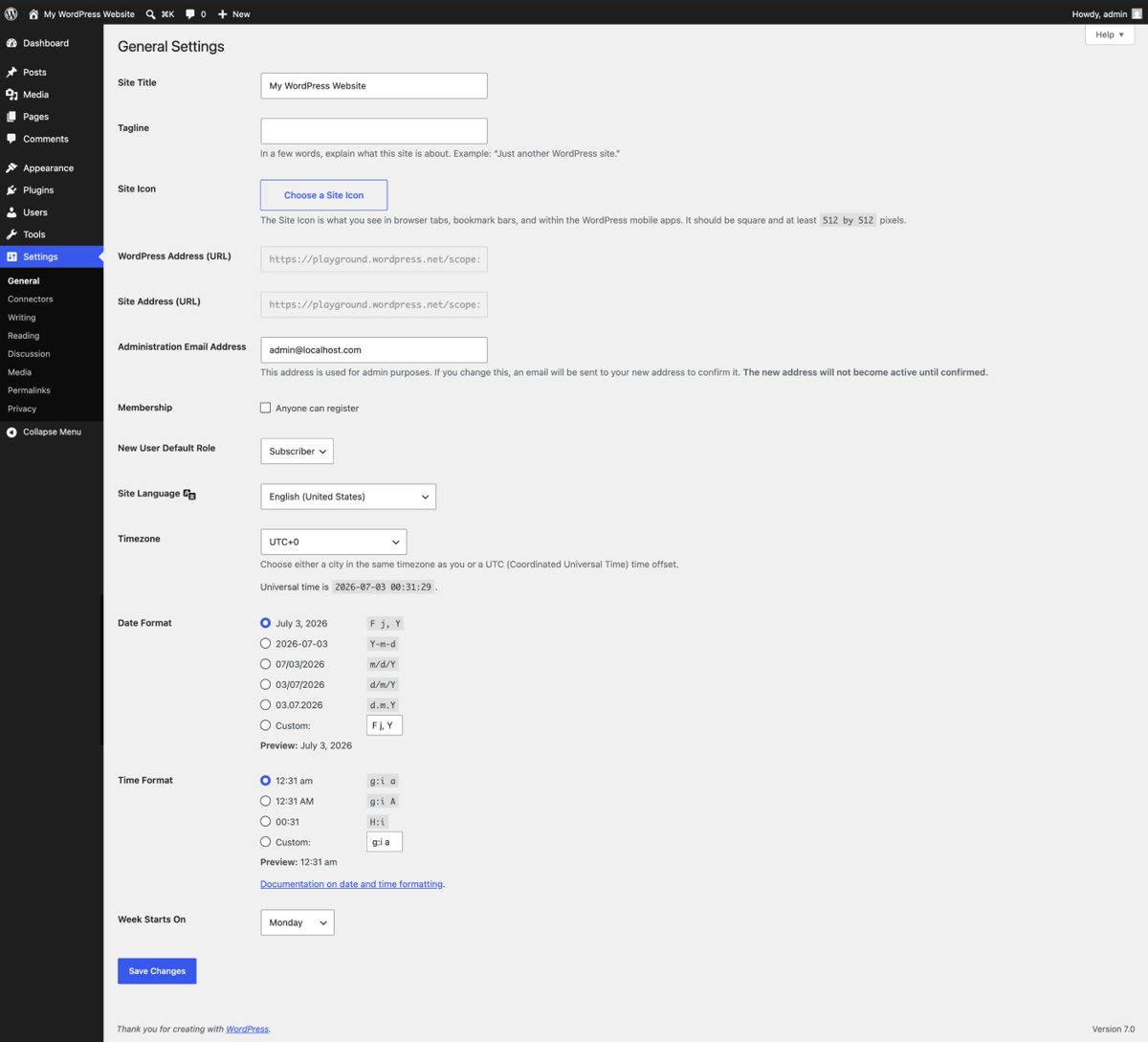
WordPress redirects to the address in its settings, so two settings that disagree with the server cause a loop.
- Sign in to the dashboard and open Settings > General.
- Make WordPress Address (URL) and Site Address (URL) match exactly, including
https://and www or non-www, with no trailing slash. - Select Save Changes, then load the site in a fresh Incognito window.
- If the loop blocks the dashboard, open
wp-config.phpon the server and adddefine( 'WP_HOME', 'https://example.com' );anddefine( 'WP_SITEURL', 'https://example.com' );with your own address. - If the site sits behind a proxy or load balancer that handles SSL and
FORCE_SSL_ADMINis on, add theHTTP_X_FORWARDED_PROTOcheck towp-config.phpso WordPress knows the visitor is on HTTPS. - Remove any HTTPS redirect from
.htaccessthat duplicates a redirect already done by the host or CDN, then retest.
The WordPress HTTPS documentation gives this check, which must sit in wp-config.php, not in a plugin: if( strpos( $_SERVER['HTTP_X_FORWARDED_PROTO'], 'https') !== false ) $_SERVER['HTTPS'] = 'on';. It only works if the proxy sends that header.
Hard-coding WP_HOME and WP_SITEURL greys out the two fields on the General screen until you remove the lines.
Fix Cloudflare too many redirects: SSL/TLS encryption mode
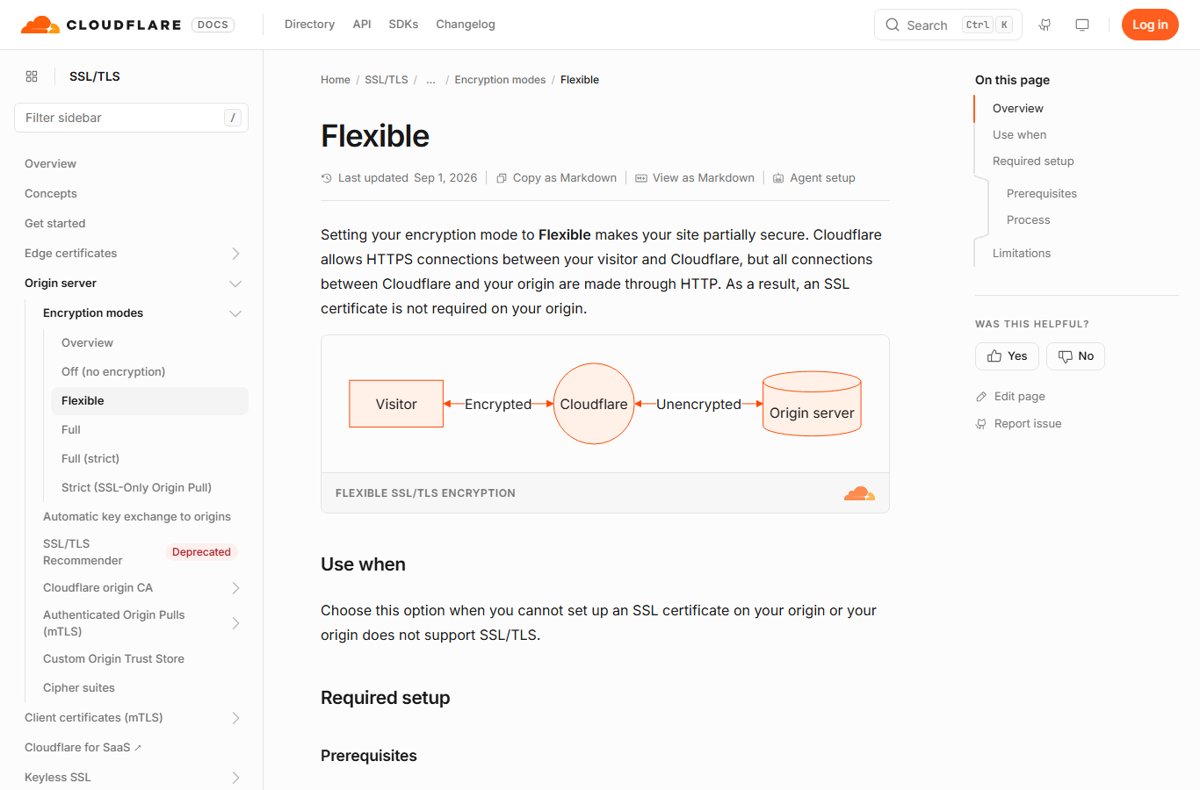
Cloudflare documents three settings that loop against the origin server's own redirects.
- Open the Cloudflare dashboard, select your domain, then open SSL/TLS.
- If the encryption mode is Flexible and your server redirects HTTP to HTTPS, change the mode to Full or Full (strict). Both need an SSL certificate on the origin.
- If the mode is Full or Full (strict), remove any redirect on the origin that sends HTTPS to HTTP.
- Under Edge Certificates, check Always Use HTTPS. If the origin redirects HTTPS to HTTP, remove that origin redirect or turn Always Use HTTPS off.
- Check HSTS in the same place. It loops when the origin redirects HTTPS to HTTP or the encryption mode is Off.
- Review your Redirect Rules and Page Rules and remove any pair that sends traffic back and forth between hostnames or protocols.
- Run the curl trace again to confirm the chain ends in a
200.
Keep HTTPS enforcement in one place only. If Cloudflare forces HTTPS at the edge, the origin does not need its own HTTP-to-HTTPS redirect.
Fix ERR_TOO_MANY_REDIRECTS on IIS: HTTP Redirect settings
An IIS redirect set on a site also applies to the content under it. When the destination sits inside that same site, the redirect fires again on arrival.
- Open Internet Information Services (IIS) Manager.
- In the Connections pane, expand the server name and Sites, then select the site or application that loops.
- In the Home pane, double-click HTTP Redirect.
- If Redirect requests to this destination points at a path inside the same site, select the option that limits the redirect to content in this directory, not subdirectories.
- Alternatively, open the destination folder in Connections, open its HTTP Redirect feature and clear Redirect requests to this destination there.
- Select Apply in the Tasks pane, then rerun the curl trace.
The same setting is stored as the <httpRedirect> element in the site's configuration, with enabled, destination, exactDestination, childOnly and httpResponseStatus attributes. Check web.config in each folder if the IIS Manager view looks clean but the loop continues.
How to check the redirect loop is fixed
- Load the page in a normal Chrome or Edge window. It should open instead of showing ERR_TOO_MANY_REDIRECTS.
- Open the same address in an Incognito or InPrivate window, which uses no saved cookies.
- Sign in to the site, if it has accounts, and reload a page. A cookie-related loop usually reappears at sign-in.
- For your own site, run
curl.exe -I -L --max-redirs 10against both thehttp://andhttps://address and confirm each chain ends in200. - Test the www and non-www versions too. Each should reach the same final address in one or two hops.
Too many redirects error still showing: fixes by symptom
ERR_TOO_MANY_REDIRECTS comes back after you sign in again
The site sets a fresh cookie that triggers the same loop, so the fault is on the site's side.
- Delete the site's cookies once more and test without signing in.
- If the page loads signed out but loops signed in, report it to the site with the time it happened.
- Use another browser in the meantime, since the site will apply the same cookie there.
Err too many redirects in Microsoft Edge but not in Chrome
Edge keeps its own cookies and extensions, separate from Chrome.
- Delete the site's cookies through Privacy, search, and services > Cookies > See all cookies and site data.
- Open the page in an InPrivate window.
- If it loads there, turn off Edge extensions one at a time until you find the one that loops.
github.com shows ERR_TOO_MANY_REDIRECTS
A large site that works for others points to stale cookies or an extension on your side.
- Delete cookies for github.com only, using the single-site steps for Chrome or Edge.
- Load the page in Incognito or InPrivate.
- Turn off extensions that rewrite or block requests, then reload.
Every browser and device gets the error on the same site
The loop is on the server, so cookies on your PC are not involved.
- Stop clearing cookies; it will not help.
- Check the site's status page or social account for an outage notice.
- If it is your site, run the curl trace and fix the two rules that alternate.
WordPress shows too many redirects right after enabling HTTPS
HTTPS is now forced in two places, or WordPress cannot see that the proxy already serves HTTPS.
- Set both URL fields, or
WP_HOMEandWP_SITEURL, to the samehttps://address. - Add the
HTTP_X_FORWARDED_PROTOcheck towp-config.phpif a proxy or CDN handles SSL. - On Cloudflare, switch Flexible to Full or Full (strict) once the origin has a certificate.
ERR_TOO_MANY_REDIRECTS FAQ
What does err too many redirects mean?
It means the page tried to redirect your browser too many times, so the browser stopped following the chain. Each address pointed to another address that eventually pointed back, and no page was ever reached.
What does too many redirects mean?
It means a redirect loop. A website sent the browser from one address to another in a circle, and the browser gave up and showed an error instead of looping forever. Chrome and Edge label it ERR_TOO_MANY_REDIRECTS.
What are too many redirects?
They are a chain of HTTP redirects, such as 301 or 302 responses, that never reaches a real page. The usual cause is two rules that point at each other, such as one forcing HTTPS and another forcing HTTP.
What does too many redirects occurred mean?
It is another wording for the same redirect loop, used by some apps and tools. The program followed redirects up to its limit without reaching a final page. curl, for example, stops at 50 redirects by default.
How to fix error too many redirects?
Delete the failing site's cookies in your browser and reload the page. In Chrome, open Settings > Privacy and security > Third-party cookies > See all site data and permissions, search for the site and delete its data.
How to solve err_too_many_redirects on my own website?
Trace the chain with curl.exe -I -L, find the two addresses that alternate, and remove one of the rules. On Cloudflare, check the SSL/TLS mode; on WordPress, make both URL settings match.
How to stop too many redirects error from coming back?
Enforce HTTPS and the www or non-www choice in one place only. Most recurring loops come from a CDN, the web server and WordPress each adding their own redirect for the same thing.
Does clearing cookies delete my passwords?
No. Deleting cookies signs you out of websites but leaves saved passwords in place. Deleting one site's cookies only signs you out of that site.
Can a browser extension cause ERR_TOO_MANY_REDIRECTS?
Yes. Google lists extensions among the causes of Chrome loading errors. If the page loads in Incognito, turn your extensions off and back on one at a time to find the one involved.
Bottom line: fixing ERR_TOO_MANY_REDIRECTS as a visitor or site owner
As a visitor, delete the site's cookies and reload; if every device fails, the site has to fix it. As a site owner, trace the chain with curl and remove the duplicate HTTPS or hostname redirect. The loop lives either in a stale cookie on your side or in two server rules that disagree. Cookies are the only part a visitor controls, and the curl trace shows a site owner exactly which two rules to reconcile.





![Java JRE latest version: Download & Install [32-bit, 64-bit]](https://techdows.com/wp-content/uploads/2026/10/Java-JRE-latest-version-Download-Install-32-bit-64-bit-1-600x338.jpg)