To cast a website to your TV from Microsoft Edge, open the site, select Settings and more, choose Cast media to device, and pick your Chromecast or Google Cast TV.
This guide covers what the TV needs, casting with Chrome or Windows when Edge has no Cast command, a site's own Cast button, sound, stopping a cast, and fixing a receiver Edge cannot find.
Try casting from Edge
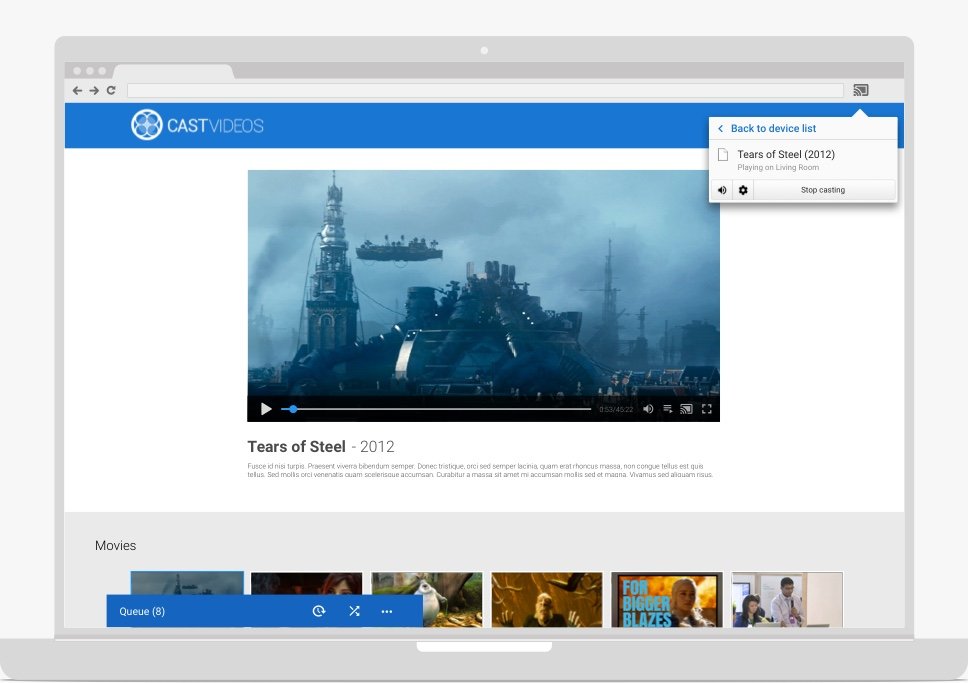
Google Cast is enabled in Edge by default, so no setting needs changing on a home PC. Turn on the TV or Chromecast first, and connect it to the same Wi-Fi network as your computer.
- Open the website you want on the TV in a Microsoft Edge tab.
- Select Settings and more (the three dots at the top right), or right-click an empty part of the page.
- Select Cast media to device.
- Choose your TV or Chromecast from the list of receivers.
- Check the TV: the tab should now appear on the screen.
Microsoft lists four places to start a cast in Edge: the app menu, page context menus, the media controls on Cast-enabled websites, and the Cast toolbar icon if it is showing.
Chromecast or Google Cast TV requirements for Edge casting
A plain smart TV does not always qualify. Edge sends to Google Cast receivers, so check the TV against this table before you troubleshoot anything.
| What you need | Details |
|---|---|
| A Google Cast receiver | Chromecast, Chromecast with Google TV, Google TV Streamer (4K), Chromecast Ultra, or a TV with Google Cast |
| The same Wi-Fi network | The computer and the receiver both need a strong connection to one network |
| Google Cast left on in Edge | It is on by default; a policy on a managed PC can turn it off |
| A Miracast TV, if you have no Cast receiver | Use Windows logo key + K instead of the Edge menu |
How to cast any website to TV from Edge, Chrome or Windows
| Your situation | Use this | Why |
|---|---|---|
| You have a Chromecast or Google Cast TV | Cast media to device in Edge | No extra software, and the tab plays on the TV |
| Edge shows no Cast command | Cast… in Chrome | Same receivers, separate browser |
| The site's video player has a Cast icon | The site's own Cast button | The TV plays the video directly |
| Your TV supports Miracast but not Google Cast | Windows logo key + K | Windows handles the wireless display |
| You want your whole desktop on the TV | Windows logo key + K, or Cast screen in Chrome | Everything on your screen appears, not one tab |
Use Chrome when Edge does not show a Cast command
Chrome is the quickest test when the Edge menu has no Cast entry, because it uses the same receivers on the same network. If Chrome finds the TV, the TV and the network are fine.
- Open the website in Chrome.
- Select More, then Cast, save, and share, then Cast….
- Select your TV or Chromecast. If that device is already in use, your tab replaces what is playing.
- To send the whole desktop, select Sources, then Cast screen, and select the device.
Chrome can also cast a local music or video file. Drag it into a tab or press Ctrl + O, then use the same Cast… command.
Use a website's own Cast button
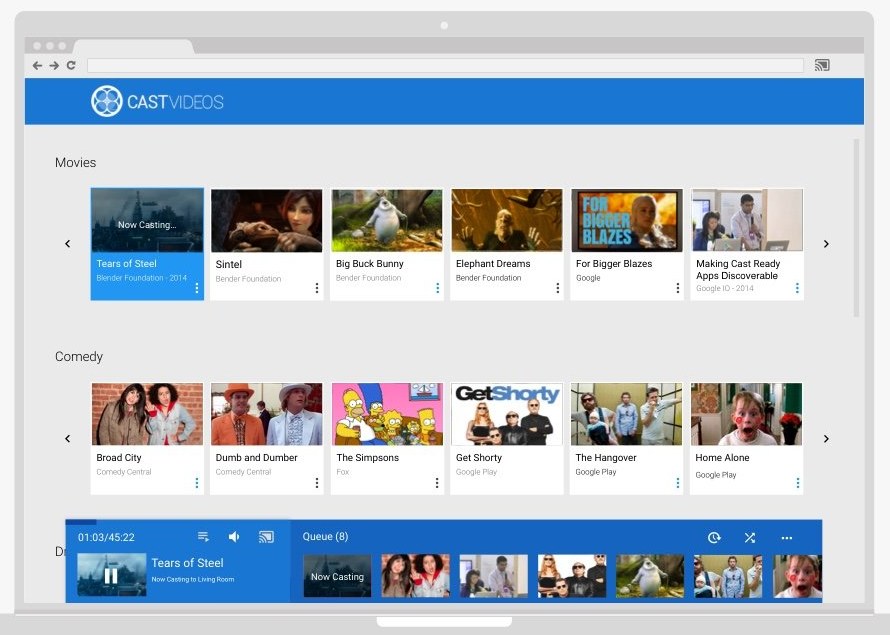
Sites that work with Google Cast put a Cast control in their media player. Using it sends the video to the TV rather than mirroring your browser tab. YouTube is the common example, and it also needs the YouTube app open on the TV.
- Put the computer and TV on the same Wi-Fi network, and open the YouTube app on the TV.
- Go to
youtube.comon your computer and open a video. - Select the three-dot menu in the video player, then select Cast.
- Choose your TV from the list, and the video starts on the TV.
Some YouTube features are not available when you cast from a browser. For a phone instead of a computer, you can cast your phone to a TV from its own settings.
Cast with Windows instead of Chromecast
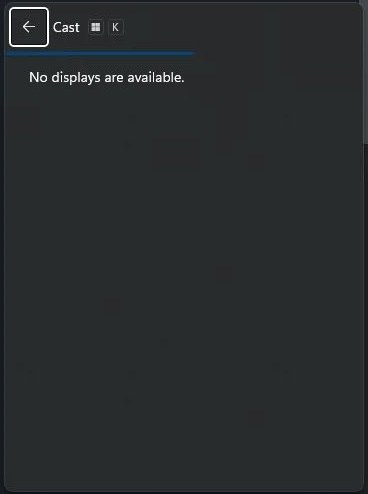
Windows casts over Miracast, which is a different system from Google Cast and works with Miracast TVs and adapters. It mirrors your screen, so Edge and every website you open appear on the TV.
- Turn on the TV. If you use a Miracast dongle or adapter, make sure it is plugged in.
- Open the website in Microsoft Edge.
- Press Windows logo key + K.
- Select the TV from the list of available devices.
- Follow any prompts on the screen.
How to cast web browser to TV in full screen
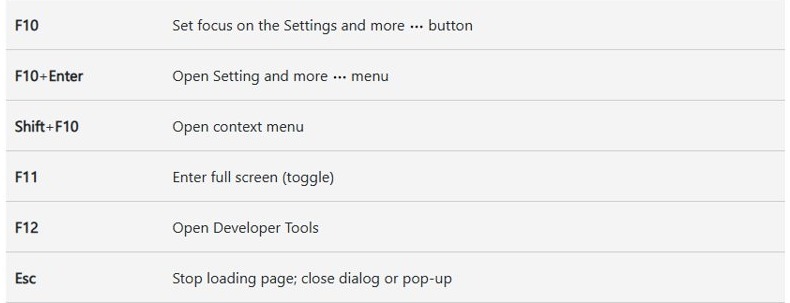
A cast of your whole screen shows the browser's toolbar and tabs on the TV unless you hide them. Edge has a full-screen mode that removes them from view.
- Start the screen cast with Windows logo key + K.
- Switch to the Edge window and open the website.
- Press F11 to enter full screen.
- Press F11 again when you want the toolbar back.
How to tell if a website is casting to your TV
The TV showing the page is the real proof, and the browser also marks the session. These markers are documented for Chrome, and Edge offers the same Cast toolbar icon.
- Look at the TV: it should show the tab you are casting.
- Look to the right of the address bar for the connected Cast icon.
- Check the tab itself, which shows a display icon while it is being cast.
- Play something with sound; a cast tab plays its sound only on the TV.
Show the Cast icon in the Edge toolbar
A pinned icon saves opening the menu for each cast, and it is also where you stop one. Microsoft documents the pin and remove commands on the icon's own menu.
- Start a cast once so the Cast icon appears.
- Right-click the Cast icon on the toolbar.
- Choose the option to pin the icon, or remove it if you no longer want it there.
On a managed PC, the Show the cast icon in the toolbar policy can force the icon on, and users cannot remove it then.
Stop casting from Microsoft Edge
End a cast from the Cast icon in the browser that started it. The steps are the same whether you cast one tab or a site's video.
- Select the Cast icon to the right of the address bar.
- Select Stop casting.
- Check that the TV has left the tab and the icon is no longer shown as connected.
A Miracast session started with Windows logo key + K is separate from the browser, so stopping a tab cast does not end it.
Why some websites do not cast properly
Tab casting works for most standard web content. These are the documented exceptions, and each has its own workaround.
| What goes wrong | Why | What to do |
|---|---|---|
| Plugin content does not play on the TV | Plugins such as Silverlight, QuickTime and VLC do not cast | Use the site's standard web player if it has one |
| Sound stays on the computer | A screen cast may keep audio on the computer | Cast the tab rather than the whole screen |
| A site's Cast button is missing | Cast buttons exist only on sites built to work with Google Cast, and need a secure HTTPS page | Cast the tab from the Edge menu |
| YouTube controls are limited | Some features are unavailable when you cast from a browser | Use the YouTube app on the TV directly |
Fix a receiver that Edge cannot find
Your TV is not in the Edge Cast list
The computer and receiver are usually on different networks, or the receiver has a weak signal.
- Confirm the computer and the streaming device are on the same Wi-Fi network, and check the network name in the device's settings.
- If the router has both bands, put the streaming device on the 5 GHz network.
- Restart the streaming device by unplugging it, waiting a few seconds, and plugging it back in.
- Restart your modem or router, and install any router firmware update.
- Move the router within 20 feet of the streaming device, or connect the device by Ethernet adapter.
Cast media to device is missing from the Edge menu
A policy can switch Google Cast off, which removes it from the menu, page menus, media controls and toolbar.
- Type
edge://policyin the address bar and press Enter. - Look for EnableMediaRouter; false means casting is disabled.
- On a personal PC, enable Cast media to device in Edge and restart the browser.
- On a work PC, ask your IT administrator, or test with Chrome.
Edge finds no receivers on a work PC
Edge uses the DIAL protocol to discover Cast devices by default, and a policy can turn that off.
- Check
edge://policyfor EdgeDisableDialProtocolForCastDiscovery. - If it is enabled on a managed PC, ask your administrator to review it.
- Restart Edge after any policy change, because Cast policies do not refresh while the browser runs.
Your TV supports Miracast but Win + K finds nothing
The PC or the display does not support Miracast, or a saved connection has gone stale.
- Press Windows logo key + K. A message asking for a cable means the PC does not support Miracast.
- Make sure Wi-Fi is on, then plug a Miracast adapter into the TV's HDMI port if the TV lacks Miracast.
- Update your drivers and the adapter's firmware from the manufacturer.
- Restart your PC and the wireless display.
- Go to Settings > Bluetooth & devices > Devices, select the display under Wireless displays & docks, select Remove device, and reconnect.
No sound on the TV when casting from the browser
A screen cast may leave audio on the computer, while a tab cast plays only on the TV.
- Stop the current cast.
- Start it again with the tab option rather than Cast screen.
- Check the TV's volume, because the tab's sound now plays there.
Edge cannot find the TV but a phone can
The receiver is working, so the problem sits with the computer's network or the browser.
- Try the same cast in Chrome.
- Try the receiver's own app, such as YouTube on the TV, to confirm the receiver is online.
- Connect the computer to the Wi-Fi network the phone is using.
Vizio owners can also cast on a Vizio TV from a phone or laptop, which helps confirm the TV itself is working.
Cast websites from Edge to TV FAQ
How do I cast a website to my TV?
Open the website in Microsoft Edge, select Settings and more, select Cast media to device, and choose your Chromecast or Google Cast TV. The computer and the TV must be on the same Wi-Fi network for the receiver to appear in the list.
How do I cast any website to a TV?
Cast the browser tab rather than looking for a button on the site. Tab casting works on most standard web content from Edge or Chrome. Pages that depend on plugins such as Silverlight, QuickTime or VLC will not display correctly on the TV.
How do I cast a web browser to a TV?
Use a screen cast to show the whole browser. Press Windows logo key + K for a Miracast TV, or select Sources and Cast screen in Chrome for a Google Cast receiver. Press F11 in Edge to hide the toolbar on the TV.
Can Microsoft Edge cast directly to Chromecast?
Yes. Edge supports Google Cast and has it enabled by default, so it can send a tab straight to a Chromecast on the same Wi-Fi network. The option disappears only if the Enable Google Cast policy is set to disabled.
Can I use Ctrl+Shift+S to cast from Edge?
No. Microsoft's Edge keyboard shortcuts list has no casting shortcut, and it does not list Ctrl+Shift+S at all. Start a cast from the Settings and more menu, the page's right-click menu, or the Cast icon on the toolbar instead.
Why can't Edge find my TV?
The most common reason is that the computer and TV are on different Wi-Fi networks. A TV that supports only Miracast will not appear either, because Edge casts through Google Cast. Press Windows logo key + K to look for a Miracast TV.
What is the difference between Chromecast and Miracast?
Chromecast uses Google Cast, which sends a tab or a video to a Cast receiver from your browser. Miracast is the wireless display standard Windows uses with Windows logo key + K, and it mirrors your whole screen to a compatible TV or adapter.
Will tab casting send all computer audio to the TV?
No. When you cast a tab, that tab's sound plays only on the TV, and audio from other tabs and apps stays on your computer. A screen cast is different, because the audio may keep playing on the computer.
What does cast do on a computer?
Casting sends what is on your computer to a TV or other receiver without a cable. In a browser it can send one tab or your whole screen. In Windows, the Cast feature connects your screen to a Miracast wireless display.