Run net use Z: \\Server01\Public in Command Prompt to map a shared folder to drive Z: in Windows 11.
The same command lists your connections, signs in with another account, keeps a drive after restart and removes it again, and each job is covered below with its exact syntax and the errors it can return.
How to use net use command in Windows 11/10
You need the server name and the share name. The command runs from Command Prompt or PowerShell, and it maps the share for the account you are signed in with.
- Select Start, type
cmd, then press Enter to open Command Prompt. - Type
net use Z: \\Server01\Public, replacingServer01andPublicwith your server and share, then press Enter. - Type
net useand press Enter. The new connection appears withZ:in the Local column andOKin the Status column. - Open File Explorer and select This PC to use the new drive.
What does the net use command do?
net use connects a computer to a shared resource, disconnects it, or shows current connections. It also controls persistent connections, so a drive can return at your next sign-in.
| Job | Command | Result |
|---|---|---|
| List every connection | net use |
Shows status, local device, remote path and network |
| Inspect one connection | net use Z: |
Shows details for drive Z: only |
| Map a specific drive letter | net use Z: \\Server01\Public |
Assigns Z: to the share |
| Map the next free letter | net use * \\Server01\Public |
Windows picks the letter for you |
| Disconnect a drive | net use Z: /delete |
Cancels the connection |
| Remember future connections | net use /persistent:yes |
Restores connections at the next sign-in |
Net use command syntax in Command Prompt
The first line below is the form you use most often. The other two connect a home directory and change the persistence setting.
net use [{<DeviceName> | *}] [\\<ComputerName>\<ShareName>] [{<Password> | *}] [/user:[<DomainName>\]<UserName>] [/savecred] [/smartcard] [{/delete | /persistent:{yes | no}}]
net use <DeviceName> /home [{<Password> | *}]
net use /persistent:{yes | no}
Square brackets mark optional parts, and braces mark a choice between values. Run net help use to print the built-in help for your copy of Windows.
Net use command parameters
| Parameter | What it does |
|---|---|
<DeviceName> |
A disk drive from D: to Z:, or a printer port from LPT1: to LPT3:. Type * to take the next available name. |
\\<ComputerName>\<ShareName> |
The server and shared resource. Put the whole path in quotation marks if it contains spaces. |
<Password> |
The password for the share. Type * to get a prompt that hides what you type. |
/user: |
Connects with a different account, as DomainName\UserName or UserName@DottedDomainName. Without a domain, the current logged-on domain is used. |
/savecred |
Stores the credentials you provide so they can be reused. |
/smartcard |
Uses the credentials on a smart card, and asks which one if several are available. |
/delete |
Cancels the named connection. With *, it cancels all network connections. |
/persistent:yes |
Saves connections as they are made and restores them at the next sign-in. |
/persistent:no |
Stops saving the current and later connections. Connections already saved still come back until you delete them. |
/home |
Connects you to your home directory. |
/TRANSPORT:QUIC |
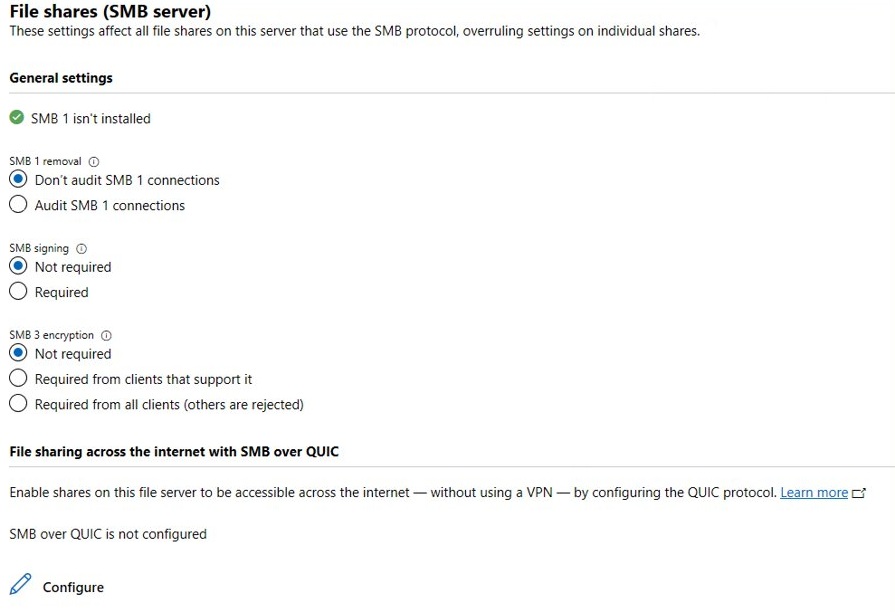
Windows 11 only: requires SMB over QUIC instead of trying TCP first. The file server must have QUIC enabled. |
How do I map a network drive using net use command?
- Run
net useto see which drive letters your network connections already hold. - Run
net use M: \\Server01\Publicwith a free letter to map the whole share. - Run
net use N: \\Server01\Public\Reportsto map a folder inside the share instead. - Run
net use * \\Server01\Publicif you would rather let Windows choose the letter, then note the letter it reports. - Open This PC in File Explorer to confirm the drive appears next to your local disks.
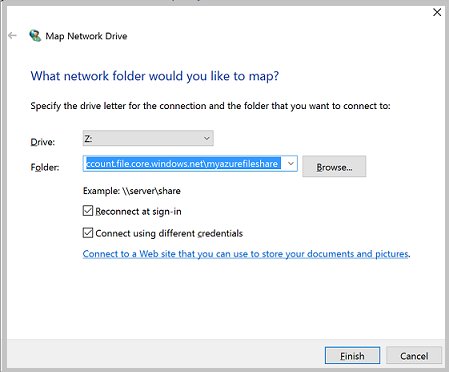
You can also map a network drive in File Explorer when you prefer a dialog to a command.
How to make a net use drive persistent after restart
The default for /persistent is whichever setting you used last, so state it when it matters. A connection without a drive letter is never persistent.
- Run
net use Z: \\Server01\Public /persistent:yesto map the drive and save it. - Run
net use /persistent:yesto keep saving connections you make later in the same way. - Sign out and back in, then run
net useto confirmZ:returned. - Run
net use /persistent:nowhen you want later connections to last only for this session.
/persistent:no leaves existing saved connections in place. Use /delete to remove one of those for good.
Net use with username and password in Windows 11
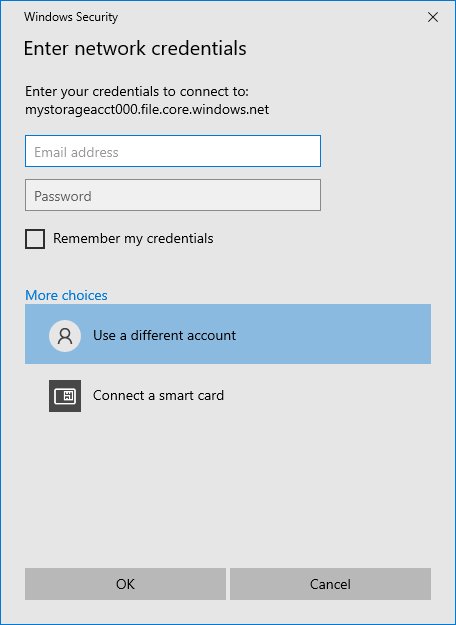
Use * in place of the password. Windows then prompts for it and does not display it, so the password never sits on screen in the command.
- For a domain account, run
net use Z: \\Server01\Public * /user:Contoso\Alex. - For an account with a full domain name, run
net use Z: \\Server01\Public * /user:[email protected]. - For a local account on the server, use the server name as the domain:
net use Z: \\Server01\Public * /user:Server01\Alex. - Add
/savecredto the command if you want those credentials stored for reuse. - Run
cmdkey /listto see stored credentials, andcmdkey /delete:Server01to remove the entry for that server.
How to delete a mapped drive with net use
- Run
net useand note the letter of the drive you want to remove. - Run
net use Z: /deleteto disconnect that one drive. - Run
net use * /deleteonly if you want to cancel all network connections at once. - Run
net useagain. The removed drive is no longer in the list.

How to see mapped network drives with net use
net useWith no parameters, the command lists the connections for your account. Add a letter, as in net use Z:, to inspect a single connection.
You should see: a table with Status, Local, Remote and Network columns, such as OK, Z:, \\Server01\Public and Microsoft Windows Network.
Net use command examples
| Situation | Command |
|---|---|
| Server and share names contain spaces | net use K: "\\Financial 2\Memos" |
| Connect with an account from another domain | net use D: \\Server\Share /user:Accounts\User1 |
| Connect without assigning a drive letter | net use \\Server01\Public |
| Connect to your home directory | net use H: /home |
| Connect a shared printer to a port | net use LPT1: \\Server01\LaserPrinter |
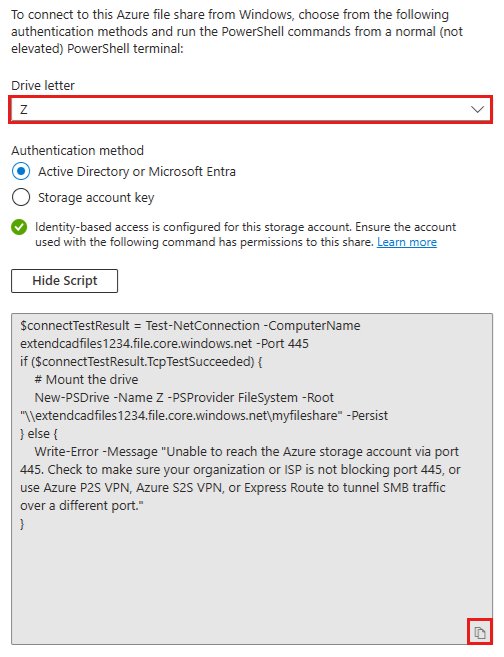
| Mount an Azure file share (TCP port 445 must be open) | net use Z: \\<account>.file.core.windows.net\<share> |
| Force SMB over QUIC on Windows 11 | net use * \\fsedge1.contoso.com\sales /TRANSPORT:QUIC |
| Disconnect a drive and name its share | net use F: \\Financial\Public /delete |
How to use net use command in PowerShell
PowerShell runs Windows commands as well as cmdlets, so net use works there exactly as typed. Microsoft also provides cmdlets for the same jobs, which suit scripts better.
| Job | Net use | PowerShell cmdlet |
|---|---|---|
| Map a drive | net use X: \\Server01\VMFiles |
New-SmbMapping -LocalPath "X:" -RemotePath "\\Server01\VMFiles" |
| List mappings | net use |
Get-SmbMapping |
| Remove a mapping | net use X: /delete |
Remove-SmbMapping -LocalPath "X:" |
| Save a mapping that uses another account | net use S: \\Server01\Scripts * /user:Contoso\Alex /persistent:yes |
New-PSDrive -Name "S" -Root "\\Server01\Scripts" -Persist -PSProvider "FileSystem" -Credential $cred |
Without -Persist, New-PSDrive creates a temporary drive that only PowerShell can see, so net use and File Explorer will not list it. Inside a script, add -Scope Global so the mapping outlives the script.
Net use vs net user command
The two names differ by one letter and do unrelated jobs. net use handles connections to shares, while net user handles accounts.
| Command | Manages | Example | Example result |
|---|---|---|---|
net use |
Connections to shared folders and printers | net use Z: \\Server01\Public |
Maps a share to Z: |
net user |
Local and domain user accounts | net user |
Lists accounts on the local computer |
net user |
Local and domain user accounts | net user tommyh |
Shows details for one account |
Command line tools and applications available in Windows 11
Windows has two command-line shells: the Command shell and PowerShell. PowerShell runs both Windows commands and cmdlets, while Command Prompt runs Windows commands only.
These built-in tools pair well with net use when you work with network shares and the machines behind them.
| Tool | What it does | When it helps |
|---|---|---|
cmd |
Starts the Command shell | Running net use and batch files |
powershell |
Starts Windows PowerShell | Running cmdlets such as Get-SmbMapping |
net user |
Adds, changes, deletes and displays user accounts | Checking the account you plan to connect with |
cmdkey |
Creates, lists and deletes stored user names and passwords | Clearing old credentials for a server |
ipconfig |
Displays TCP/IP configuration and refreshes DHCP and DNS settings | Checking your own address and DNS |
ping |
Verifies IP-level connectivity to another computer | Finding out whether a server answers |
nslookup |
Displays information for diagnosing DNS | Checking that a server name resolves |
netstat |
Displays active TCP connections and listening ports | Reviewing current connections |
robocopy |
Copies file data from one location to another | Copying folders to or from a mapped share |
subst |
Associates a local path with a drive letter | Giving a local folder a drive letter instead of a share |
diskpart |
Manages disks, partitions and volumes | Local storage work, not network shares |
For local storage, you can manage disks with DISKPART. The full Command Prompt command list goes well beyond this table, and Windows 11 Run commands open many of the same tools from the Run box.
Net use command errors in Windows 11
System error 53 has occurred. The network path was not found
Windows cannot reach the server. The name may not resolve, TCP port 445 may be blocked, or sharing or the TCP/IP NetBIOS Helper service may be off.
- Run
ping Server01, then ping the server's IP address. If only the IP address answers, you have a name resolution problem. - In PowerShell, run
Test-NetConnection -ComputerName Server01 -Port 445and read the TcpTestSucceeded value. - On the server, open Control Panel and go to Network and Internet > Network and Sharing Center > Advanced sharing settings.
- Select Turn on file and printer sharing, then select Save changes.
- On your PC, open Services and make sure TCP/IP NetBIOS Helper is running with its Startup type set to Automatic.
System error 67: The network name cannot be found
The server answered, but the share name in your command is wrong or no longer exists.
- Type
\\Server01in the File Explorer address bar to see the folders that server shares. - Copy the exact share name into your command, with quotation marks around the path if it contains spaces.
- Run the
net usecommand again.
System error 85: The local device name is already in use
The drive letter in your command is already assigned.
- Run
net useto see what holds the letter. - Run
net use * \\Server01\Publicto take the next free letter, or pick another letter yourself. - Run
net use Z: /deletefirst if the old mapping is no longer needed.
System error 1219: Multiple connections to a server or shared resource by the same user
You already have a connection to that server under a different user name, and Windows does not allow two at once.
- Run
net useand find every connection to that server. - Run
net use Z: /deletefor each one, using the letter shown. - Reconnect with the account you need:
net use Z: \\Server01\Public * /user:Contoso\Alex.
System error 5 or 86: Access is denied, or the specified network password is not correct
The account has no permission on the share, or Windows is sending the wrong credentials.
- Run
cmdkey /listand look for an old entry for that server. - Run
cmdkey /delete:Server01to remove it. - Connect again with
net use Z: \\Server01\Public * /user:Contoso\Alexand type the password at the prompt. - If access is still denied, ask the share owner to grant your account permission on that share.
Mapped drive missing in an elevated Command Prompt
Mapped drives belong to a logon session, so a drive mapped in a normal window is not visible in a window run as administrator, and the reverse is also true.
- Run
net usein the elevated window to confirm the drive is absent. - Map the drive again in that window with
net use Z: \\Server01\Public.
Net use /delete does not remove the drive
You cannot disconnect a share while it is your current drive or while a running process is using it.
- Run
cd /d C:\if your prompt is sitting on the mapped drive. - Close any app or window with a file open on that drive.
- Run
net use Z: /deleteagain.
Net use command FAQ
How to use net use command in cmd?
Open Command Prompt, type net use followed by a drive letter and a share path, such as net use Z: \\Server01\Public, and press Enter. Type net use alone to list your connections, and add /delete after a drive letter to disconnect it.
How to run net use command?
Run it from Command Prompt or PowerShell. Select Start, type cmd and press Enter, then type the command. A connection you make in a normal window is visible to that account, so map the drive again if you later open a window as administrator.
What is net use command?
net use is a built-in Windows command that connects a computer to a shared folder or printer, disconnects it, and displays current network connections. It also controls whether those connections come back at your next sign-in through the /persistent switch.
How to use net use command to map drive?
Type net use, then a free drive letter, then the share path: net use Z: \\Server01\Public. Use * in place of the letter to let Windows choose one, and add /persistent:yes if the drive should return at your next sign-in.
How to use net use command in PowerShell?
Type it exactly as you would in Command Prompt, because PowerShell runs Windows commands. For scripts, the matching cmdlets are New-SmbMapping, Get-SmbMapping and Remove-SmbMapping, and New-PSDrive -Persist creates a mapped drive that net use can also see.
How to use net user command?
Run net user to list the accounts on the local computer, or net user tommyh to see one account. It manages user accounts rather than network connections, so it is a different tool from net use despite the similar name.
What does the net command do?
net is a family of Windows commands, each followed by a subcommand that sets the job. net use manages network connections, net user manages accounts, and net help followed by a subcommand name displays the help text for that subcommand.
Where is the net use command help?
Run net help use in Command Prompt or PowerShell to print the syntax and switches for the command. The output comes from your own copy of Windows, so it is a quick way to check a switch before you put it in a script.