To update Apple Watch, open the Apple Watch app on your iPhone, tap General > Software Update, and download the update; upgrading means replacing the watch with a newer model.
This guide covers both routes to watchOS 27, which models can run it, fixes for an update that stalls, app updates, and moving to a new watch with a trade-in.
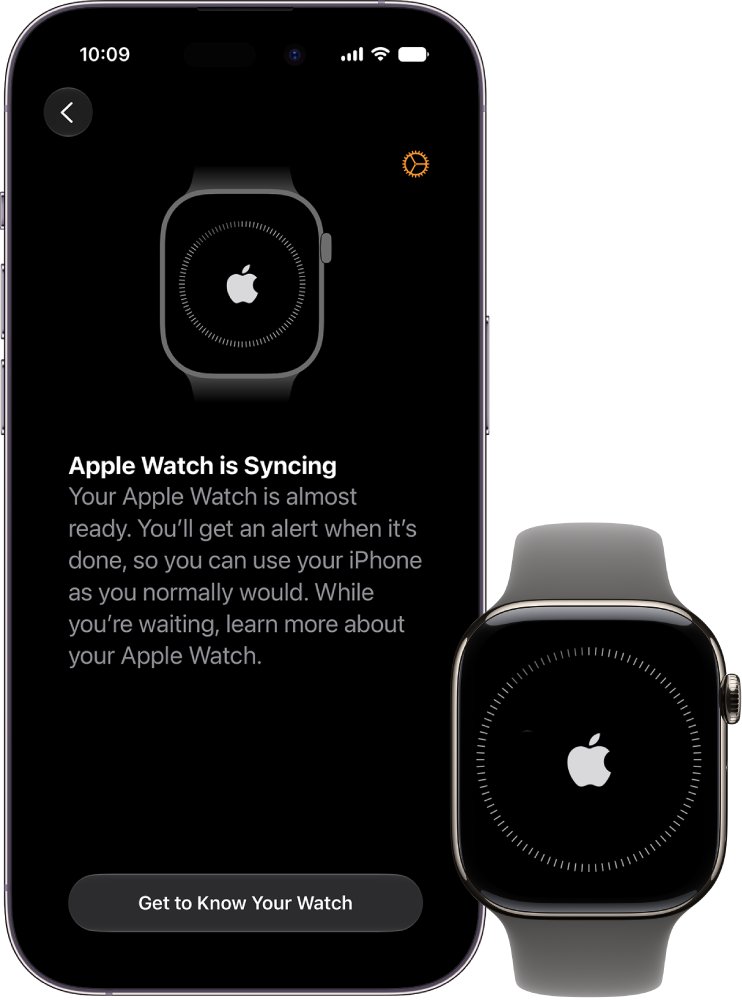
How to update Apple Watch from iPhone
- Update your iPhone to the latest iOS and connect it to Wi-Fi.
- Charge your Apple Watch to at least 50 percent and leave it on its charger.
- Open the Apple Watch app on your iPhone and tap the My Watch tab.
- Tap General, then tap Software Update.
- Tap Download and Install. Enter your iPhone or Apple Watch passcode if asked.
- Wait for the progress wheel to appear on your Apple Watch.
- Keep the iPhone nearby until the watch restarts on its own.
The update can take from several minutes to an hour. Do not restart either device or quit the Apple Watch app while it runs.
How to update software on Apple Watch
You can install watchOS directly on the watch, without your iPhone, as long as the watch is on Wi-Fi.
- Connect your Apple Watch to Wi-Fi.
- Open the Settings app on the watch.
- Tap General, then tap Software Update.
- Tap Install if an update is available, then follow the onscreen instructions.
- Leave the watch on its charger until it restarts on its own.
How to schedule an Apple Watch update overnight
Apple Watch can also prompt you when a new version is ready, so the install happens while you sleep.
- Wait for the update notification on your Apple Watch.
- Tap Update Tonight in the notification.
- Go to your iPhone and confirm the overnight update.
- Leave your Apple Watch and iPhone charging overnight.
Apple Watch update requirements: battery, Wi-Fi and iPhone
| Requirement | What Apple asks for | What it means for you |
|---|---|---|
| iPhone software | The latest version of iOS | watchOS 27 needs iOS 27, so update the iPhone first |
| Watch battery | At least 50 percent charged | Keep the watch on its charger during the install |
| Network | iPhone on Wi-Fi, or the watch on Wi-Fi for a direct install | Join a Wi-Fi network before you tap the update button |
| Distance | iPhone near the watch throughout | Do not leave the room with your iPhone during an iPhone-led update |
| Time | Several minutes to an hour | Start before bed or when you can leave the watch alone |
Which Apple Watch models can update to watchOS 27?
| Apple Watch | Runs watchOS 27 | What Software Update shows |
|---|---|---|
| Apple Watch SE 3 | Yes | watchOS 27 and its updates |
| Apple Watch Series 9 and later | Yes | watchOS 27 and its updates |
| Apple Watch Ultra 2 and later | Yes | watchOS 27 and its updates |
| Any model not listed above | No | The newest version your watch can use |
watchOS 27 also requires iPhone 11 or later, or iPhone SE (2nd generation) or later, with iOS 27. Not every watchOS 27 feature reaches every model.
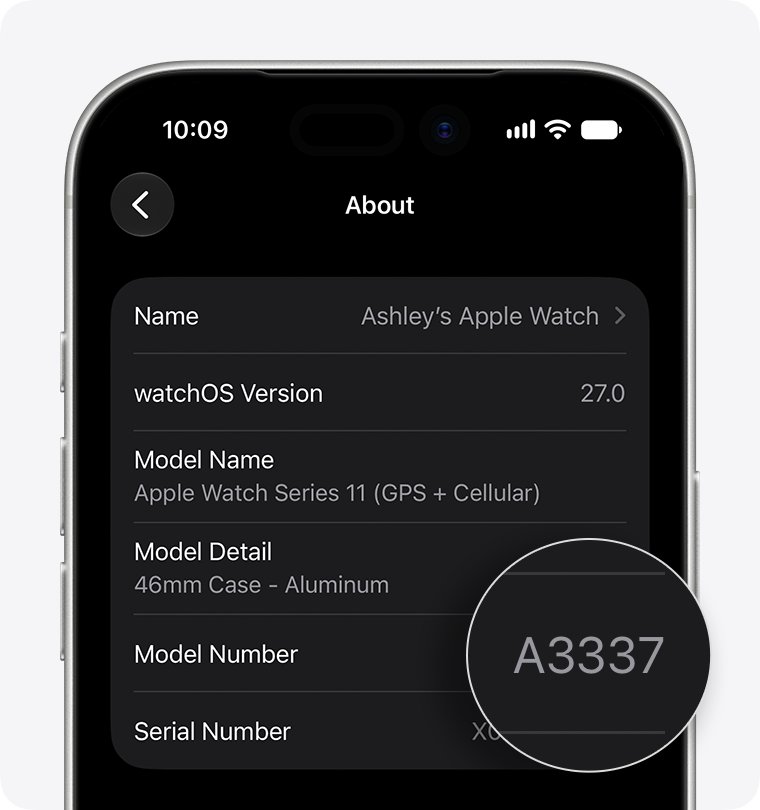
To identify your watch, open the Apple Watch app, tap My Watch > General > About, then tap the Model Number field. It changes from a part number starting with M to a model number starting with A.
What is the new Apple Watch update?
As of November 2026, Apple's release notes list watchOS 27.2 as the newest version.
| Version | What it adds or fixes |
|---|---|
| watchOS 27.2 | Siri AI recalls past conversations, draws on more personal context, responds faster and supports more languages, plus bug fixes and security updates |
| watchOS 27.0.1 | Fixes an issue where Apple Watch may restart unexpectedly |
| watchOS 27 | Siri AI, Workout Buddy updates, a new tap gesture and a dynamic app grid for your most used apps |
Siri AI is not available in the EU or mainland China. Some features also vary by region and model.
Why isn't my Apple Watch updating?
Apple Watch update won't start
The watch may not be connecting to its charger, or the downloaded update file may need replacing.
- Check that the watch is connecting properly to its charger. If no lightning bolt appears, fix the Apple Watch charging problem first.
- Take the watch off its charger, because Apple Watch cannot restart while charging.
- Press and hold the side button until the sliders appear, then turn the watch off and back on.
- Restart the paired iPhone and try the update again.
- If it still won't start, open the Apple Watch app, tap General > Storage, and delete the update file.
- Run Software Update again to download a fresh copy.
Apple Watch says Unable to Verify Update
The watch cannot verify the update because it reports no internet connection.
- Confirm the watch is online through your iPhone, Wi-Fi or cellular, then try again.
- Restart the watch and try again.
- Remove synced music and photos from the watch, then try again.
- Remove some apps if the error persists.
- As a last resort, unpair the watch, set it up as new, update it, then unpair it again and restore from the backup.
Apple Watch not updating because it needs more storage
The update needs more free space than the watch has.
- Restart the watch and try the update again.
- Open Settings > General > Storage on the watch to see what is using space.
- Remove music, turn off photo syncing and remove some apps.
- Install the update, then add the music, photos and apps back.
- If you still can't update, unpair the watch, set it up as new, install the update, then unpair again and choose to restore from backup.
Trouble updating Apple Watch after installing a beta
A beta profile blocks the next major version.
- Open the Apple Watch app and tap My Watch > General > Profiles.
- Tap the beta profile, then tap Delete Profile.
- On the iPhone, open Settings > General > Profiles & Device Management and delete any iOS beta profile.
- Restart both devices and check for the update again.
iPhone says Your Apple Watch software is out of date
Some iOS updates require a matching watchOS update so your data, including Activity data, keeps syncing.
- Open the Apple Watch app and tap General > Software Update.
- Install the latest watchOS version your watch can use.
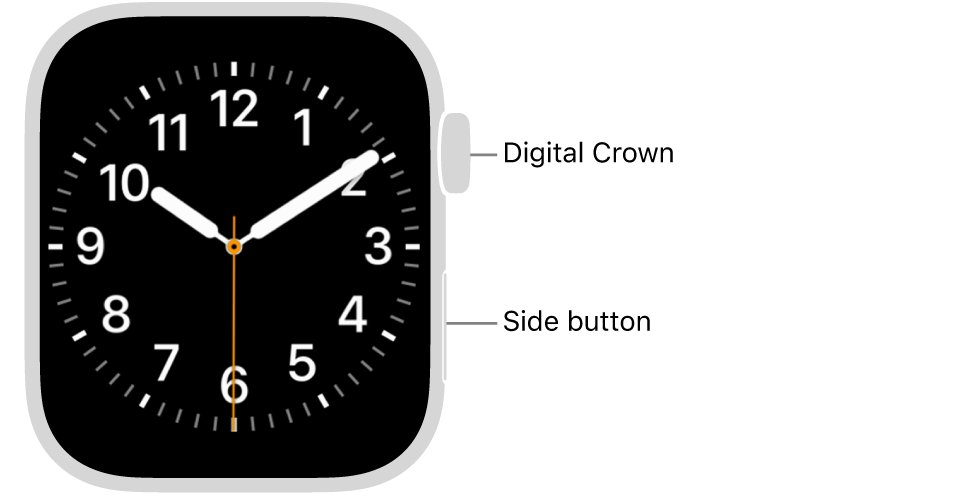
If the watch freezes and you cannot turn it off, hard reset the Apple Watch by holding the side button and Digital Crown for at least 10 seconds, until the Apple logo appears.
How to update Apple Watch apps
App updates are separate from watchOS and run through the App Store, on either device.
- Open the App Store on your iPhone.
- Tap the My Account button or your photo at the top of the screen.
- Tap App Updates.
- Tap Update next to one app, or tap Update All.
On the watch itself, open the App Store, scroll to the bottom, tap Account, then tap Updates.
watchOS 27 requires 64-bit apps. A third-party app that lacks 64-bit support disappears from the watch until its developer updates it.
How to turn on automatic app updates on Apple Watch
- Open the Settings app on your Apple Watch.
- Tap App Store.
- Turn on Automatic Updates to download new app versions when they are available.
- Turn on Automatic Downloads if you also want watchOS versions of apps bought on your other devices.
The same settings are in the Apple Watch app on your iPhone, under My Watch > App Store.
How to update Apple Watch on computer
Apple does not document a Mac or PC route for updating Apple Watch. The two supported routes are the Apple Watch app on your iPhone and the Settings app on the watch. A computer only comes into it for backups, because a computer backup of your iPhone includes your Apple Watch backup.
Should I upgrade my Apple Watch?
| Your situation | Do this | Why |
|---|---|---|
| Your watch is on Apple's watchOS 27 list but runs an older version | Update it and keep the watch | A software update brings the same watch to the current release |
| Your watch is not on the watchOS 27 list | Upgrade if you want watchOS 27 | Software Update stops at the newest version that watch can use |
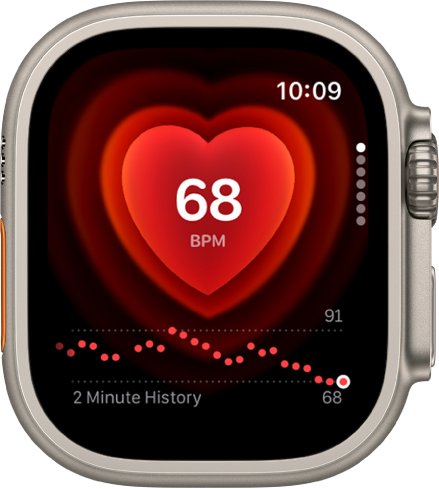
| You want Readiness, real-time heart rate charting or Sound Recognition | Choose Apple Watch Series 12 or Ultra 4 | Apple lists these watchOS 27 features for those two models |
| Your iPhone is older than iPhone 11 or iPhone SE (2nd generation) | Replace the iPhone before the watch | A new watch running watchOS 27 needs an iPhone that runs iOS 27 |
| Your watch still won't charge after every fix | Contact Apple for service first | Apple says a watch that still won't charge might need service |
Before you buy, compare every Apple Watch generation side by side.
How to upgrade Apple Watch to a new model
Your old watch backs up continuously to your paired iPhone, so a new watch can start from that backup. You pair Apple Watch the same way whether it is your first or your replacement.
- Update your iPhone to the latest iOS and turn on Bluetooth.
- Put on the new watch, then press and hold the side button until the Apple logo appears.
- Hold your iPhone near the watch and tap Continue on the pairing screen.
- Tap Set Up for Myself, then line up the watch in the viewfinder on your iPhone.
- On the Make This Your New Apple Watch screen, tap Continue to use Express Setup.
- Tap Customize Settings instead if you want to choose a backup from your previous watch.
- Follow the onscreen steps to sign in and create a passcode.
You can keep both watches paired. Your iPhone connects automatically to the one you are wearing.
How to trade in Apple Watch for upgrade
Apple Trade In accepts Apple Watch online and at Apple Stores. A watch that is not eligible for credit can still be recycled for free.
- Find the serial number on the watch in Settings > General > About.
- Get your estimate on the Apple Trade In page, or take the watch to an Apple Store.
- Choose your new Apple product, add the trade-in device and check out.
- Open the Apple Watch app, tap My Watch > All Watches, then tap the info button next to your watch.
- Tap Unpair Apple Watch, remove the cellular plan if you have one, and enter your Apple Account password to turn off Activation Lock.
- Pack only the watch in Apple's kit, without bands, chargers or other accessories.
- Send it within 14 days of receiving your new watch.
Unpairing erases the watch and creates a backup first. If you are keeping the watch instead, you can reset it to factory settings without unpairing.
How to check if Apple Watch is up to date
- Open the Settings app on your Apple Watch.
- Tap General, then tap Software Update.
- If Install appears, an update is waiting, so install it.
- If no update is offered, the watch is already on the newest version it can use.
Apple Watch update FAQ
How do I update my Apple Watch software?
Open the Apple Watch app on your iPhone and tap My Watch, General, then Software Update. You can also open Settings on the watch and use the same General and Software Update path. Keep the watch on its charger until it restarts.
How do I manually update Apple Watch?
Open Software Update yourself instead of waiting for the notification. On iPhone, go to My Watch, General, Software Update and download the update. On the watch, go to Settings, General, Software Update and tap Install.
How do I install updates on Apple Watch?
Connect the watch to Wi-Fi, open Settings, tap General, then tap Software Update. Tap Install if an update is available and follow the prompts. Leave the watch on its charger, and it restarts on its own when the update finishes.
Can you upgrade an Apple Watch?
You can upgrade its software through Software Update, up to the newest watchOS that model supports. Moving beyond that limit means buying a newer watch. Your new watch can restore a backup of the old one during setup.
Does Apple take a watch for upgrade?
Yes. Apple Trade In accepts Apple Watch for credit toward a new product, online or at an Apple Store. You need the serial number for an accurate estimate, and Apple recycles a watch for free if it is not eligible for credit.
How do I upgrade Apple Watch?
Buy the newer model, turn it on near your iPhone and tap Continue on the pairing screen. Then follow Express Setup, or choose Customize Settings to restore a backup from your previous watch. Unpair the old watch before you sell or trade it in.