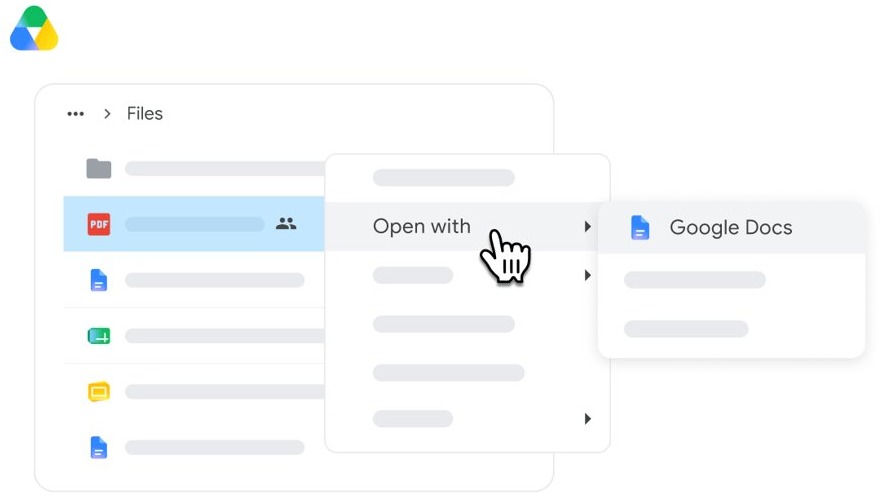
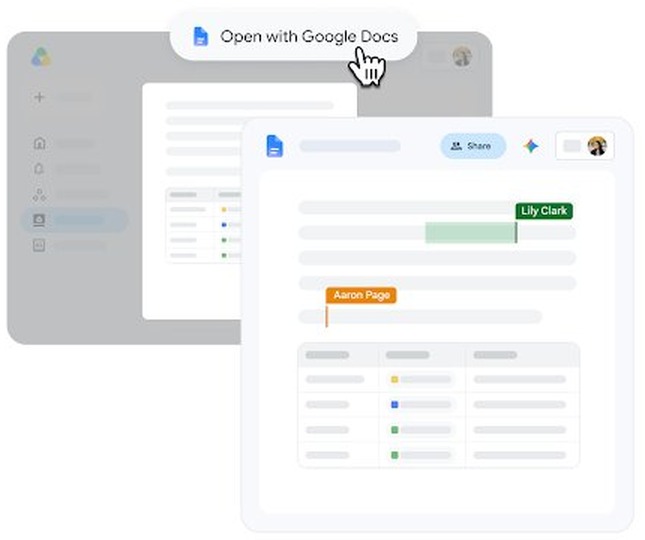
To put a PDF into Google Docs, upload it to Google Drive, right-click the file, and select Open with > Google Docs to convert it into an editable document.
This guide also covers what survives the conversion, the file size limits, how to add a PDF page or link to an existing document, and what to do when the result looks wrong.
Step by step tutorial on how to put a PDF into Google Docs
Google's conversion runs in Google Drive on a computer, so start there rather than in a blank document.
- Go to drive.google.com on your computer and sign in.
- In the top left, click New, then click File upload.
- Select your PDF and confirm the upload.
- Right-click the PDF in your Drive files.
- Click Open with > Google Docs.
- Check the converted document, because some formatting may not transfer.
Convert, insert or link a PDF in Google Docs
Putting a PDF into Google Docs can mean three different things. Match what you need to the result each one gives you.
| What you need | Do this | What you end up with |
|---|---|---|
| Edit the words in the PDF | Convert it with Open with > Google Docs | Editable text, with some layout lost |
| Show a page exactly as it looks | Capture the page and use Insert > Image | A picture of the page, with text you cannot edit |
| Point readers to the whole original file | Copy its Drive link and use Insert > Link | A clickable link inside your document |
| Add part of a PDF to a document you already have | Convert it, then copy the text across | The text in your existing document |
How to put a PDF into a Google Doc you already have
Convert the PDF first, then move the text you want. This keeps your existing document's layout intact.
- In Google Drive, right-click the PDF and click Open with > Google Docs.
- In the converted document, select the text you want and copy it.
- Open your existing document in Google Docs.
- Click where the text should go, then paste it.
- Compare the pasted text with the PDF and fix any lists or tables that did not convert.
Pasted text often needs tidying, so you may want to set the margins or indent the paragraphs afterward.
How to insert a PDF page as an image in Google Docs
The image menu in Google Docs works with image files, so capture the PDF page as a picture first. These capture steps use the Snipping Tool on Windows, and you can take a screenshot on Windows in several other ways.
- Open the PDF and scroll to the page you want.
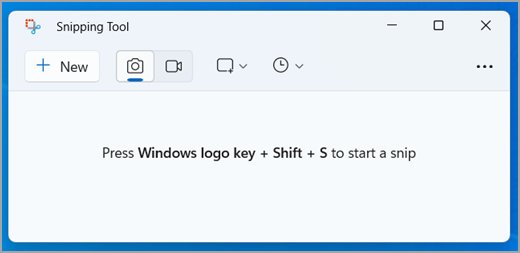
- Press Windows logo key + Shift + S and select the area of the page.
- Open the snip in the Snipping Tool, then press Ctrl + S and save it as an image.
- Open your document in Google Docs and click where the page should go.
- Click Insert > Image > Upload from computer.
- Choose the saved image, then click Open.
The text in the picture stays uneditable. Repeat the steps once per page for a multi-page PDF.
How to link a PDF in a Google Doc
A link keeps the original PDF untouched and lets readers open the full file. Set its sharing first, or people who have no access will not be able to open it.
- In Google Drive, select the PDF and click Share.
- Under General access, choose who can use the link.
- Click Copy link, then click Done.
- Open your document in Google Docs and click where the link should go.
- Click Insert > Link.
- Under Text, type the words readers will see, and paste the address under Link.
- Click Apply.

What happens to PDF formatting in Google Docs
Google Docs reads the PDF as text, so basic character styling tends to carry over while page structure often does not.
| PDF element | After conversion | What to do |
|---|---|---|
| Bold and italics | Likely to be retained | Spot-check the headings |
| Font size and font type | Likely to be retained | Change anything that looks out of place |
| Line breaks | Likely to be retained | Remove extra breaks in long paragraphs |
| Lists | Not likely to be detected | Reapply bullets or numbering |
| Tables and columns | Not likely to be detected | Rebuild them, or insert the page as an image |
| Footnotes and endnotes | Not likely to be detected | Add them back by hand |
Google Docs PDF file size limit
Several limits apply here, and the one that matters most is the smallest. A PDF can sit in Drive at almost any size, but conversion works best on small files.
| What the limit covers | Limit | What it means for your PDF |
|---|---|---|
| PDF converted to text in Drive | Should be 2 MB or smaller | Larger files may convert poorly, so reduce them first |
| Text document converted to Google Docs format | Up to 50 MB | This limit covers text documents, so aim for the 2 MB figure with a PDF |
| A Google Docs document | Up to 1.02 million characters | A very long PDF can exceed this after conversion |
| PDF stored in Drive without converting | Up to 5 TB | You can still store and link a large PDF |
Tips for putting a PDF into Google Docs
Conversion quality depends on the file you start with, so most of these tips apply before you upload.
| Tip | Why it helps |
|---|---|
| Keep the file at 2 MB or less | That is the size Google recommends for conversion, and you can compress the PDF first |
| Rotate pages before you upload | Documents must be right-side up to convert properly |
| Use sharp scans with even lighting | Clear contrast helps Drive recognize the text |
| Make sure text is at least 10 pixels high | Smaller text may not be picked up |
| Prefer common fonts such as Arial or Times New Roman | They convert more reliably than decorative fonts |
| Keep the original PDF | You need it to compare layouts and to send the exact version later |
How to put a PDF into Google Docs on iPhone or iPad
Google's conversion instructions point to drive.google.com on a computer, including from its phone help pages. Upload the PDF from your phone, then finish the conversion on a computer.
- Open the Google Drive app on your iPhone or iPad.
- Tap Add, then tap File upload.
- Find and tap the PDF.
- Tap Upload.
- On a computer, go to drive.google.com, right-click the PDF, and click Open with > Google Docs.
Once it is converted, you can use Google Docs offline to keep working on it without a connection.
How do I share my PDF once it's in Google Docs?
Share the converted document the same way as any other Google Docs file. The role you choose decides what the other person can do with it.
- Open the converted document and click Share.
- Enter an email address or a Google Group.
- Choose Viewer, Commenter or Editor.
- Decide whether to send an email notification.
- Click Send or Share.
Viewer can only read the file, Commenter can add comments and suggestions, and Editor can change it and, by default, share it with others.
How to download a Google Doc as a PDF
After editing, you can turn the document back into a PDF. If the form needs signing first, you can add a signature in Google Docs before you export it.
- Open the document in Google Docs.
- Click File > Download.
- Choose PDF as the format.
- Open the downloaded file and check the page breaks.
How to tell if a PDF converted to Google Docs correctly
Conversion can finish with text missing or out of order, so compare the document with the PDF before you rely on it.
- Click inside a paragraph and change a word to confirm the text is editable.
- Open the PDF beside the document and compare the first and last pages.
- Check every list, table and column, because these are the elements most likely to be lost.
- Read names, dates and figures closely, since recognition errors change them without any warning.
PDF not converting to Google Docs
The text comes out garbled or incomplete
The scan is blurry, too small, sideways or uses an unusual font.
- Rotate the pages so they are right-side up.
- Scan the page again with sharp focus, even lighting and clear contrast.
- Make sure the text is at least 10 pixels high.
- Upload the new file and convert it again.
The tables, lists or columns are gone
Conversion is not likely to detect lists, tables, columns, footnotes or endnotes.
- Keep the PDF open beside the document.
- Rebuild the lists and tables in Google Docs.
- If the layout matters more than editing, insert that page as an image instead.
The PDF is too large to convert well
Google recommends 2 MB or smaller for this conversion.
- Reduce the file size, or save only the pages you need as a new PDF.
- Upload the smaller file to Google Drive.
- Convert it with Open with > Google Docs.
You cannot convert the PDF on your phone
Google's conversion steps are written for Drive on a computer.
- Upload the PDF with the Google Drive app.
- Open drive.google.com on a computer.
- Right-click the file and click Open with > Google Docs.
PDF into Google Docs FAQ
How do I put a PDF into a Google Doc?
Upload the PDF to Google Drive, right-click it, and click Open with > Google Docs. To add it to an existing document, copy the converted text across, insert a page as an image, or add a link to the PDF with Insert > Link.
Can I edit a PDF in Google Docs?
Yes, once you convert it. Opening a PDF with Google Docs turns its contents into editable text. Bold, italics and font styles are likely to stay, while lists, tables, columns and footnotes often need rebuilding by hand.
What happens if my PDF has images?
Check the converted document, because Google's conversion is built around recognizing text and its help page makes no promise about pictures. If an image is missing or misplaced, capture it from the PDF and add it back with Insert > Image.
Is there a file size limit for PDFs in Google Docs?
Yes. Google says a PDF should be 2 MB or smaller for conversion to text. A Google Docs document can hold up to 1.02 million characters, and an unconverted PDF stored in Drive can reach 5 TB.
Can I convert a PDF to a Google Docs format?
Yes. Google lists PDF among the file types it can convert through optical character recognition, the same process used for JPG, GIF and PNG files. Use Open with > Google Docs in Drive on a computer to start the conversion.
How do I put a PDF into a Word document?
Word handles this itself, and the Word desktop app can insert a PDF as an object from Insert > Object > Create from File. To edit the contents instead, you can convert the PDF to Word and work on the result.