AirPlay usually stops working because the iPhone and the TV are on different Wi-Fi networks, AirPlay is switched off or restricted on the receiver, or one of the devices needs a restart or an update.
This guide gives the fix for each symptom on iPhone, iPad, Mac, Apple TV, Roku and AirPlay-enabled smart TVs, including a TV that never appears in the list and a stream that connects but has no sound or picture.
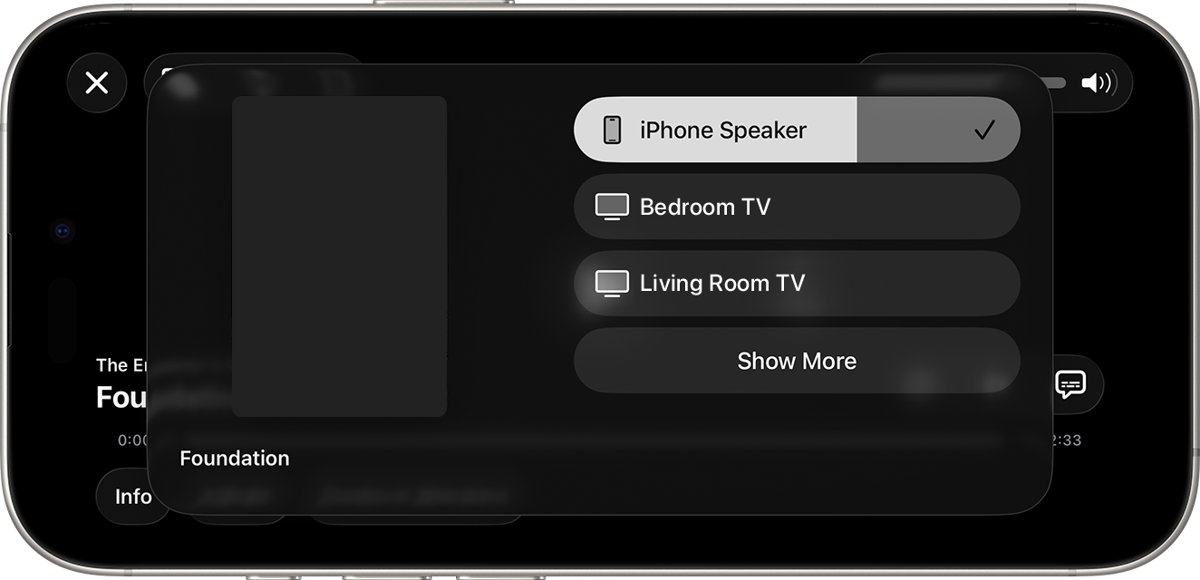
Why is my AirPlay not working?
Apple's own AirPlay troubleshooting starts with these checks. Test AirPlay again after each one.
- Turn on both devices and move them close to each other.
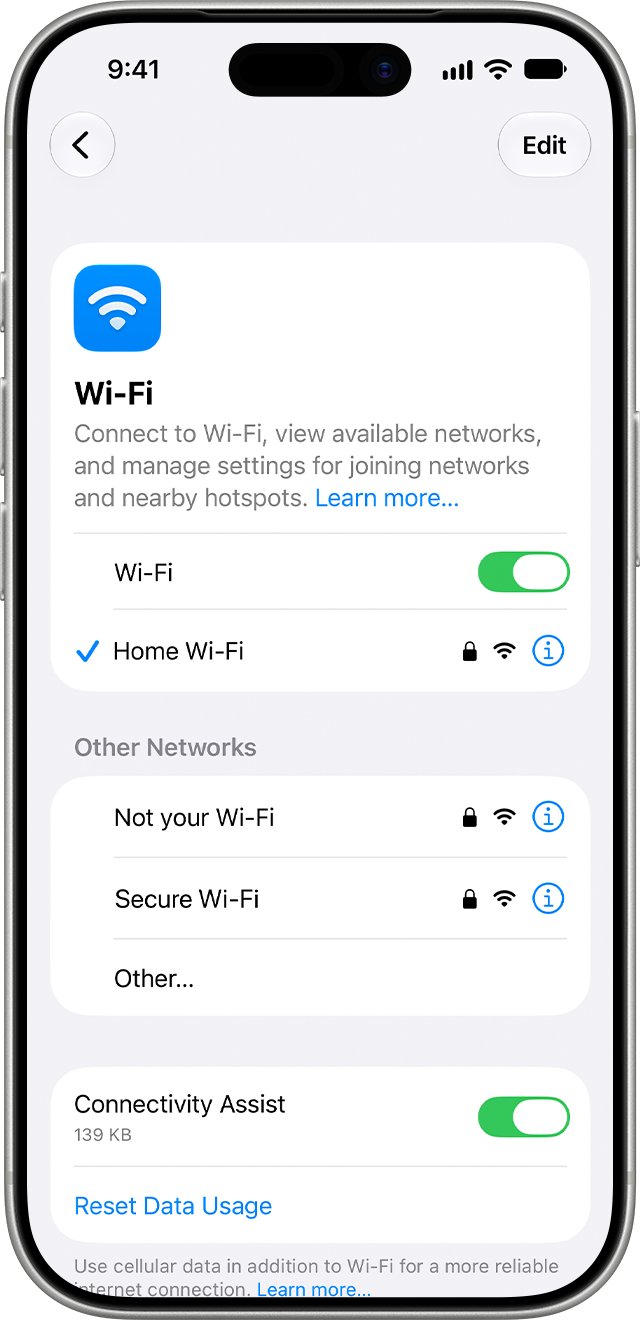
- On your iPhone, open Settings > Wi-Fi and note the network with the blue checkmark, then confirm the TV or Mac is on that same network.
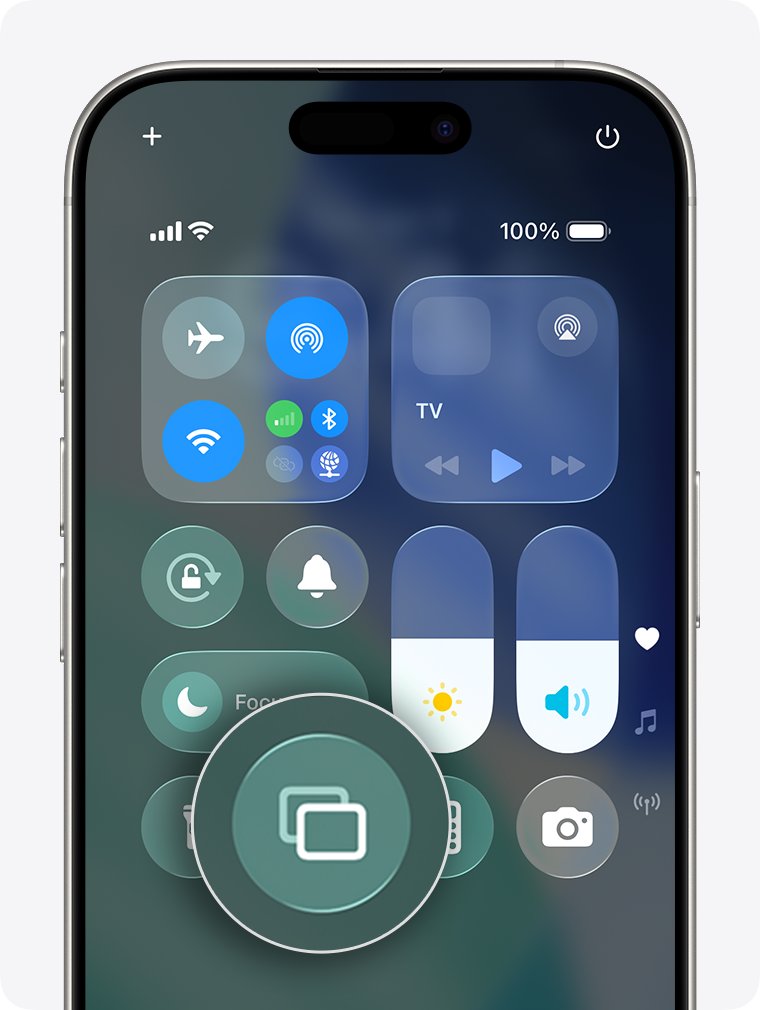
- Open Control Center, tap Screen Mirroring and select your TV or Mac again.
- Restart the iPhone and the TV or Mac if the device still does not appear or connect.
Which AirPlay fix should you try first?
Start with the row that matches what you see on the screen.
| What you see | Try this first | Why |
|---|---|---|
| The TV or Mac is missing from the AirPlay list | Put both devices on the same Wi-Fi network | Bonjour discovery normally stays inside one network segment |
| A Roku is missing from the list | Turn on Settings > Apple AirPlay and HomeKit > AirPlay | Roku has its own AirPlay switch, and older models lack AirPlay 2 |
| A Mac is missing from the list | Turn on AirPlay Receiver on the Mac | A Mac does not accept streams until the receiver is on |
| An Apple TV asks for a password | Enter the onscreen code, or review AirPlay and HomeKit settings | Apple TV controls who can stream to it |
| Video plays with no sound | Raise the volume on the iPhone and the TV or receiver | Either end can be muted or turned down |
| One video app will not stream | Check the App Store on your Apple TV for that app | Some video apps do not support AirPlay |
| AirPlay lags or keeps disconnecting | Move the devices closer and reduce wireless interference | Weak signal and obstructions disrupt the stream |
Why does AirPlay stop working?
| Cause | What it looks like | Where to fix it |
|---|---|---|
| The devices are on different Wi-Fi networks or subnets | The TV or Mac never appears in the AirPlay list | Wi-Fi settings on both devices |
| AirPlay receiving is off or limited | The receiver is missing, or only some people can connect | AirPlay Receiver on a Mac, AirPlay and HomeKit on Apple TV, Apple AirPlay and HomeKit on Roku |
| The Home app restricts access | A device set up in Home refuses streams or asks for a password | Home app > More > Home Settings > Speakers & TV |
| Software is out of date | AirPlay fails on one device while others work | Software Update on iPhone, plus the update menu on the TV or Mac |
| The hardware does not support it | An older Roku or TV never lists AirPlay at all | The model and software version in the TV's settings |
| A Roku TV dropped off Wi-Fi in standby | AirPlay works only after you turn the TV on with the remote | Fast TV start on the Roku |
| Wireless interference | The stream stutters, lags or disconnects | Device position, router band and nearby electronics |
| The app does not allow AirPlay | AirPlay works everywhere except one video app | The app itself, or the Apple TV version of the app |
The Local Network permission is not the switch for AirPlay itself. Apple says AirPlay still works on the local network when you deny an app that permission.
How to fix AirPlay when it is not working
Work through these six steps in order and test AirPlay after each one. They move from the quickest check to the only one that removes saved settings.
Step 1: Put both devices on the same Wi-Fi network
Apple's manual and automatic AirPlay routes both expect the iPhone and the receiver to share a Wi-Fi network. If the iPhone cannot get online over Wi-Fi at all, fix iPhone Wi-Fi and cellular data first.
- On your iPhone or iPad, open Settings > Wi-Fi and turn Wi-Fi on.
- Tap your home network and look for the blue checkmark beside its name.
- Check the network name on the receiver. On a Roku, open Settings > Network > About.
- Join the same network on the receiver if the names differ.
Step 2: Restart your iPhone, TV and router
Apple lists a restart of both AirPlay devices as a core fix, and Roku adds the router to that list.
- On an iPhone X or later, hold the side button and either volume button until the power-off slider appears.
- Drag the slider, wait 30 seconds, then hold the side button until the Apple logo appears.
- Restart the TV, Apple TV, Roku or Mac you are streaming to.
- Unplug the router and modem, then plug them back in.
Step 3: Re-select your device in Control Center
Connecting again from Control Center tests mirroring without involving a video app.
- Open Control Center. On iPhone X or later, swipe down from the upper-right corner. On iPhone 8 or earlier, swipe up from the bottom edge.
- Tap Screen Mirroring.
- Select your TV or Mac from the list.
- Enter the passcode on your iPhone if the TV or Mac displays one.
Step 4: Check your AirPlay settings and permissions
Each receiver has its own switch and its own rules for who can connect.
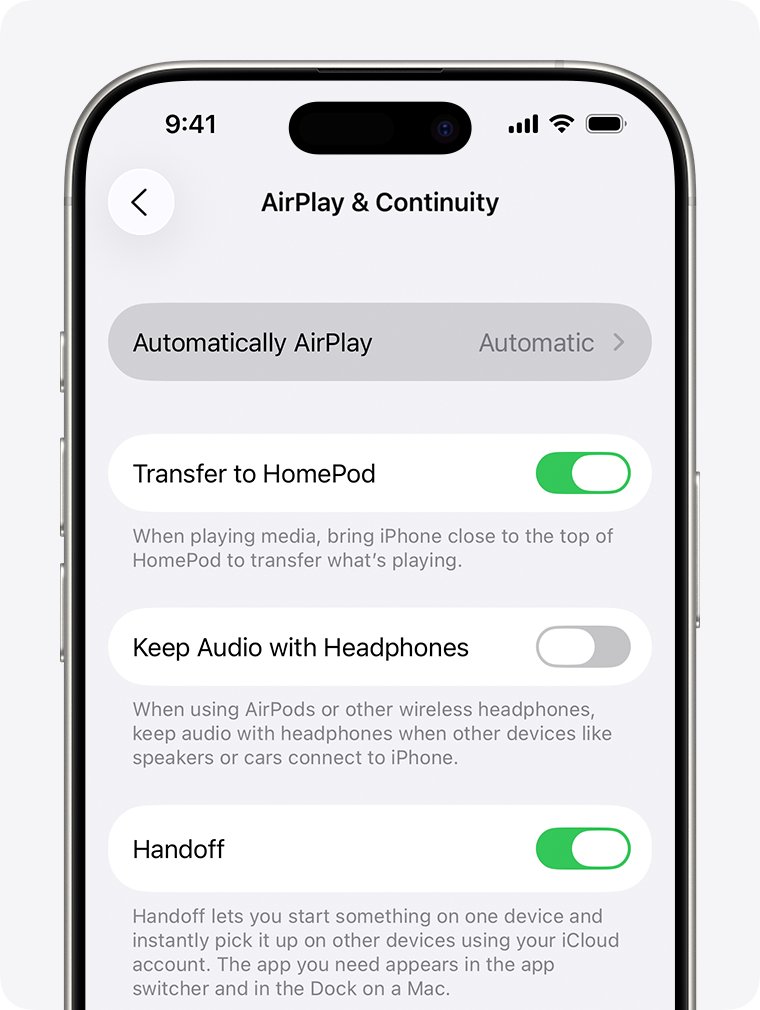
- On an iPhone, open Settings > General > AirPlay & Continuity and review the settings there, including Automatically AirPlay.
- On an Apple TV, open Settings > AirPlay and HomeKit and choose who can stream under Everyone, Anyone on the Same Network or Only People Sharing This Home.
- On a Mac, open System Settings > General > AirDrop & Continuity and turn on AirPlay Receiver.
- For a device set up in Home, open the Home app and select More > Home Settings > Speakers & TV to remove any restriction.
Step 5: Update iOS and your TV firmware
Apple asks for the latest software on every AirPlay device before further troubleshooting. On a Mac, you can update macOS to the latest version as part of this step.
- Back up your iPhone, plug it in and connect to Wi-Fi.
- Open Settings > General > Software Update.
- Tap Download and Install if an update is available.
- Install the latest software on the Apple TV, Mac, Roku or smart TV from its own settings.
Step 6: Reset network settings (last resort)
This removes saved Wi-Fi networks and passwords, cellular settings, and VPN and APN settings. Check with IT first if a school or business manages your network.
- Make sure you know your Wi-Fi password.
- Open Settings > General > Transfer or Reset iPhone > Reset.
- Tap Reset Network Settings and confirm.
- Rejoin your Wi-Fi network and try AirPlay again.
Why is AirPlay not working on my TV?
The fix depends on what is receiving the stream. Apple shows Samsung, LG, Sony and Vizio among AirPlay-enabled smart TV makers, but check your exact model.
TVs without AirPlay have other routes: you can mirror an iPhone to any TV with a cable or a streaming device.
| Your TV setup | What to check | If it still fails |
|---|---|---|
| Apple TV 4K or Apple TV HD | Settings > AirPlay and HomeKit, plus who is allowed to stream | Check content restrictions if it keeps asking for a password |
| Samsung, LG, Sony or Vizio smart TV | The same Wi-Fi network as the iPhone, and AirPlay listed in the TV's manual for your model | Update the TV software, then contact the TV maker |
| Roku TV or Roku player | AirPlay 2 support and the AirPlay switch | Follow the Roku steps below |
| A TV with no AirPlay support | Whether an Apple TV or AirPlay-capable Roku can connect through HDMI | Use a Digital AV adapter with an HDMI cable |
Why is AirPlay not working on my Roku?
Roku devices need AirPlay 2 support on the Roku and an iPhone or iPad on iOS 12.3 or later, or a Mac on macOS Mojave 10.14.5 or later.
- Press Home on the remote and open Settings > System > About to read the model and software version.
- Compare them with the table below, and install any available update.
- Open Settings > Network > About and confirm the Roku is on the same network as your iPhone.
- Open Settings > Apple AirPlay and HomeKit and turn AirPlay on.
- For a Roku TV or Streambar that loses Wi-Fi when off, open Settings > System > Power and turn on Fast TV start or Fast start.
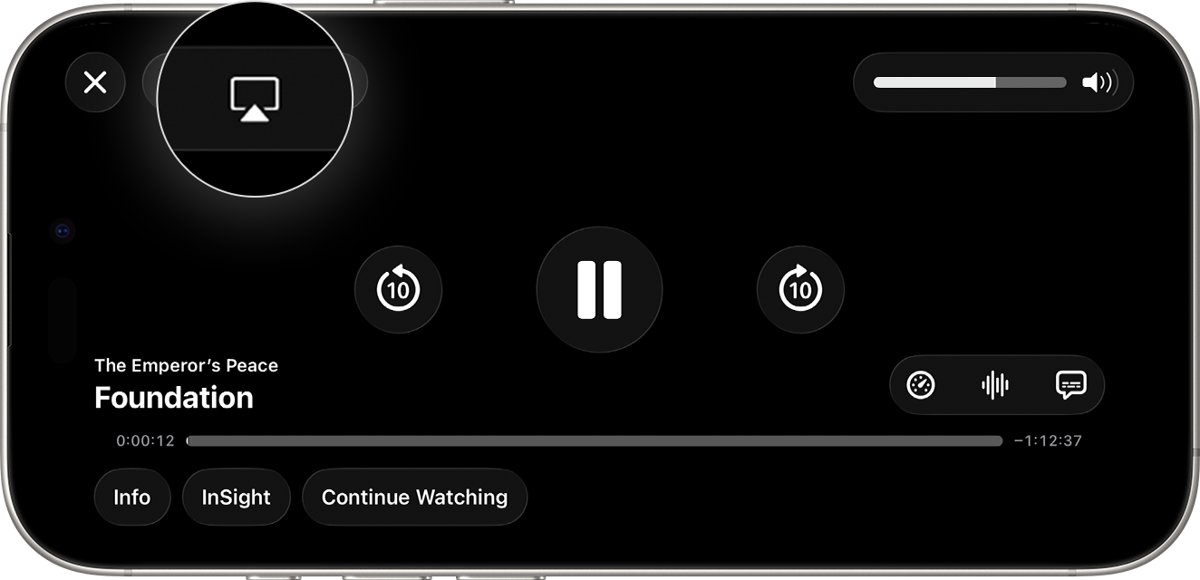
- Tap the AirPlay icon in your app and select the Roku.
Fast TV start uses noticeably more standby power, so leave it off if you do not need AirPlay to work from standby.
Which Roku models support AirPlay?
| Roku OS needed | Models |
|---|---|
| Any version | Roku Select and Plus Series TVs |
| Roku OS 9.4 or later | Roku TV models A_xxxx, C_xxxx, C_xx_GB and 7_xxxx; Streambar 9102; Streambar Pro 9101R2; Smart Soundbar 9101; onn. Smart Soundbar 9100 |
| Roku OS 9.4 or later | Streaming Stick+ 3810 and 3811; Streaming Stick 4K 3820; Streaming Stick 4K+ 3821; Express 4K 3940; Express 4K+ 3941 |
| Roku OS 9.4 or later | Premiere 3920 and 4620; Premiere+ 3921 and 4630; Ultra 4600, 4640, 4660, 4661, 4670, 4800, 4802 and 4850; Ultra LT 4662 and 4801 |
| Roku OS 10.0 or later | Roku TV 5xxx and 6xxx; Express 3700; Express+ 3710; Roku 4 model 440 |
AirPlay connected to device but not playing
A connected device with no picture or sound usually points to volume, the app or the stream's Wi-Fi quality rather than the connection itself.
AirPlay sound not working
The volume is muted or low on one end of the stream.
- Press the volume-up button on your iPhone or raise the volume on your Mac.
- Raise the volume on the TV or receiver and check it is not muted.
- Stop AirPlay, then start the stream again.
AirPlay not playing video in one app
Apple says some video apps might not support AirPlay.
- Play a video from another app or from Photos to confirm AirPlay itself works.
- Check the App Store on your Apple TV for the app you wanted to use.
- Install that app on the Apple TV and play the video there.
AirPlay music stops unexpectedly
The Home app can use a HomePod, Apple TV or AirPlay speaker as the main audio source, and another task on that device can stop playback.
- Start the music again from your iPhone or with Siri.
- If it stops again, stream the music manually from your iPhone.
AirPlay asks for a password on Apple TV
Apple TV shows an onscreen password the first time you connect, and its settings can require one every time.
- Enter the password shown on the TV into your iPhone.
- If the prompt keeps returning, open Settings > AirPlay and HomeKit on the Apple TV and review Require Password.
- Check the Apple TV content restrictions if you still cannot stream.
AirPlay to Mac not working
AirPlay to Mac needs iOS 14 or iPadOS 14 or later, an iPhone 7 or later, and macOS Monterey 12 or later on a Mac from 2018 or later, or a 2020 Mac mini or later. An iMac Pro also qualifies.
The Mac does not appear in the AirPlay list
AirPlay Receiver is off, or the Mac is limited to certain devices.
- On the Mac, open System Settings > General > AirDrop & Continuity (or AirDrop & Handoff).
- Turn on AirPlay Receiver.
- Set Allow AirPlay for to Anyone on the Same Network or Everyone, or use Current User if both devices share one Apple Account.
The Mac firewall blocks the connection
The firewall option that blocks all incoming connections also prevents connections to sharing services.
- Open System Settings > Network > Firewall and click Options.
- Turn off Block all incoming connections and click OK, leaving the firewall itself on.
- Try AirPlay from your iPhone again.
Alternative solutions worth trying when AirPlay fails
Use these when the six main steps change nothing. Each one rules out a less obvious cause.
Disconnect your VPN and check firewalls
Apple notes that a firewall restricting access between the source device and an Apple TV can stop AirPlay, and it advises testing Wi-Fi problems without VPN software.
- Disconnect any VPN on your iPhone, then test AirPlay.
- Contact the VPN provider if AirPlay works only with the VPN off.
- On a work or school network, ask the network administrator whether AirPlay traffic is allowed.
Reduce Bluetooth and physical interference
Apple TV discovery uses Bluetooth Low Energy as well as Wi-Fi, so objects and nearby electronics can disrupt both.
- Move the iPhone within 25 to 30 feet of the Apple TV.
- Keep microwave ovens, cordless phones, wireless video cameras, fluorescent lights and power cables away from the devices.
- Take the Apple TV out of a cabinet or from behind the TV.
- Connect more of your Wi-Fi devices to the 5 GHz band if your router supports it.
Forget and rejoin your Wi-Fi network
This refreshes one saved network without the wider reset in step 6.
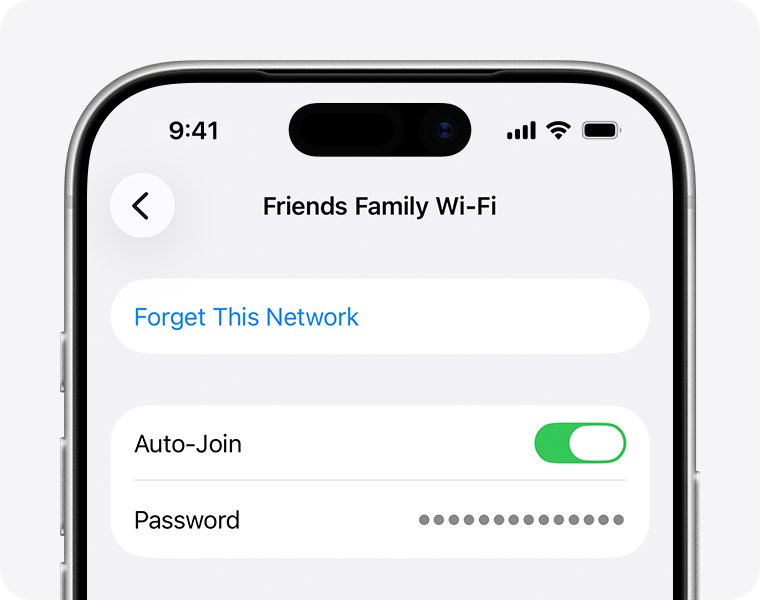
- Open Settings > Wi-Fi and tap Edit.
- Tap the info icon beside the network.
- Tap Forget This Network and confirm.
- Select the network again and enter its password.
Try a different source device
A second iPhone, iPad or Mac shows whether the fault sits with the sender or the receiver.
- Join the second device to the same Wi-Fi network.
- Stream the same video to the same TV.
- Update or reset the first device if the second one connects normally.
Use a Digital AV adapter instead of AirPlay
A wired connection needs no Wi-Fi, and an adapter with an HDMI port carries audio as well as video.
- Get a Digital AV adapter with the same connector as your device: USB-C or Lightning.
- Connect the adapter to your iPhone or iPad and connect an HDMI cable to the TV.
- Switch the TV to that HDMI input.
Tips to keep AirPlay working reliably
| Tip | How to do it |
|---|---|
| Use Ethernet on Apple TV | Apple recommends a wired connection for Apple TV when one is available |
| Keep a clear path to the receiver | Avoid placing Apple TV in a cabinet, behind a TV or above a projector |
| Leave WMM on at the router | Apple says disabling Wi-Fi Multimedia can affect network performance and reliability |
| Keep Location Services on for Wi-Fi | Apple says this helps devices find nearby devices and perform well with AirPlay |
| Give each receiver a clear name | Name the Apple TV and assign a room under AirPlay and HomeKit so it is easy to find |
| Control automatic connections | Set Automatically AirPlay to Never, Ask or Automatic under AirPlay & Continuity |
| Update the router firmware | Install the latest firmware and confirm the router supports your Apple device |
AirPlay still not working?
Run one last test with a different sender and, if possible, a different receiver. The result tells you who to contact.
| Test result | What it points to | Where to go next |
|---|---|---|
| A second iPhone or iPad streams to the TV | Your first iPhone or iPad | Contact Apple Support, or force restart the iPhone if it has frozen |
| No Apple device can stream to the TV | The TV or streaming device | Contact Apple for an Apple TV, Roku support for a Roku, or the TV maker |
| AirPlay works on another Wi-Fi network | Your router or network | Check the router firmware, or contact your internet provider or network administrator |
| AirPlay fails on every network and receiver | Your iPhone or iPad | Contact Apple Support |
AirPlay not working FAQ
Why is AirPlay not showing up on my iPhone?
The AirPlay button appears inside apps that support it, and Screen Mirroring sits in Control Center. If no TV appears in the list, put both devices on the same Wi-Fi network, then check that AirPlay is turned on at the receiver and restart both.
Why is my AirPlay not connecting?
AirPlay usually fails to connect because the devices are on different networks, the receiver limits who can stream, or software is out of date. Confirm the Wi-Fi network, review the receiver's AirPlay settings, restart both devices and install any updates.
Why won't AirPlay work on my TV?
Your TV may not support AirPlay, or it may be on a different network from your iPhone. Check the TV's manual for AirPlay support, confirm the Wi-Fi network and update the TV. An Apple TV connected by HDMI is an option for TVs without AirPlay.
Why is AirPlay not working on my Roku?
Your Roku may lack AirPlay 2 support, use a different network or have AirPlay switched off. Check the model under Settings > System > About, the network under Settings > Network > About, and the switch under Settings > Apple AirPlay and HomeKit.
Can I use AirPlay without Wi-Fi?
Yes, with an Apple TV. Apple TV HD on tvOS 9 or later and Apple TV 4K on tvOS 11 or later can use peer-to-peer AirPlay with a late 2012 or later iPhone, iPad or Mac on current software, when AirPlay access is set to Everyone. For other TVs, use a Digital AV adapter.
Why does AirPlay connect but show a black screen or no sound?
For no sound, raise and unmute the volume on the iPhone and the TV or receiver. For no picture in one app, the app might not support AirPlay. Test another app, then check the App Store on your Apple TV for the original one.
Why does AirPlay keep lagging or disconnecting?
Wireless interference can cause this, because it stops devices staying connected and lowers signal strength. Move the devices closer, clear metal and concrete from the path, keep them away from microwave ovens and cordless phones, and use Ethernet on an Apple TV.
Does my TV need to support AirPlay 2?
A Roku does: Roku's troubleshooting asks you to confirm both devices support AirPlay 2. For other TVs, look for AirPlay in the model's manual. A TV without AirPlay can still receive streams through an Apple TV connected by HDMI.
How do I fix AirPlay not working?
Put both devices on the same Wi-Fi network, restart them and the router, and select the TV again in Control Center. Then check the receiver's AirPlay settings and update everything. Reset network settings only as a last resort, since it removes saved Wi-Fi passwords.
Why isn't my Apple AirPlay working?
Check that AirPlay receiving is allowed: on a Mac under AirPlay Receiver, on an Apple TV under AirPlay and HomeKit, and in the Home app under Speakers & TV. Then confirm both Apple devices run the latest software and share one Wi-Fi network.