A phone shows no notifications when locked because a Focus or Do Not Disturb is on, the app's lock screen alert is off, or on iPhone a worn Apple Watch is taking the alerts.
This guide fixes each cause on iPhone and Android, then covers missing sounds, text alerts, previews and how to test the result.
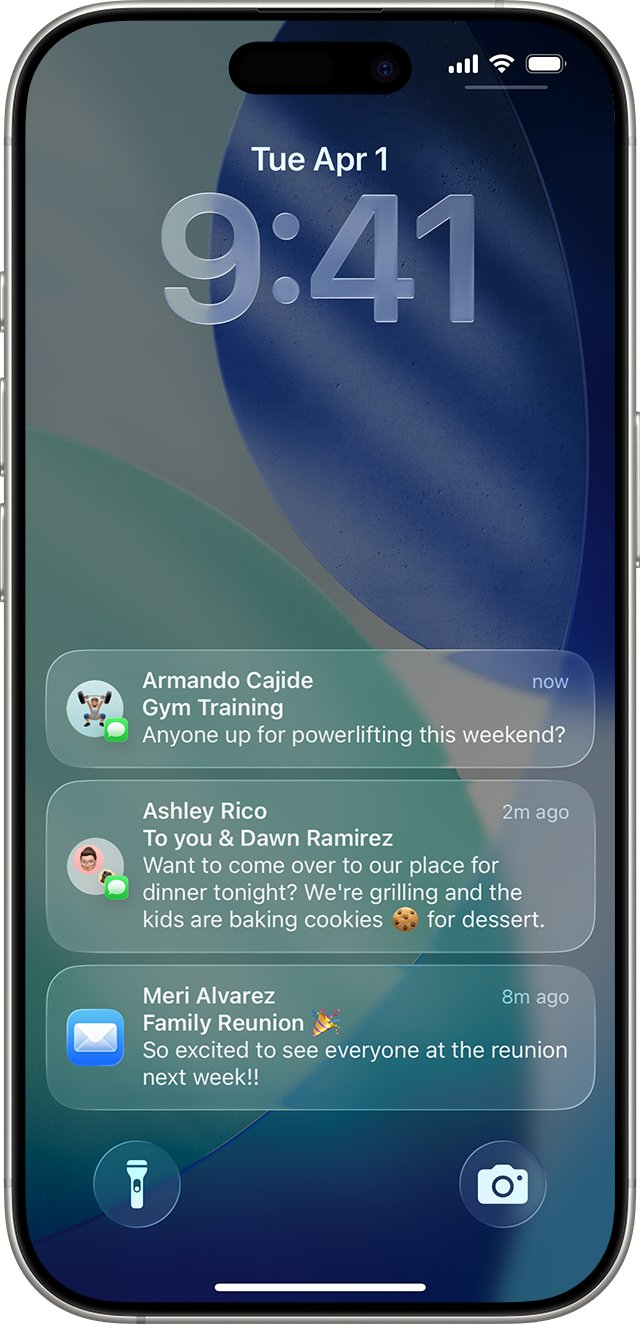
How to fix no notifications on iPhone when locked
Start with the app that stays silent. These steps cover the settings most likely to keep alerts off the Lock Screen.
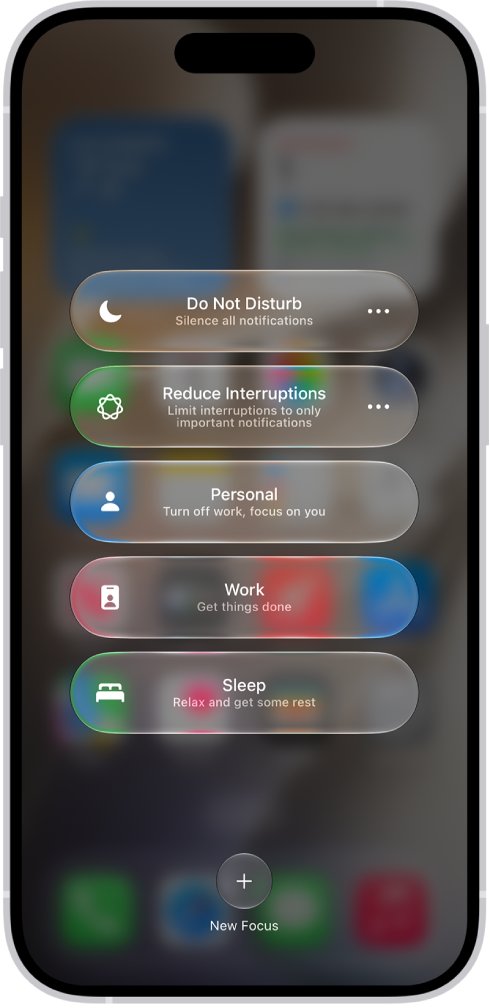
- Open Control Center and tap Focus. If a Focus such as Do Not Disturb is on, tap it to turn it off.
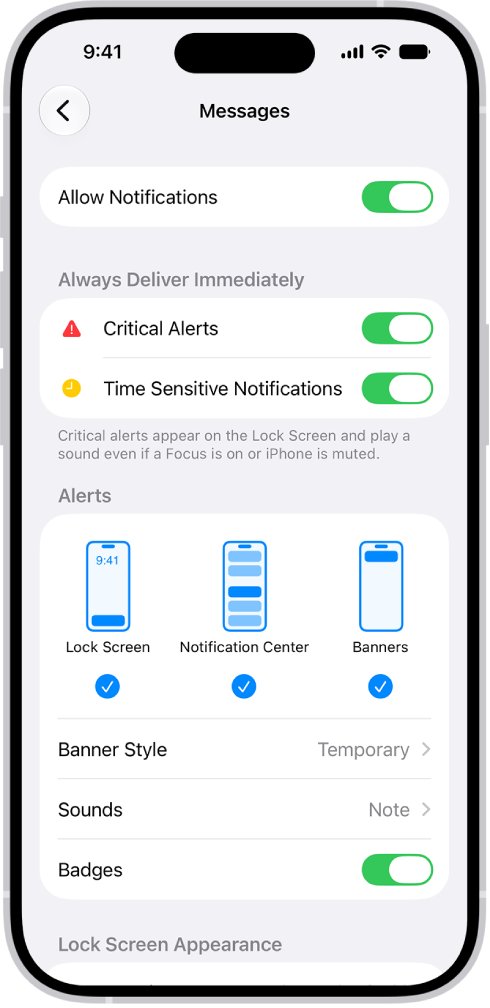
- Open Settings and tap Notifications.
- Tap the app below Notification Style.
- Turn on Allow Notifications.
- Under Alerts, select Lock Screen.
- If Notification Delivery appears, choose Immediate Delivery.
Android has its own lock screen settings, covered further down.
Why is my phone not showing notifications when locked?
What you see on the Lock Screen points to the cause. Match it below, then use the section for that setting.
| What you notice | Most likely cause |
|---|---|
| Nothing on the Lock Screen, and a Focus icon is showing | A Focus is silencing notifications |
| Alerts appear once you unlock, not before | The Focus silences only while locked, or Lock Screen is off for the app |
| Your wrist buzzes, the iPhone stays quiet | An unlocked Apple Watch is receiving the alerts |
| One app goes silent, others work | That app is muted, set to a summary or has notifications off |
| Only a number shows on the Lock Screen | Display As is set to Count |
| Alerts show but hide the message text | Show Previews is set to When Unlocked or Never |
| Alerts show silently | Silent mode is on, or sounds are off for the app |
| Nothing on an Android lock screen | Notifications on lock screen is off, or the app is set to Silent |
iPhone lock screen notifications not working in a Focus
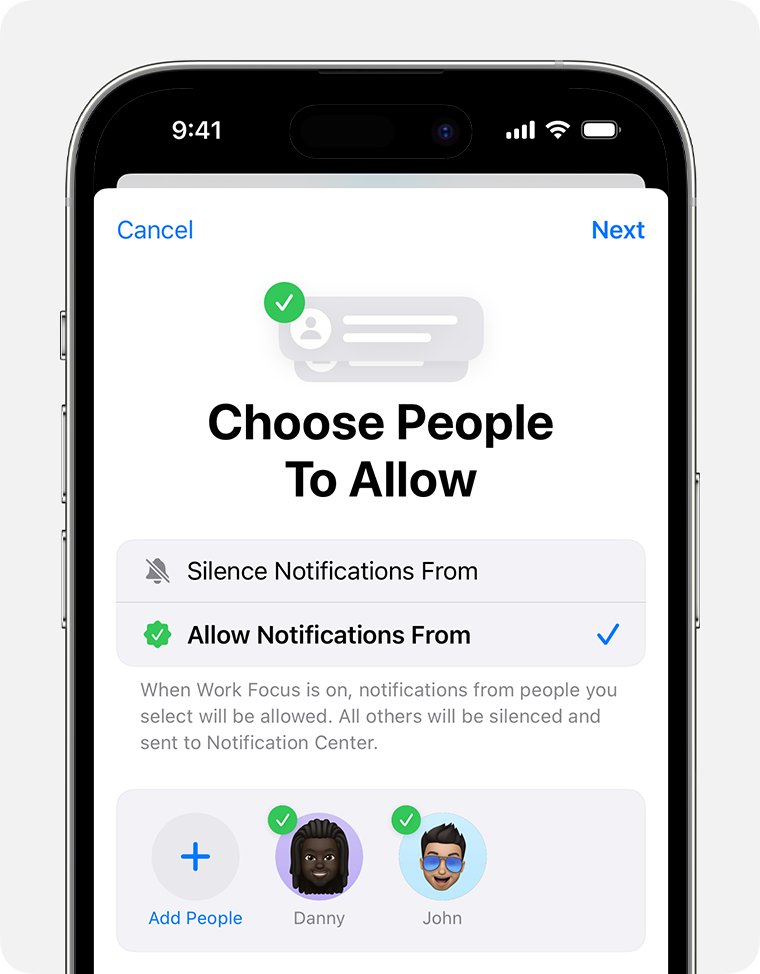
A Focus can turn on by itself at a set time, at a location or when you open an app. Apple also notes that Focus settings like Sleep and Do Not Disturb can silence notifications only when your iPhone is locked, which is why alerts seem to appear on unlock.
- Open Settings and tap Focus.
- Tap the Focus you use, such as Do Not Disturb or Sleep.
- Tap Options and review how silenced notifications behave on the Lock Screen.
- Tap People or Apps, select Allow Notifications From, and add anyone or anything that must get through.
- Under Set a Schedule, tap any listed time and change it if the Focus starts when you do not want it.
The Driving Focus cannot allow notifications from apps. If you use another Apple device, also check Share Across Devices, because a Focus turned on there can carry over to your iPhone.
iPhone not notifying when locked because of Apple Watch
By default, notifications go to your Apple Watch or your iPhone, not both. A locked or sleeping iPhone sends them to the watch, unless the watch is locked.
- Open the Apple Watch app on your iPhone and tap My Watch.
- Tap Notifications, then tap the app.
- Tap Mirror my iPhone to use the same settings as the iPhone, where the app offers it.
- Or tap Custom and choose Allow Notifications or Send to Notification Center.
- Check that the watch is not stuck in a Focus, because a shared Focus can silence the iPhone as well.
Reading or dismissing an alert on the watch also dismisses it on the iPhone, so it can look as though nothing arrived.
How to show notifications on lock screen on iPhone
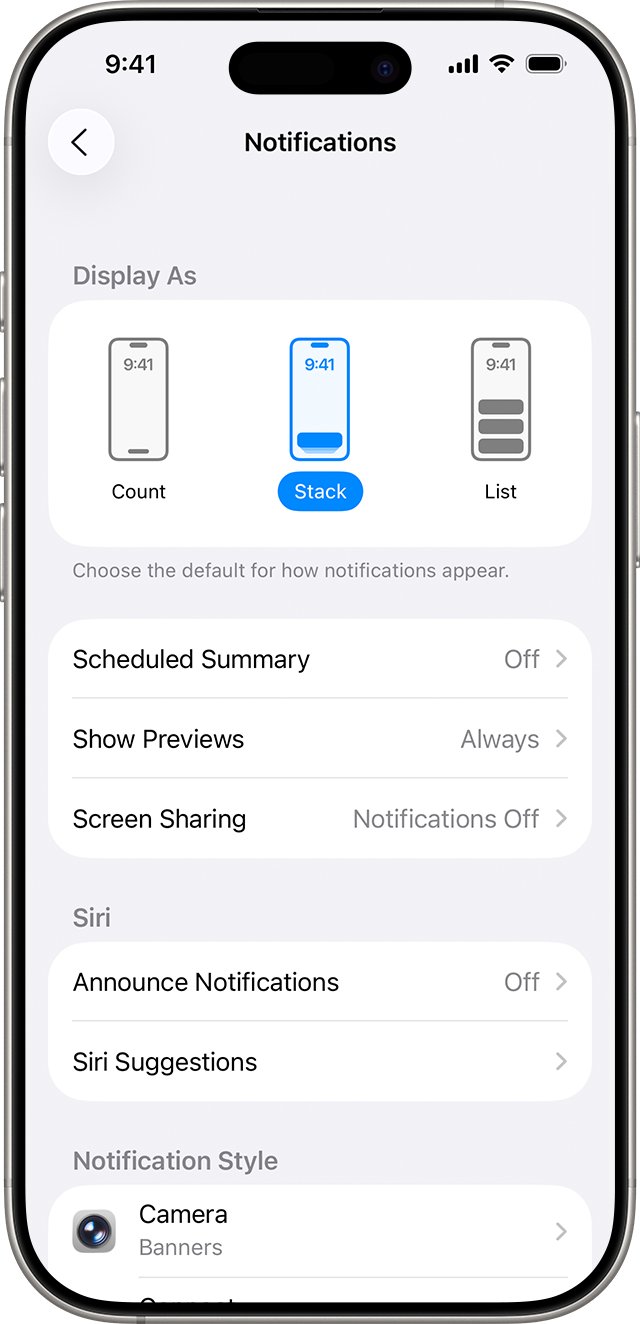
Lock Screen display has three separate settings: the app's alert, the preview and access to Notification Center. Check all of them if alerts appear but seem incomplete.
- Open Settings > Notifications and tap Show Previews.
- Tap Always to see message text without unlocking.
- Go back and tap List so alerts are not hidden behind a Count.
- Open Settings > Face ID & Passcode or Touch ID & Passcode, and enter your passcode.
- Scroll to Allow Access When Locked and turn on Notification Center.
Swipe up from the middle of the Lock Screen to read older alerts, and pinch the alerts to switch between list, stack and count views.
How to unmute app notifications on iPhone Lock Screen
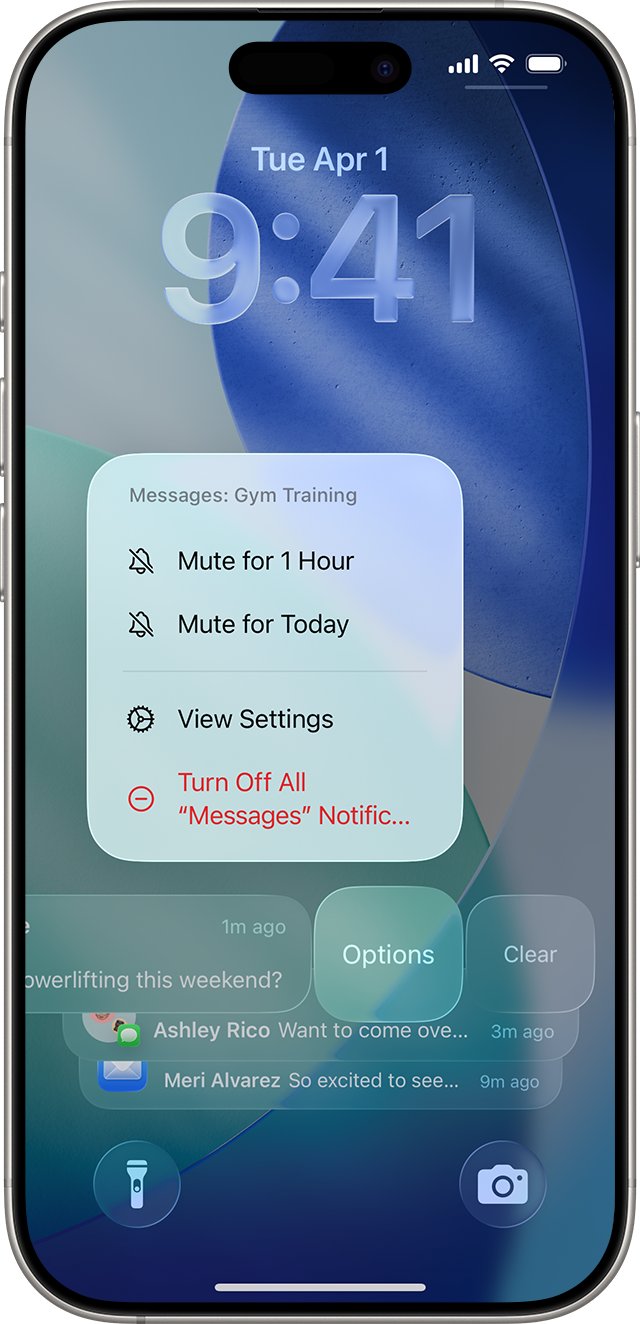
Muting an app for an hour or a day keeps its alerts off the Lock Screen, with no sound or screen wake. They still collect in Notification Center.
- Unlock the iPhone and swipe down from the top-left corner to open Notification Center.
- Find an alert from the silent app and swipe left on it.
- Tap Options.
- Tap Unmute.
You can also fix iPhone notifications that do not pop up if the same app stays quiet while the iPhone is unlocked.
iPhone notifications delayed when locked
Scheduled Summary holds alerts from chosen apps and delivers them together at set times. Low Power Mode also turns off email fetch and Background App Refresh, so Mail and other apps can report new items late.
- Open Settings > Notifications and tap Scheduled Summary.
- Turn off Scheduled Summary, or tap the app in Notifications and choose Immediate Delivery.
- Open Settings > Battery. On iPhone 15 and later, also tap Power Mode.
- Turn off Low Power Mode when your battery is not low.
A problem that started right after a system update may need these iOS 18 push notification fixes too.
No notification sound when iPhone is locked
When Silent mode is on, iPhone does not play alerts, though it may still vibrate. The alert can still appear on the Lock Screen with no sound.
- Open Control Center and tap the Silent mode button to turn it off.
- On a model with a Ring/Silent switch, flip it toward the front. On a model with an Action button, press and hold it.
- Open Settings > Sounds & Haptics and drag the volume slider up.
- Go to Settings > Notifications, tap the app, and turn on Sounds.
Supported apps can also use Critical Alerts, found in the same app settings, to sound even when the iPhone is muted or a Focus is on.
iPhone not notifying texts when locked
Messages has its own settings on top of the Lock Screen alert, and any one of them can silence a sender. Texts still arrive when alerts are off, so check the app before you assume a message was lost.
- Open Settings > Notifications > Messages and turn on Allow Notifications.
- Tap Sounds and pick a Text Tone other than None.
- In Messages, tap the conversation and tap the contact or icon at the top.
- Turn off Hide Alerts.
- Check the folders for unknown senders and spam for any messages you expected.
Android notifications on lock screen
Android labels vary by phone and version, and Google warns that some steps differ by device. On older versions the same options sit under Apps & notifications > Notifications.
- Open the Settings app and tap Notifications.
- Tap Notifications on lock screen.
- Choose the option that shows alerting and silent notifications, not Don't show notifications.
- If alerts appear without their text, turn on Show sensitive content.
- Swipe down from the top of the screen and tap Do Not Disturb in Quick Settings if it is on.
Notifications not showing on lock screen on Android for one app
Alerting notifications make a sound and appear on the lock screen. Silent ones make no sound and wait until you swipe down, so one app set to Silent can look broken.
- Open Settings > Notifications > App notifications.
- Find the app under Most recent, or switch the list to All apps.
- Tap the app and turn its notifications on.
- Tap the notification type, then choose Alerting instead of Silent.
- Open the app itself and check its own notification settings, which many apps keep separately.
If alerts go quiet after a burst of messages, look in Settings > Notifications for Notification cooldown, which reduces sounds and pop-ups when many arrive in a short time.
How to test notifications on a locked iPhone
A test message from another person gives you a real result, because the alert has to arrive while the screen is off.
- If you wear an Apple Watch, lock it so alerts go to the iPhone.
- Check that no Focus icon shows on the Lock Screen.
- Lock the iPhone with the side button.
- Ask someone to send you a text, or trigger an alert in the app you fixed.
- Look for the alert on the Lock Screen, and listen for the sound.
- If nothing shows, swipe up from the middle of the Lock Screen to see whether it went straight to Notification Center.
An alert in Notification Center with no Lock Screen appearance means the delivery works, so the app's Lock Screen alert or a mute is what still needs fixing.
How to turn off lock screen notifications
If you came here for the opposite result, these steps hide alerts or their contents while the phone is locked.
- On iPhone, open Settings > Notifications, tap the app and clear Lock Screen under Alerts.
- To keep alerts but hide their text on iPhone, tap Show Previews and choose When Unlocked or Never.
- On Android, open Settings > Notifications > Notifications on lock screen and choose Don't show notifications.
- To hide private details on Android, turn off Show sensitive content on the same screen.
Phone notifications not working
Not getting notifications on my phone from one app on iPhone
While you use an app, iPhone may ask how to deliver its alerts, and it can suggest turning off alerts for apps you rarely open.
- Open Settings > Notifications and tap the app.
- Turn on Allow Notifications.
- At the bottom of the screen, tap App Name Notification Settings if it appears, and turn alerts on inside the app too.
Why is my phone not receiving notifications on Android?
A mode such as Do Not Disturb or Bedtime is blocking interruptions, or the app's alerts are off.
- Swipe down from the top of the screen and turn off Do Not Disturb or any other mode in Quick Settings.
- To keep the mode, open Settings > Modes, select it, and review who and what can interrupt you.
- Open Settings > Notifications > App notifications and turn the app back on.
On Android, look in Settings > Notifications for Notification history if your phone has it. It lists snoozed alerts, recently dismissed alerts and alerts from the last 24 hours.
No notifications when phone is locked FAQ
Why is my phone not showing notifications?
A Focus or Do Not Disturb can hide them, and so can app alerts that are turned off. On iPhone, also check that Lock Screen is selected under Alerts for the app. On Android, check Notifications on lock screen in Settings.
Why is my phone not getting notifications?
The app's notifications may be off, muted or held for a scheduled summary. On iPhone, an unlocked Apple Watch on your wrist also takes alerts while the phone is locked. Check Settings, Notifications and the app itself.
Why is my phone not receiving notifications?
Start with the settings that hold alerts back. Turn off any Focus or Do Not Disturb first. Then open the app's notification settings in Settings, and check any notification switches inside the app too.
How do I show notifications on the lock screen?
On iPhone, open Settings, tap Notifications, tap the app and select Lock Screen under Alerts. On Android, open Settings, tap Notifications, tap Notifications on lock screen and choose to show them. Menu names can differ on some Android phones.
How do I turn off lock screen notifications?
On iPhone, open Settings, tap Notifications, tap the app and clear Lock Screen under Alerts. On Android, open Settings, tap Notifications, tap Notifications on lock screen and choose Don't show notifications.
How do I lock notifications on iPhone?
Hide their contents until the iPhone is unlocked. Open Settings, tap Notifications, tap Show Previews and choose When Unlocked. You can set a different option for one app by tapping it below Notification Style first.
What happens to notifications when a phone is locked?
They appear on the Lock Screen as they arrive unless a Focus silences them. On iPhone with an Apple Watch, they go to the unlocked watch instead. Notification Center keeps a history that you can open from the Lock Screen.
Why do my notifications only show when I unlock my iPhone?
The app may have Lock Screen cleared under Alerts, or a Focus such as Sleep or Do Not Disturb may be silencing alerts while the iPhone is locked. Check both, then send yourself a test alert with the screen off.