To track changes in Word, open the Review tab and turn on Track Changes, and Word marks every later insertion and deletion with the author's color.
This guide gives the exact steps for Word Online, the Android, iPhone and iPad apps, and the Windows and Mac desktop apps, plus how to remove the markup when you finish.
Where is Track Changes in Word?
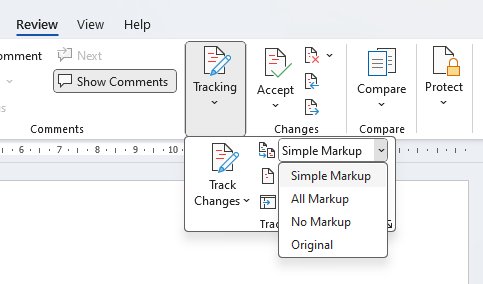
Track Changes sits on the Review tab in every version of Word. Only the route to that tab differs, so find your device in the table.
| Your Word version | Where to turn it on | Choose who is tracked? |
|---|---|---|
| Word for Windows | Review > Tracking > Track Changes | Yes: For Everyone or Just Mine |
| Word for Mac | Review > Track Changes | Yes: For Everyone or Just Mine |
| Word Online | Review > Track Changes | Yes: For Everyone or Just Mine |
| Word for iPad | Review > Track changes and Markup options > Track Changes | Yes: For Everyone or Just Mine |
| Word for iPhone | Edit button > Home > Review > Track Changes switch | A single on or off switch |
| Word for Android | More options > Review > Track Changes switch | A single on or off switch |
Word records only the edits made after you turn this on. To find older edits, review a document's editing history with Version History or Compare.
How to track changes in Microsoft Word Online
Word Online has a smaller set of Track Changes tools than the desktop app, but it handles most reviewing tasks.
- Open the document in Word Online.
- Select the Review tab.
- Select Track Changes.
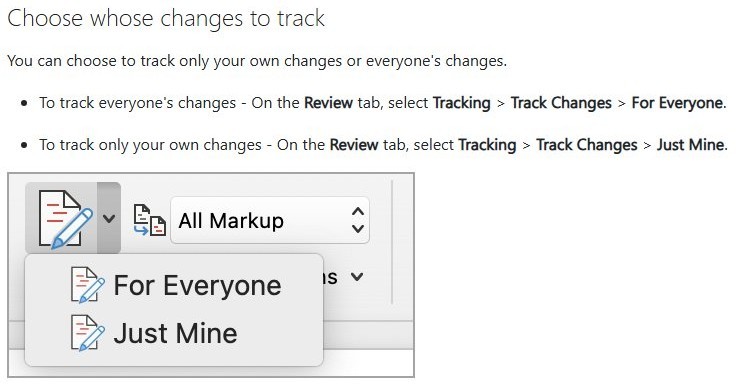
- Choose For Everyone to track all collaborators, or Just Mine to track only your own edits.
- Select Markup view on the Review tab and choose Simple Markup or All Markup.
- Select a change and use the accept or reject option on the card that appears.
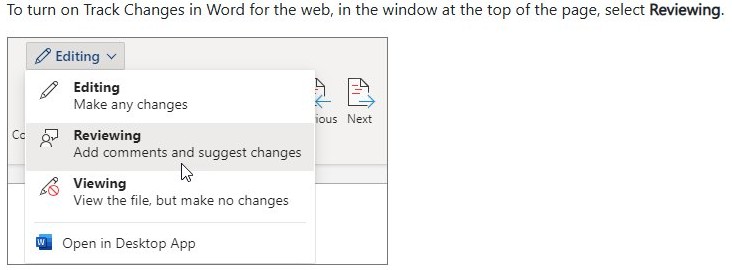
You can also switch the mode at the top of the page. Editing does not track your edits, Reviewing shows them as tracked changes, and Viewing blocks all edits.
With a keyboard, press Alt + Windows logo key + R, then G, then F to track everyone, J to track just yours, or O to turn tracking off. Close Xbox Game Bar first, because this shortcut can start a screen recording.
How to share a Word document in review mode
Review mode stops the people you share with from editing the text directly. Recipients who open the file suggest edits as comments or tracked changes, and you decide what to keep.
- Open the document in Word Online.
- Select Share, then select Share in the drop-down menu.
- Select the people who should review the document.
- Choose the Can review permission.
- Select Send.
This option works for documents stored in OneDrive for Business. In a SharePoint library, the library's file permissions take priority, so people with read and write access can still open the file in Editing mode.
How to track changes in the Microsoft Word Android app
The Android app uses one switch that tracks every edit, on phones and tablets alike.
- Open the document in the Word app.
- Tap More options to open the ribbon.
- Tap the Review tab.
- Turn on the Track Changes switch.
- Tap More options again to return to the document, then make your edits.
- To step through edits, tap Next change or Previous change on the Review tab.
- To decide on an edit, tap Accept or Reject and choose an option from the menu.
How to track changes in Word on iPhone and iPad
The iPhone and iPad apps track the same edits, but the controls sit in different places. These steps are for iPhone.
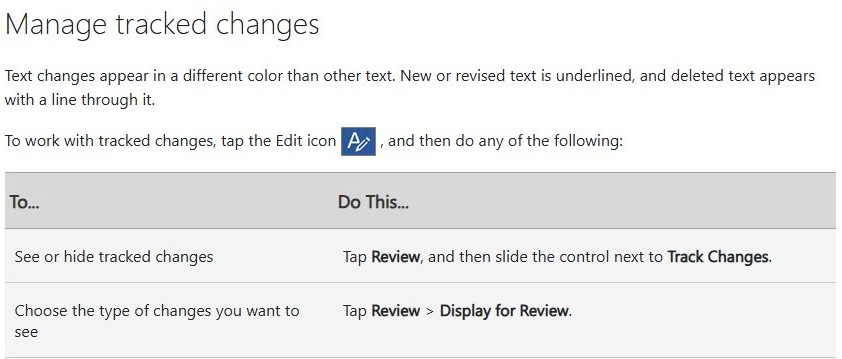
- Tap the edit button to open the ribbon.
- Tap Home, then tap Review.
- Scroll to Track Changes and turn on the switch.
- Tap Display for Review and choose All Markup, No Markup or Original.
- Tap a change twice to select it.
- Tap Accept or Reject on the Review tab and choose an option, such as Accept & Move to Next.
On an iPad, open the Review tab, tap the Track changes and Markup options button, tap Track Changes, and choose For Everyone or Just Mine. To act on an edit, double-tap it and tap Changes on the Review tab.
How to track changes in the Microsoft Word desktop app
These steps are for Word on Windows, which has the full set of tracking controls.
- Open the document and select the Review tab.
- Select Tracking, then select Track Changes.
- Open the Track Changes drop-down and choose For Everyone or Just Mine.
- Open the Markup drop-down and choose All Markup to see every edit in the text.
- Make your edits. Additions appear underlined and deletions appear with a strikethrough.
- Select Next or Previous to move between changes, and select Accept or Reject on each one.
The Track Changes section is highlighted while tracking is on. To keep a permanent indicator on screen, right-click the status bar and select Track Changes.
To stop others from turning tracking off, open the Track Changes drop-down and choose Lock Tracking, then set a password.
How to track changes in Word for Mac
- Open the document and select the Review tab.
- Select Track Changes, then choose For Everyone or Just Mine.
- To show edits in the text instead of balloons, select Markup Options > Balloons > Show All Revisions Inline.
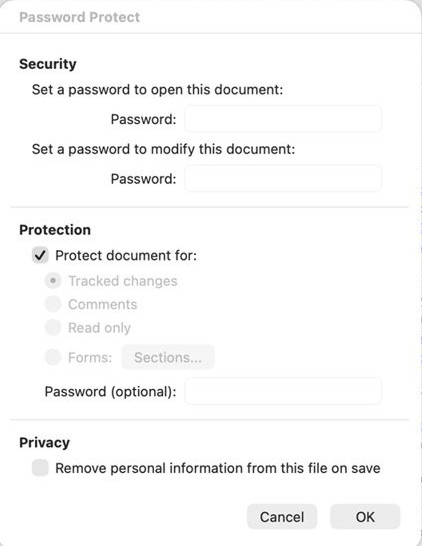
- To lock tracking, select Protect > Protect Document and enter a password.
- To finish, use the Accept or Reject drop-down on the Review tab.
To remove the Mac lock later, select Protect Document again, clear Protect document for, and enter the password.
Track Changes for everyone vs just mine in Word
The two options decide whose edits get marked. Word for iPhone and Word for Android use one switch instead.
| Your situation | Choose | What happens |
|---|---|---|
| Several people are editing and you need to see all of it | For Everyone | Every collaborator's edits are tracked |
| You want a record of your own edits only | Just Mine | Only your edits are tracked |
| You need tracking to stay on for other reviewers | Lock Tracking on Windows, Protect Document on Mac | A password stops others turning it off |
| You want reviewers to suggest but not edit directly | Can review, from Share in Word Online | Recipients open the file in review mode |
How to change the Track Changes color in Word
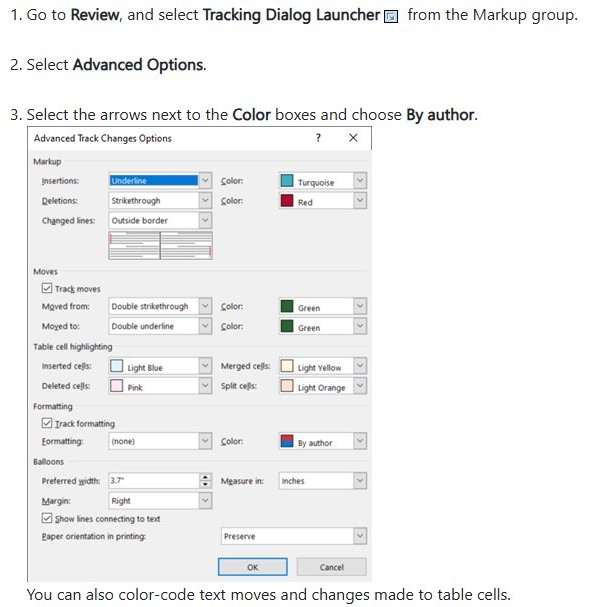
Word gives each reviewer a different color by default, and you cannot choose which color goes to which person. You can set one fixed color for everyone on Windows with these steps.
- Select the Review tab.
- Select the Tracking Dialog Launcher.
- Select Advanced Options.
- Open the Color boxes and pick a color, or choose By author to go back to per-reviewer colors.
- Select OK to save the change.
On a Mac, select Review > Tracking > Markup Options > Preferences, then choose a color in the Track Changes dialog box. These settings apply only to your computer, so other people can see different colors.
How to remove tracked changes in Word
Accepting or rejecting is what removes markup from a document. Choosing No Markup only hides it, and printing without markup does not remove it either.
- Select the Review tab, then select Tracking.
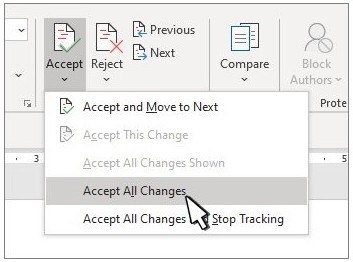
- Select Accept to keep the edits, or Reject to discard them.
- Choose Accept All Changes and Stop Tracking or Reject All Changes and Stop Tracking.
- Select Reviewing Pane and read the summary at the top.
- Confirm the summary shows no tracked changes or comments left in the document.
How to turn off Track Changes in Word
- Select the Review tab.
- On Windows, select Tracking > Track Changes so the section is no longer highlighted.
- On a Mac, select Track Changes again.
- In Word Online, select Track Changes and choose Off.
- On iPhone or Android, turn off the Track Changes switch on the Review tab.
Word stops marking new edits, but the colored underlines and strikethroughs already in the file stay there until you accept or reject them.
Track Changes not working in Word
You cannot turn off Track Changes
The document was shared with you for review, and that keeps tracking on.
- Select File and save a copy of the document to edit without tracking.
- Or ask the person who sent the file to share it again with review mode turned off.
Edits in Word Online are not marked
The document is in Editing mode, which does not track changes.
- Open the mode control at the top of the page.
- Select Reviewing.
- Make a test edit and check that it shows as a tracked change.
Markup is still there after you turned off Track Changes
Turning tracking off only stops new marks. Existing changes stay in the file.
- On the Review tab, select Tracking, then select Accept or Reject.
- Choose Accept All Changes or Reject All Changes.
Accept All Changes Shown is missing
That option does not display when All Reviewers is selected.
- On the Review tab, select Show Markup > Specific People.
- Clear every reviewer except the ones whose changes you want to act on.
- Select Accept or Reject and choose the All Changes Shown option.
Explore more features of Microsoft Word
Track Changes is one part of how Word handles shared documents. These related features help before, during and after a review.
| Feature | What it does | Where to start |
|---|---|---|
| Comments | Ask questions and suggest corrections without changing the text. Comments are separate from Track Changes. | The Review tab |
| Copilot | Drafts and edits text inside a document | use Copilot in Microsoft Word |
| Mail merge | Sends one document to many people with personal details filled in | set up a mail merge |
| Word count | Shows the length of a document or a selection | find the word count |
| Tracking in slides | Brings a similar review process to presentations | track changes in PowerPoint |
Track Changes in Word FAQ
Does turning off Track Changes remove the changes?
No. Turning off Track Changes only stops Word from marking new edits. Existing underlines and strikethroughs stay in the document until you accept or reject them from the Review tab.
How do I accept all changes in Word at once?
On the Review tab, select Tracking, then select Accept and choose Accept All Changes. Choose Accept All Changes and Stop Tracking if you also want Word to stop marking new edits.
Can I track changes in Word on my phone?
Yes. The Word apps for Android and iPhone both have a Track Changes switch on the Review tab. You can also move between edits and accept or reject them on either phone.
Does Track Changes include comments in Word?
No. Microsoft states that comments are no longer part of the Track Changes function. Comments still appear alongside tracked edits, and the Reviewing Pane summary counts both the tracked changes and the comments left in a document.
How do I see who made a tracked change in Word?
Select the marked text to open its card, which shows the name of the person who made the change. Word also uses a different color for each author, and the Reviewing Pane lists changes in one place.
How do I print a Word document without tracked changes?
Go to File > Print > Settings > Print All Pages, and under Document Info select Print Markup to clear the check mark. This only hides the markup on paper, so the changes stay in the file.
What is the difference between Editing and Reviewing in Word Online?
In Editing mode, your edits do not appear as tracked changes. In Reviewing mode they do, and other users can see your additions to the document. Viewing mode allows no edits at all.