When a OneDrive folder with more than 50 items will not open in the Files app, open it in the OneDrive app or at OneDrive.com, then update and reset the OneDrive app, because Microsoft and Apple document no 50-item limit.
This guide covers those routes, the published OneDrive limits, how to split a large folder so Files can list it, and the fixes for "content not available" and an app that will not open.
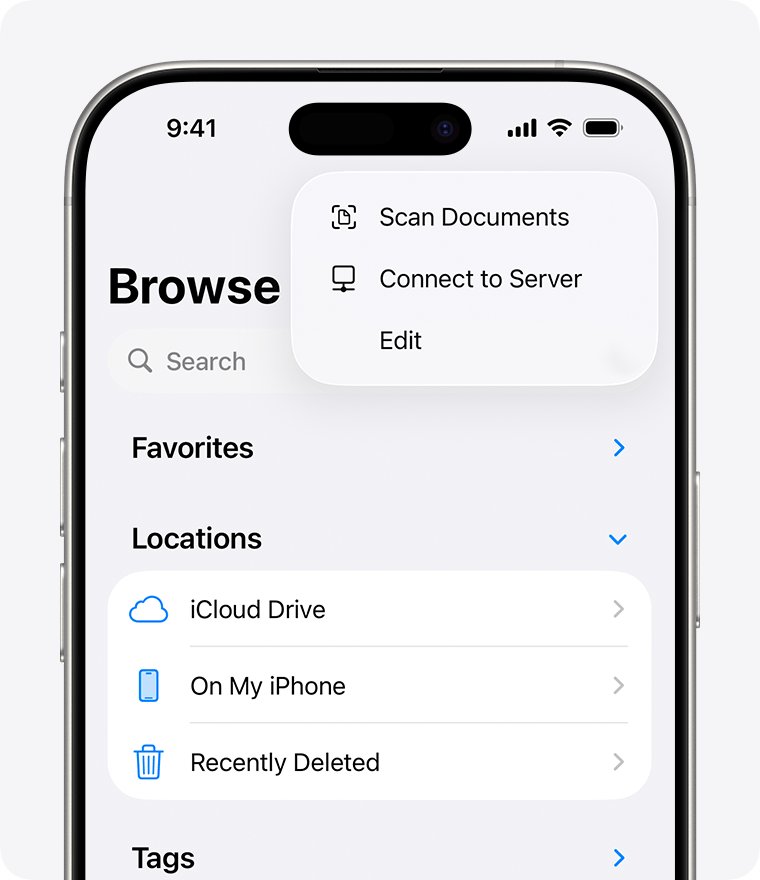
Open a OneDrive folder with more than 50 items on iPhone or iPad
The Files app shows OneDrive through the OneDrive app, but the OneDrive app has its own folder view. Use it first when you need a file right now.
- Open the OneDrive app and sign in if it asks.
- Open the Files view at the top of the app, next to your account picture.
- Browse to the large folder, or type its name in the search bar.
- Tap the folder to open it, then tap a file to open that file.
To keep a file on the device, press and hold it, or tap its three dots, then tap Make Available Offline.
Is there a 50 item limit in OneDrive or the Files app?
No published limit sits anywhere near 50. Microsoft's limits page lists these figures, and Apple's Files pages list no item count for cloud folders, so a 50-item failure points to a fault rather than a storage rule.
| OneDrive limit | Published figure | Where it applies |
|---|---|---|
| Sub-items in a shared folder | Up to 50,000 | Sharing a folder, including nested subfolders |
| Items with unique permissions | 50,000 supported, 5,000 recommended for a single change | A list or library |
| Total synced items | 300,000 or fewer recommended | Desktop sync across your cloud storage |
| Files copied at once | Up to 2,500 | The OneDrive website |
| Characters not allowed in names | " * : < > ? / \ | | File and folder names, plus leading and trailing spaces |
A file name with a blocked character cannot be uploaded to OneDrive, so renaming items is not the cure for a folder that is already in your account.
Update the OneDrive app for iOS and iPadOS 26
The current OneDrive release on the App Store requires iOS 26.0 or later, and it supports the same version of iPadOS. An older app or system is the first thing to rule out.
- Go to Settings > General > Software Update.
- If an update is available, tap Download and Install, then follow the onscreen instructions.
- Open the App Store and search for Microsoft OneDrive.
- Tap Update if it appears.
- Open the OneDrive app once so it can sign in, then reopen Files.
If your device cannot run iOS 26 or iPadOS 26, the App Store will not offer the current OneDrive release. Use OneDrive.com in Safari for large folders instead.
Reset the OneDrive app on iPhone and iPad
Microsoft's listed fix for sync problems and files the app cannot find is an account reset, run from inside the app. Note the folder's contents at OneDrive.com first so you can compare afterwards.
- Open the OneDrive app and tap your profile picture.
- Tap Settings, then tap Account.
- Tap Reset, and choose the account if you have more than one.
- Reopen Files, tap Browse, then tap OneDrive and open the large folder.
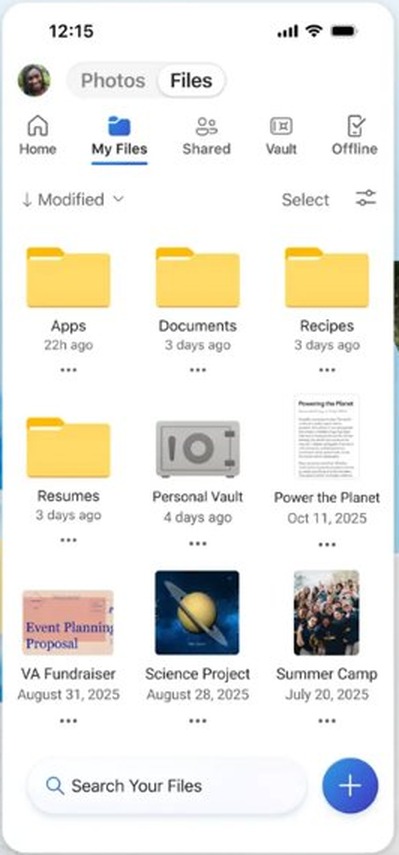
Turn OneDrive off and on in the Files app
This makes Files add the location again without touching the OneDrive app. It is the same list you use when OneDrive files are missing from Files on iPad altogether.
- Open the Files app, then tap Browse.
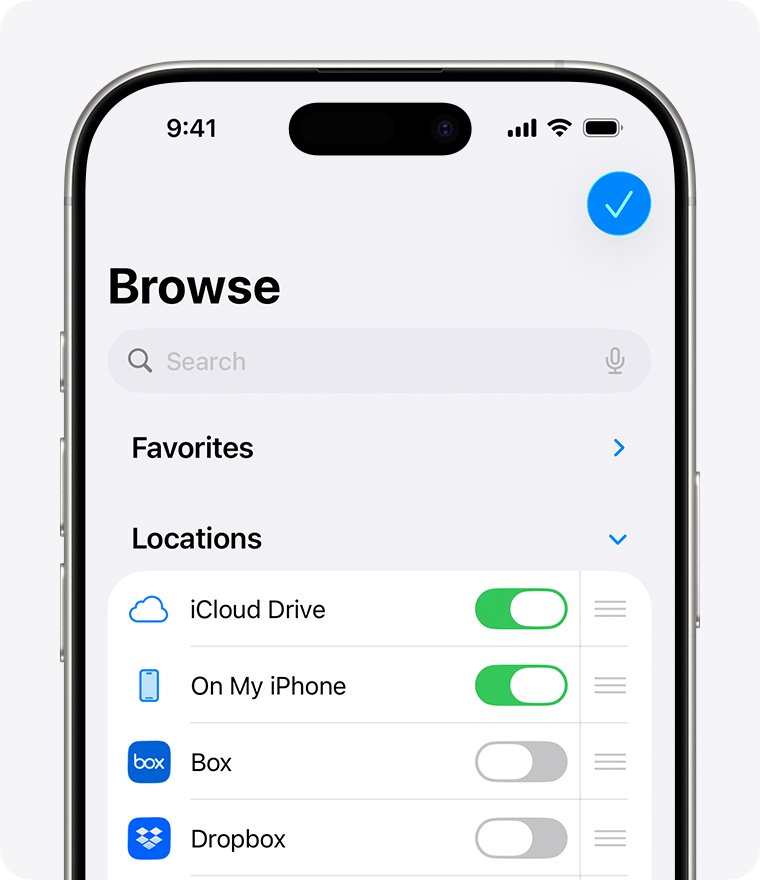
- Tap the More button, then tap Edit.
- Turn off OneDrive, then tap Done.
- Tap More > Edit again, turn OneDrive back on, then tap Done.
- Tap OneDrive and open the folder.
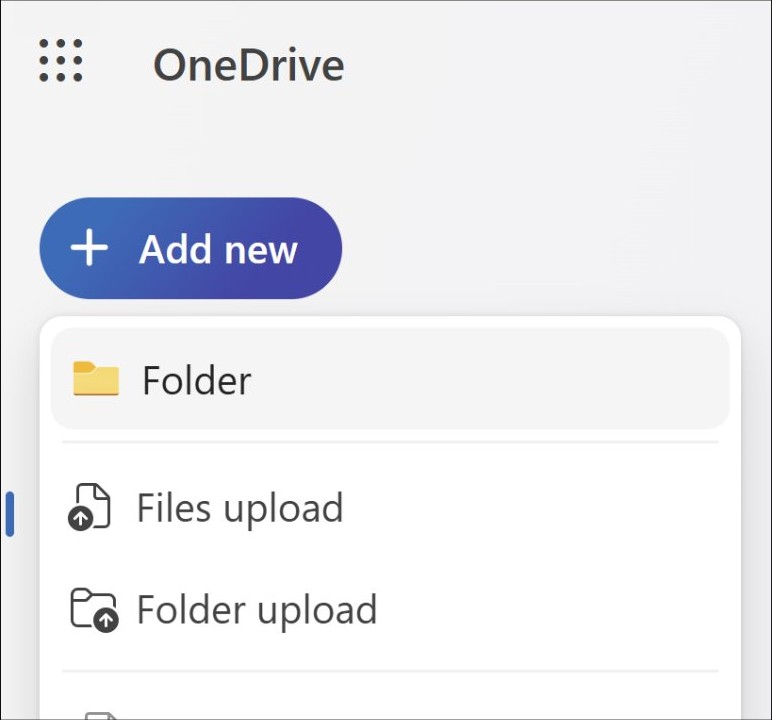
Split a large OneDrive folder into subfolders at OneDrive.com
If a folder opens in Files only when it holds fewer than 50 items, smaller subfolders are the practical workaround until an update changes the behavior. The website has a Move to command that also creates the new folder.
- Sign in at onedrive.com in a browser and open the large folder.
- Select the circle next to each item you want to move. In List view the circle is to the left, and in Tiles view it is in the upper-right corner.
- Select Move to in the top navigation.
- In the Move to pane, select New folder and name the subfolder.
- Select Move.
- Repeat until each subfolder is a size Files can open, then reopen the location in Files.
On a Windows PC signed in to OneDrive, you can drag items between folders in File Explorer instead. Both routes sync to your other devices.
OneDrive folder not showing on iPhone? Use OneDrive.com in Safari
The website does not depend on the Files app or the OneDrive app. Use it to confirm the folder still holds what you expect.
- Open Safari and go to onedrive.com.
- Sign in with the account that holds the folder. Microsoft suggests a private window on mobile.
- Open the folder, or use Search everything at the top of the page.
- Select Sort at the upper right to order items by Name, Modified or Sharing.
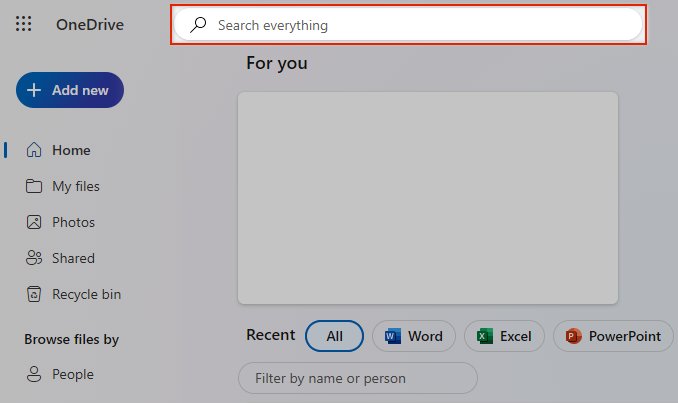
Make a large OneDrive folder available offline on iPhone
Offline copies open from the OneDrive app without a connection. You can also access OneDrive files offline on Windows, macOS and Android.
- Open the OneDrive app.
- Press and hold the file or folder, or tap the three dots next to it.
- Tap Make Available Offline.
- Look for the Available Offline icon next to it in List view.
- Tap the Me icon, then tap Offline Files to list everything you saved.
Taking folders offline needs Premium OneDrive with a Microsoft 365 subscription. Without it, mark the files you need one at a time. To undo this, select the item and tap Remove from Offline.
OneDrive app not showing all files on iPhone and iPad
"Content not available" on a OneDrive folder in Files
Files cannot load the folder through the OneDrive app, and the error can return after a retry.
- Confirm the folder opens in the OneDrive app, which shows the location itself is fine.
- Tap your profile picture, then Settings > Account > Reset.
- Delete the OneDrive app, then force restart the iPhone or iPad.
- Reinstall Microsoft OneDrive from the App Store and sign in.
- Turn on Background App Refresh for OneDrive in iOS Settings, then test the folder in Files.
OneDrive showing folders but not files
Files lists what the OneDrive app supplies, and a stale app session or a blocked connection leaves gaps.
- Open the same folder at onedrive.com to see what is really stored there.
- If the file is not there, select Recycle bin on the left. Select the file and choose Restore.
- If the file is there, reset the OneDrive app under Settings > Account > Reset.
- Try another network, such as a mobile hotspot, because a provider firewall can block OneDrive.
OneDrive iOS app not showing files after sign-in
The app has no working session, or you are in a different account.
- Tap the gray OneDrive icon with a line through it if you see one, then sign in on the Set up OneDrive screen.
- Check the account name. Only one personal Microsoft account can be added to the app.
- Check your work or school account if the folder belongs there.
- Unlock Personal Vault, because vault files do not appear in search results.
OneDrive app not opening on iPhone or iPad
Microsoft lists a reinstall as the fix for an app that crashes or will not launch.
- Delete the OneDrive app.
- Force restart the device.
- Reinstall Microsoft OneDrive from the App Store.
- Turn on Background App Refresh for OneDrive in iOS Settings.
OneDrive search in Files returns nothing from the large folder
Search has the same dependency on the OneDrive app as browsing.
- Open Files, enter the name in the search field, and tap OneDrive below it to narrow the scope.
- If that returns nothing, search OneDrive folders from the OneDrive app instead.
- Sort the open folder by tapping the view button and choosing Name, Kind, Date, Size or Tags to bring a file into view.
How to compare a OneDrive folder in Files with OneDrive.com
A count taken in both places shows whether Files is listing the whole folder.
- Open the folder at onedrive.com and note how many items it holds.
- Open Files, tap Browse, then tap OneDrive and open the same folder.
- Sort by Name and scroll to the end of the list.
- Compare the last item and the total with OneDrive.com.
- Open one file from the end of the list to confirm it downloads and previews.
If the two still differ after an update and a reset, Apple points to your cloud provider for Files problems. Shake your device in the OneDrive app to contact Microsoft, or ask your IT helpdesk for a work or school account.
OneDrive folders in the Files app FAQ
Does OneDrive have a 50 item limit in the Files app?
Neither Microsoft nor Apple documents one. Microsoft's published OneDrive limits are far higher, such as 50,000 sub-items in a shared folder. A folder that fails above 50 items is a fault to work around with the OneDrive app, a reset, or smaller subfolders.
Why is OneDrive not showing all files?
Files may be in another account, in Personal Vault, in the Recycle bin, or in a view that has not refreshed. Check the folder at OneDrive.com first, because that shows what is stored. Then reset the OneDrive app under Settings > Account > Reset.
Why can't I see files in OneDrive?
You may be signed in to a different Microsoft account, or the files may be deleted or locked in Personal Vault. Use Search everything at OneDrive.com, check the Recycle bin, and unlock the vault. Also try your work or school account if you have one.
Why is my OneDrive app not opening?
Microsoft's fix for an iOS app that crashes or will not launch is a clean reinstall. Delete the app, force restart your iPhone or iPad, and reinstall it from the App Store. Then turn on Background App Refresh for OneDrive in iOS Settings.
Why is OneDrive not showing up in Files?
The OneDrive app must be installed and set up, and its location must be turned on. In Files, tap Browse, tap the More button, tap Edit, turn on OneDrive, then tap Done. It then appears by name in the Browse list.
Why isn't OneDrive showing in File Explorer?
OneDrive appears in File Explorer after you sign in to the app on your PC and finish setup. OneDrive is already installed on Windows 11. Open it, sign in, select Next on the setup screens, then look for the OneDrive folder in File Explorer.
Why don't I have the OneDrive app on my iPhone?
OneDrive is a separate download from the App Store, published by Microsoft. The current version requires iOS 26.0 or later. If your iPhone cannot run that version, the App Store will not offer the current release, so use OneDrive.com in Safari instead.
Can I make a OneDrive folder available offline on iPhone?
Yes, with Premium OneDrive through a Microsoft 365 subscription. Press and hold the folder in the OneDrive app, or tap its three dots, then tap Make Available Offline. Without that subscription, you can mark individual files offline instead of the whole folder.