Run winget upgrade --id Microsoft.PowerShell to update PowerShell 7 on Windows 11 or Windows 10; Windows PowerShell 5.1 is a separate product that only gets security updates through Windows Update.
The sections below cover the MSI, Microsoft Store, Windows PowerShell 5.1 on older systems, remote computers, Group Policy, WSUS and the fixes for updates that do not arrive.
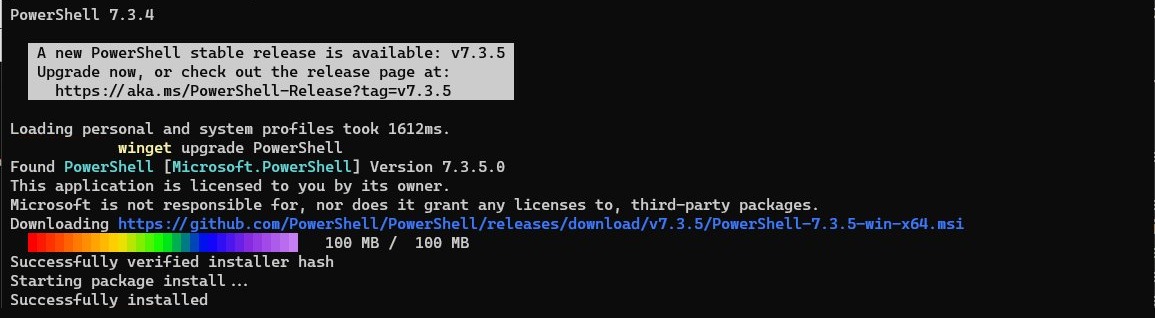
Using WinGet package manager to install or update PowerShell Core
PowerShell Core is the older name for what Microsoft now calls PowerShell 7. The WinGet package manager is Microsoft's recommended route on Windows client PCs, and the commands work from Command Prompt, Windows PowerShell or PowerShell 7.
- Open Windows Terminal, Command Prompt or Windows PowerShell.
- Run
winget list --id Microsoft.PowerShell --upgrade-availableto see whether a newer release exists. - Run
winget upgrade --id Microsoft.PowerShellto install it. WinGet keeps your current package format (MSI or MSIX) when the new version offers that format. - If PowerShell 7 is missing, run
winget install --id Microsoft.PowerShell --source wingetinstead. - Open a new window and run
pwsh -Versionto read the installed version.
A first-time setup has more options than an update, so you can install PowerShell 7 with the MSI, ZIP or .NET tool if WinGet is not an option.
Windows PowerShell 5.1 vs PowerShell 7 update options
| Your situation | Do this | Why |
|---|---|---|
| Windows 11 or Windows 10 showing version 5.1 | Keep Windows Update current, then add PowerShell 7 if you need it | 5.1 is the final Windows PowerShell release and ships with Windows |
| PowerShell 7 on a single PC | winget upgrade --id Microsoft.PowerShell |
Fastest route, and it keeps your package format |
| PowerShell 7 from the Microsoft Store | Let the Store update it | Store installs update automatically |
| PowerShell 7 on Windows Server 2022 or earlier | Run the newer MSI | WinGet is not available on those Server versions |
| Windows 8.1, Server 2012 or Windows 7 on version 2.0 to 5.0 | Install WMF 5.1 | PowerShell 5.1 comes from the WMF 5.1 package on these systems |
| Many computers in a domain | Remote script, Group Policy, or WSUS | Each pushes the MSI or update without visiting every PC |
Can you update Windows PowerShell 5.1 to PowerShell 7?
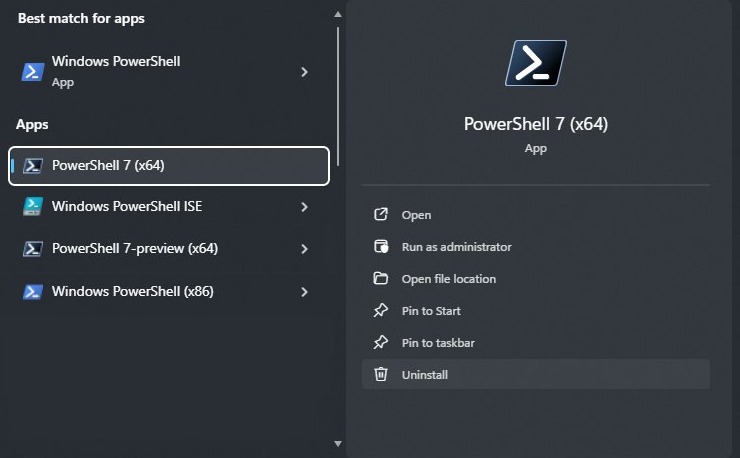
No. PowerShell 7 installs next to Windows PowerShell 5.1 and does not replace it. Windows PowerShell runs as powershell.exe from $Env:windir\System32\WindowsPowerShell\v1.0, while PowerShell 7 runs as pwsh.exe from $Env:ProgramFiles\PowerShell\7. Microsoft no longer adds features to 5.1, and some older modules still need it, so keep both.
You do not have to install PowerShell 7 unless you need its features. Microsoft describes it as faster, more secure and actively developed, while 5.1 only gets security updates.
Upgrading to Windows PowerShell 5.1
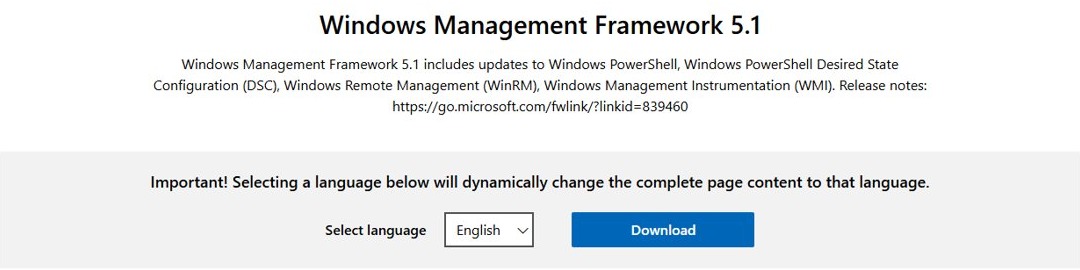
Windows PowerShell 5.1 ships inside every supported version of Windows, so only older systems need the Windows Management Framework (WMF) 5.1 package. Pick your file on the WMF 5.1 download page.
| Windows version | PowerShell included | What to do |
|---|---|---|
| Windows 11, Windows 10 version 1607 or later, Windows Server 2016 or later | 5.1 | Nothing to install. Windows Update delivers its security updates |
| Windows 8.1 and Windows Server 2012 R2 | 4.0 | Win8.1AndW2K12R2-KB3191564-x64.msu (32-bit Windows 8.1: Win8.1-KB3191564-x86.msu) |
| Windows Server 2012 | 3.0 | W2K12-KB3191565-x64.msu |
| Windows 7 SP1 and Windows Server 2008 R2 SP1 | 2.0 | Win7AndW2K8R2-KB3191566-x64.zip (32-bit Windows 7: Win7-KB3191566-x86.zip) |
| Windows 8, Windows Server 2008 SP2, Windows Vista, Windows Server 2003, Windows XP | 3.0 or older | No WMF 5.1 package exists. Upgrade Windows instead |
Microsoft no longer supports any of the Windows versions that need this package, so WMF 5.1 is a stopgap and not a security fix for the operating system. WMF 5.1 installs directly over WMF 5.0 or 4.0, and standalone installers for WMF 5.0 and older are gone.
How to install WMF 5.1 on Windows Server 2012 R2 and Windows 8.1
- Download the
.msufile that matches your Windows version and architecture. - Open Command Prompt with Run as administrator and change to the download folder.
- Run
Win8.1AndW2K12R2-KB3191564-x64.msu /quiet /norestart, orW2K12-KB3191565-x64.msu /quiet /norestarton Windows Server 2012. You can also double-click the file in File Explorer. - Restart the computer, because WMF 5.1 is not installed until the reboot.
- Open Windows PowerShell and run
$PSVersionTable.PSVersionto read the new version.
Using /quiet without /norestart reboots the system with no warning, so keep both switches on a production server.
How to install WMF 5.1 on Windows 7 and Windows Server 2008 R2
- Install the latest service pack and .NET Framework 4.5.2 or later. Without .NET 4.5.2, setup succeeds but key features fail.
- Uninstall WMF 3.0 if it is present, or save
$env:PSModulePathand restore it afterward. Installing over WMF 3.0 loses that path. - Right-click the ZIP file and select Extract All. It holds an MSU file and the
Install-WMF5.1.ps1script. - Open PowerShell as administrator and change to the extracted folder.
- Run
.\Install-WMF5.1.ps1and follow the prompts. Add-AcceptEula -AllowRestartto automate it. - After the restart, run
$PSVersionTable.PSVersionto read the new version.
How to install or update PowerShell Core 7?
Microsoft says to update with the same method you used to install. Run $PSHOME in PowerShell 7 and match the result below. A newer 7.x release replaces the older one, while preview builds install side by side with stable releases.
| $PSHOME shows | Installed with | Update with |
|---|---|---|
$Env:ProgramFiles\PowerShell\7 |
MSI package (confirm in Programs and Features) | winget upgrade --id Microsoft.PowerShell, the newer MSI, or Microsoft Update |
Starts with $Env:ProgramFiles\WindowsApps\ |
MSIX package or Microsoft Store | Store updates or winget upgrade --id Microsoft.PowerShell |
$HOME\.dotnet\tools |
.NET global tool | dotnet tool update --global PowerShell |
| Anything else | ZIP package | Unzip the new release to your PowerShell folder and run pwsh.exe from there |
Upgrading the PowerShell Core using MSI installation
The MSI package is Microsoft's pick for Windows Server and enterprise deployment, and it needs administrator rights. PowerShell 7.7 and later will not ship an MSI, so plan new deployments around MSIX or ZIP once you move to that release.
- Open the PowerShell releases page on GitHub and expand Assets.
- Download
PowerShell-7.6.6-win-x64.msi, orPowerShell-7.6.6-win-arm64.msion an Arm PC. - Double-click the file and follow the prompts.
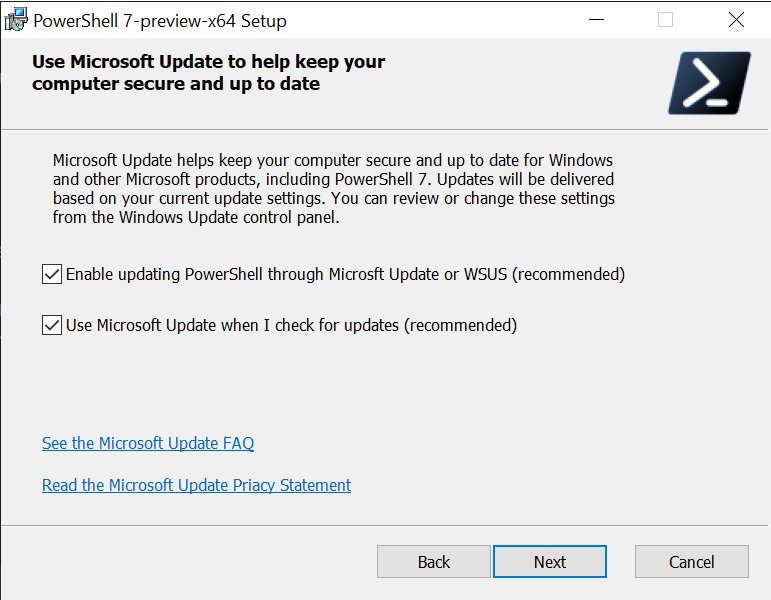
- Select both Microsoft Update check boxes in setup if you want future patches through Windows Update.
- Open a new window and run
pwsh -Versionto read the installed version.
Update PowerShell 7 silently with msiexec
Run this from an elevated session in the folder that holds the MSI. It suits scripts and computers where nobody clicks through setup.
$msiParams = @(
    '/package'
    'PowerShell-7.6.6-win-x64.msi'
    '/quiet'
    'ADD_PATH=1'
    'USE_MU=1'
    'ENABLE_MU=1'
)
msiexec.exe @msiParams
/quiet hides setup, ADD_PATH=1 adds PowerShell to PATH, USE_MU=1 opts in to Microsoft Update, WSUS and Configuration Manager, and ENABLE_MU=1 turns on Microsoft Update for automatic updates.
You should see: pwsh -Version in a new window prints PowerShell 7.6.6.
Install PowerShell Core on Windows 10 and 11 via Microsoft Store
- Open Microsoft Store and search for PowerShell. The product ID is
9MZ1SNWT0N5D. - Install the listing with that product ID.
- Let the Store apply updates automatically.
- To check by hand, open Downloads or your library in the Store and install any PowerShell update listed there.
- Start the app by running
pwshor selecting PowerShell 7 in the Start menu.
Store installs are per user and do not accept incoming PowerShell remoting. They also block Set-ExecutionPolicy -Scope LocalMachine, Update-Help -Scope AllUsers and all-users profile scripts, so use the MSI on managed computers.
Installing/updating PowerShell Core on remote computers
Each target must accept PowerShell remoting. It is on by default on Windows Server. On a Windows client, run PowerShell as administrator on that PC and run Enable-PSRemoting once.
Download the MSI to C:\Temp on your admin PC first, then run this script from an elevated session. It copies the file to each computer, installs it silently and prints the result.
$Msi = "C:\Temp\PowerShell-7.6.6-win-x64.msi"
foreach ($Computer in "Server01", "Server02") {
    $Session = New-PSSession -ComputerName $Computer
    Invoke-Command -Session $Session -ScriptBlock { New-Item -Path C:\Temp -ItemType Directory -Force }
    Copy-Item $Msi -Destination "C:\Temp\" -ToSession $Session
    Invoke-Command -Session $Session -ScriptBlock {
        Start-Process msiexec.exe -Wait -ArgumentList "/package C:\Temp\PowerShell-7.6.6-win-x64.msi /quiet USE_MU=1 ENABLE_MU=1 ADD_PATH=1"
        & "$Env:ProgramFiles\PowerShell\7\pwsh.exe" -Version
    }
    Remove-PSSession $Session
}
New-PSSession opens a connection to each computer, Copy-Item -ToSession sends the MSI through it, and Invoke-Command runs the silent install on the remote side. Replace Server01 and Server02 with your computer names.
You should see: PowerShell 7.6.6 once per computer.
How to update PowerShell on a remote computer from the Command Prompt?
Microsoft's Sysinternals PsExec runs a program on another computer from Command Prompt, with no client software to install on the target. Copy psexec.exe to a folder on your PATH, and sign in with an account that is an administrator on the target.
mkdir \\Server01\C$\Temp
copy C:\Temp\PowerShell-7.6.6-win-x64.msi \\Server01\C$\Temp\
psexec \\Server01 -h msiexec.exe /package C:\Temp\PowerShell-7.6.6-win-x64.msi /quiet
psexec \\Server01 "C:\Program Files\PowerShell\7\pwsh.exe" -Version
C$ is the default administrative share of the target's C: drive. -h runs the installer with the account's elevated token. File paths after the program name must be absolute paths on the remote computer.
You should see: PowerShell 7.6.6 from the last command.
Deploying PowerShell Core with Group Policy
Group Policy software installation assigns the MSI to computers, and it installs the next time each one starts. Use the MSI with this method, since the MSIX and ZIP packages are not Windows Installer files.
- Create a shared network folder on a server and grant the target computers read access.
- Copy
PowerShell-7.6.6-win-x64.msiinto the share. - Create or edit a Group Policy Object that applies to the target computers.
- Under Computer Configuration, expand Software Settings.
- Right-click Software installation, point to New, and select Package.
- Type the full UNC path, such as
\\fileserver\share\PowerShell-7.6.6-win-x64.msi. Do not use the Browse button. - Select Open, select Assigned, and select OK.
- For the next release, add its MSI as a new package the same way. The newer 7.x package replaces the older one when the computer starts.
Updating PowerShell via Windows Update or WSUS
PowerShell 7.2 and later can update through Microsoft Update, WSUS and Configuration Manager, but only when installed from the MSI on an x64 system running Windows version 1809 or newer.
- Select both Microsoft Update check boxes when you run the MSI. The first allows updates through Microsoft Update, WSUS or Configuration Manager, and the second turns on Microsoft Update.
- If setup hid the boxes during a repair install, run
msiexec.exe /fmu .\PowerShell-7.6.6-win-x64.msi USE_MU=1 ENABLE_MU=1from the MSI's folder. - On Windows 11, go to Start > Settings > Windows Update > Advanced options and turn on Receive updates for other Microsoft products.
- On Windows 10, go to Start > Settings > Update & Security > Windows Update > Advanced options and turn on the same option.
- Return to Windows Update, select Check for Windows updates, and then select Download & install.
- On WSUS or Configuration Manager, approve or deploy the PowerShell update to your computer groups from the server console.
A new release can take up to two weeks to reach Microsoft Update, and it arrives as an optional update even when it holds a security fix. If you need it sooner, install the MSI from GitHub.
PowerShell 7.6, 7.5 and 7.4 end of support dates
| Version | Channel | Latest patch | Released | End of support |
|---|---|---|---|---|
| PowerShell 7.7 | Preview | 7.7.0-preview.5 | In development | Not supported for production |
| PowerShell 7.6 | LTS | 7.6.6 | March 18, 2026 | November 14, 2028 |
| PowerShell 7.5 | Stable | 7.5.11 | January 23, 2025 | November 10, 2026 |
| PowerShell 7.4 | LTS | 7.4.20 | November 16, 2023 | November 10, 2026 |
| Windows PowerShell 5.1 | Built into Windows | Delivered by Windows Update | August 2016 | Follows your Windows version |
Patch numbers are the current ones as of November 2026. After a version reaches end of support it gets no more updates, including security fixes, so move anything on 7.4 or 7.5 to 7.6 now.
How to check your PowerShell version after updating
Run this inside the shell you updated, because powershell.exe and pwsh.exe report different versions. For more routes, you can check your PowerShell version from Command Prompt or Control Panel as well.
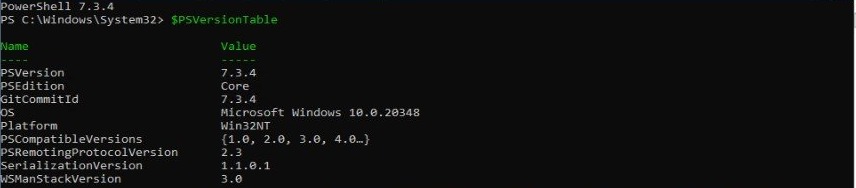
$PSVersionTable.PSVersionThe Major, Minor and Patch columns form the version number. Run $PSHOME too if you need to confirm which installation the window is using.
You should see: 7, 6 and 6 under Major, Minor and Patch for PowerShell 7.6.6, or 5 and 1 under Major and Minor for Windows PowerShell 5.1.
PowerShell update not working on Windows
PowerShell still shows version 5.1 after installing PowerShell 7
You opened Windows PowerShell, which stays installed next to PowerShell 7.
- Run
pwshin the open window, or select PowerShell 7 in the Start menu. - Run
$PSVersionTable.PSVersionto read the version of that session.
"Install the latest PowerShell" message keeps appearing
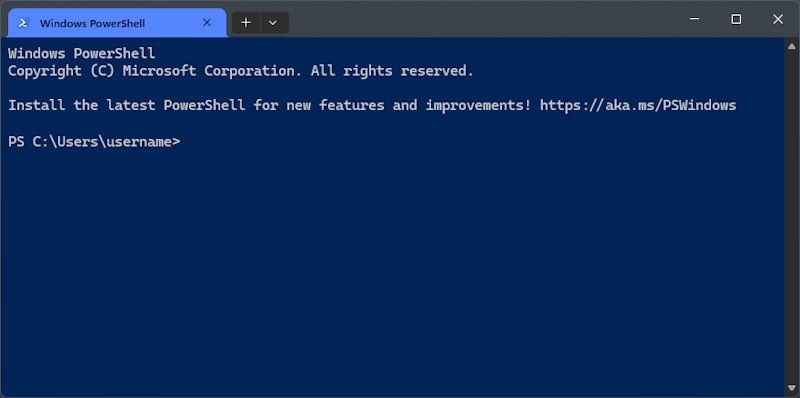
Windows PowerShell 5.1 prints this banner at every start, even on a fully updated PC, and it cannot be turned off.
- Start
pwsh.exeinstead, which never shows the message. - Run
powershell.exe -nologoif you must stay on 5.1. It hides all startup messages.
winget is not available on Windows Server or a new PC
WinGet does not exist on Windows Server 2022 or earlier, and on Server 2025 it needs Desktop Experience. On a client PC, it registers only after the first sign-in.
- On Windows Server, install the MSI instead.
- On a client PC, run
Add-AppxPackage -RegisterByFamilyName -MainPackage Microsoft.DesktopAppInstaller_8wekyb3d8bbwein Windows PowerShell. - Run
winget upgrade --id Microsoft.PowerShellagain.
Microsoft Update does not offer the new PowerShell release
The update is not published yet, Group Policy blocks Microsoft Update, or the opt-in boxes were left clear.
- Wait up to two weeks after the release date.
- Ask your administrator whether policy blocks Microsoft Update, since the installer's check box cannot override Group Policy.
- Run
msiexec.exe /fmu .\PowerShell-7.6.6-win-x64.msi USE_MU=1 ENABLE_MU=1to opt in.
Microsoft Update did not upgrade PowerShell 7.4 to 7.6
Microsoft Update stays inside your release channel and installs patches for your minor version. It never moves an LTS release to a stable non-LTS release, and it never moves a preview to a final release.
- Run
winget upgrade --id Microsoft.PowerShellor install the 7.6 MSI. - Run
pwsh -Versionin a new window to read the new version.
Updating PowerShell on Windows FAQ
How do I update PowerShell from the command line?
Run winget upgrade --id Microsoft.PowerShell from Command Prompt, Windows PowerShell or PowerShell 7. To see whether an update exists first, run winget list --id Microsoft.PowerShell --upgrade-available. WinGet needs Windows 11, a current Windows 10 or Windows Server 2025 with Desktop Experience.
What is the latest version of PowerShell?
PowerShell 7.6.6 is the current long-term support release as of November 2026, and it is supported until November 14, 2028. PowerShell 7.5.11 is the current stable release. Windows PowerShell 5.1 is the last version of the Windows-only edition.
Does updating PowerShell remove Windows PowerShell 5.1?
No. PowerShell 7 installs to its own folder and runs side by side with Windows PowerShell 5.1. A new PowerShell 7 release only replaces the older PowerShell 7 release, so scripts and modules that depend on powershell.exe keep working.
Does Windows Update update PowerShell 7 automatically?
Only if you installed the MSI and opted in to Microsoft Update during setup. Updates then appear as optional updates, up to two weeks after each release. Microsoft Store installs update through the Store, and ZIP installs never update on their own.
How do I update Windows PowerShell 5.1?
Keep Windows updated, because Windows PowerShell 5.1 is a built-in Windows component and all its updates come through standard Windows update channels. Microsoft only publishes security updates for it, and no newer Windows PowerShell version exists to upgrade to.
Can I update PowerShell without administrator rights?
Yes, by using the ZIP package, which any user can deploy to a folder they can write to. Deploying the MSI package requires administrator permission. With the ZIP method, you add the Start menu shortcut and the PATH entry yourself.
Can I keep two PowerShell 7 versions installed?
Yes, by installing the extra version from a ZIP package to a different folder. A normal install of a newer 7.x release replaces the older one. Preview builds install side by side with stable builds, and a newer preview replaces the previous preview.
Will PowerShell 7.7 still have an MSI installer?
No. Microsoft says that beginning with the PowerShell 7.7.0 release there is no MSI package, and WinGet only installs the MSIX package. PowerShell 7.6 still has an MSI, so existing MSI, Group Policy and WSUS deployments can stay on the 7.6 LTS release.