Unplug the USB device you connected last, then reconnect it directly to a different port, because the power surge on the USB port error points to a power fault between that device and the port.
The sections below show how to tell whether the device or the port is at fault, how to remove the power limits Windows reports, and which driver fixes to try next.
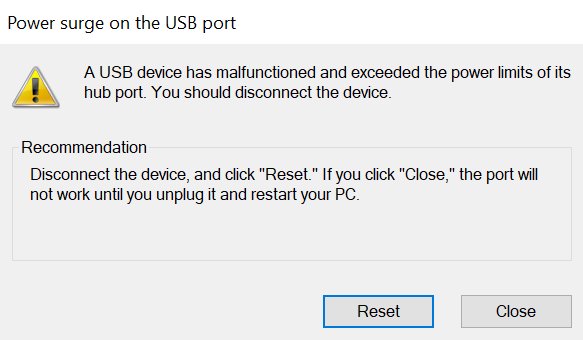
Power surge on the USB port in Windows 11/10
Start with these steps. They need no tools, and they often show which device caused the alert.
- Unplug the USB device you connected most recently.
- Disconnect every other USB device you are not using.
- Plug your laptop into wall power so it is not running on battery.
- Connect the device's own power adapter if it has one.
- Plug the device directly into a different USB port, without a hub or dock.
- Watch for the alert for a few minutes while you use the device.
If the alert follows the device to every port, the device or its cable is the likely fault. If it appears on one port only, suspect that port.
What does power surge on the USB port mean
The message means a USB port and a connected device have a power problem. The device can draw more current than the port allows, or the port can fail to supply what the device requests.
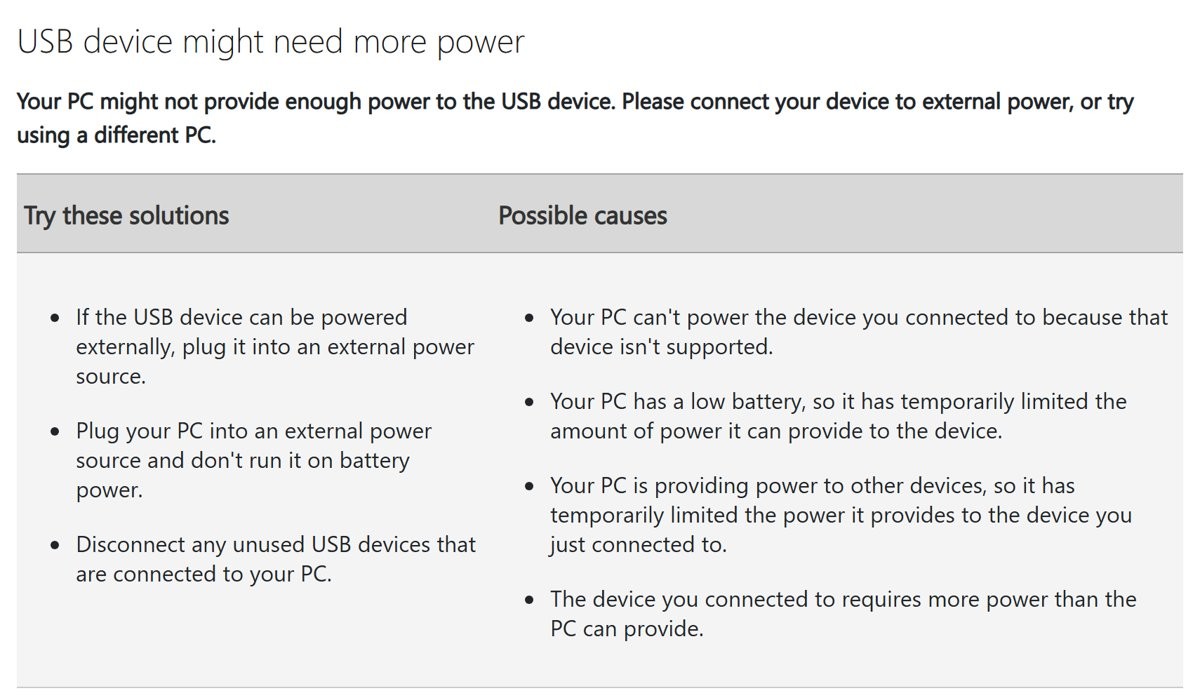
Windows 11 uses a related notification that reads USB device might need more power. Windows 10 shows USB device might not be working properly for the same type of power shortage.
| What Windows records | What it means | What you can do |
|---|---|---|
Overcurrent condition (DeviceCausedOvercurrent) |
A device tried to connect, and the attempt failed because of overcurrent | Unplug the device, then inspect it and its cable |
Not enough power (DeviceNotEnoughPower) |
The port had too little power to drive the device, so the connection failed | Use external power or remove other USB devices |
Requested power above the port's supply (bMaxPower) |
A device needing 100 mA fails its setup request on a port that supplies 50 mA | Move the device off the hub and onto a PC port |
Bus-powered device (MaxPower) |
The device declares the most current it can draw from the host, such as 500 mA on one Microsoft webcam | Check the device's specs against what your PC supports |

Check for shorts on the USB device
A damaged connector or cable is the first thing to rule out, because it can keep triggering the alert on every port you try.
- Unplug the device from the PC.
- Inspect the connector for bent contacts, debris, cracks or looseness.
- Check the full cable length for fraying, kinks and exposed wire.
- Swap in another cable if the device uses a detachable one.
- Connect the device to a different PC or phone that supports it.
- Stop using the device and contact its manufacturer if the alert or the damage is still there.
Cables matter on USB-C too, because not every USB-C cable supports every feature. Use the cable supplied with the device when you test it.
Look for shorts on the USB ports
Test each port with a device you trust. A small device such as a mouse gives a cleaner result than a drive or a hub.
- Shut down the PC and unplug it from wall power.
- Remove everything connected to the USB ports.
- Use a flashlight to inspect each port for bent contacts, debris or a loose connector.
- Clean dirty ports with compressed air.
- Plug the PC back in and start Windows.
- Connect one known-good USB device to the first port and wait a minute.
- Repeat on each remaining port and note any port that triggers the alert.
- Stop using a port that repeats the alert, and contact the PC manufacturer about a repair.
Resolve the power issues
A PC can limit USB power on purpose or simply run short of it. Match your situation to a row below.
| Your situation | Why it happens | Fix |
|---|---|---|
| Laptop is running on battery | A low battery makes the PC temporarily limit the power it provides | Plug the PC into an external power source |
| Several USB devices are connected | The PC is powering other devices, so it limits the power to this one | Disconnect unused USB devices |
| Drive, dock or other device needs a lot of power | The device requires more power than the PC can provide | Plug the device into an external power source if it supports one |
| Device connects through a hub or dock | The connection goes through a hub or dock rather than a PC port | Connect the device directly to the PC |
| Device was never used with this PC | The PC cannot power a device it does not support | Confirm in the device specs that your PC supports it |
Try these software fixes as well
Driver fixes, which also help when USB devices are not recognized, come after the hardware checks, because no driver can repair a short. Start by reading the status Windows reports for the device.
- Right-click Start and select Device Manager.
- Expand Universal Serial Bus controllers and the category for your device.
- Right-click the device, select Properties, and read Device status for an error code.
- Select OK, right-click the device again, and select Update driver.
- Select Search automatically for updated driver software.
- If nothing is found, select Search for updated drivers on Windows Update.
- Select Close, then reconnect the device and test it.
How to fix power surge on the USB port by reinstalling USB drivers
Reinstalling replaces a faulty driver for the device or hub. A USB keyboard or mouse can stop responding until the restart, so finish your work first.
- Save your work and close all apps.
- Right-click Start and select Device Manager.
- Expand Universal Serial Bus controllers, or the category that holds the faulty device.
- Right-click the device or USB Root Hub and select Uninstall device.
- Select Uninstall in the Uninstall Device window.
- Select Start > Shut down or sign out > Restart.
- Open Device Manager after the restart and select Action > Scan for hardware changes if the entry did not return.
Power surge on the USB port fix for Windows 11 with optional driver updates
Windows does not install optional drivers automatically, so a newer USB or chipset driver can sit unused on this page.
- Open Settings and go to Windows Update > Advanced options.
- Turn on Receive updates for other Microsoft products.
- Select Optional updates under Additional options.
- Select any listed driver updates, then select Download and install.
- Restart the PC when the installs finish.
If no driver update appears, Windows Update has none to offer. Get a driver that matches your Windows version from the PC manufacturer's website, then install the device driver manually.
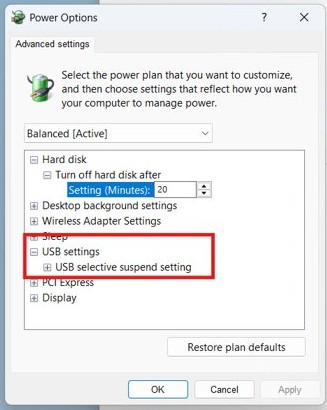
USB selective suspend setting for power surge on the USB port
USB selective suspend lets Windows power down an idle port without affecting the others. Turning it off can help a device that drops out after sitting idle, but it does not clear a short.
- Select Start, type *edit power plan*, and select Edit power plan.
- Select Change advanced power settings.
- Expand USB settings > USB selective suspend setting.
- Set Plugged in to Disabled.
- Select Apply, then select OK.
You can change USB power settings further from the same dialog. Set this option back to its old value if the alert does not change.
Power surge on USB port keeps popping up
Power surge on the USB port keeps popping up
A connected device or hub is still drawing power, so the alert returns when the port powers it again.
- Unplug every USB device, including hubs and docks.
- Reconnect one device at a time, leaving a few minutes between each.
- Stop at the device that brings the alert back.
- Test that device on another PC, then replace it or contact its manufacturer if it fails there too.
Power surge on USB port with nothing plugged in
With no external device attached, look at the port itself and at USB devices built into the PC.
- Shut down the PC and inspect every USB port for debris and bent contacts.
- Clean the ports with compressed air and restart.
- Reinstall USB Root Hub from Device Manager using the steps above.
- Install any driver updates from the PC manufacturer's website.
- Contact the PC manufacturer if the alert returns with all ports empty.
Power surge on the USB port unknown device
Windows lists the device but cannot use it, which Device Manager reports as an error code.
- Open Device Manager and read Device status on the unknown entry.
- If it shows Code 43, uninstall the device.
- Select Action > Scan for hardware changes to reinstall it.
- Contact the device manufacturer if the code returns.
USB port not working after a power surge
The port can stay inactive after the alert, or the fault can be physical.
- Unplug the device that caused the alert.
- Restart the PC, then test the port with a known-good device.
- Reinstall USB Root Hub if the port stays dead.
- Contact the PC manufacturer if other devices fail on that port too.
Power surge on the USB port on Surface Pro 3
Surface follows the same checks, and Microsoft documents a full power cycle for USB-C problems on Surface.
- Unplug the USB device.
- Select Start > Power > Shut down.
- Wait 10 seconds, then press and hold the Power button for about 20 seconds until the Windows logo appears, disappears and appears again.
- Plug the device in again, directly into the Surface rather than through a hub.
If the device still shows as unknown after these steps, try the USB device descriptor failure fixes next.
Power surge on USB port FAQ
What does power surge on the USB port mean?
It means a USB port and a connected device have a power problem. The device can draw more current than the port allows, or the port can fail to supply what the device needs. Windows records overcurrent and too-little-power failures as separate connection states.
How do I fix USB power surge in Windows 11?
Unplug the device, remove unused USB devices, and plug your laptop into wall power. Then reconnect the device directly to another port. If the alert returns, inspect the device and its cable, reinstall the USB driver in Device Manager, and check Windows Update for optional drivers.
How do I get rid of power surge on USB port notification?
Remove its cause rather than dismissing it. Unplug devices one at a time until the alert stops, then test the last device on another PC. Give it external power if it supports that. Replace the device if the alert follows it to every port.
Why does power surge on the USB port keep popping up?
The same device, cable or hub is usually still connected, so the fault returns when the port powers it again. Unplug everything, reconnect one item at a time, and stop at the item that brings the alert back. Then test that item on a different PC.
Why do I get power surge on USB port with nothing connected?
With no external device attached, the port or a USB device built into the PC is the place to look. Inspect and clean the ports, reinstall USB Root Hub in Device Manager, and install the manufacturer's drivers. Contact the PC manufacturer if the alert continues.
Does power surge on the USB port also happen on Windows 10?
Yes. The checks are the same on Windows 10 and Windows 11. Test the device and ports, remove the power limits, and then update or reinstall the driver. Windows 10 also uses a related power notice that reads USB device might not be working properly.
Can a USB hub cause power surge on the USB port?
Yes, a hub can be part of the problem, because every device on it shares the power reaching that hub. Connect the device directly to the PC to test this. Microsoft recommends a direct connection when troubleshooting USB devices that are not recognized or charging.