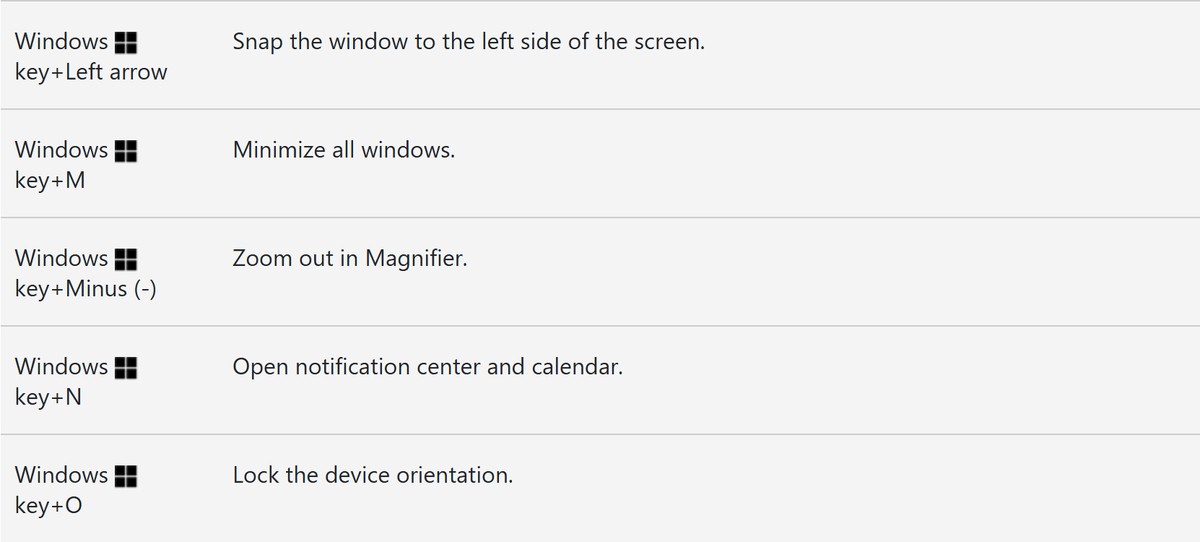
Windows 11 now inserts an en dash (–) when you press Win + Minus (-) and an em dash (—) when you press Win + Shift + Minus (-).
The shortcuts reached Windows 11 versions 24H2 and 25H2 through update KB5065789. This article covers which builds have them, the Magnifier conflict, older methods that still work, and what to do when a shortcut does nothing.
How to type an en dash or em dash in Windows 11
Both shortcuts work at the text cursor, and neither needs a numeric keypad entry or a symbol picker.
- Click where you want the dash to appear.
- Press Win + Minus (-) to insert an en dash (–).
- Press Win + Shift + Minus (-) to insert an em dash (—).
- If the screen zooms out instead, press Win + Esc to close Magnifier, then press Win + Minus (-) again.
Background on the Windows 11 en and em dash shortcuts
Microsoft tested the shortcuts with Windows Insiders in August 2025, then moved them to released versions of Windows 11 that September. The dates below come from its own update notes.
| Date | Release | What it means for dashes |
|---|---|---|
| August 22, 2025 | Insider Preview Builds 26200.5761 (Dev Channel) and 26120.5761 (Beta Channel) | Listed as a new keyboard shortcut for Insiders |
| September 12, 2025 | Builds 26100.6713 and 26200.6713 (Release Preview Channel) | Listed for Release Preview testers, with the same Magnifier note |
| September 29, 2025 | KB5065789, OS builds 26200.6725 and 26100.6725 (optional preview) | Listed for versions 24H2 and 25H2 under the update's gradual rollout highlights |
| October 6, 2025 | Insider Preview Build 27959 (Canary Channel) | Listed for Canary Insiders as a shortcut for typing "anywhere in Windows" |
| October 14, 2025 | KB5066835, OS builds 26200.6899 and 26100.6899 (security update) | Contains the fixes and quality improvements from KB5065789 |
| 2026 | Windows 11, version 26H2 (KB5121794) | Uses the same core OS and system files as 24H2 and 25H2 |
Before this, the built-in routes were Alt codes on a numeric keypad, the Windows 11 emoji panel, Character Map, and app-specific shortcuts such as those in Word.
What Microsoft changed — the facts, precisely
| Item | What Microsoft states |
|---|---|
| En dash (–) | Win + Minus (-) |
| Em dash (—) | Win + Shift + Minus (-) |
| Where it works | While typing, described in the Insider note as "anywhere in Windows" |
| Magnifier exception | If Magnifier is running, Win + Minus (-) still zooms out and no en dash appears |
| Versions named | Windows 11, versions 24H2 and 25H2, plus Insider Dev, Beta, Release Preview, and Canary builds |
| Delivery | Listed under gradual rollout, so devices receive it at different times |
| Settings toggle | None mentioned in the update notes |
| Shortcut documentation | The Windows keyboard shortcuts page lists Win + Minus (-) only as Magnifier zoom out |
That last row matters when you search for help. Microsoft's main shortcut list has not caught up with its own update notes, so a missing entry there does not mean the shortcut is missing from your PC.
Why this matters — small change, outsized impact
The main gain is for keyboards without a numeric keypad. Microsoft's own tips page says Alt codes only work from a numeric keypad, which ruled out that route on many compact keyboards.
| Task | Before the shortcut | With the shortcut |
|---|---|---|
| Em dash on a keyboard with no numeric keypad | Open the emoji panel or Character Map and pick the character | Win + Shift + Minus (-) |
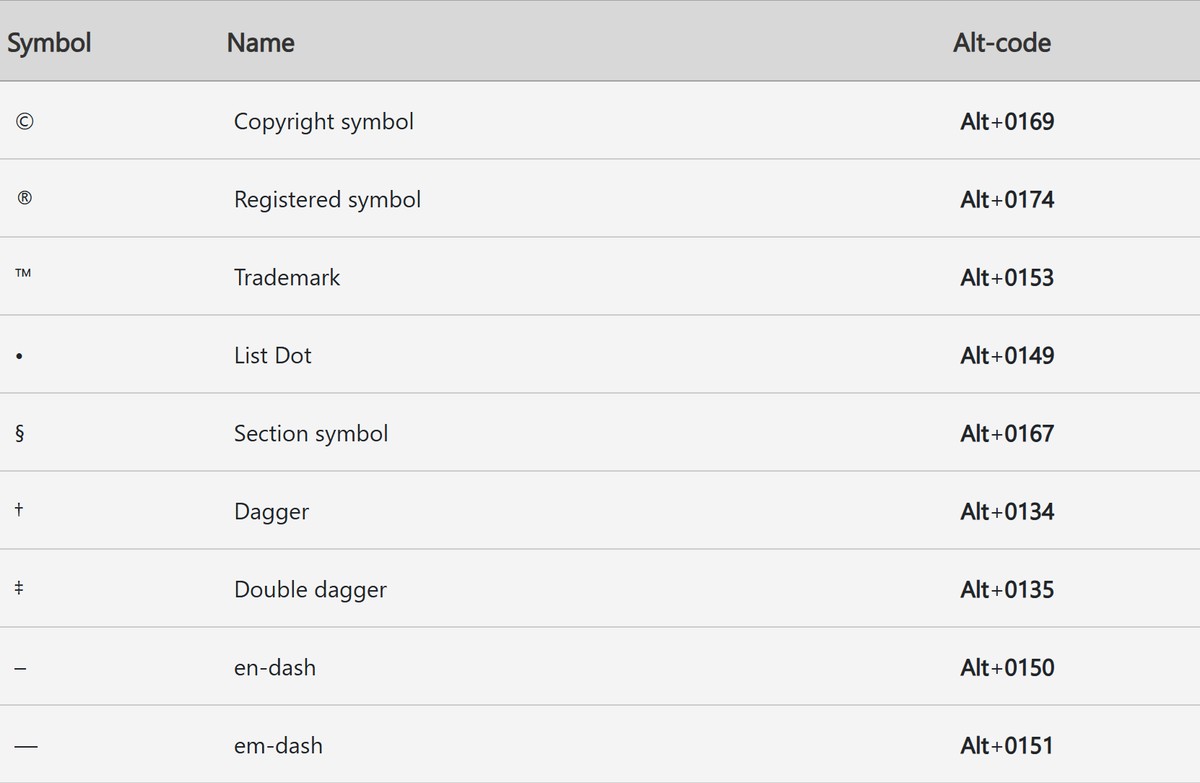
| En dash in a date range | Alt + 0150 on a numeric keypad | Win + Minus (-) |
| Em dash in Word | Ctrl + Alt + Minus on the numeric keypad | Win + Shift + Minus (-) |
| Dash in a browser form or chat box | Copy it from another window and paste | Press the shortcut where you are typing |
Microsoft has published no usage figures, so the impact is measured in saved steps rather than in data.
En dash vs em dash: when to use each
The two marks do different jobs. Microsoft's Writing Style Guide says em dashes, en dashes, hyphens, and minus signs are not interchangeable.
| Character | Use it for | Example | Spacing in Microsoft style |
|---|---|---|---|
| Em dash (—) | A break in thought or a parenthetical remark | The information in your worksheet—numbers, formulas, and text—is stored in cells. | No spaces |
| En dash (–) | Ranges of numbers and dates | 2015–2017 | No spaces, except in UI time stamps |
| Hyphen (-) | Joining words and connecting prefixes | Azure-supported features | No spaces |
| Minus sign (−) | Subtraction and negative numbers | 12 − 3 = 9 | Spaces around the operator in subtraction |
Technical implementation — how it works and what to expect
Microsoft has not published how the shortcut is built, so expect only what its update notes describe. Each press inserts one real Unicode character at the cursor.
| Behavior | What to expect |
|---|---|
| Character inserted | Win + Minus gives U+2013 (en dash). Win + Shift + Minus gives U+2014 (em dash). |
| Same characters as older methods | Alt + 0150 and Alt + 0151 produce the same en dash and em dash marks |
| Key press, not autocorrect | The notes describe a key combination and do not describe converting double hyphens as you type |
| Conflict order | Magnifier keeps Win + Minus (-) while it runs |
| Arrival | Delivered in Windows updates, with gradual rollout for the feature itself |
| Customizing keys | The notes offer no built-in way to change the keys |
Accessibility — balancing wins and tradeoffs
A shortcut removes a trip through a character grid, but it also shares a key combination with an assistive tool. Each group below gets a different result.
| Who is affected | Win or tradeoff | What to do |
|---|---|---|
| Keyboard and screen reader users | Win: Character Map needs tabbing to a grid, choosing a character, then tabbing to Copy | Use the shortcut instead of the grid |
| Magnifier users | Tradeoff: Win + Minus (-) zooms out while Magnifier runs, so it cannot type an en dash | Use Alt + 0150 or the emoji panel's Symbols view for en dashes |
| People who find three keys hard to hold | Tradeoff: the em dash shortcut needs three keys at once | Select Start > Settings > Accessibility > Keyboard, then turn on Sticky keys |
| Readers of math and data | Tradeoff: an en dash looks close to a minus sign | Keep the minus sign (−) for negative numbers, as Microsoft's style guide asks for accessibility reasons |
Microsoft's guide also warns that heavy em dash use interrupts the flow of a sentence and hurts readability. An easier shortcut does not change that advice.
The em dash and the AI story — context and cultural fallout
Online commentary often treats frequent em dashes as a sign of AI-written text, which is why a minor keyboard change drew so much attention. The record separates what is documented from what is opinion.
| Claim | What the record shows |
|---|---|
| Microsoft added the shortcut because of AI | Microsoft's stated reason is to make the dashes easier to insert. Its notes do not mention AI. |
| An em dash proves a machine wrote the text | Microsoft's style guide treats the em dash as normal punctuation, and its own update titles use it, as in "September 29, 2025—KB5065789". |
| An easier shortcut will mean more em dashes | Microsoft has published no usage data, so this remains a prediction. |
| Writers should stop using em dashes | The style guide asks writers not to overuse them, which is a readability rule rather than a ban. |
For most writers, the practical fallout is a house style question. Decide how often the mark belongs in your work, and judge a text on its content rather than on one punctuation mark.
Practical guidance — how to adopt, test, and fall back
- Select Start > Settings > Windows Update, then select Check for updates.
- Install what Windows offers and restart if asked.
- Open Notepad and press Win + Minus (-). An en dash (–) should appear.
- Press Win + Shift + Minus (-). A longer em dash (—) should appear.
- Repeat both presses in the apps you type in most, such as your browser, email client, and publishing tool.
- If Magnifier is running, press Win + Esc to close it and test the en dash again.
- If a shortcut still does nothing, fall back to Alt + 0150 or Alt + 0151 on a numeric keypad.
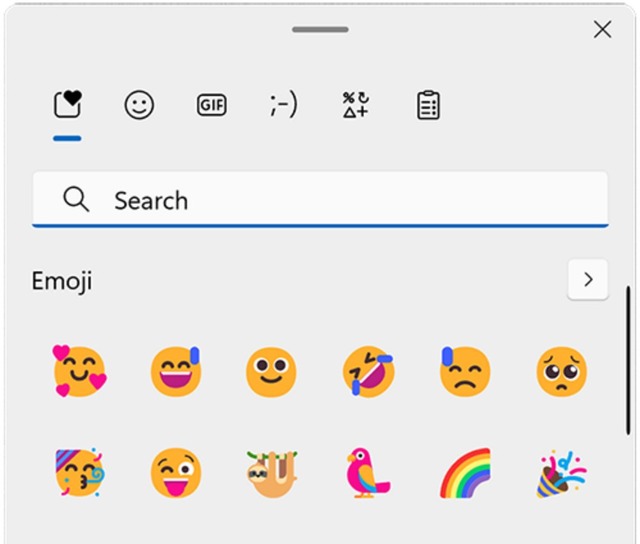
- With no numeric keypad, press Win + . and select Symbols in the emoji panel.
En and em dash shortcuts for individuals
| Your situation | Do this | Why |
|---|---|---|
| Home PC on Windows 11 24H2 or later | Install current updates and use the shortcuts | Fewest steps in any app |
| Laptop with no numeric keypad | Use the shortcuts, or open the emoji keyboard and select Symbols | Alt codes only work from a numeric keypad |
| Windows 10 PC | Use Alt codes or Character Map | Microsoft's notes name Windows 11 only |
| You keep Magnifier running | Use Alt + 0150 or Symbols for en dashes | Magnifier keeps Win + Minus (-) |
| You type the same dash all day | Turn on clipboard history and reuse a copied dash with Win + V | Useful on PCs that lack the shortcut |
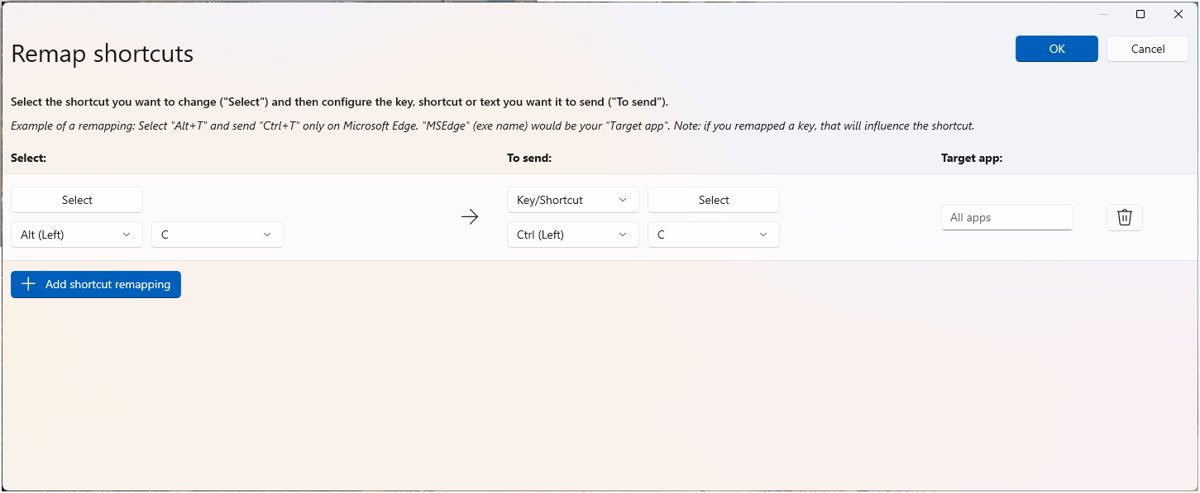
| You want a different key combination | Install Microsoft PowerToys and remap a shortcut to text in Keyboard Manager | PowerToys must stay running for the remap to apply |
Em dash shortcuts for editors and newsroom managers
The shortcut changes how fast writers type a dash, not when they should use one. Your house style still decides spacing and frequency, and the rows below follow Microsoft's guide as a baseline.
| Editing task | What to do | Rule behind it |
|---|---|---|
| Double hyphens in copy | In Word, select Home > Editing > Replace, enter -- in Find what, and insert an em dash in Replace with |
Do not use multiple hyphens in place of an em dash |
| Spaces around dashes | Set one rule in your style sheet and apply it in copy review | Microsoft style uses no spaces around em or en dashes, apart from UI time stamps |
| Date and number ranges | Use the en dash, as in 2015–2017 | En dashes mark ranges |
| Negative numbers in tables | Insert the minus sign (−) from Character Map | An en dash must not stand in for a minus sign |
| Mixed Windows and Mac staff | Check that dashes from both reach your publishing tool as the same characters | macOS can convert double hyphens to em dashes on its own |
| HTML templates | Use – and — when you cannot type the character |
These are the standard HTML entities for U+2013 and U+2014 |
Windows 11 dash shortcuts for IT administrators
Features that arrive through monthly updates behave differently on managed devices. Plan for some PCs having the shortcut while others do not.
| Task | Setting or action | Detail |
|---|---|---|
| Turn on features delivered through servicing | Group Policy: Enable features introduced via servicing that are off by default, under Windows Components > Windows Update > Manage end user experience | Without it, these features stay off on Windows Update for Business and WSUS devices until the feature update that includes them. Microsoft does not list the dash shortcut by name, so test it. |
| Same setting in Intune | Allow Temporary Enterprise Feature Control in the Settings Catalog | CSP: ./Device/Vendor/MSFT/Policy/Config/Update/AllowTemporaryEnterpriseFeatureControl |
| Pilot the update | Deploy KB5065789 or a later cumulative update to a test group | KB5065789 is also a standalone package in the Microsoft Update Catalog |
| Block Windows key shortcuts | Group Policy: Turn off Windows Key hotkeys, under User Configuration > Administrative Templates > Windows Components > File Explorer | This is a broad setting that removes shortcuts such as Win + R and Win + E. Microsoft documents no dash-only control, so test the outcome. |
| Prepare the help desk | Add the Magnifier conflict and the fallback methods to your internal notes | Microsoft's main shortcut list still shows only the Magnifier use of Win + Minus |
Compatibility, localization, and edge cases
Microsoft's notes are short, so several cases have no official answer. The table marks those plainly, and they are worth a quick test on your own hardware.
| Case | Status | What to do |
|---|---|---|
| Windows 11 24H2 and 25H2 | Named in KB5065789 | Install that update or a later one |
| Windows 11 26H2 | Same core OS and system files as 24H2 and 25H2 | Compare the 26H2 build numbers on your PC, then test |
| Windows Insider builds | Listed for Dev Build 26200.5761, Beta Build 26120.5761, and Canary Build 27959 | Update to that build or a later one in your channel |
| Windows 11 23H2 and earlier | Not named in the notes | Use Alt codes or Character Map |
| Windows 10 | No dash shortcut in Microsoft's Windows 10 shortcut list | Use Alt codes or Character Map |
| Non-US keyboard layouts and other languages | The notes name only the Minus (-) key and list no layouts or languages | Test on each layout you support |
| Minus key on a numeric keypad | Not addressed in the notes | Test it, and use the main Minus key if it fails |
| Remote Desktop and virtual machines | Not addressed in the notes | Test inside the session before you rely on it |
Alternatives and stopgaps — what worked before (and still works)
Every older method still works, and they are the only built-in options on PCs without the shortcut. The right one depends on your keyboard and app.
| Method | How to use it | Best for |
|---|---|---|
| Alt codes | Hold Alt, type 0150 (en dash) or 0151 (em dash) on the numeric keypad, then release Alt | Full-size keyboards on Windows 10 or 11 |
| Emoji panel | Press Win + . and select Symbols | Windows 11 keyboards with no numeric keypad |
| Character Map | Search for Character Map, select the dash, select Copy, then paste with Ctrl + V | Windows 10 or 11, and the only route here to the minus sign (−) |
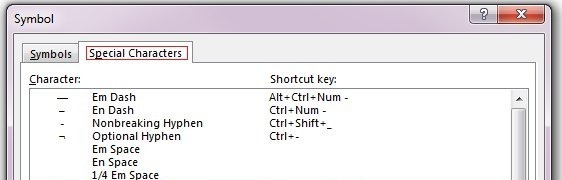
| Word keyboard shortcuts | Press Ctrl + Minus on the numeric keypad for an en dash, or Ctrl + Alt + Minus on the numeric keypad for an em dash | Word documents |
| Word Symbol dialog | Select Insert > Symbol > More Symbols, open Special Characters, and double-click the em dash | Word on a keyboard with no numeric keypad |
| Word Unicode entry | Type 2013 or 2014, press Alt, then press X | Word users who know the code |
| Clipboard history | Turn it on, copy a dash once, then press Win + V to reuse it | Repeated use in one session |
| PowerToys Keyboard Manager | Select Remap a shortcut and send the dash as text | A custom key combination on any supported PC |
These methods sit alongside the other Windows keyboard shortcuts you already use, so pick the one that takes the fewest keys on your hardware.
Comparison to macOS and the broader input UX landscape
Windows 11 now pairs a direct key press with its symbol picker. Apple's Mac help pages describe a symbol picker and automatic conversion of double hyphens, so the table compares those routes.
| Approach | Windows 11 | macOS |
|---|---|---|
| Automatic conversion as you type | Not part of this Windows feature | Use smart quotes and dashes turns double hyphens into em dashes |
| Where to turn on conversion | Not applicable | System Settings > Keyboard > Text Input > Edit |
| Symbol picker | Win + . then Symbols | Character Viewer with Fn + E or Globe + E, or Edit > Emoji & Symbols |
| App-level control | Word has its own numeric keypad shortcuts | Pages has Smart Dashes under Pages > Settings > Auto-Correction |
Word and Pages also keep their own dash tools, so a system shortcut adds to what writers already use and does not replace it.
Risks, governance, and enterprise considerations
The risk here is low, and it comes mostly from inconsistency between devices. Microsoft describes no security impact in the update notes for this feature.
| Risk | Where it shows up | Response |
|---|---|---|
| Uneven availability | Gradual rollout means devices get the feature at different times, and managed devices can keep it off | Tell staff the fallback methods before you announce the shortcut |
| Wrong character in technical text | Scripts, commands, and file names copied from documents that use a dash in place of a hyphen | Keep plain hyphens in anything a computer has to parse |
| Style drift | Writers mixing en dashes, em dashes, and double hyphens in shared documents | State the rule in your style sheet and check it in copy review |
| Magnifier conflict | Low-vision staff who run Magnifier cannot use Win + Minus (-) for an en dash | Give them Alt + 0150 or the Symbols view |
| Blanket hotkey policy | Turn off Windows Key hotkeys removes far more than dashes | Weigh the loss of common shortcuts before you apply it |
Future directions — what this signals about Windows input design
Microsoft has announced no follow-up to these shortcuts. The practical signal is that a common typing need got a system-level key combination, and a few items are worth watching.
| What to watch | Status today | Where it would appear |
|---|---|---|
| Listing in the main shortcut reference | Win + Minus is listed only for Magnifier | Microsoft's Keyboard shortcuts in Windows page |
| A Settings toggle or custom keys | Not announced | Windows Insider Blog and Windows update notes |
| A resolved Magnifier conflict | Microsoft's note says Magnifier keeps the key | Windows update notes |
| More character shortcuts | Not announced | Windows Insider Blog |
To ask for a change, send feedback through Feedback Hub with Win + F.
Which Windows 11 build has the en and em dash shortcut?
You need OS build 26100.6725 or 26200.6725, or a later build. The 26H2 builds, such as 26300.9711, are later updates that share the same core OS.
- Select Start > Settings > System, then select About.
- Read Version and OS Build on that page, or type
winverin the search bar and press Enter. - Compare your build with 26100.6725 or 26200.6725.
- If your build is older, select Start > Settings > Windows Update, then select Check for updates.
- Open Notepad and press Win + Minus (-) to see an en dash (–) appear.
Windows key minus not typing an en dash in Windows 11
Win + Minus zooms the screen out instead of typing a dash
Magnifier is running, and Microsoft says it keeps this key combination while it runs.
- Press Win + Esc to close Magnifier.
- Click back into your text.
- Press Win + Minus (-) again.
- If you need Magnifier open, type the en dash with Alt + 0150 or from the Symbols view.
The dash shortcuts do nothing after pressing them
The PC is on a build older than 26100.6725 or 26200.6725.
- Select Start > Settings > System > About and read OS Build.
- Select Start > Settings > Windows Update, then select Check for updates.
- Install the updates, restart, and test in Notepad.
The build is new enough, but the shortcuts still do nothing
The feature was listed under gradual rollout, so the update alone does not guarantee it is on yet.
- Select Start > Settings > Windows Update, then select Check for updates.
- Install any newer update and restart.
- Use Alt + 0150, Alt + 0151, or the Symbols view until the shortcuts arrive.
The dash shortcuts do not work on a work PC
Managed devices keep features introduced through servicing off by default, and policy can also turn off Windows key shortcuts.
- Press Win + R to test whether Windows key shortcuts work at all.
- Ask your IT team whether Enable features introduced via servicing that are off by default applies to your device.
- Ask whether Turn off Windows Key hotkeys is set for your account.
Alt + 0151 types nothing on a laptop
Microsoft says Alt codes only work with the numeric keypad.
- Press Win + . to open the emoji panel.
- Select Symbols and pick the dash from the punctuation characters.
- Use Character Map if you are on Windows 10.
Windows 11 en and em dash shortcut FAQ
What is the keyboard shortcut for an em dash in Windows 11?
Press Win + Shift + Minus (-) to insert an em dash (—) in Windows 11. Microsoft lists it for versions 24H2 and 25H2 starting with update KB5065789, delivered through a gradual rollout.
What is the keyboard shortcut for an en dash in Windows 11?
Press Win + Minus (-) to insert an en dash (–) in Windows 11. If Magnifier is running, the same keys zoom out instead, so close Magnifier with Win + Esc or use Alt + 0150.
Why does Win + Minus zoom out instead of typing an en dash?
Win + Minus zooms out when Magnifier is running, and Microsoft says that behavior takes priority over the en dash. Press Win + Esc to close Magnifier, then press Win + Minus again to type the dash.
How do I type an em dash without a numeric keypad?
Press Win + Shift + Minus (-) on Windows 11 with a current update. Without the shortcut, press Win + . and select Symbols in the emoji panel, or copy the character from Character Map and paste it.
Does the em dash shortcut work on Windows 10?
Microsoft announced the shortcut for Windows 11 only, and its Windows 10 shortcut list has no dash entry. On Windows 10, use Alt + 0151 on a numeric keypad or copy the em dash from Character Map.
What is the Alt code for an em dash?
The Alt code for an em dash is Alt + 0151, and the en dash is Alt + 0150. Hold Alt, type the four digits on the numeric keypad, and release Alt. These codes do not work from the number row.
Can I change the Windows 11 em dash shortcut?
Microsoft's notes offer no setting to change the keys. You can add your own combination with PowerToys Keyboard Manager by remapping a shortcut to send the dash as text, and PowerToys must keep running for it to apply.
What is the difference between an en dash and an em dash?
An en dash marks a range, such as 2015–2017, and an em dash marks a break in thought within a sentence. Microsoft's Writing Style Guide uses no spaces around either one, apart from time stamps in UI.
Do em dashes mean a text was written by AI?
No, an em dash alone proves nothing about who wrote a text. It is standard punctuation in Microsoft's style guide and appears in Microsoft's own update titles, so judge writing on its content rather than one character.
Final verdict — small, pragmatic, and human-centered
Use Win + Minus and Win + Shift + Minus wherever your Windows 11 build supports them. They remove the numeric keypad requirement and a trip to a symbol picker. Keep Alt codes and the Symbols view ready for Magnifier sessions, managed PCs, and devices the rollout has not reached.