To fix the Explorer.exe Application error on Windows 11/10, install every pending Windows update, restart, then run DISM and sfc /scannow from an elevated Command Prompt.
If the error returns, a clean boot finds the third-party app or service behind it, and Startup Repair or Reset this PC handles damage that file repair cannot.
Fix Explorer.exe application error in Windows
Microsoft's first fix for File Explorer failures is to bring Windows fully up to date. Several Explorer crashes on Windows 11 were caused by update bugs that later updates corrected.
- On Windows 11, go to Start > Settings > Windows Update.
- On Windows 10, go to Start > Settings > Update & Security > Windows Update.
- Select Check for updates and install everything offered.
- Restart the PC when prompted, even if Windows does not ask, so pending updates finish installing.
- Sign in and use File Explorer as normal to see if the error box returns.
What causes the Explorer.exe application error?
Explorer.exe runs the taskbar, Start menu and File Explorer windows, so an error in it can blank the desktop as well as close a folder window. The error box names Explorer.exe, but the fault often sits in something that loads inside it.
| Likely cause | Typical sign | Fix to try |
|---|---|---|
| Missing or damaged system files | Error appears at random, sometimes with a memory address | DISM then SFC |
| Third-party shell extension or startup app | Error on right-click, on sign-in, or in one folder | Clean boot |
| Known update issue | Black screen at sign-in, missing taskbar after an update | Install the latest cumulative update |
| Damaged startup files | Explorer never loads after sign-in | Startup Repair |
| Wider Windows damage | Nothing above helps | Reset this PC |
How to repair explorer.exe in Windows 11 with DISM and SFC
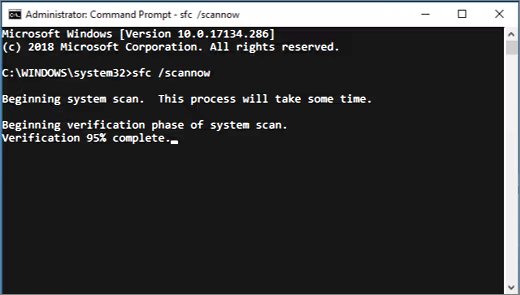
DISM repairs the Windows image first, then System File Checker uses that image to replace damaged system files, including Explorer's own components.
- Select Start, type
cmd, right-click Command Prompt and choose to run it as administrator. - Select Yes in the User Account Control prompt.
- Type
DISM.exe /Online /Cleanup-image /Restorehealthand press Enter. Wait for it to finish. - Type
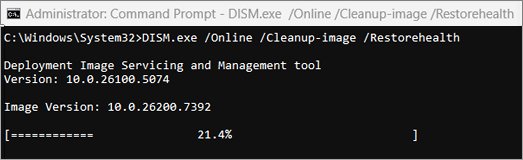
sfc /scannowand press Enter. - Leave the window open until verification reaches 100%.
- Restart the PC once the scan reports its result.
If DISM cannot reach Windows Update, Microsoft documents a version that uses a repair source: DISM.exe /Online /Cleanup-Image /RestoreHealth /Source:C:\RepairSource\Windows /LimitAccess, with the path replaced by your own repair source.
What the sfc /scannow results mean
| Message | Meaning | Next step |
|---|---|---|
| Windows Resource Protection did not find any integrity violations. | System files are intact | Move on to a clean boot |
| Windows Resource Protection found corrupt files and successfully repaired them. | Damaged files were replaced | Restart and test Explorer |
| Windows Resource Protection found corrupt files but was unable to fix some of them. | Some files are still damaged | Run DISM again, then SFC, or use Reset this PC |
| Windows Resource Protection could not perform the requested operation. | The scan could not run normally | Run SFC again in Safe Mode |
To read what SFC changed, run findstr /c:"[SR]" %windir%\Logs\CBS\CBS.log >"%userprofile%\Desktop\sfcdetails.txt" in the same elevated window and open the file on your desktop.
Find the app behind the explorer.exe error with a clean boot
A clean boot starts Windows with only Microsoft services. If the error stops, a third-party service or startup app is the cause. Context-menu add-ons from archivers, cloud drives and image viewers are common suspects.
- Sign in with an administrator account.
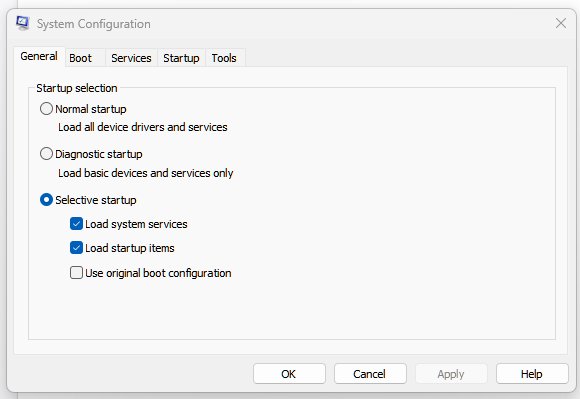
- Search for msconfig and select System Configuration.
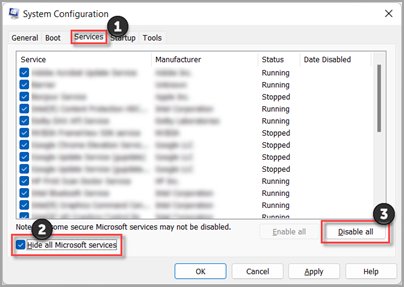
- On the Services tab, select Hide all Microsoft services, select Disable all, then select Apply.
- On the Startup tab, select Open Task Manager.
- In Startup apps (Windows 11) or Startup (Windows 10), select each Enabled item and select Disable. Note what you disabled.
- Close Task Manager, select OK in System Configuration, and restart.
- Use File Explorer. If the error is gone, turn services back on a few at a time and restart until it returns.
Uninstall or update the app whose service brings the error back.
Return to normal startup after a clean boot
- Search for msconfig and select System Configuration.
- On the General tab, select Normal Startup.
- On the Services tab, clear Hide all Microsoft services, select Enable all, then select Apply.
- On the Startup tab, select Open Task Manager and enable the startup items you turned off.
- Select OK, then select Restart when prompted.
Fix explorer.exe error on Windows 10 with virtual memory and maintenance settings
Microsoft lists three extra fixes for File Explorer on Windows 10: performance settings, Disk Cleanup and the System Maintenance troubleshooter.
- Open Control Panel > System and Security > System > Advanced system settings.
- On the Advanced tab, under Performance, select Settings, then the Advanced tab.
- Set Adjust for best performance of to Programs.
- Under Virtual memory, select Change and make sure Automatically manage paging file sizes for all drives is checked. Select OK, then Apply, and restart.
- Search the taskbar for disk cleanup, pick a drive, check the file types to remove and select OK.
- In Control Panel, set View by to large or small icons, select Troubleshooting > View all > System Maintenance, select Next, then Try troubleshooting as an administrator.
Run Startup Repair when explorer.exe will not load
If the desktop stays black or the taskbar never appears, Startup Repair checks the files Windows needs to start.
- On Windows 10, go to Settings > Update & Security > Recovery. On Windows 11, open Settings and search for Recovery options.
- Under Advanced startup, select Restart now.
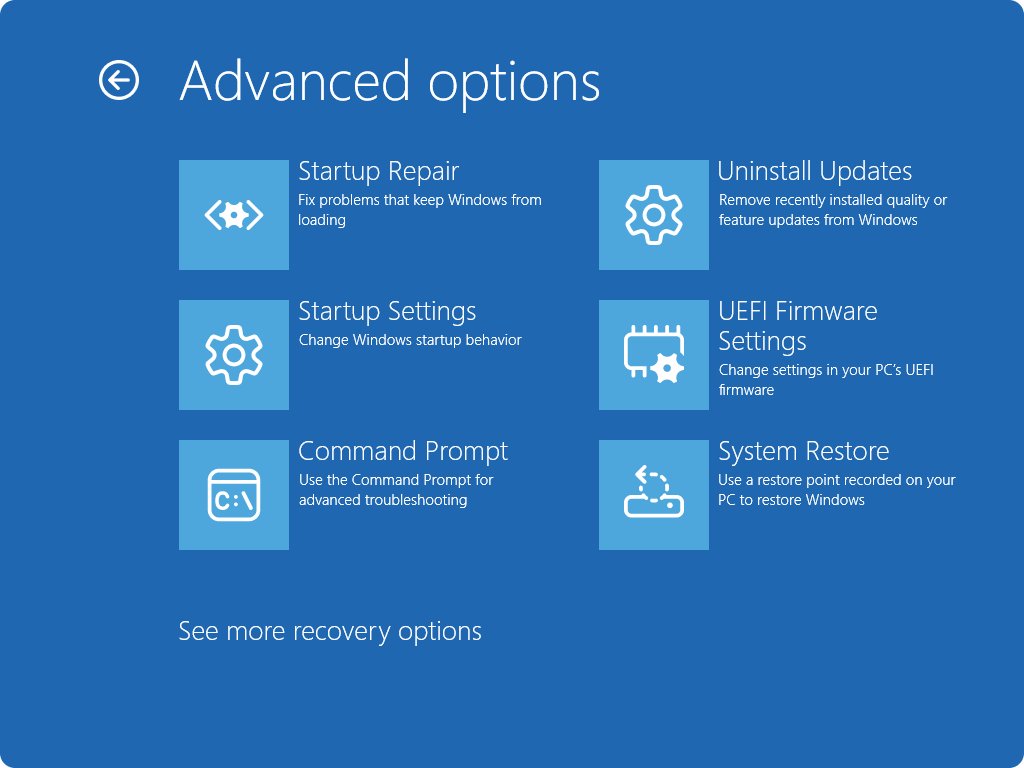
- Select Troubleshoot > Advanced options > Startup Repair.
- Sign in with your account when asked and let the repair finish.
Reset this PC when the explorer.exe error keeps coming back
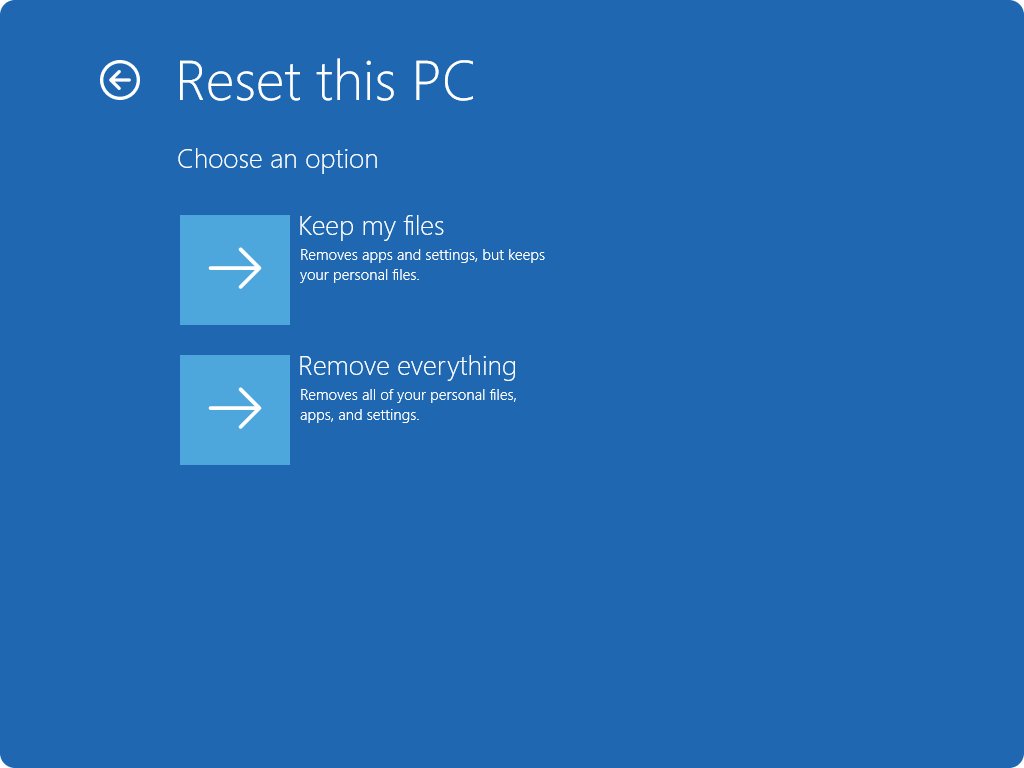
Microsoft's last resort for File Explorer that still fails is resetting the PC from the recovery options in Windows. The reset offers an option to keep personal files while Windows is reinstalled.
- Back up anything important to an external drive or cloud storage.
- On Windows 10, go to Settings > Update & Security > Recovery. On Windows 11, open Settings and search for Recovery options.
- Start the Reset this PC option.
- Choose the option that keeps your personal files.
- Follow the prompts and let the PC restart.
How to confirm explorer.exe is fixed
- Restart the PC and sign in. The taskbar and Start menu should load without an error box.
- Press Windows logo key + E to open File Explorer.
- Open the folders where the error used to appear and right-click a few files.
- Run
sfc /scannowagain from an elevated Command Prompt and look for did not find any integrity violations.
Explorer.exe not working or crashing in Windows 11 and Windows 10
Black screen or missing taskbar after a Windows 11 update
Microsoft documented Explorer crashes on Windows 11 24H2 and 25H2 when XAML packages did not register in time after updates, mostly on managed devices.
- Go to Settings > Windows Update and select Check for updates.
- Install the latest cumulative update, which carries Microsoft's fix.
- Restart and sign in again.
Error appears when right-clicking or opening one folder
A third-party context-menu or preview add-on loads into Explorer and crashes it.
- Perform a clean boot as shown above.
- Re-enable services in small groups to find the culprit.
- Update or uninstall that app.
Windows 11 explorer.exe not found
Explorer.exe or files it depends on are missing or damaged.
- Run
DISM.exe /Online /Cleanup-image /Restorehealthfrom an elevated Command Prompt. - Run
sfc /scannow. - If SFC cannot fix every file, reset the PC and keep your files.
Error box also names WerFault.exe or an access violation
Windows Error Reporting is reporting the same crash, or memory access failed in a loaded module.
- Fix the Explorer error first with the steps above.
- If WerFault.exe errors continue on their own, treat them separately.
Explorer.exe application error FAQ
How to repair explorer.exe in Windows 11?
Open Command Prompt as administrator, run DISM.exe /Online /Cleanup-image /Restorehealth, then run sfc /scannow. DISM repairs the Windows image and SFC uses it to replace damaged system files, including the ones Explorer needs. Restart when the scan finishes.
How to fix explorer.exe error?
Install every pending Windows update and restart first. If the error remains, run DISM and SFC, then perform a clean boot to find a third-party service or add-on that crashes Explorer. Startup Repair and Reset this PC cover the remaining cases.
How do I resolve an explorer.exe error in Windows 11?
Go to Settings > Windows Update, install updates and restart, because Microsoft fixed several Windows 11 Explorer crashes through updates. Then run DISM and sfc /scannow if the error box still appears.
Is the explorer.exe error fix the same on Windows 10?
Mostly yes. Windows Update, DISM, SFC, clean boot and Reset this PC work the same way. Windows 10 also has Microsoft's virtual memory, Disk Cleanup and System Maintenance troubleshooter fixes for File Explorer.
What does an explorer.exe application error mean?
It means the Windows Explorer process, which runs the taskbar, Start menu and File Explorer, hit a fault and closed. The cause is usually damaged system files, a buggy update, or a third-party add-on loaded into Explorer.
Will resetting the PC delete my files?
Not if you choose the reset option that keeps personal files. Windows is reinstalled, but your documents stay. Back up important data first anyway, because a reset cannot be undone.