An iPhone force restart usually fails because the buttons are pressed too slowly, the side button is released before the Apple logo appears, or the battery is too flat to start.
This guide covers the correct button order for every model, a black screen that stays black, restarting without working buttons, recovery mode, and when the iPhone needs service.
How to force restart iPhone when it is not responding
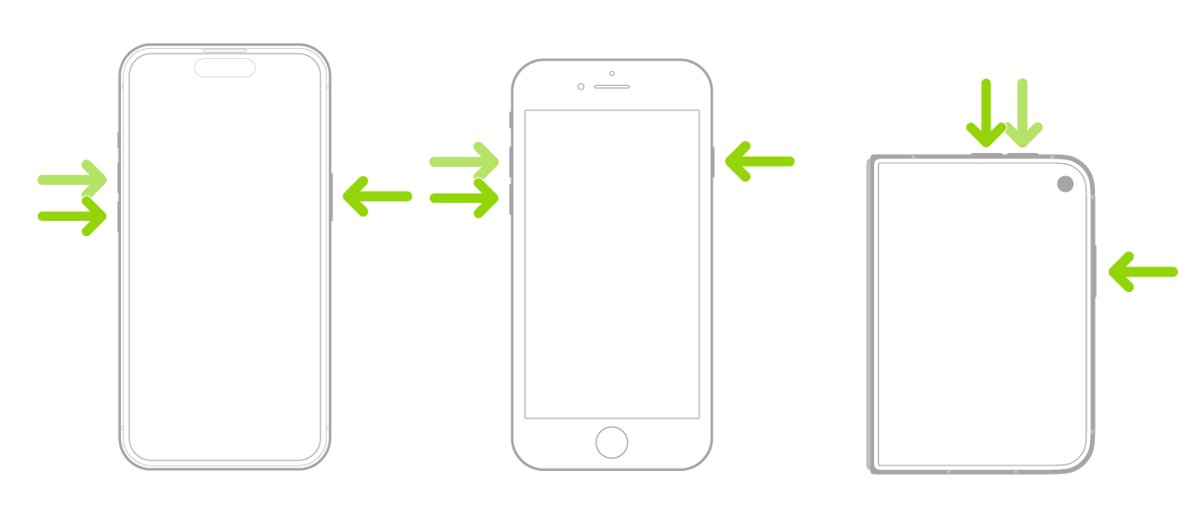
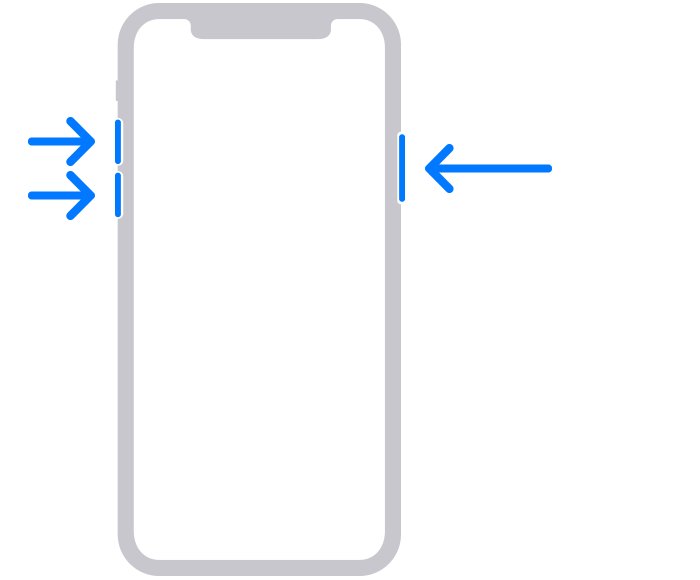
This sequence applies to iPhone 8, iPhone SE (2nd generation and later) and every iPhone with Face ID, including iPhone 12, iPhone 15 and iPhone 16 Pro Max. The press on the volume buttons is a quick tap, not a hold.
- Press and quickly release the volume up button.
- Press and quickly release the volume down button straight after it.
- Press and hold the side button on the right edge of the iPhone.
- Keep holding the side button through the power-off slider and the black screen; do not drag the slider.
- Release the side button only when the Apple logo appears. Apple notes this can take longer than 10 seconds.
The full set of force restart buttons for every iPhone model also covers older Home button phones. If the logo never appears, work through the sections below in order.
Why is my iPhone not force restarting?
| What happens | Likely cause | What to do |
|---|---|---|
| The power-off slider appears and nothing else happens | The side button was released too early | Repeat the sequence and keep holding the side button until the Apple logo shows |
| Nothing happens at all | The volume presses were too slow, or held instead of tapped | Tap volume up and volume down quickly, one after the other, then hold the side button |
| Screen stays black after holding the side button | The battery is fully drained | Charge for one hour, then try the force restart again |
| A low-battery icon shows instead of the Apple logo | The iPhone is charging too slowly to start | Check the cable, adapter and port, then charge for 30 minutes or until it starts |
| The Apple logo stays on screen for minutes | iOS cannot finish starting up | Update or restore the iPhone in recovery mode |
| A button feels stuck, loose or does not click | A tight case or a damaged button | Remove the case; use AssistiveTouch to restart, and book a repair |
| Wrong combination for an older model | iPhone 7 and iPhone 6s use different buttons | Use the button table for your model below |
iPhone force restart buttons by model
Using the newer volume-up, volume-down sequence on an iPhone 7 or iPhone 6s does nothing, which looks exactly like a failed force restart. Match your model to the row before you try again.
| iPhone model | Buttons to press | When to let go |
|---|---|---|
| iPhone with Face ID (iPhone X and later, including iPhone 11 to iPhone 16 Pro Max) | Tap volume up, tap volume down, then press and hold the side button | When the Apple logo appears |
| iPhone 8, iPhone 8 Plus, iPhone SE (2nd generation and later) | Tap volume up, tap volume down, then press and hold the side button | When the Apple logo appears |
| iPhone Duo | Tap the volume button nearest the side button, tap the other volume button, then hold the side button | When the Apple logo appears |
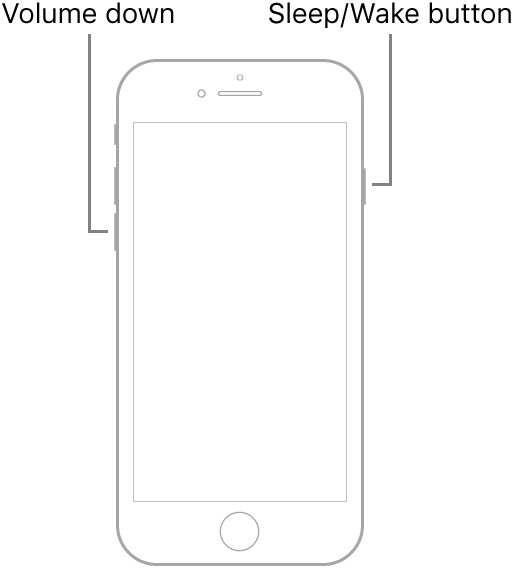
| iPhone 7 and iPhone 7 Plus | Press and hold the volume down button and the side (Sleep/Wake) button at the same time | When the Apple logo appears |
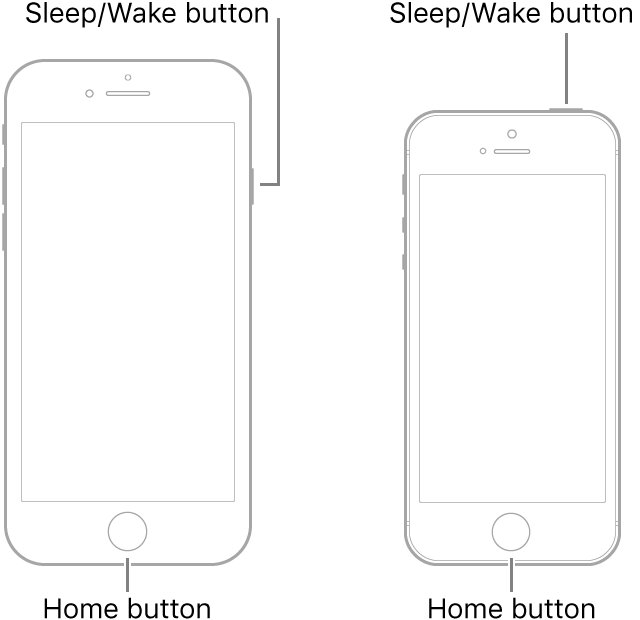
| iPhone 6s and earlier, iPhone SE (1st generation) | Press and hold the Home button and the side or top (Sleep/Wake) button at the same time | When the Apple logo appears, after about 10 seconds |
On a frozen phone, the Home button tells you most of what you need: an iPhone without a Home button has Face ID and uses the first row.
iPhone force restart not working black screen
A black iPhone screen that ignores the force restart is most often a flat battery rather than a crash. Apple's advice is to charge before you try anything else.
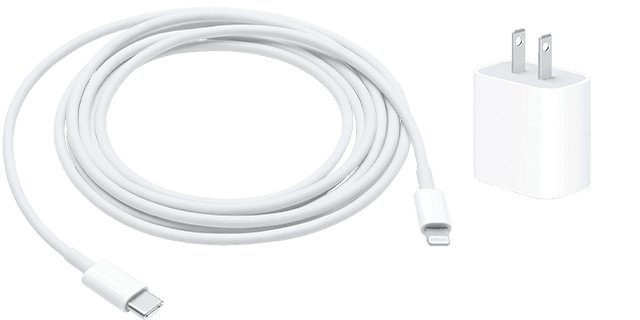
- Plug the iPhone into a wall outlet with its charging cable and USB power adapter.
- Leave it charging for one hour without pressing any buttons.
- Do the force restart again for your model while it stays plugged in, holding the side button until the Apple logo appears.
- If a low-charge battery icon appears instead, unplug the cable and check it and the adapter for damage or bent prongs.
- Remove any lint or debris from the charging port on the bottom of the iPhone, then reseat the cable firmly.
- Try a different wall outlet, then charge for another 30 minutes or until the iPhone starts.
If the iPhone still will not turn on after the charge and a second force restart, Apple says it might need service.
Force restart iPhone when the touch screen is not working
A force restart uses only the physical buttons, so a frozen or unresponsive touch screen does not stop it. If the display reacts to nothing, run the button sequence anyway.
- Remove the case so every button presses fully.
- Run the force restart sequence for your model from the table above.
- Hold the final button until the Apple logo appears, even if the screen showed nothing before.
- After the restart, unlock the iPhone and check whether the screen responds to taps and swipes.
- If touch still fails, open Settings > General > Software Update with any input that works and install the latest iOS.
- If the screen never responds, contact Apple for service.
On the newest large models, the iPhone 16 Pro Max screen fixes cover touch problems that return after a restart.
Restart iPhone without buttons using AssistiveTouch
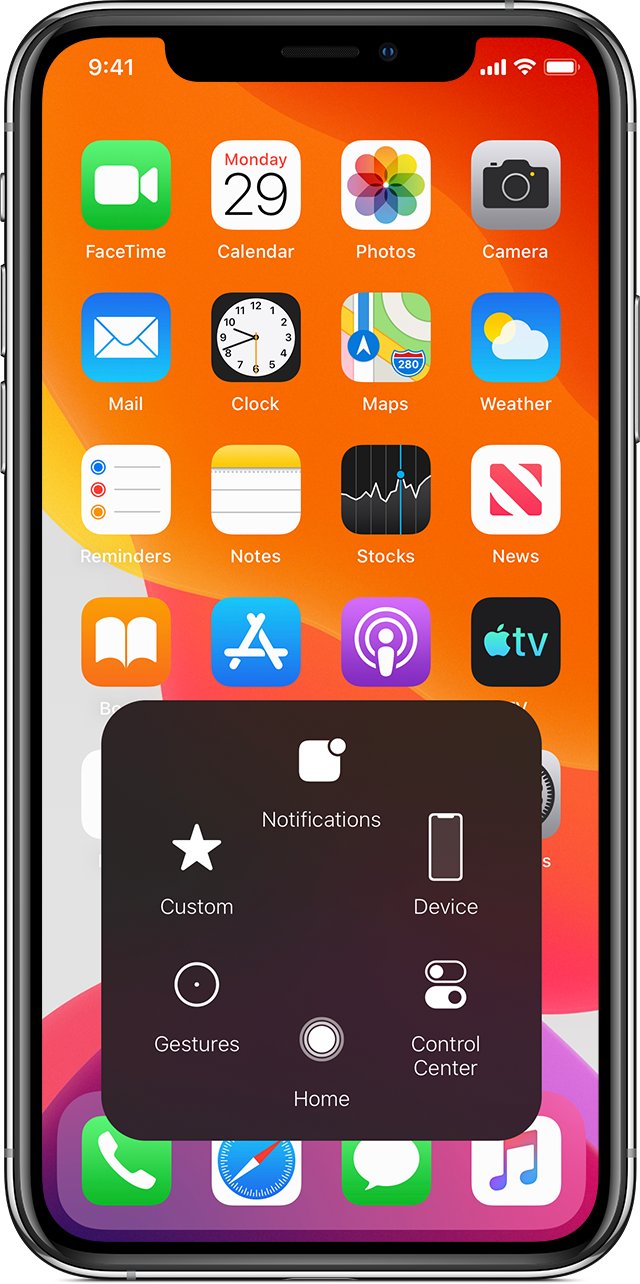
When a volume or side button is broken, the force restart cannot work. AssistiveTouch adds an on-screen button whose menu can restart the device, as long as the touch screen still responds.
- Open Settings > Accessibility > Touch > AssistiveTouch.
- Turn on AssistiveTouch. A grey on-screen button appears; you can also ask Siri to "Turn on AssistiveTouch".
- To keep Restart one tap away, tap Customize Top Level Menu, tap an icon and choose Restart.
- Tap the on-screen AssistiveTouch button to open its menu.
- Tap Restart. The iPhone turns off and starts again.
AssistiveTouch is a normal restart, not a force restart, so it needs iOS to be responding. It is the way round a dead button, and a dead button itself still needs repair.
iPhone stuck on Apple logo after force restart: use recovery mode
If the force restart works but the iPhone shows the Apple logo for several minutes with no progress bar, iOS is not starting. Recovery mode lets a Mac or PC reinstall it.
- Update your Mac, or install the latest Apple Devices app on a Windows PC.
- Connect the iPhone to the computer with a USB cable.
- Open Finder on the Mac, or the Apple Devices app on the PC.
- On iPhone 8 or later, tap volume up, tap volume down, then hold the side button until the Connect to computer screen appears. On iPhone 7, hold the side and volume down buttons; on iPhone 6s and earlier, hold the Home and side or top buttons.
- Locate the iPhone on the computer and choose Update first. Update reinstalls iOS and keeps your data.
- If Update fails, choose Restore. Restore reinstalls iOS and erases all data on the iPhone.
- If the download takes more than 15 minutes and the iPhone leaves the Connect to computer screen, let the download finish, then repeat steps 4 and 5.
Recovery mode needs the same buttons as a force restart. If a button does not work or sticks, Apple lists that as a reason the iPhone needs service.
How to tell if your iPhone is in recovery mode or restarting
| What you see | What it means | What to do |
|---|---|---|
| Apple logo, then the Lock Screen | The force restart worked | Unlock and update iOS if an update is waiting |
| Power-off slider | A normal shutdown prompt, not a force restart | Keep holding the side button until the Apple logo appears |
| Connect to computer screen | Recovery mode | Update or restore from Finder or the Apple Devices app |
| Apple logo for several minutes with no progress bar | iOS cannot finish starting | Use recovery mode |
| Progress bar for several minutes | An update or restore is running | Leave it connected and wait |
| Low-charge battery icon | The battery is too low to start | Check the charging hardware and charge for 30 minutes |
iPhone won't force restart: fixes for each problem
iPhone 12 or iPhone 15 force restart not working
These models use the Face ID sequence, and holding the volume buttons instead of tapping them cancels it.
- Press and quickly release volume up, then press and quickly release volume down.
- Press and hold the side button straight away.
- Keep holding through the black screen until the Apple logo appears.
iPhone 16 Pro Max force restart not working
The same Face ID sequence applies; a tight case can stop the buttons pressing fully.
- Take the iPhone out of its case.
- Tap volume up, tap volume down, then hold the side button only.
- Hold for longer than 10 seconds; release when the Apple logo shows.
iPhone restart not working with the power-off slider
A normal restart needs a responsive screen to drag the slider.
- Use the force restart sequence instead, which needs no touch input.
- If the screen works but a button does not, restart from the AssistiveTouch menu.
iPhone repeatedly starts up to Recovery Assistant
Recovery Assistant on the iPhone cannot recover the device itself.
- Connect the iPhone to a Mac or a PC with the Apple Devices app.
- Put it in recovery mode and choose Update.
- Choose Restore only if Update fails.
Unable to force restart iPhone after charging and recovery mode
A hardware fault: a dead battery, a failed button or a damaged display.
- Charge for one more hour from a different outlet and cable.
- Try recovery mode from a second computer.
- Contact Apple Support or visit getsupport.apple.com to arrange service.
iPhone force restart not working FAQ
Why can I not restart my iPhone?
A normal restart needs you to drag the power-off slider, which fails when the screen is frozen. Use a force restart instead: on iPhone 8 and later, tap volume up, tap volume down, then hold the side button until the Apple logo appears.
Why won't my iPhone restart?
The most common reasons are a frozen screen, a fully drained battery, or iOS failing to start. Force restart it, charge it for one hour if the screen stays black, and use recovery mode if it sticks on the Apple logo.
Can I force restart my iPhone?
Yes. Every iPhone can be force restarted with its physical buttons. Face ID models, iPhone 8 and iPhone SE (2nd generation and later) use volume up, volume down, then the side button; iPhone 7 uses volume down plus side; iPhone 6s uses Home plus side or top.
Why is my iPhone not force restarting?
The volume buttons were probably held instead of quickly tapped, or the side button was released at the power-off slider. Repeat the sequence quickly and keep holding the side button until the Apple logo appears, which can take longer than 10 seconds.
How long do you hold the side button to force restart an iPhone?
Hold it until the Apple logo appears, not for a fixed time. On Face ID models Apple says this can take longer than 10 seconds. On iPhone 6s and earlier it takes around 10 seconds with the Home and side or top buttons.
What do I do if my iPhone force restart is not working and the screen is black?
Charge the iPhone for one hour, then try the force restart again. If a low-battery icon appears, check the cable, adapter and charging port for damage or debris, then charge for 30 minutes or until it starts.
Can I restart my iPhone if the buttons don't work?
Yes, if the screen works. Turn on AssistiveTouch in Settings > Accessibility > Touch > AssistiveTouch, then use its Restart option. A force restart and recovery mode both need working buttons, so a broken button still needs repair.
Does restoring an iPhone in recovery mode erase it?
Restore does: it reinstalls iOS and erases all data. Update in recovery mode reinstalls iOS without erasing your data, so always choose Update first when Finder or the Apple Devices app asks.