Windows 11 24H2 build 26100.8737 is KB5095093, the optional non-security preview update Microsoft released on June 23, 2026 for versions 24H2 and 25H2 (build 26200.8737 on 25H2).
This guide covers what the build changed, how to install it from Windows Update or the Microsoft Update Catalog, its known issues, and how to remove it if it causes trouble.
How to install KB5095093 on Windows 11 24H2
KB5095093 is an optional update, so Windows Update does not install it on its own. You pick it from the optional updates list.
Every later cumulative update for 24H2 contains all of its changes. If a newer update already shows in Update history, you do not need KB5095093 separately.
- Open Start and select Settings.
- Select Windows Update, then Advanced options.
- Select Optional updates.
- In the Optional updates available area, tick the 2026-06 cumulative update preview entry that names KB5095093.
- Select Download & install and restart when Windows asks.
Microsoft ships the servicing stack update KB5095182 (version 26100.8733) inside the same package, so there is nothing to install first.
What's new in Windows 11 build 26100.8737
Microsoft lists the changes by area. Some reach PCs through a gradual rollout, so a feature may appear days or weeks after the build installs.
| Area | What changes in KB5095093 |
|---|---|
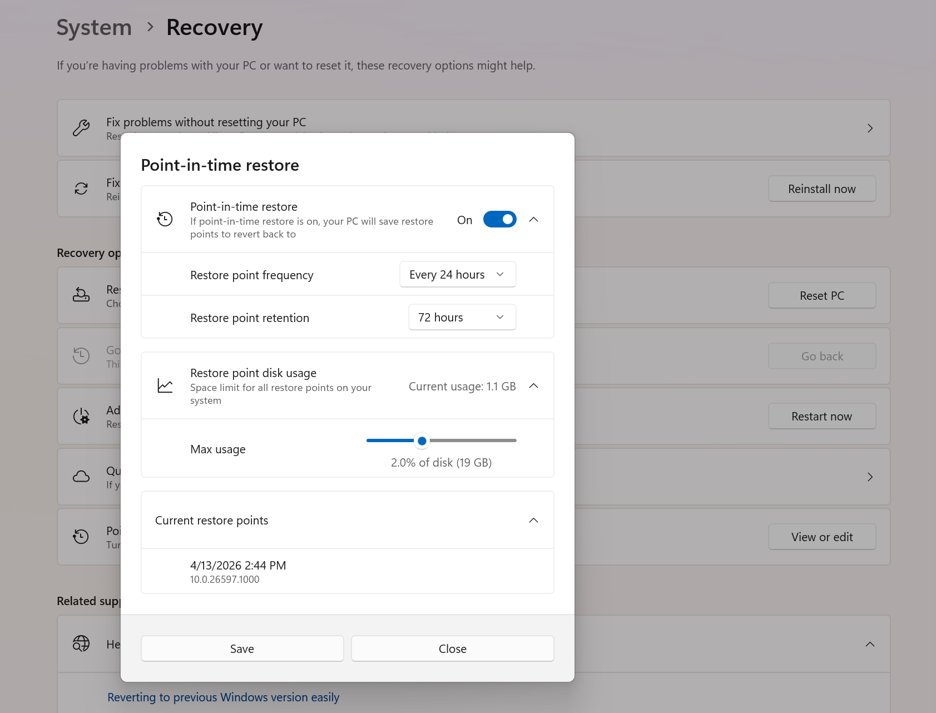
| Point-in-time restore | New recovery feature that rolls the PC back to a recent automatic restore point, including apps, settings and personal files |
| Windows Update | A calendar in Settings > Windows Update lets you pause updates to a chosen end date, up to 35 days out |
| File Explorer | Quick actions on Home for Entra ID accounts, faster launch, quicker disk image mounting, address bar path fixes and better rename behavior |
| Bluetooth and Phone Link | Microphone mute syncs over HFP; call audio stays on the phone until you answer on the PC; no PC ringing when Do Not Disturb is on |
| Voice access and voice typing | French, German and Spanish support, with real-time text correction on Copilot+ PCs |
| Printing | New printers install with Internet Printing Protocol (IPP) by default when the printer supports it, with a toggle in Settings > Bluetooth & devices > Printers & scanners |
| Input | Right-click zone size setting in Settings > Bluetooth & devices > Touchpad, and better English character recognition in Japanese handwriting |
| Networking and WSL | Better virtualization networking, fewer Wi-Fi bug checks, improved WWAN and IPv6 VPN support, and WSL mirrored networking that works with VPNs |
| Graphics kernel | Memory management changes let PCs with more than 32GB of RAM run larger local AI models |
| Apps | Fixes unexpected UAC prompts that some installers showed after KB5089549 |
| AI components (Copilot+ PCs only) | Image Search, Content Extraction, Semantic Analysis and Settings Model move to version 1.2605.856.0 |
KB5095093 appearance changes in Windows 11 24H2
Several items in this build change how Windows looks rather than what it does. These are the ones you notice on screen.
| Part of Windows | Visual change | Where to find it |
|---|---|---|
| Widgets | The board no longer opens when you hover over it, and notifications and badges are reduced | Widgets button on the taskbar |
| Screen tint | A new color overlay for the whole screen | Settings > Accessibility |
| Magnifier | Type a zoom level directly and change the zoom step from the Magnifier bar | Magnifier toolbar |
| Start menu on work PCs | The redesigned Start menu now reaches commercial and managed devices; IT can shape it with the HideCategoryView and ConfigureStartPins policies | Start |
| Multiple monitors | Smoother rendering while scrolling across displays and more reliable color profile application | Any app spanning two screens |
| Remote Desktop | Refreshed dialog for turning Remote Desktop on | Settings > System > Remote Desktop |
| Location settings | Default location and Allow location override are greyed out when location services are off | Settings > Privacy & security > Location |
KB5095093 fixes for Recycle Bin, emoji panel GIFs and Netlogon
Beyond new features, the build resolves issues that the June 9, 2026 security update KB5094126 introduced or that outside services caused.
| Problem | What KB5095093 does |
|---|---|
| Recycle Bin delete dialog shows a name like $Rxxxxx.ext instead of the file name | Restores the original file name in the confirmation dialog (issue started with KB5094126) |
| Emoji panel says "GIF service is not available" | Switches the GIF provider to GIPHY because Tenor retired its service on June 30, 2026 |
| Netlogon secure channel problems between domain controllers | Improves the connections, including from member servers to domain controllers set up before 2025 |
| Secure Boot certificate rollout | Adds more high-confidence device targeting data so more PCs qualify for the new Secure Boot certificates |
| Teams and WhatsApp badge counts stuck | Fixes notification badges that did not refresh (gradual rollout, added July 14, 2026) |
| Recovery or reimaging blocked by Windows Driver Policy | Changes the policy enforcement so recovery, disk replacement and booting older recovery media work again (added July 22, 2026) |
KB5095093 offline installer download from Microsoft Update Catalog
Use the Catalog when Windows Update fails or you patch several PCs. Download only from Microsoft's own catalog site, never a mirror.
- Check your architecture in Settings > System > About next to System type (x64 or ARM64).
- Open
https://www.catalog.update.microsoft.comin your browser. - Type
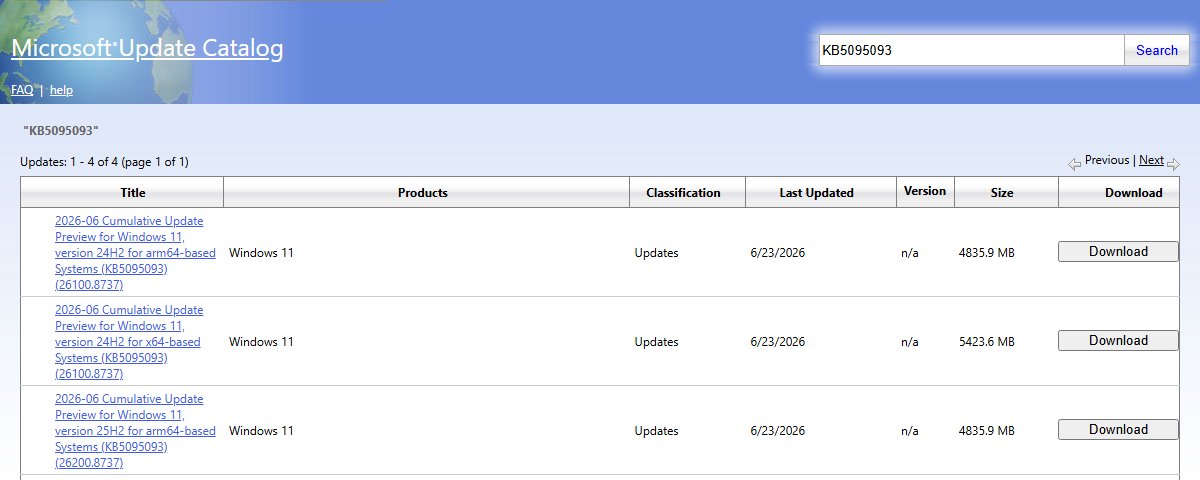
KB5095093in the search box and press Enter. - Find 2026-06 Cumulative Update Preview for Windows 11, version 24H2 for x64-based Systems (KB5095093) (26100.8737), or the arm64 entry for ARM PCs.
- Select Download and select the
.msulink in the window that opens. - Double-click the downloaded
.msufile to run the standalone installer, or install it with DISM. - Restart the PC when the installer finishes.
The Catalog lists the 24H2 x64 package at 5,423.6 MB and the arm64 package at 4,835.9 MB. Separate 25H2 packages carry build 26200.8737, so pick the one that matches your version.
KB5095093 download options: Windows Update, WSUS and Catalog
| Channel | Offered? | What to do |
|---|---|---|
| Windows Update | Yes | Settings > Windows Update > Advanced options > Optional updates |
| Windows Update for Business | No | The changes arrive with the next monthly security update |
| Microsoft Update Catalog | Yes | Download the x64 or arm64 .msu and install it with DISM or the standalone installer |
| Windows Server Update Services (WSUS) | No | Import the update manually from the Microsoft Update Catalog |
If you service install media with this update as a Dynamic Update, include the boot.stl file from the Windows\Boot\EFI folder. Without it, PCs can fail to start from the media with error code 0xc0430001.
How to check if KB5095093 is installed
- Press Win + R, type
winverand press Enter. - Read the version line: OS Build 26100.8737 means KB5095093 is on a 24H2 PC, and a higher number means a later update replaced it.
- For the KB itself, open Settings > Windows Update > Update history.
- Look in the quality updates list for an entry that names KB5095093 and shows the date it installed.
Windows 11 KB5095093 known issues
Microsoft documents two problems tied to this build. Both have fixes in later updates.
| Known issue | Who it affects | Status |
|---|---|---|
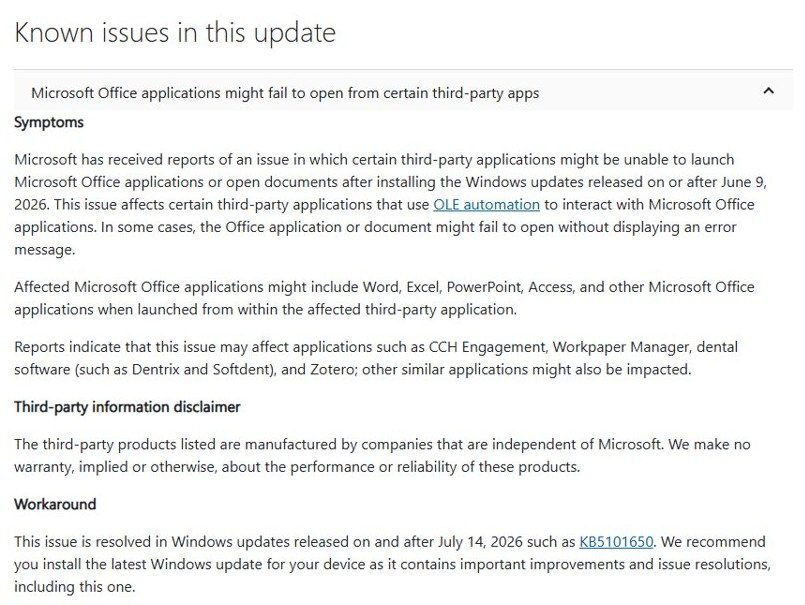
| Microsoft Office apps or documents might fail to open from third-party apps that use OLE automation | Users of apps such as CCH Engagement, Workpaper Manager, Dentrix, Softdent and Zotero, on updates from June 9, 2026 onward | Resolved in updates released on and after July 14, 2026, such as the July 2026 update KB5101650 |
| Yellow exclamation point next to the Intel Innovation Platform Framework Processor Participant driver, with changed performance or power use | A limited number of Dell devices; the driver conflicts with the new Windows USB-C Connection Manager interface added in KB5095093 | Resolved in out-of-band update KB5121767 (July 18, 2026) and later; hotpatch PCs get KB5121768 |
KB5095093 problems and fixes
Word, Excel or Outlook will not open from a third-party app after KB5095093
An OLE automation regression present in updates from June 9, 2026 until the July 14, 2026 release.
- Open Settings > Windows Update.
- Select Check for updates.
- Install the latest cumulative update offered, which is newer than KB5101650.
- Restart and open the document from the third-party app again.
Dell PC slow or draining battery, with a warning icon on the Intel IPF driver
An incompatibility between the Intel IPF driver and the USB-C Connection Manager interface added in this build.
- Open Settings > Windows Update.
- Turn on Get the latest updates as soon as they're available, or select Download & install if KB5121767 or a later update is listed.
- Restart the PC.
- Open Device Manager and confirm the warning icon is gone from the Intel Innovation Platform Framework Processor Participant entry.
PC will not boot from install media updated with KB5095093 (error 0xc0430001)
The boot.stl file used for Secure Boot validation was left out of the updated media.
- Rebuild the media with Microsoft's Update WinPE script, which Microsoft recommends.
- Or copy boot.stl from the device's Windows\Boot\EFI folder to the matching folder on the media.
- Make sure the file matches the Windows version and architecture of the image.
- Boot from the media again.
Something else broke after installing KB5095093
A change in the build conflicts with an app or driver on your PC.
- Uninstall KB5095093 using the steps below.
- Restart and check whether the problem is gone.
- Install the latest cumulative update later, since it may include a fix.
How to uninstall KB5095093
Removing a preview update is low risk because it carries no new security fixes. Some updates cannot be uninstalled; the servicing stack part stays in place.
- Select Start > Settings > Windows Update.
- Under More options, select Update history.
- Under Related settings, select Uninstall updates.
- Find KB5095093 in the list and select Uninstall.
- Restart the PC when prompted.
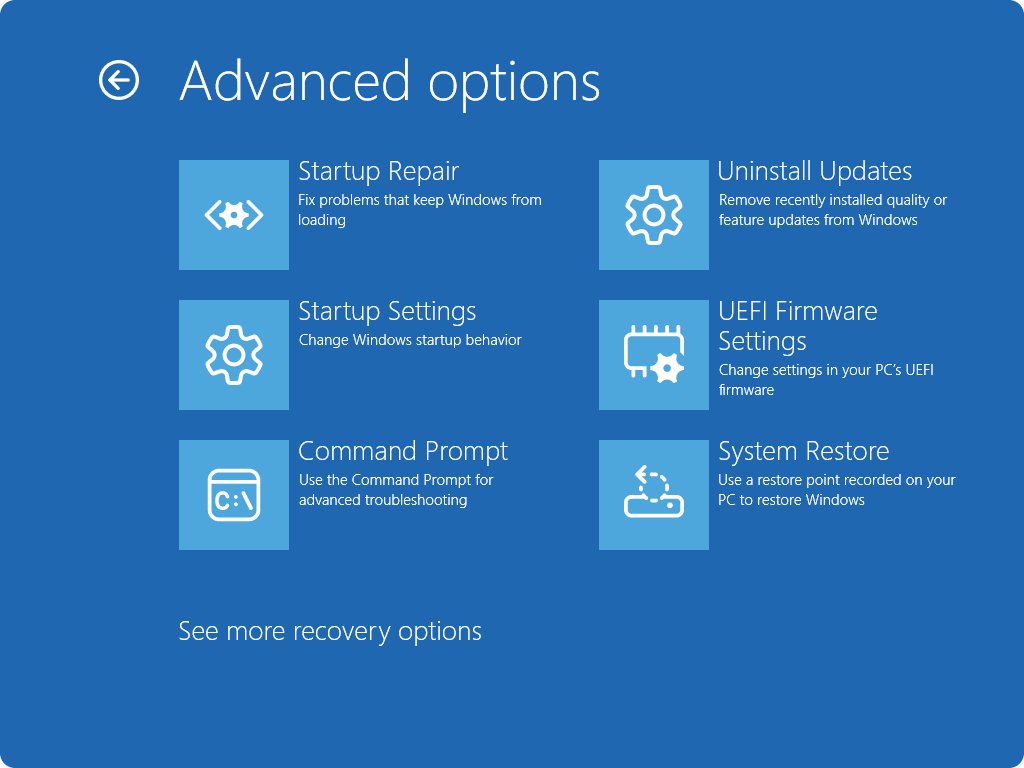
- If Windows will not start, open the Windows Recovery Environment and select Troubleshoot > Advanced options > Uninstall Updates > Uninstall latest quality update.
Point-in-time restore in Windows 11 KB5095093
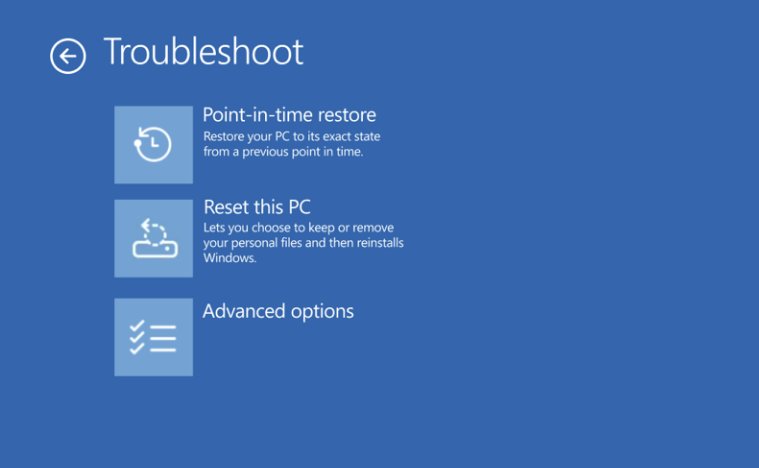
Point-in-time restore is the biggest feature in this build. It restores the full system state from a local restore point captured within the last 72 hours, using Volume Shadow Copy Service.
It is on by default on Home PCs and on unmanaged Pro PCs with an OS volume of 200 GB or larger. Enterprise, Education and managed Pro PCs have it off by default.
- Save your work and plug the laptop into power.
- Open Settings > System > Recovery and select Restart now next to Advanced startup.
- Select Troubleshoot > Point-in-time restore.
- Enter your BitLocker recovery key if the drive is encrypted.
- Pick a restore point by date and time, then select Continue.
- Review the restore point, OS version and data loss warning, then select Restore.
Everything changed after the restore point is lost, including files, passwords and recent security updates. Files stored in OneDrive are not affected. Restore points older than 72 hours, or any when free space drops to 20 GB, are deleted automatically.
Should you install KB5095093?
Do not install KB5095093 on its own now; install the latest cumulative update instead, which includes every change and fix from this build plus the fixes for its two known issues. KB5095093 was an optional preview from June 2026, and both its Office and Dell driver issues were fixed only in later updates. Windows 11 24H2 Home and Pro also reached end of updates on October 13, 2026, so those PCs should move to version 25H2 or later. Enterprise and Education editions of 24H2 get updates until October 12, 2027.
The October 2026 security update for 24H2 and 25H2 is KB5127648, and the KB5127648 download and change list shows what it adds on top. Home and Pro users can move to Windows 11 26H2 instead of staying on 24H2.
Windows 11 KB5095093 FAQ
What is KB5095093?
KB5095093 is the June 23, 2026 optional non-security preview update for Windows 11 versions 24H2 and 25H2. It raises 24H2 to build 26100.8737 and 25H2 to build 26200.8737, adding point-in-time restore, a Windows Update pause calendar and many fixes.
What build is KB5095093?
KB5095093 installs OS build 26100.8737 on Windows 11 version 24H2 and OS build 26200.8737 on version 25H2. Its servicing stack update, KB5095182, is version 26100.8733. Run winver to see which build your PC has.
Is KB5095093 a security update?
No. KB5095093 is a non-security preview update, which Microsoft labels optional. Its changes were rolled into the July 14, 2026 security update KB5101650 and every cumulative update after it.
Why is KB5095093 not showing in Windows Update?
KB5095093 appears only under Optional updates, and only until a newer cumulative update supersedes it. A PC that already has a later build will not be offered it. Windows Update for Business and WSUS do not offer it at all.
How big is the KB5095093 download?
The Microsoft Update Catalog lists the Windows 11 24H2 x64 package at 5,423.6 MB and the arm64 package at 4,835.9 MB. The matching 25H2 packages, build 26200.8737, are listed at the same sizes.
Does KB5095093 break Microsoft Office?
It can for some users. Office apps or documents might fail to open from third-party apps that use OLE automation, such as Dentrix or Zotero. Microsoft fixed this in updates released on and after July 14, 2026, such as KB5101650.
Can I uninstall KB5095093?
Yes. Open Settings, select Windows Update, then Update history, then Uninstall updates, and select Uninstall next to KB5095093. If Windows does not start, use Uninstall latest quality update in the Windows Recovery Environment.
Does Windows 11 24H2 still get updates?
Windows 11 24H2 Home and Pro editions reached end of updates on October 13, 2026. Enterprise and Education editions of 24H2 remain supported until October 12, 2027. Home and Pro users should upgrade to a newer version.