To update apps on iPhone, open the App Store, tap your photo at the top right, tap App Updates, then tap Update All or Update next to one app.
Apps from the App Store also update automatically by default. This guide covers manual updates, automatic updates, updates over cellular data and the fixes for an app that refuses to update.
How to update apps on iPhone (step by step)
These steps work on every iPhone with a current version of iOS, from the iPhone 12 to the iPhone 17 Pro Max, and on older models such as the iPhone 7.
As a quick summary of everything below: manual updates live on your App Store account screen, and automatic updates live under App Store in Settings.
- Open the App Store app.
- Tap the My Account button or your photo at the top of the screen.
- Tap App Updates to see the apps with an update waiting.
- Tap Update next to an app to update only that app, or tap Update All to update every app in the list.
- Authenticate with Face ID, Touch ID or your passcode if the App Store asks; you can stop the App Store asking for a password on free downloads.
- Watch the progress indicator on each app icon; the app is ready when it disappears.
Which iPhone app update method should you use?
| Your situation | Use this | Why |
|---|---|---|
| You want every app current with no effort | Settings > Apps > App Store > App Updates on | Updates download and install in the background |
| You want to review each update first | App Updates off, then update from the account screen | The App Store sends a notification for each new update |
| One app needs an urgent fix | Update next to that app on the account screen | Updates only that app |
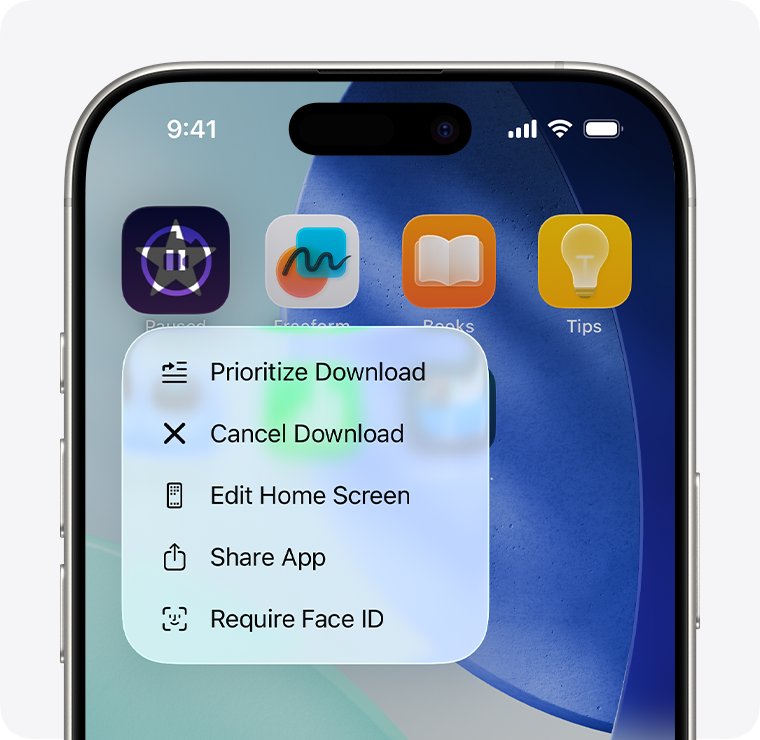
| An app is stuck on Waiting or Loading | Touch and hold the icon, then Prioritize Download | Moves that app to the front of the queue |
| An app will not update at all | Offload or delete the app, then reinstall it | Downloads the newest version from scratch |
How to update apps automatically on iPhone
Automatic updates are on by default, but they can be switched off by accident, by a Screen Time profile or during setup.
- Open Settings.
- Tap Apps, then tap App Store. On iOS 17 and earlier, tap App Store directly in Settings.
- Turn on App Updates.
- Turn on App Downloads too if you want apps bought on your other Apple devices to install on this iPhone.
- Check the App Store account screen later; apps that already updated drop out of the waiting list.
Where is the App Updates setting on iPhone?
| iOS version | Path to App Updates | Path to manual updates |
|---|---|---|
| iOS 18, iOS 26 and later | Settings > Apps > App Store > App Updates | App Store > your photo > App Updates |
| iOS 17 and earlier | Settings > App Store > App Updates | App Store > your photo, then scroll to the update list |
There is no separate Updates tab in the App Store. Pending updates always sit on your account screen.
How to update apps on iPhone with cellular data
Without Wi-Fi, app updates need the App Store to have cellular access. Low Data Mode also pauses automatic updates whenever the iPhone is not on Wi-Fi. If neither connection works, fix cellular data and Wi-Fi on the iPhone before you retry the update.
- Open Settings, tap Apps, then tap App Store.
- Turn on Cellular Data to let the App Store download over your mobile plan.
- Tap App Downloads under the cellular settings and choose whether to always allow downloads or be asked for ones over 200 MB.
- Open Settings > Cellular > Cellular Data Options > Data Mode and pick a mode other than Low Data Mode if automatic updates stay paused.
Alternative ways to update a stubborn app on iPhone
Use these routes when an app shows an update on its App Store page but the update never finishes, or never appears in your list.
| Route | Steps | What happens to your data |
|---|---|---|
| Update from the App Store product page | Search for the app in the App Store, open its page, and tap Update if it shows | Kept |
| Prioritize the download | Touch and hold the app on the Home Screen, then choose Prioritize Download | Kept |
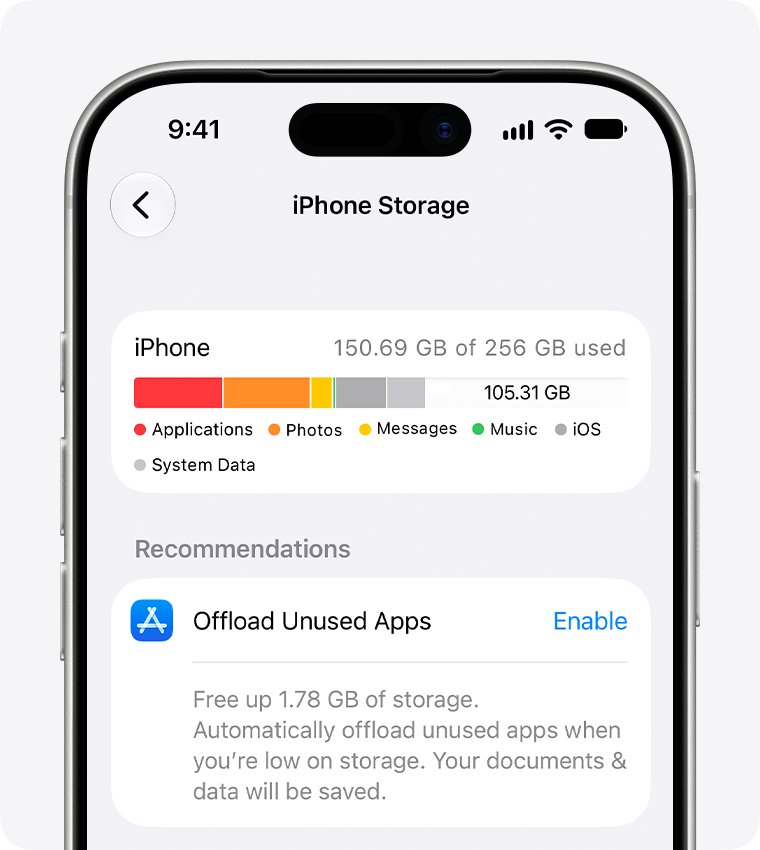
| Offload the app and reinstall it | Settings > General > iPhone Storage, tap the app, tap Offload App, then tap the app icon to reinstall | Documents and data kept |
| Delete and reinstall | Touch and hold the app, tap Remove App > Delete App > Delete, then get it again from the App Store | Removed from the iPhone; data saved in iCloud stays |
Reinstalling always pulls the newest version the App Store offers for your iPhone, so it clears most stuck updates.
How to stop apps from updating automatically on iPhone
- Open Settings.
- Tap Apps, then tap App Store (or tap App Store directly on iOS 17 and earlier).
- Turn off App Updates.
- Update apps yourself from the App Store account screen when an update notification arrives.
Why iPhone app updates matter more than people think
| What an update brings | What happens if you skip it |
|---|---|
| Security fixes from the developer | Known flaws stay open on your iPhone |
| Support for the latest iOS release | The app can crash or misbehave after an iOS update |
| Bug fixes for crashes and sign-in errors | The same problem keeps coming back |
| New features and server changes | Some apps refuse to open until you update |
The best practice most people can follow is simple: leave App Updates on, keep the iPhone on Wi-Fi when you can, and keep iOS itself updated so new app versions stay compatible.
iPhone app updates still not working? Try these fixes
Why won't my apps update on my iPhone?
The App Store account needs attention, such as a missing payment method or a billing problem.
- Add a valid payment method to your Apple Account; Apple says one may be needed even for free apps.
- Resolve any billing problem with previous purchase or verification required message.
- Confirm your age if the App Store asks, which some countries and regions require for certain apps.
Why can't I update apps on my iPhone when the update is stuck on Waiting?
The download is queued behind other apps, or the iPhone needs a restart.
- Touch and hold the app on the Home Screen and choose Prioritize Download.
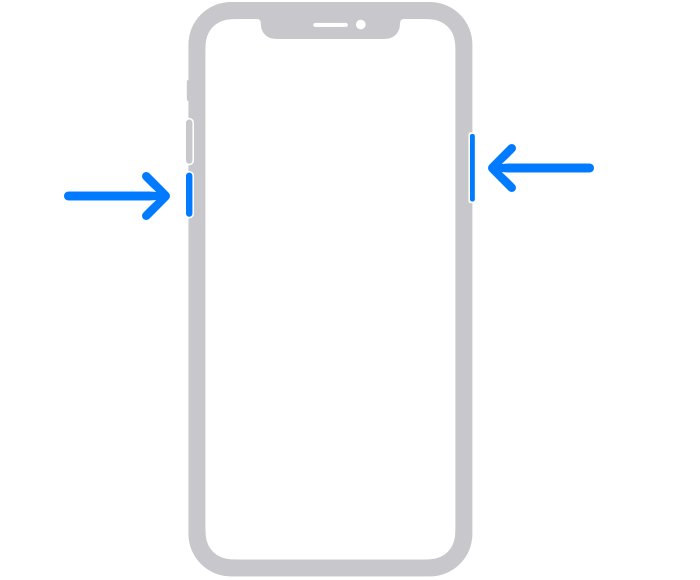
- Restart the iPhone: press and hold the side button and either volume button until the slider appears, drag it, wait 30 seconds, then hold the side button until the Apple logo shows. On an iPhone 6, 7, 8 or SE (2nd or 3rd generation), hold only the side button.
- Open Settings > General > iPhone Storage and free space if storage is almost full.
Why don't my apps automatically update on iPhone?
App Updates is off, cellular access is blocked, or Low Data Mode is pausing updates.
- Turn on App Updates in Settings > Apps > App Store.
- Turn on Cellular Data in the same screen if you are away from Wi-Fi.
- Turn off Low Data Mode for your Wi-Fi network or cellular plan.
App update fails with an account error
The Apple Account is restricted or disabled.
- Sign in to your Apple Account in Settings and read any alert shown under your name.
- If a message says the account has been disabled, fix the disabled App Store account before you try the update again.
- Contact Apple Support if you still cannot download or update apps.
iPhone app update FAQ
Do apps automatically update on iPhone?
Yes. Apps from the App Store update automatically by default. You can check under Settings > Apps > App Store, where App Updates should be turned on.
How do I update all apps on iPhone at once?
Open the App Store, tap your photo at the top of the screen, tap App Updates, then tap Update All. Every app with a waiting update starts downloading.
How do I update apps on iPhone 13, 14, 15, 16 or 17?
The steps are the same on every model, including the Pro Max versions. Open the App Store, tap your photo, tap App Updates, then tap Update All or Update next to one app.
How do I update apps on an iPhone 7 or iPhone 6s?
Open the App Store, tap your photo at the top of the screen and scroll to the list of pending updates. Tap Update All or Update next to an app. Automatic updates are under Settings > App Store.
Can I update apps on iPhone without an Apple ID?
No. The App Store needs an Apple Account and an internet connection for every download and update, including free apps. Sign in to an Apple Account in Settings first.
Why is there no Updates tab in the App Store?
Updates moved to your account screen. Open the App Store, tap your photo at the top of the screen, and the App Updates list shows every app with a waiting update.
Do automatic app updates use my cellular data?
Only if Cellular Data is turned on for the App Store in Settings > Apps > App Store. Low Data Mode pauses automatic updates when the iPhone is not on Wi-Fi.
Will updating an app delete my data?
No. A normal update keeps your app data and sign-in. Offloading also keeps documents and data, while deleting an app removes the data stored on the iPhone.
How do I stop apps from updating automatically on iPhone?
Open Settings, tap Apps, tap App Store and turn off App Updates. The App Store then notifies you when an update is available so you can install it yourself.
Why can't I update my apps on my iPhone?
The usual causes are a payment or billing problem on the Apple Account, a stalled download, low storage or Low Data Mode. Prioritize the download, restart the iPhone and check the account first.