To manage multiple monitors with PowerToys, turn on FancyZones, give each monitor its own window layout, and add Mouse Jump, Workspaces and Power Display to move the pointer, launch apps and adjust each screen.
This guide covers the seven most useful PowerToys features for multi-monitor desks, the shortcuts that move windows between screens, and fixes for PowerToys, full-screen and black-screen problems on Windows 11.
How to manage multiple monitors with PowerToys
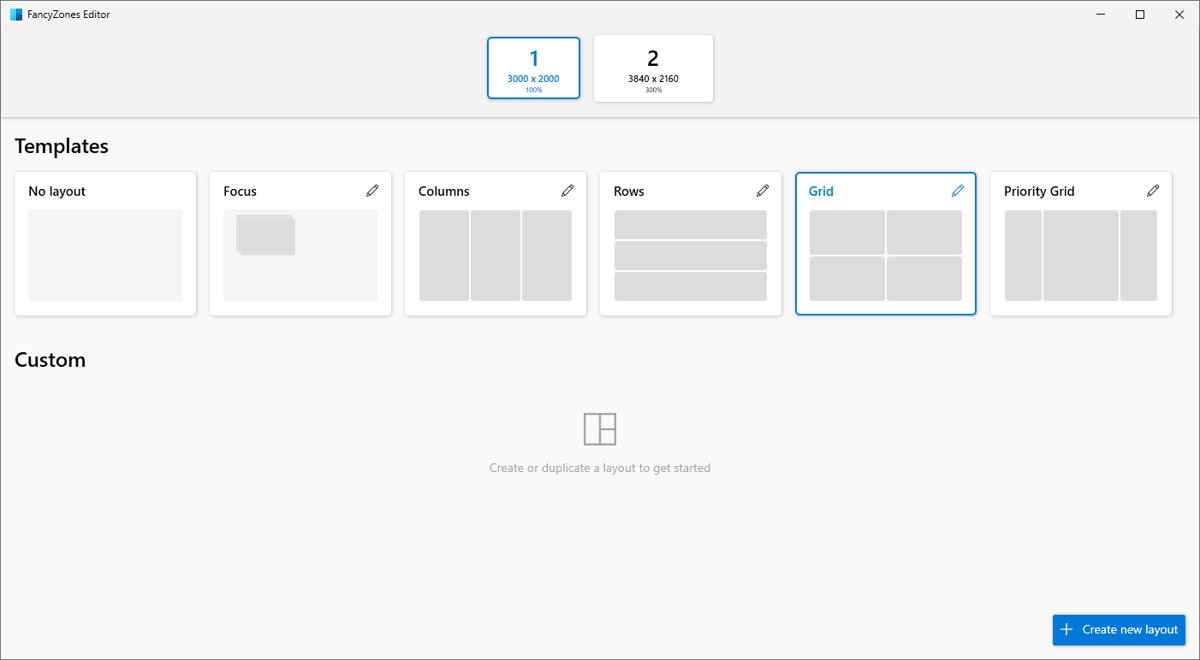
FancyZones does most of the work: each monitor gets its own grid of zones, and windows snap into them as you drag. If Windows does not show the second screen yet, set up multiple monitors on Windows 11 before you install PowerToys.
- Install PowerToys from the Microsoft Store, or run
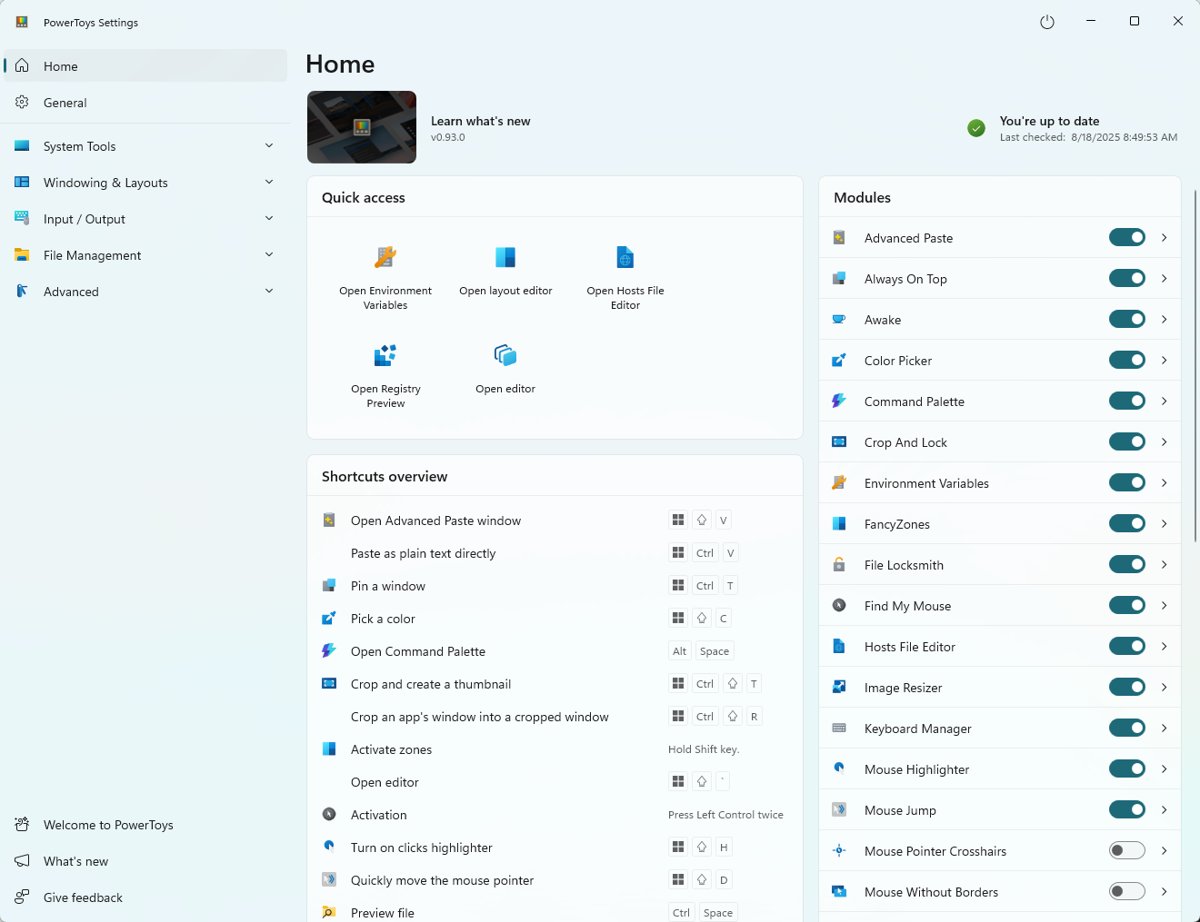
winget install --id Microsoft.PowerToys --source wingetin Terminal. - Open PowerToys from the Start menu or the system tray icon, select FancyZones in the left pane, and turn the utility on.
- Press Windows logo key + Shift + ` (the backtick key above Tab) to open the layout editor.
- Select the monitor you want to change, then select a layout. It applies straight away; double-click a layout to apply it and close the editor.
- Repeat the previous step for each monitor, so a wide screen can use columns while a portrait screen uses rows.
- Hold Shift while you drag a window, then release it over the highlighted zone.
- Press Windows logo key + Shift + Left arrow or Right arrow to send the active window to the neighbouring monitor.
Install PowerToys on Windows 11 with winget
PowerToys runs on Windows 11 and on Windows 10 version 2004 (build 19041) or newer, on x64 or ARM64 processors. The installer adds the Microsoft Edge WebView2 Runtime if it is missing.
winget install --id Microsoft.PowerToys --source wingetRun it in Windows Terminal, PowerShell or Command Prompt. The --id switch picks the official Microsoft package and --source winget skips other catalogs. The Microsoft Store page and the GitHub releases page install the same app.
You should see: winget reports the install as successful, and PowerToys opens a welcome window with a short tour of each utility.
PowerToys checks for updates while it runs. You can also check manually on the General page of PowerToys Settings.
Seven PowerToys features for multiple monitor users in Windows 11
These seven utilities change how a multi-monitor desk works. Each one is off or on separately in PowerToys Settings, so turn on only what you use.
| Feature | What it does across monitors | How to start it |
|---|---|---|
| FancyZones | A separate snap layout per monitor, zones that span monitors, and a shortcut that rotates windows one screen over | Windows logo key + Shift + ` opens the editor |
| Workspaces | Opens a saved set of apps and moves each window to its captured position | Windows logo key + Ctrl + ` opens the editor |
| Mouse Jump | Shows a thumbnail of every screen so one click moves the pointer anywhere | The activation shortcut on the Mouse utilities page |
| Find My Mouse | Spotlights the pointer when you lose it on a large desktop | Press Ctrl twice, or shake the mouse |
| CursorWrap | Moves the pointer from one outer edge to the opposite edge, cutting long mouse travel | The CursorWrap shortcut, or turn on automatic activation |
| Power Display | Brightness, contrast, volume and input controls for external monitors in one flyout | The Power Display activation shortcut, or Open Power Display in Settings |
| Always On Top | Keeps a reference window above everything else while you work on another screen | Windows logo key + Ctrl + T |
Two smaller extras help on big desktops. Grab And Move lets you hold Alt and drag anywhere inside a window to move it, and Mouse Without Borders shares one keyboard and mouse across up to four PCs.
How to set up FancyZones on multiple monitors
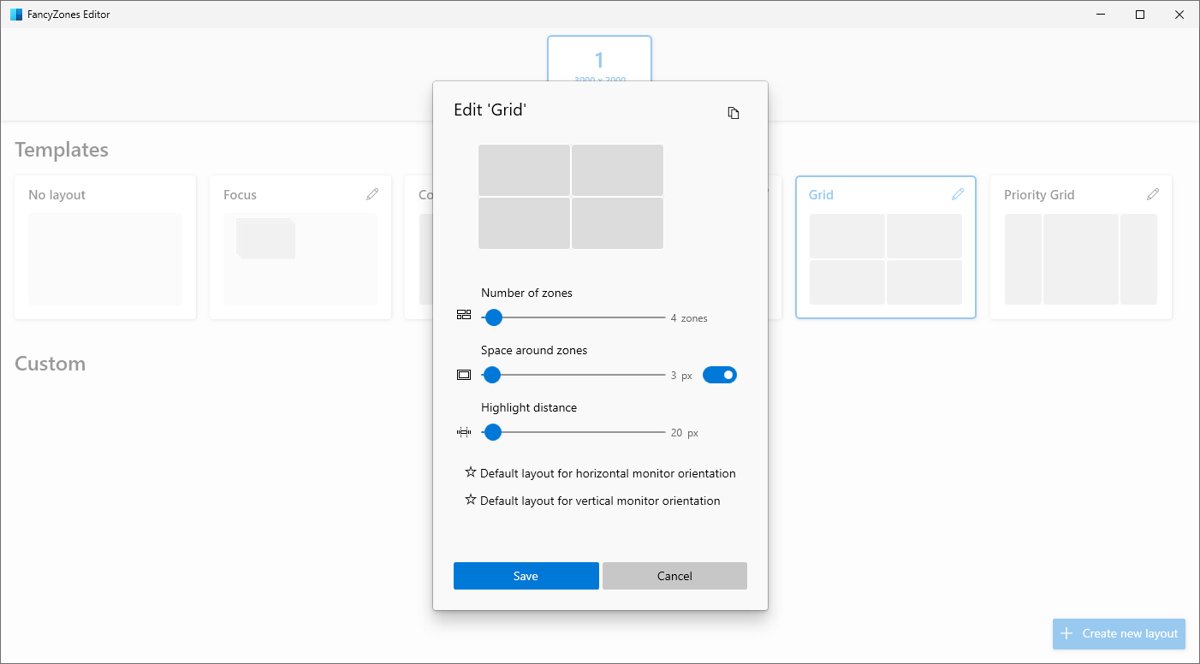
Each monitor keeps its own layout. Grid layouts resize with the screen, while Canvas layouts let zones overlap like free-floating windows.
- Open PowerToys > FancyZones and select Open layout editor.
- Select a monitor, then pick a template such as Columns or Focus.
- Select Create new layout for a custom one, then choose the Grid or Canvas style.
- In a Grid layout, click inside a zone to split it, hold Shift to turn the divider, and drag a divider to resize zones.
- To merge zones, drag across them with the left mouse button held down, release, and select Merge.
- Repeat for every monitor, then close the editor.
- Back in Settings, turn on Move newly created windows to the last known zone so apps reopen where you last snapped them.
Turn on Show zones on all monitors while dragging a window to see every screen's zones at once. Microsoft notes that this option can affect performance.
How to span FancyZones across two monitors
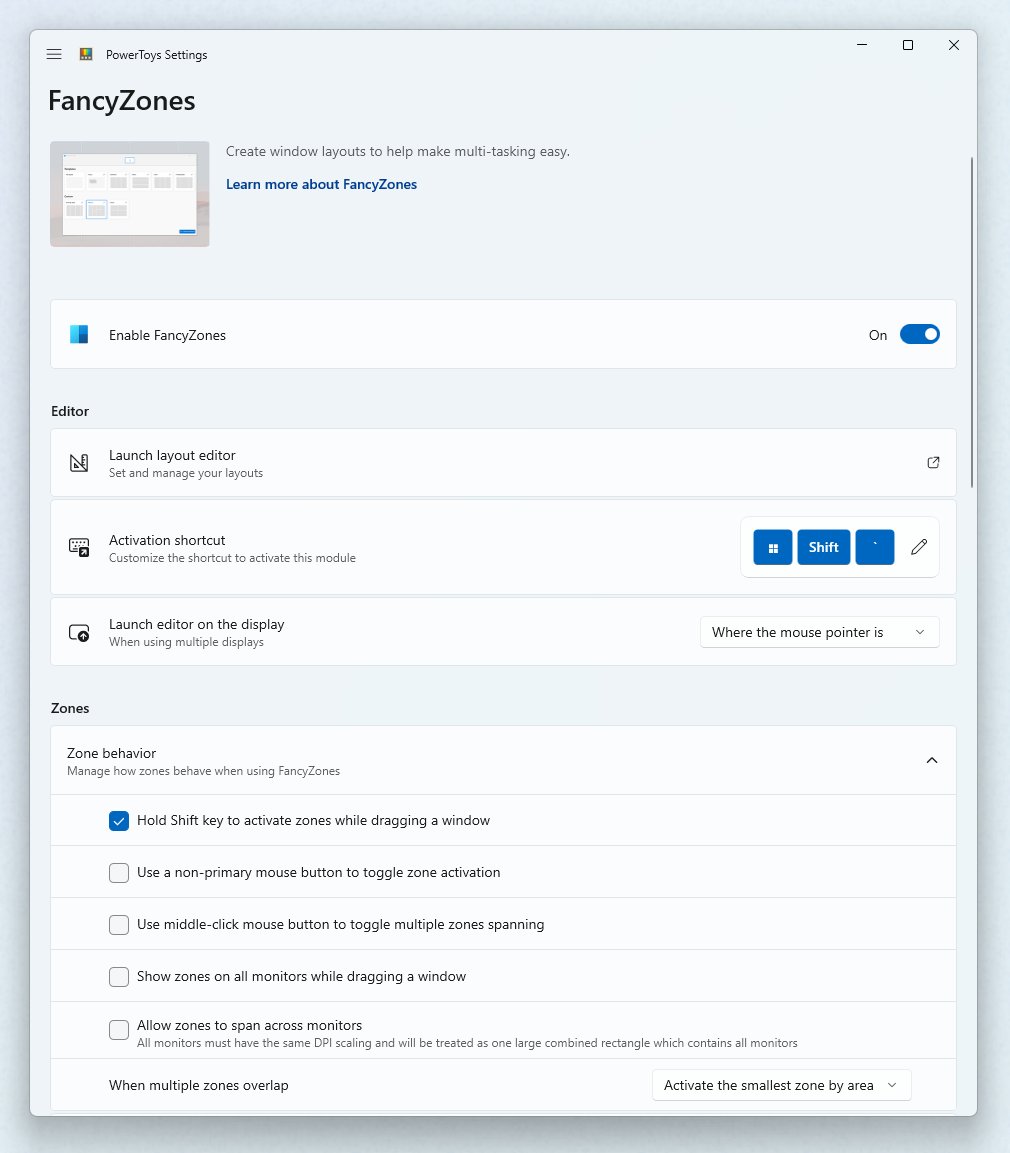
Spanning treats all connected monitors as one large screen, so a single zone can cross the gap between two displays. It only works correctly when every monitor uses the same display scaling level.
- Open Settings > System > Display and select the first monitor.
- Under Scale & layout, set Scale to a value, then select the second monitor and set the same value.
- Open PowerToys > FancyZones and turn on Allow zones to span across monitors.
- Open the layout editor and pick or create a layout for the combined screen.
- Hold Shift and drag a window onto a zone that crosses both monitors.
Mixed portrait and landscape screens can behave unexpectedly when spanning is on. For those desks, keep one layout per monitor and use Rotate windows across monitors instead.
FancyZones shortcuts for multiple monitors
Several of these shortcuts only work after you turn on the setting in the last column, on the FancyZones page of PowerToys Settings.
| Shortcut | What it does | Setting it needs |
|---|---|---|
| Windows logo key + Shift + ` | Opens the FancyZones layout editor | None |
| Windows logo key + Shift + Left/Right arrow | Moves the active window to the adjacent monitor | None, built into Windows; FancyZones does not override it |
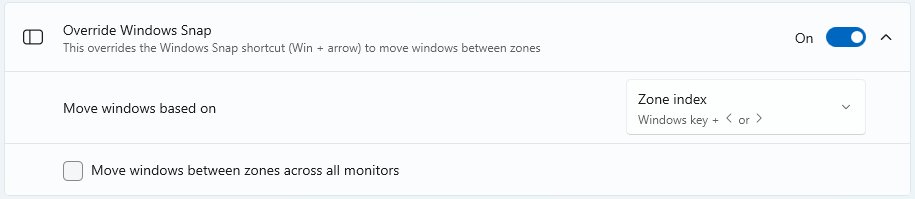
| Windows logo key + Left/Right arrow | Moves the window between zones | Override Windows Snap; add Move windows between zones across all monitors to carry on to the next screen |
| Windows logo key + Ctrl + Alt + arrow key | Stretches the window over several zones | Override Windows Snap with Move windows based on set to Relative position |
| Windows logo key + PgUp/PgDn | Cycles between windows snapped to the same zone | None |
| Windows logo key + Ctrl + Alt + number | Applies the custom layout you gave that number | Enable quick layout switch, plus a number set in the layout's edit dialog |
| Hold Alt + X, then press Left or Right | Rotates open windows one monitor over in that direction | Rotate windows across monitors |
| Ctrl while dragging | Selects more than one zone for the window | None |
How to move the mouse to another monitor with Mouse Jump
Mouse Jump is the fastest way to cross three or four screens. It shows a small preview of the whole desktop, and the pointer lands wherever you click.
- Open PowerToys > Mouse utilities and turn on Mouse Jump.
- Note the Activation shortcut, or select it and press a new key combination.
- Press the shortcut to open the preview of all your monitors.
- Click any point in the preview to move the pointer there.
- Or press 1 to 9 to jump to the center of that numbered monitor, Left or Right to cycle screens, Home or End for the first or last, and P for the primary monitor.
- Change Thumbnail size or the Appearance preview style (Compact, Bezelled or Custom) if the preview is too small.
How to find the mouse cursor on multiple monitors
Three mouse utilities solve the lost-pointer problem on wide desks. They all live on the Mouse utilities page.
- Turn on Find My Mouse and choose an Activation method: Press Left Ctrl twice, Press Right Ctrl twice, Shake mouse or Custom shortcut.
- Use that method to spotlight the pointer, then click or press any key to dismiss it.
- Turn on Do not activate when Game Mode is on so the spotlight stays out of games.
- Turn on Mouse Pointer Crosshairs to draw lines through the pointer, and set its Activation shortcut.
- Turn on CursorWrap and pick a Wrap mode so the pointer jumps from one outer edge to the opposite edge.
- On a laptop you undock often, turn on Disable wrapping when using a single monitor.

How to open apps on specific monitors with PowerToys Workspaces
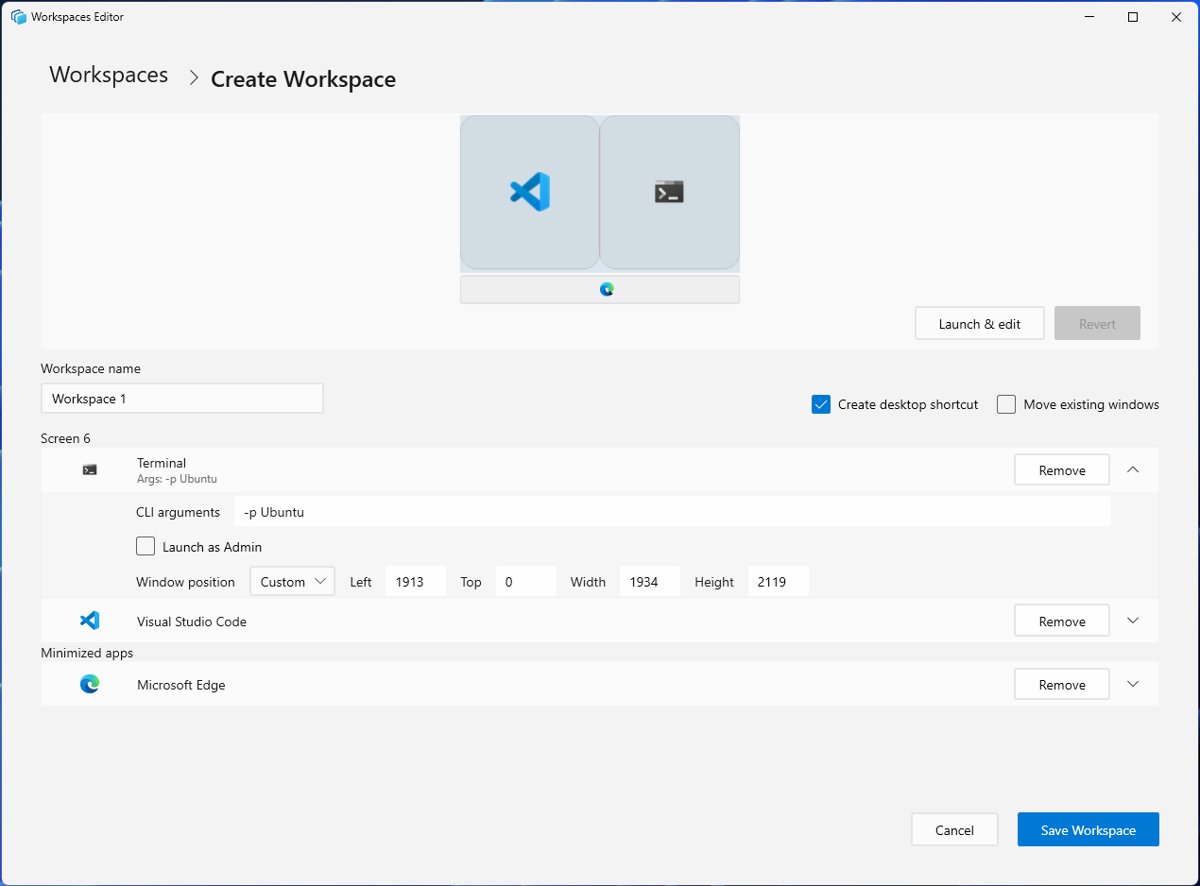
Workspaces saves a whole desk arrangement, such as a browser on the left screen and an editor and terminal on the right, and rebuilds it with one click.
- Open PowerToys > Workspaces and turn it on.
- Press Windows logo key + Ctrl + ` or select Launch editor.
- Select + Create workspace.
- Open the apps you want and arrange them across your monitors, then select Capture.
- Name the workspace, remove any app you do not need, and add command-line arguments to open a file or profile.
- Turn on the desktop shortcut option and save. You can pin that shortcut to the taskbar.
- Select Launch in the editor, or open the shortcut, to rebuild the layout.
Turn on Move existing windows to reuse apps that are already open. Apps set to Launch as Admin currently open but may not move to their saved spot, a known issue Microsoft is fixing.
How to change external monitor brightness with PowerToys Power Display
Power Display talks to external monitors over DDC/CI, so you can change settings without the buttons on the back of each screen. The controls you see depend on what each monitor reports.
- Open PowerToys > Power Display, turn on Enable Power Display, and confirm the warning.
- Press the activation shortcut, or select Open Power Display, to show the flyout.
- Drag the Brightness, Contrast or Volume slider for each monitor, or scroll the mouse wheel over a slider.
- Turn on Link brightness levels to control every screen with one All displays slider.
- Expand Individual displays and turn on Exclude from linked brightness for any screen that should stay separate.
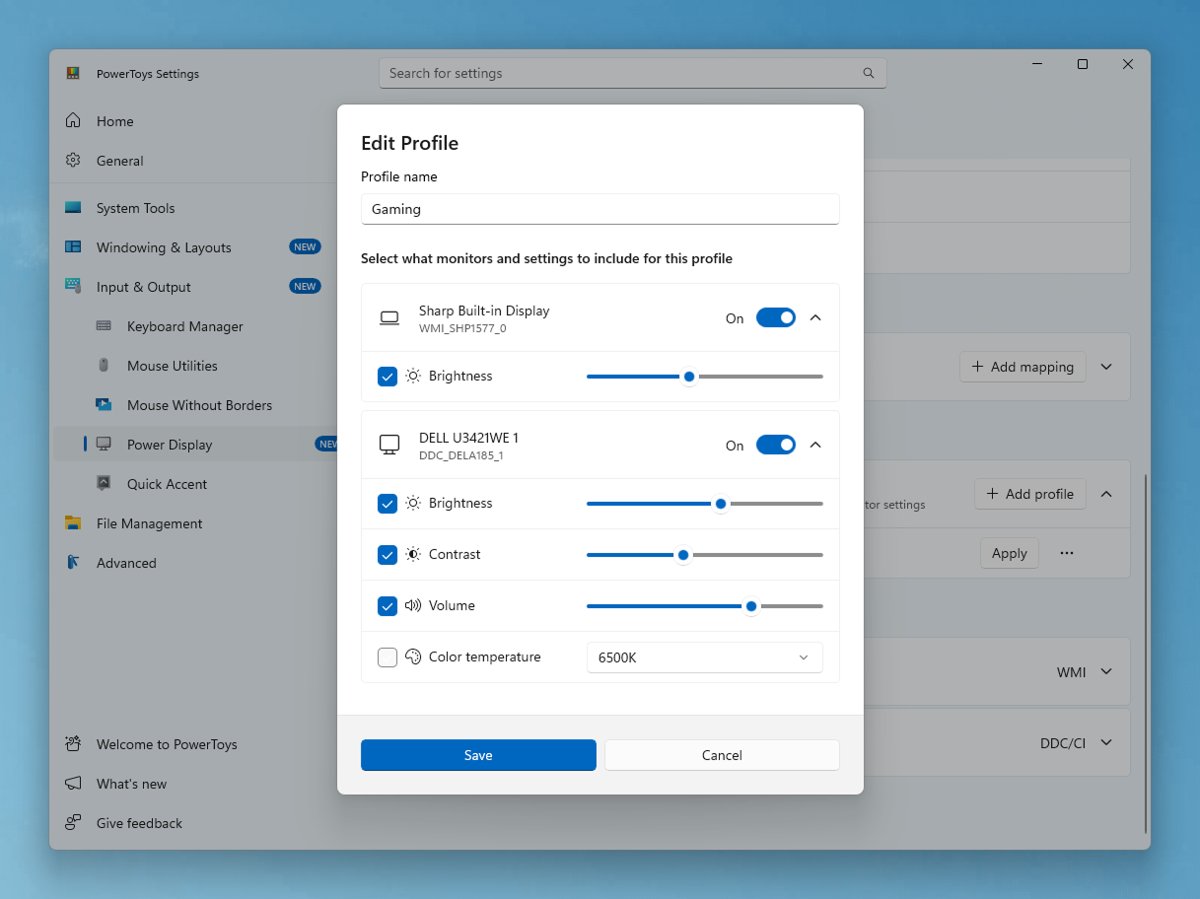
- Save a combination as a profile, such as Work or Gaming, and switch to it from the flyout's profile button.
Input source, color temperature and power state controls are off by default for each monitor. Switching to an input with no signal turns that screen black until something is connected.
How to set a FancyZones layout from the command line
PowerToys adds its tools folder to your PATH, so the FancyZones CLI works from any terminal. Open a new terminal window after you install PowerToys.
PowerToys.FancyZones.CLI.exe s columns --monitor 2s is short for set-layout, columns is a template name, and --monitor 2 targets the second monitor. Use --all instead to apply it to every screen, ls to list layouts with their IDs, and m to list monitors.
You should see: The command finishes without an error, and PowerToys.FancyZones.CLI.exe active shows the layout now in use.
How to identify monitor 1 and 2 in Windows 11
Mouse Jump number keys, the FancyZones --monitor switch and Power Display all refer to monitors by number, so match each number to a physical screen first.
- Open Settings > System > Display and select Identify. A number appears on each screen.
- If a screen is missing, expand Multiple displays and select Detect.
- Drag the display boxes to match where the screens sit on your desk, then select Apply so the pointer crosses edges where you expect.
- Run
PowerToys.FancyZones.CLI.exe min Terminal to list the monitors FancyZones sees. - In Power Display, turn on Show identify monitors button to flash a number on each external screen.
PowerToys not working in Windows 11
FancyZones will not snap Task Manager or another admin app
Elevated windows ignore PowerToys unless PowerToys also runs as administrator.
- Open PowerToys and select General.
- Select Restart as administrator.
- To make it permanent, turn on Always run as administrator.
Zones do not appear when you drag a window
By default you must hold Shift while dragging, and some window types are excluded.
- Hold Shift while you drag, or clear Hold Shift key to activate zones while dragging so zones show on every drag.
- Turn on Allow popup windows snapping and Allow child windows snapping if one app never triggers zones.
- Check that the app is not listed under Exclude applications from snapping to zones.
- Some apps cannot be zoned at all, including VMware Workstation Player, Hyper-V Connection, Citrix and RemoteApp windows.
PowerToys shortcuts do nothing
PowerToys is not running, or two utilities use the same shortcut.
- Open PowerToys from the Start menu and check that the tray icon appears.
- On the General page, turn on Run at startup.
- When the shortcut conflicts window appears, reassign or remove the duplicate shortcut.
- Open the utility's page and check that it is turned on.
The FancyZones editor will not open
RivaTuner Statistics Server, installed with MSI Afterburner, stops the editor from opening.
- Close RivaTuner Statistics Server, which often runs alongside MSI Afterburner.
- Press Windows logo key + Shift + ` again.
Snapped windows stop a few pixels short of the screen edge
The monitors use different scaling and the app is not DPI aware.
- Open Settings > System > Display.
- Set the same Scale value on every monitor.
PowerToys will not install or update
The PC is below the minimum Windows version, or the install is out of date.
- Install pending updates from Settings > Windows Update > Check for updates; PowerToys needs Windows 10 version 2004 or later on x64 or ARM64.
- Run the winget command again, or select Check for updates on the PowerToys General page.
Monitor not displaying full screen in Windows 11
A picture that does not fill the screen is almost always a resolution or scaling setting, not PowerToys. Fix each monitor separately: select it in Display settings first.
The desktop is small, centered or edged with black bars
The resolution is set below the monitor's native resolution.
- Open Settings > System > Display and select the monitor.
- In Display resolution, choose the option marked (Recommended).
- Repeat for each monitor that shows the same symptom.
Text and apps look too big or do not fit
Scaling is set higher than the screen needs.
- In Display settings, scroll to Scale & layout.
- Select Scale and choose the value marked (Recommended).
The resolution changes on its own or the recommended option is missing
The graphics driver is out of date or damaged.
- Open Settings > Windows Update and select Check for updates.
- Type device manager in the taskbar search box and open Device Manager.
- Expand Display adapters, right-click your graphics card and select Update driver.
- Select Search automatically for updated driver software.
The second monitor is blank or shows the same picture
Windows is set to a display mode other than Extend.
- Press Windows logo key + P.
- Select Extend.
- If the screen is still missing, select Detect under Multiple displays in Display settings.
You can also change resolution and scaling for each display from the same Display page, including refresh rate and orientation.
Monitor turns off while playing games while the system remains on
When the screen goes dark but the PC keeps running, the cause is a screen timeout, the graphics driver or the connection. Work through these in order.
The screen goes dark after the same number of minutes each time
The Windows screen timeout turns the display off when it thinks the PC is idle.
- Open Settings > System > Power & battery > Screen, sleep & hibernate timeouts.
- Set Turn my screen off after to a longer time for when the PC is plugged in.
- For long sessions, turn on PowerToys Awake, choose Keep awake indefinitely, and turn on Keep screen on.
- Awake only keeps the screen on while the PC is unlocked, and the power plan returns when you turn Awake off.
The monitor goes black while the PC keeps running
The graphics driver stopped responding.
- Press Windows logo key + Ctrl + Shift + B to reset the graphics driver. A beep or a flicker means it worked.
- If the screen stays black, restart the PC from Start > Power > Restart.
It started after a graphics driver update
The new driver does not suit your hardware.
- Open Device Manager and expand Display adapters.
- Right-click your graphics card and select Properties.
- On the Driver tab, select Roll Back Driver. If it is greyed out, reinstall the driver instead.
Only one monitor loses signal
A loose cable, a faulty adapter or a dock is dropping the signal.
- Check that both ends of the cable are firmly seated.
- Disconnect docks, dongles and adapters, then connect the monitor directly.
- Try a different cable, then a different video port such as HDMI or DisplayPort.
- If Power Display is on, check that you did not switch that monitor's input source or power state.
Older power plans with their own display-off timers sit in the classic power management settings.
PowerToys multiple monitors FAQ
How do I manage multiple monitors in Windows 11?
Press Windows logo key + P and choose Extend, then arrange the screens in Settings > System > Display. For window control, PowerToys FancyZones gives each monitor its own snap layout, and Workspaces reopens a set of apps in fixed spots.
How do you use multiple monitors effectively?
Give each screen a job and a layout. Use FancyZones for per-monitor zones, Always On Top for a reference window, and Mouse Jump to cross screens in one click. Save the whole arrangement as a PowerToys workspace so it returns with one shortcut.
How do you work with multiple monitors in Windows?
Press Windows logo key + Shift + Left arrow or Right arrow to move a window to the next monitor. With FancyZones, hold Alt + X and press an arrow key to rotate all open windows one screen over, after you turn on Rotate windows across monitors.
Does my PC support multiple monitors?
It depends on the graphics card and the video ports. A PC with one video output supports one external monitor unless you add a docking station or a USB-C video adapter. A display splitter only duplicates the same picture, so it cannot extend the desktop.
How do you get multiple monitors to work?
Connect each monitor to its own video port, press Windows logo key + P and select Extend. If one stays missing, open Settings > System > Display, expand Multiple displays and select Detect. Then select Identify to see which number each screen has.
Does PowerToys support multi-monitor setups with different resolutions and orientations?
Yes. FancyZones stores a separate layout for each monitor and lets you set default layouts for horizontal and vertical screens. Spanning zones across monitors needs the same scaling on every screen, and mixed orientations can behave unexpectedly when spanning is on.
Can PowerToys help with optimizing display settings across multiple monitors?
Partly. Power Display adjusts brightness, contrast, volume and input on external monitors that support DDC/CI, and can link brightness across screens. Resolution, scaling, refresh rate and orientation still live in Windows Settings > System > Display.
How do you control multiple monitors with one mouse?
One mouse already moves across all extended monitors. PowerToys Mouse Jump moves it to any screen in one click, and CursorWrap shortens long trips. To share one mouse and keyboard across separate PCs, use Mouse Without Borders, which links up to four computers.