"Private Relay is currently unavailable" means iCloud Private Relay cannot protect your Safari browsing right now, usually because the Wi-Fi or cellular network is not compatible, you are in a region without Private Relay, or Apple's service has an issue; switch networks or check Apple System Status, and turn it off for that network if the message keeps returning.
This guide explains each cause, the fix for Wi-Fi, cellular data, travel and Mac VPN conflicts, how to tell when Private Relay is active again, and how to stop the message for good.

How to fix Private Relay is currently unavailable on iPhone
Private Relay notifies you when it becomes unavailable and again when it is active. These steps find out which side is at fault.
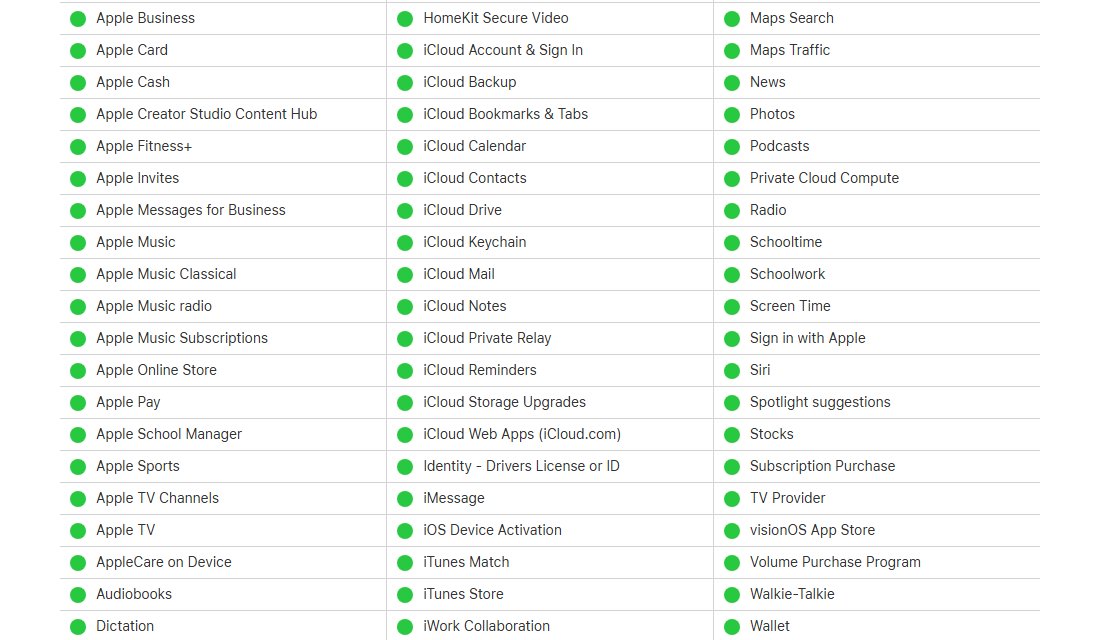
- Open apple.com/support/systemstatus and check that iCloud Private Relay shows a green dot.
- If it shows an issue, wait; Private Relay comes back when Apple resolves it.
- If the status is green, open Settings > Wi-Fi, turn off Wi-Fi and load a page in Safari over cellular data.
- If Safari works with Private Relay on cellular, the Wi-Fi network is the problem. Open Settings > Wi-Fi, tap the More Info button next to it and turn off Limit IP Address Tracking for that network.
- If you are abroad, leave Private Relay alone; it turns off in unsupported regions and turns back on when you return.
- Update your iPhone to the latest iOS in Settings > General > Software Update.
Turning off Limit IP Address Tracking for a Wi-Fi network turns off Private Relay for that network on every device signed in to the same Apple Account.
Private Relay unavailable meaning
Private Relay sends Safari traffic through two separate relays: one run by Apple and one by a third-party content provider. "Unavailable" means that path cannot be used on your current connection.
| Where you see it | What it means | What to do |
|---|---|---|
| On one Wi-Fi network, such as work, school or a hotel | The network audits traffic or filters content, so it is not compatible with Private Relay | Turn off Limit IP Address Tracking for that network |
| On cellular data only | The cellular network, or a zero-rated service that does not count against your data, is not compatible | Turn off Limit IP Address Tracking for that SIM, or use Wi-Fi |
| After arriving in another country | Private Relay is not offered there and turned off automatically | Wait until you return; it turns back on by itself |
| Everywhere at once | Apple's Private Relay service has an issue | Check Apple System Status and try again later |
| On a Mac with a VPN or content filter | Third-party settings or extensions conflict with Private Relay | Turn off or uninstall the third-party app |
| When parental controls are on | Services that rely on viewing browsing activity may not work with Private Relay yet | Turn it off for that network while you need the service |
Check iCloud Private Relay status on Apple System Status
- Open apple.com/support/systemstatus in Safari or any other browser.
- Find iCloud Private Relay in the list of services.
- A green dot means the service is available, so the cause is your network, region or device.
- Any other status means Apple is working on an issue; wait and reload the page later.
- Check the Last updated time at the bottom to make sure the status is current.
Network isn't compatible with Private Relay: turn it off for one Wi-Fi network
Business and education networks often need to audit traffic or filter websites, which Private Relay prevents. Turning it off for that network keeps Private Relay working everywhere else.
- Open Settings and tap Wi-Fi.
- Tap the More Info button next to the Wi-Fi network that shows the message.
- Scroll down to Limit IP Address Tracking.
- Turn off Limit IP Address Tracking.
- Load a page in Safari to check that browsing works on that network.
In earlier versions of iOS and iPadOS, this switch is called iCloud Private Relay. Turn it back on later in the same place if the network changes. If Safari still cannot reach any site with the switch off, the network itself is the problem, so fix the Safari cannot connect to server error next.
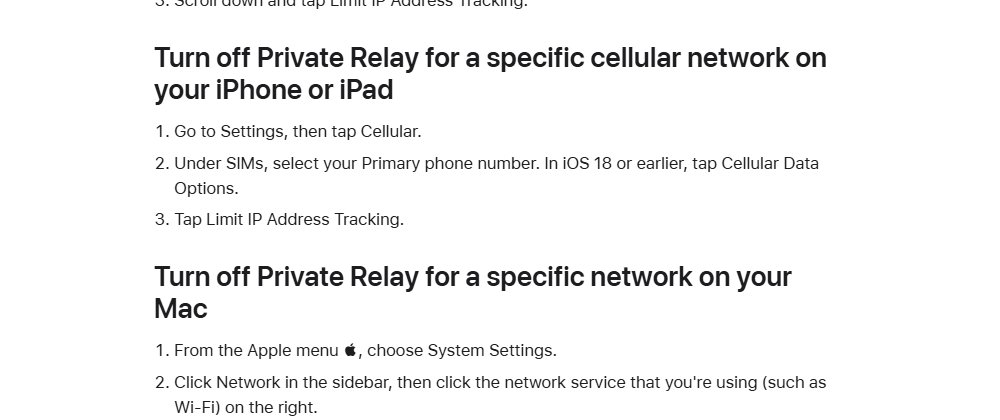
Private Relay unavailable on cellular data
The cellular setting belongs to each physical SIM or eSIM, so a Dual SIM iPhone needs each line set separately. If calls work but cellular data does not load at all, the cause is the connection rather than Private Relay.
- Open Settings and tap Cellular.
- With one line, tap Cellular Data Options.
- With more than one line, select the line under SIMs.
- Turn Limit IP Address Tracking off to stop the message on that line, or on to use Private Relay there.
- Repeat for your second line if the message appears on both.
Private Relay temporarily unavailable when traveling
Private Relay is not available in every country or region. When you travel to one of them, it turns off automatically and notifies you.
- Check whether the message appeared after you crossed a border or landed abroad.
- Leave the Private Relay switch as it is; you do not need to change it.
- Keep browsing in Safari normally while Private Relay is off.
- When you return to a supported country or region, wait for the notification that Private Relay is active again.
Apple lists the countries and regions where Private Relay works on its iOS and iPadOS Feature Availability page.
Private Relay not working on Mac with a VPN
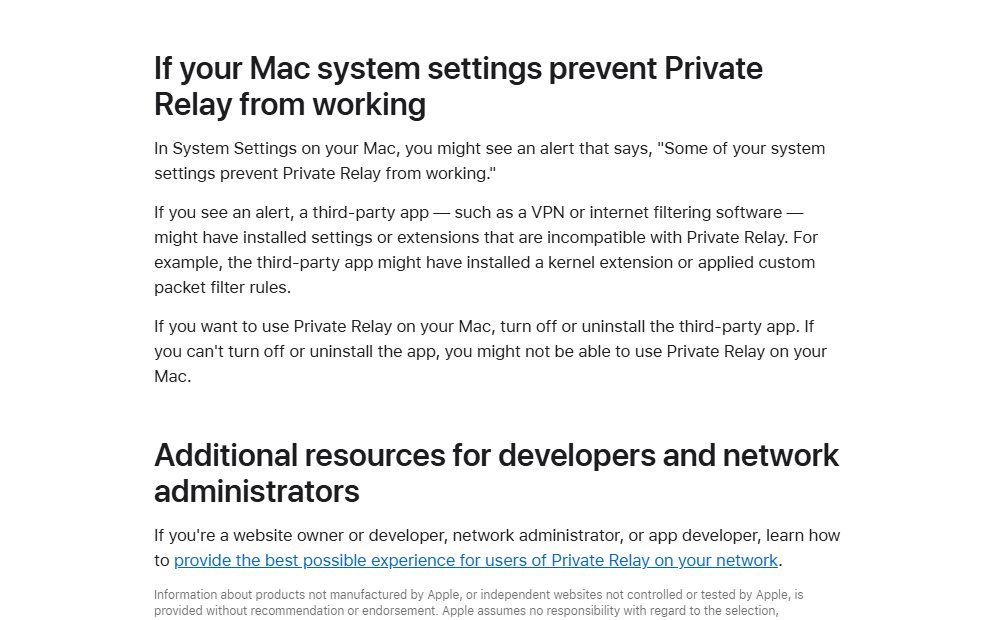
On a Mac, System Settings can show "Some of your system settings prevent Private Relay from working." A VPN or internet filtering app has installed settings or extensions, such as a kernel extension or custom packet filter rules, that conflict with Private Relay.
- Choose Apple menu > System Settings and look for the alert.
- Quit or turn off your VPN or filtering app.
- If the alert remains, uninstall the app using its developer's instructions.
- Click Network in the sidebar, click your network service, such as Wi-Fi, and click Details next to the network name.
- Turn on Limit IP address tracking.
If you cannot turn off or remove the third-party app, Private Relay cannot run on that Mac. Keep the app and leave Private Relay off.
Is Private Relay on? How to find Private Relay in Settings
Private Relay is part of iCloud+, yours or one shared through Family Sharing, and sits with your other iCloud settings on iPhone and iPad. It is set separately on every iPhone, iPad and Mac.
- On iPhone or iPad, open Settings and tap your name at the top.
- Tap iCloud, then tap Private Relay to see whether the Private Relay switch is on.
- Tap IP Address Location to choose Maintain General Location or Use Country and Time Zone.
- On a Mac, choose Apple menu > System Settings, click your name, click iCloud, then click Private Relay.
- If Private Relay is missing, check that you or your Family Sharing group has an iCloud+ subscription.
How to stop the Private Relay is currently unavailable message
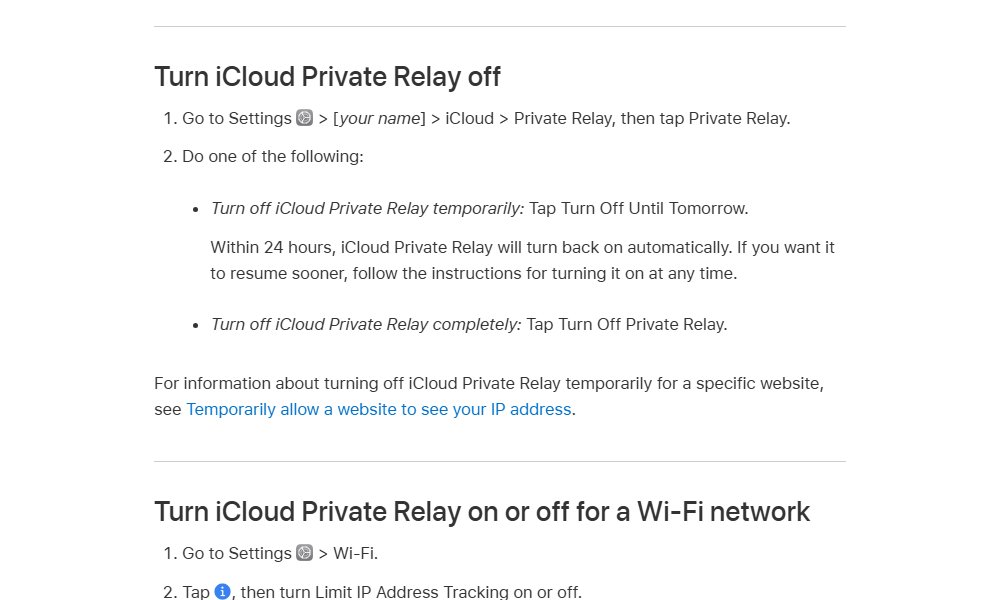
If you choose Turn Off Until Tomorrow, Private Relay turns back on within 24 hours and the message can return. To stop it for good, turn the feature off completely, or stop Private Relay notifications on each device.
- Open Settings, tap your name, then tap iCloud.
- Tap Private Relay, then tap Private Relay.
- Tap Turn Off Private Relay, not Turn Off Until Tomorrow.
- Repeat on your iPad and Mac, because each device has its own switch.
- To keep Private Relay everywhere except one network, turn off Limit IP Address Tracking for that network instead.
With Private Relay off, network providers and websites can monitor your internet activity in Safari.
How to tell if Private Relay is active again
- Watch for the notification that Private Relay is active again after you change networks or return home.
- Open Settings > your name > iCloud and check that Private Relay is on.
- Open Settings > Wi-Fi, tap More Info next to your network and check that Limit IP Address Tracking is on.
- On a Dual SIM iPhone, open Settings > Cellular, select each line under SIMs and check Limit IP Address Tracking there too.
Is Private Relay recommended?
Keep Private Relay on if you pay for iCloud+ and browse in Safari, and turn it off only for the specific network or website that will not work with it. Private Relay keeps your network provider from seeing which sites you visit in Safari and hides your IP address from those sites. Per-network and per-site exceptions clear the unavailable message without removing that protection everywhere.
Can't connect to Private Relay: other Private Relay problems
A website will not load with Private Relay on
The site relies on IP filtering, monitoring or rate-limiting.
- In Safari on iPhone or iPad, tap the Page Menu button, then tap Show IP Address.
- On a Mac, choose View > Reload and Show IP Address in Safari.
- If the option is missing, update to the latest iOS, iPadOS or macOS.
Sites ask for extra sign-in steps
Without access to your IP address, some websites require extra steps to sign in or access content.
- Complete the extra verification the site asks for.
- If it repeats on every visit, use Show IP Address for that site only.
Private Relay is on but speed tests are slow
Private Relay uses a single secure connection, while speed tests open several connections at once.
- Judge speed by normal browsing rather than the speed test figure.
- If you need a raw throughput number, choose Turn Off Until Tomorrow, run the test, then turn Private Relay back on.
Private Relay keeps switching off on its own
Limit IP Address Tracking was turned off for a network on another device, which applies across your Apple Account.
- Open the network's More Info page and turn Limit IP Address Tracking back on.
- Check the same setting for every network you use often, because a paused or travelling device can also make Private Relay keep turning off.
Private Relay currently unavailable FAQ
What does Private Relay unavailable mean?
It means iCloud Private Relay cannot protect your Safari browsing on the current connection. The usual causes are a network that is not compatible, travel to a country or region without Private Relay, a Mac VPN or filter conflict, or an Apple service issue.
Why is Private Relay unavailable?
Business, school and filtered networks need to audit traffic, which Private Relay prevents. Private Relay also turns off automatically in countries or regions where Apple does not offer it, and turns back on when you return to a supported one.
What is Private Relay?
iCloud Private Relay is an iCloud+ feature that sends your Safari traffic through two separate relays. Apple's relay sees your IP address but not the site, and the second relay sees the site but gives it a temporary IP address.
How do I disable Private Relay?
Open Settings, tap your name, tap iCloud, then tap Private Relay. Tap Private Relay and choose Turn Off Private Relay to keep it off, or Turn Off Until Tomorrow for a pause that ends within 24 hours.
How do I remove Private Relay from one network?
Open Settings, tap Wi-Fi, tap the More Info button next to the network and turn off Limit IP Address Tracking. For cellular data, open Settings, tap Cellular, choose the line or Cellular Data Options, and turn it off there.
Should I turn on Private Relay?
Turn it on if you have iCloud+ and want to stop network providers and websites from building a profile of your Safari browsing. It needs to be turned on separately on each iPhone, iPad and Mac you use.
Why does Private Relay keep turning off?
Private Relay stays off on any network where Limit IP Address Tracking is off, and that setting syncs to every device on your Apple Account. It also turns off when you travel to an unsupported region, and pauses for a day after Turn Off Until Tomorrow.
Does Private Relay work outside Safari?
Private Relay is designed to protect your browsing in Safari. It hides your IP address from websites you open there and encrypts your DNS records, so your network provider cannot see which sites you visit in Safari.