The App Store shows a different Apple ID in App Updates because those apps were downloaded with that Apple ID, and an app's updates stay with the account that got it.
Delete and redownload the apps with your own Apple ID, update them once with the other account, or migrate purchases when both accounts are yours. The steps below cover iPhone, iPad and Mac.
Fix the wrong Apple ID showing when you update apps on iPhone
Reinstall each affected app while the App Store is signed in with your own Apple ID. Free apps cost nothing to download again, and later updates then go to your account.
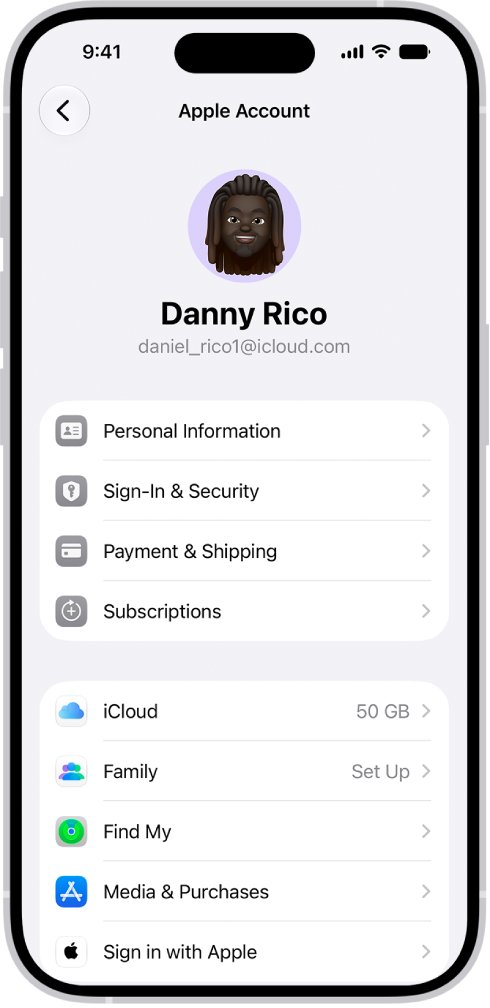
- Open Settings and tap your name. Look under Media & Purchases: a different Apple Account appears there when purchases use another account.
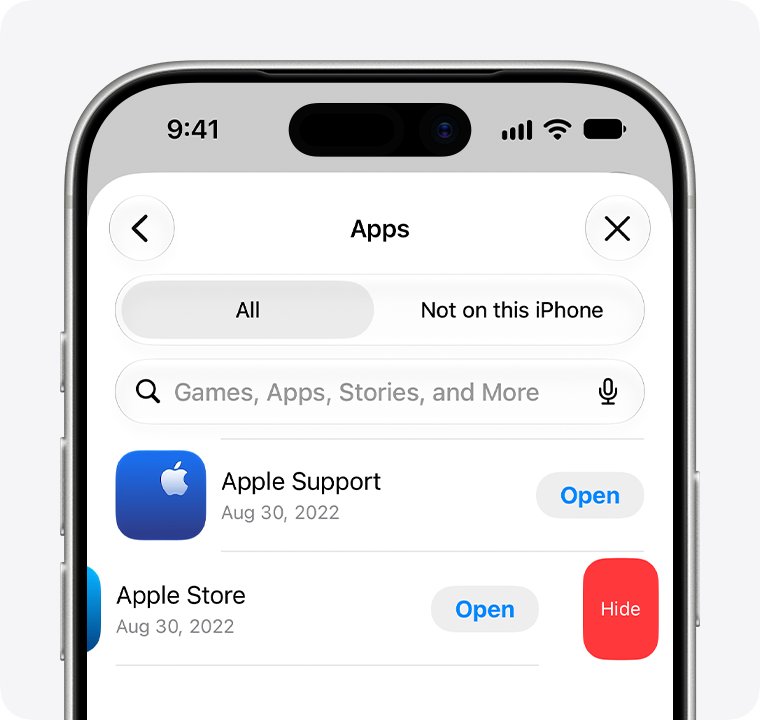
- Open the App Store, tap the My Account button or your photo, then tap App Updates.
- Tap Update next to an app. If the prompt shows the other Apple ID, tap Cancel and note the app.
- On the Home Screen, touch and hold that app, tap Remove App, tap Delete App, then tap Delete.
- Search for the app in the App Store and download it again with your own Apple ID.
- Repeat for each app the other account owns, then open App Updates again.
Deleting an app removes it and its data from the iPhone. Data the app saves in iCloud, such as documents or photos, stays in iCloud.
If an app keeps data you need only on the device, update it with the other Apple ID instead, as shown further down.
Why is the App Store showing the wrong Apple ID?
Every App Store app is linked to the Apple Account that downloaded it. The App Store tracks updates against that account, so an app someone else downloaded keeps asking for their password.
Apple ID is now called Apple Account. The same email address or phone number and password still sign in.
| How the apps got on the device | Apple ID the update asks for | Best fix |
|---|---|---|
| A family member or friend signed in to the App Store on your iPhone and downloaded apps | Theirs | Delete and redownload the apps with your Apple ID, or let them type their password |
| You restored a backup that held apps bought with more than one Apple ID | Each account that bought an app | Sign in to each account when asked, or redownload the apps under yours |
| You bought apps years ago with an older Apple ID of your own | Your old Apple ID | Move them to your main account with Migrate Purchases |
| You bought a used iPhone, iPad or Mac with the previous owner's apps | The previous owner's | Delete those apps and download your own copies |
| Media & Purchases is signed in with a different account than iCloud | The Media & Purchases account | Sign out of Media & Purchases and sign in with your own Apple ID |
One iPhone can use one account for iCloud and another for purchases, which is why iCloud and your Apple ID can show different names.
Where to see the Apple ID used for App Store purchases
| Device | Where to look | What it tells you |
|---|---|---|
| iPhone or iPad | Settings > your name, under Media & Purchases | A different Apple Account shows here when purchases use another account |
| iPhone or iPad | App Store > My Account button or your photo > Apps & Purchase History | The apps and purchase history of the account signed in to the App Store |
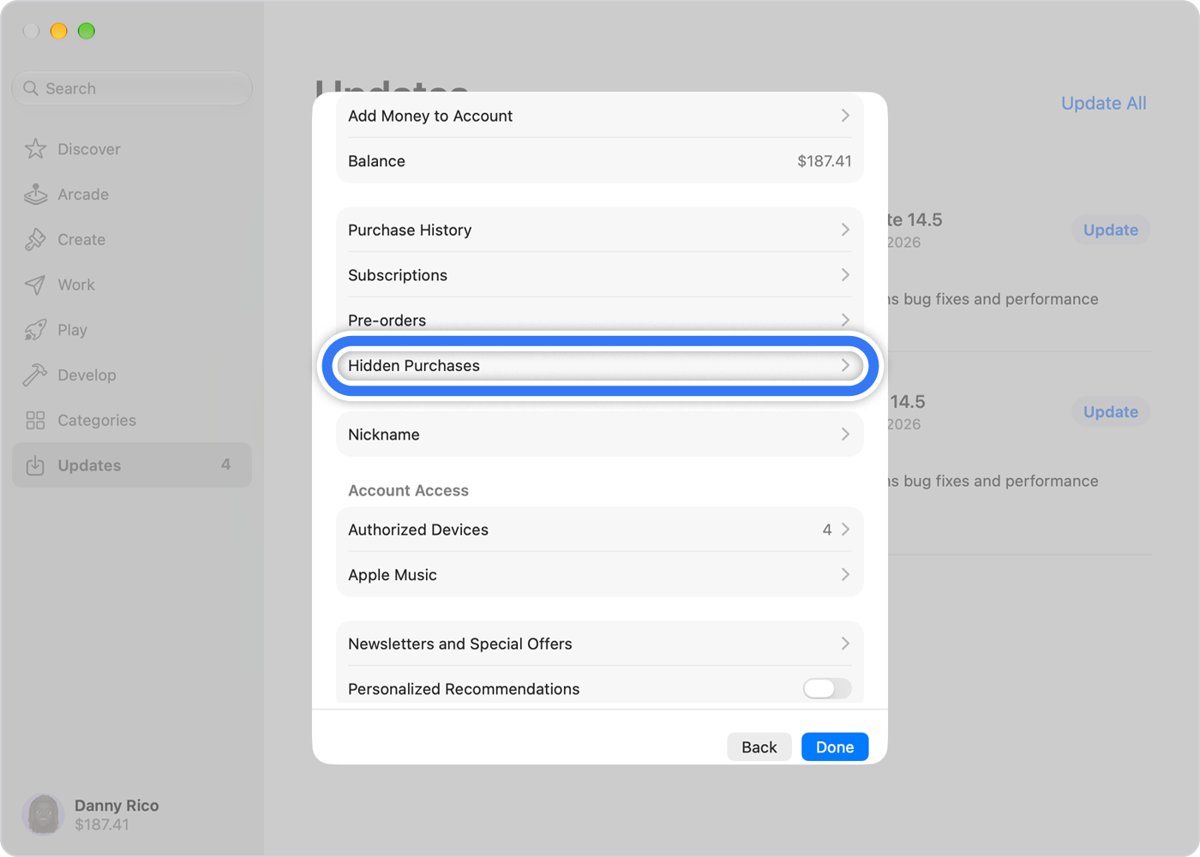
| Mac | App Store > your name at the bottom-left of the sidebar > Account Settings | Billing information, hidden items and purchase history for that account |
| Mac | System Settings > your name > Media & Purchases > Manage next to Account | The Apple Account the Mac uses for App Store purchases |
Change the Apple ID for Media & Purchases on iPhone
Use this when Media & Purchases shows someone else's Apple ID or an old account. iCloud, Messages and your other data stay on the account you use for iCloud.
- Open Settings and tap your name.
- Tap Media & Purchases, then tap Sign Out.
- Tap Media & Purchases again and choose Not [your name]?.
- Enter the email address or phone number and password of the Apple ID you want to buy and update apps with.
- Open the App Store, tap your photo, then tap App Updates and update the apps your account owns.
A message that says "This device is associated with another Apple Account. You cannot associate this device with another Apple Account for [number] days" means the device was recently linked to a different account for purchases. Apple can make you wait up to 90 days.
Update apps bought with another Apple ID
Keep an app and its on-device data by updating it under the account that bought it. The owner of that Apple ID can type the password, or you can use your own old account.
- Open the App Store, tap the My Account button or your photo, then tap App Updates.
- Tap Update next to the app.
- Enter the password for the Apple ID named in the prompt, or hand the iPhone to its owner to enter it.
- If the old Apple ID is yours and you forgot the password, tap Forgot password? and follow the onscreen steps, or go to iforgot.apple.com in Safari.
- Repeat for each app. Future updates for those apps ask for the same Apple ID until you reinstall or migrate them.
If you no longer remember the password at all, you can reset the Apple Account password from a trusted device or with your trusted phone number.
Migrate purchases from an old Apple ID to your main Apple Account
Both accounts must be yours, and neither can be shared with anyone. Migration moves apps, music, movies, TV shows, books, subscriptions and payment methods from the secondary account to the primary one.
- Update the iPhone or iPad to the latest iOS or iPadOS.
- Sign in to iCloud with your main Apple Account and to Media & Purchases with the old account (Settings > your name > Media & Purchases > Sign Out, then Not [your name]?).
- Turn on two-factor authentication for both accounts, set both to the same country or region, and spend any balance left on the old account.
- Open Settings, tap your name, then tap Media & Purchases.
- Tap View Account, sign in if asked, scroll down and tap Migrate Purchases.
- Review both accounts and follow the onscreen tasks until you see Purchases Have Been Migrated.
- Sign out of the old account under Media & Purchases, then sign in with your main Apple Account.
iCloud data stays with the old account, and the old account can no longer be used for Media & Purchases. Sign it out on any Apple TV, HomePod or other device that still uses it.
You can undo a migration, but you then can't migrate purchases from that account again for 1 year. If you use two Apple Accounts on purpose, think about that before you start.
Fix the wrong Apple ID in Mac App Store updates
The Mac App Store lists updates for apps bought with the signed-in Apple ID. An app installed under someone else's account asks for their password, just like on iPhone.
- Quit the app, open Finder and click Applications in the sidebar.
- Drag the app that asks for the other Apple ID to the Trash, then choose Finder > Empty Trash.
- Open the App Store and check that your name shows at the bottom of the sidebar. If it doesn't, choose Store > Sign Out, click Sign In and sign in with your Apple ID.
- Search for the app and download it again with your account.
- To keep the existing copy instead, choose Store > Sign Out, sign in with the Apple ID that bought the app, click Updates in the sidebar, click Update, then sign back in with your own account.
Deleting a Mac app doesn't remove documents you made with it, and it doesn't cancel a subscription you bought in the app.
How to tell which Apple ID bought an app
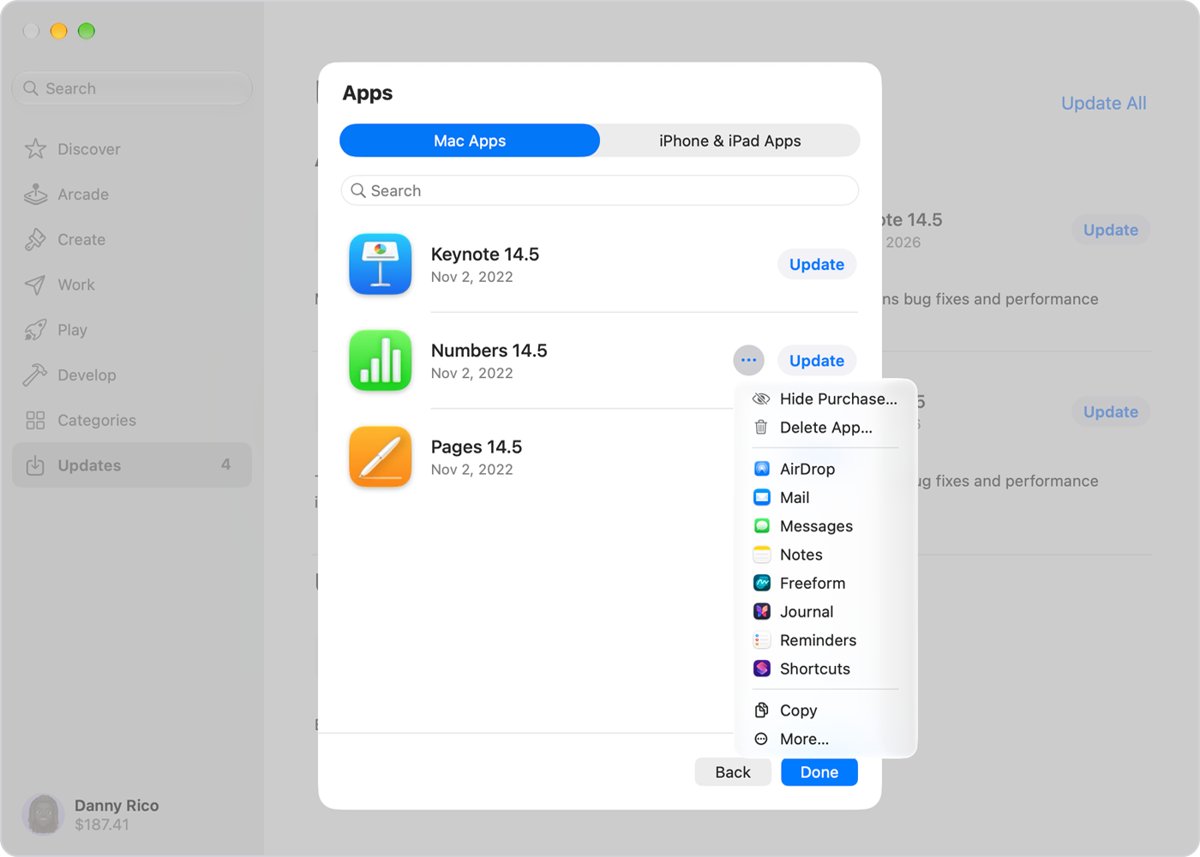
An app that is missing from your own purchase list was downloaded with a different Apple ID, or the purchase is hidden. Check before you delete anything.
- Open the App Store, tap the My Account button or your photo, then tap Apps & Purchase History.
- Tap Your Apps and look for the app. If you use Family Sharing, tap My Apps to see only your own.
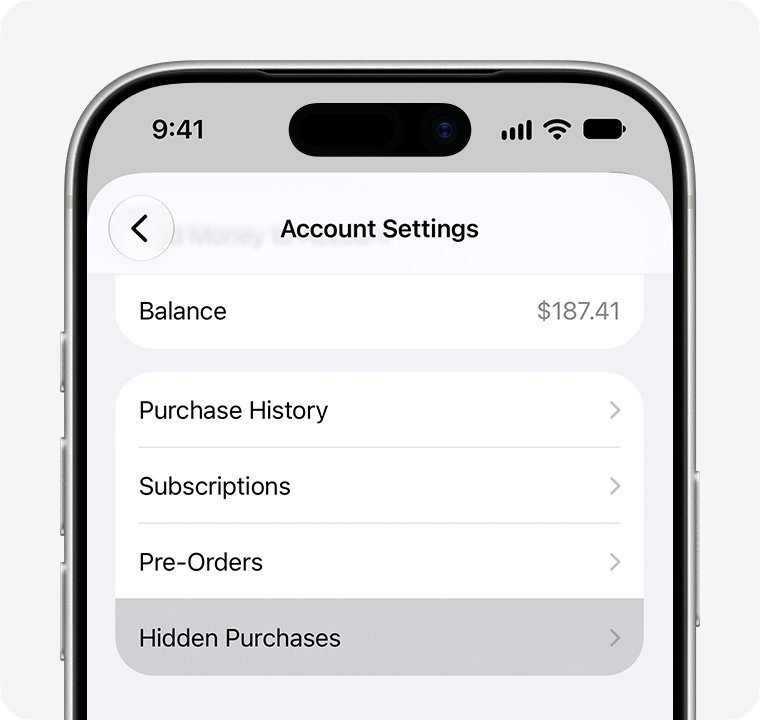
- If the app isn't listed, tap your name on the account page, tap Hidden Purchases and look there.
- On a computer, sign in at reportaproblem.apple.com with each Apple ID to see the purchases that account made.
- After the fix, open App Updates again. Updates should install without naming the other Apple ID.
You can also open the full Apple ID purchase history on Windows or the web to search older orders.
App Store keeps asking for another Apple ID password
The update prompt shows an Apple ID you don't recognise
The apps came from someone else's account, a used device, or a restored backup.
- Tap Cancel on the prompt.
- Check Apps & Purchase History > Your Apps to confirm the app isn't in your purchases.
- Delete the app and download it again with your own Apple ID.
- Ask the person who owns that Apple ID to type the password if you need to keep the app's data.
You forgot the password for the old Apple ID
The account is yours but hasn't been used in a long time.
- Tap Forgot password? in the sign-in prompt and follow the onscreen instructions.
- Or open Safari on a device with iOS 17 or later and go to iforgot.apple.com.
- On a borrowed device, open the Apple Support app, go to Support Tools, tap Reset Password, then Help Someone Else.
- Once you are back in, update the apps or migrate the purchases to your main account.
Migrate Purchases doesn't appear in View Account
One of the accounts isn't eligible yet.
- Remove the secondary Apple ID from any Family Sharing group.
- Turn on two-factor authentication for both accounts and set both to the same country or region.
- Spend any balance on the secondary account and wait for rentals or pre-orders to finish.
- Open TestFlight and tap Stop Testing for each app if the secondary account tests beta apps.
- Check that neither account is a child account, and that only one of them has an Apple Music library.
"This device is associated with another Apple Account"
The device was linked to a different Apple ID for purchases recently.
- Sign out of the other Apple ID on the device and try again.
- On the other account, open Settings, tap your name, tap Media & Purchases, scroll down and tap Remove This Device.
- If the message stays, wait out the period it shows; it can last up to 90 days.
App updates still fail after you switch to your own Apple ID
The account or device has a separate download problem.
- Restart the iPhone or iPad and try App Updates again.
- Add a payment method under Settings > your name > Payment & Shipping; the App Store can require one even for free apps.
- Touch and hold a stuck app on the Home Screen and choose Prioritize Download.
- On a Mac, check Apple's System Status page and try a different network.
Wrong Apple ID in App Store FAQ
Why does the App Store show the wrong Apple ID when I update apps?
Those apps were downloaded with that Apple ID. The App Store links every app to the account that got it, so updates ask for that account's password. Delete and redownload the apps with your own Apple ID, or migrate purchases if both accounts are yours.
Why does my iPhone have the wrong Apple ID?
An iPhone can use one Apple Account for iCloud and another for Media & Purchases. Open Settings, tap your name and look under Media & Purchases. If someone else's account shows there, tap Media & Purchases, tap Sign Out, then sign in with your own.
How do I update my Apple ID?
Open Settings and tap your name. Personal Information changes your name and birthdate, Sign-In & Security changes the email, phone numbers and password, and Payment & Shipping changes the payment method and shipping address. On a Mac, open System Settings and click your name.
Why can't I change my Apple ID?
The new email address may already belong to another Apple Account, sometimes a family member's. Ask them to remove it, then wait 30 days and try again. If your only address is an iCloud email, you need iOS 18.1, iPadOS 18.1, macOS 26.4 or later to change it.
How do I fix a wrong phone number on my Apple ID?
Open Settings, tap your name, then tap Sign-In & Security. Add the correct number and remove the wrong one from the phone numbers you can sign in with. Your trusted phone number receives two-factor codes, so add the new number before you remove the old one.
Can I update an app without the other Apple ID password?
No. An update for an app bought with another Apple ID needs that account's password. Without it, delete the app and download it again with your own Apple ID. Free apps reinstall at no cost; a paid app needs buying again unless Family Sharing shares it.
Do I lose app data if I delete and redownload an app?
Deleting an app removes it and its data from the iPhone. Data the app keeps in iCloud, such as documents or photos saved through it, isn't deleted. Back up the iPhone first, or update the app with the other Apple ID, if its data lives only on the device.
Why is my Apple ID not working in the App Store?
Check that Media & Purchases shows your own Apple ID, then restart the device. The App Store can require a valid payment method even for free apps, and an unpaid order blocks downloads until you change the payment method. Apple's System Status page shows App Store outages.
How do I fix my Apple ID?
Match the fix to the problem. Reset a forgotten password with Forgot password? or at iforgot.apple.com, change the email or phone number in Sign-In & Security, and sign out of Media & Purchases when the App Store uses someone else's Apple ID.