A network adapter is the device that lets a computer send and receive data over a network, either through an Ethernet cable, over Wi-Fi, or as a software-only virtual connection.
This guide explains the main types of network adapters, how to find the ones in your PC, where their settings live in Windows 11 and Windows 10, and what to do when an adapter stops working.
What is a network adapter?
A network adapter, also called a network interface card or NIC, turns data from your PC into signals a network can carry and back again. Every adapter has a MAC address, a unique 48-bit number assigned by the manufacturer that identifies it on the network.
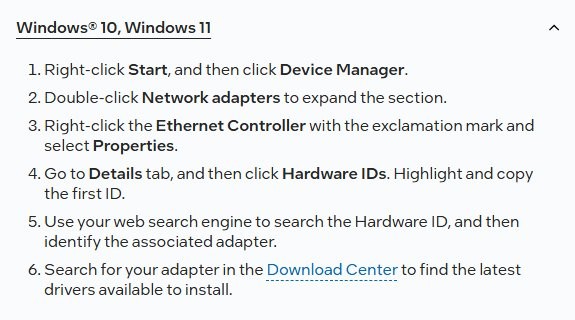
Windows lists every adapter it knows about in Device Manager. Checking that list is the fastest way to see what your own PC has.
- Select Search on the taskbar and type device manager.
- Select Device Manager from the list of results.
- Expand Network adapters.
- Read the names listed: a name with Wi-Fi, Wireless or WLAN is your wireless adapter, and a name with Ethernet, GbE or Gigabit is usually your wired one.
- Right-click an adapter and select Properties to see its driver, power and advanced settings.
If Network adapters is missing from the list entirely, Windows does not detect any adapter, which usually means a missing driver.
Types of network adapters
Network adapters differ in how they attach to the PC and in whether they are real hardware at all. The table covers the types you are likely to meet on a Windows PC.
| Type | How it connects | Typical use | How it shows in Windows |
|---|---|---|---|
| Network Interface Controller (NIC), built in | Soldered onto the motherboard, with an Ethernet port on the case | Wired connection on most desktops and many laptops | An Ethernet entry under Network adapters, named after the chip maker |
| Peripheral Component Interconnect (PCI or PCIe) card | Plugs into an expansion slot inside a desktop PC | Adding Wi-Fi, a faster Ethernet port or a second port to a desktop | A separate adapter entry once its driver is installed |
| USB network adapters | Plug into a USB port: Wi-Fi dongles or USB-to-Ethernet adapters | Laptops without an Ethernet port, or replacing a failed built-in adapter | Appears when plugged in and disappears when removed |
| Wireless (Wi-Fi) adapter | Built into the laptop or added as a card or USB dongle | Connecting to Wi-Fi routers on the 2.4 GHz or 5 GHz band | Named with Wi-Fi, Wireless or WLAN; its connection is called Wi-Fi |
| Virtual network adapters | Software only; no hardware of its own | VPN clients, Hyper-V virtual switches and Windows virtual Wi-Fi | Extra entries that come and go as the software runs |
Windows itself records each adapter's medium as Ethernet 802.3, Wireless, Wide Area Network (WAN) or one of several older types, and marks each one as physical or logical.
Wireless network adapter vs Ethernet adapter
Both do the same job, but they fail and get configured in different ways. Knowing which one you are using tells you which settings to check.
| Point | Wireless (Wi-Fi) adapter | Ethernet adapter |
|---|---|---|
| Connection | Radio link to a Wi-Fi router | Cable to a router, switch or modem |
| Frequency band | Must support the band your router uses, such as 2.4 GHz or 5 GHz | Not applicable |
| Power saving | Windows can turn it off to save power; Wireless Adapter Settings in Power Options also apply | Power Management tab in Device Manager applies |
| Band and mode settings | Wireless Mode or Band setting on the driver's Advanced tab | Settings on the driver's Advanced tab vary by adapter maker |
| Settings page in Windows | Settings > Network & internet > Wi-Fi | Settings > Network & internet > Ethernet |
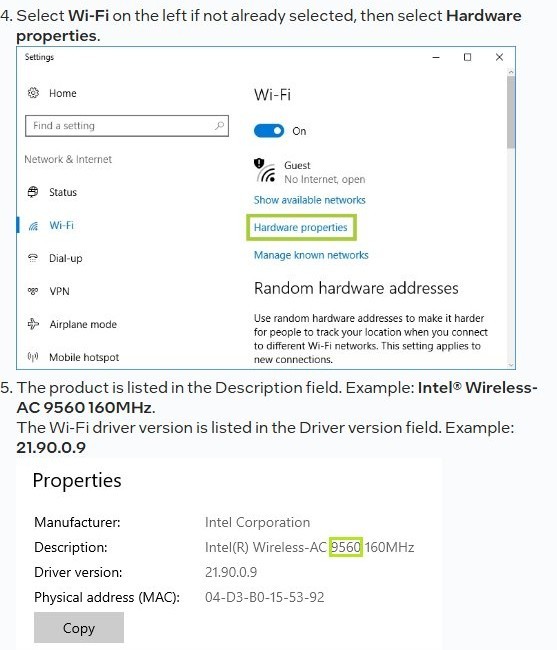
How to find the wireless network adapter in Windows?
Device Manager shows the adapter's name and driver. The Settings app shows whether it is connected and its IP address.
- Select Search on the taskbar, enter Device Manager, and select it from the results.
- Expand Network adapters and find the entry with Wi-Fi, Wireless or WLAN in its name.
- Right-click it, select Properties, and open the Driver tab to see the Driver Version and Driver Date.
- Open Start > Settings > Network & internet > Wi-Fi.
- Select the Wi-Fi network you are connected to and read the IPv4 address listed for it.
If no wireless entry appears in Device Manager, Windows does not detect the adapter. Install the Wi-Fi driver from your PC manufacturer's website.
How to list network adapters with Get-NetAdapter in PowerShell
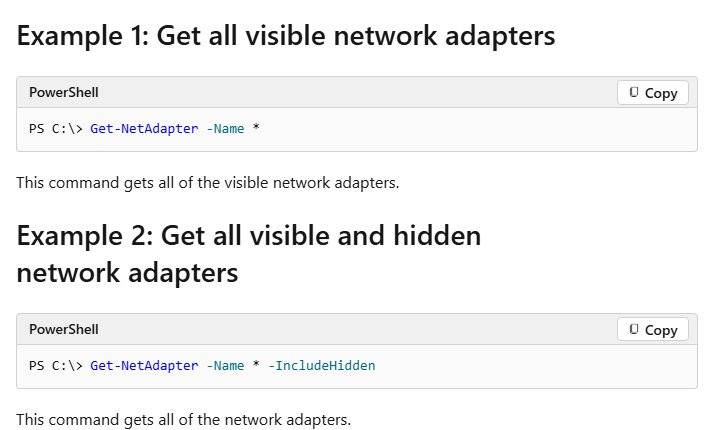
PowerShell shows every adapter in one table, including ones Device Manager does not make obvious. Select Search on the taskbar, type powershell, and open Windows PowerShell.
Get-NetAdapter -Name * -IncludeHiddenGet-NetAdapter returns the basic properties of each network adapter. By default it lists only visible adapters; -IncludeHidden adds the hidden ones, and -Physical in its place limits the list to physical adapters.
You should see: A table with one row per adapter, showing its name, interface description, status and link speed. Run Get-NetAdapter -Name * -Physical to see only the real hardware.
Add | Format-Table -View Driver to the end of the command to see each adapter's driver details instead.
Do you need a network adapter to connect to the Internet?
Yes. A PC cannot reach a router, modem or the Internet without at least one working network adapter, wired or wireless. The adapter is the only part of the PC that talks to the network. Most laptops have a Wi-Fi adapter built in and many desktops have a built-in Ethernet NIC, so you only need to buy one when the PC has none for the connection you want, or when the built-in one has failed. A USB adapter is the simplest add-on for either case.
Why do I have so many network adapters?
Most PCs show more adapters than they have network ports. The extra entries are usually virtual or hidden adapters created by Windows features and installed software.
| Extra adapter | Where it comes from | Safe to remove? |
|---|---|---|
| VPN adapter | Installed by a VPN client so its tunnel looks like a network connection | Remove it by uninstalling the VPN app, not in Device Manager |
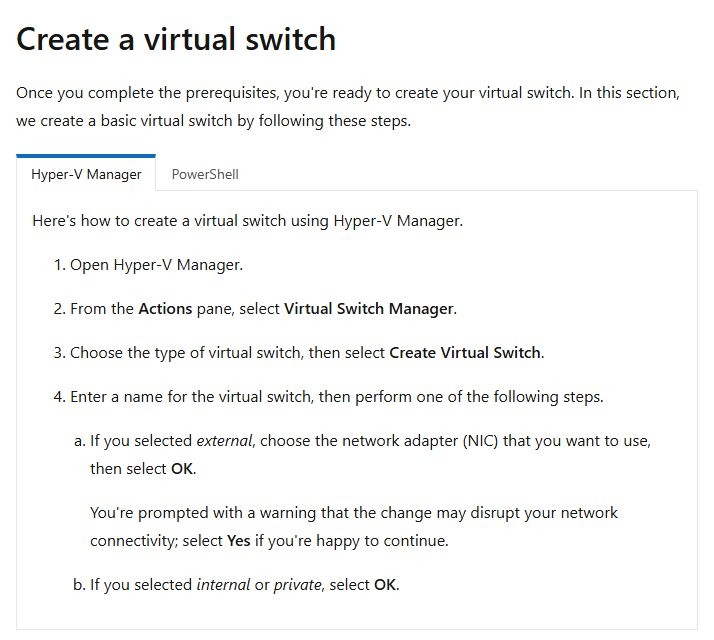
| Hyper-V virtual adapter | Created when you add an external, internal or private virtual switch in Hyper-V | Delete the virtual switch in Hyper-V Manager if you no longer use it |
| Virtual Wi-Fi adapter | Windows can split one wireless adapter into several logical adapters for hosted network features | Leave it; Windows manages it |
| Second physical adapter | A PC with both Wi-Fi and Ethernet, or an added USB adapter | Leave it; each one is real hardware |
Run Get-NetAdapter -Name * -Physical in PowerShell to separate the real hardware from the virtual entries.
Network adapter settings in Windows 11 and Windows 10
Adapter settings are split between the Settings app and Device Manager. You can also open network adapter settings in Windows 11 from several other places.
| What you want to change | Where it is | Windows version |
|---|---|---|
| IP address and DNS servers | Settings > Network & internet > Wi-Fi or Ethernet > IP assignment > Edit | Windows 11 |
| Network profile (public or private) | Settings > Network & internet > Wi-Fi or Ethernet > Network profile type | Windows 11 |
| Driver version, update or rollback | Device Manager > Network adapters > adapter > Properties > Driver | Windows 11 and Windows 10 |
| Let Windows turn the adapter off to save power | Device Manager > adapter > Properties > Power Management | Windows 11 and Windows 10 |
| Wireless Mode or Band | Device Manager > Wi-Fi adapter > Properties > Advanced | Windows 11 and Windows 10 |
| Network reset | Settings > Network & internet > Advanced network settings > Network reset | Windows 11 |
| Network reset | Settings > Network & internet > Status > Network reset | Windows 10 |
How to restart network adapter in Windows
Restarting an adapter disables it and enables it again, which puts it back into a known state without restarting the PC.
- Select Search on the taskbar and type powershell.
- Select Run as administrator next to Windows PowerShell, then select Yes.
- Run
Get-NetAdapterand note the Name of the adapter, such as Wi-Fi or Ethernet. - Run
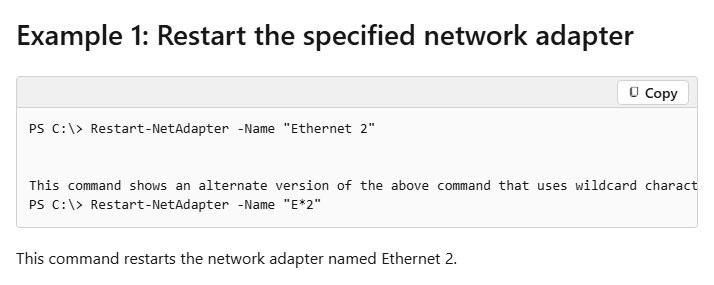
Restart-NetAdapter -Name "Wi-Fi", replacing Wi-Fi with the name you noted. - Wait a few seconds for the connection to come back, then run
Get-NetAdapteragain and check the adapter's Status column.
Your connection drops for a moment while the adapter restarts, so save anything you are uploading first.
Resetting network adapters in Windows
Network reset removes every network adapter and its settings, then reinstalls them with default settings after a restart. Use it last, after the other fixes on this page.
- Select Start, enter settings, and open Settings > Network & internet.
- On Windows 11, select Advanced network settings > Network reset.
- On Windows 10, select Status > Network reset.
- Select Reset now, then select Yes to confirm.
- Wait for the PC to restart, then reconnect to your Wi-Fi network.
After a reset you may need to reinstall VPN software and recreate Hyper-V virtual switches. Known networks can also come back set to a public network profile.
Network adapter driver for Windows 11 and Windows 10
A damaged or outdated driver is the most common reason an adapter stops working after an update. Download the current driver from your PC maker before you remove the old one, on another PC if this one is offline.
- Open Device Manager and expand Network adapters.
- Right-click the adapter and select Uninstall device.
- Check Attempt to remove the driver for this device, then select Uninstall.
- Select Start > Power > Restart.
- Let Windows reinstall the driver after the restart; if it does not, install the driver you downloaded.
- Select Start > Settings > Windows Update > Check for updates to pick up any newer driver.
When the PC maker's download is old, you can update the network adapter driver on Windows 11 from the adapter maker instead.
Why is my network adapter not working?
Network adapter keeps disabling or turning off
Windows is allowed to turn the adapter off to save power.
- Open Device Manager and expand Network adapters.
- Right-click the adapter and choose Properties.
- Open the Power Management tab.
- Uncheck Allow the computer to turn off this device to save power and select OK.
Network adapter keeps disconnecting from Wi-Fi
The power plan puts the wireless adapter into a power saving mode.
- Go to Control Panel > Hardware and Sound > Power Options.
- Select your plan and click Change plan settings.
- Click Change advanced power settings and expand Wireless Adapter Settings.
- Set Power Saving Mode to Maximum Performance and select OK.
Network adapter disappeared from Device Manager
The adapter is disabled, its driver failed to load, or Windows no longer detects it.
- In Device Manager, expand Network adapters, right-click the adapter and select Enable device if it is offered.
- On a laptop, check that any physical Wi-Fi switch is turned on.
- If the adapter is not listed at all, install the driver from your PC manufacturer's website.
- For a USB adapter, plug it into a different USB port.
Wireless adapter is recognized but no Wi-Fi networks are found
The adapter does not support, or its driver filters out, the band your router uses.
- Open Device Manager > Network adapters, right-click the wireless adapter and select Properties.
- Select the Advanced tab.
- Find the Wireless Mode or Band setting and make sure it allows your network's frequency.
- If your router offers both 2.4 GHz and 5 GHz networks, try connecting to the other one.
Network adapter stopped working after a Windows update
The update installed or damaged the adapter driver.
- Download the current network driver from your PC manufacturer on another device.
- In Device Manager, right-click the adapter, select Uninstall device, and check Attempt to remove the driver for this device.
- Restart the PC and let Windows reinstall the driver, or install the one you downloaded.
Can a network adapter go bad?
Yes. A network adapter is hardware and can fail, but rule out the driver and settings first, because they cause most adapter problems. Device Manager reports errors such as "This device cannot start" or "This device failed" when a device does not work. If the same network works on another phone or laptop, a reinstalled driver and a network reset change nothing, and the adapter still shows an error, the hardware is the likely cause. A USB Wi-Fi or USB-to-Ethernet adapter replaces a failed built-in one without opening the PC.
Network adapter FAQ
What is a network adapter for?
A network adapter connects a computer to a network so it can reach other devices and the Internet. It sends and receives data over an Ethernet cable or Wi-Fi, and Windows needs a working adapter and driver before any app can go online.
What is an adapter in networking?
In networking, an adapter is the interface between a device and the network medium. It can be physical hardware, such as an Ethernet NIC or a Wi-Fi card, or a virtual adapter created by software such as a VPN client or Hyper-V.
What is a network adapter in a computer?
It is the component, usually built onto the motherboard or added as a card or USB device, that gives the computer a network connection. Windows lists it in Device Manager under Network adapters, along with any virtual adapters.
Why do I have multiple network adapters?
Most PCs have both a Wi-Fi and an Ethernet adapter, and software adds virtual ones. VPN clients, Hyper-V virtual switches and Windows virtual Wi-Fi each create extra entries. Run Get-NetAdapter -Name * -Physical in PowerShell to see which are real hardware.
Why does my network adapter keep turning off?
Windows is usually turning it off to save power. In Device Manager, open the adapter's Properties, select the Power Management tab and uncheck Allow the computer to turn off this device to save power. Some always-connected laptops do not show this tab by design.
Why does my network adapter keep disconnecting?
On Wi-Fi, the power plan is a common cause. In Power Options, open Change advanced power settings, expand Wireless Adapter Settings and set Power Saving Mode to Maximum Performance. Interference on the router's channel and an outdated driver can also cause drops.
Why did my network adapter disappear?
The adapter may be disabled, its driver may have failed after an update, or Windows may no longer detect it. Check Device Manager for a disabled entry, reinstall the driver from your PC maker, and try another USB port for a USB adapter.
Why does my network adapter keep failing?
Repeated failures usually come from a faulty or outdated driver or from power saving. Reinstall the driver from your PC maker, turn off power saving for the adapter, and run network reset. If it still fails on every network, the adapter hardware may be faulty.
Why is a network adapter or integrated GPU showing as removable on Windows 11?
Windows treats a device as removable when its bus driver reports that it can be unplugged while the computer is running. That is correct for a USB network adapter. When a built-in adapter or an integrated GPU shows as removable, the report comes from the PC's bus driver and firmware, not from Windows settings.