When Safari or Chrome opens during Downtime but web pages show a Screen Time limit, the block comes from a website limit or a Web Content filter, not from Always Allowed, so remove or change that setting in Settings > Screen Time.
This guide covers iOS 26 Downtime and the iOS 27 Screen Time Schedule, child accounts, the Mac, and the fixes for each symptom.
How to fix Screen Time Downtime blocking Safari and Chrome websites
Always Allowed keeps an app usable during Downtime and after a time limit. It does not lift a limit set on a website, and it does not change the Web Content filter that decides which sites a browser may load.
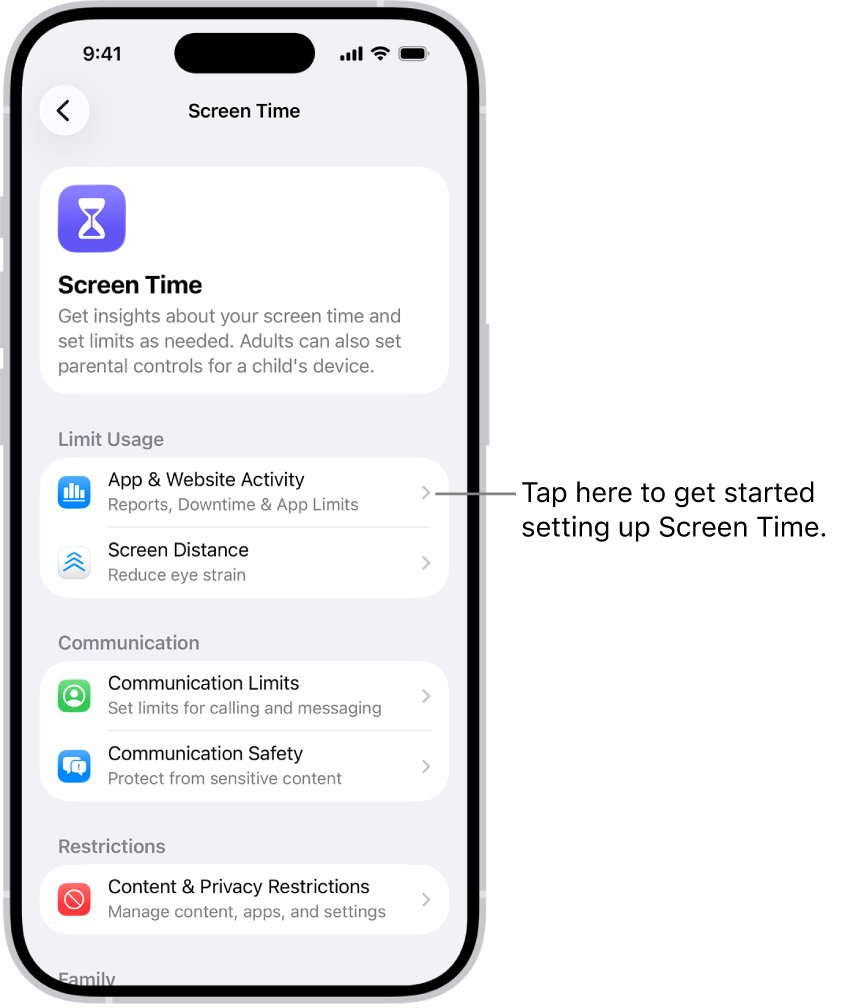
- Open the Settings app and tap Screen Time.
- Tap App Limits and look for a limit on the Websites category, a single website, or every app and category.
- Swipe left on any limit that covers the sites you need, then tap Delete.
- Go back, tap Content & Privacy Restrictions, then tap App Store, Media, Web, & Games.
- Tap Web Content and check which filter is selected; if only allowed websites can load, add the sites you need or choose a less strict filter.
- Go back to Screen Time, tap Always Allowed, and confirm Safari and Chrome are listed under Allowed Apps.
- Open Safari and load the page again while Downtime is still on.
If you use Share Across Devices, make the same check on your iPad and Mac. A limit set on any of them applies to all of them.
Why Always Allowed Safari still says Time Limit during Downtime
Screen Time has separate controls for apps, websites and web content. A browser in Always Allowed can open, yet each page inside it is still checked against the other two.
| What you see | Setting that causes it | Where to change it |
|---|---|---|
| Safari or Chrome opens, but pages show a time limit | A website limit, or a limit on the Websites category or all apps and categories | Settings > Screen Time > App Limits |
| Some sites load and others never do, day or night | Web Content set to allowed websites only, or the site on a never-allow list | Settings > Screen Time > Content & Privacy Restrictions > App Store, Media, Web, & Games > Web Content |
| The browser icon is dimmed with an hourglass | The browser is not in Always Allowed and Block at Downtime is on | Settings > Screen Time > Always Allowed |
| A site is limited in iOS 27 even though Safari is always allowed | The Time Allowance of an app covers the website that app declares | Settings > Screen Time > Time Allowances |
| You fixed the iPhone but the block returns | Share Across Devices applies limits from your iPad or Mac | Screen Time settings on each device |
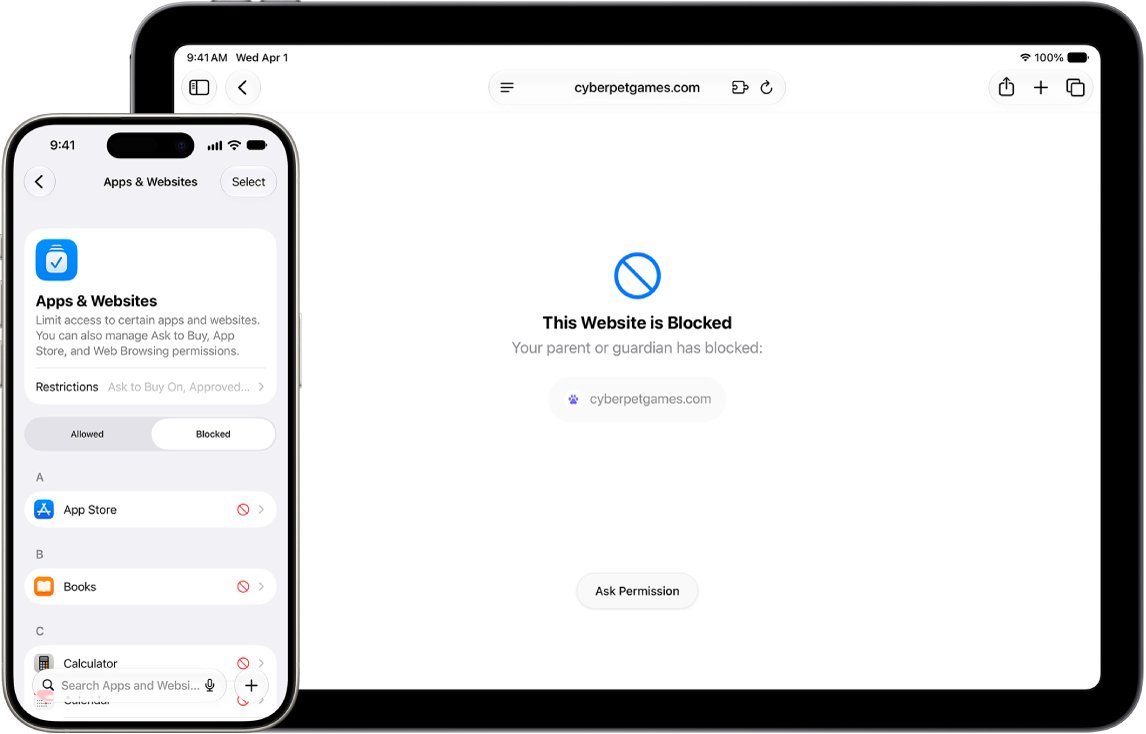
How to remove a website limit in Screen Time on iPhone
App Limits can target single websites as well as apps. A limit on a site, or on a category that holds it, blocks that site in every browser once the time runs out.
- Open Settings and tap Screen Time.
- Tap App Limits to see every limit that is set.
- Find any limit that names a website, the Websites category, or every app and category.
- Swipe left on that limit and tap Delete.
- Enter your Screen Time passcode if asked, or reset a forgotten Screen Time passcode first.
- Open the site again in Safari to check the limit is gone.
On a Mac, turning off App Limits keeps every limit saved, but none of them apply until you turn App Limits back on.
How to change Screen Time Web Content restrictions for Safari and Chrome
Web Content restrictions decide which websites can load at all. When the filter allows only an approved list, Always Allowed cannot open anything outside that list.
- Open Settings and tap Screen Time.
- Tap Content & Privacy Restrictions.
- Tap App Store, Media, Web, & Games, then tap Web Content.
- Check which filter is selected.
- To block only adult sites, select Limit Adult Websites.
- Under Never Allow, remove any site you need; use Add Website there only for sites you want blocked.
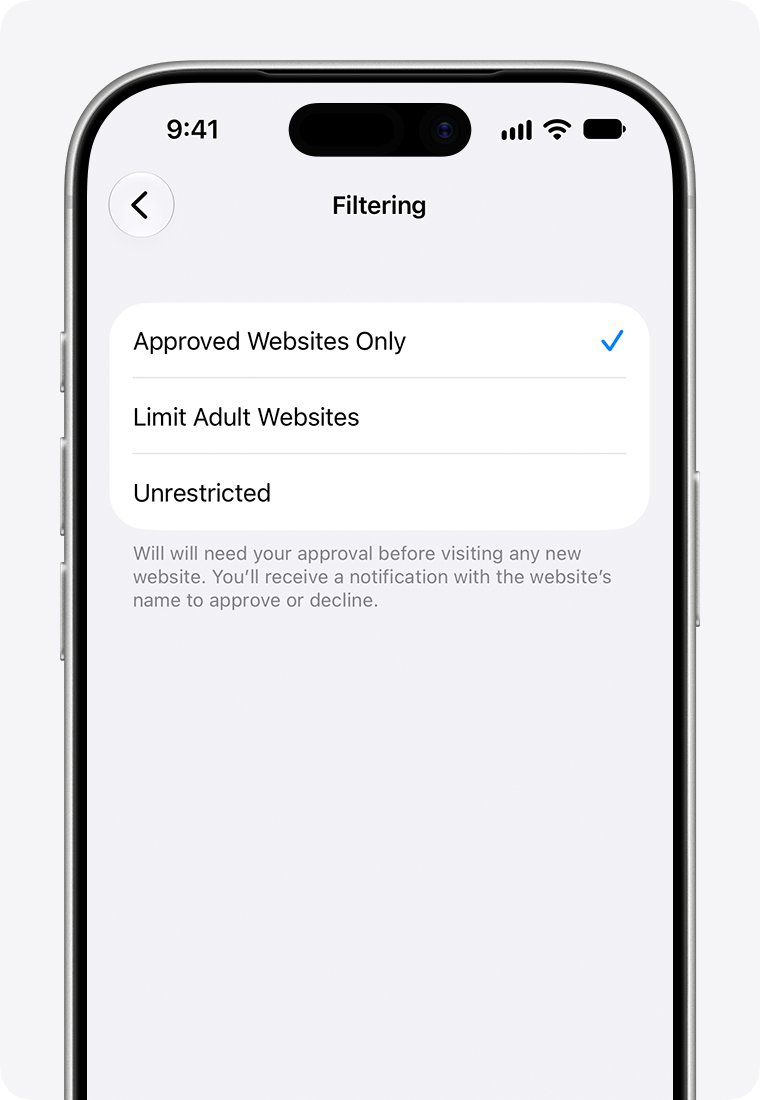
In iOS 27 with upgraded parental controls, a child's website filter sits under Settings > Family > child's name > Apps & Websites > Restrictions > Filtering, with Approved Websites Only, Limit Adult Websites and Unrestricted. Ask to Browse there covers Safari and other supported browser apps.
How to add Safari and Chrome to Always Allowed in Screen Time
If the browser icon is dimmed during Downtime, the app itself is blocked. Add it to Always Allowed on the device that owns the Screen Time settings.
- Open Settings and tap Screen Time.
- For a child, tap the child's name below Family first.
- Tap Always Allowed.
- Under Choose Apps, tap the add button next to Safari.
- Tap the add button next to Chrome.
- Check that both now appear under Allowed Apps, then go back.
Add any health or accessibility apps your child needs too. If Messages is not always allowed, a child may not be able to send or receive messages during Downtime, including to emergency contacts.
How to turn off Block at Downtime on iPhone
With a Screen Time passcode set, Block at Downtime decides whether restricted apps are fully blocked or only show a reminder. Turning it off lets you continue past the Downtime screen on your own device.
- Open Settings and tap Screen Time.
- For a child, tap the child's name.
- Tap Downtime.
- Turn off Block at Downtime.
- Enter the Screen Time passcode if asked.
- Open the app again and choose to continue when the Downtime reminder appears.
When Block at Downtime is on, restricted apps cannot open during Downtime and show dimmed with an hourglass icon.
How to set Always Allowed apps in iOS 27 Screen Time
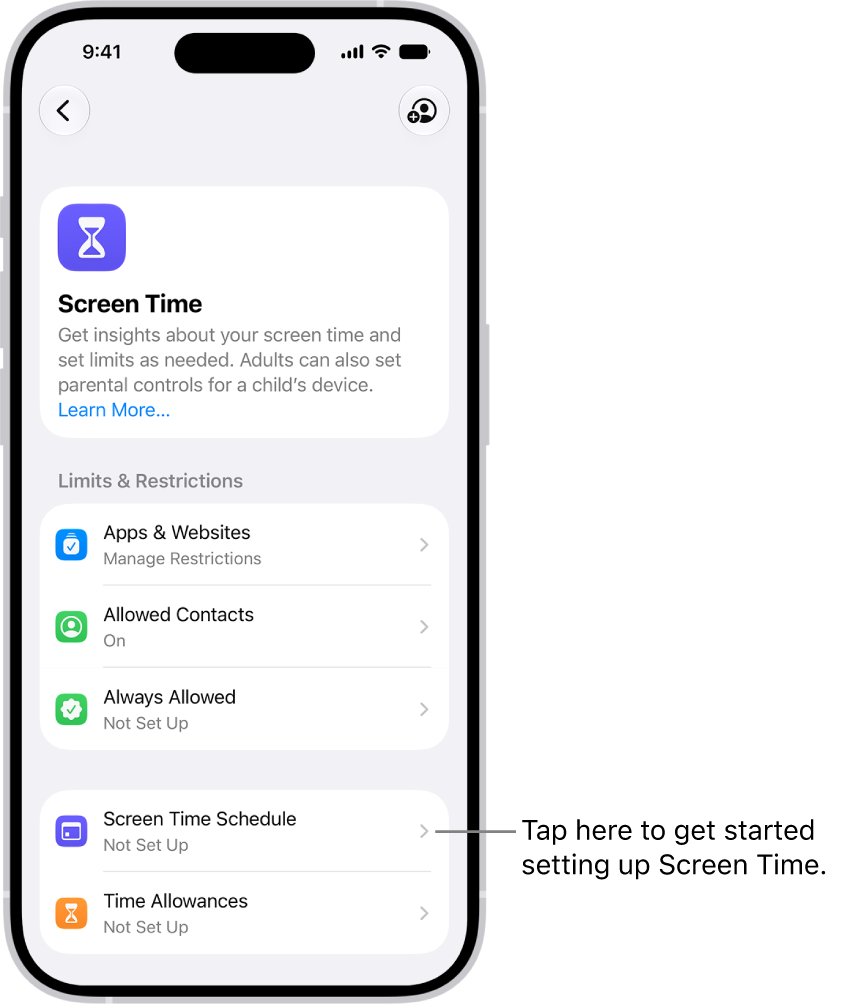
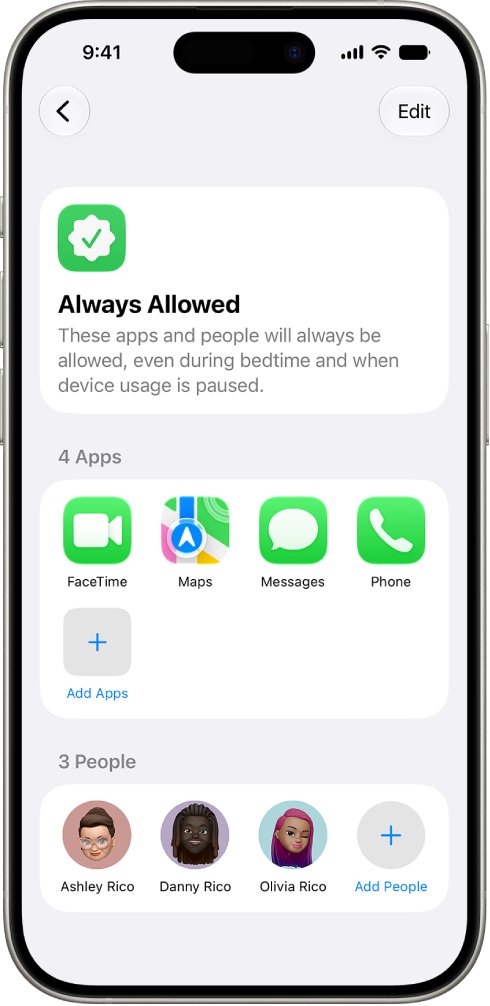
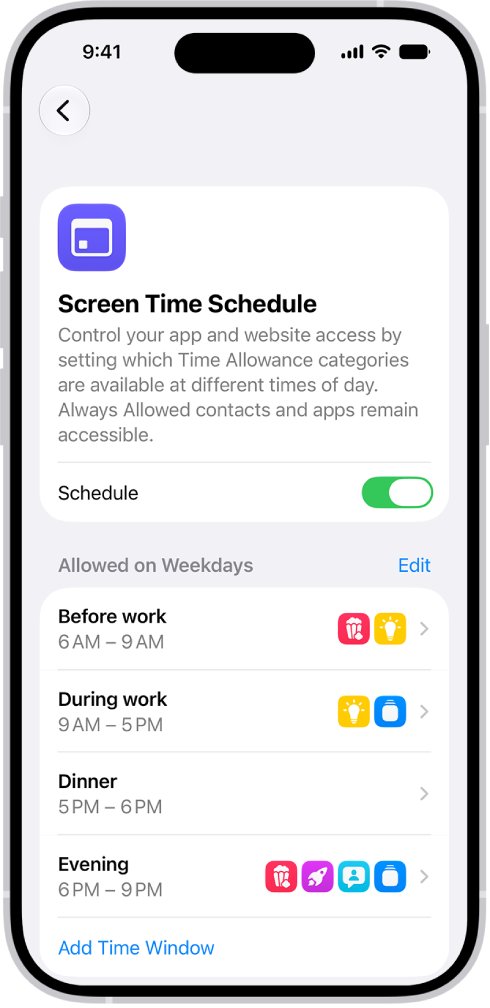
In iOS 27, Downtime and App Limits are replaced by Screen Time Schedules and Time Allowances. Always Allowed still keeps chosen apps and contacts available whatever schedule or allowance applies.
- Open Settings and tap Screen Time.
- Tap Always Allowed.
- Tap Add Apps and select Safari and Chrome.
- Go back and tap Time Allowances to see the categories that are counting time.
- Tap a category and drag the slider to give it more time, or tap Manage Categories to see which apps it holds.
- Tap Screen Time Schedule to check which categories each time window allows.
For a child with upgraded parental controls, the same list is under Settings > Family > child's name > Always Allowed. FaceTime, Maps, Phone and Messages are always available there by default.
If an app declares an associated website, its Time Allowance applies to both, so that site can be limited even inside an always allowed browser.
How to fix Always Allowed Safari blocked in Screen Time on Mac
The Mac has the same three controls, and with Share Across Devices on, its limits also reach your iPhone.
- Choose Apple menu > System Settings, then click Screen Time in the sidebar.
- Pick the family member from the pop-up menu if you manage a child.
- Click App Limits, move the pointer over a limit, click Edit, then Edit Apps, and deselect any website or the Websites category.
- Click Content & Privacy, then App Store, Media, Web, & Games, and check the Safari web content level.
- If Allowed Websites Only is selected, click Customize and add the sites you need, or choose another level.
- Click Always Allowed and check that Safari and Chrome are in Allowed Apps.
How to temporarily disable Screen Time Downtime
If you need the web tonight and do not want to change your limits, pause the schedule instead of removing anything.
- Open Settings and tap Screen Time.
- Tap Downtime.
- If Downtime was started by hand, turn it off on this screen.
- To stop the schedule, turn off Scheduled.
- In iOS 27, tap Screen Time Schedule and turn off Schedule instead.
- Turn the schedule back on when you are done.
Turning off App & Website Activity turns off reporting, Downtime, App Limits and Always Allowed together. Use it only when you want Screen Time off completely.
How to test Screen Time Downtime with Safari and Chrome
Test straight away rather than waiting for the evening schedule.
- Open Settings > Screen Time > Downtime.
- Tap Turn On Downtime Until Tomorrow.
- Return to the Home Screen and check that the Safari and Chrome icons are not dimmed.
- Open Safari and load a site you use every day.
- Open Chrome and load the same site.
- If both load, turn Downtime off again or let the schedule take over.
If the icons open but the page still shows a limit, return to App Limits and Web Content. If one browser works and the other does not, compare their entries under Always Allowed.
Screen Time Always Allowed not working on iPhone
Screen Time has been restricted and settings will not change
Screen Time is managed by a parent through Family Sharing, or a passcode is set.
- Ask the parent to open Settings > Screen Time and tap your name below Family on their own iPhone.
- In iOS 27 with upgraded controls, the parent uses Settings > Family > your name instead.
- Have them add Safari and Chrome under Always Allowed and review Content & Privacy Restrictions.
- Where required by law, some settings for accounts under 18 cannot be turned off.
Websites stay blocked after the time limit is turned off
A second device with Share Across Devices still holds the limit.
- Open Settings > Screen Time on your iPad and check App Limits.
- On your Mac, open System Settings > Screen Time > App Limits.
- Remove the website limit there too.
- Or turn off Share Across Devices so each device keeps its own settings.
Chrome is blocked but Safari works
Chrome is missing from Always Allowed, or Chrome has an app limit of its own.
- Open Settings > Screen Time > Always Allowed.
- Add Chrome under Choose Apps.
- Open App Limits and delete any limit that includes Chrome.
- Test both browsers with Turn On Downtime Until Tomorrow.
Screen Time not available for 7 days or a long block
A limit or schedule set by a parent is still running.
- Ask the parent to check the schedule on their device.
- In iOS 27, the parent can quickly pause device use, allow unlimited use, or change the schedule for the day.
- In iOS 26, the parent can turn off Scheduled under Downtime.
- Send a request for more time from the blocked app if the option appears.
Every limit seems stuck after an iOS update
Family devices run different software versions, so iOS 27 parental controls cannot be upgraded for everyone.
- Update the iPhone, iPad and Mac to the latest software.
- On iOS 27, open Settings > Family > View Family Devices to see devices still on older versions.
- As a last resort, turn off App & Website Activity and turn it back on.
- Set Downtime, App Limits and Always Allowed again, because turning activity off clears them.
Screen Time Downtime and Always Allowed FAQ
How do I temporarily disable Screen Time?
Open Settings > Screen Time > Downtime and turn off Scheduled, or turn off Schedule under Screen Time Schedule in iOS 27. Your limits stay saved, so you can turn the schedule back on later without setting it up again.
How do I turn off Screen Time restrictions?
Open Settings > Screen Time > Content & Privacy Restrictions and turn the switch off. That lifts web content filters and app restrictions. On a child account, only the parent can change it from their own device or with the Screen Time passcode.
How do I turn off a Screen Time limit?
Open Settings > Screen Time > App Limits, swipe left on the limit and tap Delete. In iOS 27, open Time Allowances instead, tap Manage Categories, choose the category and delete it, or drag its slider to add more time.
How do I disable Screen Time completely?
Open Settings > Screen Time and tap Turn Off App & Website Activity. This turns off reporting, Downtime, App Limits and Always Allowed together, so any limits you want later have to be set up again.
How do I block apps during Screen Time Downtime?
Set a Screen Time passcode, then open Settings > Screen Time > Downtime and turn on Block at Downtime. Apps outside Always Allowed then cannot open during Downtime and appear dimmed with an hourglass icon.
How do I limit screen time on websites only?
Open Settings > Screen Time > App Limits, tap Add Limit and choose the Websites category or a specific site. The limit then applies to that site, separately from any limit or Always Allowed setting on the browser app itself.
Does Always Allowed apply to Chrome?
Yes. Chrome can be added to Always Allowed like any other app, so it opens during Downtime. Website limits and web content filters still apply to the pages inside it, and in iOS 27 Ask to Browse covers supported third-party browsers too.