Wired headphones that keep disconnecting usually have a dirty port, a loose plug, a worn cable or adapter, or, for USB headsets, a power-saving setting that switches the port off.
This guide covers the fastest fix, the causes on iPhone, Mac and Windows PC, USB headsets that drop out, and what to do when Bluetooth headphones disconnect instead.
How to fix wired headphones that keep disconnecting
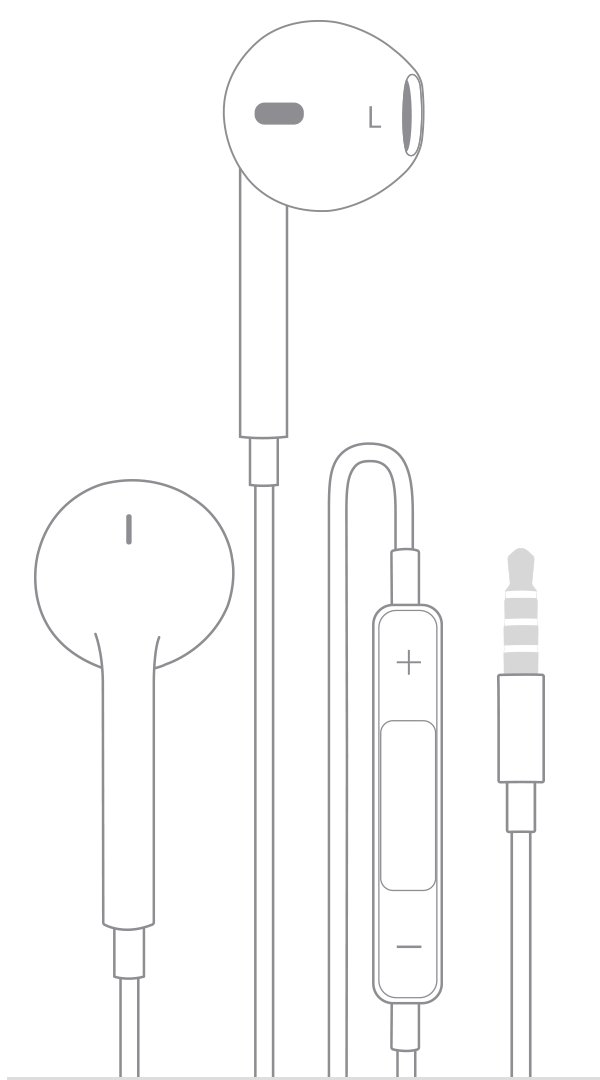
Start with the connection itself. Most drop-outs on a wired pair come from the plug not seating fully in the port.
- Unplug the headphones from the phone, computer or adapter.
- Look inside the headphone port, Lightning port or USB-C port for lint and debris.
- Gently brush the port and the plug with a small, soft-bristled brush that is clean and dry.
- Check the cable, plug, inline remote and earbuds for wear, kinks or breaks.
- Remove the phone case if it has one, then plug the headphones back in firmly.
- Restart the phone or computer and play audio again.
- Try a second pair of headphones in the same port to see whether the fault is the headphones or the device.
If the second pair works, the first pair, its cable or its adapter needs replacing. If the second pair also cuts out, the port or the device settings are the problem, so continue with the section for your device.
Why do my headphones keep disconnecting wired?
| What you notice | Likely cause | What to do |
|---|---|---|
| Sound cuts out when you move the cable or phone | Debris in the port, a case blocking the plug, or a damaged cable | Clean the port, remove the case, test a second pair |
| "Accessory may not be supported" on iPhone or iPad | Damaged or uncertified adapter, outdated iOS, or a dirty connector | Update iOS, reconnect, clean the connectors, use an MFi-certified adapter |
| USB headset drops out after a few minutes idle or after sleep | USB selective suspend or USB Root Hub power saving in Windows | Disable USB selective suspend and the hub's power-saving option |
| USB headset and mouse disconnect together | The PC is limiting USB power, often on battery or through a hub | Plug in the charger, connect directly to the PC, unplug unused USB devices |
| "Unsupported USB-C Audio Adapter" in Windows | An analog USB-C adapter on a PC that needs a digital one | Use a USB-C digital audio adapter |
| Audio jumps back to the display speakers on a Mac | Headphones and an external display are both connected | Unplug the headphones before choosing the display speakers |
| Sound stops after a Windows update | Audio driver replaced or damaged | Update, reinstall or roll back the audio driver |
My headphones keep disconnecting from iPhone
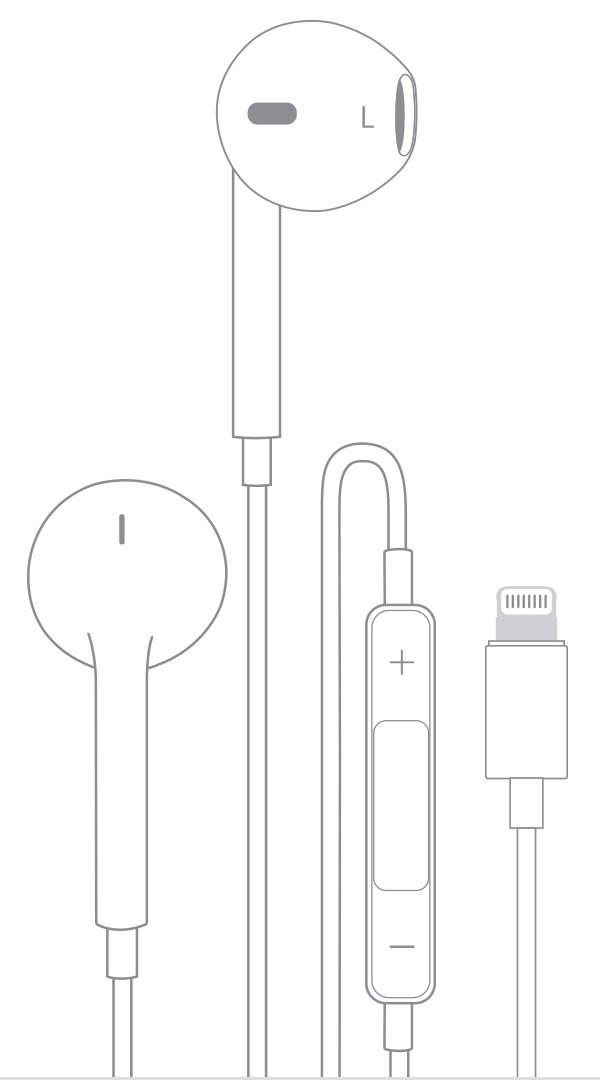
Recent iPhone models have no 3.5 mm jack, so wired headphones connect through a Lightning or USB-C plug, or through Apple's Lightning to 3.5 mm or USB-C to 3.5 mm Headphone Jack Adapter. A worn or uncertified adapter is a common weak point.
- Open Settings > General > Software Update and install the latest iOS version.
- Restart the iPhone.
- Unplug the headphones or adapter and check the Lightning or USB-C port for debris.
- Remove the case and plug the adapter in firmly, then plug the headphones into the adapter.
- Check the adapter for the MFi badge on its packaging; Apple warns that counterfeit Lightning accessories can fit poorly, get hot or stop working.
- Unplug any second set of headphones; with both a 3.5 mm jack and a Lightning connection in use, audio plays only from the last one connected.
- Raise the volume with the side buttons or the Volume slider in Control Center to confirm sound is reaching the headphones.
Apple EarPods with Lightning Connector need iOS 10 or later, and Apple EarPods (USB-C) need a device with a USB-C connector. A Lightning pair will not work on a USB-C iPhone without a suitable adapter.
Headphones keep disconnecting on Mac
On a Mac, a pair that seems to disconnect is often still plugged in while macOS sends sound somewhere else. Check the output device first.
- Choose Apple menu > System Settings, then click Sound in the sidebar.
- Click Output and select your headphones in the list of sound output devices.
- For headphones plugged into the sound port, choose Headphones.
- Make sure the Mute checkbox is clear and the Output volume slider is not all the way to the left.
- For USB headphones, press and hold Option, choose Apple menu > System Information, then click USB under Hardware and check that the headset is listed.
- If the USB headset is missing from that list, unplug it and plug it in again, ideally into a different port.
With an external display connected, macOS can switch the output back to plugged-in headphones when you pick the display's speakers. Unplug the headphones first, then select the display speakers.
Wired headphones keep disconnecting from PC
On Windows 11 and Windows 10, check the output device and the physical connection before changing drivers. If Windows does not see the headphones at all, the steps for headphone detection on Windows go deeper.
- Select the Speakers icon on the taskbar, then select the arrow to the right of the volume slider (Select a sound output).
- Choose your headphones from the list of audio devices.
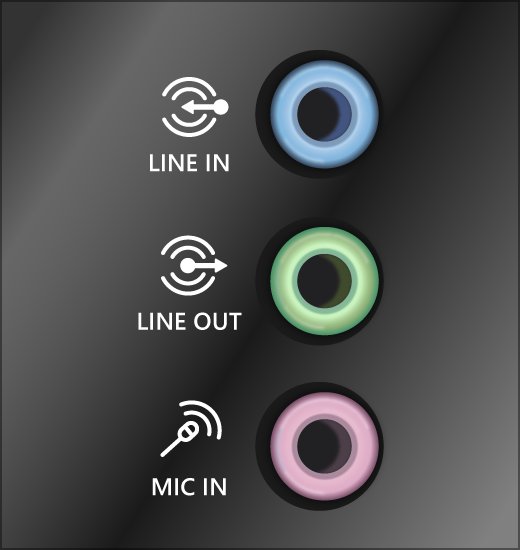
- Check that the plug is in the correct jack; many PCs use a green jack for output and a pink jack for the microphone.
- Try a different jack or USB port, including one on the back of a desktop PC.
- Select Start > Settings > System > Sound, select your headphones under Output, and set Audio enhancements to Off under Advanced settings.
- Select Start > Settings > System > Troubleshoot > Other troubleshooters, then select Run next to Audio.
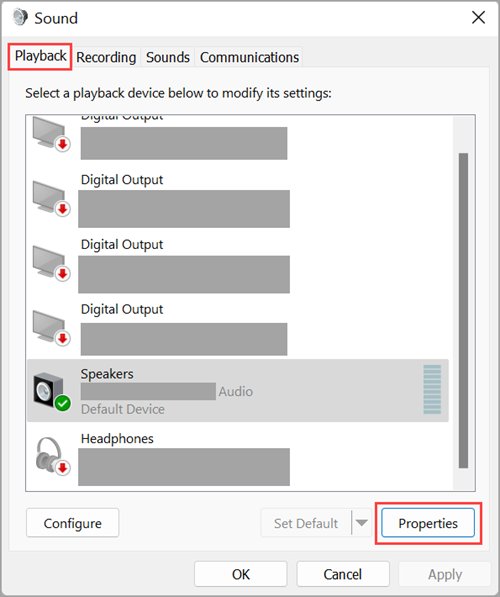
If the headphones play only when you set them manually each time, open More sound settings > Playback, right-click the headphones and select Set as default.
USB headphones keep disconnecting from PC
USB headsets and USB-C adapters drop out when Windows suspends an idle USB port to save power. Microsoft documents the same symptom: USB devices become unresponsive or disconnected after the PC wakes from sleep while USB selective suspend is enabled.
- Select Start, type edit power plan and select Edit power plan.
- Select Change advanced power settings.
- Expand USB settings > USB selective suspend setting.
- Set Plugged in (and On battery on a laptop) to Disabled, then select Apply and OK.
- Open Device Manager, expand Universal Serial Bus controllers, right-click USB Root Hub and select Properties.
- On the Power Management tab, clear Allow the computer to turn off this device to save power and select OK. Repeat for each USB Root Hub entry.
- Plug the headset directly into the PC instead of a hub or dock, and connect the laptop charger.
Windows shows USB device might need more power when a laptop on low battery or a crowded hub limits power. Disconnect unused USB devices and keep the PC on its charger. Some newer PCs do not show the USB settings entry in advanced power settings; use the Device Manager steps there.
Turn off USB selective suspend with powercfg
The same plugged-in setting can be changed from Command Prompt. Microsoft publishes this command for USB devices that disconnect after sleep.
powercfg /SETACVALUEINDEX SCHEME_CURRENT 2a737441-1930-4402-8d77-b2bebba308a3 48e6b7a6-50f5-4782-a5d4-53bb8f07e226 0Sets the USB selective suspend setting (GUID 48e6b7a6…) in the USB settings group (GUID 2a737441…) of the current power plan to 0, which means Disabled, for when the PC is plugged in.
You should see: The command returns without an error, and Edit power plan > Change advanced power settings > USB selective suspend setting now shows Plugged in: Disabled.
Update audio drivers for headphones in Windows
A damaged or replaced audio driver makes headphones vanish and return, especially after a Windows update.
- Select Start > Settings > Windows Update > Check for updates, install any audio driver updates and restart.
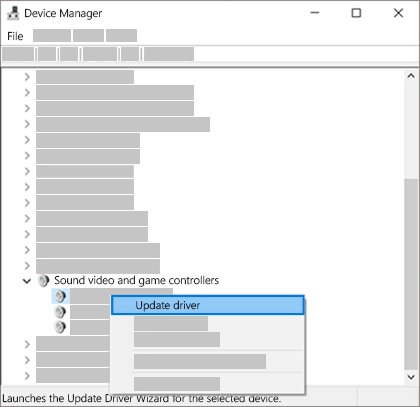
- If that does not help, open Device Manager and expand Sound, video and game controllers.
- Right-click your audio device, select Update driver, then Search automatically for drivers.
- To reinstall, right-click the device, select Uninstall device, confirm, and restart the PC so Windows reinstalls the driver.
- If the problem started after an update, right-click the device, select Properties > Driver > Roll Back Driver.
- If none of these help, get the latest audio driver from the PC or sound card manufacturer's support site.
How to tell if your headphones or headphone jack is broken
- Plug a second pair of headphones into the same port. If it plays without cutting out, the first pair or its adapter is faulty.
- Plug the original pair into a different phone or computer. If it cuts out there too, the headphones or cable are damaged.
- On Windows, check that the headphones appear under Output in Settings > System > Sound while plugged in.
- On a Mac, check that Headphones or the USB headset appears under Output in Sound settings.
- In Device Manager, look for a yellow exclamation mark on the USB or audio device; open Properties to read the error code under Device status.
- If a second pair also fails in an iPhone or iPad, contact Apple Support, since the port can need service.
Headphones keep connecting and disconnecting
"Accessory may not be supported" appears on iPhone
The adapter or headphones are damaged, not Apple-certified, not supported by the model, or the port is dirty.
- Update to the latest version of iOS.
- Disconnect and reconnect the accessory to clear the alert.
- Check the connectors on the accessory and the iPhone for damage or debris and clean them gently.
- If the alert appears with nothing connected, the iPhone needs service.
Headphones and mouse keep disconnecting on a PC
Windows is limiting power to USB ports, or a hub or dock is overloaded.
- Connect the laptop to its charger instead of running on battery.
- Plug the headset and mouse directly into the PC, not into a hub.
- Disconnect any unused USB devices.
- Turn off USB selective suspend as shown above.
"Unsupported USB-C Audio Adapter" in Windows
Most PCs support only USB-C digital audio adapters, not analog ones.
- Unplug the analog USB-C adapter.
- Connect a USB-C digital audio adapter, which converts the digital signal for the headphones.
Headphones connect then disconnect on a USB-C port
The port does not support the adapter's features, or the adapter runs through a hub or dock.
- Connect the adapter directly to the PC.
- Try another USB-C port on the PC.
- Turn USB Connection notifications on in USB settings so Windows tells you what the port reports.
Wired headphones stop working or only one side plays
A damaged cable, debris in the earbud meshes, or a fault in the device port.
- Brush the earbud meshes and the port with a clean, dry, soft-bristled brush.
- Adjust the volume on the device.
- Test a second pair; if it works, ask the headphone maker about a replacement.
Headphones drop out after a Windows update
The update replaced or damaged the audio driver.
- Roll back the audio driver from Device Manager > device Properties > Driver.
- If rollback is unavailable, uninstall the device and restart so Windows reinstalls it.
- Run the Audio troubleshooter from Settings > System > Troubleshoot > Other troubleshooters.
Bluetooth headphones keep disconnecting from laptop or iPhone
Wireless headphones drop out for different reasons than a wired pair: power saving, distance and pairing records. If they never pair in the first place, start by learning to connect Bluetooth headphones to Windows 11.
Bluetooth headphones keep disconnecting from a Windows laptop
Power-saving settings, an outdated Bluetooth driver or a stuck Bluetooth service.
- Select the battery icon on the taskbar and turn off Energy saver if it is on.
- Open Device Manager, expand Bluetooth, right-click the Bluetooth adapter and select Properties.
- On the Power Management tab, clear Allow the computer to turn off this device to save power.
- Press Windows key + R, type
services.msc, right-click Bluetooth Support Service and select Restart. - Right-click the Bluetooth device in Device Manager and select Update driver.
Wireless headphones keep disconnecting from iPhone
The headphones are too far away, low on battery, or the pairing record is stale.
- Keep the headphones close to the iPhone.
- Turn the headphones off and back on, and charge them.
- Unpair the headphones, put them back in discovery mode and pair them again.
- If they pair with other devices but not the iPhone, unpair them from those devices and try again.
Wired headphones disconnecting FAQ
Why do my headphones keep disconnecting wired?
A wired pair usually cuts out because of debris in the port, a case that stops the plug seating fully, or a damaged cable or adapter. Clean the port, remove the case, plug in firmly and test a second pair to find which part is at fault.
Why do my headphones keep disconnecting on PC?
On Windows, check that the headphones are the selected output, that the plug is in the green output jack, and that the audio driver is current. USB headsets also drop out when USB selective suspend or USB Root Hub power saving switches the port off.
Why does my wired headset keep disconnecting?
A wired headset with a USB plug is affected by Windows USB power saving, low laptop battery and overloaded hubs. Disable USB selective suspend, connect it directly to the PC and keep the charger plugged in. A 3.5 mm headset usually has a loose or worn plug.
Why do my USB headphones keep disconnecting?
Windows can suspend idle USB ports and limit power on battery. Set USB selective suspend to Disabled in advanced power settings, clear the power-saving option on each USB Root Hub in Device Manager, and avoid unpowered hubs.
Why do my headphones connect then disconnect?
A plug that connects and drops at once points to a dirty port, an unsupported or uncertified adapter, or a USB-C port that does not support the adapter. Clean the connectors, connect directly to the device and use a certified or digital USB-C adapter.
Why do wired headphones stop working?
Wired headphones stop working when the cable or plug breaks, debris blocks the port or earbud meshes, the wrong output is selected, or a driver fails on a PC. Test a second pair: if it works, replace the first pair.
How come my headphones keep disconnecting from my laptop?
Laptops save power aggressively. On battery, Windows can suspend USB ports and Bluetooth adapters. Plug in the charger, disable USB selective suspend, and clear Allow the computer to turn off this device to save power for the USB hub or Bluetooth adapter.
How do I disconnect wired headphones without unplugging them?
Switch the output device instead. On Windows, select the Speakers icon on the taskbar and choose another output. On a Mac, choose System Settings > Sound > Output and select another device, such as the built-in speakers.
Does a phone case cause wired headphones to disconnect?
Yes, it can. Apple notes that a case can stop the plug from making a firm connection, so remove the case and plug the headphones or adapter back in firmly.