When Device Manager is not showing Sound, video and game controllers, select View > Show hidden devices, then Action > Scan for hardware changes so Windows lists your audio device again.
If the category stays missing, this guide covers installing the audio driver through Windows Update or the PC maker, the Code 1, Code 22 and Code 28 errors, rolling back after an update and System Restore on Windows 11 and Windows 10.
Device Manager not showing Sound, video and game controllers
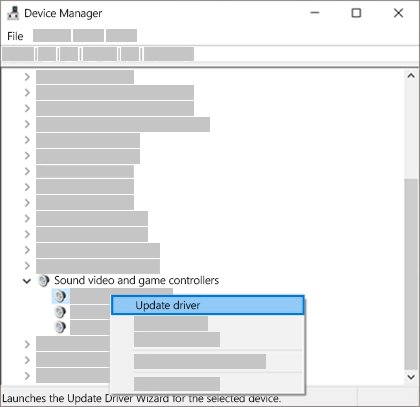
Device Manager groups hardware by type, so a missing category means Windows lists no sound device right now. The device is usually hidden, not detected yet, or sitting elsewhere in the list without a working driver.
- Select Start, type Device Manager, and select it from the results.
- Select View > Show hidden devices.
- Select Action > Scan for hardware changes and wait for the list to refresh.
- Expand Sound, video and game controllers if it now appears.
- Right-click your audio device and select Enable device if that option appears.
- If the category is still missing, select Start > Power > Restart and open Device Manager again.
Search is the quickest route, but there are other ways to open Device Manager when the Start menu misbehaves.
Sound, video and game controllers missing in Device Manager
Microsoft says Windows may not detect an audio device when its driver is missing, outdated, disabled or not loading. It often follows a Windows update, a driver change, or a corrupted driver.
| Cause | What Device Manager shows | Fix |
|---|---|---|
| Device hidden or not yet detected | No sound category until Show hidden devices is on | Scan for hardware changes, then restart |
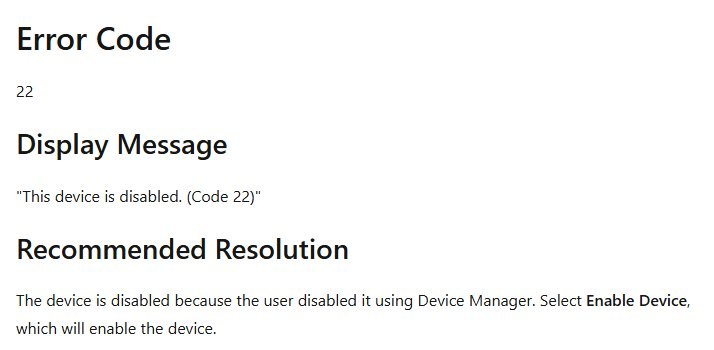
| Device turned off | "This device is disabled. (Code 22)" | Right-click the device and select Enable device |
| No driver installed | "This device is not configured correctly. (Code 1)" | Select Update driver |
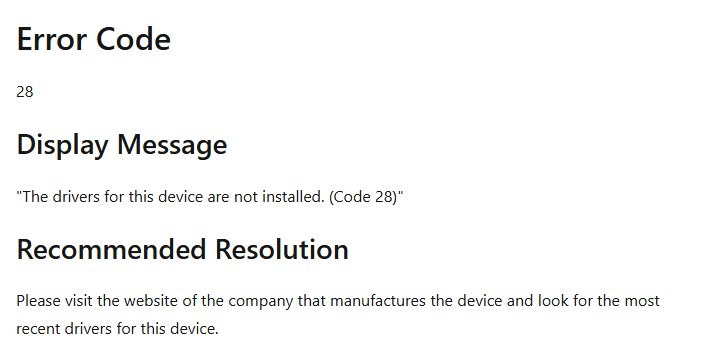
| Driver package missing | "The drivers for this device are not installed. (Code 28)" | Install the latest driver from the device maker |
| Driver fails to load | "This device cannot start. (Code 10)" | Update or reinstall the driver |
| Driver changed by an update | Sound vanished right after Windows Update ran | Roll back the driver or use System Restore |
Device Manager places a yellow exclamation point next to any device with a problem. Expand every category, not only the sound one, because a device without a driver is not filed under Sound, video and game controllers.
To read the error code, right-click the flagged device, select Properties, and look at the General tab.
Sound driver not showing in Device Manager: get it from Windows Update
Windows Update is Microsoft's recommended source for audio drivers. Recommended drivers install on their own, but optional driver updates wait until you pick them.
- Select Start > Settings > Windows Update, then select Check for updates and install everything listed.
- Select Advanced options.
- Turn on Receive updates for other Microsoft products.
- Under Additional options, select Optional updates.
- If driver updates are listed, select the audio drivers, then select Download and install.
- Right-click Start and select Shut down or sign out > Restart, even if no update asked for one.
If Windows Update finds nothing, the driver has to come from the hardware maker instead.
Audio driver not showing in Device Manager: install the maker's driver
Some audio drivers ship only from the PC or sound card manufacturer. Microsoft's fix for Code 28 is the same: get the most recent driver from the company that made the device.
- Find your PC model, or the sound card model on a desktop with a separate card.
- Go to that manufacturer's support website and search for the model.
- Download the latest audio driver for your exact Windows version.
- Run the installer and follow the manufacturer's instructions.
- Restart the PC.
- Open Device Manager and expand Sound, video and game controllers to find the device.
Microsoft advises against downloading drivers from any site other than the manufacturer's own. When Device Manager says the best driver is already installed, a newer one may still be on the maker's site.
If the download is a driver folder with no installer, you can install the driver manually by pointing Update driver at that folder.
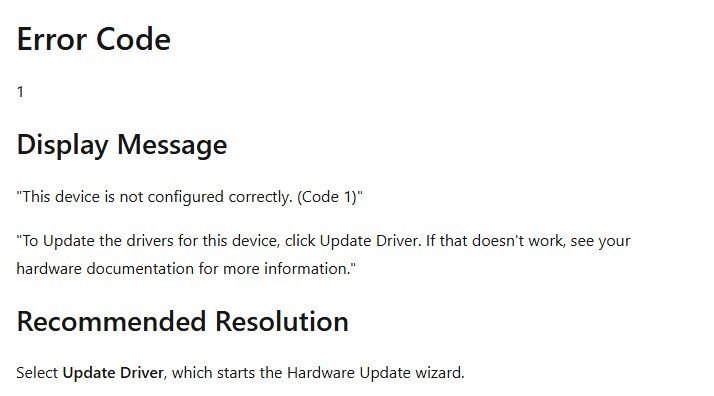
This device is not configured correctly (Code 1) [Fix]
Code 1 means Windows found the device but installed no driver for it, usually because it could not find a matching INF file. It points to a driver problem, not a dead sound chip.
- In Device Manager, find the device with the yellow exclamation point.
- Right-click it and select Properties, then confirm the General tab reads "This device is not configured correctly. (Code 1)".
- Close the dialog, right-click the device again and select Update driver.
- Select Search automatically for drivers and follow the on-screen instructions.
- Restart the PC after the driver installs.
- If Windows finds no driver, install the manufacturer's audio driver from the steps above.
Code 10 ("This device cannot start") has the same first fix: Update driver. Code 22 only needs Enable device, because it means the device was switched off in Device Manager.
Install the High Definition Audio Device driver that comes with Windows
Windows includes a generic audio driver that works with many built-in sound chips. Use it when the maker's driver will not install or the device keeps showing an error.
- In Device Manager, right-click your sound device and select Update driver.
- Select Browse my computer for drivers.
- Select Let me pick from a list of available drivers on my computer.
- Select High Definition Audio Device if it is listed, then select Next.
- Follow the instructions to finish, then restart the PC.
Microsoft gives the same steps for systems with an IDT High Definition Audio CODEC entry under Sound, video and game controllers.
Uninstall and reinstall the sound card driver in Windows 11
A corrupted or half-installed driver can keep the device from loading. Removing it forces Windows to detect the hardware and reinstall the driver at the next restart, so save your work first.
- In Device Manager, select View > Show hidden devices so the sound device is visible.
- Right-click the sound card or audio device and select Uninstall device.
- Check Attempt to remove the driver for this device, then select Uninstall.
- Select Start > Power > Restart.
- Open Device Manager after the restart and check for Sound, video and game controllers.
The same steps work when you reinstall audio drivers on Windows 10. If the device returns with an error, install the maker's driver over it.
Audio device not appearing in Device Manager after a Windows update
An incompatible or partly installed audio driver from an update can stop the device from loading. Match what you see to the row below.
| What you see | Do this | Path |
|---|---|---|
| Updates are still pending | Install them and restart | Start > Settings > Windows Update > Check for updates |
| The audio device is visible and its driver changed | Roll back the driver | Right-click the device > Properties > Driver tab > Roll Back Driver |
| Roll Back Driver is greyed out | No earlier driver is stored, so install the maker's driver | PC or sound card maker's support site |
| No sound device appears at all | Return Windows to a restore point made before the update | System Restore, steps below |
Roll Back Driver is available only when a previous driver version exists on the PC.
Use System Restore when sound is missing from Device Manager
System Restore reverts system files, registry settings and installed programs to an earlier restore point, which undoes a bad driver update. Your personal files are not affected.
- Press Windows key + R, type
rstrui.exeand press Enter. You can also open Control Panel > Recovery > Open System Restore. - In Restore system files and settings, select Next.
- Select a restore point dated before the sound device disappeared. Check Show more restore points if the one you want is not listed.
- Select Scan for affected programs to see which apps will be removed or restored.
- Select Next, then Finish.
- Wait for Windows to restart, then open Device Manager.
Windows creates restore points automatically during updates and software installs, so one usually exists from before the change unless System Restore is not working on the PC.
No sound device in Device Manager: run the audio troubleshooter
On Windows 11, the Audio troubleshooter in the Get Help app runs diagnostics and tries to fix detection problems for you.
- Select Start > Settings > System.
- Select Troubleshoot > Other troubleshooters.
- Next to Audio, select Run.
- Follow the prompts in Get Help and apply the fixes it offers.
- Open Device Manager again and look for Sound, video and game controllers.
How to tell if Windows detects your sound card again
A fixed device shows up in two places: Device Manager and Sound settings. Check both before you test playback.
- In Device Manager, expand Sound, video and game controllers and confirm your audio device is listed with no yellow exclamation point.
- Right-click the device, select Properties, and check that the General tab shows no error code.
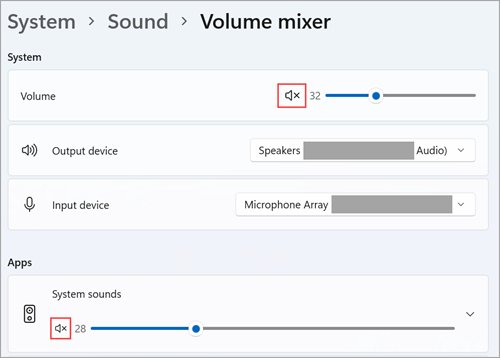
- Select Start > Settings > System > Sound.
- Under Output, confirm your speakers or headphones are listed, then select the one you use.
- Play a video or song to hear the sound.
From there you can pick the default output and set levels in the Windows 11 sound settings.
Sound not listed in Device Manager after every fix
Sound is missing from Device Manager after upgrading Windows
Microsoft notes that a driver package is often left out of the migration during an upgrade, which leaves the device on Code 28.
- Note the PC or sound card model.
- Download the audio driver for the new Windows version from the maker's support site.
- Install it and restart the PC.
Speakers not showing in Device Manager or Sound settings
USB and HDMI speakers appear only while they are powered on and connected to a working port.
- Check the cable at both ends and turn the speakers on.
- Plug USB speakers into a different USB port.
- Unplug headphones, because some speakers do not play while headphones are connected.
- On a monitor without built-in speakers, select Start > Settings > System > Sound and pick another device under Output.
Greyed-out sound device after Show hidden devices
A faded entry is a non-present device: hardware Windows saw before that is not connected now.
- Reconnect the device if it is external, such as a USB headset or dock.
- Select Action > Scan for hardware changes.
- Leave other greyed entries alone, because Microsoft says non-present devices should not cause problems.
Audio settings greyed out with "No audio output device is installed"
The audio driver is missing, disabled or not loading, so Windows has nothing to list.
- Run the steps at the top of this guide with Show hidden devices turned on.
- Install optional driver updates from Windows Update.
- Install the maker's audio driver if the message stays.
Sound, video and game controllers FAQ
How do I update my sound video and game controller?
Open Device Manager, expand Sound, video and game controllers, right-click the audio device and select Update driver, then Search automatically for drivers. Microsoft recommends Windows Update first, and the PC maker's site if Windows reports the best driver is already installed.
Why is my PC not detecting any audio devices?
Windows misses an audio device when its driver is missing, outdated, disabled or not loading. It often happens after a Windows update or driver change. Show hidden devices, scan for hardware changes, then install the latest driver from the PC maker.
Where is the sound driver in Device Manager?
The sound driver belongs to the device listed under Sound, video and game controllers. Right-click the device, select Properties and open the Driver tab to see its version and to update, roll back or uninstall it.
What does Show hidden devices do in Device Manager?
Show hidden devices, on the View menu, adds devices Device Manager leaves out by default. These include non-present devices, which are hardware that was removed but whose registry entries remain. They appear faded in the list.
Can you add Sound, video and game controllers back manually?
No. There is no option to add the category itself. It returns on its own once Windows detects a sound device and installs a driver for it, so the fix is always the device and its driver.
Is Code 1 in Device Manager a hardware failure?
No. Code 1, "This device is not configured correctly", means Windows installed no driver for the device, usually because it found no matching INF file. Microsoft's fix is Update driver, which starts the driver update wizard.
Does uninstalling the audio device remove sound permanently?
No. After you uninstall the audio device and restart, Windows detects the hardware again and reinstalls the audio driver automatically. Save open work first, because the fix needs a restart.