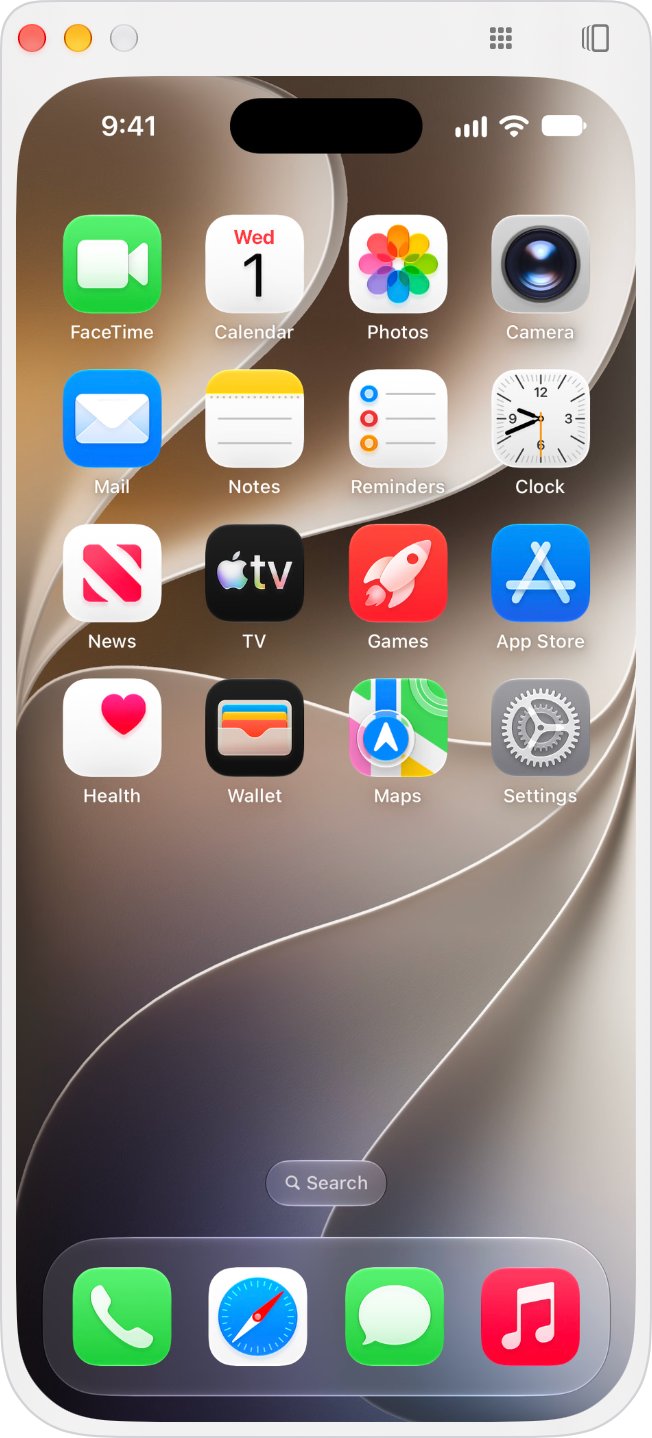
Yes, but only from a Mac: iPhone Mirroring in macOS Sequoia 15 or later lets you click and hold the iPhone Home Screen and drag apps with your mouse or trackpad.
Windows PCs, iTunes, Finder and the Apple Devices app have no Home Screen editor, so this guide also covers folders, page order, supervised layouts and the on-iPhone route for PC owners.
How to rearrange iPhone apps from a Mac with iPhone Mirroring
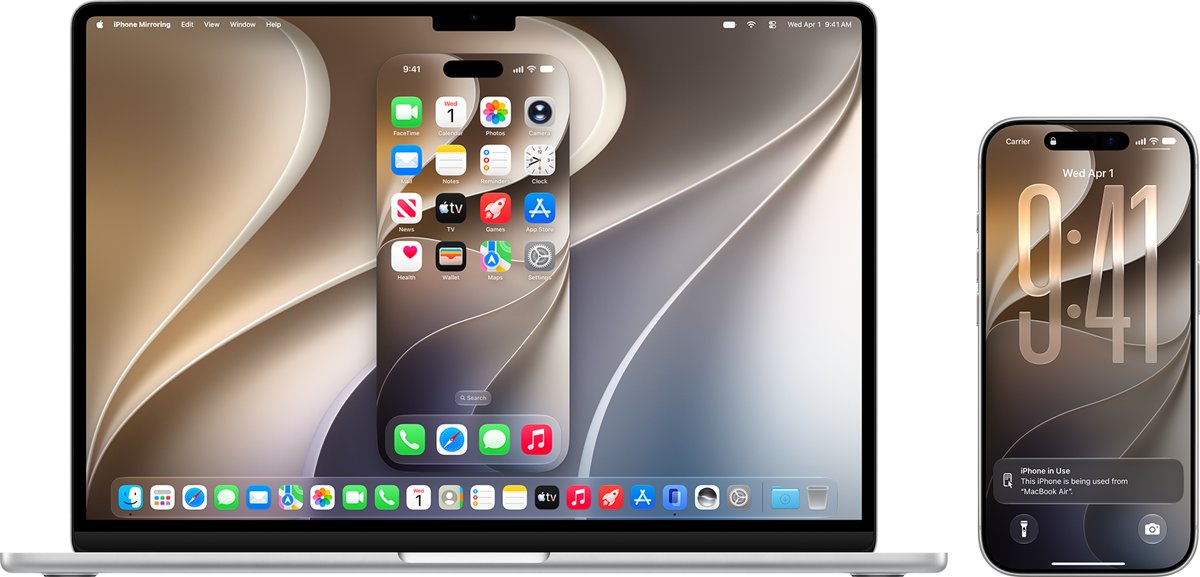
iPhone Mirroring shows your iPhone screen in a window on the Mac while the iPhone itself stays locked. Every change you make in that window is made on the iPhone.
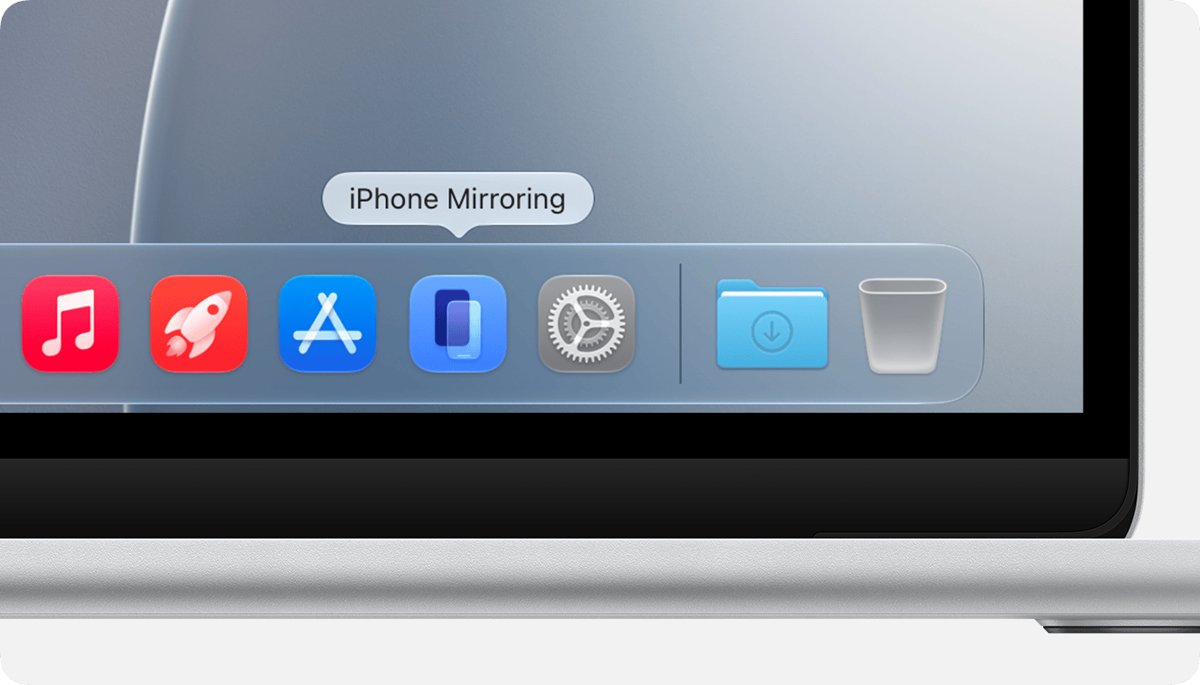
- On your Mac, click iPhone Mirroring in the Dock, or open it from the Applications folder or Spotlight.
- If the Mac asks you to unlock your iPhone, enter your iPhone passcode on the iPhone.
- Press Command-1, or click the bar at the bottom of the window, to go to the Home Screen.
- Click and hold an empty part of the Home Screen background until the apps begin to jiggle.
- Drag an app with your mouse or trackpad to its new spot, including the top, bottom or side of the screen.
- Click the Home Screen background when you are finished to stop the apps jiggling.
The new layout is saved on the iPhone straight away. Unlock the iPhone and the apps sit exactly where you dropped them.
Rearrange iPhone apps on Mac vs Windows PC
Only one Apple tool can edit an ordinary iPhone Home Screen from a computer, and it needs a recent Mac. Match your setup to a row.
| Your computer and iPhone | How to rearrange the apps | Why |
|---|---|---|
| Mac with Apple silicon or a T2 chip on macOS Sequoia 15 or later, iPhone on iOS 18 or later | iPhone Mirroring on the Mac | Click and hold to edit the Home Screen, then drag apps with the mouse |
| Older Intel Mac without a T2 chip, or macOS before Sequoia | Rearrange the apps on the iPhone | iPhone Mirroring will not run, and syncing the iPhone in Finder has no Home Screen option |
| Windows 11 or Windows 10 PC | Rearrange the apps on the iPhone | Apple Devices, iTunes for Windows and Phone Link have no Home Screen editor |
| Mac and iPhone in the European Union | Rearrange the apps on the iPhone | iPhone Mirroring is currently unavailable in the EU |
| iPhone owned and supervised by a school or company | Ask the IT team, who can push a layout with Apple Configurator or device management | A supervised Home Screen Layout payload is locked and cannot be changed on the iPhone |
iPhone Mirroring requirements for Mac and iPhone
iPhone Mirroring works with one Mac and one iPhone at a time. Both devices must meet every line below before the window shows your Home Screen.
| Item | What iPhone Mirroring needs |
|---|---|
| Mac | Mac with Apple silicon or the Apple T2 Security Chip, running macOS Sequoia 15 or later |
| iPhone | iOS 18 or later, set up with a passcode |
| Apple Account | Same Apple Account on both devices, using two-factor authentication |
| Connections | Bluetooth and Wi-Fi turned on on both devices |
| iPhone state | Locked and near the Mac; it can be charging or in StandBy |
| Mac state | Not sharing its internet connection, and not using AirPlay or Sidecar |
| Region | Not available in the European Union |
How to move iPhone apps to another Home Screen page from a Mac
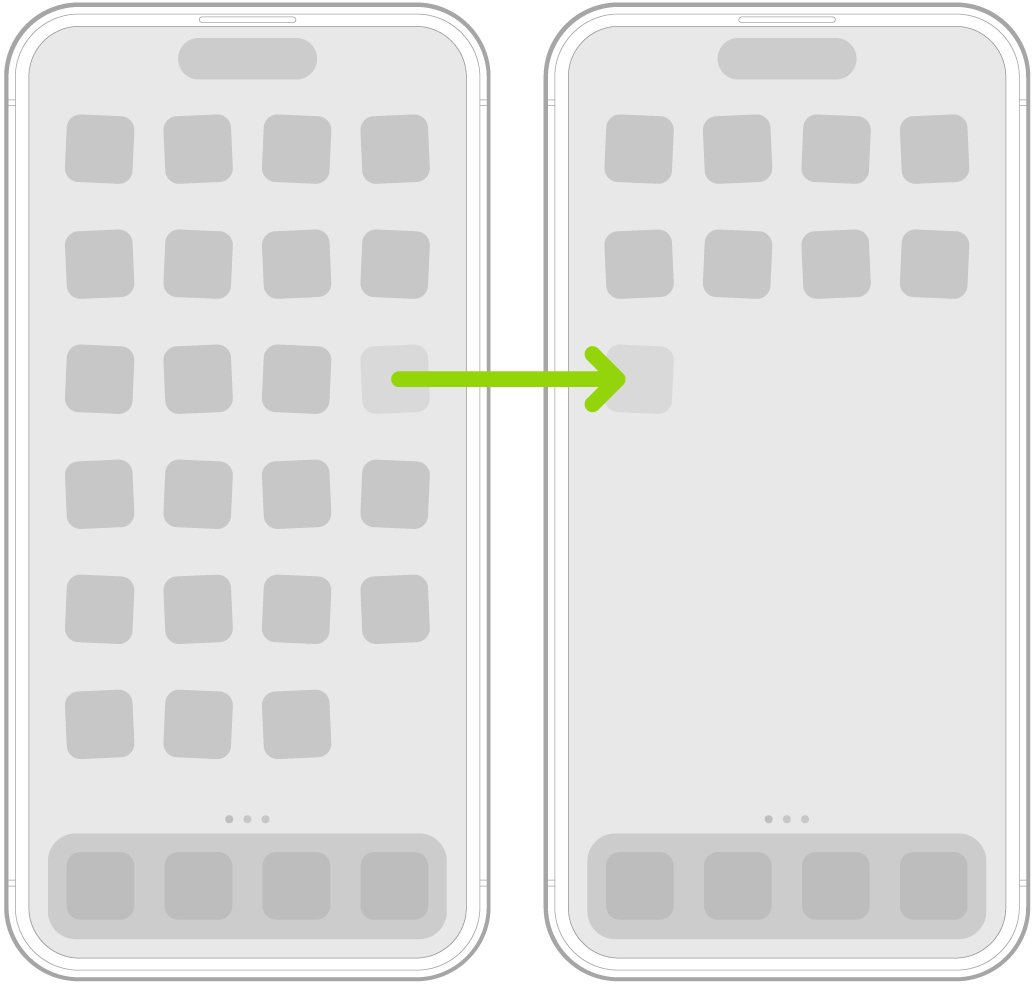
Each Home Screen page can have its own layout. In iPhone Mirroring, dragging an app to the edge of the window works like dragging it to the edge of the iPhone screen.
- Open iPhone Mirroring on your Mac and press Command-1 to show the Home Screen.
- Click and hold the Home Screen background until the apps begin to jiggle.
- Drag the app to the right edge of the iPhone Mirroring window and hold it there.
- Wait a moment for the next page, or a new empty page, to appear, then drop the app.
- To switch pages without dragging, scroll sideways on the trackpad, or hold Shift while you scroll with a mouse.
- Click the Home Screen background to save the layout.
The dots at the bottom of the screen show how many Home Screen pages you have and which one you are viewing.
How to create app folders on iPhone from a Mac
Folders are the fastest way to tidy a crowded iPhone, and the Mac keyboard makes naming them quicker than typing on the phone.
- In iPhone Mirroring, click and hold the Home Screen background until the apps begin to jiggle.
- Drag one app onto another app to create a folder.
- Drag any other apps you want into the same folder; a folder can hold several pages of apps.
- Click the Home Screen background, then click and hold the folder and choose Rename.
- Type the new name with your Mac keyboard, then click Done.
To delete a folder, open it while the apps jiggle and drag every app out. An empty folder is removed automatically. Folder changes on the Home Screen do not change App Library.
How to reorder or hide iPhone Home Screen pages
Reordering pages puts your favourite set of apps first. Hiding pages brings App Library closer without deleting any app. Both work in iPhone Mirroring or on the iPhone itself.
- Go to the Home Screen and click and hold the wallpaper until the app icons begin to jiggle.
- Click the dots at the bottom of the screen to show thumbnails of every Home Screen page.
- To reorder, click and hold a page thumbnail and drag it to a new position.
- To hide a page, click it to remove its checkmark; click again to show it.
- Close the thumbnail view and click the Home Screen background to save the change.
When Home Screen pages are hidden, new apps from the App Store may go to App Library instead of the Home Screen.
How to rearrange apps on iPhone without a computer
On a Windows PC, an older Mac or anywhere in the EU, the iPhone itself is the only place to change the layout. The steps match the Mac route, with a finger instead of a pointer.
- Go to the Home Screen on your iPhone.
- Touch and hold the Home Screen background until the apps begin to jiggle.
- Drag an app to another spot on the same page, or to the right edge of the screen to move it to another page.
- Drag an app onto another app to create a folder.
- Tap the Home Screen background on an iPhone with Face ID, or press the Home button on iPhone SE, to finish.
Can you arrange iPhone apps in iTunes or Finder?
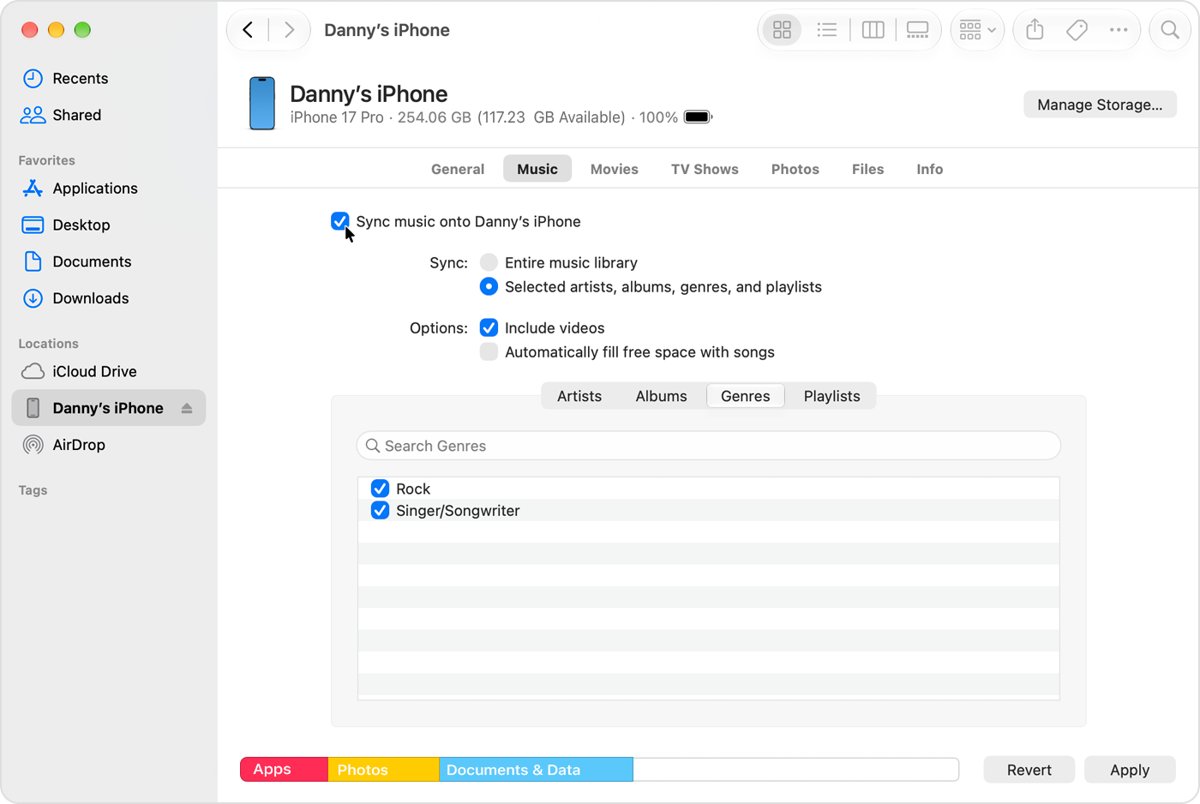
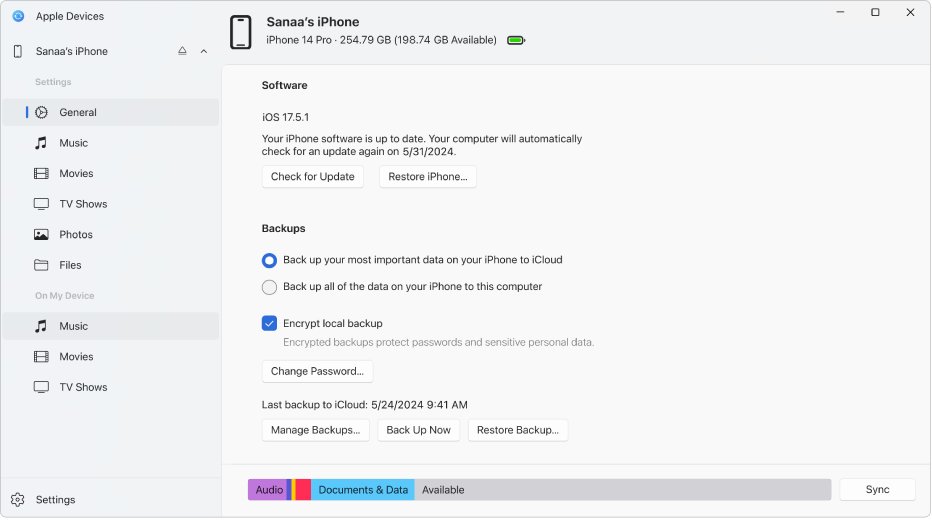
No. Finder on a Mac, the Windows replacement for Finder and iTunes move media, photos, contacts and files, but none of them lists the Home Screen or lets you drag app icons.
| Tool | Runs on | Edits the iPhone Home Screen? | What it does instead |
|---|---|---|---|
| iPhone Mirroring | Mac (macOS Sequoia 15 or later) | Yes | Shows and controls the whole iPhone, including the Home Screen editor |
| Finder | Mac (macOS Catalina or later) | No | Syncs music, movies, TV shows, podcasts, audiobooks, books, photos, contacts and calendars |
| iTunes for Windows | Windows PC | No | Syncs content types such as music and TV shows from the sidebar, plus backups |
| Apple Devices app | Windows PC | No | Syncs music, movies, TV shows and photos, updates iOS and makes iPhone backups on a PC |
| Phone Link | Windows 11 or Windows 10 PC | No | Texts, calls and notifications for an iPhone on iOS 16 or later |
| Apple Configurator | Mac | Supervised iPhones only | Installs profiles, including a locked Home Screen layout for organization-owned devices |
Apple Configurator Home Screen layout for supervised iPhones
Schools and companies can set an iPhone Home Screen from a Mac, but only on devices they supervise. It is not a route for a personal iPhone.
| Question | Answer |
|---|---|
| What sets the layout | A configuration profile with the Home Screen Layout payload, installed with Apple Configurator for Mac or a device management service |
| Does the iPhone need supervision | Yes, the Home Screen Layout payload requires a supervised iPhone |
| When can an iPhone be supervised with Apple Configurator | Before activation, on a new or fully erased device, before Setup Assistant first appears |
| Can the user change the layout afterwards | No, the layout is locked and cannot be modified on the iPhone |
| How to tell an iPhone is supervised | Settings > General > About says the iPhone is supervised under the device name |
Does an iPhone backup save the Home Screen layout?
Yes. When you restore an iCloud backup, your device settings, Home Screen layout and app organization are restored with it. That makes a fresh arrangement worth keeping: back up your iPhone to iCloud after you finish, and a new or erased iPhone restored from that backup gets the same pages and folders.
How to stop new apps from being added to the iPhone Home Screen
New downloads landing on the first free spot undo a tidy layout. Send them to App Library instead and place only the apps you want.
- Open the Settings app on your iPhone, or in the iPhone Mirroring window on your Mac.
- Tap Home Screen & App Library.
- Choose App Library Only to keep new apps off the Home Screen, or Add to Home Screen to put them there.
- Turn on Show in App Library if you want notification badges on apps in App Library.
To place an app later, open App Library, touch and hold the app until the icons jiggle and it moves to the Home Screen, then let go.
How to reset the iPhone Home Screen layout to default
A reset puts the Home Screen back the way it came. Any folders you created are removed, and downloaded apps are listed alphabetically after the apps that came with the iPhone.
- Open the Settings app on your iPhone.
- Tap General, then tap Transfer or Reset iPhone.
- Tap Reset.
- Tap Reset Home Screen Layout, then tap Reset Home Screen.
This changes only the layout. Your apps and their data stay on the iPhone.
iPhone Mirroring not working on Mac
iPhone Mirroring does not find or connect to the iPhone
A requirement is not met, or Bluetooth and Wi-Fi are busy with something else.
- Follow any instruction shown in the iPhone Mirroring window first.
- Check that both devices use the same Apple Account, have Bluetooth and Wi-Fi on, and that the iPhone is locked and nearby.
- Stop any audio or video streaming to another device, and check whether a VPN or third-party security app is running on either device.
- Make sure the Mac firewall is not set to block all incoming connections.
- Install the latest macOS and iOS updates, then restart both devices.
The connection keeps timing out or is interrupted
iPhone Mirroring pauses after periods of inactivity, and a stale setup can stop it reconnecting.
- Quit iPhone Mirroring and open it again.
- From the iPhone Mirroring menu in the menu bar, choose Settings, then click Revoke iPhone Access.
- Set up iPhone Mirroring again from the app.
- If it still fails, sign out of your Apple Account on each device, restart both, then sign back in.
iPhone Mirroring is missing on the Mac
The Mac or iPhone is too old, macOS is earlier than Sequoia 15, or you are in the European Union.
- Check the Mac has Apple silicon or a T2 chip and runs macOS Sequoia 15 or later.
- Check the iPhone runs iOS 18 or later and has a passcode.
- If you are in the EU, rearrange the apps on the iPhone instead.
New apps do not appear on the Home Screen
Some Home Screen pages are hidden, or new apps are set to go to App Library only.
- Go to Settings > Home Screen & App Library and choose Add to Home Screen.
- Show any hidden pages by clicking the dots at the bottom of the Home Screen while the apps jiggle.
- Move the missing app out of App Library by touching and holding it until it lands on the Home Screen.
An app cannot be moved to another App Library category
App Library sorts apps into categories automatically, based on how you use them.
- Leave App Library as it is.
- Add the app to the Home Screen instead, then drag it into a folder you name yourself.
Rearrange iPhone apps on computer FAQ
Can I rearrange my iPhone apps with iTunes?
No. iTunes for Windows syncs content such as music, TV shows and backups, but it has no Home Screen editor. On a Mac, use iPhone Mirroring; on a PC, rearrange the apps on the iPhone itself.
Can I rearrange iPhone apps from a Windows PC?
No. The Apple Devices app, iTunes for Windows and Microsoft Phone Link cannot edit the iPhone Home Screen. Touch and hold the Home Screen background on the iPhone until the apps jiggle, then drag them.
Does iPhone Mirroring work on Windows?
No. iPhone Mirroring is a Mac app included with macOS Sequoia 15 or later. Phone Link on Windows connects to an iPhone for texts, calls and notifications, but it does not show or control the iPhone screen.
Does iPhone Mirroring work on an Intel Mac?
Only if the Intel Mac has the Apple T2 Security Chip and runs macOS Sequoia 15 or later. Macs with Apple silicon qualify. Older Intel Macs without a T2 chip cannot use iPhone Mirroring.
Do changes made in iPhone Mirroring stay on the iPhone?
Yes. iPhone Mirroring controls the iPhone directly, so apps you move, folders you create and pages you hide are saved on the iPhone. You see the same layout when you unlock it.
Why is iPhone Mirroring not available on my Mac?
iPhone Mirroring is currently unavailable in the European Union. Outside the EU, it needs a Mac with Apple silicon or a T2 chip on macOS Sequoia 15 or later and an iPhone on iOS 18 or later.
Can I organize App Library from my computer?
No. App Library sorts apps into categories automatically, and apps cannot be moved to another category from the Mac or the iPhone. You can add an App Library app to the Home Screen and put it in a folder.
Will my Home Screen layout transfer to a new iPhone?
Yes, if you restore the new iPhone from an iCloud backup. Apple restores device settings, the Home Screen layout and app organization along with the backup.
How do I put my iPhone apps back in the original order?
Go to Settings > General > Transfer or Reset iPhone > Reset > Reset Home Screen Layout, then tap Reset Home Screen. Folders are removed and downloaded apps are sorted alphabetically after Apple's built-in apps.