A Hisense TV blinking a red light usually means it is trying to start but cannot finish, so unplug it from the wall for 60 seconds, plug it into a working outlet and press the power button on the TV itself.
This guide covers the power cycle, outlet and remote checks, software updates, factory resets for Hisense Roku TV and Google TV models, Recovery Mode, and when the fault needs Hisense support.
How to fix a Hisense TV blinking a red light
A full power cycle clears a stuck startup on Hisense Roku TV and Hisense Google TV models alike. Both Roku and Google tell owners to start here.
- Unplug the TV's power cable from the wall outlet, not just from a power strip.
- Leave the TV unplugged for at least 60 seconds.
- Plug the power cable directly into a wall outlet.
- Press the Power button on the TV itself, not the remote.
- Wait for the Hisense or Roku logo, then the home screen.
If the red light keeps blinking and the screen stays dark after this, work through the fixes below in order.
Which fix should you try first?
| What the TV is doing | Try this first | Why |
|---|---|---|
| Red light blinks, screen stays black | Power cycle for 60 seconds | Clears a startup that did not finish |
| Nothing happens when you press the remote | Press the power button on the TV | Rules out a dead remote or weak batteries |
| TV is on a power strip or GFCI outlet | Plug into a different wall outlet | A tripped outlet or strip can starve the TV of power |
| Logo appears, then the TV restarts | Factory reset, then Recovery Mode (Roku TV) | The software did not load or stalled during an update |
| TV turns on but freezes or crashes | Check for a system update | Updated software fixes known startup bugs |
| Blinking returns after every fix | Contact Hisense with the model number | A power board or backlight fault needs repair |
Why is your Hisense TV blinking a red light?
The red light is the TV's standby indicator. When startup fails, it often blinks instead of the picture appearing.
| Cause | What you usually see | Fix |
|---|---|---|
| Startup stuck after a power glitch | Red light blinks, dark screen | Unplug for 60 seconds |
| Outlet, power strip or GFCI cut off | Light blinks or dims, TV will not power on | Use a different wall outlet or press the GFCI Reset button |
| Software did not load or an update stalled | Power light flickers repeatedly, screen dark, or logo loop | Factory reset or Recovery Mode |
| Remote not sending the power command | Red light stays solid, TV ignores the remote | Use the TV's power button, replace batteries |
| Faulty power supply or backlight | Blinking survives every reset | Hisense repair or warranty service |
Roku lists a dark screen with a power light that flickers repeatedly as a sign the software did not load correctly or got stuck while updating.
Blink count matters. Count the blinks between each pause, write the number down, and give it to Hisense support with the model number if the fixes here fail.
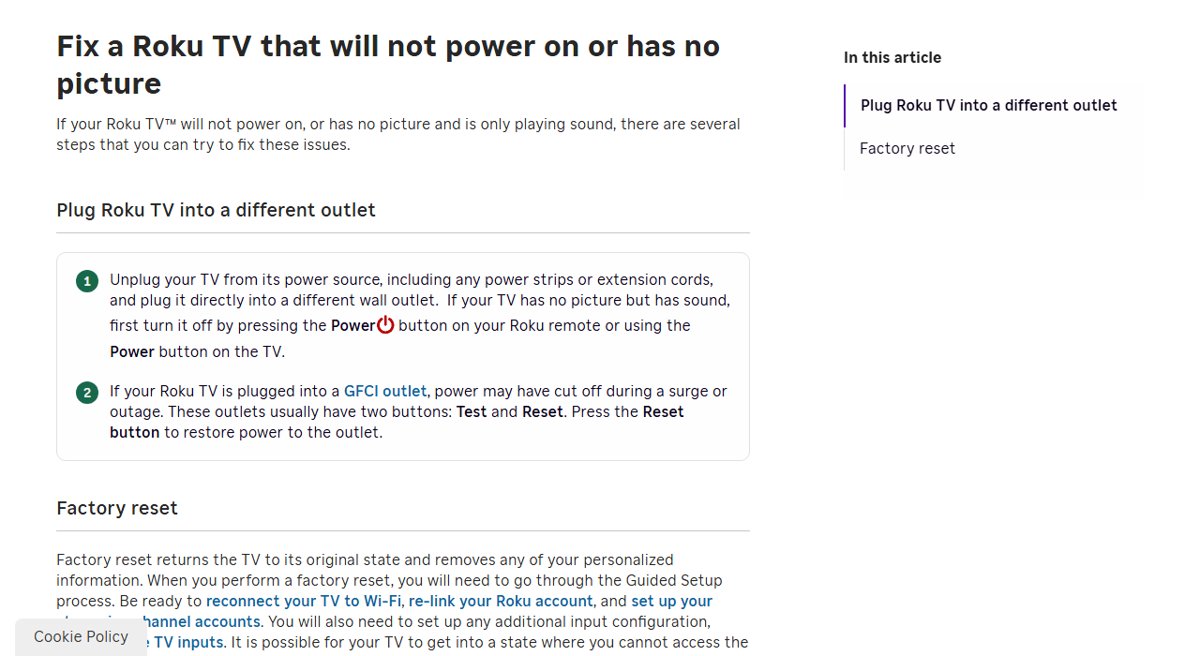
Check the outlet and power cable on a Hisense TV
Power strips, extension cords and tripped outlets cause many no-power cases. Roku's own power guide starts with the outlet.
- Unplug the TV from any power strip, surge protector or extension cord.
- Plug it directly into a different wall outlet.
- If the outlet has Test and Reset buttons, it is a GFCI outlet. Press Reset to restore power after a surge or outage.
- Check that the power cable is pushed fully into the back of the TV.
- Press the Power button on the TV and watch the light.
Hisense TV remote not working: rule out the remote
A TV that shows a red light but ignores the remote may simply not be getting the power command.
- Press the Power button on the TV's panel or underside instead of the remote.
- If the TV starts, replace the remote's batteries.
- Point the remote straight at the TV with nothing blocking the front panel.
- Press Power on the remote again.
If the TV ignores both the remote and its own button, the problem is power or software, not the remote. If the TV starts from its own button but a Roku voice remote still does nothing, pair the Roku remote again.
Update Hisense TV software to stop the red light
Update only works once the TV reaches the home screen. Roku TVs also check for updates every time they power on and every 24 to 36 hours.
| Hisense TV platform | Menu path | What happens next |
|---|---|---|
| Hisense Roku TV | Home > Settings > System > Software update > Check Now | The TV downloads, installs and reboots |
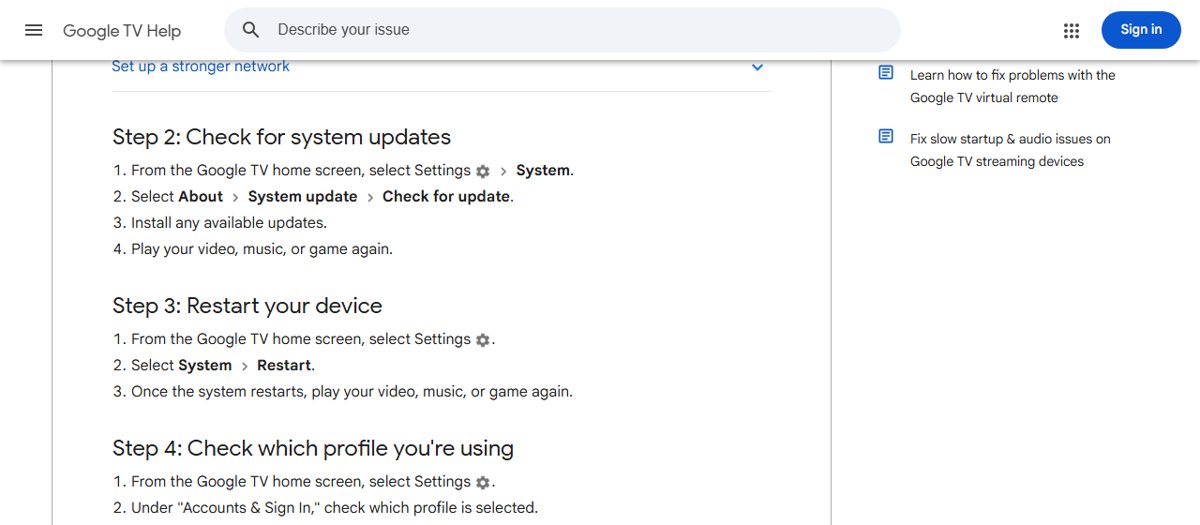
| Hisense Google TV | Settings > System > About > System update > Check for update | Install any update offered |
| Hisense Roku TV with no internet | Update with a USB drive | Roku publishes USB update steps for Roku TVs |
Factory reset a Hisense TV with a blinking red light
A factory reset erases your settings, apps and accounts. Have your Wi-Fi password and Roku or Google account details ready before you start.
| Your situation | Reset method | Details |
|---|---|---|
| Hisense Roku TV, menus work | Home > Settings > System > Advanced system settings > Factory reset > Factory reset everything | Follow the on-screen prompts |
| Hisense Google TV, menus work | Settings > System > About > Factory reset | Erases all data on the TV |
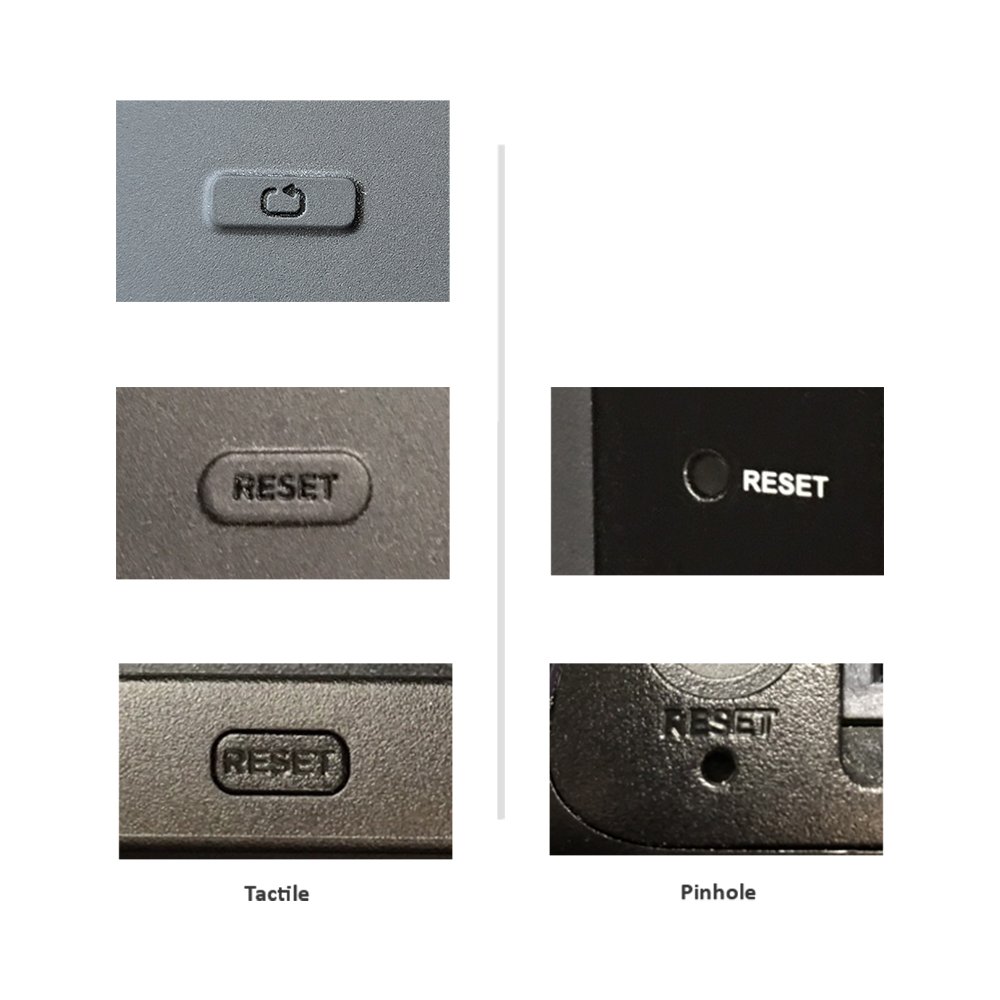
| Roku TV with a recessed Reset button | Hold Reset with a paper clip for about 12 seconds | The status light glows dimly when done; the TV is off |
| Roku TV with no Reset button | Hold the TV's Power button for 10 seconds | Then turn the TV on and run guided setup |
After a reset, turn the TV on and complete the guided setup again, including Wi-Fi and account sign-in.
Hisense Roku TV Recovery Mode for a blinking power light
Recovery Mode reinstalls the Roku software when the TV keeps restarting or the light keeps flickering. It is the deepest reset and clears all data.
- Find the Reset button or pinhole on the back or bottom of the TV.
- Press and hold it with a paper clip for at least 20 seconds.
- Release it when the TV restarts and shows Recovery Mode.
- Pick your language with the remote.
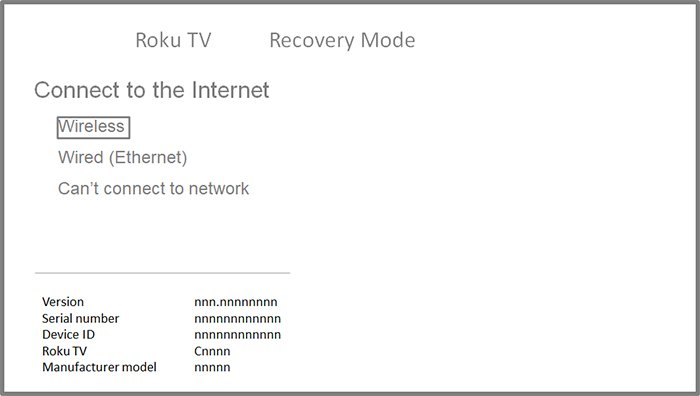
- Select Wireless and connect to Wi-Fi.
- Select Update now to download and reinstall the software.
- Complete guided setup after the TV restarts.
If the Recovery Mode screen does not appear within 30 seconds, the TV may not support it or may need repair. Wi-Fi passwords with symbols such as $ may fail here, so try a phone hotspot.
Other things worth trying
- Use the power button on the TV whenever the remote does nothing.
- Let the TV cool down: unplug it for 10 minutes or more if it sits in a cabinet or near a heat source.
- Disconnect every external device, including HDMI sticks, game consoles, soundbars and USB drives.
- Power the TV on with nothing connected, then add devices back one at a time.
- On a Google TV model that turns on but freezes, use Settings > System > Restart.
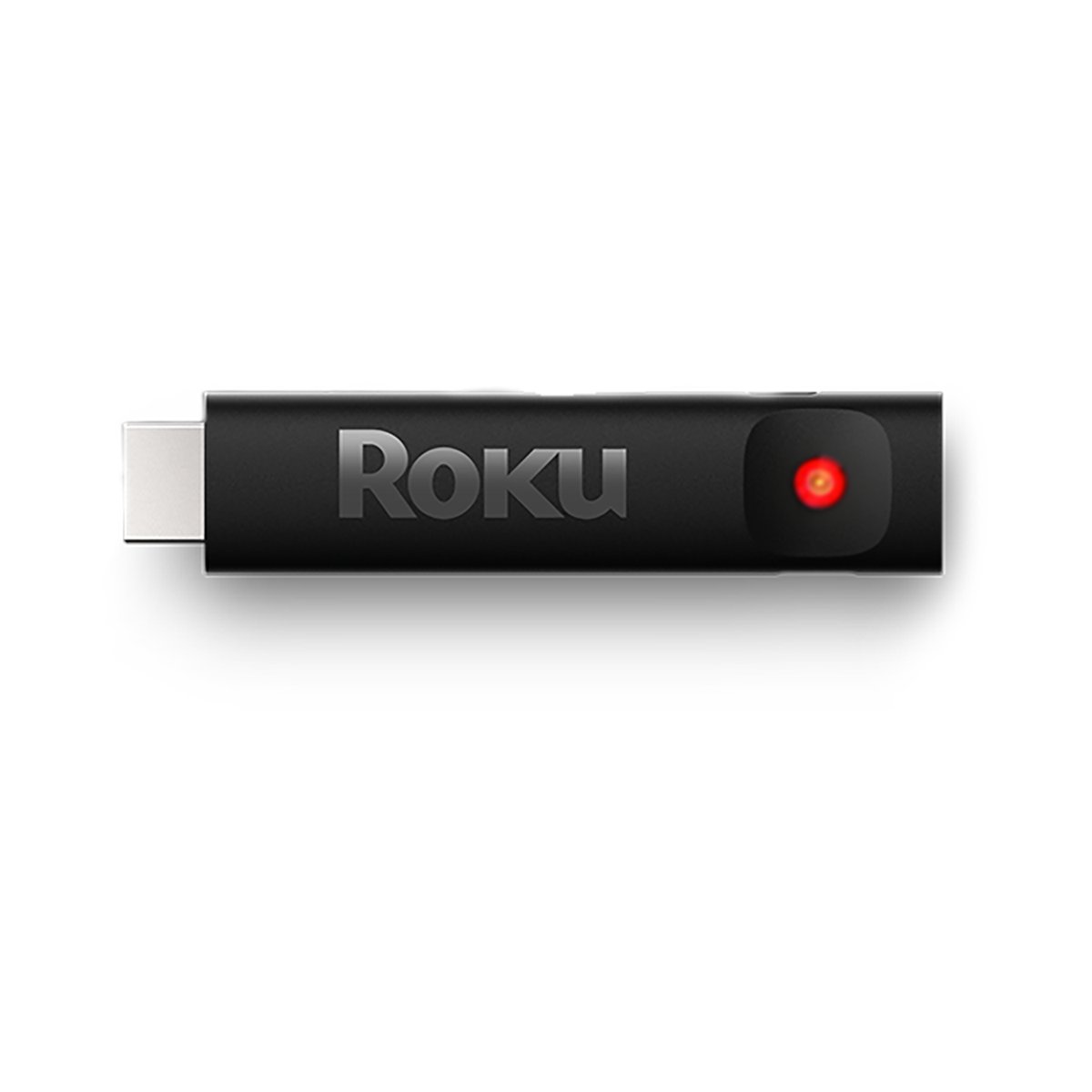
If a Roku streaming stick plugged into the TV shows a flashing red light, that light belongs to the stick. Roku says a flashing red light on its players means insufficient power, and a solid red light means overheating.
How to stop the blinking light coming back
| Habit | Why it helps |
|---|---|
| Plug the TV straight into a wall outlet | Avoids power strips and extension cords that drop power |
| Leave the TV connected to the internet | Roku TVs check for and install updates automatically |
| Let updates finish before unplugging | Roku names a stalled update as a cause of restart loops |
Still not working?
Hisense TV blinking red light and won't turn on
Power is not reaching the TV or startup stalls before the picture.
- Unplug the TV for 60 seconds and plug it into a different wall outlet.
- Press Reset on a GFCI outlet if it has one.
- Hold the TV's Power button for 10 seconds on a Roku TV without a Reset button.
- Try Recovery Mode on a Hisense Roku TV.
Hisense TV blinks on and off or keeps restarting
The software did not load correctly or got stuck while updating.
- Unplug the TV for 60 seconds.
- Factory reset with the Reset button for about 12 seconds.
- If it still loops, hold Reset for 20 seconds to start Recovery Mode and select Update now.
Hisense TV red light blinking 2 times or another set count
A repeating count with a dark screen points to a fault the TV detects at startup.
- Count the blinks between pauses and write the number down.
- Unplug the TV for 60 seconds and try once more.
- Note the model number from the label on the back panel.
- Contact Hisense support with the blink count and model number.
Hisense TV not turning on, red light stays solid
The TV is in standby and is not receiving the power command.
- Press the Power button on the TV.
- Replace the remote batteries.
- Unplug the TV for 60 seconds, then try again.
If the TV will not reach Recovery Mode or keeps looping after a reinstall, Roku directs owners of TVs made by Hisense to Hisense support. Have the model number and device ID from the back of the TV or its box ready.
Hisense TV flashing red light frequently asked questions
Why is my Hisense TV flashing red?
A Hisense TV flashes red when it receives power but cannot finish starting up. The usual causes are a stalled startup after a power glitch, a bad outlet or power strip, software that did not load, or a power board fault.
Why is my Hisense TV blinking red but not turning on?
The TV is getting standby power but the main board is not starting. Unplug it for 60 seconds, plug it into a different wall outlet and press the power button on the TV. If that fails, factory reset it or use Recovery Mode.
What does a steady red light on a Hisense TV mean?
A steady red light normally means the TV is off and in standby. Press the power button on the TV. If it responds to the TV button but not the remote, replace the remote batteries.
Why does my Hisense TV keep blinking on and off?
A TV that shows the logo and then restarts usually has software that did not load or an update that stalled. Unplug it for 60 seconds, then factory reset it. On a Hisense Roku TV, use Recovery Mode to reinstall the software.
Will a factory reset fix the blinking red light?
A factory reset fixes the blinking light when the cause is software. It does not fix a failed power supply or backlight. On a Roku TV with a Reset button, hold it for about 12 seconds; without one, hold the TV's power button for 10 seconds.
How do I reset a Hisense TV without the remote?
On a Hisense Roku TV, hold the recessed Reset button on the back for about 12 seconds with a paper clip. If there is no Reset button, hold the power button on the TV for 10 seconds, then turn it on and complete setup.
What does a flashing red light on a Roku stick plugged into a Hisense TV mean?
A flashing red light on a Roku streaming player means it is not getting enough power. A solid red light means it is overheating. Neither is a fault in the Hisense TV itself.
Is a blinking red light on a Hisense TV expensive to repair?
A power cycle, factory reset or Recovery Mode costs nothing. If the blinking survives all of them, the fault is likely hardware, so contact Hisense with the model number to check warranty cover before paying for a repair.
Quick summary
Unplug the Hisense TV for 60 seconds, plug it straight into a working wall outlet and press its own power button; if the red light still blinks, factory reset it, then use Recovery Mode on a Roku model. Most blinking red lights come from power or software that did not load, and those steps fix both; a blink that survives Recovery Mode points to hardware that needs Hisense support.