To delete a user account on Windows 11, open Settings > Accounts > Other users, expand the account and select Remove next to Account and data.
This guide also covers Computer Management, Command Prompt and PowerShell, how Control Panel and NetPlWiz fit in, and how to clear the leftover profile files.
Delete user accounts from Settings
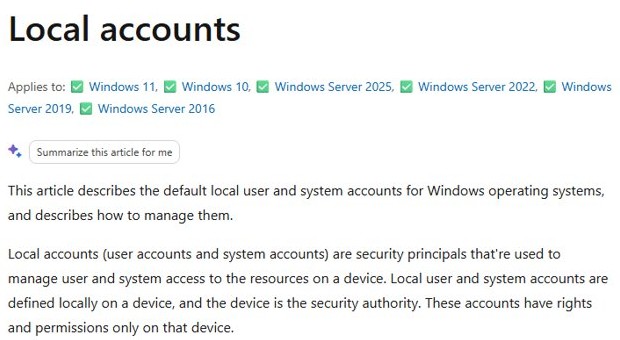
Settings is the route Microsoft documents for Windows 11 and Windows 10, and it works for both local accounts and Microsoft accounts added to the PC.
Sign in with an administrator account, and make sure the person you are removing is signed out.
- Open Settings and select Accounts > Other users. You can also press Win + R, type
ms-settings:otherusersand press Enter. - Under Other users, select the account you want to delete to expand its flyout.
- Next to Account and data, select Remove.
- Confirm the prompt to delete the account and its data.
Removing the account clears its sign-in information and data from this PC. It does not delete the person's Microsoft account online; to remove that too, close the Microsoft account separately.
To set up a replacement profile afterwards, add a new user account from the same Other users page.
Ways to delete a user account on Windows 11 compared
Every method needs an administrator account. Pick the row that matches your situation.
| Your situation | Use this | What it removes |
|---|---|---|
| Home PC, one account to remove | Settings > Accounts > Other users | The account plus its sign-in information and data on the PC |
| Several local accounts to review at once | Computer Management > Local Users and Groups > Users | The local account; the profile folder can stay behind |
| Scripted or remote clean-up | net user <name> /delete in Command Prompt |
The local account only |
| PowerShell automation | Remove-LocalUser -Name "<name>" |
The local account only |
| Leftover profile folder after a command-line delete | System Properties > User Profiles > Delete | The profile files and settings |
| Control Panel or NetPlWiz habit from Windows 10 | Settings > Accounts > Other users | On Windows 11, Microsoft's documented removal route is Settings, so use it instead of the older user account dialogs |
| Work or school account | Settings > Accounts > Access work or school > Disconnect | The connection and its data on the PC; the account itself is not deleted |
Delete user accounts from Computer Management
The Computer Management console lists every local user account, including the built-in ones, in the Local Users and Groups\Users folder.
- Select Start, search for Computer Management and open it.
- Expand Local Users and Groups > Users.
- Right-click the account you want to remove and select Delete.
- Confirm the warning to delete the account.
Delete user accounts from Command Prompt
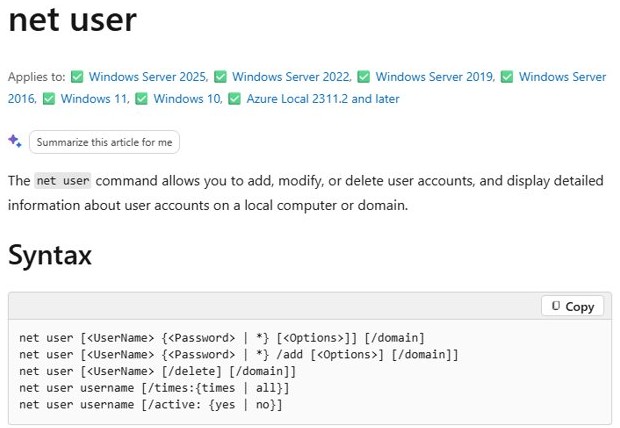
The net user command adds, changes and deletes accounts on the local computer. First, open Command Prompt as administrator.
Run net user on its own to list every local account and copy the exact name.
net user USERNAME /deleteReplace USERNAME with the account name from the net user list. The /delete switch removes that local account; adding /domain would target the domain controller instead.
You should see: Run net user again; the deleted name no longer appears in the list of accounts.
Delete user accounts from PowerShell
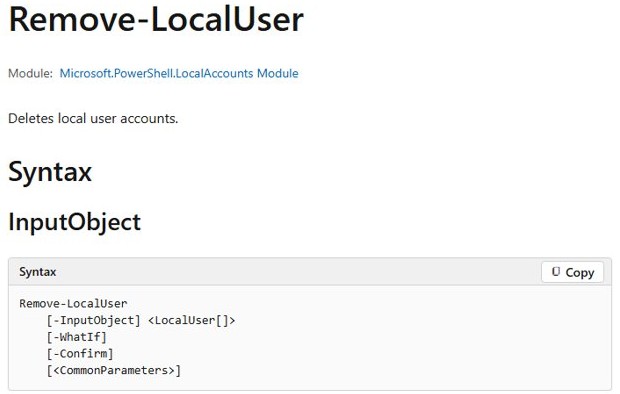
The Remove-LocalUser cmdlet deletes local user accounts. Run PowerShell as administrator, or open Terminal with admin rights.
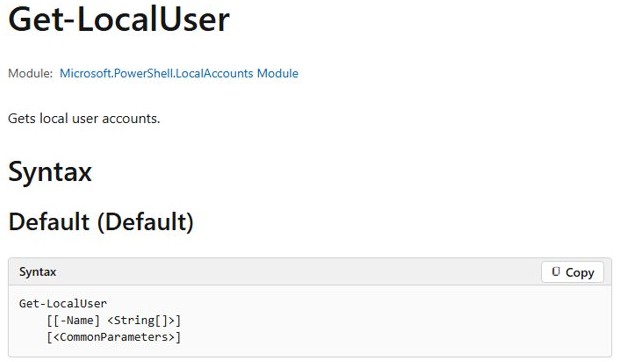
Run Get-LocalUser first to list the local accounts and whether each one is enabled.
Remove-LocalUser -Name "USERNAME"Deletes the local account named USERNAME. You can target an account by -SID instead of -Name, and add -WhatIf to preview the change without making it.
You should see: The cmdlet returns no output on success; run Get-LocalUser again and the account is gone from the list.
The LocalAccounts module is not available in 32-bit PowerShell on 64-bit Windows, so use the 64-bit console.
Delete user accounts from Control Panel and NetPlWiz
Control Panel's User Accounts page and the NetPlWiz dialog (also opened with netplwiz in the Run box) come from older Windows versions. On Windows 11, Microsoft's own account documentation sends removals through Settings.
| Old tool | What to use on Windows 11 | Why |
|---|---|---|
| Control Panel > User Accounts | Settings > Accounts > Other users > Remove | Selecting System in Control Panel already redirects to Settings on Windows 11, and Settings is the documented removal path |
| NetPlWiz (User Accounts dialog) | Settings > Accounts > Other users, or Computer Management | Both list the same local accounts and remove them with an administrator sign-in |
| Either tool, when you also want the files gone | System Properties > User Profiles | Deleting the profile there clears the folder and settings the account left behind |
Delete account files and settings on Windows 11
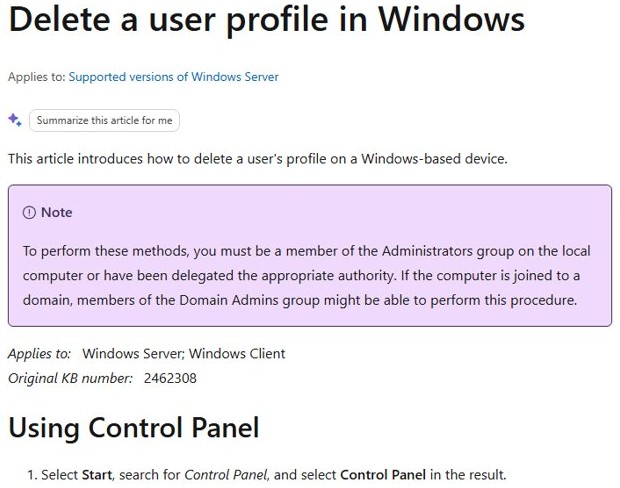
net user, Remove-LocalUser and Computer Management remove the account but can leave its profile folder on the drive. Delete the profile to reclaim the space. You must be a member of the local Administrators group.
- Select Start, search for Control Panel and open it.
- Set View by to Large icons and select System. On Windows 11 this opens the System page in Settings.
- Select the Advanced system settings link.
- In the User Profiles section, select Settings.
- Select the profile you want to remove and select Delete.
- Confirm the prompt, then close the dialogs.
Check that the user account is deleted
- Open Settings > Accounts > Other users and confirm the account is no longer listed.
- Run
net userin Command Prompt orGet-LocalUserin PowerShell and confirm the name is missing. - Open System Properties > User Profiles > Settings and confirm no profile remains for that user.
- Lock the PC and check that the account no longer appears on the sign-in screen.
Can't delete a user account on Windows 11? Fixes
The Administrator or Guest account cannot be deleted
These are default local accounts that Windows creates at install, and they can't be removed.
- Leave the built-in accounts in place; the Guest account is disabled by default.
- Disable or rename the built-in Administrator account in Computer Management > Local Users and Groups > Users if you do not use it.
A work or school account has no Remove button
Work and school accounts are disconnected, not removed, from Windows.
- Open Settings > Accounts > Access work or school.
- Expand the account and select Disconnect.
- Select Yes to confirm.
Remove-LocalUser is not recognized in PowerShell
The LocalAccounts module does not load in 32-bit PowerShell on 64-bit Windows.
- Close the console.
- Open Windows PowerShell (not the x86 version) as administrator.
- Run the
Remove-LocalUsercommand again.
The user's folder is still in C:\Users after deletion
Command-line and Computer Management deletions remove the account, not the profile.
- Open System Properties > User Profiles > Settings.
- Select the leftover profile and select Delete.
Delete user accounts on Windows 11 FAQ
These answers cover the questions that follow from each removal method.
Does removing an account from Windows 11 delete the Microsoft account?
No. Removing an account from Settings clears its sign-in information and data from this PC only. The Microsoft account stays active online and can still sign in to other devices.
Do I need administrator rights to delete a user account?
Yes. Deleting another account and its profile requires membership in the local Administrators group. Sign in with an administrator account before you open Settings, Computer Management or an elevated console.
What command deletes a user account in Windows 11?
Run net user USERNAME /delete in an administrator Command Prompt, or Remove-LocalUser -Name "USERNAME" in an administrator PowerShell window. Both remove local accounts only.
Can I delete the built-in Administrator account in Windows 11?
No. Windows does not allow the default Administrator account to be deleted or locked out. You can rename it or disable it instead.
Does deleting a user account delete their files?
Removing the account in Settings deletes its data from the PC. Command Prompt, PowerShell and Computer Management can leave the profile folder behind, so delete it from System Properties > User Profiles.
How do I remove a work or school account from Windows 11?
Open Settings > Accounts > Access work or school, expand the account, select Disconnect and confirm with Yes. Disconnecting removes its data from the PC but does not delete the account itself.