Most deleted files on Windows 11 are sitting in the Recycle Bin, where you can right-click them and select Restore to put them back in their original folder.
If the Recycle Bin is empty, this guide covers File History, Previous Versions, the OneDrive recycle bin and Microsoft's free Windows File Recovery tool, in the order that gives you the best chance.
Step by step tutorial: Finding deleted files on Windows 11
Work down this list and stop as soon as the file turns up. Each step is explained in full in the sections that follow.
- Open the Recycle Bin from the desktop, find the file and select Restore.
- If the file lived in your OneDrive folder, sign in at onedrive.com and open Recycle bin in the navigation pane.
- If File History was set up, right-click the folder that held the file in File Explorer and select Restore previous versions.
- Pick a version of the folder from before the deletion and select Restore or Restore to….
- If none of those has the file, stop using the PC as much as possible and run Windows File Recovery from the Microsoft Store to scan the drive.
Recycle Bin vs File History vs Windows File Recovery
Where a deleted file can be found depends on how it was deleted and whether a backup existed before it vanished.
| Your situation | Where to look | Why |
|---|---|---|
| Deleted it a moment ago with the Delete key | Recycle Bin | Windows moves ordinary deletions there first |
| The file was inside your OneDrive folder | OneDrive recycle bin at onedrive.com | OneDrive keeps deleted items for 30 days on personal accounts and 93 days on work or school accounts |
| File History was turned on with an external or network drive | Restore previous versions or Open in File History | File History keeps copies of your libraries, Desktop and added folders |
| You overwrote or damaged a file rather than deleting it | Previous Versions tab | An older copy of the folder still holds the earlier file |
| Recycle Bin emptied and no backup exists | Windows File Recovery (winfr) | The space a deleted file used is only marked free and may still hold the data |
| The file was on a mapped network share or another cloud service | That service's own restore option | Windows File Recovery does not support cloud storage or network file shares |
Step 1: Check the Recycle Bin
Files you delete normally from a Windows 11 PC go to the Recycle Bin and stay there until it is emptied.
- Double-click Recycle Bin on the desktop.
- Type part of the file name into the search box at the top right of the window.
- If you do not know the name, switch to Details view and select the Date Deleted column header to list the most recent deletions first.
- Note the Original Location column so you know where the file will go back to.
- Right-click the file and select Restore.
- Open the original folder in File Explorer to find the restored file.
If you only need a copy elsewhere, drag the file from the Recycle Bin window to another folder instead of restoring it.
Step 2: Use Windows File History to restore deleted files
File History backs up your libraries (Documents, Pictures, Videos and Music) plus the Desktop to an external drive or network location. It only helps if it was turned on before the file was deleted.
- Open Control Panel, then under System and Security select Save backup copies of your files with File History.
- Check that File History is on and that a backup drive is listed; connect that drive if it is external.
- Open File Explorer and go to the folder that used to contain the deleted file.
- Right-click the folder name and select Restore previous versions.
- Select a version dated before the deletion, expand Open and select Open in File History to browse its contents.
- Select the file you want and restore it, or close the window and use Restore to… from the Previous Versions list.
For a file in a library, right-click the folder where the file is actually saved, not the library entry.
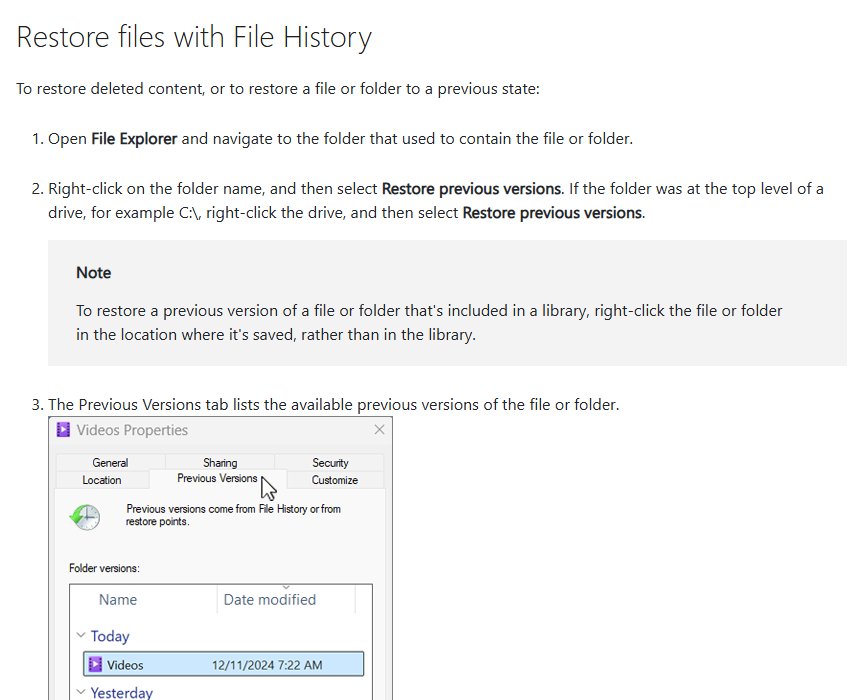
Step 3: Restore previous versions
The Previous Versions tab restores a whole folder, or a single file, to the state it was in at an earlier backup. Use it when the file was overwritten or the whole folder vanished.
- In File Explorer, right-click the folder that held the file; for a file at the top of a drive, right-click the drive itself, such as C:.
- Select Properties and open the Previous Versions tab, or select Restore previous versions from the right-click menu.
- Choose a version from before the file disappeared; for a file deleted today, pick yesterday's version.
- Expand Restore and select Restore to… to save the old copy in a different folder.
- Pick a destination folder and confirm, then open it to check the file.
Selecting plain Restore replaces the current folder with the old version, and that replacement cannot be undone. Restore to… keeps both.
Step 4: Use data recovery software
Microsoft's own recovery tool is Windows File Recovery, a free command-line app in the Microsoft Store. It can recover files deleted from internal drives, external drives and USB devices that are no longer in the Recycle Bin.
The destination must be a different drive from the one you are scanning, so plug in a USB or external drive first.
- Install Windows File Recovery from the Microsoft Store if it is not already on the PC.
- Press the Windows key, type Windows File Recovery and select the app.
- Select Yes when Windows asks to allow the app to make changes.
- In the Command Prompt window that opens, type a command such as
winfr C: E: /regular /n \Users\<username>\Documents\and press Enter, replacing <username> with your user folder name. - Enter Y when asked to continue, then wait for the scan to finish.
- Open the Recovery_<date and time> folder that the tool creates on the destination drive to find your files.
Press Ctrl + C to stop a scan. To find your user folder name, type C:\users into the File Explorer address bar.
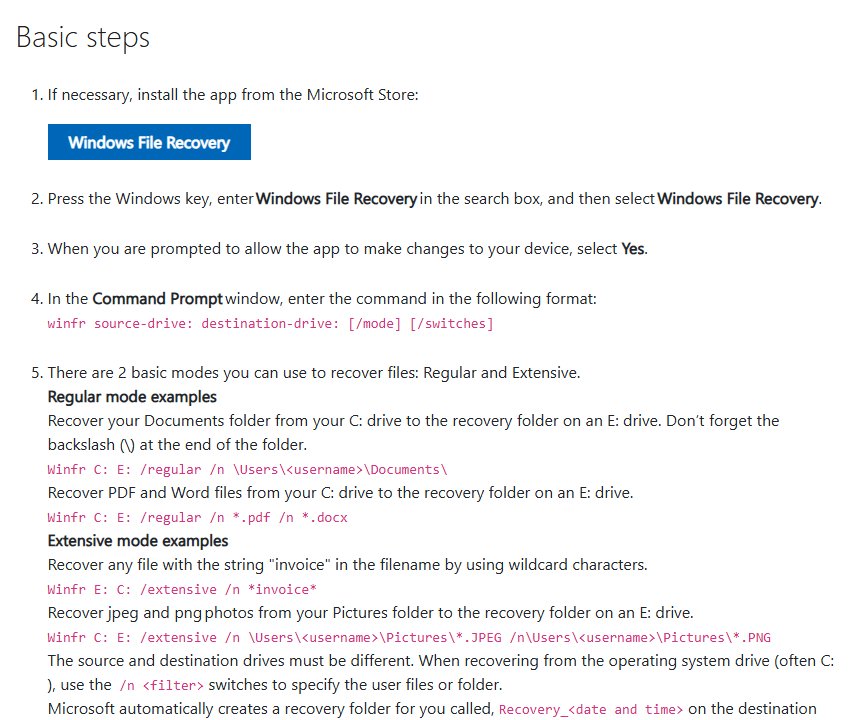
Windows File Recovery commands for deleted files
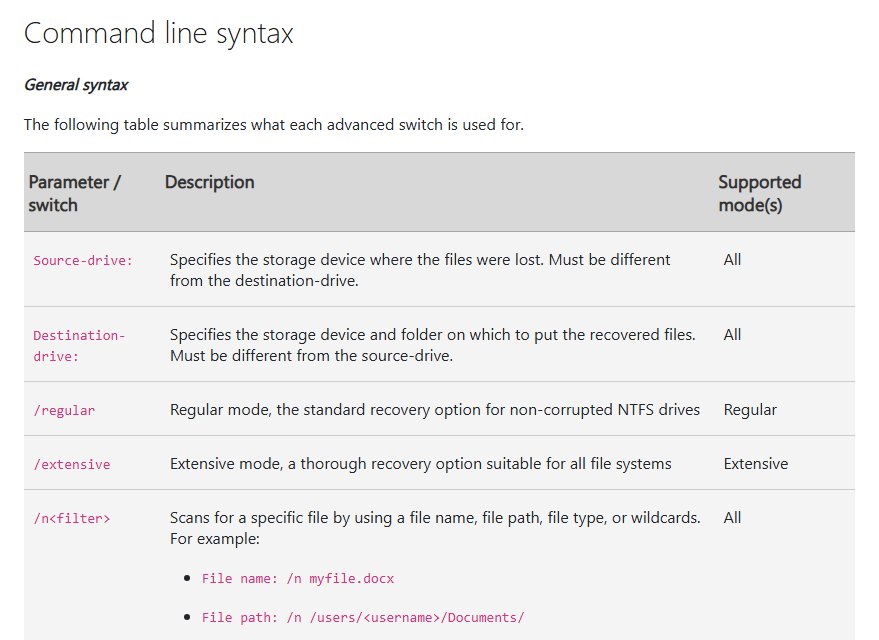
The command format is winfr source-drive: destination-drive: [/mode] [/switches]. Start with Regular mode on an NTFS drive and move to Extensive mode if nothing comes back.
| Goal | Command | Mode |
|---|---|---|
| Recover the Documents folder from C: to E: | winfr C: E: /regular /n \Users\<username>\Documents\ |
Regular |
| Recover PDF and Word files from C: | winfr C: E: /regular /n *.pdf /n *.docx |
Regular |
| Recover any file with "invoice" in its name from E: to C: | winfr E: C: /extensive /n *invoice* |
Extensive |
| Recover JPEG and PNG photos from Pictures | winfr C: E: /extensive /n \Users\<username>\Pictures\*.JPEG /n \Users\<username>\Pictures\*.PNG |
Extensive |
| Recover a file whose name has spaces | winfr C: E: /regular /n "\Users\<username>\Documents\Quarterly Statement.docx" |
Regular |
| See every switch | winfr /? (or winfr /! for advanced switches) |
Any |
When scanning the drive Windows runs from, always add an /n filter so the results stay focused on your own files. Add a backslash at the end of any folder name.
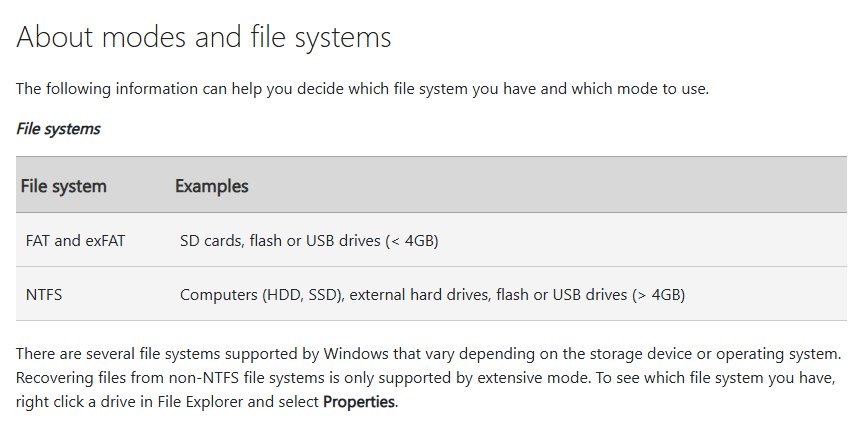
Windows File Recovery Regular vs Extensive mode
Right-click the drive in File Explorer and select Properties to see its file system, then match it to a row.
| File system | Typical device | When the file was lost | Mode to use |
|---|---|---|---|
| NTFS | PC hard drive or SSD, external hard drive, USB drive over 4 GB | Deleted recently | Regular |
| NTFS | Same as above | Deleted a while ago | Extensive |
| NTFS | Same as above | After formatting the disk | Extensive |
| NTFS | Same as above | The disk is corrupted | Extensive |
| FAT or exFAT | SD card, small flash or USB drive | Any | Extensive |
Step 5: Check OneDrive
Files deleted from your OneDrive folder go to the OneDrive recycle bin online. Personal accounts can restore items deleted in the last 30 days; work or school accounts get 93 days unless an administrator changed it.
- Go to onedrive.com and sign in with your Microsoft account or your work or school account.
- Select Recycle bin in the navigation pane.
- Point to each file you want and select its circle check box.
- Select Restore.
- If the file was in Personal Vault, select Show Personal Vault items in the recycle bin first.
Microsoft 365 subscribers can also roll the whole OneDrive back to any point in the last 30 days. Files shared with you by someone else cannot be restored from your recycle bin.
Where do restored files go on Windows 11?
- For a Recycle Bin restore, open the folder shown in the Original Location column; the file is back there under its old name.
- For Restore to… from Previous Versions, open the folder you picked as the destination.
- For Windows File Recovery, open the destination drive and look inside the Recovery_<date and time> folder.
- For OneDrive, open the original OneDrive folder on the web or in File Explorer once syncing finishes.
- Open the file in its usual app to confirm it is complete before you delete any backup copy.
Deleted files not in the Recycle Bin on Windows 11
The file is not in the Recycle Bin
The bin was emptied, the file was permanently deleted, or it lived on cloud or network storage.
- Search for the file name in File Explorer in case it was moved rather than deleted.
- If it was in OneDrive, check the OneDrive recycle bin at onedrive.com.
- If File History was on, use Restore previous versions on the parent folder.
- Otherwise run Windows File Recovery in Regular mode, then Extensive mode.
The Previous Versions tab says there are no previous versions
File History was never turned on for that folder, or the backup drive is not connected.
- Connect the external drive or network location File History used.
- Right-click the parent folder or the drive instead of the file itself and try again.
- If no backup ever existed, move on to Windows File Recovery.
"Source and Destination cannot refer to the same physical partition"
Windows File Recovery cannot save recovered files to the drive it is scanning.
- Connect a USB or external hard drive.
- Use its drive letter as the second drive in the command, for example
winfr C: E: /regular /n *.docx. - Do not create a new partition on the source drive, because that lowers the chance of recovery.
"Destination disk is full" during a recovery
The destination drive ran out of space mid-scan.
- Free up space on the destination drive.
- Press R to resume, S to skip the file, or A to abort.
Windows File Recovery found nothing
Regular mode missed the file, or new data has overwritten the free space, which happens quickly on SSDs.
- Run the same command again with
/extensiveinstead of/regular. - Narrow the search with
/nand the file name or extension. - Keep using the PC as little as possible while you retry.
Tips for finding deleted files on Windows 11
| Tip | Why it helps |
|---|---|
| Stop using the PC as soon as you notice a file is gone | Any new file Windows writes can overwrite the free space that still holds the deleted data |
| Search File Explorer before assuming the file is deleted | Files are often moved or saved to Downloads or Desktop by mistake; open This PC in File Explorer and search every drive |
| Sort the Recycle Bin by Date Deleted | Recent deletions rise to the top, even when you forget the file name |
| Restore old versions to a different folder | Restore to… keeps your current files untouched |
| Recover to a separate drive | Windows File Recovery requires a different destination drive and writing elsewhere protects the source |
| Turn on File History now | Future deletions can be restored in a few clicks from an external or network drive |
| Keep important folders in OneDrive | Deleted items stay recoverable online for 30 days on personal accounts |
Finding deleted files on Windows 11: frequently asked questions
Where do I find recently deleted files on Windows 11?
Recently deleted files are in the Recycle Bin on the desktop. Open it, select the Date Deleted column to put the newest deletions first, then right-click a file and select Restore to send it back to its original folder.
Can I recover files if they are not in the Recycle Bin?
Yes, often. Restore them from File History or Previous Versions if a backup existed, from the OneDrive recycle bin if they were in OneDrive, or scan the drive with Microsoft's free Windows File Recovery app.
Is File History enabled by default in Windows 11?
No. File History needs an external drive or network location, and you have to turn it on in Control Panel under System and Security. Until then it saves nothing, so Previous Versions has no backups to show.
What if I can't find a file in its previous version?
Try an older version of the parent folder or the whole drive, and make sure the File History drive is connected. If no version holds the file, run Windows File Recovery on the drive instead.
How does data recovery software work?
When Windows deletes a file it marks that space as free, but the data stays until something overwrites it. Recovery tools such as Windows File Recovery scan the drive for that leftover data and copy what they find to another drive.
Is there a time limit for recovering deleted files?
OneDrive keeps deleted files for 30 days on personal accounts and 93 days on work or school accounts. On a local drive there is no fixed limit, but every day of use makes it more likely the data is overwritten.
How do I find deleted files in Windows Explorer?
File Explorer itself does not list deleted files. Open the Recycle Bin, or right-click the folder that held the file and select Restore previous versions to browse its File History backups.
Can I find deleted files on Windows 10 the same way?
Yes. The Recycle Bin, File History, Previous Versions, the OneDrive recycle bin and Windows File Recovery all work on Windows 10 too, although Windows 10 no longer receives free security updates after October 14, 2025.
How do I find files deleted from Microsoft OneDrive?
Sign in at onedrive.com and select Recycle bin in the navigation pane. Tick the files you want and select Restore. Files permanently deleted from that recycle bin cannot be restored.
Should you use data recovery software on Windows 11?
Check the Recycle Bin, OneDrive and File History first, and use Windows File Recovery only when none of them has the file. Those three restore an intact copy in seconds, while a recovery scan is slower and works only if the deleted data has not yet been overwritten.